reset KIA CEED 2015 Workshop Manual
[x] Cancel search | Manufacturer: KIA, Model Year: 2015, Model line: CEED, Model: KIA CEED 2015Pages: 1210, PDF Size: 35.92 MB
Page 757 of 1210
Features of your vehicle
72
4
Lamp Menu
• Headlamp delay (if equipped)
If the headlamp delay function is checked :
The Headlamp delay and Headlamp
Welcome function will be activated.
• Auto Triple Turn
(One-touch triple turn signal)
If the auto triple turn function is checked :
The lane change signals will blink 3 times
when the turn signal lever is moved
slightly.
• Welcome Light (if equipped)
If the welcome light function is checked :
The welcome light function of puddle
lamp will activate. Settings Menu
• Seat Easy Access (for Driver Position
Memory System equipped vehicle)
(if equipped)
If the seat easy access function is
checked:
The driver's seat will automatically move
forward or rearward for the driver to enter
or exit the vehicle comfortably.
• Welcome Sound
If the welcome sound function is checked :
The Welcome Sound function will be acti-
vated.
• Steering Position (if equipped)
If the steering position function is
checked:
The warning illuminates on the LCD dis-
play when the steering wheel is not
aligned with the ENGINE STRAT/STOP
button in the ON position. • AVG fuel ECO Reset
Auto Reset - The average fuel economy
will reset automatically
when you drive after refu- elling.
Manual Reset - The average fuel econo- my will not reset auto-
matically when you drive
after refuelling. You can
reset the average fuel
economy by pressing
the button for morethan 1 second when the
average fuel economy is
displayed.
• Speed Gauge Scale (if equipped)
- 100% : The size of the numbers on speed gauge is normal state.
- 110% : The size of the numbers on speed gauge will increase.
• Unit
You can choose the displayed unit in the
instrument cluster “km” or “mile”.
• Language
Choose the language you prefer within
the LCD display.
JD RHD 4a(~171).QXP 4/14/2015 6:59 PM Page 72
Page 828 of 1210
4 143
Features of your vehicle
Adjusting the driver and passenger side
temperature equally
1. Press the DUAL button again to deac-tivate DUAL mode. The passenger
side temperature will be set to the
same temperature as the driver side.
2. Operate the driver side temperature control button. The driver and passen-
ger side temperature will be adjusted
equally.
Temperature conversion
You can switch the temperature mode
between Centigrade to Fahrenheit as
follows:
Whilst pressing the DUAL button, press
the Face-Level selection button for 3
seconds or more.
The display will change from Centigrade
to Fahrenheit, or from Fahrenheit to
Centigrade.
✽NOTICE
If the battery has been discharged or
disconnected, the temperature mode
display will reset to Centigrade.
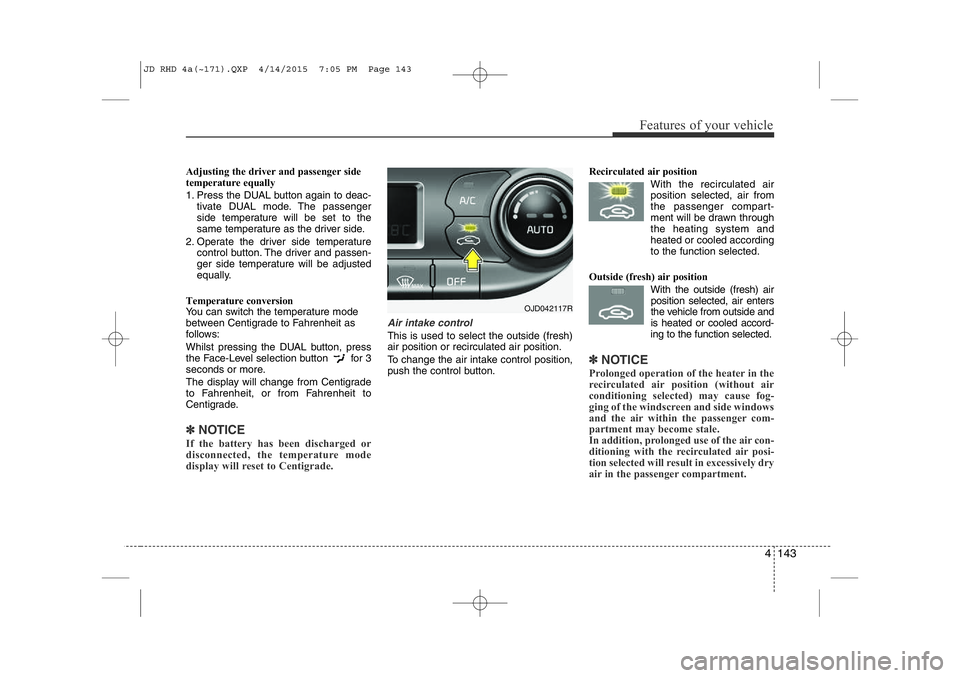
Air intake control
This is used to select the outside (fresh) air position or recirculated air position.
To change the air intake control position,
push the control button. Recirculated air position
With the recirculated airposition selected, air from
the passenger compart-
ment will be drawn through the heating system and heated or cooled according
to the function selected.
Outside (fresh) air position With the outside (fresh) airposition selected, air enters
the vehicle from outside andis heated or cooled accord-
ing to the function selected.
✽NOTICE
Prolonged operation of the heater in the
recirculated air position (without air
conditioning selected) may cause fog-
ging of the windscreen and side windows
and the air within the passenger com-
partment may become stale.
In addition, prolonged use of the air con-
ditioning with the recirculated air posi-
tion selected will result in excessively dry
air in the passenger compartment.
OJD042117R
JD RHD 4a(~171).QXP 4/14/2015 7:05 PM Page 143
Page 836 of 1210

4 151
Features of your vehicle
This indicator illuminates
when the auto defoggingsystem senses the moistureof inside the windscreen and
operates.
If more moisture is in the vehicle, higher
steps operate as follow.
Step 1 : Operating the air conditioning
Step 2 : Outside air position
Step 3 : Blowing air flow toward the wind- screen
Step 4 : Increasing air flow toward the windscreen
If your vehicle is equipped with the auto
defogging system, it is automatically acti-
vated when the conditions are met.
However, if you would like to cancel the
auto defogging system, press the front
defroster button 4 times within 2 seconds
whilst pressing the AUTO button. The
indicator will blink 3 times to notify you
that the system is cancelled. To use the
auto defogging system again, follow the
procedures mentioned above.
If the battery has been disconnected or
discharged, it resets to the auto defog-
ging status.✽NOTICE
If the A/C off is manually selected whilst
the auto defogging system is on, the auto
defogging indicator will blink 3 times to
give notice that the A/C off can not be
selected.
When the ignition switch is in the ON
position, the clean air function turns on
automatically.
Also, the clean air function turns off auto-
matically, when the ignition switch turnsto the OFF position.
CAUTION
Do not remove the sensor cover located on the upper end of thedriver side windscreen glass.Damage to the system parts could occur and may not be covered by
your vehicle warranty.
OJD042129R
CLEAN AIR (IF EQUIPPED)
JD RHD 4a(~171).QXP 4/14/2015 7:05 PM Page 151
Page 858 of 1210
4 173
Features of your vehicle
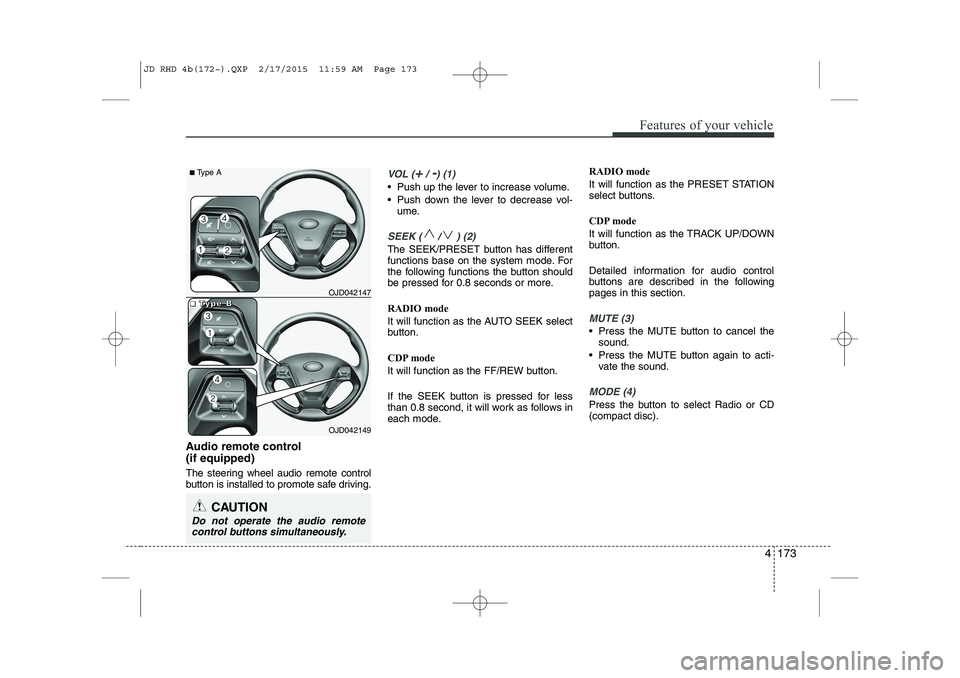
Audio remote control (if equipped)
The steering wheel audio remote control
button is installed to promote safe driving.
VOL (+/ -) (1)
• Push up the lever to increase volume.
Push down the lever to decrease vol-ume.
SEEK ( / ) (2)
The SEEK/PRESET button has different
functions base on the system mode. For
the following functions the button should
be pressed for 0.8 seconds or more.
RADIO mode
It will function as the AUTO SEEK select
button.
CDP mode
It will function as the FF/REW button.
If the SEEK button is pressed for less
than 0.8 second, it will work as follows in
each mode. RADIO mode
It will function as the PRESET STATION
select buttons.
CDP mode
It will function as the TRACK UP/DOWN
button.
Detailed information for audio control
buttons are described in the followingpages in this section.
MUTE (3)
Press the MUTE button to cancel the
sound.
Press the MUTE button again to acti- vate the sound.
MODE (4)
Press the button to select Radio or CD (compact disc).
CAUTION
Do not operate the audio remote
control buttons simultaneously.
OJD042149
■■■■TTTTyyyyppppeeee BBBBOJD042147
■
Type A
JD RHD 4b(172~).QXP 2/17/2015 11:59 AM Page 173
Page 868 of 1210
4 183
Features of your vehicle
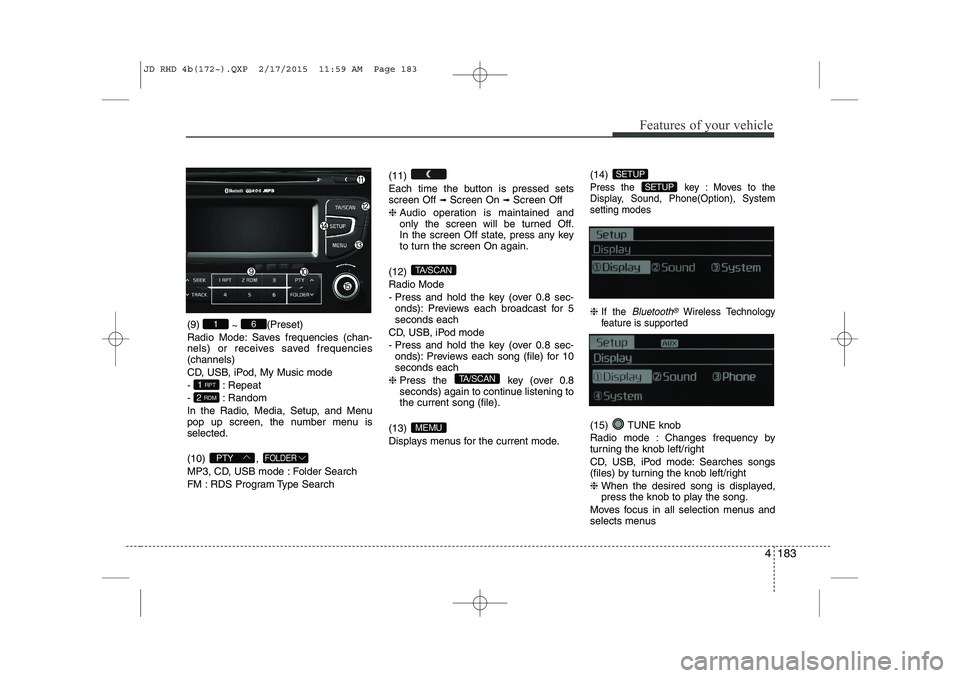
(9) ~ (Preset)
Radio Mode: Saves frequencies (chan-
nels) or receives saved frequencies(channels)
CD, USB, iPod, My Music mode
- : Repeat
- : Random
In the Radio, Media, Setup, and Menu
pop up screen, the number menu isselected. (10) ,
MP3, CD, USB mode : Folder Search
FM : RDS Program Type Search (11)
Each time the button is pressed sets screen Off
➟
Screen On ➟Screen Off
❈ Audio operation is maintained and
only the screen will be turned Off.
In the screen Off state, press any key
to turn the screen On again.
(12) Radio Mode
- Press and hold the key (over 0.8 sec- onds): Previews each broadcast for 5 seconds each
CD, USB, iPod mode
- Press and hold the key (over 0.8 sec- onds): Previews each song (file) for 10 seconds each
❈ Press the key (over 0.8
seconds) again to continue listening tothe current song (file).
(13)
Displays menus for the current mode. (14)
Press the key : Moves to the
Display, Sound, Phone(Option), Systemsetting modes
❈
If the Bluetooth®Wireless Technology
feature is supported
(15) TUNE knob
Radio mode : Changes frequency by
turning the knob left/right
CD, USB, iPod mode: Searches songs
(files) by turning the knob left/right ❈ When the desired song is displayed,
press the knob to play the song.
Moves focus in all selection menus and
selects menus
SETUP
SETUP
MEMU
TA/SCAN
TA/SCAN
FOLDERPTY
2 RDM
1 RPT
61
JD RHD 4b(172~).QXP 2/17/2015 11:59 AM Page 183
Page 877 of 1210
![KIA CEED 2015 Workshop Manual Features of your vehicle
192
4
RADIO Changing RADIO mode Press the
(, )key
to change the mode in order
: FM1➟FM2 ➟ FMA ➟AM ➟AMA
: FM1
➟FM2 ➟FMA
: AM
➟AMA
[Mode Pop up] On state : Di](/img/2/57940/w960_57940-876.png "KIA CEED 2015 Workshop Manual Features of your vehicle
192
4
RADIO Changing RADIO mode Press the
(, )key
to change the mode in order
: FM1➟FM2 ➟ FMA ➟AM ➟AMA
: FM1
➟FM2 ➟FMA
: AM
➟AMA
[Mode Pop up] On state : Di")
Features of your vehicle
192
4
RADIO Changing RADIO mode Press the
(, )key
to change the mode in order
: FM1➟FM2 ➟ FMA ➟AM ➟AMA
: FM1
➟FM2 ➟FMA
: AM
➟AMA
[Mode Pop up] On state : Displays the
change radio mode pop up screen.
Whilst the pop up screen is displayed, you
can change the radio modethrough the
tune knob or ~ keys.
Adjust Volume
Turn the VOL knob left/right to adjust
the volume. SEEK
Press the ( , )key
,
Shortly pressing the key (under 0.8 seconds): Changes the frequency.
Pressing and holding the key (over 0.8 seconds): Automatically searches for
the next frequency.
Preset SEEK
Press the ( , ) key
~
Shortly pressing the key (under 0.8 seconds): Plays the frequency saved in
the corresponding key.
Pressing and holding the key (over 0.8 seconds): Pressing and holding thedesired key from ~ will
save the currently playing broadcast to
the selected key and sound a BEEP. SCAN
Press the ( , ) key
Pressing and holding the key (over 0.8
seconds): The broadcast frequency
increases and previews each broadcast
for 5 seconds each. After scanning all
frequencies, returns and plays the cur-
rent broadcast frequency.
Selecting through manual search
Turn the TUNE knob left/right to adjust
the frequency. - FM : Changes by 50KHz
- AM : Changes by 9khz
TA/SCAN
AMFMRADIO
61
61
AMFMRADIO
TRACKSEEK
AMFMRADIO
51
AM
FM
RADIO
AMFMRADIO
JD RHD 4b(172~).QXP 2/17/2015 11:59 AM Page 192
Page 878 of 1210
4 193
Features of your vehicle
Traffic Announcement (TA)
Shortly pressing the key
(under 0.8 seconds): Set
/TA
Traffic Announcement) mode.
PTY Up/Down
Press the , key when searching PTY in RDS
Broadcasting Program Type selection.
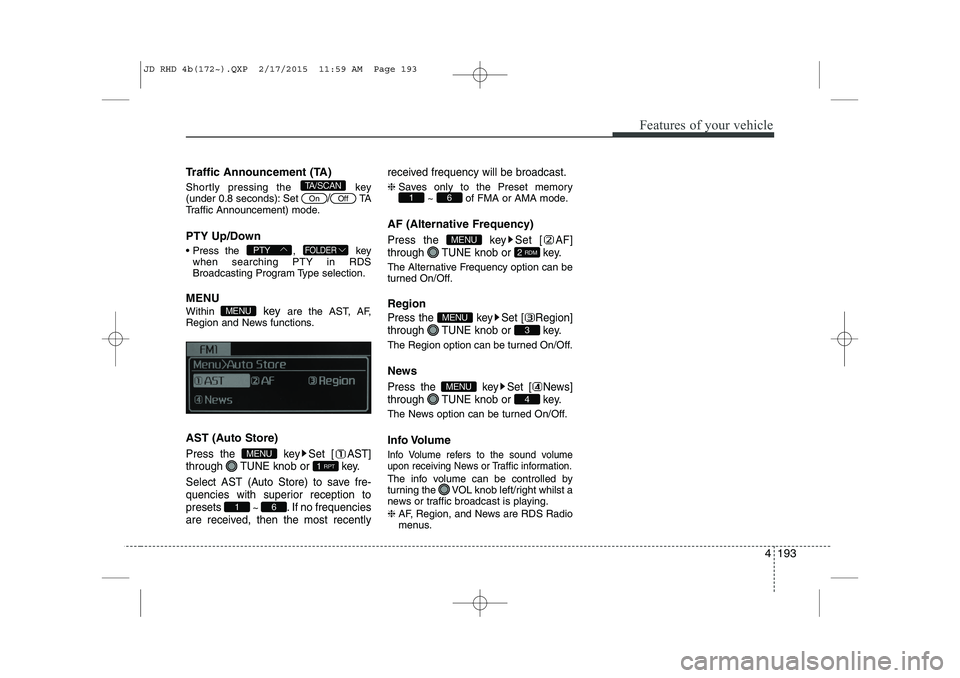
MENU Within key are the AST, AF,
Region and News functions.
AST (Auto Store)
Press the key Set [ AST]
through TUNE knob or key.
Select AST (Auto Store) to save fre-
quencies with superior reception topresets
~ . If no frequencies
are received, then the most recently received frequency will be broadcast.
❈
Saves only to the Preset memory
~ of FMA or AMA mode.
AF (Alternative Frequency)
Press the key Set [ AF]
through TUNE knob or key.
The Alternative Frequency option can be
turned On/Off. Region
Press the key Set [ Region]
through TUNE knob or key.
The Region option can be turned On/Off.
News
Press the key Set [ News]
through TUNE knob or key.
The News option can be turned On/Off.
Info Volume
Info Volume refers to the sound volume
upon receiving News or Traffic information.
The info volume can be controlled by
turning the VOL knob left/right whilst a
news or traffic broadcast is playing. ❈ AF, Region, and News are RDS Radio
menus.
4
MENU
3
MENU
2 RDM
MENU
61
61
1 RPT
MENU
MENU
FOLDERPTY
OffOn
TA/SCAN
JD RHD 4b(172~).QXP 2/17/2015 11:59 AM Page 193
Page 883 of 1210
![KIA CEED 2015 Workshop Manual Features of your vehicle
198
4
All Random
Press the key Set [ A.RDM] through the TUNEknob or
key.
Plays all songs within the currently play-
ing category in random order.
Information
Press the](/img/2/57940/w960_57940-882.png "KIA CEED 2015 Workshop Manual Features of your vehicle
198
4
All Random
Press the key Set [ A.RDM] through the TUNEknob or
key.
Plays all songs within the currently play-
ing category in random order.
Information
Press the")
Features of your vehicle
198
4
All Random
Press the key Set [ A.RDM] through the TUNEknob or
key.
Plays all songs within the currently play-
ing category in random order.
Information
Press the key Set [ Info] through the
TUNEknob or
key.
Displays information of the current song.
Search
Press the key Set [ Search] through the TUNEknob or
key.
Some iPod models may not support communication protocol and files may
not properly play.
Supported iPod models:
- iPod Mini ®
- iPod 4th(Photo) ~ 6th(Classic) genera- tion
- iPod Nano ®
1st~4th generation
- iPod Touch ®
1st~2nd generation The order of search or playback of
songs in the iPod can be different from the order searched in the audio system.
If the iPod is disabled due to its own malfunction, reset the iPod. (Reset:
Refer to iPod manual)
An iPod may not operate normally on low battery.
Some iPod devices, such as the iPhone, can be connected through the
-interface. The device must have audio
Bluetooth®Wireless Technology capa-
bility (such as for stereo headphone
Bluetooth®Wireless Technology ). The
device can play, but it will not be con-
trolled by the audio system.
To use iPod features within the audio, use the cable provided upon purchasing an
iPod device.
Skipping or improper operation may occur depending on the characteristics of your
iPod/Phone device.
If your iPhone is connected to both the
Bluetooth®Wireless Technology and
USB, the sound may not be properly
played. In your iPhone, select the Dockconnector or
Bluetooth®Wireless
Technology to change the sound output
(source). When connecting iPod with the iPod
Power Cable, insert the connector to the
multimedia socket completely. If not
inserted completely, communications
between iPod and audio may be inter-
rupted.
When adjusting the sound effects of the iPod and the audio system, the sound
effects of both devices will overlap and
might reduce or distort the quality of thesound.
Deactivate (turn off) the equalizer func- tion of an iPod when adjusting the audio
system’s volume, and turn off the
equalizer of the audio system whenusing the equaliz
er of an iPod.
When not using iPod with car audio, detach the iPod cable from iPod. Otherwise, iPod
may remain in accessory mode, and may
not work properly.
5
MENU
4
MENU
3
MENU
JD RHD 4b(172~).QXP 2/17/2015 11:59 AM Page 198
Page 899 of 1210
Features of your vehicle
214
4
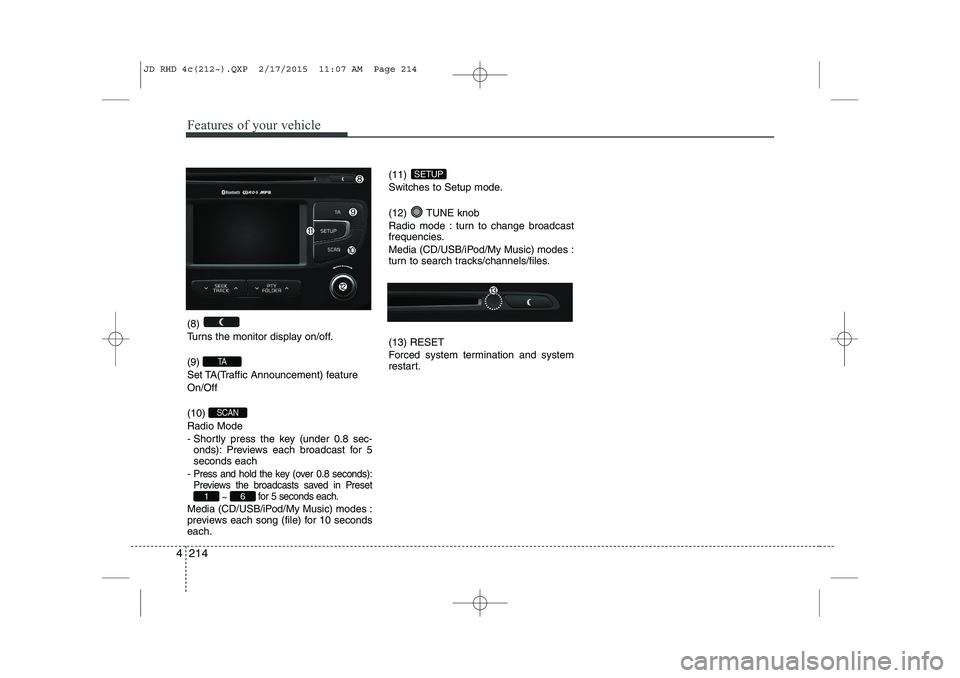
(8)
Turns the monitor display on/off. (9)
Set TA(Traffic Announcement) featureOn/Off (10) Radio Mode
- Shortly press the key (under 0.8 sec-
onds): Previews each broadcast for 5 seconds each
-
Press and hold the key (over 0.8 seconds):
Previews the broadcasts saved in Preset ~ for 5 seconds each.
Media (CD/USB/iPod/My Music) modes :
previews each song (file) for 10 secondseach. (11)
Switches to Setup mode.
(12) TUNE knob
Radio mode : turn to change broadcast
frequencies.
Media (CD/USB/iPod/My Music) modes :
turn to search tracks/channels/files. (13) RESET
Forced system termination and system
restart.
SETUP
61
SCAN
TA
JD RHD 4c(212~).QXP 2/17/2015 11:07 AM Page 214
Page 900 of 1210
4 215
Features of your vehicle
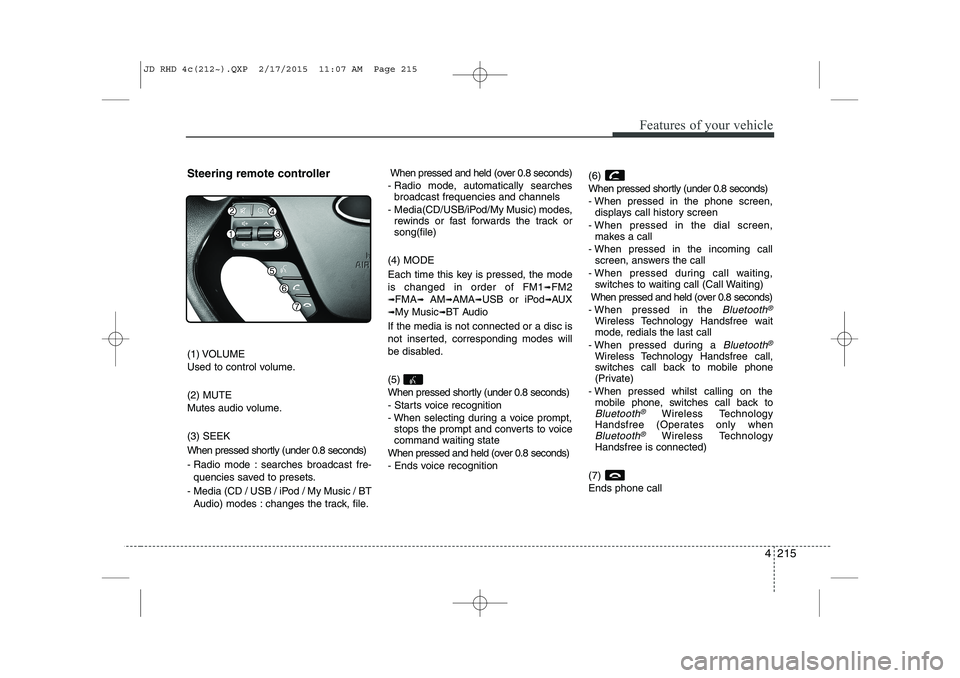
Steering remote controller
(1) VOLUME
Used to control volume. (2) MUTE
Mutes audio volume. (3) SEEK
When pressed shortly (under 0.8 seconds)
- Radio mode : searches broadcast fre-quencies saved to presets.
- Media (CD / USB / iPod / My Music / BT Audio) modes : changes the track, file. When pressed and held (over 0.8 seconds)
- Radio mode, automatically searches broadcast frequencies and channels
- Media(CD/USB/iPod/My Music) modes, rewinds or fast forwards the track or song(file)
(4) MODE
Each time this key is pressed, the mode is changed in order of FM1
➟FM2
➟FMA➟AM➟AMA➟USB or iPod➟AUX
➟My Music➟BT Audio
If the media is not connected or a disc is
not inserted, corresponding modes will
be disabled. (5)
When pressed shortly (under 0.8 seconds)
- Starts voice recognition
- When selecting during a voice prompt, stops the prompt and converts to voice
command waiting state
When pressed and held (over 0.8 seconds)
- Ends voice recognition (6)
When pressed shortly (under 0.8 seconds)
- When pressed in the phone screen,
displays call history screen
- When pressed in the dial screen, makes a call
- When pressed in the incoming call screen, answers the call
- When pressed during call waiting, switches to waiting call (Call Waiting)
When pressed and held (over 0.8 seconds)
- When pressed in the Bluetooth®
Wireless Technology Handsfree wait
mode, redials the last call
- When pressed during a
Bluetooth®
Wireless Technology Handsfree call,
switches call back to mobile phone
(Private)
- When pressed whilst calling on the mobile phone, switches call back to
Bluetooth®Wireless Technology
Handsfree (Operates only when
Bluetooth®Wireless Technology
Handsfree is connected)
(7) Ends phone call
JD RHD 4c(212~).QXP 2/17/2015 11:07 AM Page 215