reset KIA CEED 2016 Owner's Manual
[x] Cancel search | Manufacturer: KIA, Model Year: 2016, Model line: CEED, Model: KIA CEED 2016Pages: 643, PDF Size: 38.19 MB
Page 290 of 643
![KIA CEED 2016 Owners Manual Features of your vehicle
4207
Language
This menu is used to set the display
and voice recognition language.
Select [Language] Set throughTUNE knob
❈ The system will reboot after the
language is ch](/img/2/57945/w960_57945-289.png "KIA CEED 2016 Owners Manual Features of your vehicle
4207
Language
This menu is used to set the display
and voice recognition language.
Select [Language] Set throughTUNE knob
❈ The system will reboot after the
language is ch")
Features of your vehicle
4207
Language
This menu is used to set the display
and voice recognition language.
Select [Language] Set throughTUNE knob
❈ The system will reboot after the
language is changed.
❈ Language support by region RADIO ❈
RADIO may differ depending on
the selected audio.
Changing RADIO mode SEEK Press the ,key
seconds): Changes the frequency.
0.8 seconds): Automatically search-
es for the next frequency. Preset SEEK Press
the ~ key
seconds): Plays the frequency
saved in the corresponding key.
0.8 seconds): Pressing and holding
the desired key from ~
will save the currently playing
broadcast to the selected key and
sound a BEEP.
SCAN
Press the key
0.8 seconds): The broadcast fre-
quency increases and previews
each broadcast for 5 seconds each.
After scanning all frequencies,
returns and plays the current
broadcast frequency.
TA/SCAN
61
61
TRACKSEEK
JD PE eng 4b (Audio).qxp 9/9/2015 5:10 PM Page 207
Page 291 of 643
Features of your vehicle
208
4 Selecting through manual
search
Turn the TUNE knob left/right to
adjust the frequency.
Traffic Announcement (TA)
Shortly pressing the key
(under 0.8 seconds): Set /
TA Traffic Announcement) mode. MENU
Within key are the A.Store
(Auto Store) and Info functions.
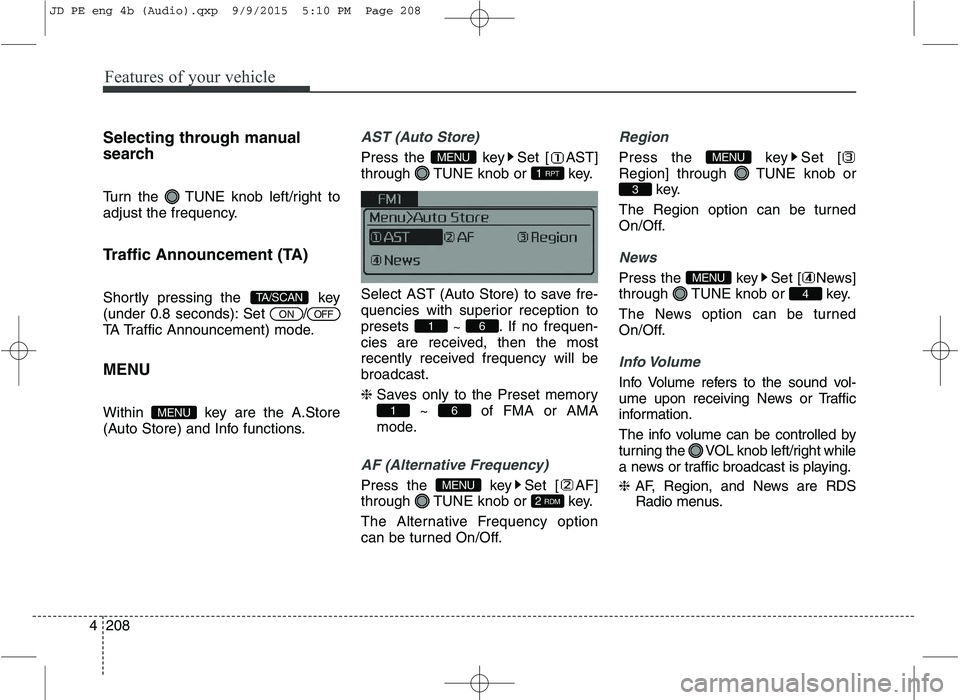
AST (Auto Store)
Press the key Set [ AST]
through TUNE knob or key.
Select AST (Auto Store) to save fre-
quencies with superior reception topresets
~ . If no frequen-
cies are received, then the most
recently received frequency will bebroadcast. ❈ Saves only to the Preset memory
~ of FMA or AMA
mode.
AF (Alternative Frequency)
Press the key Set [ AF]
through TUNE knob or key.
The Alternative Frequency option
can be turned On/Off.
Region
Press the key Set [
Region] through TUNE knob or key.
The Region option can be turned
On/Off.
News
Press the key Set [ News]
through TUNE knob or key.
The News option can be turned
On/Off.
Info Volume
Info Volume refers to the sound vol-
ume upon receiving News or Traffic
information.
The info volume can be controlled by
turning the VOL knob left/right while
a news or traffic broadcast is playing. ❈ AF, Region, and News are RDS
Radio menus.
4
MENU
3
MENU
2 RDM
MENU
61
61
1 RPT
MENU
MENU
OFFON
TA/SCAN
JD PE eng 4b (Audio).qxp 9/9/2015 5:10 PM Page 208
Page 292 of 643
Features of your vehicle
4209
DAB RADIO
(For DAB model) ❈
RADIO may differ depending on
the selected audio.
Changing RADIO mode
Press the key to change the mode in order of FM1 ➟FM2 ➟FMA
➟ DAB1 ➟DAB2 ➟ AM.
SEEK Press the ,key
Shortly pressing the key (under 0.8 seconds): Changes the station.
Press and hold the key (over 0.8 seconds): Change the Ensemble. Ensemble
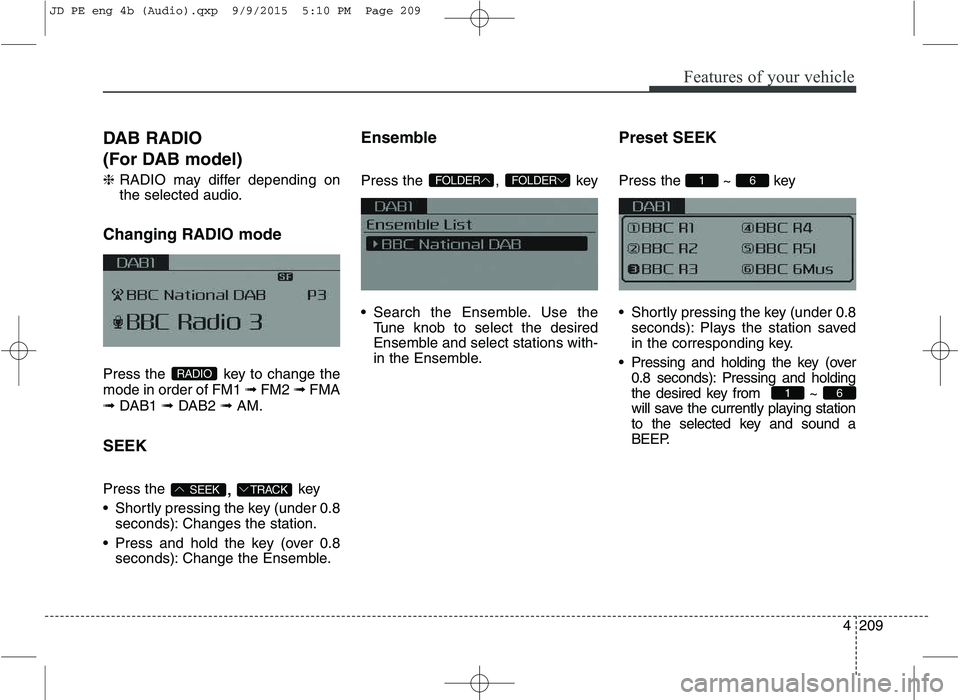
Press the , key
Search the Ensemble. Use the
Tune knob to select the desired
Ensemble and select stations with-
in the Ensemble. Preset SEEK Press
the ~ key
Shortly pressing the key (under 0.8 seconds): Plays the station saved
in the corresponding key.
Pressing and holding the key (over 0.8 seconds): Pressing and holding
the desired key from ~
will save the currently playing station
to the selected key and sound a
BEEP.
61
61 FOLDERFOLDER
TRACKSEEK
RADIO
JD PE eng 4b (Audio).qxp 9/9/2015 5:10 PM Page 209
Page 307 of 643
Features of your vehicle
224
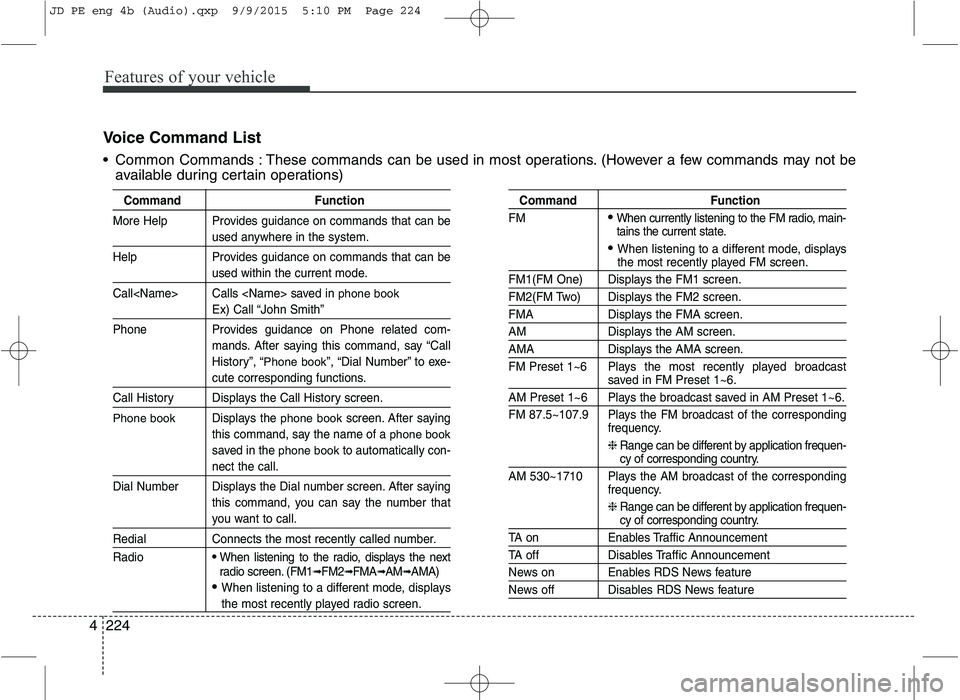
4 Voice Command List
Common Commands : These commands can be used in most operations. (However a few commands may not be
available during certain operations)
Command Function
More Help Provides guidance on commands that can be
used anywhere in the system.
Help Provides guidance on commands that can be
used within the current mode.
Call
phone book
Ex) Call “John Smith”
Phone Provides guidance on Phone related com- mands. After saying this command, say “Call
History”, “
Phone book”, “Dial Number” to exe-
cute corresponding functions.
Call History Displays the Call History screen.
Phone bookDisplays the phone bookscreen. After saying
this command, say the name of a
phone book
saved in the phone bookto automatically con-
nect the call.
Dial Number Displays the Dial number screen. After saying this command, you can say the number that
you want to call.
Redial Connects the most recently called number. Radio
When listening to the radio, displays the next
radio screen. (FM1➟FM2 ➟FMA ➟AM ➟AMA)
When listening to a different mode, displays
the most recently played radio screen.
Command Function
FM
When currently listening to the FM radio, main-
tains the current state.
When listening to a different mode, displaysthe most recently played FM screen.
FM1(FM One) Displays the FM1 screen.
FM2(FM Two) Displays the FM2 screen.
FMA Displays the FMA screen.
AM Displays the AM screen.
AMA Displays the AMA screen.
FM Preset 1~6 Plays the most recently played broadcast
saved in FM Preset 1~6.
AM Preset 1~6 Plays the broadcast saved in AM Preset 1~6.
FM 87.5~107.9 Plays the FM broadcast of the corresponding frequency.
❈ Range can be different by application frequen-
cy of corresponding country.
AM 530~1710 Plays the AM broadcast of the corresponding frequency.
❈ Range can be different by application frequen-
cy of corresponding country.
TA on Enables Traffic Announcement
TA off Disables Traffic Announcement
News on Enables RDS News feature
News off Disables RDS News feature
JD PE eng 4b (Audio).qxp 9/9/2015 5:10 PM Page 224
Page 309 of 643
Features of your vehicle
226
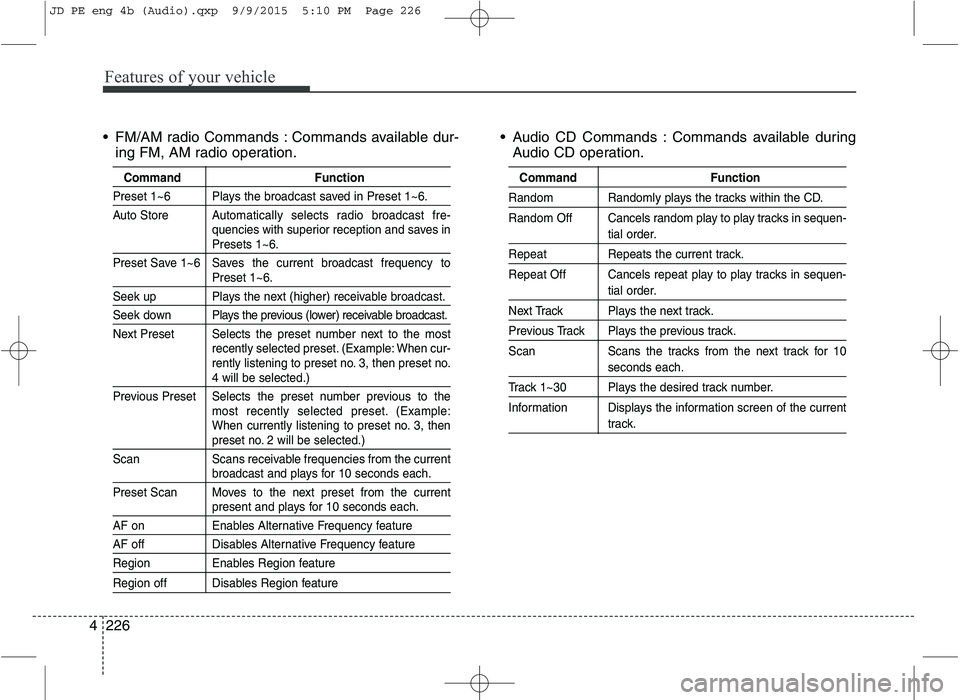
4 FM/AM radio Commands : Commands available dur-
ing FM, AM radio operation. Audio CD Commands : Commands available during
Audio CD operation.
Command Function
Preset 1~6 Plays the broadcast saved in Preset 1~6.
Auto Store A utomatically selects radio broadcast fre-
quencies with superior reception and saves in
Presets 1~6.
Preset Save 1~6 Saves the current broadcast frequency to
Preset 1~6.
Seek up Plays the next (higher) receivable broadcast.
Seek down Plays the previous (lower) receivable broadcast.
Next Preset Selects the preset number next to the most recently selected preset. (Example: When cur-
rently listening to preset no. 3, then preset no.
4 will be selected.)
Previous Preset Selects the preset number previous to the most recently selected preset. (Example:
When currently listening to preset no. 3, then
preset no. 2 will be selected.)
Scan Scans receivable frequencies from the current
broadcast and plays for 10 seconds each.
Preset Scan Moves to the next preset from the current
present and plays for 10 seconds each.
AF on Enables Alternative Frequency feature
AF off Disables Alternative Frequency feature
Region Enables Region feature
Region off Disables Region feature
Command Function
Random Randomly plays the tracks within the CD.
Random Off Cancels random play to play tracks in sequen-
tial order.
Repeat Repeats the current track.
Repeat Off Cancels repeat play to play tracks in sequen-
tial order.
Next Track Plays the next track.
Previous Track Plays the previous track.
Scan Scans the tracks from the next track for 10
seconds each.
Track 1~30 Plays the desired track number.
Information Displays the information screen of the current
track.
JD PE eng 4b (Audio).qxp 9/9/2015 5:10 PM Page 226
Page 316 of 643
Features of your vehicle
4233
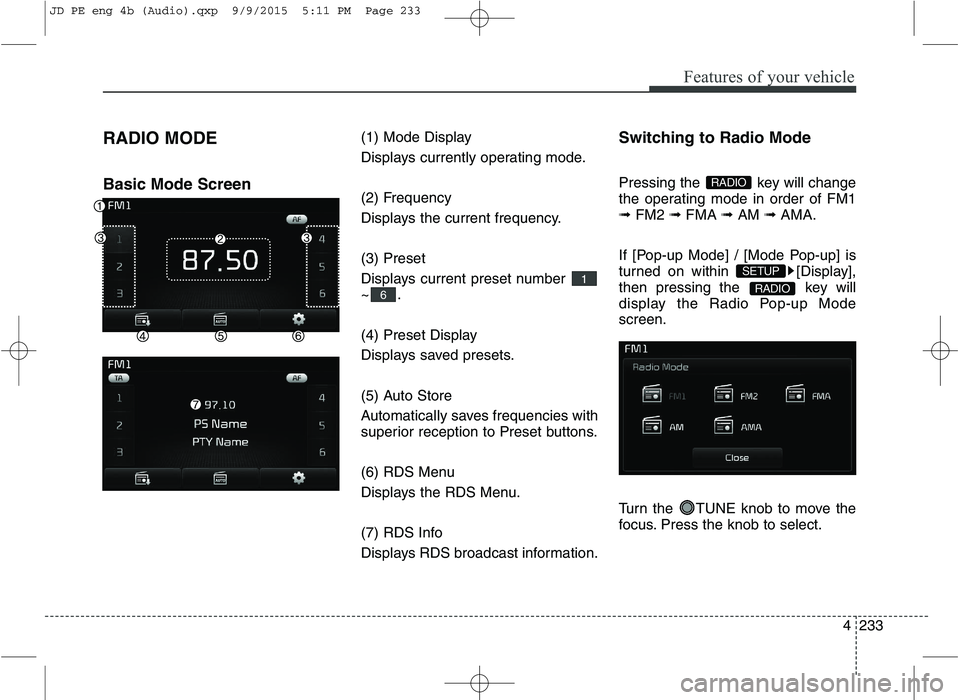
RADIO MODE Basic Mode Screen
(1) Mode Display
Displays currently operating mode.
(2) Frequency
Displays the current frequency. (3) Preset
Displays current preset number ~.
(4) Preset Display
Displays saved presets.
(5) Auto Store
Automatically saves frequencies with
superior reception to Preset buttons.
(6) RDS Menu
Displays the RDS Menu.
(7) RDS Info
Displays RDS broadcast information.Switching to Radio Mode
Pressing the key will change
the operating mode in order of FM1➟
FM2 ➟FMA ➟AM ➟AMA.
If [Pop-up Mode] / [Mode Pop-up] is
turned on within [Display],
then pressing the key will
display the Radio Pop-up Modescreen.
Turn the TUNE knob to move the
focus. Press the knob to select.
RADIO
SETUP
RADIO
6
1
JD PE eng 4b (Audio).qxp 9/9/2015 5:11 PM Page 233
Page 317 of 643
Features of your vehicle
234
4 Searching Radio Frequencies
Using Seek
Press the key to play the
previous/next frequency.
Using TUNE
Turn the TUNE knob to select the
desired frequency.
Using Radio Mode
Selecting/Saving Presets
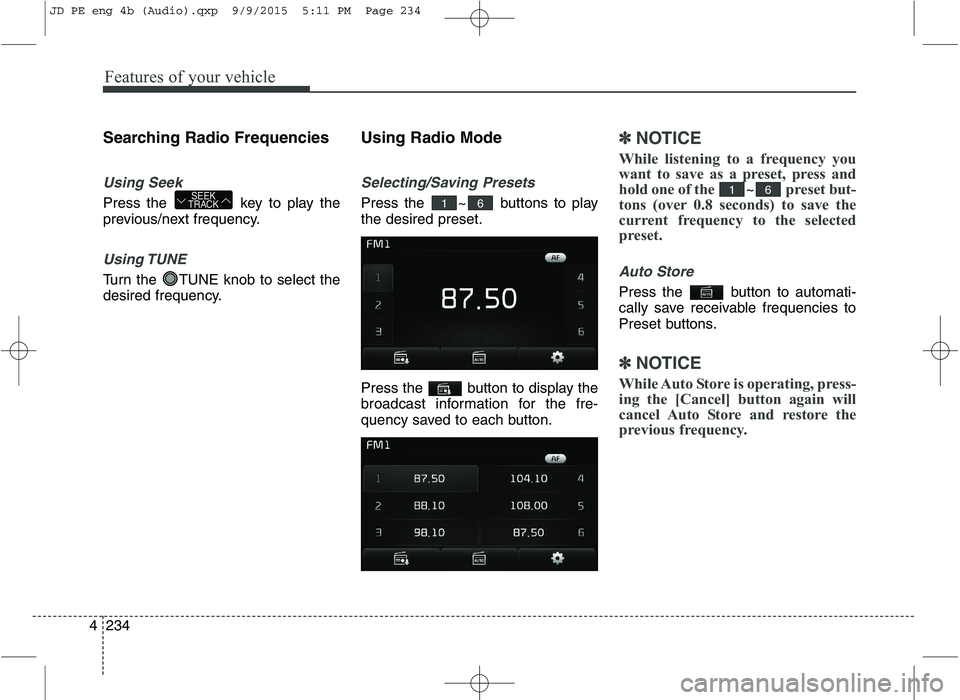
Press the ~ buttons to play the desired preset.
Press the button to display the
broadcast information for the fre-
quency saved to each button.
✽✽
NOTICE
While listening to a frequency you
want to save as a preset, press and
hold one of the
~preset but-
tons (over 0.8 seconds) to save the
current frequency to the selected
preset.
Auto Store
Press the button to automati-
cally save receivable frequencies to
Preset buttons.
✽✽ NOTICE
While Auto Store is operating, press-
ing the [Cancel] button again will
cancel Auto Store and restore the
previous frequency.
6161SEEK
TRACK
JD PE eng 4b (Audio).qxp 9/9/2015 5:11 PM Page 234
Page 333 of 643
Features of your vehicle
250
4
✽✽
NOTICE - USING THE iPod ®
DEVICE
iPod ®
is a registered trademark of
Apple Inc.
In order to use the iPod ®
while
operating the keys, you must use a
dedicated iPod ®
cable. (the cable
that is supplied when purchasing
iPod ®
/iPhone ®
products)
If the iPod ®
is connected to the
vehicle while it is playing, a high
pitch sound could occur for
approximately 1-2 seconds imme-
diately after connecting. If possi-
ble, connect the iPod ®
to the vehi-
cle with the iPod ®
stopped/paused.
During ACC ON state, connecting the iPod ®
through the iPod ®
cable
will charge the iPod ®
through the
car audio system.
When connecting with the iPod ®
cable, make sure to fully insert the
jack to prevent communication
interference. (Continued)(Continued)
When the EQ features of an exter-
nal device, such as the iPod ®
, and
the audio system are both active,
EQ effects could overlap and cause
sound deterioration and distortion.
Whenever possible, turn off the EQ
feature within the external device
upon use by connecting with the
audio system.
Noise may occur when an iPod ®
or
AUX device is connected. When
such devices are not being used, dis-
connect the device for storage.
When the iPod ®
or AUX device
power is connected to the power
jack, playing the external device
may result in noise. In such cases,
disconnect the power connection
before use.
Skipping or improper operation may occur depending on the characteris-
tics of your iPod ®
/iPhone ®
device.
If your iPh one is connected to both
the Bluetooth ®
Wireless Technology
and USB, the sound may not be
properly played. In your iPhone,
select the Dock connector or
Bluetooth ®
Wireless Technology to
change the sound output (source). (Continued)(Continued)
iPod
®
mode cannot be operated
when the iPod ®
cannot be recog-
nized due to the playing of ver-
sions that do not support commu-
nication protocols, cases of iPod ®
abnormalities and defects.
For fifth generation iPod ®
Nano
devices, the iPod ®
may not be rec-
ognized when the battery level is
low. Please charge the iPod ®
for
use.
Search/play orders shown within the iPod ®
device may differ with
the orders shown within the audio
system.
If the iPod ®
malfunctions due to an
iPod ®
device defect, reset the iPod ®
and try again. (To learn more,
refer to your iPod ®
manual)
Some iPod ®
s may not sync with the
System depending on its version.
If the Media is removed before the
Media is recognized, then the sys-
tem may not properly restore the
previously operated mode. (iPad
charging is not supported.)
Beside support 1M cable when purchasing iPod/iPhone products,
Long Cable cannot be recognized.
JD PE eng 4b (Audio).qxp 9/9/2015 5:11 PM Page 250
Page 358 of 643
Features of your vehicle
4275
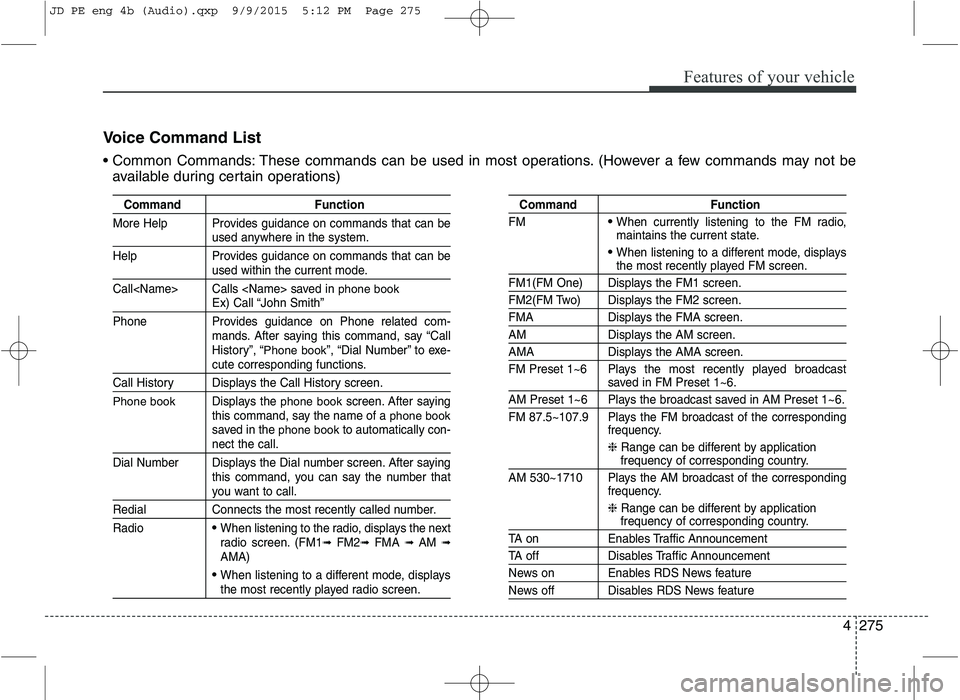
Voice Command List
These commands can be used in most operations. (However a few commands may not be
available during certain operations)
Command Function
More Help Provides guidance on commands that can be
used anywhere in the system.
Help Provides guidance on commands that can be
used within the current mode.
Call
phone bookEx) Call “John Smith”
Phone Provides guidance on Phone related com- mands. After saying this command, say “Call
History”, “
Phone book”, “Dial Number” to exe-cute corresponding functions.
Call History Displays the Call History screen.
Phone bookDisplays the phone bookscreen. After saying
this command, say the name of a phone booksaved in the phone bookto automatically con-nect the call.
Dial Number Displays the Dial number screen. After saying this command, you can say the number that
you want to call.
Redial Connects the most recently called number. Radio
When listening to the radio, displays the next
radio screen. (FM1 ➟FM2 ➟FMA ➟ AM ➟
AMA)
When listening to a different mode, displaysthe most recently played radio screen.
Command Function
FM
When currently listening to the FM radio,
maintains the current state.
When listening to a different mode, displaysthe most recently played FM screen.
FM1(FM One) Displays the FM1 screen.
FM2(FM Two) Displays the FM2 screen.
FMA Displays the FMA screen.
AM Displays the AM screen.
AMA Displays the AMA screen.
FM Preset 1~6 Plays the most recently played broadcast
saved in FM Preset 1~6.
AM Preset 1~6 Plays the broadcast saved in AM Preset 1~6.
FM 87.5~107.9 Plays the FM broadcast of the corresponding frequency.
❈ Range can be different by application
frequency of corresponding country.
AM 530~1710 Plays the AM broadcast of the corresponding frequency.
❈ Range can be different by application
frequency of corresponding country.
TA on Enables Traffic Announcement
TA off Disables Traffic Announcement
News on Enables RDS News feature
News off Disables RDS News feature
JD PE eng 4b (Audio).qxp 9/9/2015 5:12 PM Page 275
Page 360 of 643
Features of your vehicle
4277
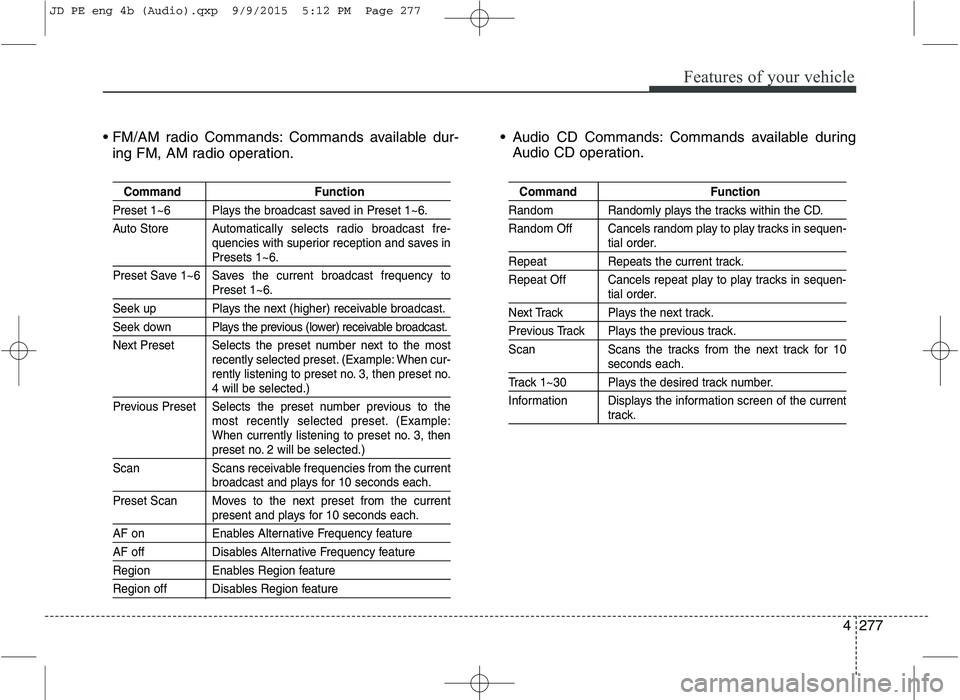
Commands available dur-
ing FM, AM radio operation. Audio CD Commands: Commands available during
Audio CD operation.
Command Function
Preset 1~6 Plays the broadcast saved in Preset 1~6.
Auto Store A utomatically selects radio broadcast fre-
quencies with superior reception and saves in
Presets 1~6.
Preset Save 1~6 Saves the current broadcast frequency to
Preset 1~6.
Seek up Plays the next (higher) receivable broadcast.
Seek down Plays the previous (lower) receivable broadcast.
Next Preset Selects the preset number next to the most recently selected preset. (Example: When cur-
rently listening to preset no. 3, then preset no.
4 will be selected.)
Previous Preset Selects the preset number previous to the most recently selected preset. (Example:
When currently listening to preset no. 3, then
preset no. 2 will be selected.)
Scan Scans receivable frequencies from the current
broadcast and plays for 10 seconds each.
Preset Scan Moves to the next preset from the current
present and plays for 10 seconds each.
AF on Enables Alternative Frequency feature
AF off Disables Alternative Frequency feature
Region Enables Region feature
Region off Disables Region feature
Command Function
Random Randomly plays the tracks within the CD.
Random Off Cancels random play to play tracks in sequen-
tial order.
Repeat Repeats the current track.
Repeat Off Cancels repeat play to play tracks in sequen-
tial order.
Next Track Plays the next track.
Previous Track Plays the previous track.
Scan Scans the tracks from the next track for 10
seconds each.
Track 1~30 Plays the desired track number.
Information Displays the information screen of the current
track.
JD PE eng 4b (Audio).qxp 9/9/2015 5:12 PM Page 277