wheel KIA CEED 2016 Service Manual
[x] Cancel search | Manufacturer: KIA, Model Year: 2016, Model line: CEED, Model: KIA CEED 2016Pages: 643, PDF Size: 38.19 MB
Page 222 of 643
4139
Features of your vehicle
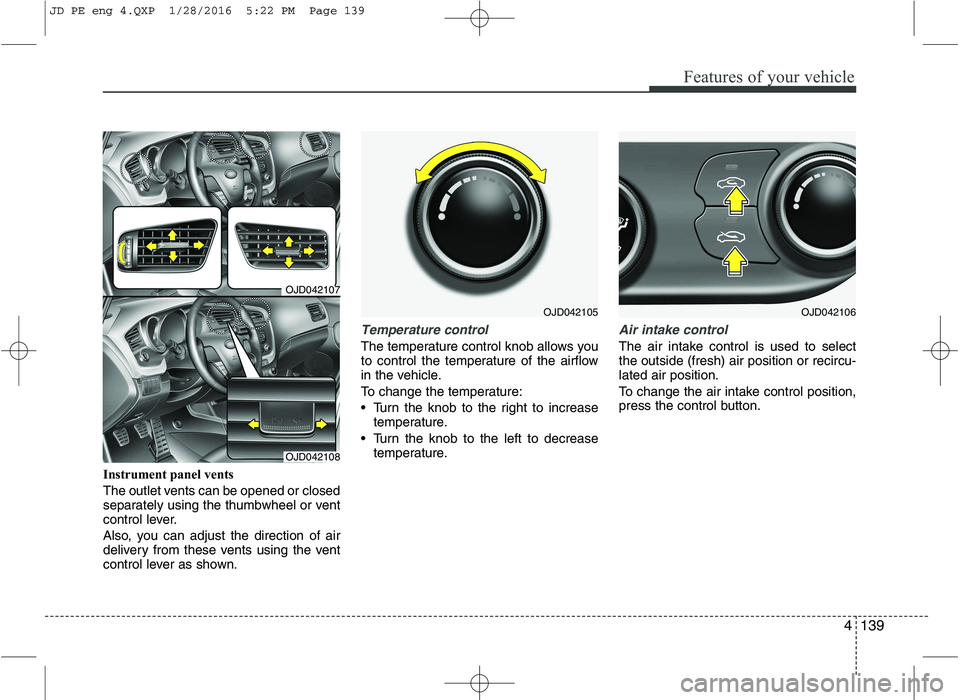
Instrument panel vents
The outlet vents can be opened or closed
separately using the thumbwheel or vent
control lever.
Also, you can adjust the direction of air
delivery from these vents using the vent
control lever as shown.
Temperature control
The temperature control knob allows you
to control the temperature of the airflow
in the vehicle.
To change the temperature:
Turn the knob to the right to increasetemperature.
Turn the knob to the left to decrease temperature.
Air intake control
The air intake control is used to select the outside (fresh) air position or recircu-lated air position.
To change the air intake control position,
press the control button.
OJD042105
OJD042107
OJD042108
OJD042106
JD PE eng 4.QXP 1/28/2016 5:22 PM Page 139
Page 233 of 643
Features of your vehicle
150
4
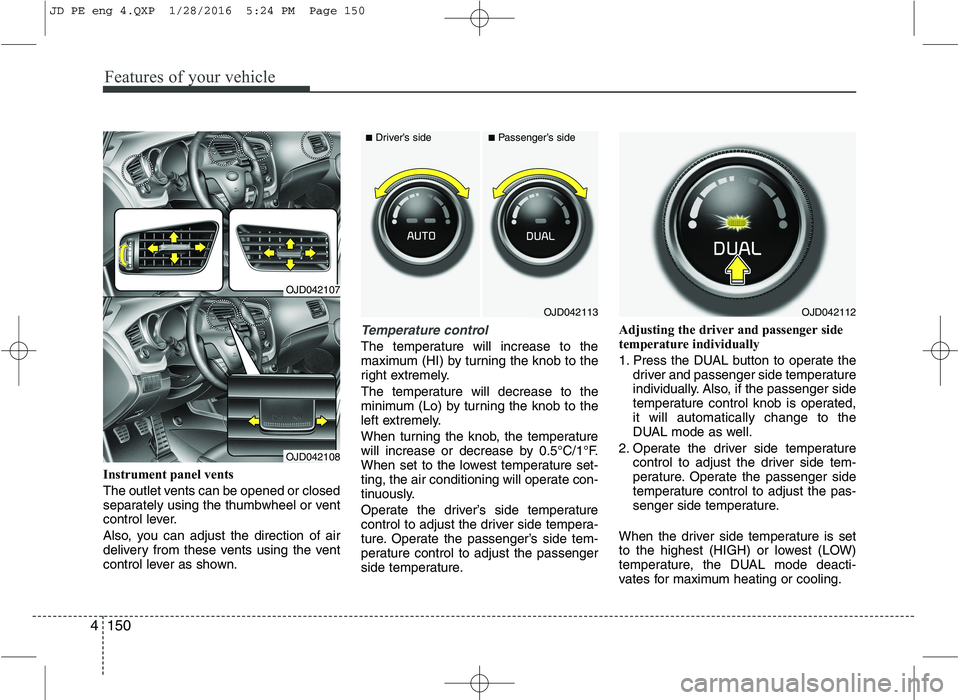
Instrument panel vents
The outlet vents can be opened or closed
separately using the thumbwheel or vent
control lever.
Also, you can adjust the direction of air
delivery from these vents using the vent
control lever as shown.
Temperature control
The temperature will increase to the
maximum (HI) by turning the knob to the
right extremely.
The temperature will decrease to the
minimum (Lo) by turning the knob to the
left extremely.
When turning the knob, the temperature
will increase or decrease by 0.5°C/1°F.
When set to the lowest temperature set-
ting, the air conditioning will operate con-
tinuously.
Operate the driver’s side temperature
control to adjust the driver side tempera-
ture. Operate the passenger’s side tem-
perature control to adjust the passenger
side temperature. Adjusting the driver and passenger side
temperature individually
1. Press the DUAL button to operate the
driver and passenger side temperature
individually. Also, if the passenger side
temperature control knob is operated,it will automatically change to the
DUAL mode as well.
2. Operate the driver side temperature control to adjust the driver side tem-
perature. Operate the passenger side
temperature control to adjust the pas-
senger side temperature.
When the driver side temperature is set
to the highest (HIGH) or lowest (LOW)
temperature, the DUAL mode deacti-
vates for maximum heating or cooling.
OJD042113
■ Driver’s side■Passenger’s side
OJD042112
OJD042107
OJD042108
JD PE eng 4.QXP 1/28/2016 5:24 PM Page 150
Page 265 of 643
Features of your vehicle
182
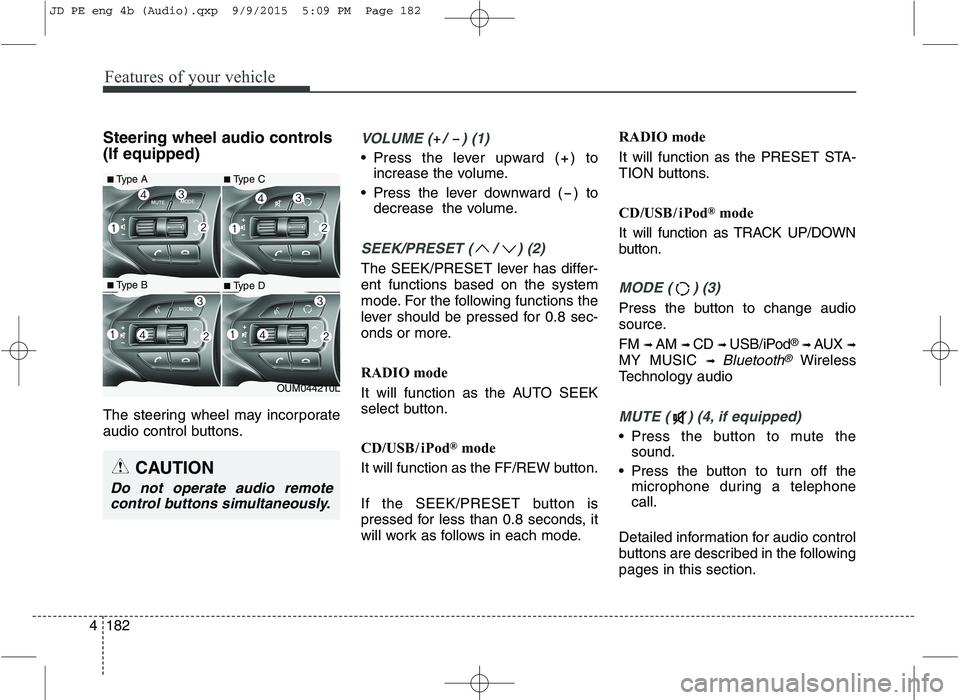
4 Steering wheel audio controls (If equipped)
The steering wheel may incorporate
audio control buttons.
VOLUME ( / ) (1)
• Press the lever upward ( ) to
increase the volume.
Press the lever downward ( ) to decrease the volume.
SEEK/PRESET ( / ) (2)
The SEEK/PRESET lever has differ- ent functions based on the system
mode. For the following functions the
lever should be pressed for 0.8 sec-
onds or more.
RADIO mode
It will function as the AUTO SEEK
select button.
CD/USB/ i Pod ®
mode
It will function as the FF/REW button.
If the SEEK/PRESET button is
pressed for less than 0.8 seconds, it
will work as follows in each mode. RADIO mode
It will function as the PRESET STA-
TION buttons.
CD/USB/ i Pod
®
mode
It will function as TRACK UP/DOWN
button.
MODE ( ) (3)
Press the button to change audio
source. FM ➟ AM ➟ CD ➟ USB/iPod ®
➟ AUX ➟
MY MUSIC ➟
Bluetooth®Wireless
Technology audio
MUTE ( ) (4, if equipped)
Press the button to mute the sound.
Press the button to turn off the microphone during a telephone call.
Detailed information for audio control
buttons are described in the followingpages in this section.
CAUTION
Do not operate audio remote control buttons simultaneously.
OUM044210L
■
Type A
■ Type B ■
Type C
■ Type D
JD PE eng 4b (Audio).qxp 9/9/2015 5:09 PM Page 182
Page 303 of 643
Features of your vehicle
220
4 PHONE (If equipped)
Before using the
Bluetooth®Wireless
Technology
phone features
In order to use
Bluetooth®Wireless
Technology phone, you must first pair and connect the
Bluetooth®
Wireless Technology mobile
phone.
If the mobile phone is not paired or connected, it is not possible to
enter Phone mode. Once a phoneis paired or connected, the guid-
ance screen will be displayed.
If Priority is set upon vehicle igni- tion (IGN/ACC ON), the
Bluetooth®
Wireless Technology phone will be
automatically connected. Even if
you are outside, the
Bluetooth®
Wireless Technology phone will be
automatically connected once you
are in the vicinity of the vehicle. If
you do not want automatic
Bluetooth®Wireless Technology
phone connection, set the
Bluetooth®Wireless Technology
power to OFF. Making a call using the
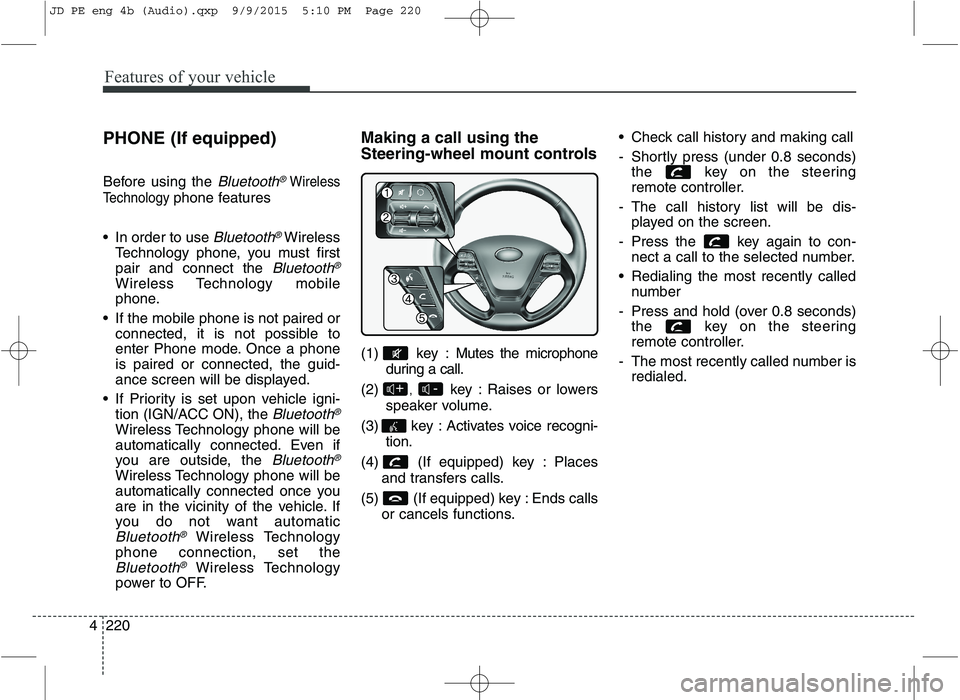
Steering-wheel mount controls
(1) key : Mutes the microphone
during a call.
(2) , key : Raises or lowers
speaker volume.
(3) key : Activates voice recogni- tion.
(4) (If equipped) key : Places and transfers calls.
(5) (If equipped) key : Ends calls or cancels functions. Check call history and making call
- Shortly press (under 0.8 seconds)
the key on the steering
remote controller.
- The call history list will be dis- played on the screen.
- Press the key again to con- nect a call to the selected number.
Redialing the most recently called number
- Press and hold (over 0.8 seconds) the key on the steering
remote controller.
- The most recently called number is redialed.
-+
JD PE eng 4b (Audio).qxp 9/9/2015 5:10 PM Page 220
Page 305 of 643
Features of your vehicle
222
4 VOICE COMMAND (If equipped)
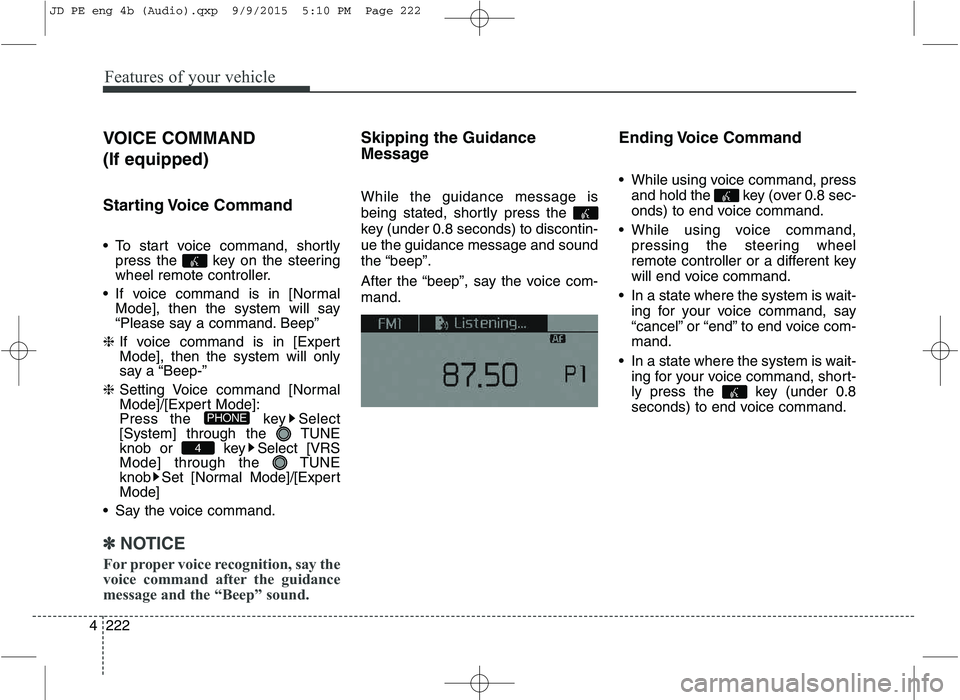
Starting Voice Command
To start voice command, shortly
press the key on the steering
wheel remote controller.
If voice command is in [Normal Mode], then the system will say
“Please say a command. Beep”
❈ If voice command is in [Expert
Mode], then the system will only
say a “Beep-”
❈ Setting Voice command [Normal
Mode]/[Expert Mode]:
Press the key Select
[System] through the TUNE
knob or key Select [VRS
Mode] through the TUNE
knob Set [Normal Mode]/[ExpertMode]
Say the voice command.
✽✽ NOTICE
For proper voice recognition, say the
voice command after the guidance
message and the “Beep” sound.
Skipping the Guidance
Message While the guidance message is
being stated, shortly press the
key (under 0.8 seconds) to discontin-ue the guidance message and soundthe “beep”.
After the “beep”, say the voice com- mand. Ending Voice Command
While using voice command, press
and hold the key (over 0.8 sec-
onds) to end voice command.
While using voice command, pressing the steering wheel
remote controller or a different key
will end voice command.
In a state where the system is wait- ing for your voice command, say
“cancel” or “end” to end voice com-mand.
In a state where the system is wait- ing for your voice command, short-
ly press the key (under 0.8
seconds) to end voice command.
4
PHONE
JD PE eng 4b (Audio).qxp 9/9/2015 5:10 PM Page 222
Page 315 of 643
Features of your vehicle
232
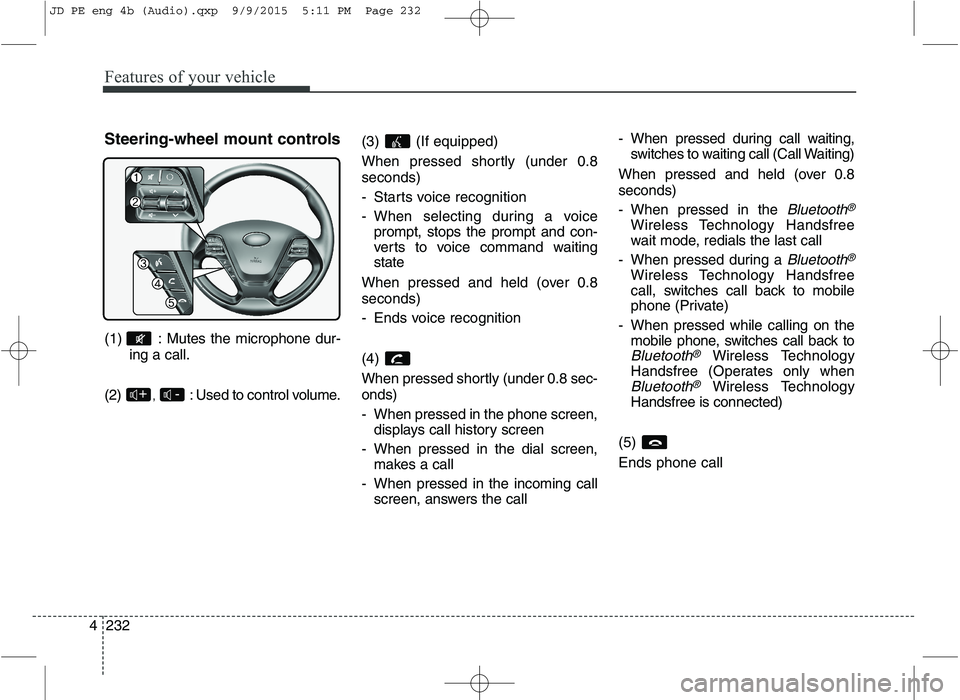
4 Steering-wheel mount controls
(1) : Mutes the microphone dur-
ing a call.
(2) , : Used to control volume. (3) (If
equipped)
When pressed shortly (under 0.8 seconds)
- Starts voice recognition
- When selecting during a voice prompt, stops the prompt and con-
verts to voice command waitingstate
When pressed and held (over 0.8 seconds)
- Ends voice recognition (4)
When pressed shortly (under 0.8 sec- onds)
- When pressed in the phone screen, displays call history screen
- When pressed in the dial screen, makes a call
- When pressed in the incoming call screen, answers the call - When pressed during call waiting,
switches to waiting call (Call Waiting)
When pressed and held (over 0.8 seconds)
- When pressed in the
Bluetooth®
Wireless Technology Handsfree
wait mode, redials the last call
- When pressed during a
Bluetooth®
Wireless Technology Handsfree
call, switches call back to mobile
phone (Private)
- When pressed while calling on the mobile phone, switches call back to
Bluetooth®Wireless Technology
Handsfree (Operates only when
Bluetooth®Wireless Technology
Handsfree is connected)
(5) Ends phone call-+
JD PE eng 4b (Audio).qxp 9/9/2015 5:11 PM Page 232
Page 347 of 643
Features of your vehicle
264
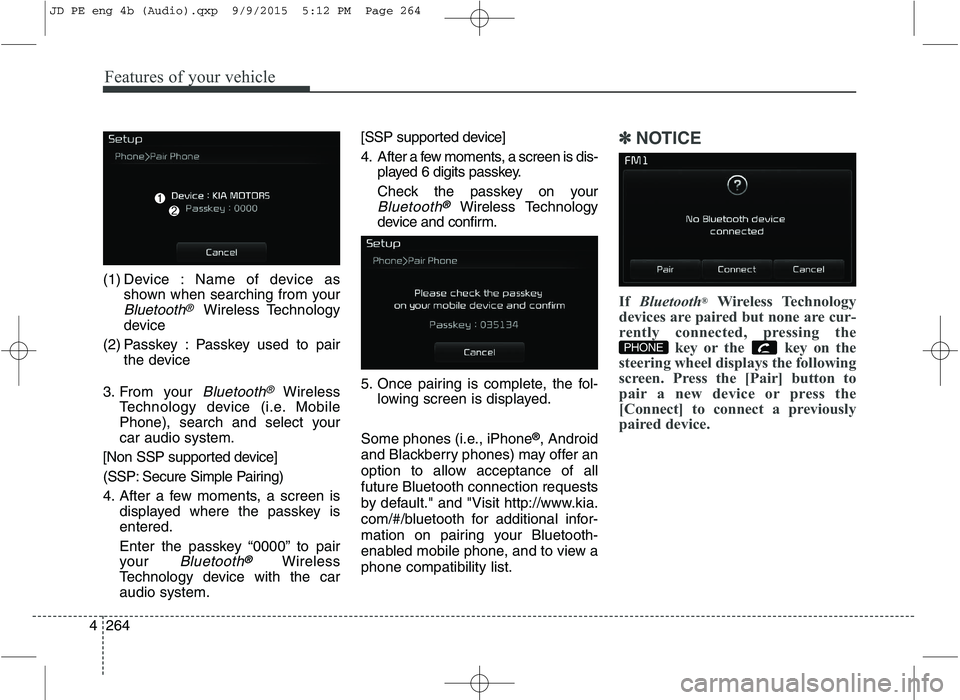
4 (1) Device : Name of device as
shown when searching from your
Bluetooth®Wireless Technology
device
(2) Passkey : Passkey used to pair the device
3. From your
Bluetooth®Wireless
Technology device (i.e. Mobile
Phone), search and select yourcar audio system.
[Non SSP supported device]
(SSP: Secure Simple Pairing)
4. After a few moments, a screen is displayed where the passkey is entered.
Enter the passkey “0000” to pair
your
Bluetooth®Wireless
Technology device with the caraudio system. [SSP supported device]
4. After a few moments, a screen is dis-
played 6 digits passkey.
Check the passkey on your
Bluetooth®Wireless Technology
device and confirm.
5. Once pairing is complete, the fol- lowing screen is displayed.
Some phones (i.e., iPhone ®
, Android
and Blackberry phones) may offer an
option to allow acceptance of allfuture Bluetooth connection requests
by default." and "Visit http://www.kia.
com/#/bluetooth for additional infor-
mation on pairing your Bluetooth-
enabled mobile phone, and to view aphone compatibility list.
✽✽ NOTICE
If Bluetooth ®
Wireless Technology
devices are paired but none are cur-
rently connected, pressing the key or the key on the
steering wheel displays the following
screen. Press the [Pair] button to
pair a new device or press the
[Connect] to connect a previously
paired device.
PHONE
JD PE eng 4b (Audio).qxp 9/9/2015 5:12 PM Page 264
Page 355 of 643
Features of your vehicle
272
4 VOICE RECOGNITION (If equipped)
Using Voice Recognition
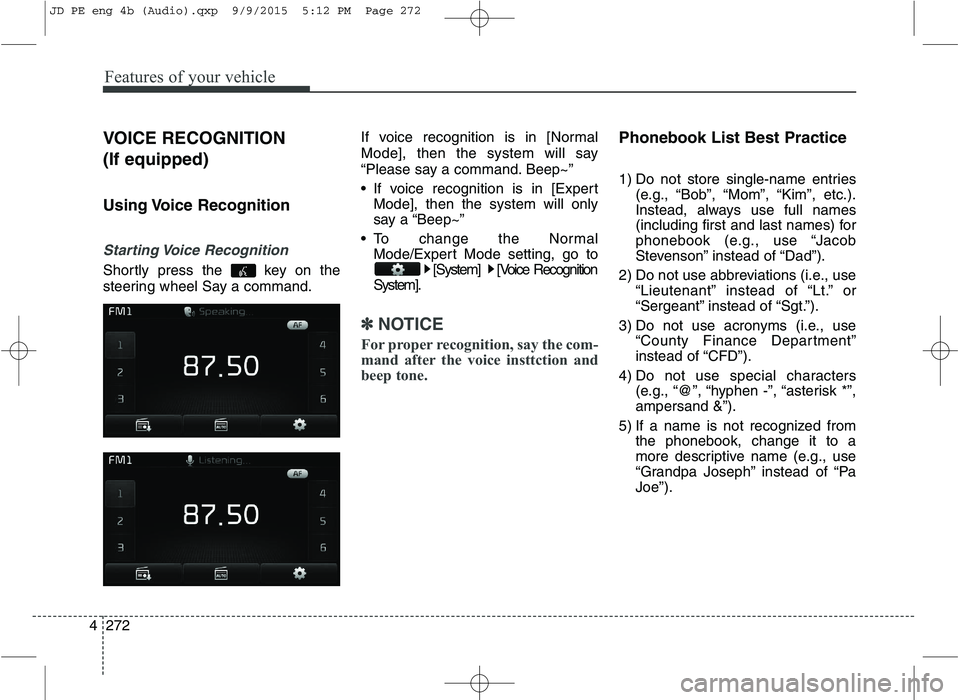
Starting Voice Recognition
Shortly press the key on the
steering wheel Say a command.
If voice recognition is in [Normal
Mode], then the system will say
“Please say a command. Beep~”
If voice recognition is in [Expert
Mode], then the system will only
say a “Beep~”
To change the Normal Mode/Expert Mode setting, go to [System] [Voice Recognition
System].
✽✽ NOTICE
For proper recognition, say the com-
mand after the voice insttction and
beep tone.
Phonebook List Best Practice
1) Do not store single-name entries (e.g., “Bob”, “Mom”, “Kim”, etc.).
Instead, always use full names
(including first and last names) for
phonebook (e.g., use “Jacob
Stevenson” instead of “Dad”).
2) Do not use abbreviations (i.e., use “Lieutenant” instead of “Lt.” or
“Sergeant” instead of “Sgt.”).
3) Do not use acronyms (i.e., use “County Finance Department”
instead of “CFD”).
4) Do not use special characters (e.g., “@”, “hyphen -”, “asterisk *”,ampersand &”).
5) If a name is not recognized from the phonebook, change it to a
more descriptive name (e.g., use
“Grandpa Joseph” instead of “PaJoe”).
JD PE eng 4b (Audio).qxp 9/9/2015 5:12 PM Page 272
Page 356 of 643
Features of your vehicle
4273
Skipping Prompt Messages
While prompt message is being stat-
ed Shortly press the key on the
steering remote controller. The prompt message is immediately ended and the beep tone will sound.
After the “beep”, say the voice com-mand.
Re-starting Voice Recognition
While system waits for a command
Shortly press the key on the
steering remote controller.
The command wait state is immedi- ately ended and the beep ton will
sound. After the “beep”, say the voicecommand.ENDING VOICE RECOGNITION
While Voice Recognition is operating
Press and hold the key on the
steering remote controller.
✽✽ NOTICE
While using voice command, pressing a steering wheel remote
control or a different key will end
voice command.
When the system is waiting for a voice command, say “cancel” or
“end” to end voice command.
When the system is waiting for a voice command, press and hold
the key on the steering wheel
to end voice command.
Voice Recognition and Phonebook Tips:
The Kia Voice Recognition System
may have difficulty understanding
some accents or uncommon names.
When using Voice Recognition to
place a call, speak in a moderate tone,
with clear pronunciation.
To maximize the use of Voice Recognition, consider these guide-
lines when storing contacts:
Do not store single-name entries(e.g., “Bob”, “Mom”, etc.). Instead,
always use full names (including first
and last names) for these contacts.
Do not use special characters (e.g., '@', '-', '*', '&', etc.).
Do not use abbreviations (i.e., use "Lieutenant" instead of "Lt.") or
acronyms (i.e., use "County Finance
Department" instead of "C. F. D."; Be
sure to say the name exactly as it isentered in the contacts list.
JD PE eng 4b (Audio).qxp 9/9/2015 5:12 PM Page 273
Page 378 of 643
55
Driving your vehicle
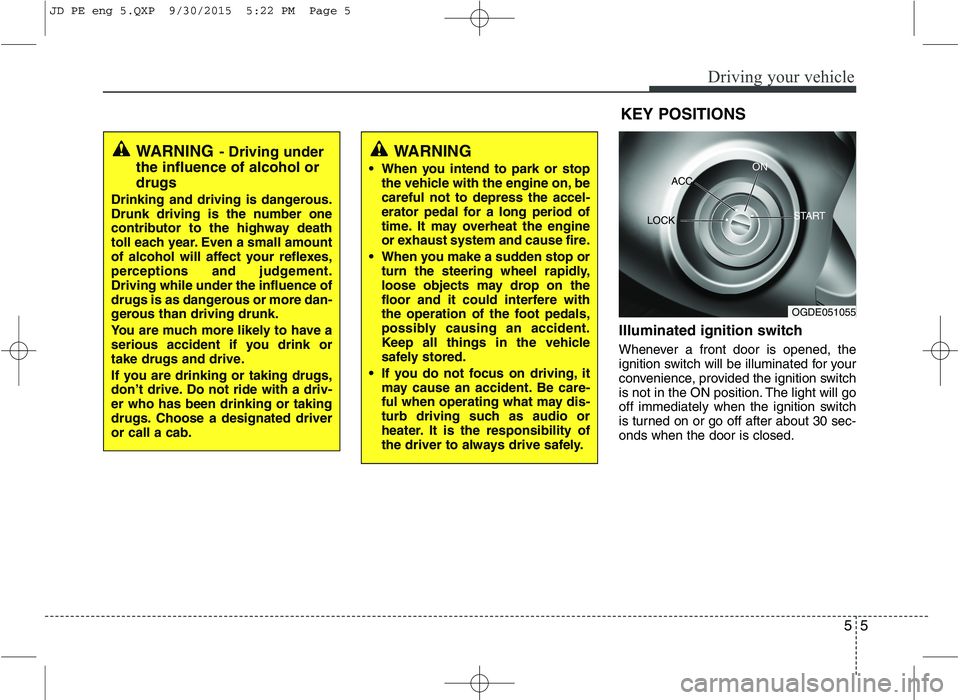
Illuminated ignition switch
Whenever a front door is opened, the
ignition switch will be illuminated for your
convenience, provided the ignition switch
is not in the ON position. The light will go
off immediately when the ignition switch
is turned on or go off after about 30 sec-onds when the door is closed.KEY POSITIONS
WARNING
- Driving under
the influence of alcohol or drugs
Drinking and driving is dangerous.
Drunk driving is the number one
contributor to the highway death
toll each year. Even a small amount
of alcohol will affect your reflexes,
perceptions and judgement.Driving while under the influence of
drugs is as dangerous or more dan-
gerous than driving drunk.
You are much more likely to have a
serious accident if you drink or
take drugs and drive.
If you are drinking or taking drugs,
don’t drive. Do not ride with a driv-er who has been drinking or taking
drugs. Choose a designated driveror call a cab.WARNING
When you intend to park or stop the vehicle with the engine on, be careful not to depress the accel-
erator pedal for a long period of
time. It may overheat the engine
or exhaust system and cause fire.
When you make a sudden stop or turn the steering wheel rapidly,
loose objects may drop on the
floor and it could interfere with
the operation of the foot pedals,
possibly causing an accident.
Keep all things in the vehicle
safely stored.
If you do not focus on driving, it may cause an accident. Be care-
ful when operating what may dis-
turb driving such as audio or
heater. It is the responsibility of
the driver to always drive safely.
OGDE051055
ACC
ON
START
LOCK
JD PE eng 5.QXP 9/30/2015 5:22 PM Page 5