Screen KIA Cerato 2016 2.G Owner's Guide
[x] Cancel search | Manufacturer: KIA, Model Year: 2016, Model line: Cerato, Model: KIA Cerato 2016 2.GPages: 501, PDF Size: 14.8 MB
Page 272 of 501
4201
Features of your vehicle
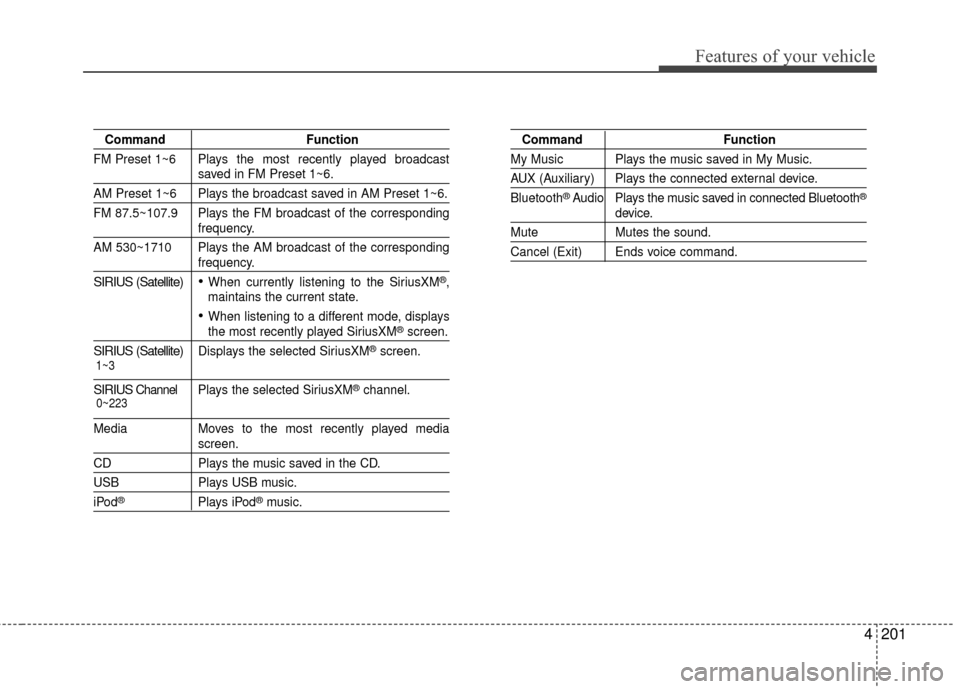
CommandFunction
FM Preset 1~6 Plays the most recently played broadcast
saved in FM Preset 1~6.
AM Preset 1~6 Plays the broadcast saved in AM Preset 1~6.
FM 87.5~107.9 Plays the FM broadcast of the corresponding
frequency.
AM 530~1710 Plays the AM broadcast of the corresponding
frequency.
SIRIUS (Satellite)When currently listening to the SiriusXM®,
maintains the current state.
When listening to a different mode, displaysthe most recently played SiriusXM®screen.
SIRIUS (Satellite)Displays the selected SiriusXM®screen.
SIRIUSChannel P l ay s the selected SiriusXM®channel.
Media Moves to the most recently played mediascreen.
CD Plays the music saved in the CD.
USBPlays USB music.
iPod®Plays iPod®music.
Command Function
My Music Plays the music saved in My Music.
AUX (Auxiliary) Plays the connected external device.
Bluetooth
®Audio Plays the music saved in connected Bluetooth®
device.
Mute Mutes the sound.
Cancel (Exit) Ends voice command.
0~223
1~3
Page 274 of 501
4203
Features of your vehicle
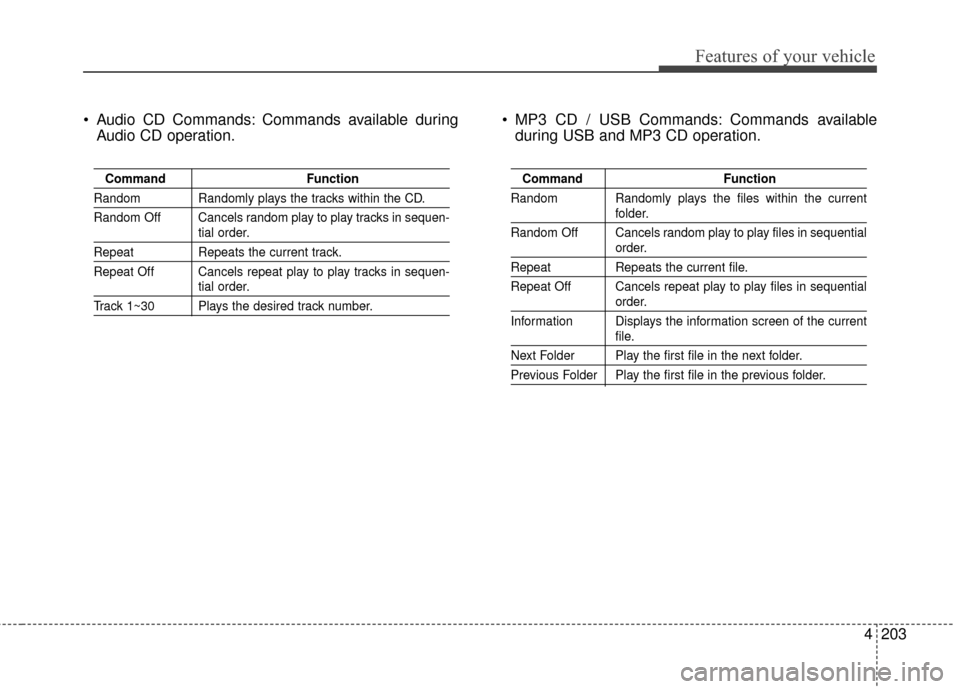
Audio CD Commands: Commands available duringAudio CD operation. MP3 CD / USB Commands: Commands available
during USB and MP3 CD operation.
Command Function
Random Randomly plays the tracks within the CD.
Random Off Cancels random play to play tracks in sequen-
tial order.
RepeatRepeats the current track.
Repeat Off Cancels repeat play to play tracks in sequen-
tial order.
Track 1~30 Plays the desired track number.
Command Function
Random Randomly plays the files within the current
folder.
Random Off Cancels random play to play files in sequential
order.
Repeat Repeats the current file.
Repeat Off Cancels repeat play to play files in sequential
order.
Information Displays the information screen of the current
file.
Next Folder Play the first file in the next folder.
Previous Folder Play the first file in the previous folder.
Page 279 of 501
Features of your vehicle
208
4
SYSTEM CONTROLLERS
AND FUNCTIONS
❈ Display and settings may differ
depending on the selected audio.
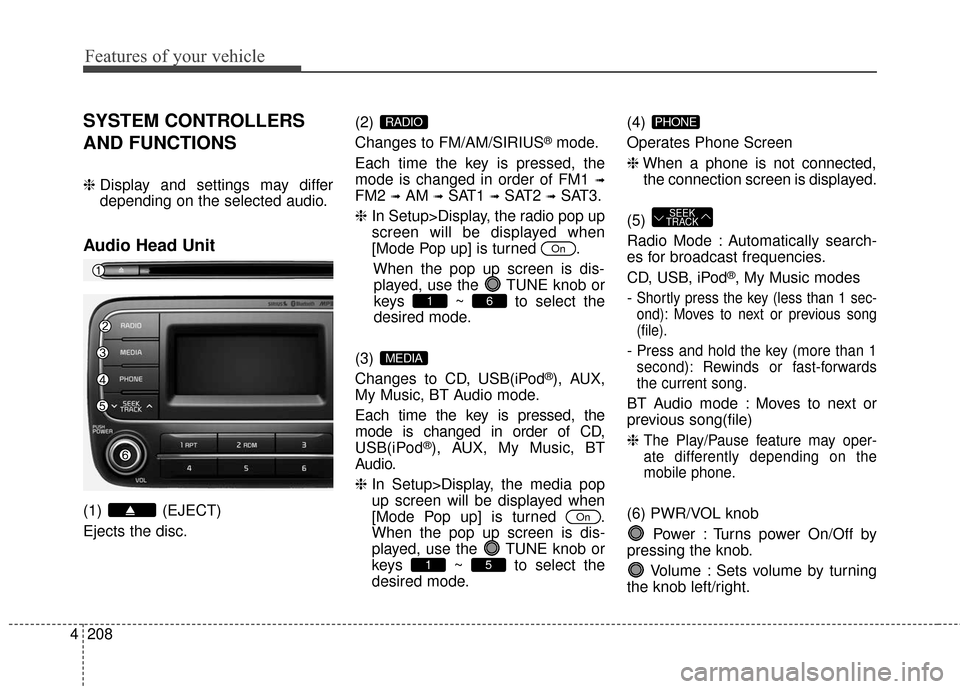
Audio Head Unit
(1) (EJECT)
Ejects the disc. (2)
Changes to FM/AM/SIRIUS
®mode.
Each time the key is pressed, the
mode is changed in order of FM1
➟
FM2 ➟AM ➟SAT1 ➟SAT2 ➟SAT3.
❈ In Setup>Display, the radio pop up
screen will be displayed when
[Mode Pop up] is turned .
When the pop up screen is dis-played, use the TUNE knob or
keys ~ to select the
desired mode.
(3)
Changes to CD, USB(iPod
®), AUX,
My Music, BT Audio mode.
Each time the key is pressed, the
mode is changed in order of CD,
USB(iPod
®), AUX, My Music, BT
Audio.
❈ In Setup>Display, the media pop
up screen will be displayed when
[Mode Pop up] is turned .
When the pop up screen is dis-
played, use the TUNE knob or
keys ~ to select the
desired mode. (4)
Operates Phone Screen
❈
When a phone is not connected,
the connection screen is displayed.
(5)
Radio Mode : Automatically search-
es for broadcast frequencies.
CD, USB, iPod
®, My Music modes
-
Shortly press the key (less than 1 sec-
ond): Moves to next or previous song
(file).
- Press and hold the key (more than 1
second): Rewinds or fast-forwards
the current song.
BT Audio mode : Moves to next or
previous song(file)
❈
The Play/Pause feature may oper-
ate differently depending on the
mobile phone.
(6) PWR/VOL knob Power : Turns power On/Off by
pressing the knob.
Volume : Sets volume by turning
the knob left/right.
SEEK
TRACK
PHONE
51
On
MEDIA
61
On
RADIO
Page 280 of 501
4209
Features of your vehicle
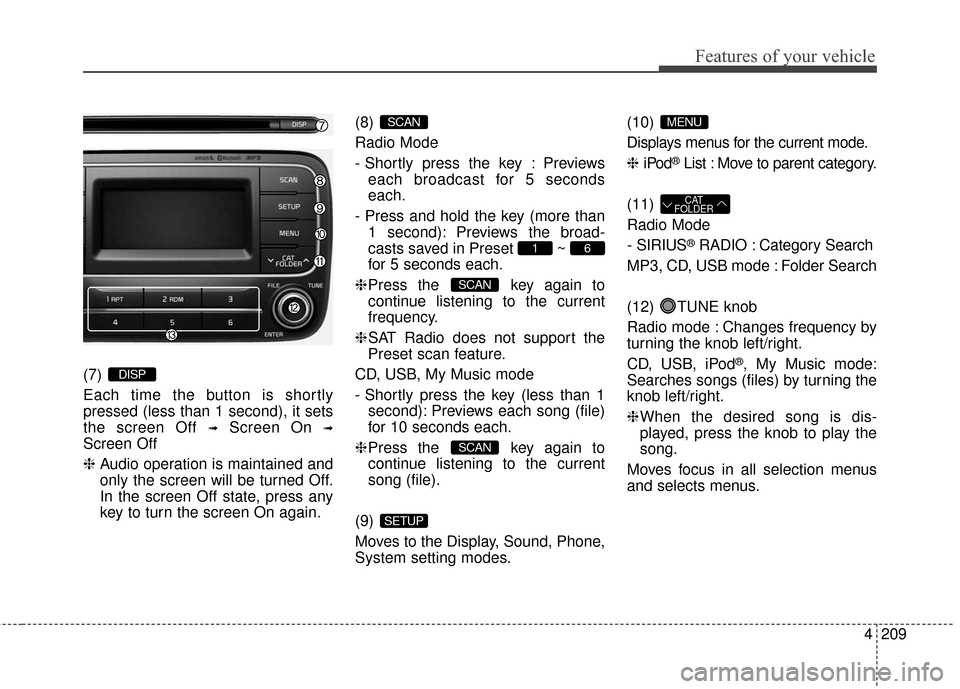
(7)
Each time the button is shortly
pressed (less than 1 second), it sets
the screen Off
➟Screen On ➟
Screen Off
❈Audio operation is maintained and
only the screen will be turned Off.
In the screen Off state, press any
key to turn the screen On again. (8)
Radio Mode
- Shortly press the key : Previews
each broadcast for 5 seconds
each.
- Press and hold the key (more than 1 second): Previews the broad-
casts saved in Preset ~
for 5 seconds each.
❈ Press the key again to
continue listening to the current
frequency.
❈ SAT Radio does not support the
Preset scan feature.
CD, USB, My Music mode
- Shortly press the key (less than 1 second): Previews each song (file)
for 10 seconds each.
❈ Press the key again to
continue listening to the current
song (file).
(9)
Moves to the Display, Sound, Phone,
System setting modes. (10)
Displays menus for the current mode.
❈
iPod
®List : Move to parent category.
(11)
Radio Mode
- SIRIUS
®RADIO : Category Search
MP3, CD, USB mode : Folder Search
(12) TUNE knob
Radio mode : Changes frequency by
turning the knob left/right.
CD, USB, iPod
®, My Music mode:
Searches songs (files) by turning the
knob left/right.
❈ When the desired song is dis-
played, press the knob to play the
song.
Moves focus in all selection menus
and selects menus.
CAT
FOLDER
MENU
SETUP
SCAN
SCAN
61
SCAN
DISP
Page 281 of 501
Features of your vehicle
210
4
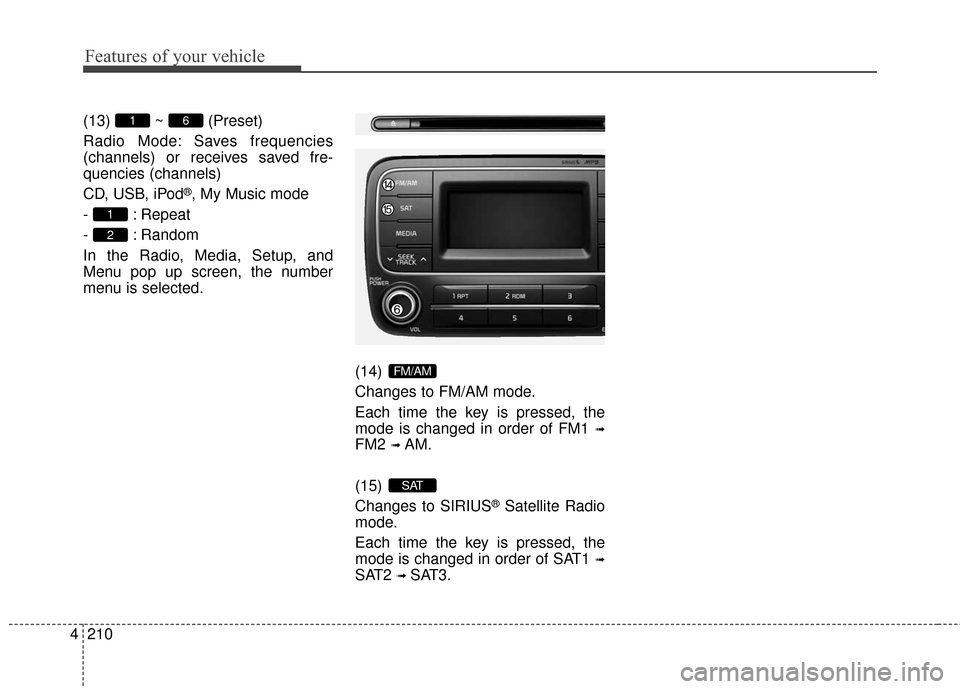
(13) ~ (Preset)
Radio Mode: Saves frequencies
(channels) or receives saved fre-
quencies (channels)
CD, USB, iPod
®, My Music mode
- : Repeat
- : Random
In the Radio, Media, Setup, and
Menu pop up screen, the number
menu is selected.
(14)
Changes to FM/AM mode.
Each time the key is pressed, the
mode is changed in order of FM1
➟
FM2 ➟ AM.
(15)
Changes to SIRIUS
®Satellite Radio
mode.
Each time the key is pressed, the
mode is changed in order of SAT1
➟
SAT2 ➟ SAT3.
SAT
FM/AM
2
1
61
Page 282 of 501
![KIA Cerato 2016 2.G Owners Guide 4211
Features of your vehicle
SETUP
Display Settings
Press the key Select [Display]
through TUNE knob or key
Select menu through TUNE knob
Mode Pop up
[Mode Pop up] Changes /
selection mode
or k](/img/2/2972/w960_2972-281.png "KIA Cerato 2016 2.G Owners Guide 4211
Features of your vehicle
SETUP
Display Settings
Press the key Select [Display]
through TUNE knob or key
Select menu through TUNE knob
Mode Pop up
[Mode Pop up] Changes /
selection mode
or k")
4211
Features of your vehicle
SETUP
Display Settings
Press the key Select [Display]
through TUNE knob or key
Select menu through TUNE knob
Mode Pop up
[Mode Pop up] Changes /
selection mode
or key to display the mode
change pop up screen.
Media Display
When playing an MP3 file, select the
desired display info from ‘Folder/File’
or ‘Album/Artist/Song’.
MEDIA
RADIO
OffOn
1
SETUP
Page 288 of 501
4217
Features of your vehicle
SIRIUS®RADIO
Using SIRIUS®Satellite Radio
Your Kia vehicle is equipped with a 3
month complimentary period of SIR-
IUS
®Satellite Radio so you have
access to over 130 channels of
music, information, and entertain-
ment programming.
Activation
In order to extend or reactivate your
subscription to SIRIUS®Satellite
Radio, you will need to contact SIR-
IUS
®Customer Care at 800-643-
2112. Have your 12 digit SID (Sirius
Identification Number) / ESN
(Electronic Serial Number) ready. To
retrieve the SID / ESN, turn on the
radio, press the [RADIO] button, and
tune to channel zero. Please note that the vehicle will need
to be turned on, in Sirius mode, and
have an unobstructed view of the sky
in order for the radio to receive the
activation signal.
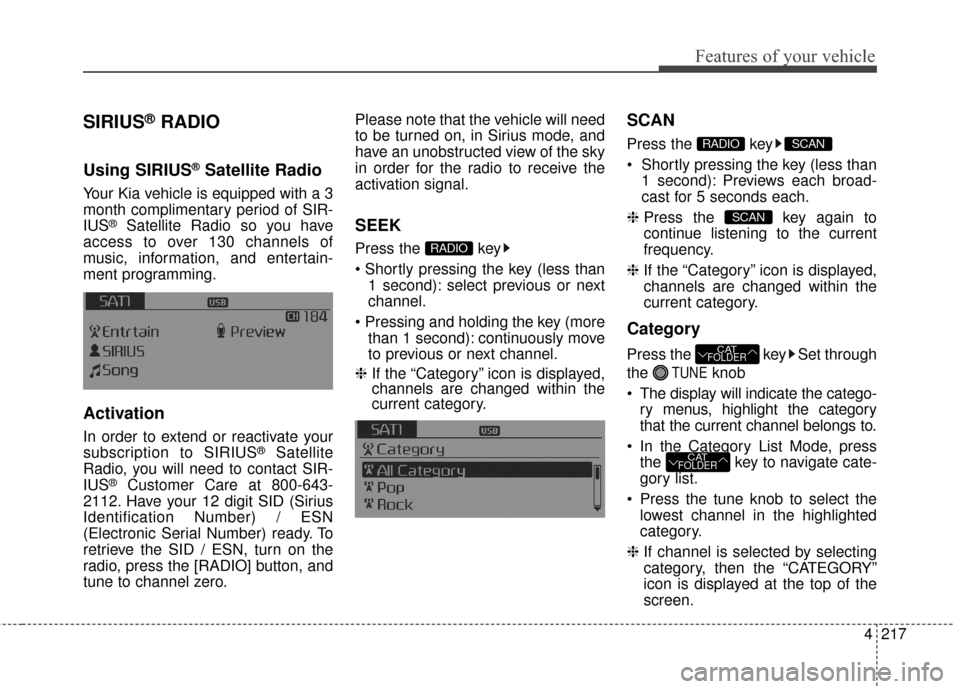
SEEK
Press the key
1 second): select previous or next
channel.
than 1 second): continuously move
to previous or next channel.
❈ If the “Category” icon is displayed,
channels are changed within the
current category.
SCAN
Press the key
1 second): Previews each broad-
cast for 5 seconds each.
❈ Press the key again to
continue listening to the current
frequency.
❈ If the “Category” icon is displayed,
channels are changed within the
current category.
Category
Press the key Set through
the
TUNEknob
The display will indicate the catego- ry menus, highlight the category
that the current channel belongs to.
In the Category List Mode, press the key to navigate cate-
gory list.
Press the tune knob to select the lowest channel in the highlighted
category.
❈ If channel is selected by selecting
category, then the “CATEGORY”
icon is displayed at the top of the
screen.
CATFOLDER
CATFOLDER
SCAN
SCANRADIO
RADIO
Page 290 of 501
4219
Features of your vehicle
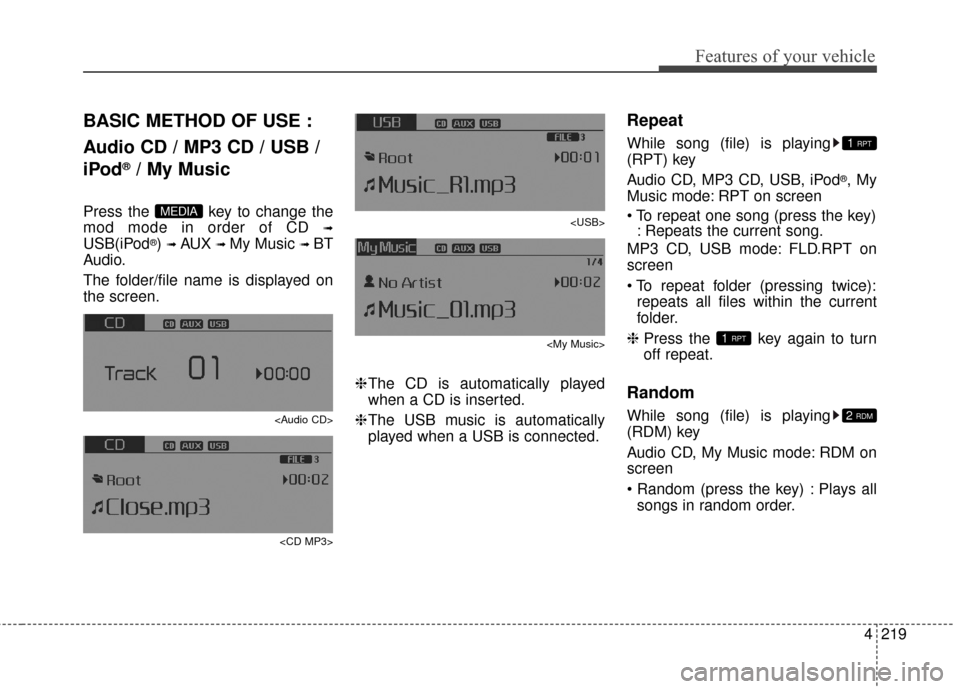
BASIC METHOD OF USE :
Audio CD / MP3 CD / USB /
iPod
®/ My Music
Press the key to change the
mod mode in order of CD
➟
USB(iPod®) ➟ AUX ➟ My Music ➟ BT
Audio.
The folder/file name is displayed on
the screen.
Page 291 of 501
Features of your vehicle
220
4
MP3 CD, USB mode: FLD.RDM on
screen
Plays all files within the current fold-
er in random order.
iPod
®mode: ALL RDM on screen
Plays all files in random order.
MP3 CD, USB : ALL RDM on screen
Plays all files in random order.
❈ Press the key again to turn
off repeat.
Changing Song/File
While song (file) is playing
key
Plays the current song from the beginning.
❈ If the key is pressed
again within 2 second, the previous
song is played.
than 1 second): Rewinds the song. While song (file) is playing
key
Plays the
next song.
than 1 second): Fast forwards the
song.
Scan
While song (file) is playing
key
Scans all
songs from the next song for 10
seconds each.
❈ Press the key again to turn
off.
❈ The SCAN function is not support-
ed in iPod
®mode.
Folder Search : MP3 CD, USB
Mode
While file is playing
(Folder Up) key
While file is playing
(Folder Down) key
❈ If a folder is selected by pressing
the TUNE knob, the first file
within the selected folder will be
played.
❈ In iPod
®mode, moves to the Parent
Folder.
Searching Songs (File)
Turning TUNE knob : Searches for songs (files).
Pressing TUNE knob : Plays selected song (file).
CAT
FOLDER
CAT
FOLDER
SCAN
SCAN
SEEK
TRACK
SEEK
TRACK
SEEK
TRACK
2RDM
Page 295 of 501
Features of your vehicle
224
4
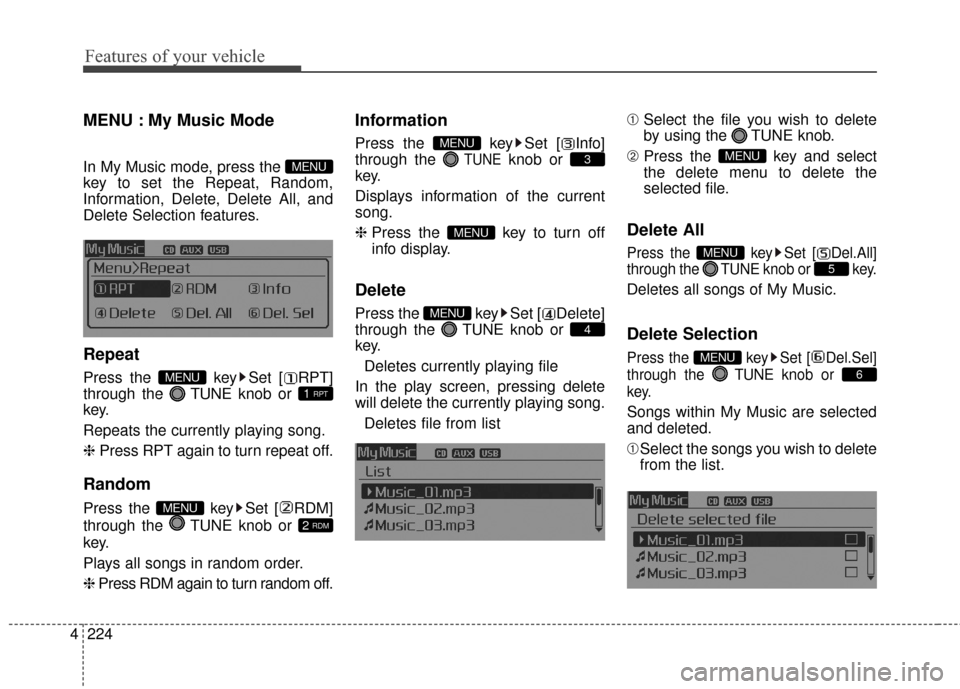
MENU : My Music Mode
In My Music mode, press the
key to set the Repeat, Random,
Information, Delete, Delete All, and
Delete Selection features.
Repeat
Press the key Set [ RPT]
through the TUNEknob or
key.
Repeats the currently playing song.
❈ Press RPT again to turn repeat off.
Random
Press the key Set [ RDM]
through the TUNE knob or
key.
Plays all songs in random order.
❈ Press RDM again to turn random off.
Information
Press the key Set [ Info]
through the
TUNEknob or
key.
Displays information of the current
song.
❈ Press the key to turn off
info display.
Delete
Press the key Set [ Delete]
through the TUNEknob or
key.
Deletes currently playing file
In the play screen, pressing delete
will delete the currently playing song. Deletes file from list ➀
Select the file you wish to delete
by using the TUNE knob.
\b Press the key and select
the delete menu to delete the
selected file.
Delete All
Press the key Set [ Del.All]
through the TUNEknob or key.
Deletes all songs of My Music.
Delete Selection
Press the key Set [ Del.Sel]
through the TUNEknob or
key.
Songs within My Music are selected
and deleted.
➀ Select the songs you wish to delete
from the list.
6
MENU
5
MENU
MENU
4
MENU
MENU
3
MENU
2 RDM
MENU
1 RPTMENU
MENU