steering wheel KIA Forte 2015 2.G Owner's Guide
[x] Cancel search | Manufacturer: KIA, Model Year: 2015, Model line: Forte, Model: KIA Forte 2015 2.GPages: 452, PDF Size: 7.85 MB
Page 148 of 452
477
Features of your vehicle
To reset the tripmeter, press theRESET button (T ype A : RESET,
Type B, C : ) on the steering
wheel for more than 1 second
when the tripmeter is displayed.
Average Vehicle Speed (2)
The average vehicle speed is cal- culated by the total driving dis-
tance and driving time since the
last average vehicle speed reset.
- Speed range: 0 ~ 999 km/h or MPH
To reset the average vehicle speed, press the RESET button (Type A :
RESET, Type B, C : ) on the
steering wheel for more than 1 sec-
ond when the average vehicle
speed is displayed.
✽ ✽ NOTICE
• The average vehicle speed is not dis-
played if the driving distance is less
than 50 meters (0.03 miles) or the
driving time is less than 10 seconds
since the ignition switch or Engine
Start/Stop button is turned to ON.
• Even if the vehicle is not in motion, the average vehicle speed keeps
going while the engine is running.
Elapsed Time (3)
The elapsed time is the total driv-
ing time since the last elapsed time
reset.
- Time range (hh:mm): 00:00 ~ 99:59
To reset the elapsed time, press the RESET button (T ype A :
RESET, Type B, C : ) on the
steering wheel for more than 1
second when the elapsed time is
displayed.
✽ ✽ NOTICE
Even if the vehicle is not in motion,
the elapsed time keeps going while
the engine is running.
Page 219 of 452
Features of your vehicle
148
4
Steering wheel audio controls
(if equipped)
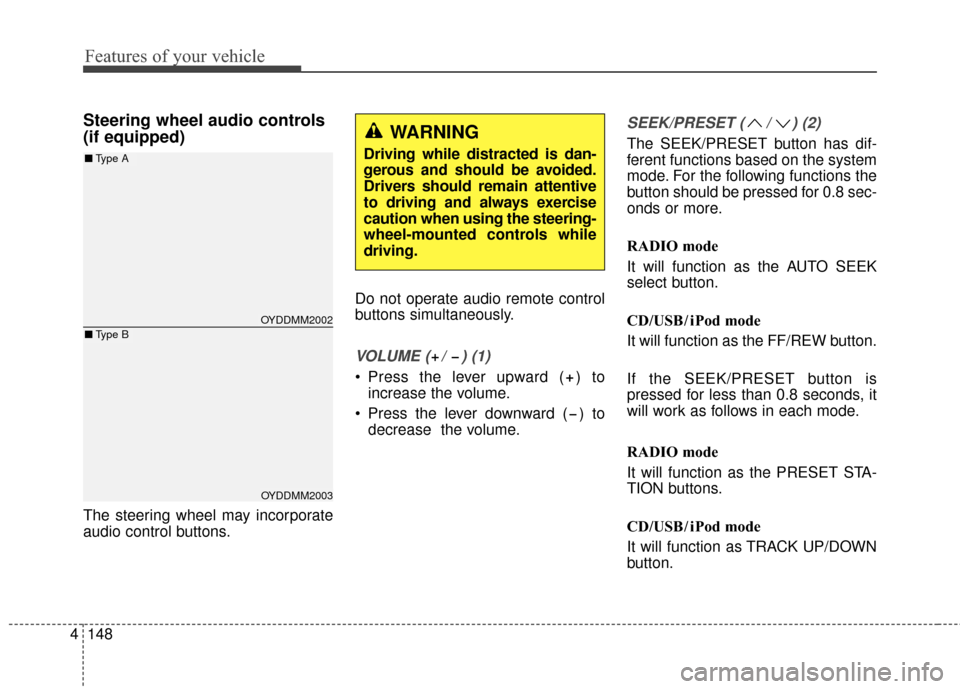
The steering wheel may incorporate
audio control buttons. Do not operate audio remote control
buttons simultaneously.
VOLUME ( / ) (1)
Press the lever upward ( ) to
increase the volume.
Press the lever downward ( ) to decrease the volume.
SEEK/PRESET ( / ) (2)
The SEEK/PRESET button has dif-
ferent functions based on the system
mode. For the following functions the
button should be pressed for 0.8 sec-
onds or more.
RADIO mode
It will function as the AUTO SEEK
select button.
CD/USB/ iPod mode
It will function as the FF/REW button.
If the SEEK/PRESET button is
pressed for less than 0.8 seconds, it
will work as follows in each mode.
RADIO mode
It will function as the PRESET STA-
TION buttons.
CD/USB/ iPod mode
It will function as TRACK UP/DOWN
button.
OYDDMM2002
OYDDMM2003
■ Type A
■Type B
WARNING
Driving while distracted is dan-
gerous and should be avoided.
Drivers should remain attentive
to driving and always exercise
caution when using the steering-
wheel-mounted controls while
driving.
Page 253 of 452
Features of your vehicle
182
4
Using the Bluetooth®Wireless
Technology audio features
Press the TUNE knob to play and
pause the current song.
Press or
to play
previous or next song.
❈ The previous song / next song /
play / pause functions may not be
supported in some mobile phones.
PHONE
Making a call using the
Steering-wheel mount controls
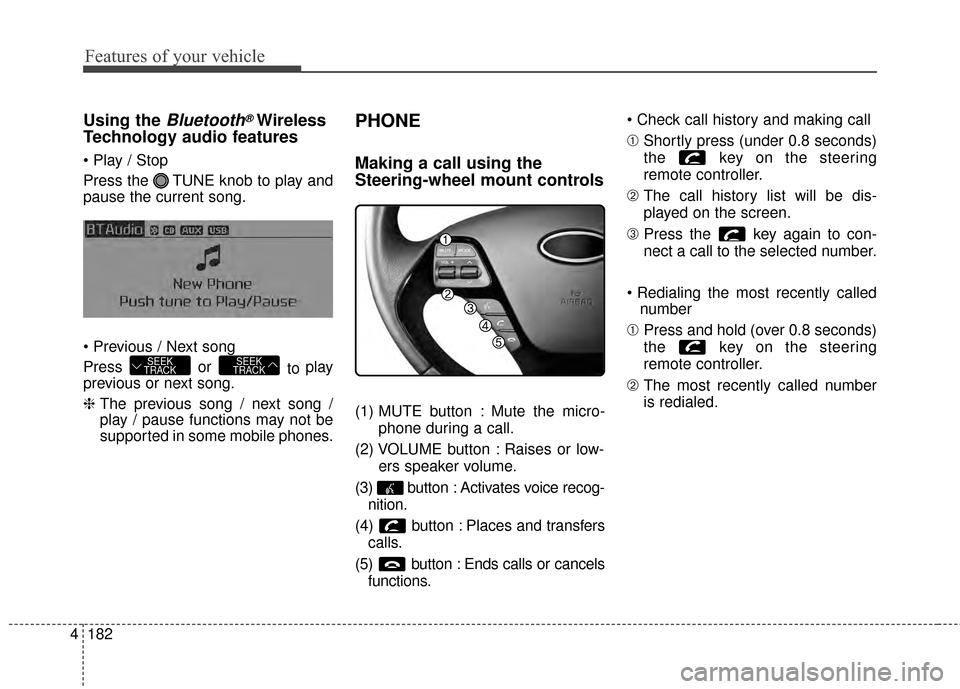
(1) MUTE button : Mute the micro-
phone during a call.
(2) VOLUME button : Raises or low- ers speaker volume.
(3) button : Activates voice recog- nition.
(4) button : Places and transfers calls.
(5) button : Ends calls or cancels functions.
➀
Shortly press (under 0.8 seconds)
the key on the steering
remote controller.
\b The call history list will be dis-
played on the screen.
➂ Press the key again to con-
nect a call to the selected number.
number
➀ Press and hold (over 0.8 seconds)
the key on the steering
remote controller.
\b The most recently called number
is redialed.
SEEK
TRACKSEEK
TRACK
Page 255 of 452
Features of your vehicle
184
4
3. From your Bluetooth®Wireless
Technology device (i.e. Mobile
Phone), search and select your
car audio system.
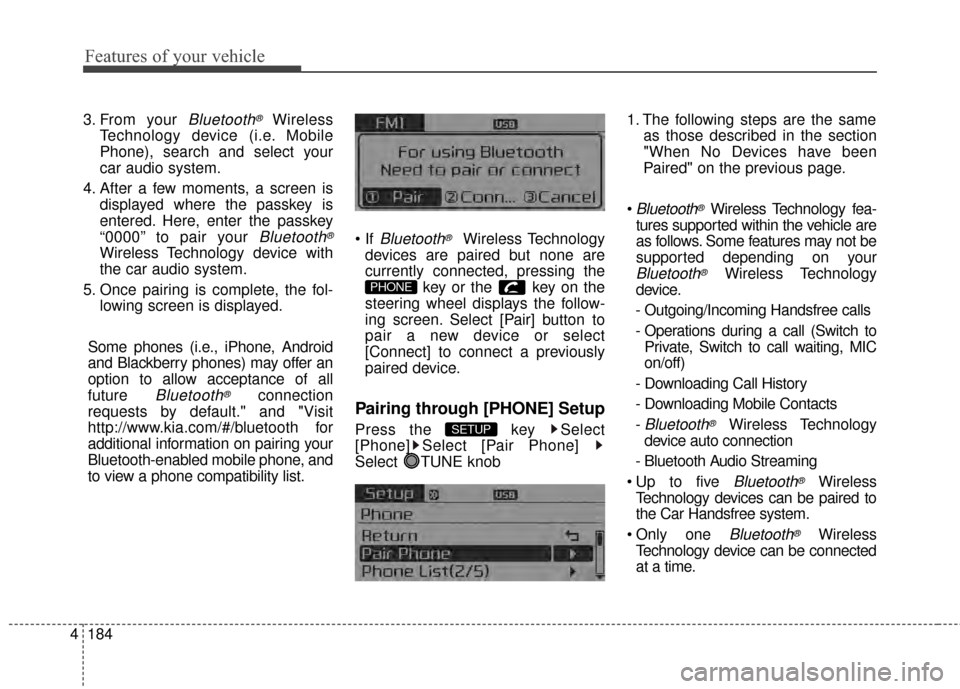
4. After a few moments, a screen is displayed where the passkey is
entered. Here, enter the passkey
“0000” to pair your
Bluetooth®
Wireless Technology device with
the car audio system.
5. Once pairing is complete, the fol- lowing screen is displayed.
Some phones (i.e., iPhone, Android
and Blackberry phones) may offer an
option to allow acceptance of all
future
Bluetooth®connection
requests by default." and "Visit
http://www.kia.com/#/bluetooth for
additional information on pairing your
Bluetooth-enabled mobile phone, and
to view a phone compatibility list.
Bluetooth®Wireless Technology
devices are paired but none are
currently connected, pressing the key or the key on the
steering wheel displays the follow-
ing screen. Select [Pair] button to
pair a new device or select
[Connect] to connect a previously
paired device.
Pairing through [PHONE] Setup
Press the key Select
[Phone] Select [Pair Phone]
Select TUNE knob 1. The following steps are the same
as those described in the section
"When No Devices have been
Paired" on the previous page.
Bluetooth®Wireless Technology fea-
tures supported within the vehicle are
as follows. Some features may not be
supported depending on your
Bluetooth®Wireless Technology
device.
- Outgoing/Incoming Handsfree calls
- Operations during a call (Switch to Private, Switch to call waiting, MIC
on/off)
- Downloading Call History
- Downloading Mobile Contacts
-
Bluetooth®Wireless Technology
device auto connection
- Bluetooth Audio Streaming
Bluetooth®Wireless
Technology devices can be paired to
the Car Handsfree system.
one
Bluetooth®Wireless
Technology device can be connected
at a time.
SETUP
PHONE
Page 259 of 452
Features of your vehicle
188
4
USING Bluetooth®Wireless
Technology
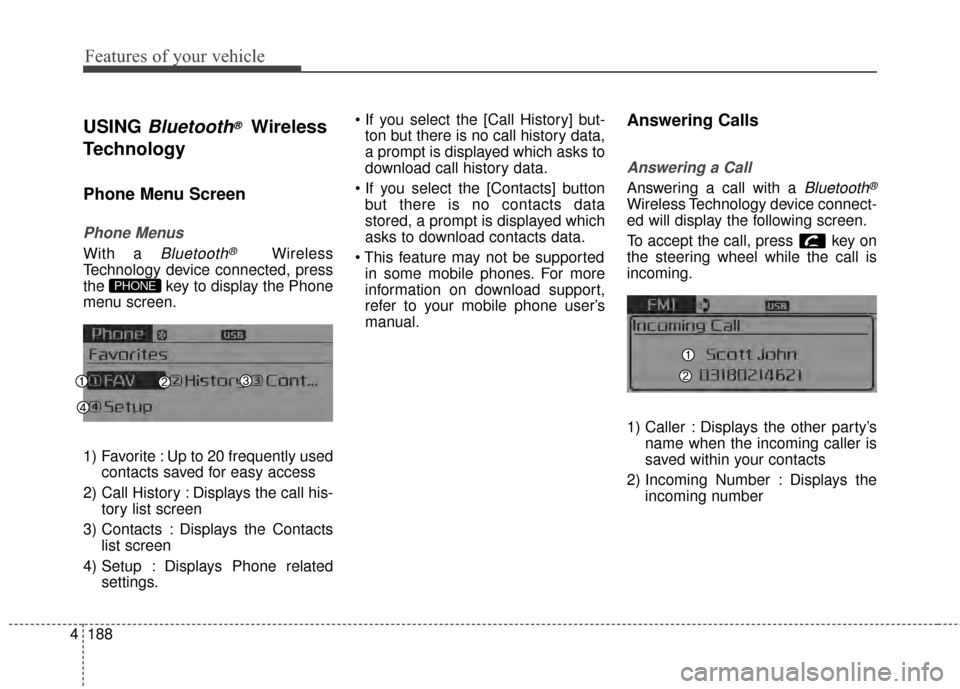
Phone Menu Screen
Phone Menus
With a Bluetooth®Wireless
Technology device connected, press
the key to display the Phone
menu screen.
1) Favorite : Up to 20 frequently used contacts saved for easy access
2) Call History : Displaysthe call his-
tory list screen
3) Contacts : Displays the Contacts list screen
4) Setup : Displays Phone related settings.
ton but there is no call history data,
a prompt is displayed which asks to
download call history data.
but there is no contacts data
stored, a prompt is displayed which
asks to download contacts data.
in some mobile phones. For more
information on download support,
refer to your mobile phone user’s
manual.
Answering Calls
Answering a Call
Answering a call with a Bluetooth®
Wireless Technology device connect-
ed will display the following screen.
To accept the call, press key on
the steering wheel while the call is
incoming.
1) Caller : Displays the other party’s name when the incoming caller is
saved within your contacts
2) Incoming Number : Displays the incoming number
PHONE
Page 265 of 452
![KIA Forte 2015 2.G Owners Guide Features of your vehicle
194
4
VOICE RECOGNITION
Using Voice Recognition
Starting Voice Recognition
Shortly press the key on the
steering wheel Say a command If prompt feedback is in [ON], then
the](/img/2/2961/w960_2961-264.png "KIA Forte 2015 2.G Owners Guide Features of your vehicle
194
4
VOICE RECOGNITION
Using Voice Recognition
Starting Voice Recognition
Shortly press the key on the
steering wheel Say a command If prompt feedback is in [ON], then
the")
Features of your vehicle
194
4
VOICE RECOGNITION
Using Voice Recognition
Starting Voice Recognition
Shortly press the key on the
steering wheel Say a command If prompt feedback is in [ON], then
the system will say “Please say a
command after the beep (BEEP)”
mode, then the system will only say
“(BEEP)”
[On]/[Off], go to [System] [Prompt Feedback]
command after the voice instruc-
tion and beep tone.
Contact List Best Practices
1) Do not store single-name entries (e.g., “Bob”, “Mom”, “Kim”, etc.).
Instead, always use full names
(including first and last names) for
all contacts (e.g., use “Jacob
Stevenson” instead of “Dad”).
2) Do not use abbreviations (i.e., use “Lieutenant” instead of “Lt.” or
“Sergeant” instead of “Sgt.”).
3) Do not use acronyms (i.e., use “County Finance Department”
instead of “CFD”). 4) Do not use special characters
(e.g., “@”, “hyphen -“, “asterisk *”,
ampersand &”).
5) If a name is not recognized from the contact list, change it to a
more descriptive name (e.g., use
“Grandpa Joseph” instead of “Pa
Joe”).
Skipping Prompt Messages
While prompt message is being stat-
ed Shortly press the key on the
steering remote controller
The prompt message is immediately
ended and the beep tone will sound.
After the “beep”, say the voice com-
mand.
Re-starting Voice Recognition
While system waits for a command
Shortly press the key on the
steering remote controller
The command wait state is immedi-
ately ended and the beep ton will
sound. After the “beep”, say the voice
command.
SETUP
Page 266 of 452
4195
Features of your vehicle
ENDING VOICE
RECOGNITION
While Voice Recognition is operatingPress and hold the key on the
steering remote controller
ing any steering wheel control or a
different key will end voice com-
mand.
the system is waiting for a voice command, say “cancel” or
“end” to end voice command.
the system is waiting for a voice command, press and hold the key on the steering wheel to
end voice command. Voice Recognition and Phone
Contact Tips:
The Kia Voice Recognition System
may have difficulty understanding
some accents or uncommon names.
When using Voice Recognition to
place a call, speak in a moderate
tone, with clear pronunciation To
maximize the use of Voice
Recognition, consider these guide-
lines when storing contacts:
(e.g., “Bob”, “Mom”, etc.). Instead,
always use full names (including first
and last names) for these contacts
'@', '-', '*', '&', etc.)
"Lieutenant" instead of "Lt.") or
acronyms (i.e., use "County Finance
Department" instead of "C. F. D."; Be
sure to say the name exactly as it is
entered in the contacts list
Page 277 of 452
Driving your vehicle
45
WARNING- Fire risk
When you intend to park or stop
the vehicle with the engine on,
be careful not to depress the
accelerator pedal for a long
period of time. It may overheat
the engine or exhaust system
and cause a fire.WARNING - Driving while intoxicated
Do not drive while intoxicated.
Drinking and driving is danger-
ous. Even a small amount of
alcohol will affect your reflexes,
perceptions and judgment.
Driving while under the influ-
ence of drugs is as dangerous
as or more dangerous than driv-
ing drunk.WARNING- Loose object
Securely store items in your
vehicle. When you make a sud-
den stop or turn the steering
wheel rapidly, loose objects
may drop on the floor and it
could interfere with the opera-
tion of the foot pedals, possibly
causing an accident.
Page 278 of 452
55
Driving your vehicle
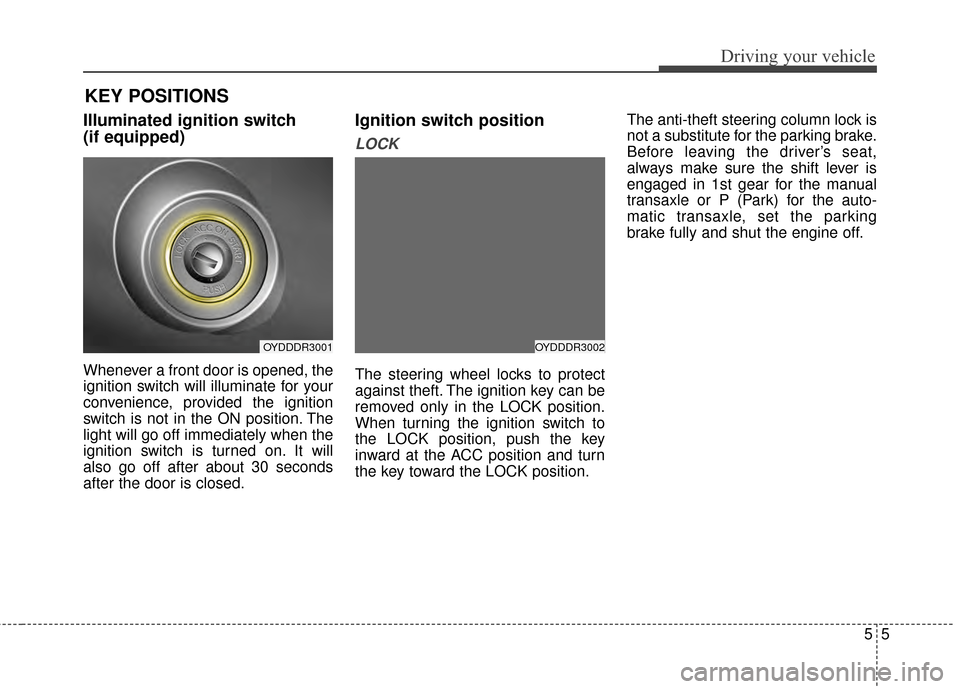
Illuminated ignition switch
(if equipped)
Whenever a front door is opened, the
ignition switch will illuminate for your
convenience, provided the ignition
switch is not in the ON position. The
light will go off immediately when the
ignition switch is turned on. It will
also go off after about 30 seconds
after the door is closed.
Ignition switch position
LOCK
The steering wheel locks to protect
against theft. The ignition key can be
removed only in the LOCK position.
When turning the ignition switch to
the LOCK position, push the key
inward at the ACC position and turn
the key toward the LOCK position.The anti-theft steering column lock is
not a substitute for the parking brake.
Before leaving the driver’s seat,
always make sure the shift lever is
engaged in 1st gear for the manual
transaxle or P (Park) for the auto-
matic transaxle, set the parking
brake fully and shut the engine off.
KEY POSITIONS
OYDDDR3001OYDDDR3002
Page 279 of 452
Driving your vehicle
65
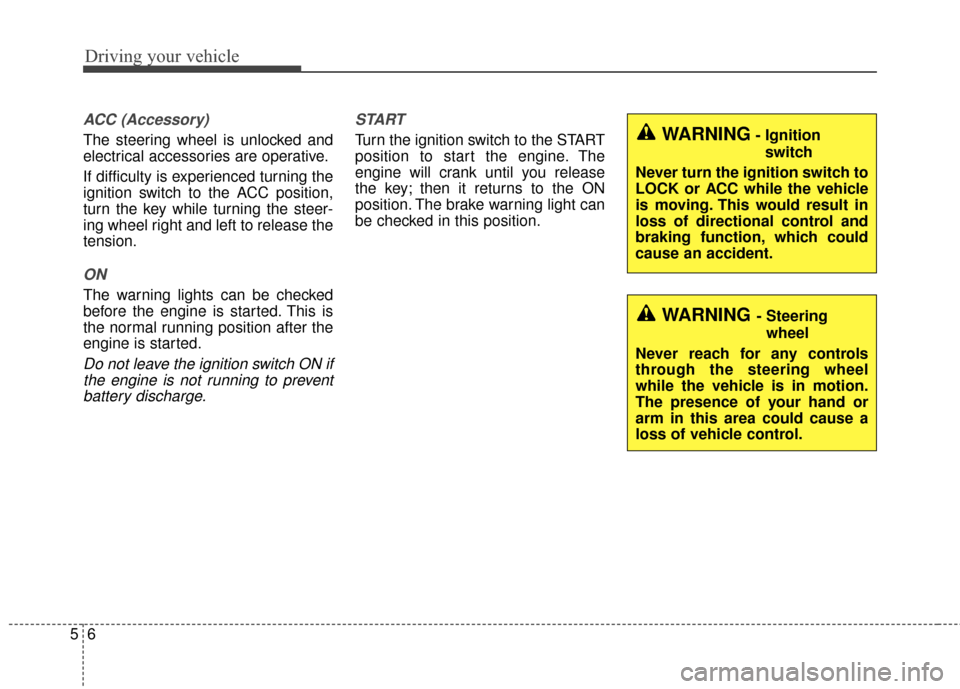
ACC (Accessory)
The steering wheel is unlocked and
electrical accessories are operative.
If difficulty is experienced turning the
ignition switch to the ACC position,
turn the key while turning the steer-
ing wheel right and left to release the
tension.
ON
The warning lights can be checked
before the engine is started. This is
the normal running position after the
engine is started.
Do not leave the ignition switch ON ifthe engine is not running to preventbattery discharge. START
Turn the ignition switch to the START
position to start the engine. The
engine will crank until you release
the key; then it returns to the ON
position. The brake warning light can
be checked in this position.WARNING- Ignition
switch
Never turn the ignition switch to
LOCK or ACC while the vehicle
is moving. This would result in
loss of directional control and
braking function, which could
cause an accident.
WARNING - Steering wheel
Never reach for any controls
through the steering wheel
while the vehicle is in motion.
The presence of your hand or
arm in this area could cause a
loss of vehicle control.