eco KIA FORTE 2018 Owners Manual
[x] Cancel search | Manufacturer: KIA, Model Year: 2018, Model line: FORTE, Model: KIA FORTE 2018Pages: 584, PDF Size: 15.14 MB
Page 217 of 584
Features of your vehicle
142
4
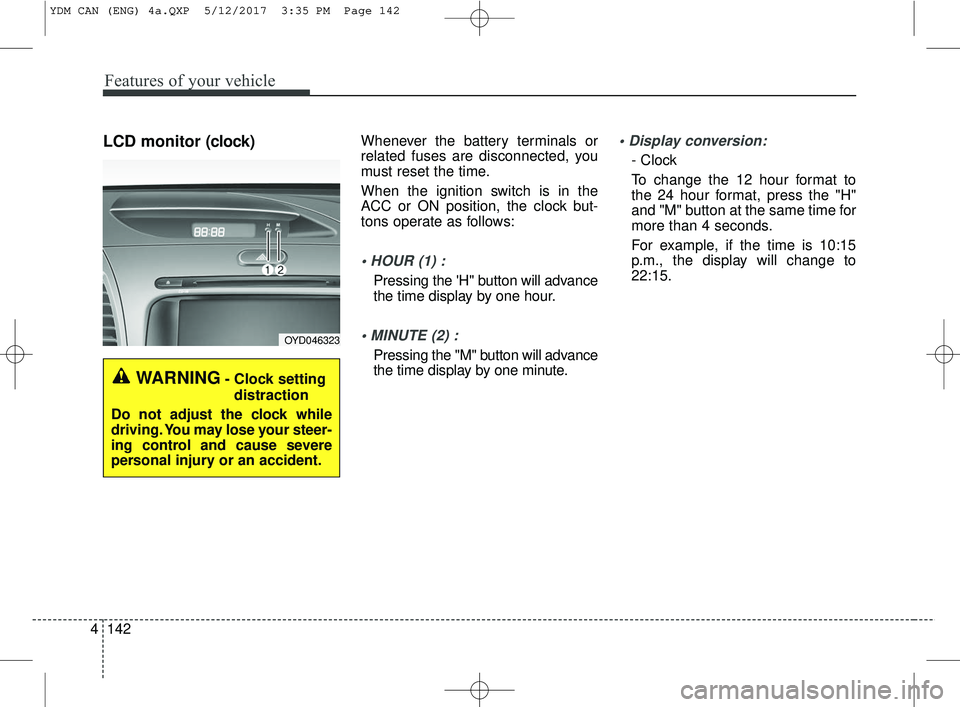
LCD monitor (clock)Whenever the battery terminals or
related fuses are disconnected, you
must reset the time.
When the ignition switch is in the
ACC or ON position, the clock but-
tons operate as follows:
Pressing the 'H" button will advance
the time display by one hour.
Pressing the "M" button will advance
the time display by one minute.
- Clock
To change the 12 hour format to
the 24 hour format, press the "H"
and "M" button at the same time for
more than 4 seconds.
For example, if the time is 10:15
p.m., the display will change to
22:15.
WARNING- Clock setting
distraction
Do not adjust the clock while
driving. You may lose your steer-
ing control and cause severe
personal injury or an accident.
OYD046323
YDM CAN (ENG) 4a.QXP 5/12/2017 3:35 PM Page 142
Page 218 of 584

4143
Features of your vehicle
Clothes hanger (if equipped)
To use the hanger, pull down the
upper portion of the hanger.
Floor mat anchor(s)
When using a floor mat on the floor
carpet, make sure it attaches to the
floor mat anchor(s) in the front and
rear floor carpet of your vehicle. This
keeps the floor mat from sliding for-
ward.
OUN026348
CAUTION - Hanging clothing
Do not hang heavy clothes, sincethose may damage the hook.
ODMECO2034
WARNING - After market
floor mat
Do not install aftermarket floor
mats that are not capable of
being securely attached to the
vehicle's floor mat anchors.
Unsecured floor mats can inter-
fere with pedal operation.
WARNING
Do not hang other objects such
as hangers or hard objects
except clothes. Also, do not put
heavy, sharp or breakable
objects in the cloth pockets. In
an accident or when the curtain
air bag is inflated, it may cause
vehicle damage or personal
injury.
OPS046500
YDM CAN (ENG) 4a.QXP 5/12/2017 3:35 PM Page 143
Page 219 of 584
Features of your vehicle
144
4
The following must be observed
when installing ANY floor mat in the
vehicle.
Ensure that the floor mats are
securely attached to the vehicle's
floor mat anchor(s) before driving
the vehicle.
Do not use ANY floor mat that can- not be firmly attached to the vehi-
cle's floor mat anchors.
Do not stack floor mats on top of one another (e.g. ,all-weather rub-
ber mat on top of a carpeted floor
mat). Only a single floor mat should
be installed in each position.
✽ ✽ NOTICE
Your vehicle was manufactured with
driver's side floor mat anchors that
are designed to securely hold the
floor mat in place. To avoid any
interference with pedal operation,
Kia recommends that only the Kia
floor mat designed for use in your
vehicle be installed.
Luggage net (holder)
(if equipped)
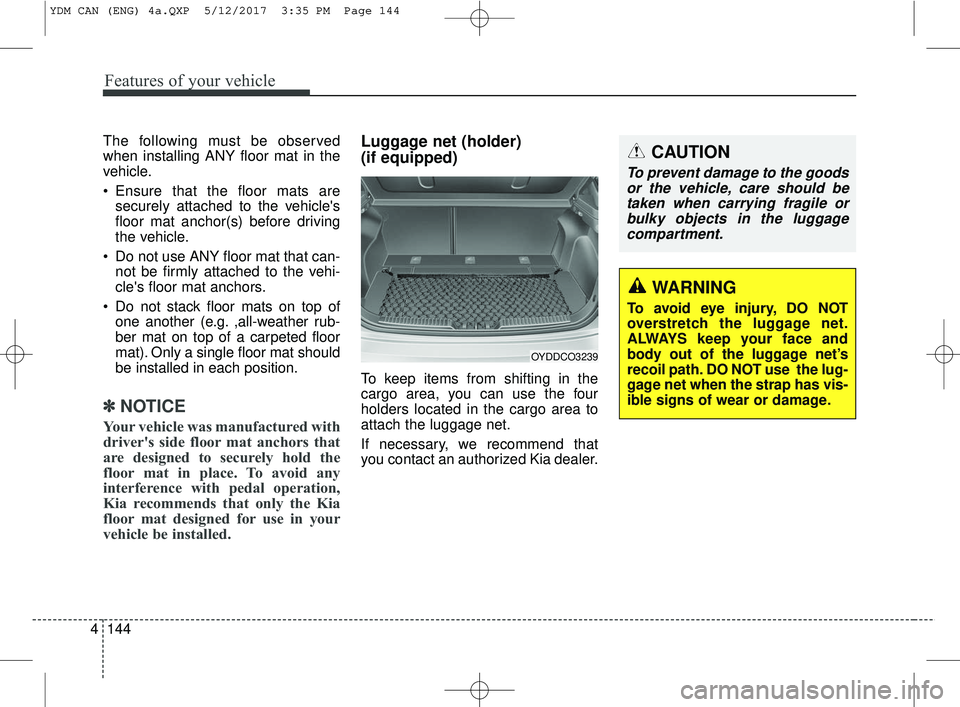
To keep items from shifting in the
cargo area, you can use the four
holders located in the cargo area to
attach the luggage net.
If necessary, we recommend that
you contact an authorized Kia dealer.
OYDDCO3239
CAUTION
To prevent damage to the goods
or the vehicle, care should betaken when carrying fragile orbulky objects in the luggagecompartment.
WARNING
To avoid eye injury, DO NOT
overstretch the luggage net.
ALWAYS keep your face and
body out of the luggage net’s
recoil path. DO NOT use the lug-
gage net when the strap has vis-
ible signs of wear or damage.
YDM CAN (ENG) 4a.QXP 5/12/2017 3:35 PM Page 144
Page 223 of 584
Steering wheel audio controls
(if equipped)
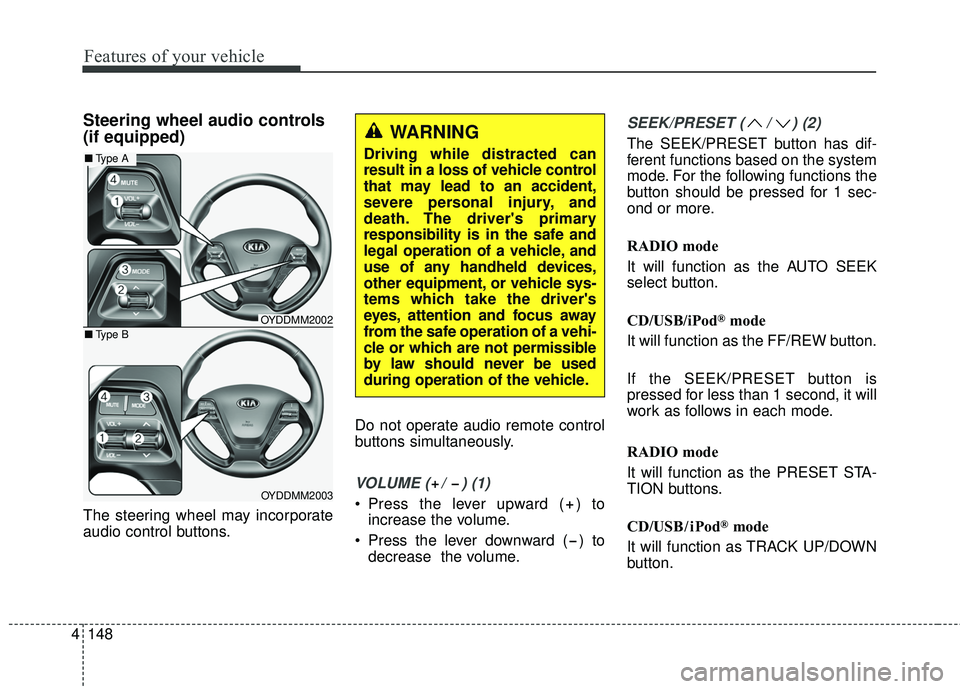
The steering wheel may incorporate
audio control buttons.Do not operate audio remote control
buttons simultaneously.
VOLUME ( / ) (1)
Press the lever upward ( ) to
increase the volume.
Press the lever downward ( ) to decrease the volume.
SEEK/PRESET ( / ) (2)
The SEEK/PRESET button has dif-
ferent functions based on the system
mode. For the following functions the
button should be pressed for 1 sec-
ond or more.
RADIO mode
It will function as the AUTO SEEK
select button.
CD/USB/iPod
®mode
It will function as the FF/REW button.
If the SEEK/PRESET button is
pressed for less than 1 second, it will
work as follows in each mode.
RADIO mode
It will function as the PRESET STA-
TION buttons.
CD/USB/ iPod
®mode
It will function as TRACK UP/DOWN
button.
4 148
Features of your vehicle
OYDDMM2002
OYDDMM2003
■ Type A
■Type B
WARNING
Driving while distracted can
result in a loss of vehicle control
that may lead to an accident,
severe personal injury, and
death. The driver's primary
responsibility is in the safe and
legal operation of a vehicle, and
use of any handheld devices,
other equipment, or vehicle sys-
tems which take the driver's
eyes, attention and focus away
from the safe operation of a vehi-
cle or which are not permissible
by law should never be used
during operation of the vehicle.
Page 224 of 584
MODE (3)
Press the button to change audio
source.
FM(1~2)
➟AM➟SAT(1~3)➟CD➟USB
AUX(iPod®)➟FM...
In addition to mode change, Power
on/off can be made by pressing this
button when the ignition switch is on
ACC or ON.
- Power ON: Press the button when the audio is off
- Power OFF: Press the button for more than 1 second when the
audio is on.
MUTE (4, if equipped)
Press the button to mute thesound.
Press the button to turn off the microphone during a telephone
call.
Detailed information for audio control
buttons are described in the following
pages in this chapter.
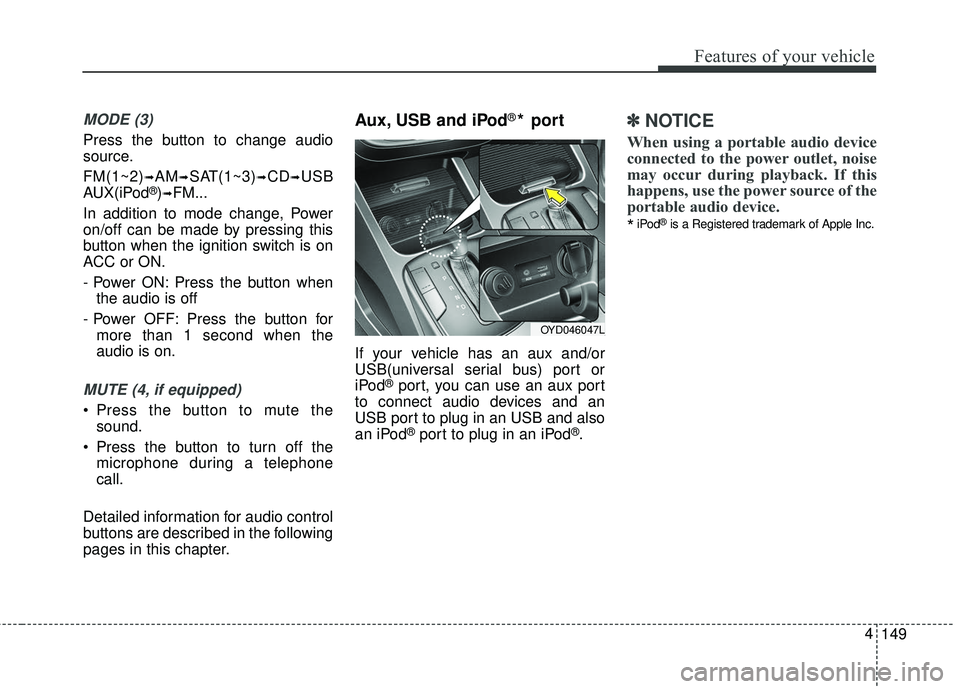
Aux, USB and iPod®* port
If your vehicle has an aux and/or
USB(universal serial bus) port or
iPod
®port, you can use an aux port
to connect audio devices and an
USB port to plug in an USB and also
an iPod
®port to plug in an iPod®.
✽ ✽ NOTICE
When using a portable audio device
connected to the power outlet, noise
may occur during playback. If this
happens, use the power source of the
portable audio device.
*iPod®is a Registered trademark of Apple Inc.
149
4
Features of your vehicle
OYD046047L
Page 231 of 584
4 156
Features of your vehicle
USING THE USB DEVICE
To use an external USB device,make sure the device is not con-
nected when starting up the
vehicle. Connect the device after
starting up.
If you start the engine when the USB device is connected, it may
damage the USB device. (USB
flashdrives are very sensitive to
electric shock.)
If the engine is started up or turned off while the external USB
device is connected, the external
USB device may not work.
The System may not play unau- thenticated MP3 or WMA files.
1) It can only play MP3 files with the compression rate between
8Kbps ~ 320Kbps.
2) It can only play WMA music files with the compression rate
between 8Kbps ~ 320Kbps.
Take precautions for static elec- tricity when connecting or discon-
necting the external USB device.
(Continued)(Continued)
An encrypted MP3 PLAYER is
not recognizable.
Depending on the condition of the external USB device, the
connected external USB device
can be unrecognizable.
When the formatted byte/sector setting of External USB device is
not either 512BYTE or
2048BYTE, then the device will
not be recognized.
Use only a USB device format- ted to FAT 12/16/32.
USB devices without USB I/F authentication may not be recog-
nizable.
Make sure the USB connection terminal does not come in con-
tact with the human body or
other objects.
If you repeatedly connect or dis- connect the USB device in a
short period of time, it may break
the device.
(Continued)(Continued)
You may hear a strange noise
when connecting or disconnect-
ing a USB device.
If you disconnect the external USB device during playback in
USB mode, the external USB
device can be damaged or may
malfunction. Therefore, discon-
nect the external USB device
when the audio is turned off or in
another mode. (e.g, Radio, CD)
Depending on the type and capacity of the external USB
device or the type of the files
stored in the device, there is a
difference in the time taken for
recognition of the device.
Do not use the USB device for purposes other than playing
music files.
Playing videos through the USB is not supported.
Use of USB accessories such as rechargers or heaters using USB
I/F may lower performance or
cause trouble.
(Continued)
Page 232 of 584
157
4
Features of your vehicle
(Continued)
If you use devices such as a USB
hub purchased separately, the
vehicle’s audio system may not
recognize the USB device. In that
case, connect the USB device
directly to the multimedia terminal
of the vehicle.
If the USB device is divided by log- ical drives, only the music files on
the highest-priority drive are rec-
ognized by car audio.
Devices such as MP3 Player/ Cellular phone/Digital camera can
be unrecognizable by standard
USB I/F can be unrecognizable.
Charging through the USB may not be supported in some mobile
devices.
USB HDD or USB types liable to connection failures due to vehicle
vibrations are not supported. (i-
stick type)
Some non-standard USB devices (METAL COVER TYPE USB) can
be unrecognizable.
(Continued)(Continued)
Some USB flash memory read-
ers (such as CF, SD, micro SD,
etc.) or external-HDD type
devices can be unrecognizable.
Music files protected by DRM (DIGITAL RIGHTS MANAGE-
MENT) are not recognizable.
The data in the USB memory may be lost while using this
audio. Always back up important
data on a personal storage
device.
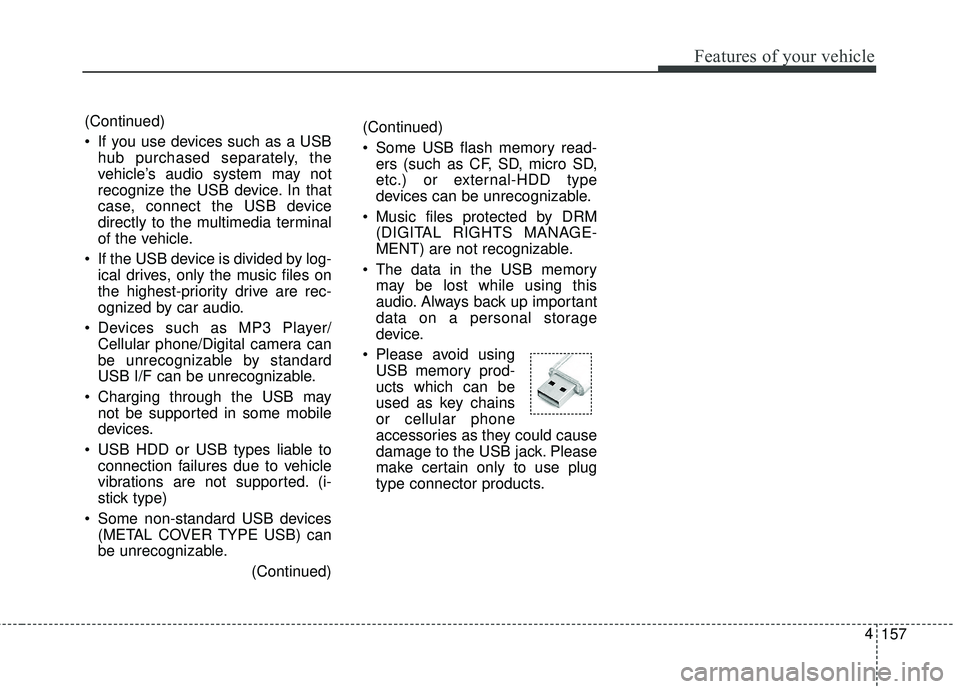
Please avoid using USB memory prod-
ucts which can be
used as key chains
or cellular phone
accessories as they could cause
damage to the USB jack. Please
make certain only to use plug
type connector products.
Page 233 of 584
4 158
Features of your vehicle
(Continued)
Some iPod
®devices, such as the
iPhone®, can be connected
through the
Bluetooth®Wireless
Technology interface. The device
must have audio
Bluetooth®
Wireless Technology capability
(such as for stereo headphone
Bluetooth®Wireless Technology
). The device can play, but it will
not be controlled by the audio
system.
To use iPod
®features within the
audio, use the cable provided
upon purchasing an iPod
®
device.
Skipping or improper operation may occur depending on the
characteristics of your
iPod
®/iPhone®device.
If your iPhone
®is connected to
both the
Bluetooth®Wireless
Technology and USB, the sound
may not be properly played. In
your iPhone
®, select the Dock
connector or
Bluetooth®
Wireless Technology to change
the sound output (source).
(Continued)(Continued)
When connecting iPod
®with the
iPod®Power Cable, insert the
connector to the multimedia
socket completely. If not inserted
completely, communications
between iPod
®and audio may
be interrupted.
When adjusting the sound effects of the iPod
®and the
audio system, the sound effects
of both devices will overlap and
might reduce or distort the qual-
ity of the sound.
Deactivate (turn off) the equaliz- er function of an iPod
®when
adjusting the audio system’s vol-
ume, and turn off the equalizer
of the audio system when using
the equalizer of an iPod
®.
When not using iPod
®with car
audio, detach the iPod®cable
from iPod®. Otherwise, iPod®
may remain in accessory mode,
and may not work properly.
Beside support 1M cable when purchasing iPod/iPhone products,
Long Cable cannot be recognized.
USING THE iPod®DEVICE
Some iPod®models may not
support communication protocol
and files may not properly play.
Supported iPod
®models:
- iPhone
®3GS/4
- iPod
®touch 1st~4th generation
- iPod
®nano 1st~6th generation
- iPod
®classic
The order of search or playback of songs in the iPod
®can be dif-
ferent from the order searched in
the audio system.
If the iPod
®is disabled due to its
own malfunction, reset the
iPod
®. (Reset: Refer to iPod®
manual)
An iPod
®may not operate nor-
mally on low battery.
(Continued)
Page 235 of 584
When connecting aBluetooth®
Phone
with the mobile phone, check to
see that the mobile phone sup-
ports
Bluetooth®features.
Bluetooth®, the phone will not be
found during device searches if
the phone has been set to hidden
state or the
Bluetooth®power is
turned off. Disable the hidden
state or turn on the
Bluetooth®
power prior to searching/connect-
ing with the Head unit.
connected when the ignition on.
nection with your
Bluetooth®
device, turn off the Bluetooth®
feature within your mobile phone.
quality may differ depending on
the mobile phone.
the head unit with the mobile
phone.
Bluetooth®connection may
become intermittently discon-
nected in some mobile phones.
Follow these steps to try again.
1. Within the mobile phone, turn the
Bluetooth®function off/on
and try again.
2. Turn the mobile phone power Off/On and try again.
3. Completely remove the mobile phone battery, reboot, and then
again.
4. Reboot the Audio System and try again.
5. Delete all paired devices, pair and try again.
Handsfree call quality and volume may differ depending on the
model of your mobile phone.
4 160
Features of your vehicle
Page 236 of 584
Voice Recognition
feature, only commands listed with-
in the user's manual are supported.
of the voice recognition system,
pressing any key other than the key terminate voice recognition
mode.
For superior voice recognition per- formance, position the microphone
used for voice recognition above
the head of the driver’s seat and
maintain a proper position when
saying commands.
voice recognition may not function
properly due to external sound.
- When the windows and sunroof are open
- When the wind of the cooling / heating device is strong
- When entering and passing through tunnels
(Continued)(Continued)
- When driving on rugged and uneven roads
- During severe rain (heavy rains, windstorms)
can be used only when a
Bluetooth®Wireless Technology
device is connected.
name, the corresponding contact
must be downloaded and stored
within the audio system.
downloading the
Bluetooth®
Wireless Technology phone book, it
takes some times to convert the
phone book data into voice infor-
mation. During this time, voice
recognition may not properly oper-
ate.
naturally and clearly as if in a nor-
mal conversation.
161
4
Features of your vehicle