check KIA FORTE 2023 Navigation System Quick Reference Guide
[x] Cancel search | Manufacturer: KIA, Model Year: 2023, Model line: FORTE, Model: KIA FORTE 2023Pages: 324, PDF Size: 10.59 MB
Page 53 of 324
2-15
k k The list of menu items appears.
•Display Off: Turns off the screen. To switch the screen back on, press the screen or
briefly press the power button.
•User's Manual on Web (QR Code): Displays the QR code that provides access to the
online user manual for the system.
A
The temperature of the climate system can be adjusted by 1 ℉ increments. When the
temperature is set to the lower limit or upper limit, "LOW" or "HIGH" appears on the
screen.
A
Available settings may differ depending on the vehicle model and specifications.
Using the rear-seat climate control function
(if equipped)
You can check or set the rear-seat climate status on the system screen.
1 Perform any of the following methods:
•Press the [
REAR] button on the climate control system.
•On the All Menus screen, press Rear Climate.
Page 56 of 324
2-18
Using the rear-seat view (if equipped)
You can check the status and safety of rear-seat occupants through the rear-seat camera feed
displayed on the system screen.
ÝWarning
A car accident may occur when focusing on the vehicle display and not pa\
ying attention to
the road while driving.
On the All Menus screen, press Passenger View.
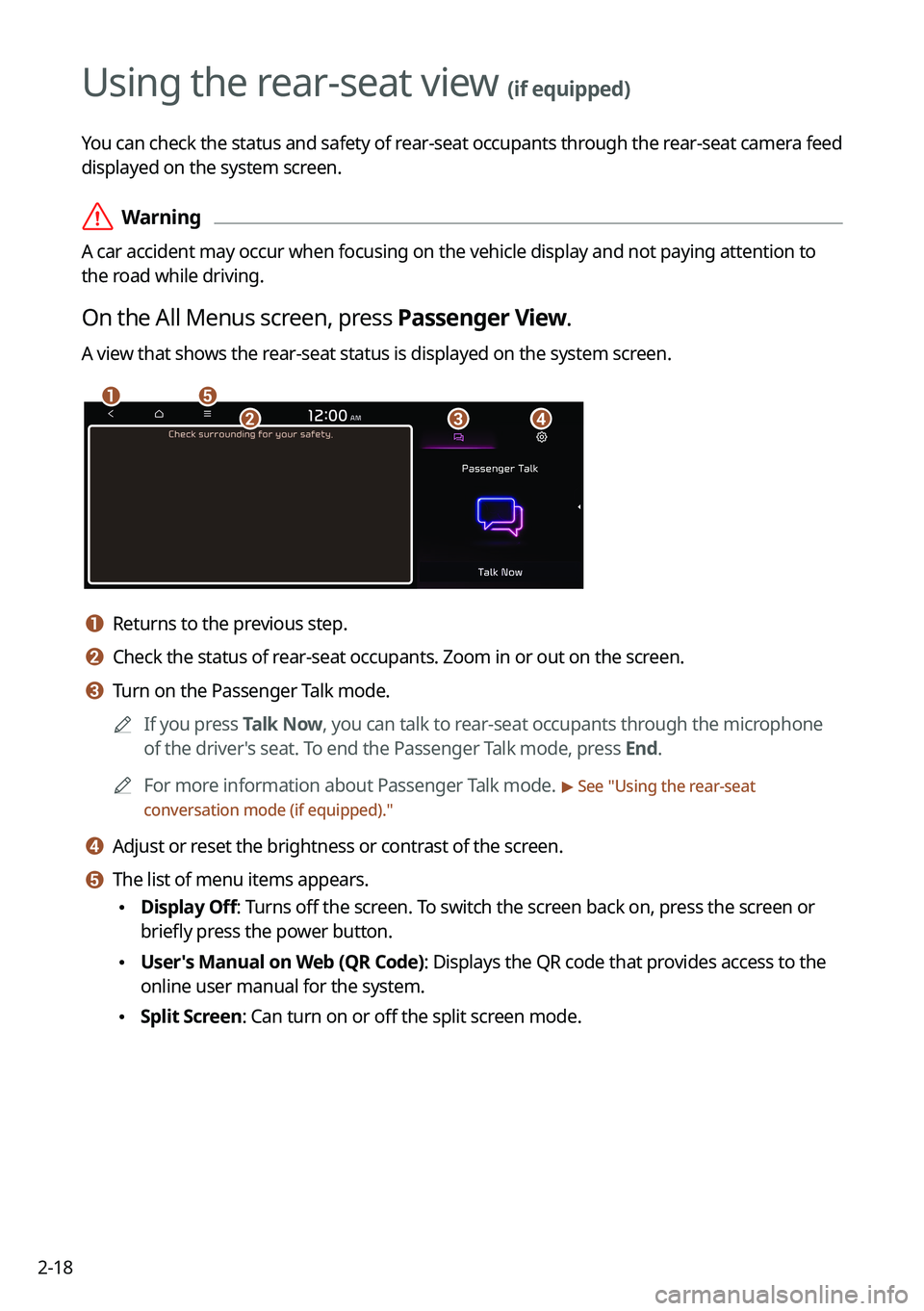
A view that shows the rear-seat status is displayed on the system screen.
ae
cbd
a a Returns to the previous step.
b b Check the status of rear-seat occupants. Zoom in or out on the screen.
c c Turn on the Passenger Talk mode.
A
If you press Talk Now, you can talk to rear-seat occupants through the microphone
of the driver's seat. To end the Passenger Talk mode, press End.
A
For more information about Passenger Talk mode.
> See "Using the rear-seat
conversation mode (if equipped)."
d d Adjust or reset the brightness or contrast of the screen.
e e The list of menu items appears.
• Display Off: Turns off the screen. To switch the screen back on, press the screen or
briefly press the power button.
•User's Manual on Web (QR Code): Displays the QR code that provides access to the
online user manual for the system.
•Split Screen: Can turn on or off the split screen mode.
Page 58 of 324

2-20
Using the sound mood lamp (if equipped)
You can set to implement various lighting effects by synchronizing with the playing music.
1 On the All Menus screen, press Sound Mood Lamp.
2 Select and then change the settings.
c
d
e
f
b
ag
a a Returns to the previous step.
b b Can turn on or off the sound mood lamp.
c c Can select various color themes. Based on the selected color theme, the \
interior
lighting changes its colors in various patterns.
d d Can select the color of the light. The selected lighting color changes into a soft glow
effect.
e e Can synchronize the light with the playing music.
A
After checking Music+, music is not played back or the light does not illuminate
when muted.
f f Can adjust the brightness of the light.
g g The list of menu items appears.
•Display Off
: Turns off the screen. To switch the screen back on, press the screen or
briefly press the power button.
• Reset: Can reset all the settings of the sound mood lamp.
•User's Manual on Web (QR Code): Displays the QR code that provides access to
the online user manual for the system.
•Split Screen: Can turn on or off the split screen mode.
A
You cannot manipulate the sound mood lamp while driving.
A
When a door is opened, the light automatically turns off.
A
The screen may differ depending on the vehicle model and specifications.
Page 59 of 324
2-21
Playing Sounds of Nature
Listen to the calming sound of rain, waves, and more to relax while driving by turning on a
Sounds of Nature.
1 On the All Menus screen, press Media >
Sounds of Nature.
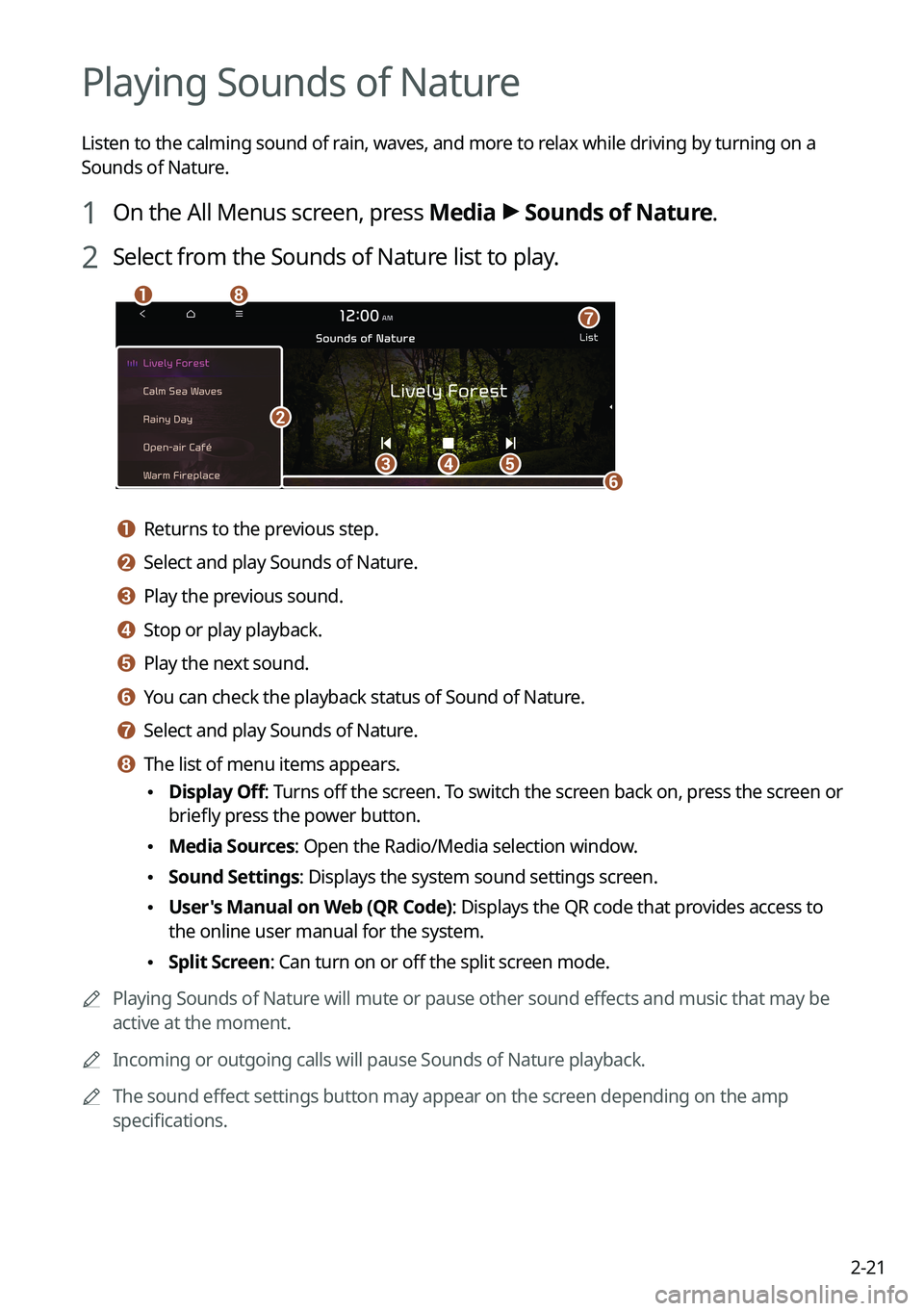
2 Select from the Sounds of Nature list to play.
cde
ha
b
f
g
a a Returns to the previous step.
b b Select and play Sounds of Nature.
c c Play the previous sound.
d d Stop or play playback.
e e Play the next sound.
f f You can check the playback status of Sound of Nature.
g g Select and play Sounds of Nature.
h h The list of menu items appears.
• Display Off
: Turns off the screen. To switch the screen back on, press the screen or
briefly press the power button.
• Media Sources: Open the Radio/Media selection window.
•Sound Settings: Displays the system sound settings screen.
•User's Manual on Web (QR Code): Displays the QR code that provides access to
the online user manual for the system.
•Split Screen: Can turn on or off the split screen mode.
A
Playing Sounds of Nature will mute or pause other sound effects and music that may be
active at the moment.
A
Incoming or outgoing calls will pause Sounds of Nature playback.
A
The sound effect settings button may appear on the screen depending on the amp
specifications.
Page 61 of 324
2-23
Viewing traffic information using HD radio data
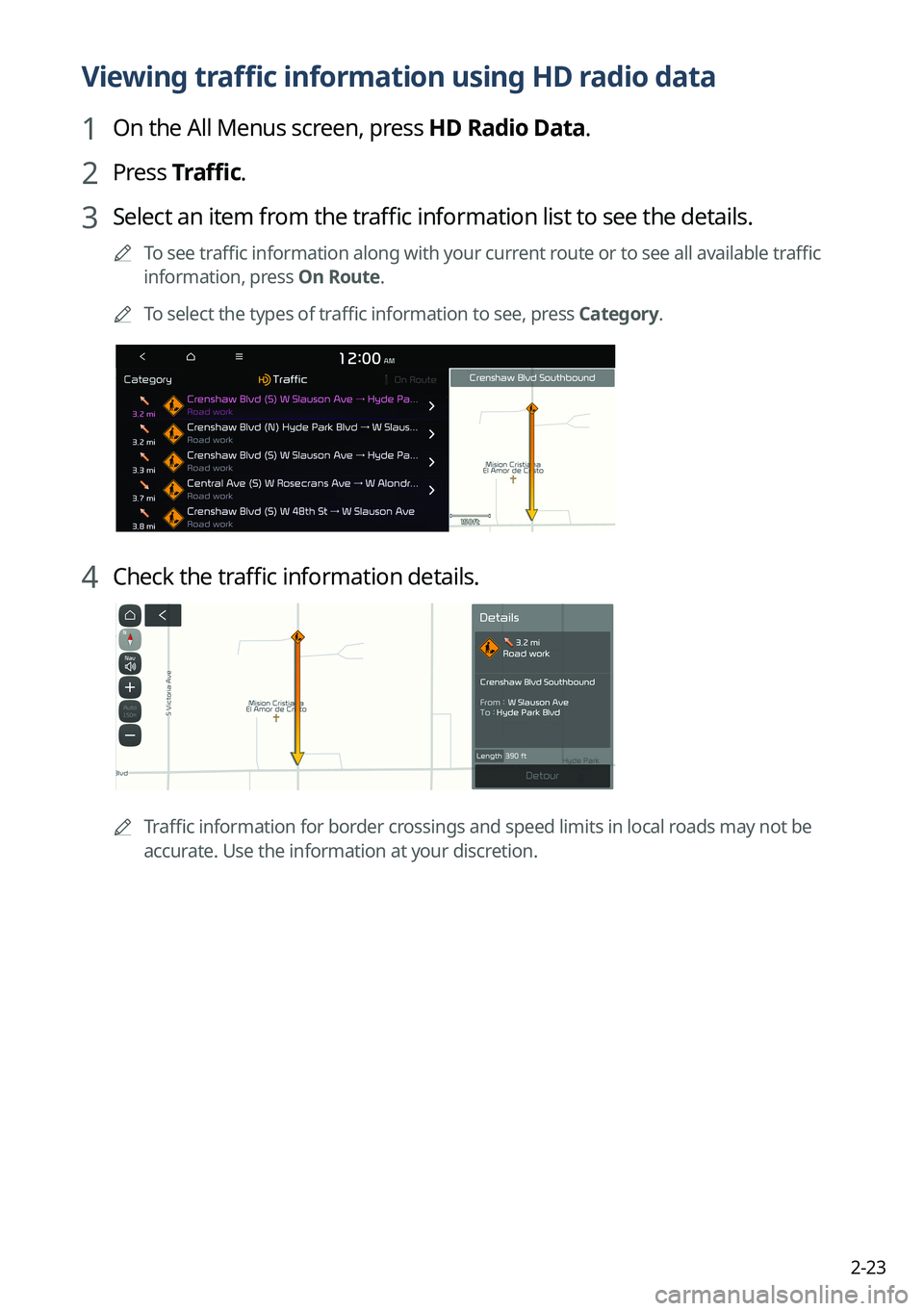
1 On the All Menus screen, press HD Radio Data.
2 Press Traffic.
3 Select an item from the traffic information list to see the details.
A
To see traffic information along with your current route or to see all available traffic
information, press On Route.
A
To select the types of traffic information to see, press Category.
4 Check the traffic information details.
A
Traffic information for border crossings and speed limits in local roads may not be
accurate. Use the information at your discretion.
Page 62 of 324
2-24
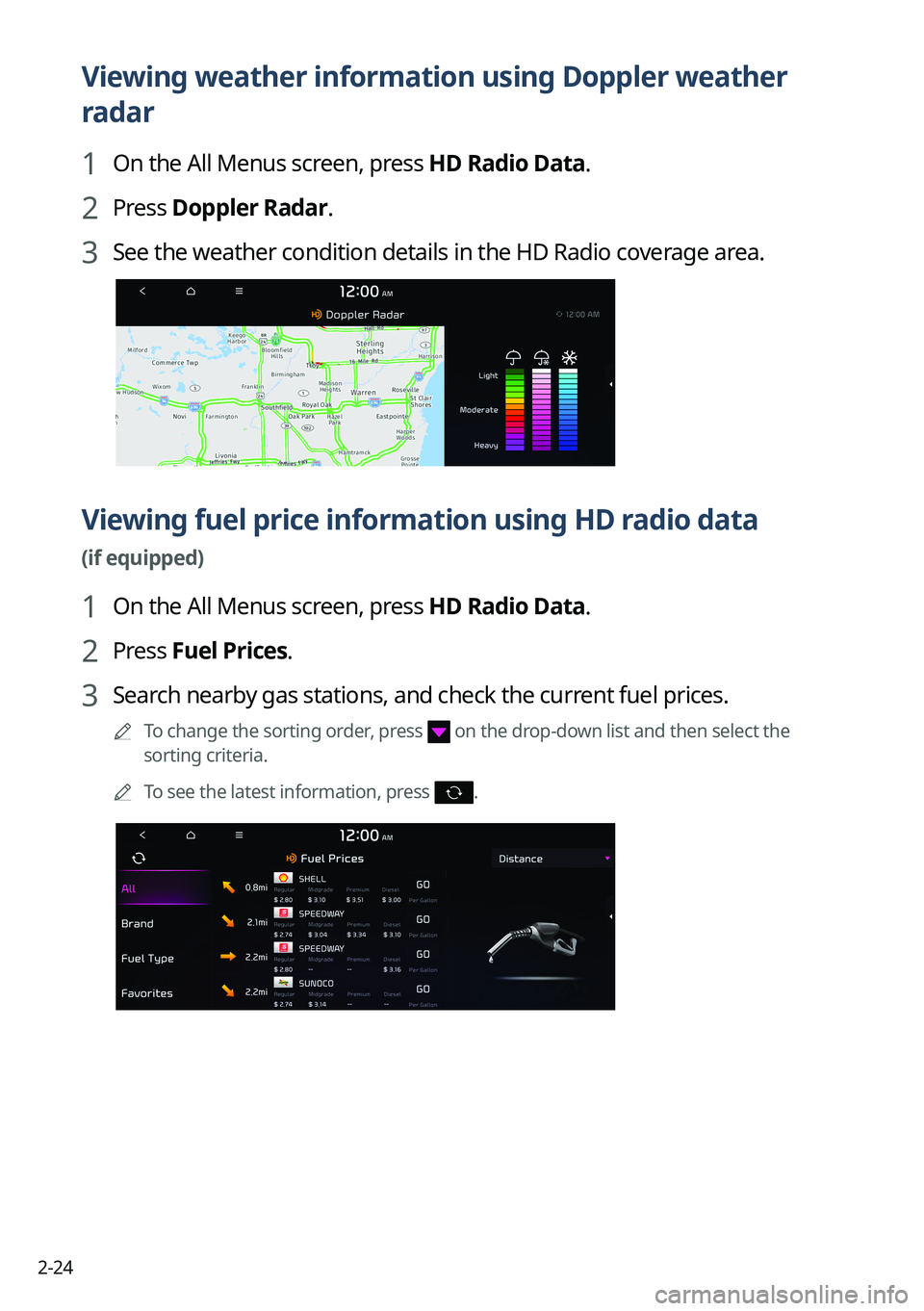
Viewing weather information using Doppler weather
radar
1 On the All Menus screen, press HD Radio Data.
2 Press Doppler Radar.
3 See the weather condition details in the HD Radio coverage area.
Viewing fuel price information using HD radio data
(if equipped)
1 On the All Menus screen, press HD Radio Data.
2 Press Fuel Prices.
3 Search nearby gas stations, and check the current fuel prices.
A
To change the sorting order, press on the drop-down list and then select the
sorting criteria.
A
To see the latest information, press
.
Page 63 of 324
2-25
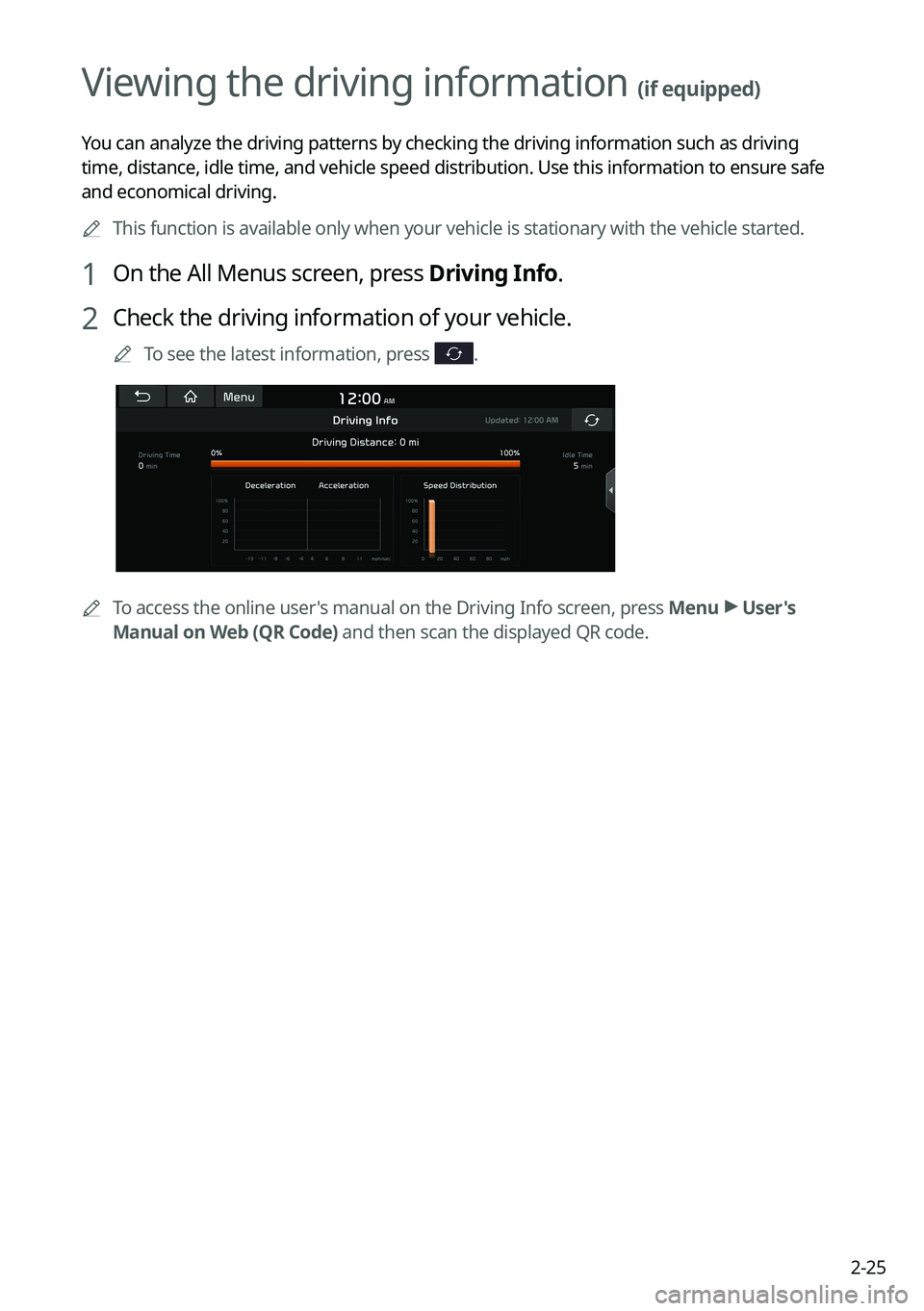
Viewing the driving information (if equipped)
You can analyze the driving patterns by checking the driving information such as driving
time, distance, idle time, and vehicle speed distribution. Use this info\
rmation to ensure safe
and economical driving.
A
This function is available only when your vehicle is stationary with the vehicle started.
1 On the All Menus screen, press Driving Info.
2 Check the driving information of your vehicle.
A
To see the latest information, press .
A
To access the online user's manual on the Driving Info screen, press Menu >
User's
Manual on Web (QR Code) and then scan the displayed QR code.
Page 64 of 324
2-26
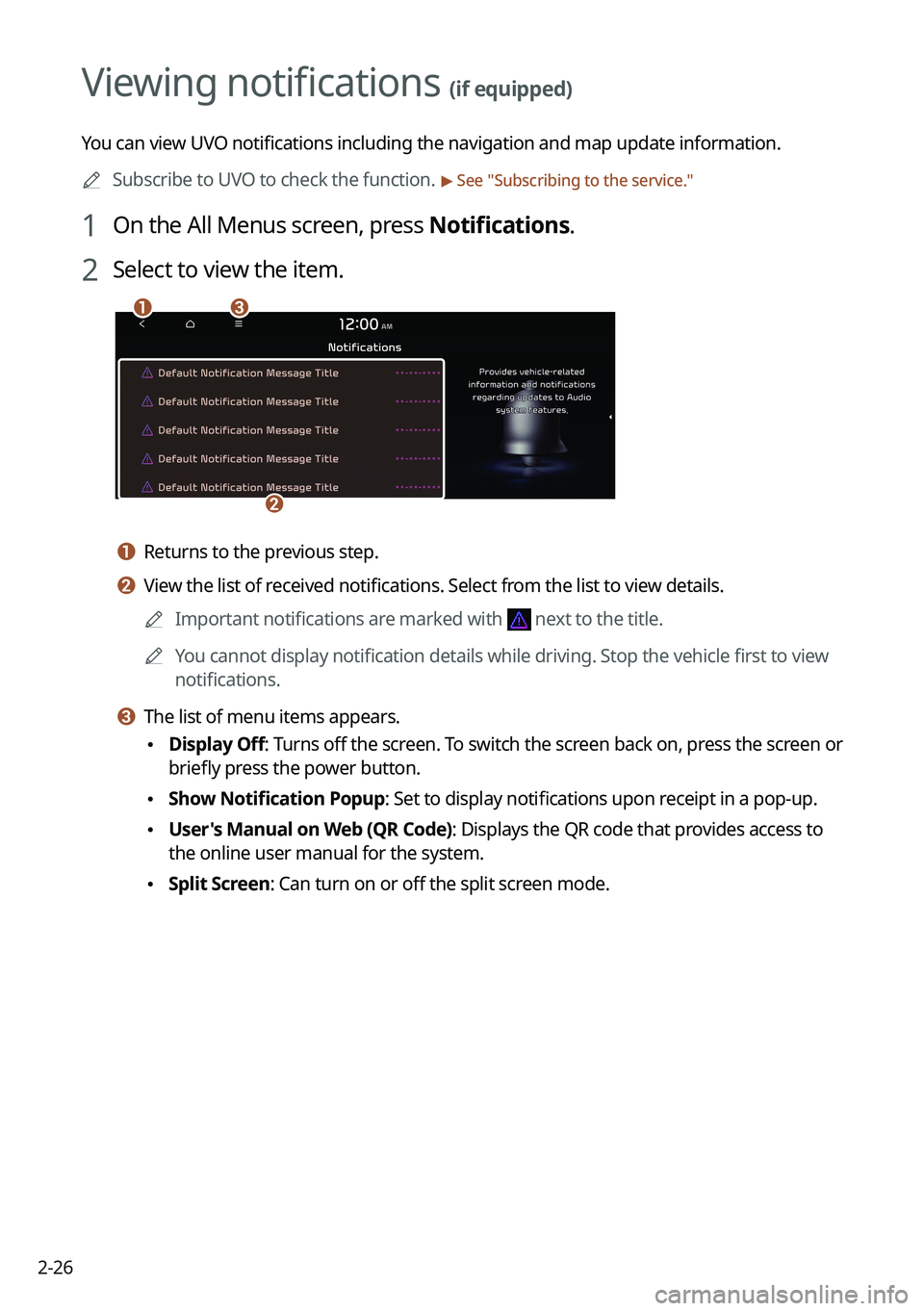
Viewing notifications (if equipped)
You can view UVO notifications including the navigation and map update information.
A
Subscribe to UVO to check the function.
> See "Subscribing to the service."
1 On the All Menus screen, press Notifications.
2 Select to view the item.
ca
b
a a Returns to the previous step.
b b View the list of received notifications. Select from the list to view details.
A
Important notifications are marked with
next to the title.
A
You cannot display notification details while driving. Stop the vehicle first to view
notifications.
c c The list of menu items appears.
•Display Off
: Turns off the screen. To switch the screen back on, press the screen or
briefly press the power button.
• Show Notification Popup: Set to display notifications upon receipt in a pop-up.
•User's Manual on Web (QR Code): Displays the QR code that provides access to
the online user manual for the system.
•Split Screen: Can turn on or off the split screen mode.
Page 68 of 324
3-2
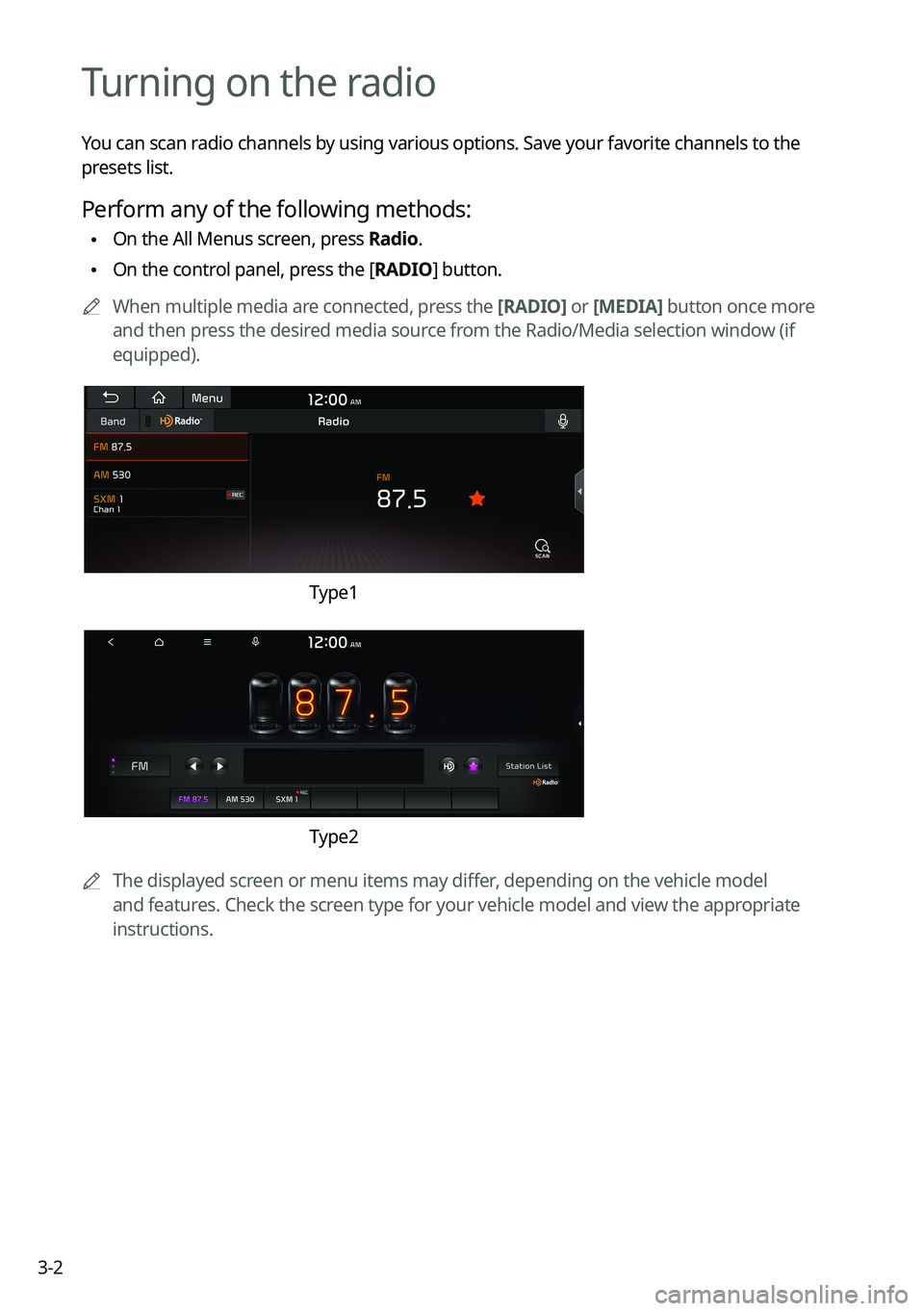
Turning on the radio
You can scan radio channels by using various options. Save your favorite channels to the
presets list.
Perform any of the following methods:
•On the All Menus screen, press Radio.
•On the control panel, press the [
RADIO] button.
A
When multiple media are connected, press the [RADIO] or [MEDIA] button once more
and then press the desired media source from the Radio/Media selection window (if
equipped).
Type1
Type2
A
The displayed screen or menu items may differ, depending on the vehicle model
and features. Check the screen type for your vehicle model and view the appropriate
instructions.
Page 100 of 324
5-4
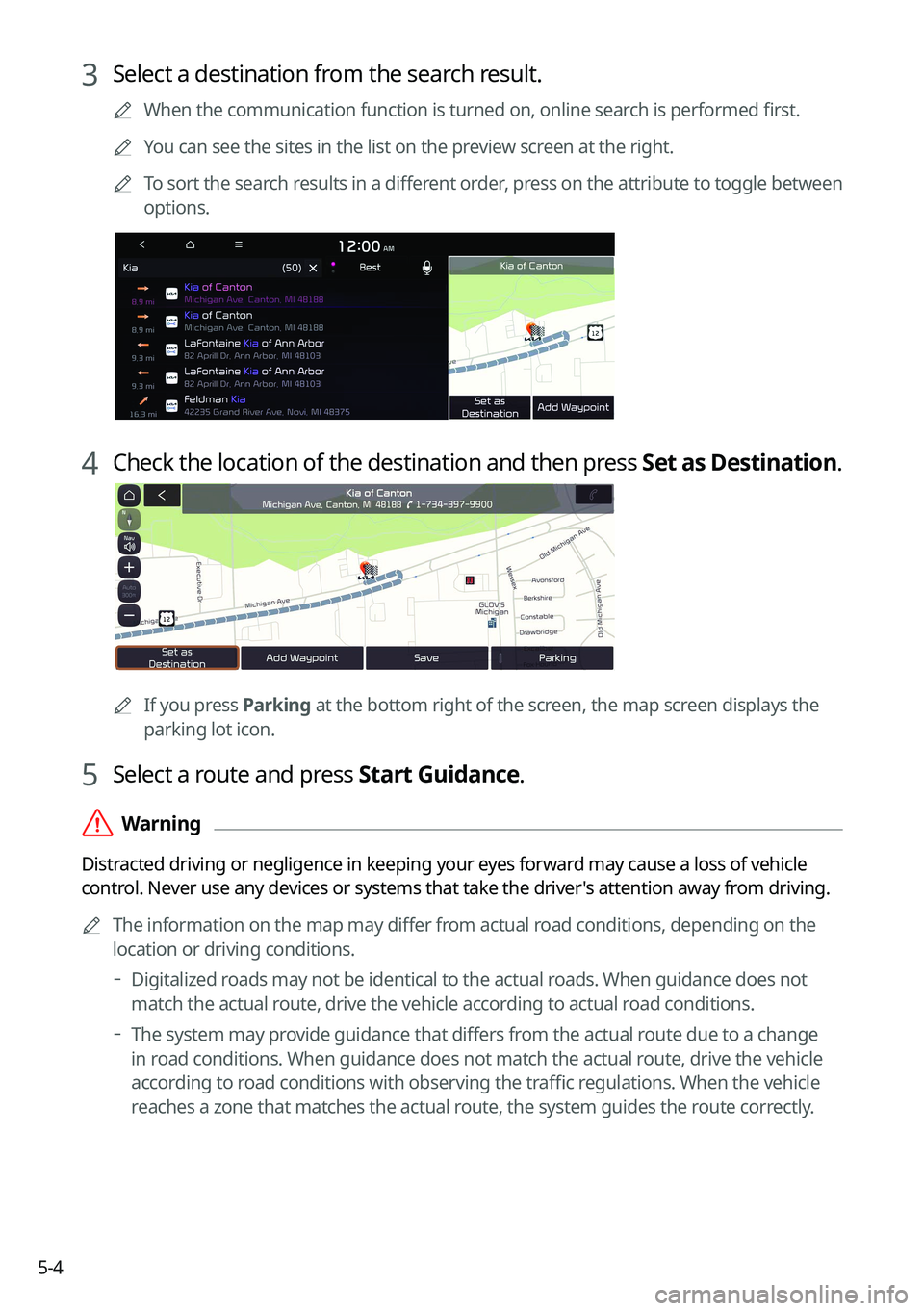
3 Select a destination from the search result.
A
When the communication function is turned on, online search is performed first.
A
You can see the sites in the list on the preview screen at the right.
A
To sort the search results in a different order, press on the attribute to toggle between
options.
4 Check the location of the destination and then press Set as Destination.
A
If you press Parking at the bottom right of the screen, the map screen displays the
parking lot icon.
5 Select a route and press Start Guidance.
ÝWarning
Distracted driving or negligence in keeping your eyes forward may cause a loss of vehicle
control. Never use any devices or systems that take the driver's attention away from driving.
A
The information on the map may differ from actual road conditions, depending on the
location or driving conditions.
Digitalized roads may not be identical to the actual roads. When guidance does not
match the actual route, drive the vehicle according to actual road conditions.
The system may provide guidance that differs from the actual route due to a change
in road conditions. When guidance does not match the actual route, drive the vehicle
according to road conditions with observing the traffic regulations. When the vehicle
reaches a zone that matches the actual route, the system guides the route correctly.