check KIA FORTE 2023 Navigation System Quick Reference Guide
[x] Cancel search | Manufacturer: KIA, Model Year: 2023, Model line: FORTE, Model: KIA FORTE 2023Pages: 324, PDF Size: 10.59 MB
Page 4 of 324
2
Safety Warnings
Be sure to keep the following instructions. Otherwise, it may cause serious injury or accident.
ÝDriving
Obey all traffic laws while driving.
•
Relying solely on the navigation system may cause violation of traffic rules and regulations, resulting in an
accident.
In order to check the vehicle speed, see the speedometer first, not the speed on the
navigation system.
•The speed on the navigation system may differ from actual vehicle speed.
While driving, refrain from watching the screen.
•An accident may occur by negligence in keeping your eyes forward.
•To manipulate the screen or buttons requiring multiple steps, be sure to stop your vehicle.
To use your mobile phone, first stop your vehicle.
•When you use your mobile phone while driving, it may disperse your atten\
tion, resulting in an accident.
•When making a call while driving, use the Bluetooth Hands-free function and if possible, minimise the call
time.
Make sure that the volume of the phone is sufficiently low so that the external sound is
audible.
•When you drive with no external sound present may cause a traffic accident.
•When you drive for a long time with a loud audio volume, it may affect your hearing.
For emergency services (e.g. hospital, fire station), do not rely solely on the navigation
system.
•Some emergency services may not be included in the navigation map. Check relevant information in advance
to stay prepared for an emergency.
ÝSystem handling
Do NOT arbitrarily disassemble or modify the system.
•It may cause an accident, fire, or electric shock.
Exercise caution to make sure that no liquid or foreign materials enter the system.
•It may cause smoke generation, fire ignition, or system failure.
When the screen is not displayed, the volume is muted, or other system failures occur,
immediately stop using the system.
•Otherwise, it may cause fire, electric shock, or fatal system failure.
A
If you experience any problems with the system, contact your place of purchase or dealer.
Page 17 of 324
5
Be sure to keep the following instructions. Otherwise, it may cause serious injury or accident.
ÝDriving
Obey all traffic laws while driving.
• Relying solely on the navigation system may cause violation of traffic rules and regulations, resulting in an
accident.
In order to check the vehicle speed, see the speedometer first, not the speed on the
navigation system.
•The speed on the navigation system may differ from actual vehicle speed.
While driving, refrain from watching the screen.
•An accident may occur by negligence in keeping your eyes forward.
•To manipulate the screen or buttons requiring multiple steps, be sure to stop your vehicle.
To use your mobile phone, first stop your vehicle.
•When you use your mobile phone while driving, it may disperse your attention, resulting in an accident.
•If necessary, use handsfree (Bluetooth) calling when driving and minimize the call time.
Make sure that the volume of the phone is sufficiently low so that the external sound is
audible.
•When you drive with no external sound present may cause a traffic accident.
•When you drive for a long time with a loud audio volume, it may affect your hearing.
For emergency services (e.g. hospital, fire station), do not rely solely on the navigation
system.
•Some emergency services may not be included in the navigation map. Check relevant information in advance
to stay prepared for an emergency.
ÝSystem handling
Do NOT arbitrarily disassemble or modify the system.
• It may cause an accident, fire, or electric shock.
Exercise caution to make sure that no liquid or foreign materials enter the system.
•It may cause smoke generation, fire ignition, or system failure.
When the screen is not displayed, the volume is muted, or other system failures occur,
immediately stop using the system.
•Otherwise, it may cause fire, electric shock, or fatal system failure.
A
If you experience any problems with the system, contact your place of purchase or dealer.
Safety Warnings
Page 20 of 324
8
03 Radio
Turning on the radio 3-2
Listening to HD Radio™ 3-11
Listening to SiriusXM™ radio 3-13
04 Media
Using media 4-2
05 Navigation
Navigation functions 5-2
Various ways to find routes 5-11
Using saved favorite places 5-23
Searching for gas stations 5-28
Searching for EV (Electric Vehicle) charging stations 5-29
END USER LICENSE AGREEMENT 5-30
06 Phone
Connecting a Bluetooth device 6-2
Making a call via Bluetooth 6-6
Accepting an incoming call over Bluetooth 6-15
Checking new messages over Bluetooth 6-17
Page 33 of 324
1-11
Using the Home screen
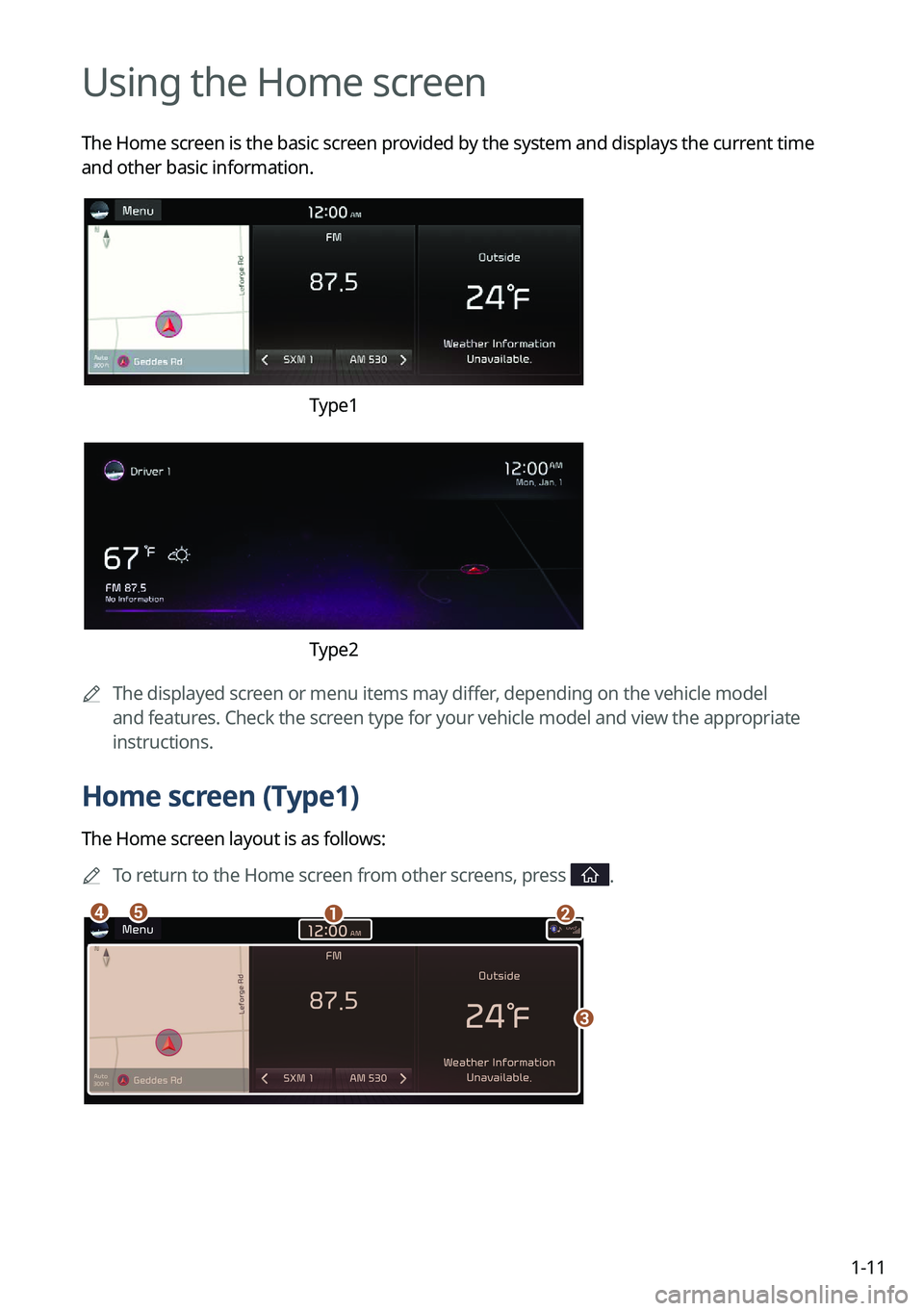
The Home screen is the basic screen provided by the system and displays the current time
and other basic information.
Type1
Type2
A
The displayed screen or menu items may differ, depending on the vehicle model
and features. Check the screen type for your vehicle model and view the appropriate
instructions.
Home screen (Type1)
The Home screen layout is as follows:
A
To return to the Home screen from other screens, press
.
ab
c
de
Page 43 of 324
2-5
Pairing to an Android smartphone via Android Auto
When you connect an Android smartphone to the vehicle with Android Auto, you can run and
control Apps on the phone through the widescreen using its user-friendly interface.
1 To use Android Auto, first check the following.
•Visit the Android Auto website at https://www.android.com/auto to check the list of
countries, device types, and models that support Android Auto.
•Download and install the Android Auto App from Google Play Store. It is not possible
to install Android Auto in countries that do not support the feature.
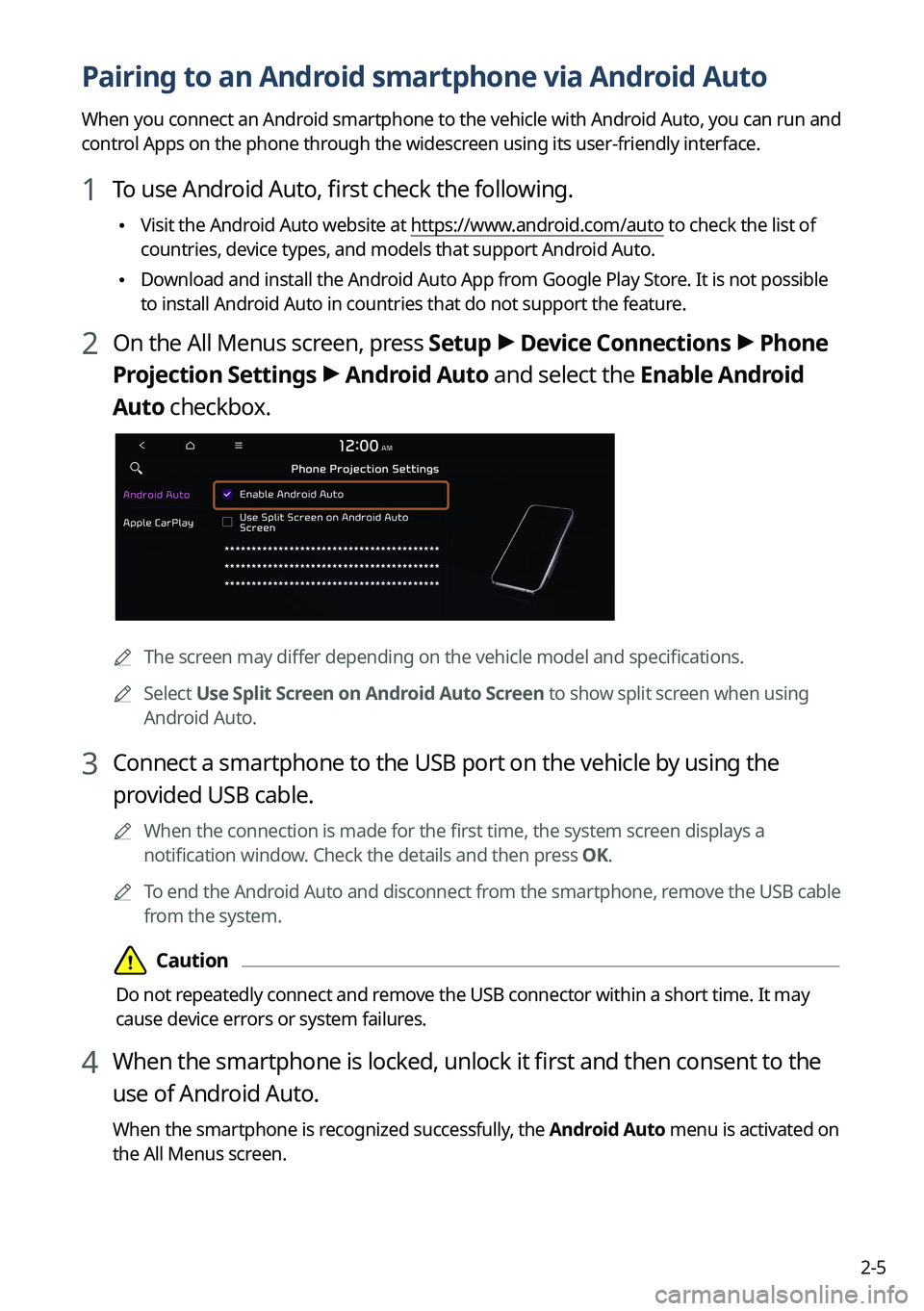
2 On the All Menus screen, press Setup >
Device Connections >
Phone
Projection Settings >
Android Auto and select the Enable Android
Auto checkbox.
A The screen may differ depending on the vehicle model and specifications.
A
Select Use Split Screen on Android Auto Screen to show split screen when using
Android Auto.
3 Connect a smartphone to the USB port on the vehicle by using the
provided USB cable.
A
When the connection is made for the first time, the system screen displays a
notification window. Check the details and then press OK.
A
To end the Android Auto and disconnect from the smartphone, remove the USB cable
from the system.
Page 45 of 324
2-7
Pairing to an iPhone via Apple CarPlay
After you connect an iPhone to the vehicle with Apple CarPlay, you can run and control Apps
on the phone through the system screen.
1 To use Apple CarPlay, first check the following:
•For iPhone models that support Apple CarPlay, visit the Apple website at
https://www.
apple.com/ios/carplay .
•Make sure Apple CarPlay and Siri are enabled in your iPhone settings. If you do not
see options for Apple CarPlay or Siri, update to the latest iOS version.\
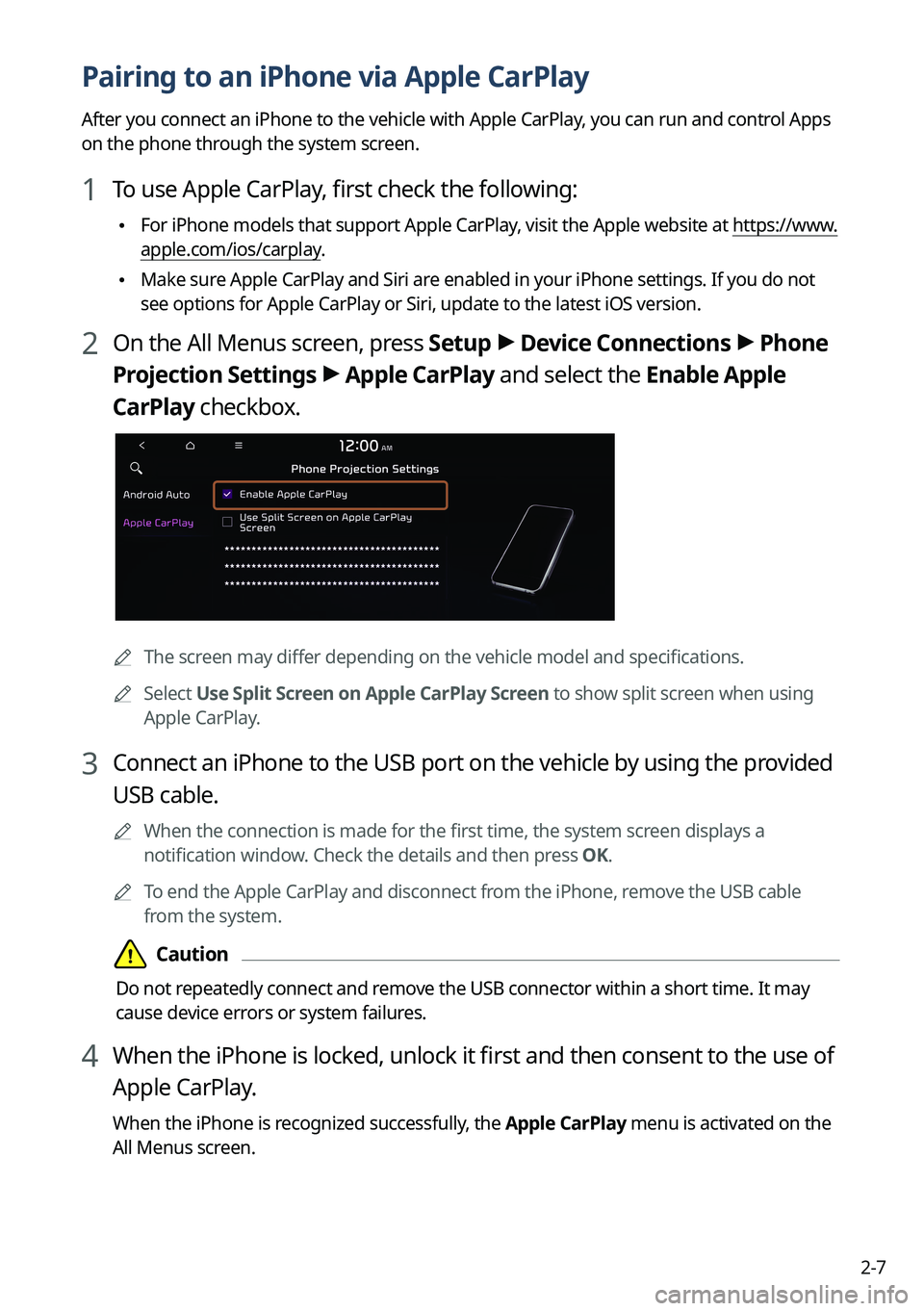
2 On the All Menus screen, press Setup >
Device Connections >
Phone
Projection Settings >
Apple CarPlay and select the Enable Apple
CarPlay checkbox.
A The screen may differ depending on the vehicle model and specifications.
A
Select Use Split Screen on Apple CarPlay Screen to show split screen when using
Apple CarPlay.
3 Connect an iPhone to the USB port on the vehicle by using the provided
USB cable.
A
When the connection is made for the first time, the system screen displays a
notification window. Check the details and then press OK.
A
To end the Apple CarPlay and disconnect from the iPhone, remove the USB cable
from the system.
Page 47 of 324
2-9
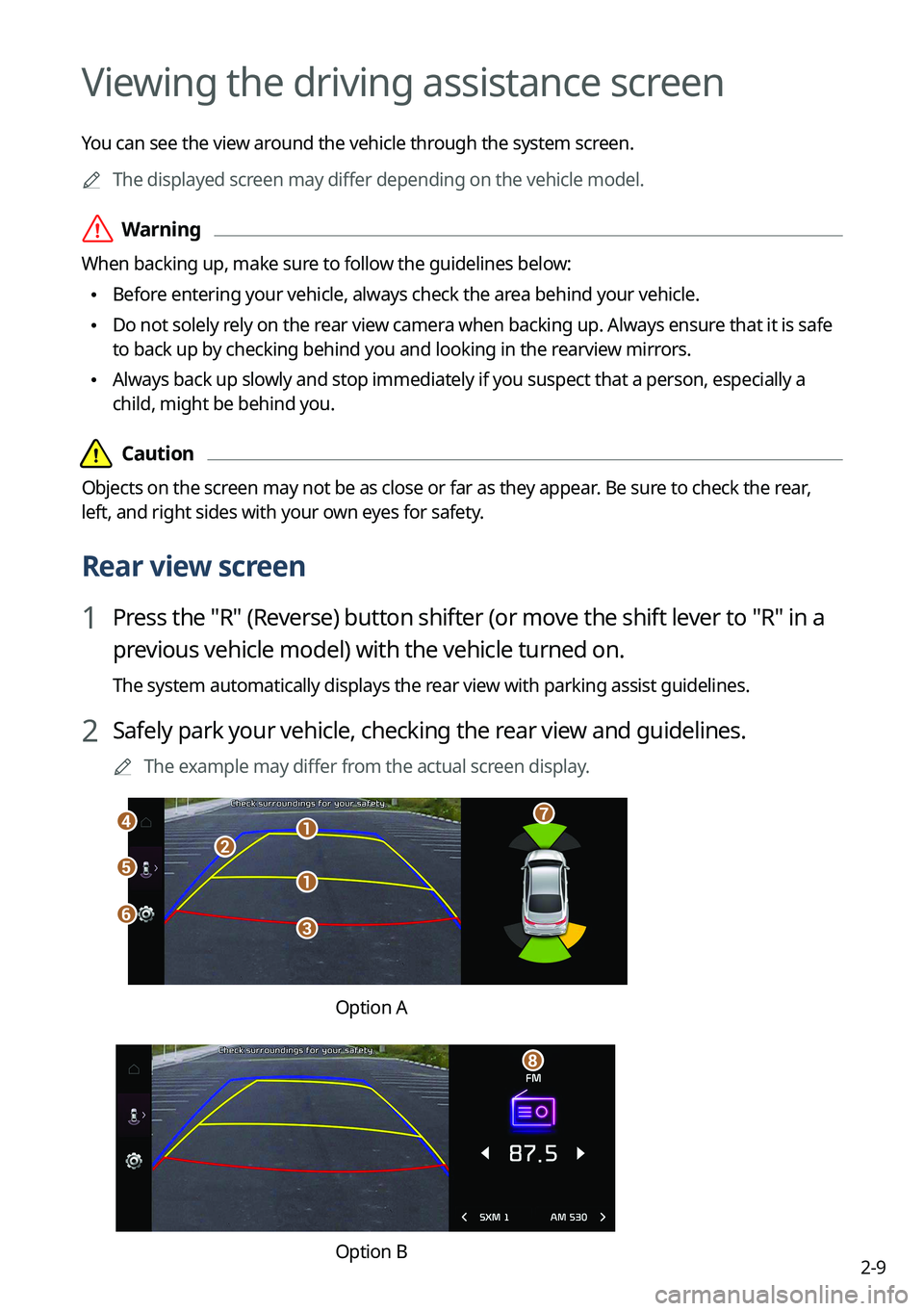
Viewing the driving assistance screen
You can see the view around the vehicle through the system screen.
A
The displayed screen may differ depending on the vehicle model.
ÝWarning
When backing up, make sure to follow the guidelines below:
•Before entering your vehicle, always check the area behind your vehicle.
•Do not solely rely on the rear view camera when backing up. Always ensure that it is safe
to back up by checking behind you and looking in the rearview mirrors.
•Always back up slowly and stop immediately if you suspect that a person, especially a
child, might be behind you.
Page 49 of 324
2-11
A
A warning sound is heard when the vehicle approaches obstacles while parking. When
you set to automatically lower the audio volume while parking, it can prevent accidents
caused by failure to hear the warning sound. On the All Menus screen, press Setup >
Sound >
Driver Assistance >
Parking Safety Priority.
A
When you press the [
] button with the shift position in "P" (Park), you can see the rear
view (if equipped).
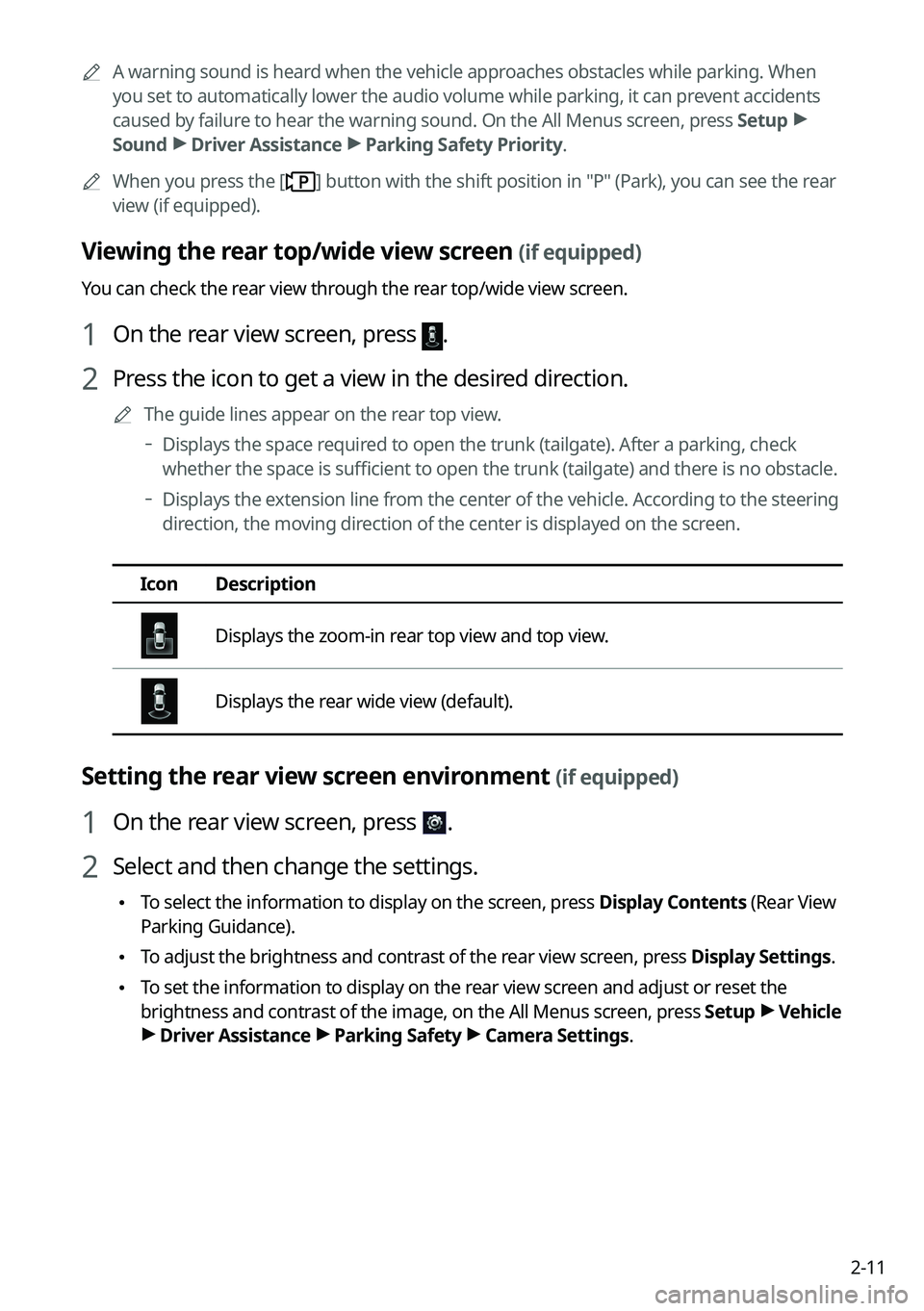
Viewing the rear top/wide view screen (if equipped)
You can check the rear view through the rear top/wide view screen.
1 On the rear view screen, press .
2 Press the icon to get a view in the desired direction.
A
The guide lines appear on the rear top view.
Displays the space required to open the trunk (tailgate). After a parking, check
whether the space is sufficient to open the trunk (tailgate) and there is no obstacle.
Displays the extension line from the center of the vehicle. According to the steering
direction, the moving direction of the center is displayed on the screen.
Icon
Description
Displays the zoom-in rear top view and top view.
Displays the rear wide view (default).
Setting the rear view screen environment (if equipped)
1 On the rear view screen, press .
2 Select and then change the settings.
•To select the information to display on the screen, press Display Contents (Rear View
Parking Guidance).
•To adjust the brightness and contrast of the rear view screen, press Display Settings.
•To set the information to display on the rear view screen and adjust or reset the
brightness and contrast of the image, on the All Menus screen, press Setup >
Vehicle
> Driver Assistance >
Parking Safety >
Camera Settings.
Page 50 of 324
2-12
Surround View Monitor (if equipped)
You can check the surroundings by using multiple cameras on the vehicle.
A
Use the +/- button on the right of the screen to zoom in or out.
Viewing the surround view while driving
1 In order to see the surround view, press the [] or [] button.
The system displays both the front view and surround view.
A
The surround view monitor function operates only when any of the following
conditions are met.
The driving speed is below 6 mph or 9 mph with the shift position in "D" (Drive) (if
equipped).
The vehicle is stationary and the shift position is in "D" (Drive) or "N" (Neutral).
A
You can use Remote Smart Parking Assist by long pressing the [
] button. For more
information, refer to the owner's manual that is separately provided (if equipped).
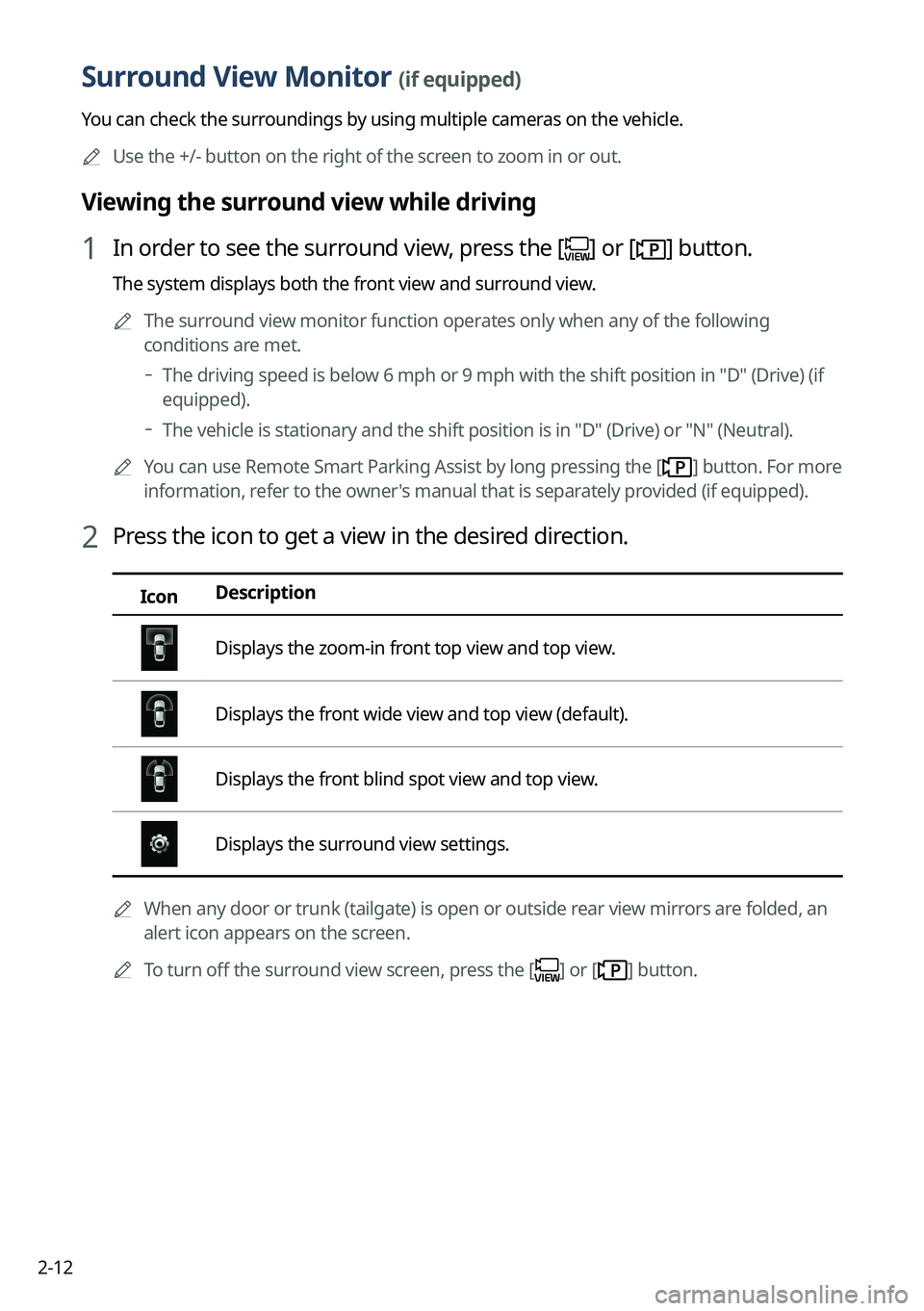
2 Press the icon to get a view in the desired direction.
Icon Description
Displays the zoom-in front top view and top view.
Displays the front wide view and top view (default).
Displays the front blind spot view and top view.
Displays the surround view settings.
A
When any door or trunk (tailgate) is open or outside rear view mirrors are folded, an
alert icon appears on the screen.
A
To turn off the surround view screen, press the [
] or [] button.
Page 52 of 324
2-14
Using the climate control function (if equipped)
You can check and adjust the climate system settings on the screen.
A
For more information about how to use the heater and air conditioner, refer to Owner's
Manual of the vehicle.
A
When you manipulate the climate control system while using the product, the climate
settings appear on the upper part of the screen (if equipped).
A
The screen may differ depending on the vehicle model and specifications.
1 Perform any of the following methods:
•Press the [
CLIMATE] button on the climate control system.
•On the All Menus screen, press Climate.
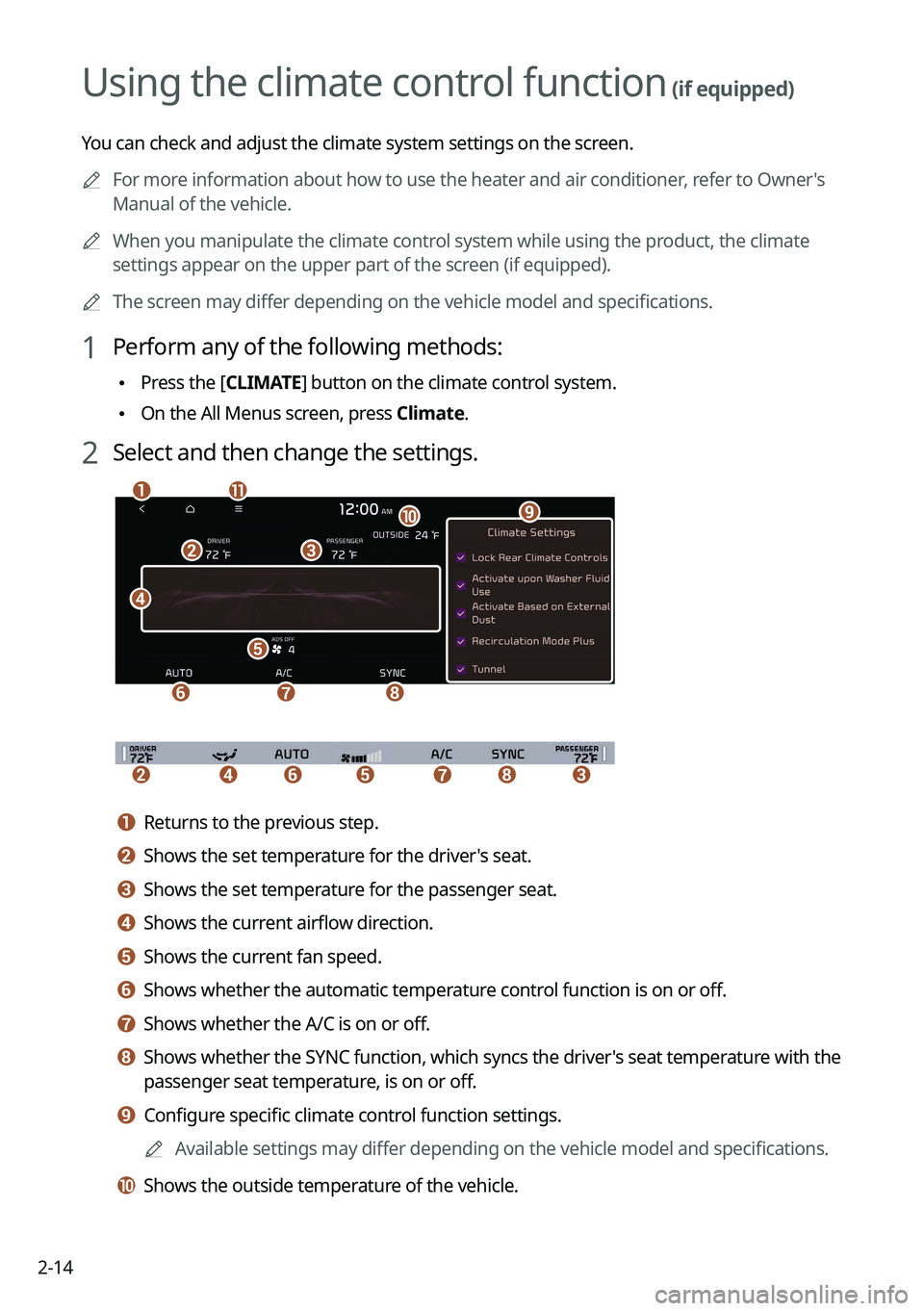
2 Select and then change the settings.
c
d
e
f
b
gh
k
j
ai
bcedfgh
a a Returns to the previous step.
b b Shows the set temperature for the driver's seat.
c c Shows the set temperature for the passenger seat.
d d Shows the current airflow direction.
e e Shows the current fan speed.
f f Shows whether the automatic temperature control function is on or off.
g g Shows whether the A/C is on or off.
h h Shows whether the SYNC function, which syncs the driver's seat temperature with the
passenger seat temperature, is on or off.
i i Configure specific climate control function settings.
A
Available settings may differ depending on the vehicle model and specifications.
j j Shows the outside temperature of the vehicle.