power KIA FORTE 2023 Navigation System Quick Reference Guide
[x] Cancel search | Manufacturer: KIA, Model Year: 2023, Model line: FORTE, Model: KIA FORTE 2023Pages: 324, PDF Size: 10.59 MB
Page 6 of 324
4
AThe system shape and menu arrangement may differ depending on the vehicle model
and specifications.
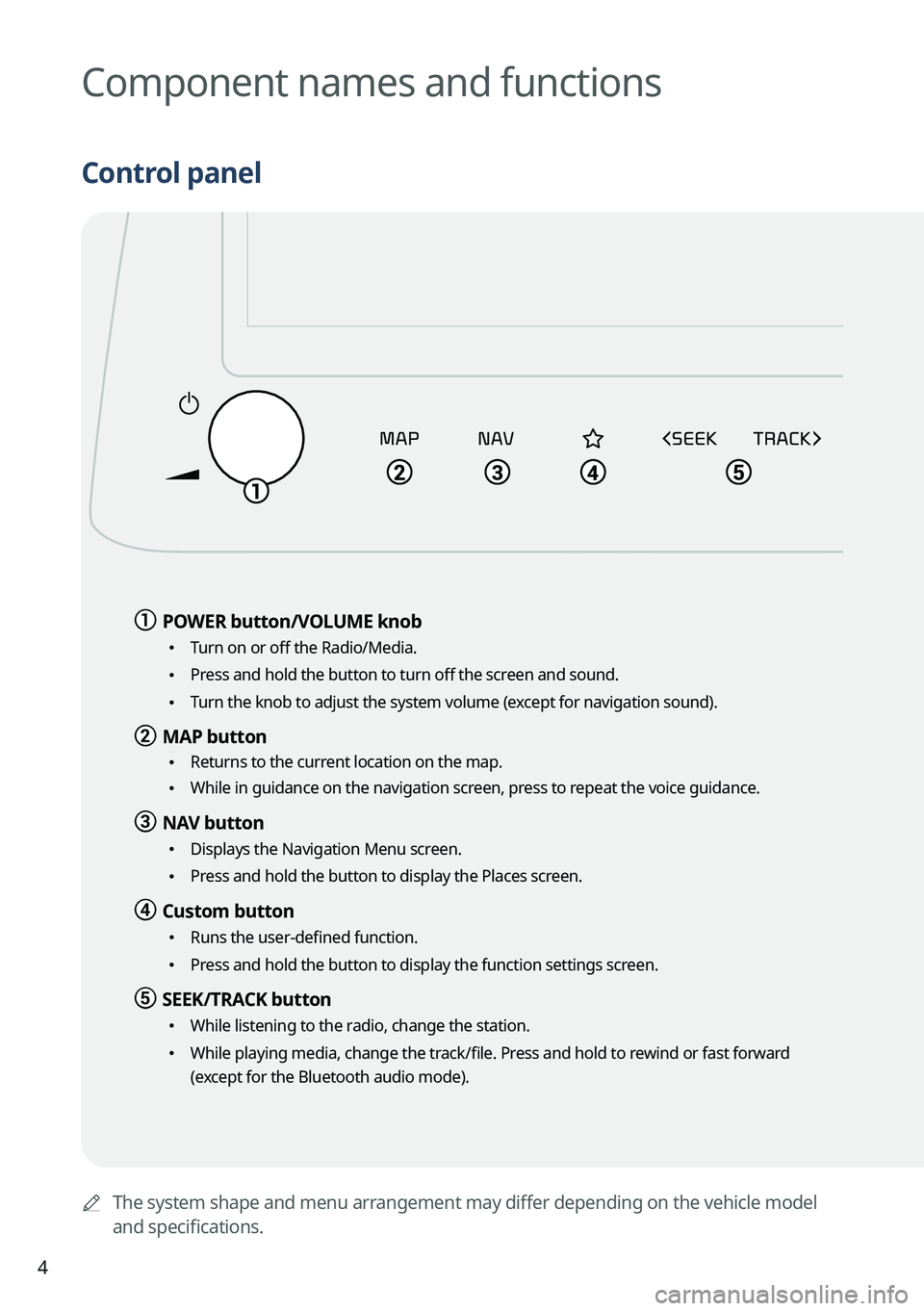
Component names and functions
Control panel
a a POWER button/VOLUME knob
•
Turn on or off the Radio/Media.
•Press and hold the button to turn off the screen and sound.
•Turn the knob to adjust the system volume (except for navigation sound).
b b MAP button
•
Returns to the current location on the map.
•While in guidance on the navigation screen, press to repeat the voice guidance.
c c NAV button
•
Displays the Navigation Menu screen.
•Press and hold the button to display the Places screen.
d d Custom button
•Runs the user-defined function.
•Press and hold the button to display the function settings screen.
e e SEEK/TRACK button
•
While listening to the radio, change the station.
•While playing media, change the track/file. Press and hold to rewind or fast forward
(except for the Bluetooth audio mode).
Page 9 of 324
7
Turning on/off the system
Turning on the system
1 Turn on the vehicle.
2 When a safety warning message appears, read it and press Confirm.
A
To change the display language, press Language.
Turning off the system
To turn off the system while driving, press and hold the Power button on
the panel.
The screen and sound will be turned off.
A
To use the system again, press the Power button.
A
When a specified period of time elapses after turning off the vehicle, the system
automatically shuts down. When you open the driver's door, the system immediately
shuts down.
ÝWarning
•Driving while distracted can result in a loss of vehicle control that may lead to an accident,
severe bodily injury, or death. The driver's primary responsibility is the safe and legal
operation of the vehicle, and the use of any vehicle systems, including the \
touch screen
and steering wheel controls, which take the driver's eyes, attention, and focus away from
the safe operation of the vehicle, or which are not permissible by law, should never be
used during the operation of the vehicle.
•Some functions may not be active while driving to ensure safety. Those functions run only
when the vehicle is stationary. In order to use them, first stop the vehicle.
•When the screen is not displayed, the volume is muted, or other system failures occur,
immediately stop using the system. When you use the faulty system contin\
uously, it may
cause fire, electric shock, or fatal system failure.
Page 24 of 324
1-2
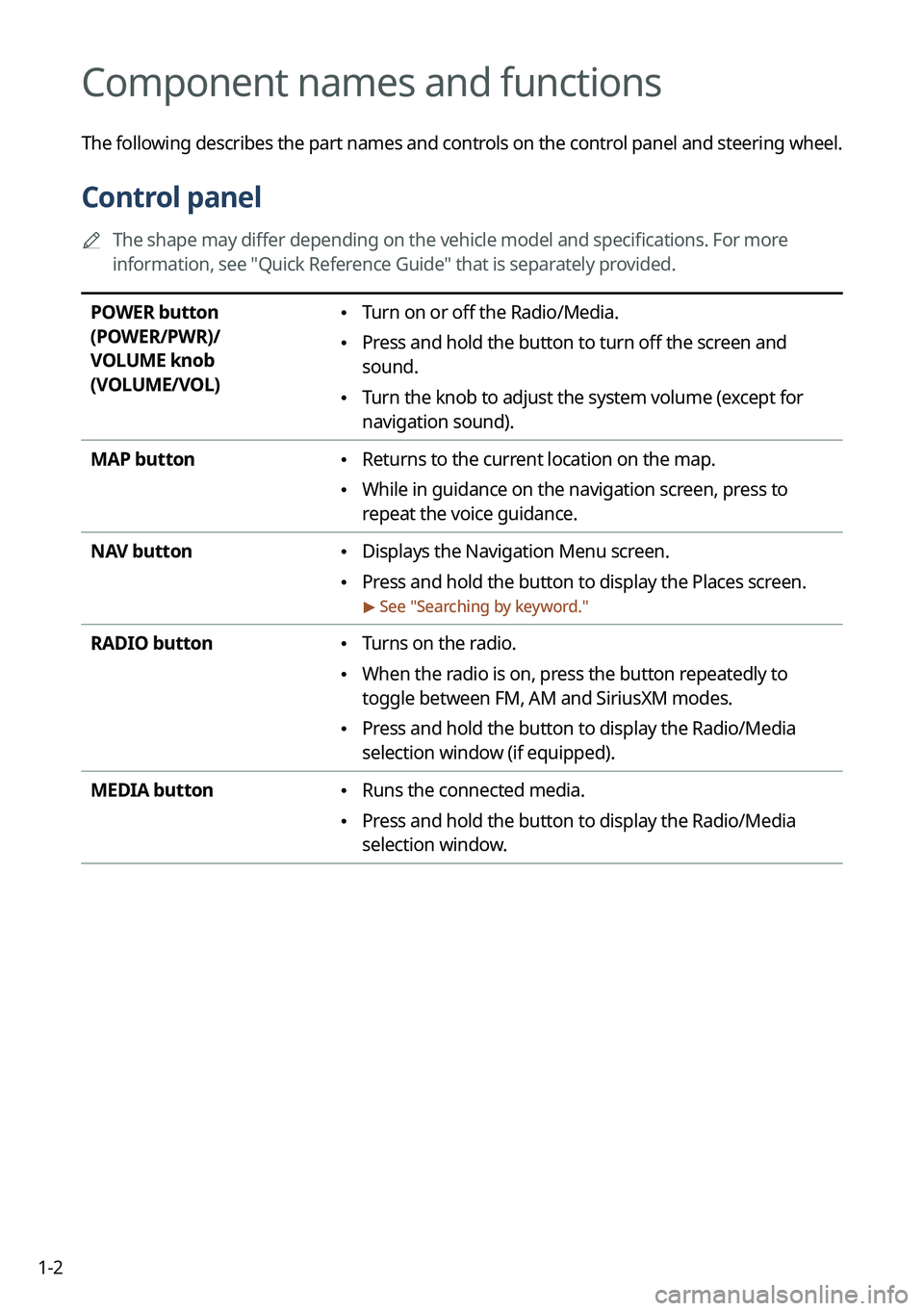
Component names and functions
The following describes the part names and controls on the control panel and steering wheel.
Control panel
A
The shape may differ depending on the vehicle model and specifications. For more
information, see "Quick Reference Guide" that is separately provided.
POWER button
(POWER/PWR)/
VOLUME knob
(VOLUME/VOL) • Turn on or off the Radio/Media.
•Press and hold the button to turn off the screen and
sound.
•Turn the knob to adjust the system volume (except for
navigation sound).
MAP button
• Returns to the current location on the map.
•While in guidance on the navigation screen, press to
repeat the voice guidance.
NAV button
• Displays the Navigation Menu screen.
•Press and hold the button to display the Places screen.
> See "
Searching by keyword."
RADIO button • Turns on the radio.
•When the radio is on, press the button repeatedly to
toggle between FM, AM and SiriusXM modes.
•Press and hold the button to display the Radio/Media
selection window (if equipped).
MEDIA button
• Runs the connected media.
•Press and hold the button to display the Radio/Media
selection window.
Page 28 of 324
1-6
Turning on/off the system
The following explains how to turn on or off the system. Before using the system, be sure to
read the user's manual for safe and convenient manipulation.
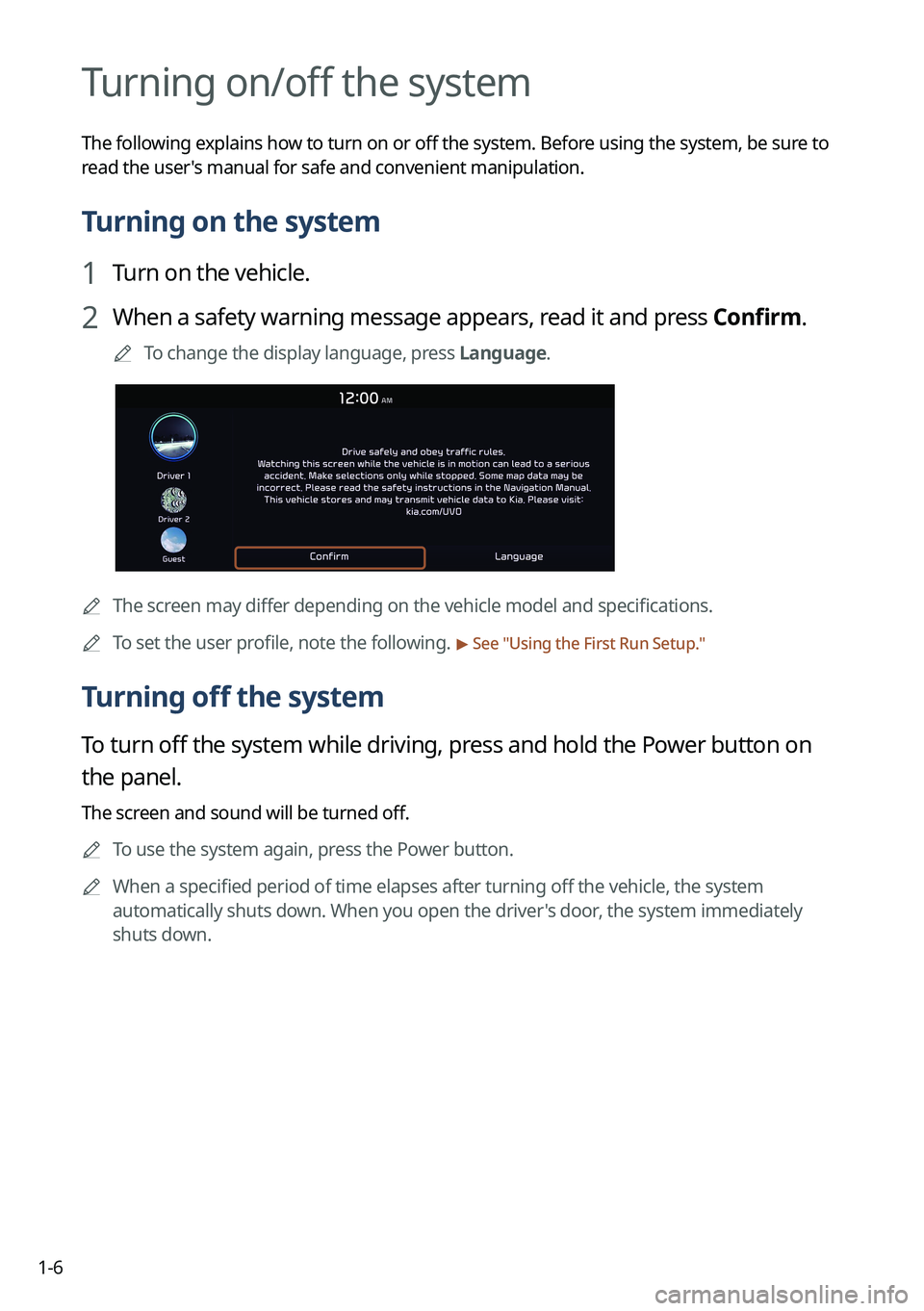
Turning on the system
1 Turn on the vehicle.
2 When a safety warning message appears, read it and press Confirm.
A
To change the display language, press Language.
AThe screen may differ depending on the vehicle model and specifications.
A
To set the user profile, note the following.
> See "Using the First Run Setup."
Turning off the system
To turn off the system while driving, press and hold the Power button on
the panel.
The screen and sound will be turned off.
A
To use the system again, press the Power button.
A
When a specified period of time elapses after turning off the vehicle, the system
automatically shuts down. When you open the driver's door, the system immediately
shuts down.
Page 53 of 324
2-15
k k The list of menu items appears.
•Display Off: Turns off the screen. To switch the screen back on, press the screen or
briefly press the power button.
•User's Manual on Web (QR Code): Displays the QR code that provides access to the
online user manual for the system.
A
The temperature of the climate system can be adjusted by 1 ℉ increments. When the
temperature is set to the lower limit or upper limit, "LOW" or "HIGH" appears on the
screen.
A
Available settings may differ depending on the vehicle model and specifications.
Using the rear-seat climate control function
(if equipped)
You can check or set the rear-seat climate status on the system screen.
1 Perform any of the following methods:
•Press the [
REAR] button on the climate control system.
•On the All Menus screen, press Rear Climate.
Page 54 of 324
2-16
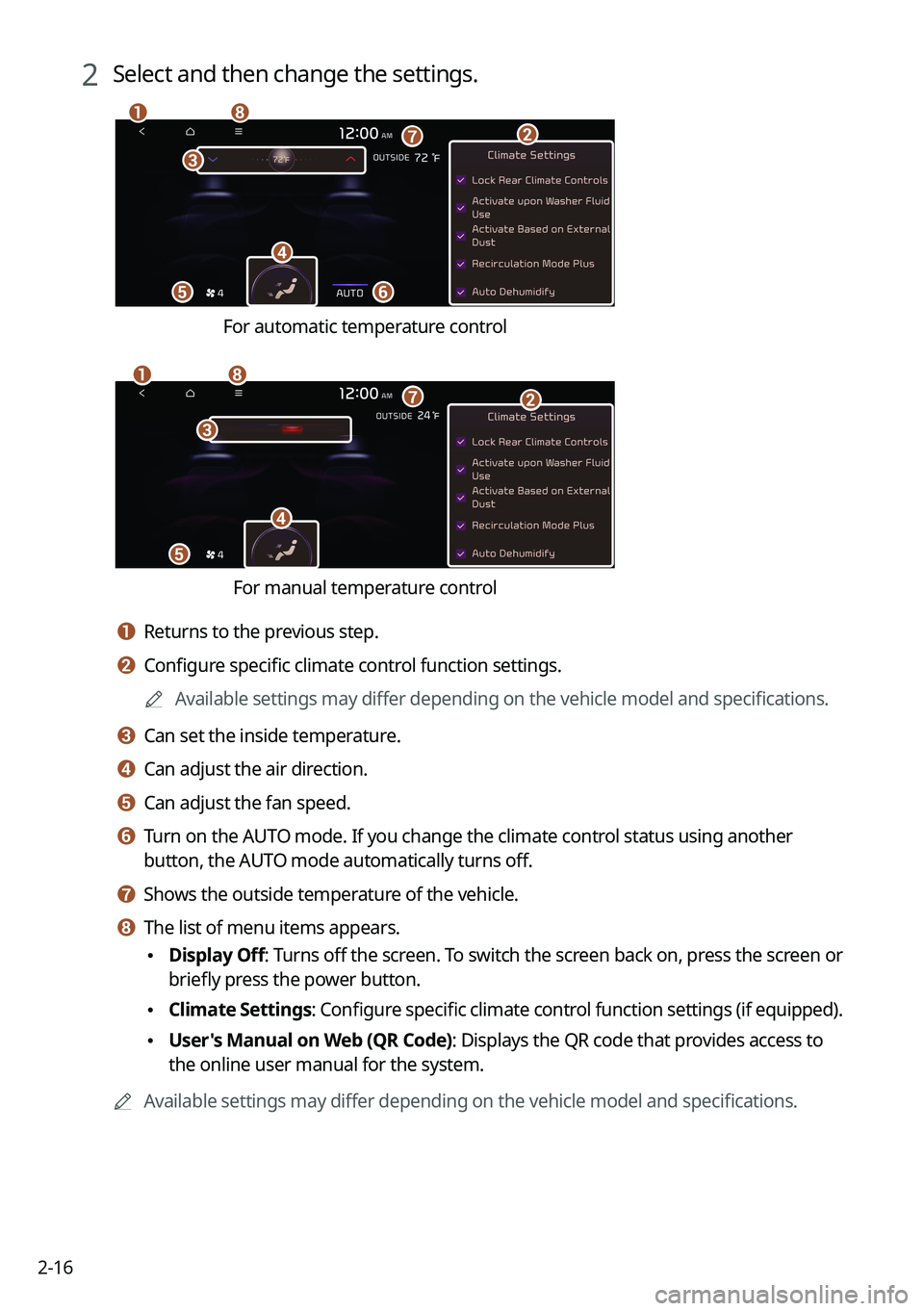
2 Select and then change the settings.
f
a
c
e
h
gb
d
For automatic temperature control
e
ahg
d
c
b
For manual temperature control
a a Returns to the previous step.
b b Configure specific climate control function settings.
A
Available settings may differ depending on the vehicle model and specifications.
c c Can set the inside temperature.
d d Can adjust the air direction.
e e Can adjust the fan speed.
f f Turn on the AUTO mode. If you change the climate control status using another
button, the AUTO mode automatically turns off.
g g Shows the outside temperature of the vehicle.
h h The list of menu items appears.
•Display Off
: Turns off the screen. To switch the screen back on, press the screen or
briefly press the power button.
• Climate Settings
: Configure specific climate control function settings (if equipped).
•User's Manual on Web (QR Code): Displays the QR code that provides access to
the online user manual for the system.
A
Available settings may differ depending on the vehicle model and specifications.
Page 56 of 324
2-18
Using the rear-seat view (if equipped)
You can check the status and safety of rear-seat occupants through the rear-seat camera feed
displayed on the system screen.
ÝWarning
A car accident may occur when focusing on the vehicle display and not pa\
ying attention to
the road while driving.
On the All Menus screen, press Passenger View.
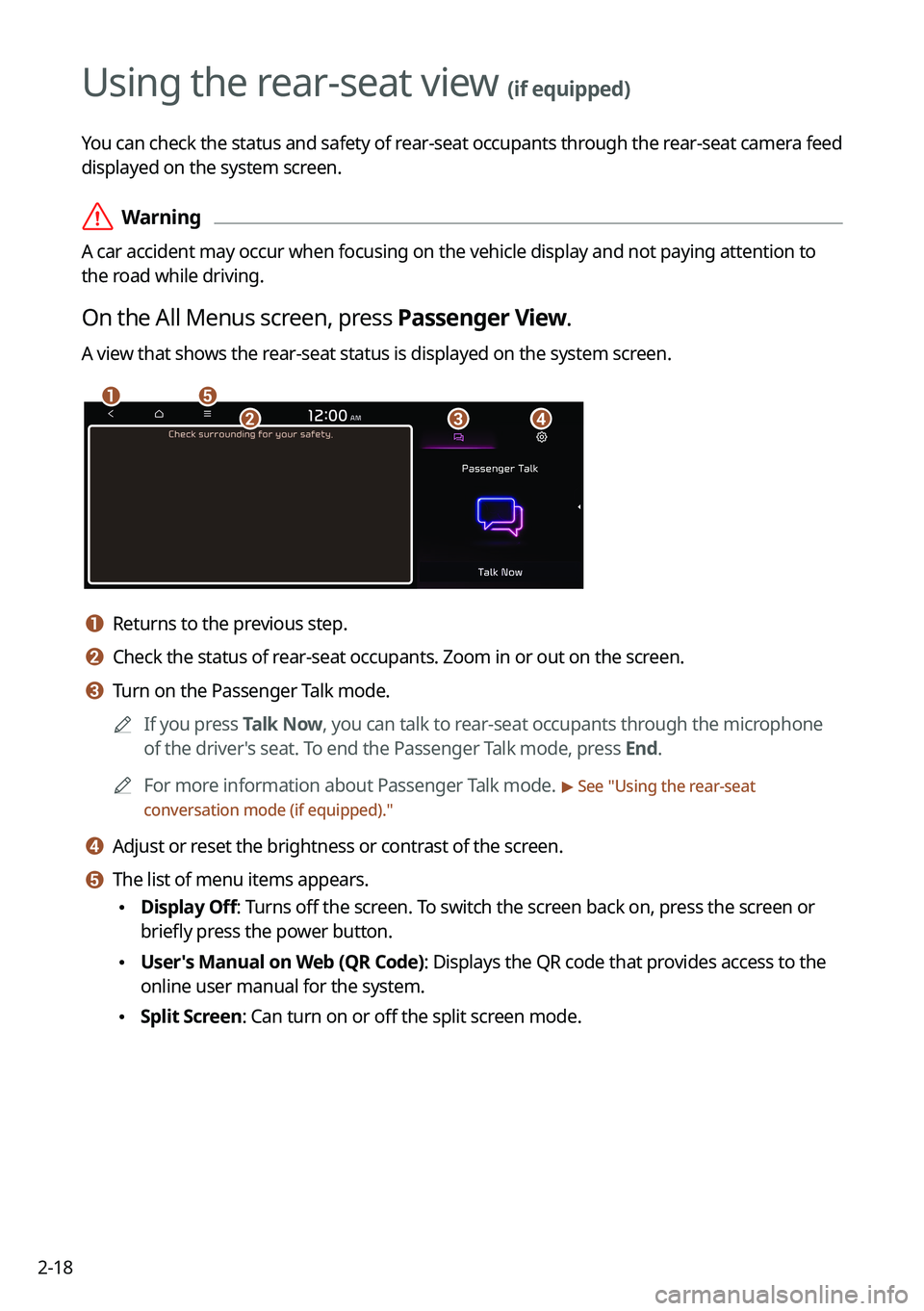
A view that shows the rear-seat status is displayed on the system screen.
ae
cbd
a a Returns to the previous step.
b b Check the status of rear-seat occupants. Zoom in or out on the screen.
c c Turn on the Passenger Talk mode.
A
If you press Talk Now, you can talk to rear-seat occupants through the microphone
of the driver's seat. To end the Passenger Talk mode, press End.
A
For more information about Passenger Talk mode.
> See "Using the rear-seat
conversation mode (if equipped)."
d d Adjust or reset the brightness or contrast of the screen.
e e The list of menu items appears.
• Display Off: Turns off the screen. To switch the screen back on, press the screen or
briefly press the power button.
•User's Manual on Web (QR Code): Displays the QR code that provides access to the
online user manual for the system.
•Split Screen: Can turn on or off the split screen mode.
Page 58 of 324

2-20
Using the sound mood lamp (if equipped)
You can set to implement various lighting effects by synchronizing with the playing music.
1 On the All Menus screen, press Sound Mood Lamp.
2 Select and then change the settings.
c
d
e
f
b
ag
a a Returns to the previous step.
b b Can turn on or off the sound mood lamp.
c c Can select various color themes. Based on the selected color theme, the \
interior
lighting changes its colors in various patterns.
d d Can select the color of the light. The selected lighting color changes into a soft glow
effect.
e e Can synchronize the light with the playing music.
A
After checking Music+, music is not played back or the light does not illuminate
when muted.
f f Can adjust the brightness of the light.
g g The list of menu items appears.
•Display Off
: Turns off the screen. To switch the screen back on, press the screen or
briefly press the power button.
• Reset: Can reset all the settings of the sound mood lamp.
•User's Manual on Web (QR Code): Displays the QR code that provides access to
the online user manual for the system.
•Split Screen: Can turn on or off the split screen mode.
A
You cannot manipulate the sound mood lamp while driving.
A
When a door is opened, the light automatically turns off.
A
The screen may differ depending on the vehicle model and specifications.
Page 59 of 324
2-21
Playing Sounds of Nature
Listen to the calming sound of rain, waves, and more to relax while driving by turning on a
Sounds of Nature.
1 On the All Menus screen, press Media >
Sounds of Nature.
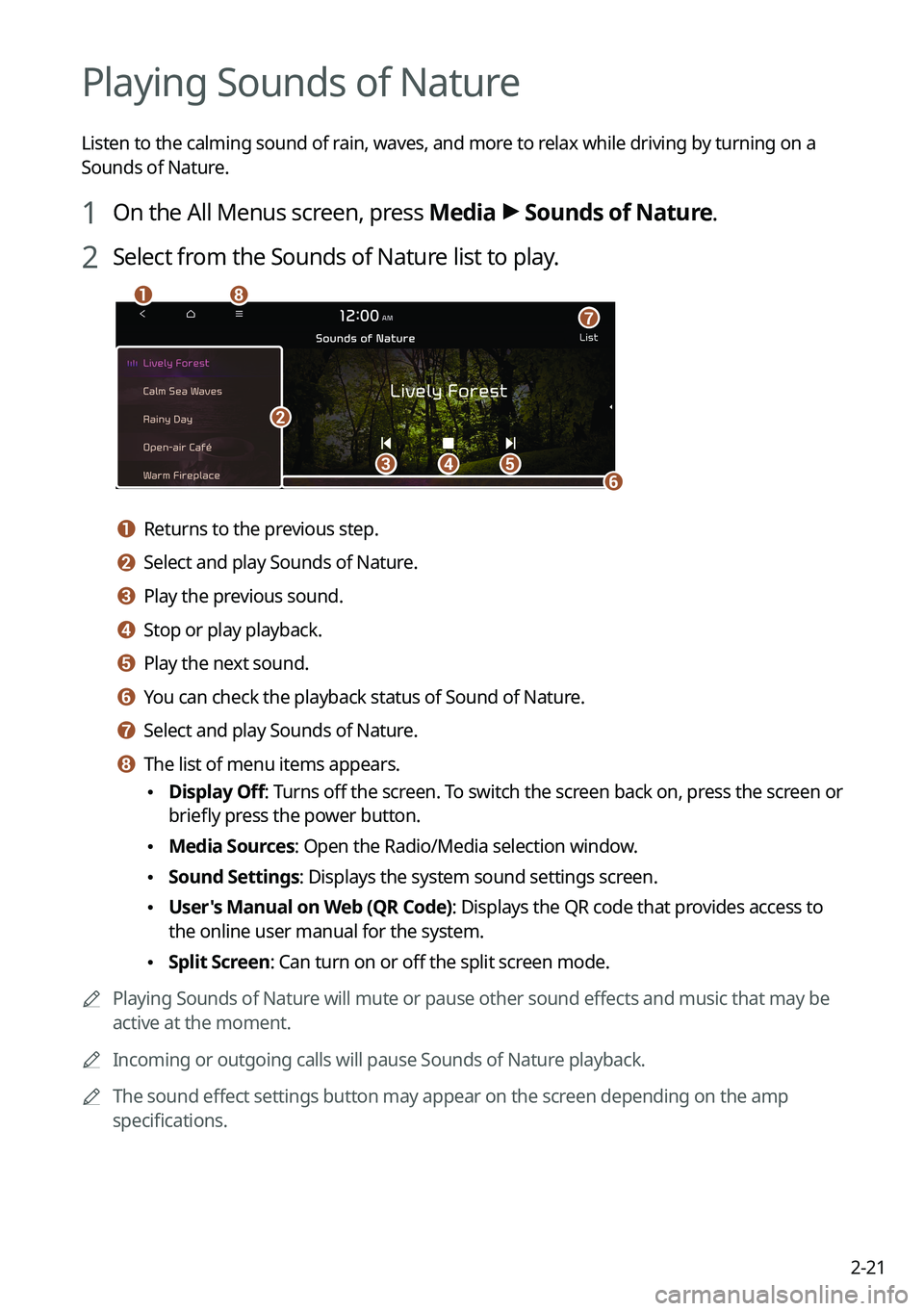
2 Select from the Sounds of Nature list to play.
cde
ha
b
f
g
a a Returns to the previous step.
b b Select and play Sounds of Nature.
c c Play the previous sound.
d d Stop or play playback.
e e Play the next sound.
f f You can check the playback status of Sound of Nature.
g g Select and play Sounds of Nature.
h h The list of menu items appears.
• Display Off
: Turns off the screen. To switch the screen back on, press the screen or
briefly press the power button.
• Media Sources: Open the Radio/Media selection window.
•Sound Settings: Displays the system sound settings screen.
•User's Manual on Web (QR Code): Displays the QR code that provides access to
the online user manual for the system.
•Split Screen: Can turn on or off the split screen mode.
A
Playing Sounds of Nature will mute or pause other sound effects and music that may be
active at the moment.
A
Incoming or outgoing calls will pause Sounds of Nature playback.
A
The sound effect settings button may appear on the screen depending on the amp
specifications.
Page 60 of 324
2-22
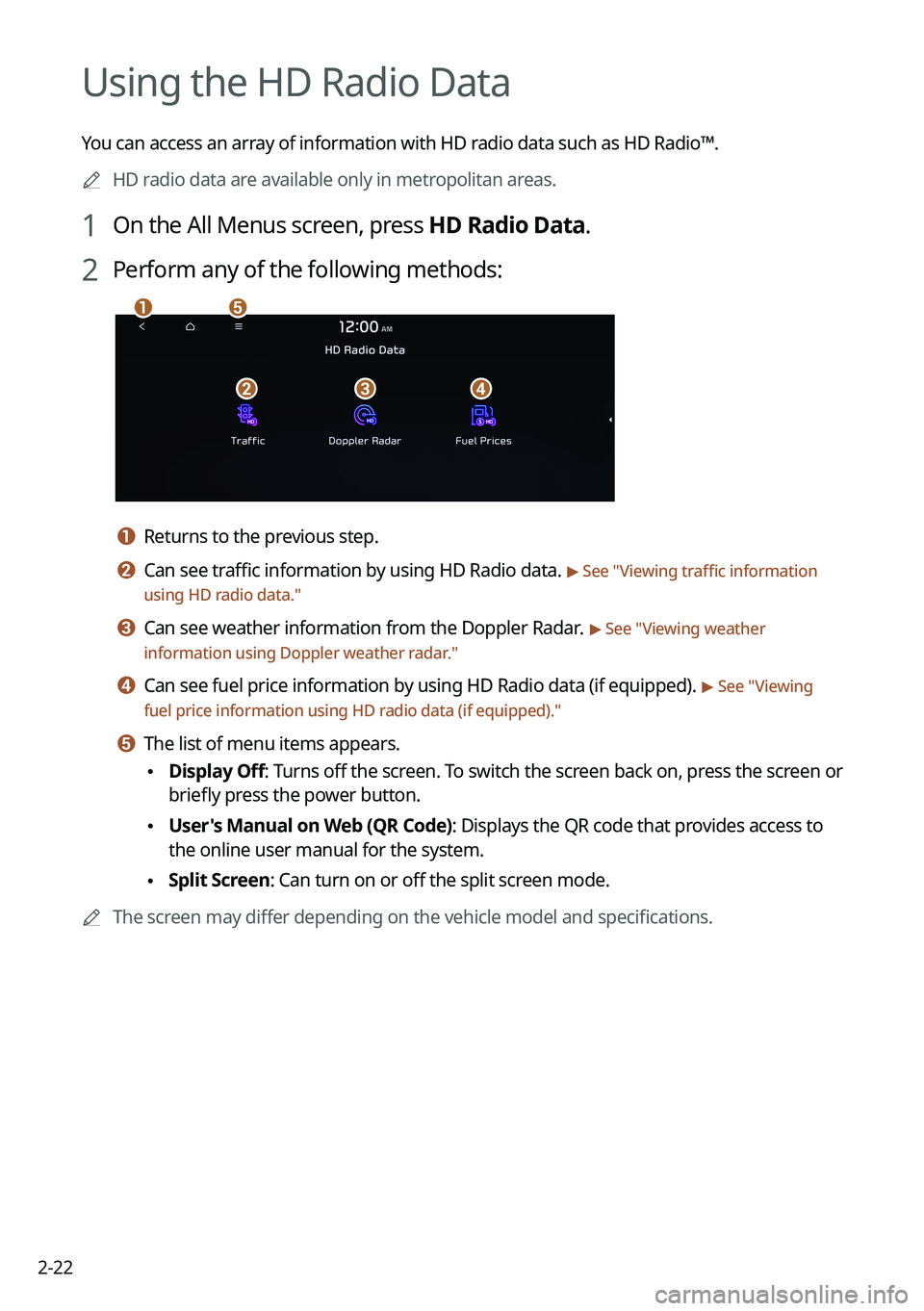
Using the HD Radio Data
You can access an array of information with HD radio data such as HD Radio™.
A
HD radio data are available only in metropolitan areas.
1 On the All Menus screen, press HD Radio Data.
2 Perform any of the following methods:
a
bcd
e
a a Returns to the previous step.
b b Can see traffic information by using HD Radio data. > See "Viewing traffic information
using HD radio data."
c c Can see weather information from the Doppler Radar. > See "Viewing weather
information using Doppler weather radar ."
d d Can see fuel price information by using HD Radio data (if equipped). > See "Viewing
fuel price information using HD radio data (if equipped)."
e e The list of menu items appears.
• Display Off
: Turns off the screen. To switch the screen back on, press the screen or
briefly press the power button.
• User's Manual on Web (QR Code): Displays the QR code that provides access to
the online user manual for the system.
•Split Screen: Can turn on or off the split screen mode.
A
The screen may differ depending on the vehicle model and specifications.