door lock KIA K900 2017 Owner's Manual
[x] Cancel search | Manufacturer: KIA, Model Year: 2017, Model line: K900, Model: KIA K900 2017Pages: 542, PDF Size: 14.89 MB
Page 108 of 542
Features of your vehicle
4-28
How to use the Smart Trunk
The trunk can be opened with
notouch activation satisfying all the
conditions below.
After 15 seconds when all doorsare closed and locked
Positioned in the detecting area for more than 3 seconds.
✽ NOTICE
• The Smart Trunk does not operate
when:
- The smart key is detected within15 seconds after the doors are
closed and locked, and is contin-
uously detected.
- The smart key is detected within 15 seconds after the doors are
closed and locked, and within 60
inches (1.5 m) from the front
door handles. (for vehicles
equipped with Welcome Light)
- A door is not locked or closed.
- The smart key is in the vehicle.
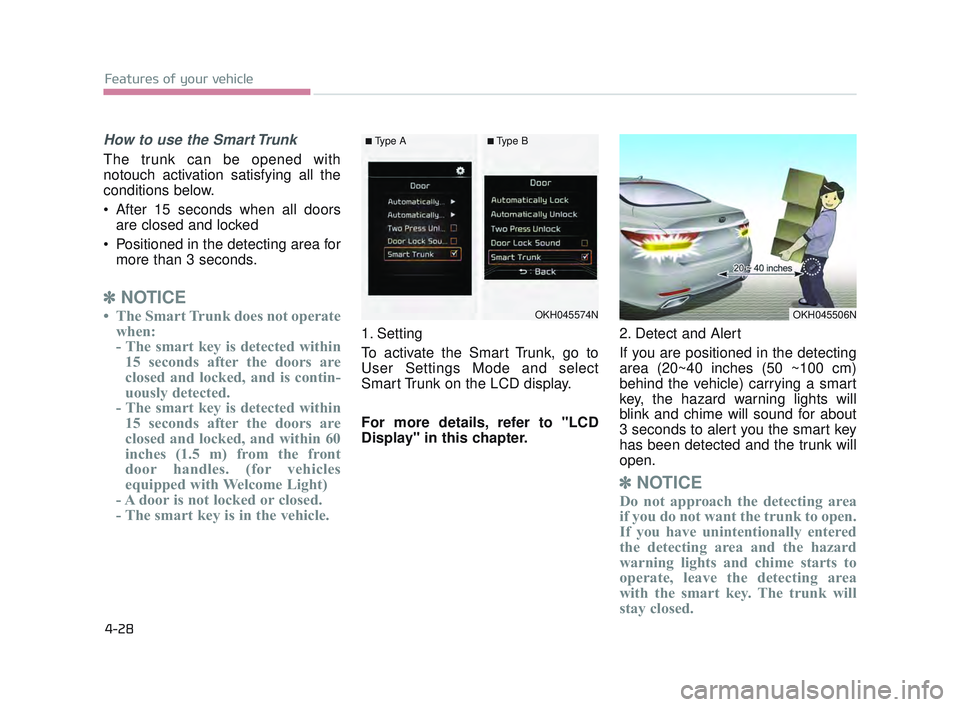
1. Setting
To activate the Smart Trunk, go to
User Settings Mode and select
Smart Trunk on the LCD display.
For more details, refer to "LCD
Display" in this chapter. 2. Detect and Alert
If you are positioned in the detecting
area (20~40 inches (50 ~100 cm)
behind the vehicle) carrying a smart
key, the hazard warning lights will
blink and chime will sound for about
3 seconds to alert you the smart key
has been detected and the trunk will
open.
✽
NOTICE
Do not approach the detecting area
if you do not want the trunk to open.
If you have unintentionally entered
the detecting area and the hazard
warning lights and chime starts to
operate, leave the detecting area
with the smart key. The trunk will
stay closed.
OKH045574NOKH045506N
■Type A■Type B
KH USA 4:2015 12/2/2016 10:23 AM Page 28
Page 109 of 542
Features of your vehicle
4
4-29
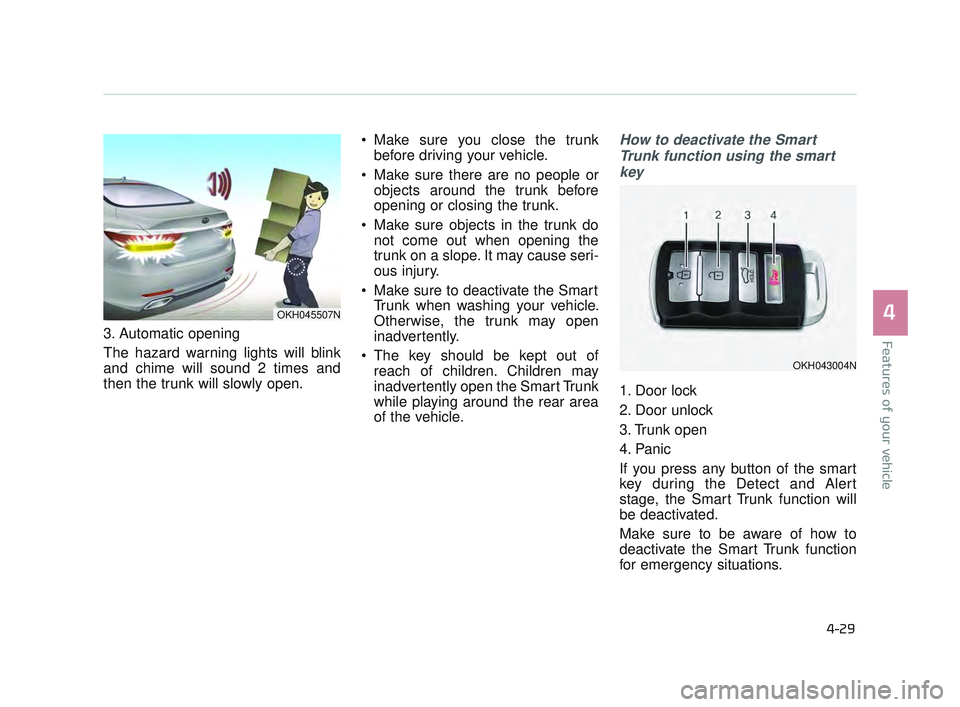
3. Automatic opening
The hazard warning lights will blink
and chime will sound 2 times and
then the trunk will slowly open. Make sure you close the trunk
before driving your vehicle.
Make sure there are no people or objects around the trunk before
opening or closing the trunk.
Make sure objects in the trunk do not come out when opening the
trunk on a slope. It may cause seri-
ous injury.
Make sure to deactivate the Smart Trunk when washing your vehicle.
Otherwise, the trunk may open
inadvertently.
The key should be kept out of reach of children. Children may
inadvertently open the Smart Trunk
while playing around the rear area
of the vehicle.
How to deactivate the Smart
Trunk function using the smartkey
1. Door lock
2. Door unlock
3. Trunk open
4. Panic
If you press any button of the smart
key during the Detect and Alert
stage, the Smart Trunk function will
be deactivated.
Make sure to be aware of how to
deactivate the Smart Trunk function
for emergency situations.
OKH045507N
OKH043004N
KH USA 4:2015 12/2/2016 10:23 AM Page 29
Page 110 of 542
Features of your vehicle
4-30
✽NOTICE
• If you press the door unlock but-
ton(2), the Smart Trunk function
will be deactivated temporarily.
But, if you do not open any door
for 30 seconds, the smart trunk
function will be activated again.
• If you press the trunk open button (3) for more than 1 second, the
trunk opens.
• If you press the door lock button (1) or trunk open button (3) when
the Smart Trunk function is not in
the Detect and Alert stage, the
smart trunk function will not be
deactivated.
• In case you have deactivated the Smart Trunk function by pressing
the smart key button and opened a
door, the smart trunk function can
be activated again by closing and
locking all doors.
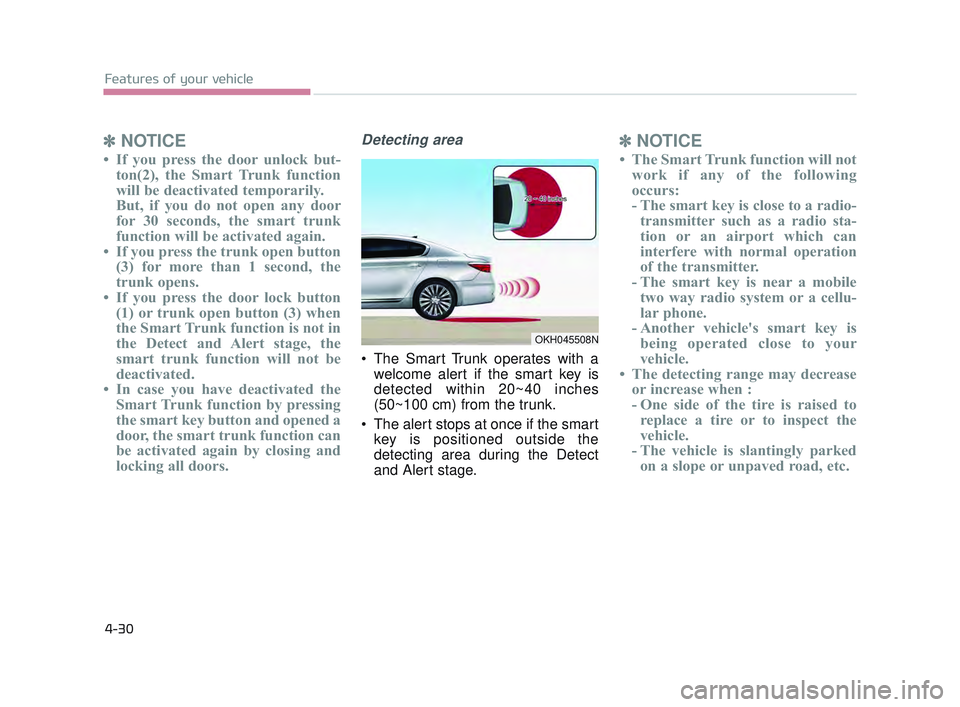
Detecting area
The Smart Trunk operates with a
welcome alert if the smart key is
detected within 20~40 inches
(50~100 cm) from the trunk.
The alert stops at once if the smart key is positioned outside the
detecting area during the Detect
and Alert stage.
✽ NOTICE
• The Smart Trunk function will not
work if any of the following
occurs:
- The smart key is close to a radio-transmitter such as a radio sta-
tion or an airport which can
interfere with normal operation
of the transmitter.
- The smart key is near a mobile two way radio system or a cellu-
lar phone.
- Another vehicle's smart key is being operated close to your
vehicle.
• The detecting range may decrease or increase when :
- One side of the tire is raised toreplace a tire or to inspect the
vehicle.
- The vehicle is slantingly parked on a slope or unpaved road, etc.
OKH045508N
KH USA 4:2015 12/2/2016 10:23 AM Page 30
Page 111 of 542
Features of your vehicle
4
4-31
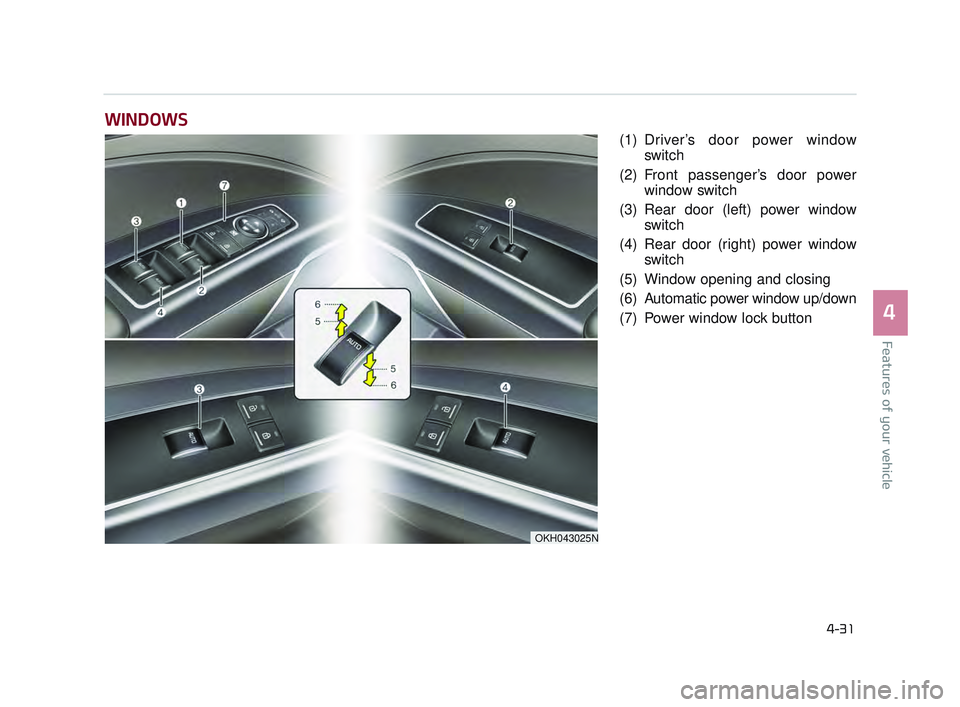
(1) Driver’s door power windowswitch
(2) Front passenger’s door power window switch
(3) Rear door (left) power window switch
(4) Rear door (right) power window switch
(5) Window opening and closing
(6) Automatic power window up/down
(7) Power window lock button
WINDOWS
OKH043025N
KH USA 4:2015 12/2/2016 10:23 AM Page 31
Page 112 of 542
Features of your vehicle
4-32
In cold and wet climates, power win-
dows may not work properly due to
freezing conditions.
Power windows
The Engine Start/Stop button must
be in the ON position for power win-
dows to operate. Each door has a
power window switch that controls
the door’s window. The driver has a
power window lock switch which can
block the operation of rear passen-
ger windows.
The power windows can be operated
for approximately 30 seconds after
engine is turned off. However, if the
front doors are opened, the power
windows cannot be operated even
within the 30 second period.
✽NOTICE
While driving with the rear windows
down or with the sunroof (if
equipped) in an open (or partially
open) position, your vehicle may
demonstrate a wind buffeting or
pulsation noise. This noise is a nor-
mal occurrence and can be reduced
or eliminated by taking the follow-
ing actions. If the noise occurs with
one or both of the rear windows
down, partially lower both front
windows approximately one inch. If
you experience the noise with the
sunroof open, slightly reduce the
size of the sunroof opening.
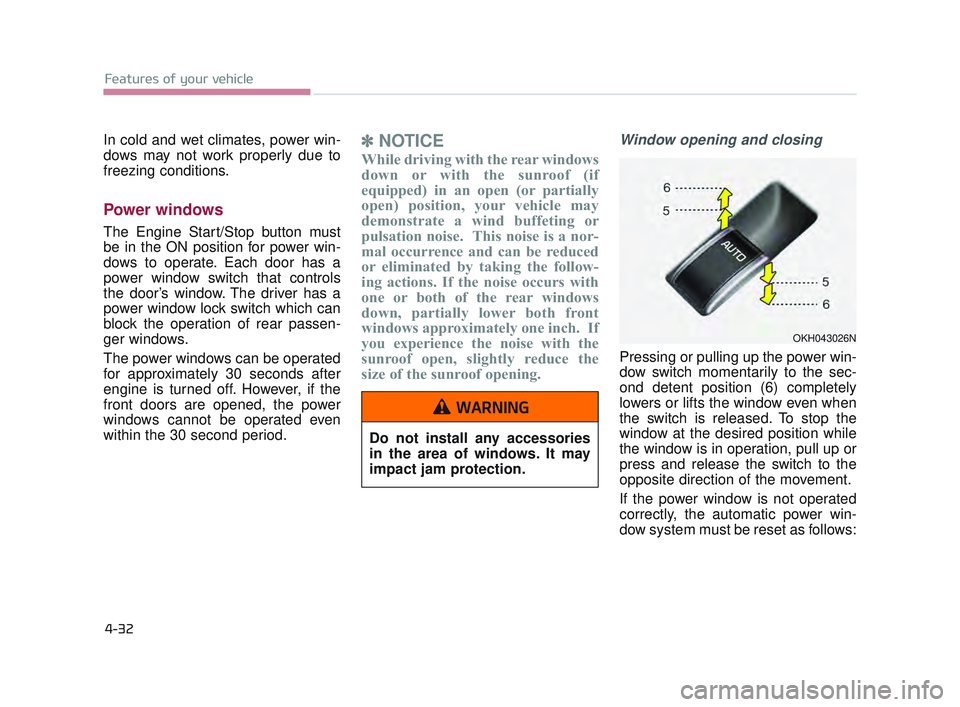
Window opening and closing
Pressing or pulling up the power win-
dow switch momentarily to the sec-
ond detent position (6) completely
lowers or lifts the window even when
the switch is released. To stop the
window at the desired position while
the window is in operation, pull up or
press and release the switch to the
opposite direction of the movement.
If the power window is not operated
correctly, the automatic power win-
dow system must be reset as follows:
OKH043026N
Do not install any accessories
in the area of windows. It may
impact jam protection.
WARNING
KH USA 4:2015 12/2/2016 10:23 AM Page 32
Page 114 of 542
Features of your vehicle
4-34
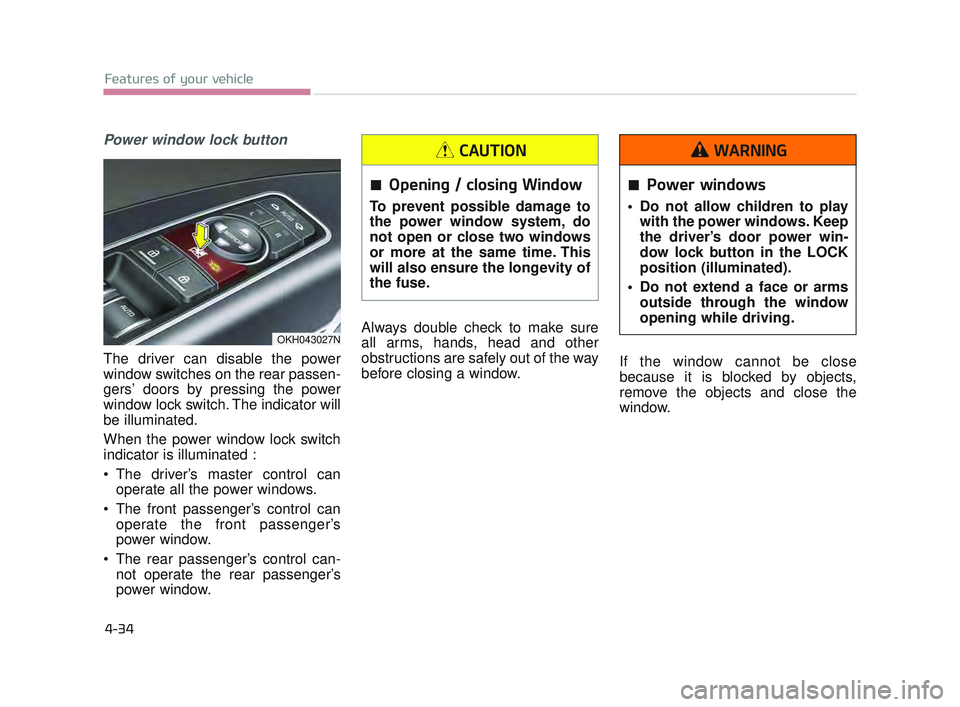
Power window lock button
The driver can disable the power
window switches on the rear passen-
gers’ doors by pressing the power
window lock switch. The indicator will
be illuminated.
When the power window lock switch
indicator is illuminated :
The driver’s master control canoperate all the power windows.
The front passenger’s control can operate the front passenger’s
power window.
The rear passenger’s control can- not operate the rear passenger’s
power window. Always double check to make sure
all arms, hands, head and other
obstructions are safely out of the way
before closing a window.
If the window cannot be close
because it is blocked by objects,
remove the objects and close the
window.
OKH043027N
Power windows
Do not allow children to play
with the power windows. Keep
the driver’s door power win-
dow lock button in the LOCK
position (illuminated).
Do not extend a face or arms outside through the window
opening while driving.
WARNING
Opening / closing Window
To prevent possible damage to
the power window system, do
not open or close two windows
or more at the same time. This
will also ensure the longevity of
the fuse.
CAUTION
KH USA 4:2015 12/2/2016 10:23 AM Page 34
Page 131 of 542
Features of your vehicle
4
4-51
To adjust the Zone setting:
1.Determine the desired ZoneNumber based upon your current
location on the Zone Map.
2.Press and hold the button for more than 3, but less than 6 sec-
onds, the current Zone Number will
appear on the display.
3.Pressing and holding the button again will cause the numbers to
increment (Note: they will repeat
…13, 14, 15, 1, 2, …). Releasing
the button when the desired Zone
Number appears on the display will
set the new Zone.
4.Within about 5 seconds, the com- pass will start displaying a com-
pass heading again. There are some conditions that can
cause changes to the vehicle mag-
nets, such as installing a ski rack or a
CB antenna. Body repair work on the
vehicle can also cause changes to the
vehicle's magnetic field. In these situa-
tions, the compass will need to be re-
calibrated to quickly correct for these
changes. To re-calibrate the compass:
1.Press and hold the button for
more than 6 seconds. When the
compass memory is cleared, a "C"
will appear in the display.
2.To calibrate the compass, drive the vehicle in 2 complete circles at less
than 5 mph (8 km/h). Integrated HomeLink®
Wireless Control System
The HomeLink
®Wireless Control
System provides a convenient way to
replace up to three hand-held radio-
frequency (RF) transmitters with a
single built-in device. This innovative
feature will learn the radio frequency
codes of most current transmitters to
operate devices such as gate opera-
tors, garage door openers, entry
door locks, security systems, even
home lighting. Both standard and
rolling code-equipped transmitters
can be programmed by following the
outlined procedures. Additional
HomeLink
®information can be found
at: www.homelink.com or by calling
1-800-355-3515.
❈ HomeLink
®is a registered trade-
mark of Johnson Controls, Inc.
KH USA 4:2015 12/2/2016 10:24 AM Page 51
Page 134 of 542
Features of your vehicle
4-54
3. Return to the vehicle, firmly pressand hold for two seconds the desired
HomeLink
®button then release.
Repeat the "press/hold/release"
sequence a second time to com-
plete the programming. (Some
devices may require you to repeat
this sequence a third time to com-
plete the programming.)
4. Press and hold the just-trained HomeLink
®button and observe
the red Status Indicator LED. If the
indicator light stays on constantly,
programming is complete and
your device should activate.
5. To program the remaining two HomeLink
®buttons, follow either
steps 1 through 4 above for other
Rolling Code devices or steps 2
through 5 in Standard
Programming for standard devices. Gate operator &
Canadian programming
During programming, your handheld
transmitter may automatically stop
transmitting. Continue to press the
Integrated HomeLink
®Wireless
Control System button (note steps 2
through 4 in the Standard
Programming portion of this docu-
ment) while you press and re-press
("cycle") your handheld transmitter
every two seconds until the frequen-
cy signal has been learned. The indi-
cator light will flash slowly and then
rapidly after several seconds upon
successful training. Operating HomeLink
®
To operate, simply press and release
the programmed HomeLink®button.
Activation will now occur for the
trained device (i.e. garage door
opener, gate operator, security sys-
tem, entry door lock, home/office
lighting, etc.). For convenience, the
hand-held transmitter of the device
may also be used at any time.
KH USA 4:2015 12/2/2016 10:24 AM Page 54
Page 139 of 542
Features of your vehicle
4
4-59
To adjust the Zone setting:
1.Determine the desired ZoneNumber based upon your current
location on the Zone Map.
2.Press and hold the button for 6 seconds, the current Zone Number
will appear on the display.
3.Pressing and holding the button again will cause the numbers to
increment (Note: they will repeat
…13, 14, 15, 1, 2, …). Releasing
the button when the desired Zone
Number appears on the display will
set the new Zone.
4.Within about 5 seconds the com- pass will start displaying a com-
pass heading again.
There are some conditions that can
cause changes to the vehicle mag-
nets, such as installing a ski rack or
a CB antenna. Body repair work on
the vehicle can also cause changes
to the vehicle’s magnetic field. In
these situations, the compass will
need to be re-calibrated to quickly
correct these changes. If you need to recalibrate the com-
pass:
1.Press and hold the button for
more than 9 seconds. When the
compass memory is cleared a "C"
will appear in the display.
2.Drive the vehicle in 2 complete cir- cles at less than 5 mph (8 km/h). Integrated HomeLink®Wireless
Control System
The HomeLink
®Wireless Control
System can replace up to three
hand-held radio-frequency (RF)
transmitters with a single built-in
device. This innovative feature will
learn the radio frequency codes of
most current transmitters to operate
devices such as gate operators,
garage door openers, entry door
locks, security systems, even home
lighting. Both standard and rolling
code-equipped transmitters can be
programmed by following the out-
lined procedures.
Additional HomeLink
®information
can be found at: www.homelink.com
or by calling 1-800-355-3515.
Retain the original transmitter of the
RF device you are programming for
use in other vehicles as well as for
future HomeLink
®programming. It is
also suggested that upon the sale of
the vehicle, the programmed
HomeLink
®buttons be erased for
security purposes.
KH USA 4:2015 12/2/2016 10:24 AM Page 59
Page 142 of 542
Features of your vehicle
4-62
Gate operator & Canadian pro-gramming
During programming, your handheld
transmitter may automatically stop
transmitting. Continue to press the
Integrated HomeLink
® Wireless
Control System button (note steps 2
through 3 in the Programming por-
tion of this document) while you
press and re-press ("cycle") your
handheld transmitter every two sec-
onds until the frequency signal has
been learned. The indicator light will
flash slowly and then rapidly after
several seconds upon successful
training.
Operating HomeLink®
To operate, simply press and release
the programmed HomeLink®button.
Activation will now occur for the
trained device (i.e. garage door
opener, gate operator, security sys-
tem, entry door lock, home/office
lighting, etc.). For convenience, the
hand-held transmitter of the device
may also be used at any time.
Reprogramming a single HomeLink®button
To program a device to HomeLink®
using a HomeLink®button previous-
ly trained, follow these steps:
1. Press and hold the desired HomeLink
®button. DO NOT
release the button.
2. The indicator light will begin to flash after 20 seconds. Without releasing
the HomeLink
®button, proceed
with "Programming" step 2.
For questions or comments, contact
HomeLink
®at www.homelink.comor
1-800-355-3515.
KH USA 4:2015 12/2/2016 10:24 AM Page 62