navigation KIA K900 2020 User Guide
[x] Cancel search | Manufacturer: KIA, Model Year: 2020, Model line: K900, Model: KIA K900 2020Pages: 593, PDF Size: 14.99 MB
Page 174 of 593
481
Features of your vehicle
(3) Assist mode
This mode displays the state of the
lane safety systems (Lane Keeping
Assist, Lane Following Assist),
Highway Driving Assist), Smart
Cruise Control, Driver Attention
Warning and Tire pressure.
❈For more details, refer to chapters
5 and 6.
(4) Master warning mode
This mode informs of warning mes-
sages related to low tire pressure or
malfunction of Blind-spot Collision
Warning and so on.
❈ For controlling the LCD modes,
refer to “LCD window Control” in
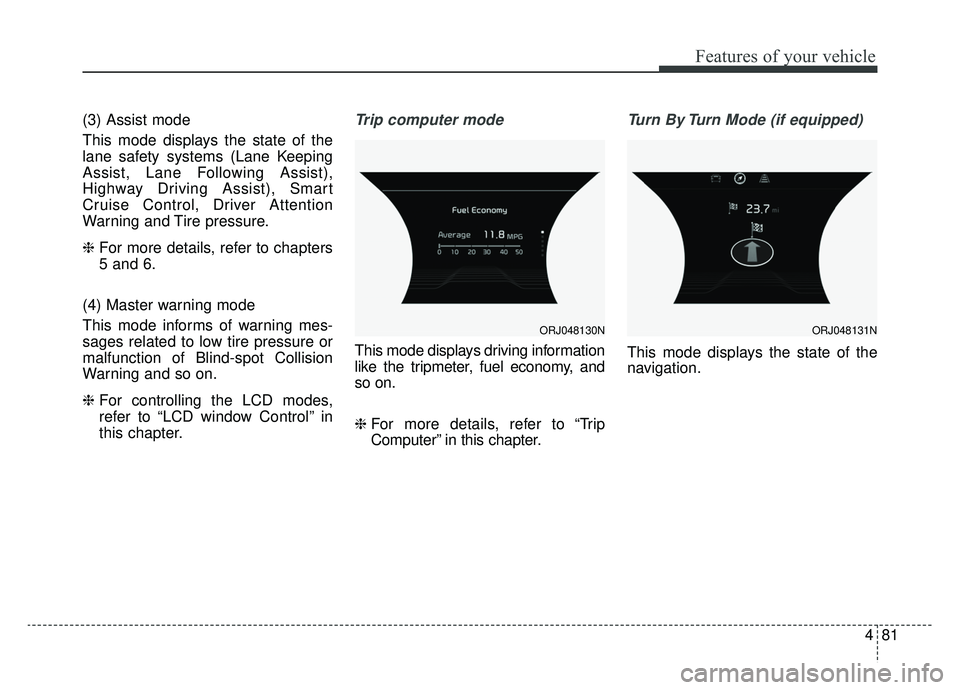
this chapter.Trip computer mode
This mode displays driving information
like the tripmeter, fuel economy, and
so on.
❈ For more details, refer to “Trip
Computer” in this chapter.
Turn By Turn Mode (if equipped)
This mode displays the state of the
navigation.
ORJ048130NORJ048131N
Page 178 of 593
485
Features of your vehicle
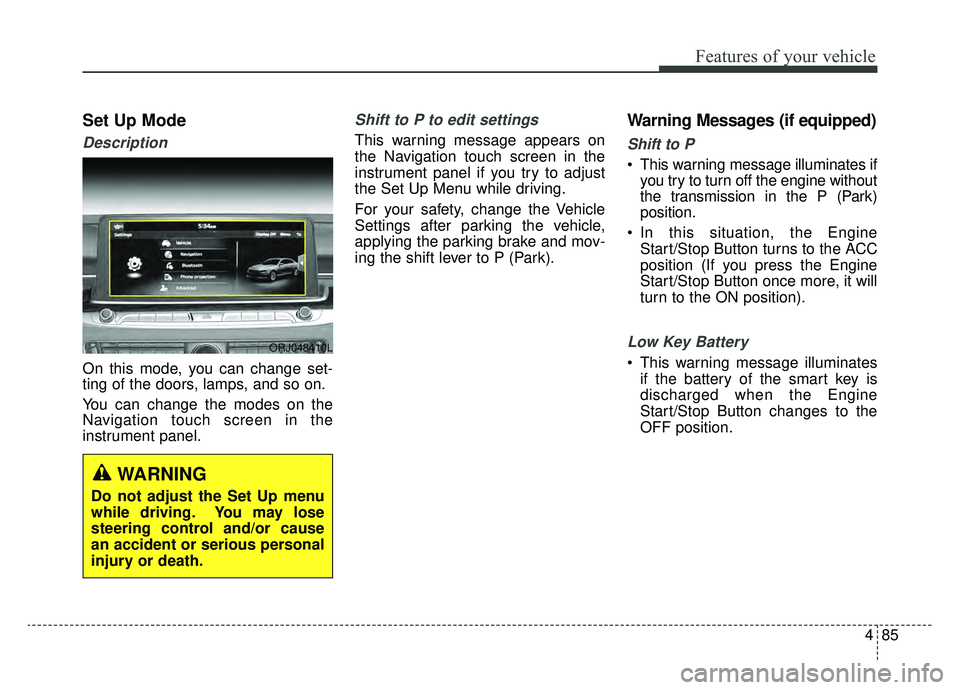
Set Up Mode
Description
On this mode, you can change set-
ting of the doors, lamps, and so on.
You can change the modes on the
Navigation touch screen in the
instrument panel.
Shift to P to edit settings
This warning message appears on
the Navigation touch screen in the
instrument panel if you try to adjust
the Set Up Menu while driving.
For your safety, change the Vehicle
Settings after parking the vehicle,
applying the parking brake and mov-
ing the shift lever to P (Park).
Warning Messages (if equipped)
Shift to P
This warning message illuminates ifyou try to turn off the engine without
the transmission in the P (Park)
position.
In this situation, the Engine Start/Stop Button turns to the ACC
position (If you press the Engine
Start/Stop Button once more, it will
turn to the ON position).
Low Key Battery
This warning message illuminatesif the battery of the smart key is
discharged when the Engine
Start/Stop Button changes to the
OFF position.
ORJ048410L
WARNING
Do not adjust the Set Up menu
while driving. You may lose
steering control and/or cause
an accident or serious personal
injury or death.
Page 197 of 593
Features of your vehicle
104
4
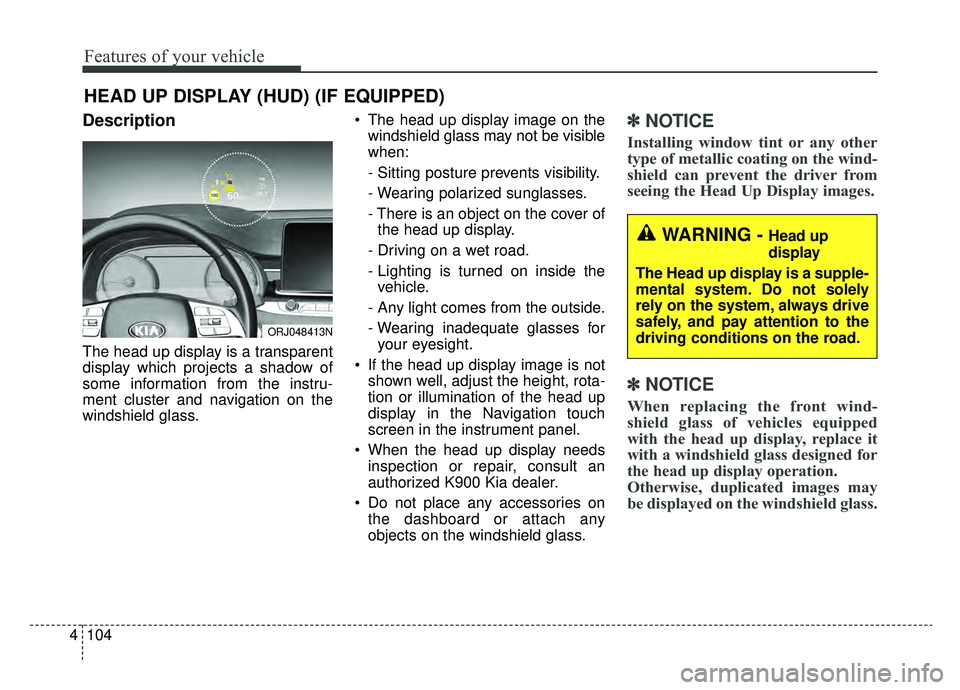
Description
The head up display is a transparent
display which projects a shadow of
some information from the instru-
ment cluster and navigation on the
windshield glass. The head up display image on the
windshield glass may not be visible
when:
- Sitting posture prevents visibility.
- Wearing polarized sunglasses.
- There is an object on the cover ofthe head up display.
- Driving on a wet road.
- Lighting is turned on inside the vehicle.
- Any light comes from the outside.
- Wearing inadequate glasses for your eyesight.
If the head up display image is not shown well, adjust the height, rota-
tion or illumination of the head up
display in the Navigation touch
screen in the instrument panel.
When the head up display needs inspection or repair, consult an
authorized K900 Kia dealer.
Do not place any accessories on the dashboard or attach any
objects on the windshield glass.
✽ ✽ NOTICE
Installing window tint or any other
type of metallic coating on the wind-
shield can prevent the driver from
seeing the Head Up Display images.
✽ ✽NOTICE
When replacing the front wind-
shield glass of vehicles equipped
with the head up display, replace it
with a windshield glass designed for
the head up display operation.
Otherwise, duplicated images may
be displayed on the windshield glass.
HEAD UP DISPLAY (HUD) (IF EQUIPPED)
ORJ048413N
WARNING - Head up
display
The Head up display is a supple-
mental system. Do not solely
rely on the system, always drive
safely, and pay attention to the
driving conditions on the road.
Page 198 of 593
4105
Features of your vehicle
Head Up Display ON/OFF
The HUD display will be activated or
deactivated in Setup mode while
engine is ON.
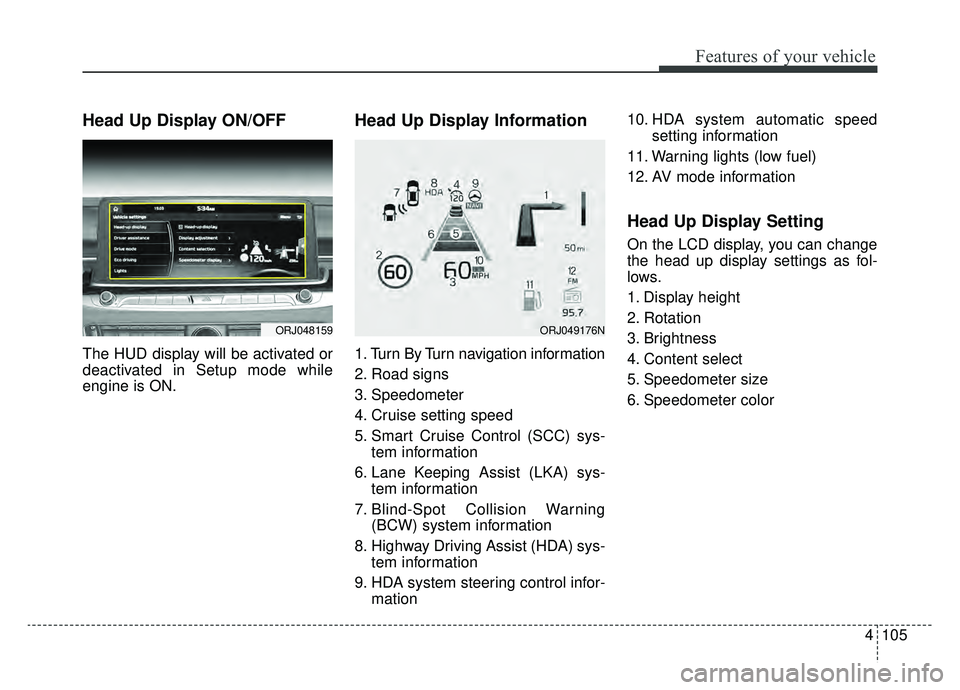
Head Up Display Information
1. Turn By Turn navigation information
2. Road signs
3. Speedometer
4. Cruise setting speed
5. Smart Cruise Control (SCC) sys-tem information
6. Lane Keeping Assist (LKA) sys- tem information
7. Blind-Spot Collision Warning (BCW) system information
8. Highway Driving Assist (HDA) sys- tem information
9. HDA system steering control infor- mation 10. HDA system automatic speed
setting information
11. Warning lights (low fuel)
12. AV mode information
Head Up Display Setting
On the LCD display, you can change
the head up display settings as fol-
lows.
1. Display height
2. Rotation
3. Brightness
4. Content select
5. Speedometer size
6. Speedometer color
ORJ048159ORJ049176N
Page 204 of 593
4111
Features of your vehicle
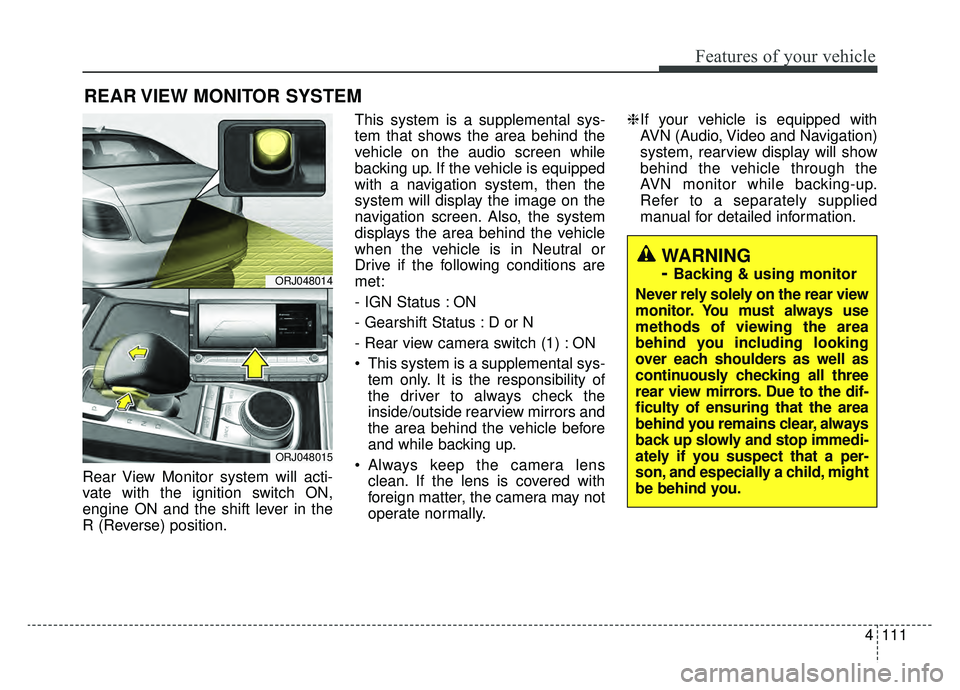
Rear View Monitor system will acti-
vate with the ignition switch ON,
engine ON and the shift lever in the
R (Reverse) position.This system is a supplemental sys-
tem that shows the area behind the
vehicle on the audio screen while
backing up. If the vehicle is equipped
with a navigation system, then the
system will display the image on the
navigation screen. Also, the system
displays the area behind the vehicle
when the vehicle is in Neutral or
Drive if the following conditions are
met:
- IGN Status : ON
- Gearshift Status : D or N
- Rear view camera switch (1) : ON
This system is a supplemental sys-
tem only. It is the responsibility of
the driver to always check the
inside/outside rearview mirrors and
the area behind the vehicle before
and while backing up.
Always keep the camera lens clean. If the lens is covered with
foreign matter, the camera may not
operate normally. ❈
If your vehicle is equipped with
AVN (Audio, Video and Navigation)
system, rearview display will show
behind the vehicle through the
AVN monitor while backing-up.
Refer to a separately supplied
manual for detailed information.
REAR VIEW MONITOR SYSTEM
ORJ048014
ORJ048015
WARNING
-
Backing & using monitor
Never rely solely on the rear view
monitor. You must always use
methods of viewing the area
behind you including looking
over each shoulders as well as
continuously checking all three
rear view mirrors. Due to the dif-
ficulty of ensuring that the area
behind you remains clear, always
back up slowly and stop immedi-
ately if you suspect that a per-
son, and especially a child, might
be behind you.
Page 258 of 593
4165
Features of your vehicle
Luggage net (holder)
(if equipped)
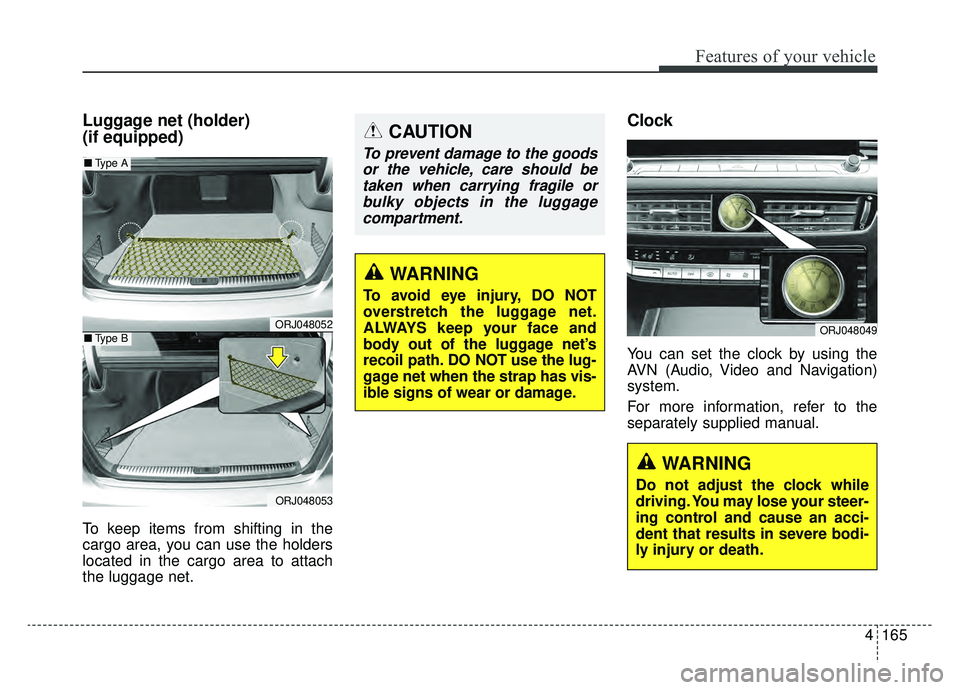
To keep items from shifting in the
cargo area, you can use the holders
located in the cargo area to attach
the luggage net.
Clock
You can set the clock by using the
AVN (Audio, Video and Navigation)
system.
For more information, refer to the
separately supplied manual.
ORJ048049
WARNING
Do not adjust the clock while
driving. You may lose your steer-
ing control and cause an acci-
dent that results in severe bodi-
ly injury or death.
ORJ048052
ORJ048053
■Type A
■Type B
WARNING
To avoid eye injury, DO NOT
overstretch the luggage net.
ALWAYS keep your face and
body out of the luggage net’s
recoil path. DO NOT use the lug-
gage net when the strap has vis-
ible signs of wear or damage.
CAUTION
To prevent damage to the goods
or the vehicle, care should betaken when carrying fragile orbulky objects in the luggagecompartment.
Page 261 of 593
Features of your vehicle
168
4
✽ ✽
NOTICE
If you install an after market HID
head lamp, your vehicle’s audio and
electronic device may malfunction.
❈ If your vehicle is equipped with
AVN (Audio, Video and
Navigation) system, refer to the
separately supplied manual for
detailed information.
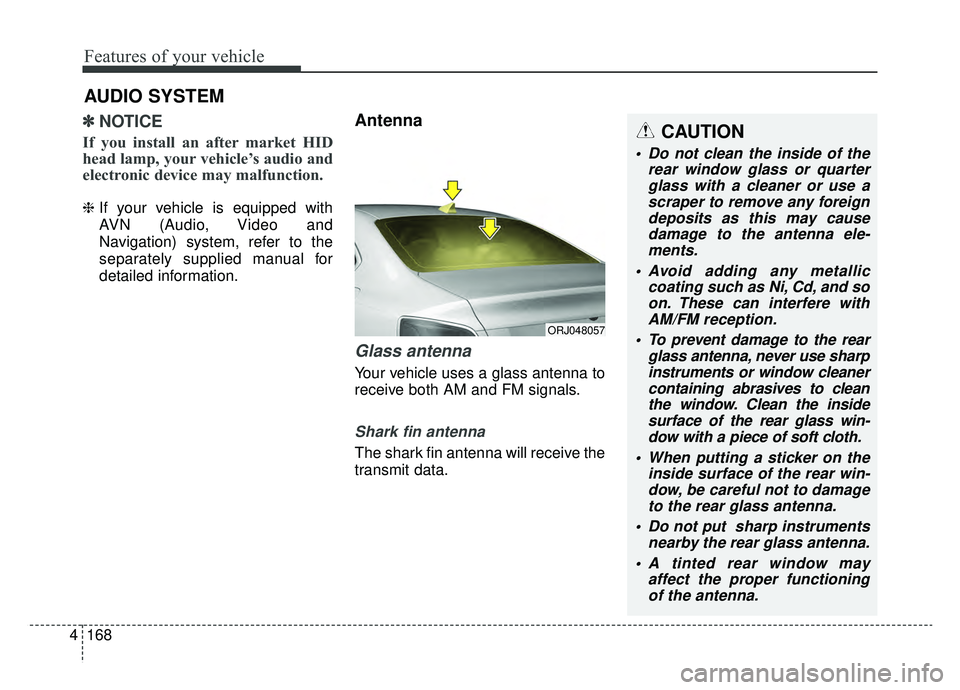
Antenna
Glass antenna
Your vehicle uses a glass antenna to
receive both AM and FM signals.
Shark fin antenna
The shark fin antenna will receive the
transmit data.
AUDIO SYSTEM
ORJ048057
CAUTION
Do not clean the inside of the
rear window glass or quarterglass with a cleaner or use ascraper to remove any foreigndeposits as this may causedamage to the antenna ele-ments.
Avoid adding any metallic coating such as Ni, Cd, and soon. These can interfere withAM/FM reception.
To prevent damage to the rear glass antenna, never use sharpinstruments or window cleanercontaining abrasives to cleanthe window. Clean the insidesurface of the rear glass win-dow with a piece of soft cloth.
When putting a sticker on the inside surface of the rear win-dow, be careful not to damageto the rear glass antenna.
Do not put sharp instruments nearby the rear glass antenna.
A tinted rear window may affect the proper functioningof the antenna.
Page 268 of 593
/Blind-Spot Collision-Avoidance Assist (BCA)
system . . . . . . . . . . . . . . . . . . . . . . . . . . . . . . . . . . 5-80\
. . . . . . . . . . . . . . . . . .")
Blind-Spot Collision Warning (BCW)/Blind-Spot Collision-Avoidance Assist (BCA)
system . . . . . . . . . . . . . . . . . . . . . . . . . . . . . . . . . . 5-80\
. . . . . . . . . . . . . . . . . . . 5-81
. . . . . . . . . . . . 5-84
Driver Attention Warning (DAW) system . . . . . . 5-94
. . . . . . . . . . . . . . . . . . . 5-94
. . . . . . . . . . . . . . . . . . . . . . . . . . 5-96
. . . . . . . . . . . . . . . . . . . . . . . . . . . . . . 5-97
. . . . . . . . . . . . . . . . . . . . . . . . . . . 5-97
Smart Cruise Control (SCC) system . . . . . . . . . 5-100
. . . . . . . . . . . . . . . . . . 5-100
. . . . . . . . . . . . . . . . . . . 5-101
. . 5-107
. . . . 5-110
. 5-112
. . . . . . . . . . . . . . 5-113
. . . . . . . . . . . . . . . . . . . . . 5-113
Leading Vehicle Departure Alert . . . . . . . . . . . . 5-119
. . . . . . . . . . . . . 5-119
Navigation-based Smart Cruise Control . . . . . . 5-121
. . . . . . . . . . . . . . . . . . 5-121
ISG (Idle Stop and Go) system . . . . . . . . . . . . . . 5-126
. . . . . . . . . . . . . . . . . . . . . . . . . . . . . . . . . . 5-12\
6
. . . . . . . . . . . . . . . . . . . . . . . . . . . . . . . . . . 5-12\
7
. . . . . . . . . . . . . 5-128
. . . . . . . . . . . . . . . . . . . . . . 5-128
. . . . . . . . . . . . . . . . . . . . . . 5-129
Drive mode integrated control system . . . . . . . . 5-130
Lane Following Assist (LFA) system . . . . . . . . . 5-135
. . . . . . . . . . . . . . . . . . . . . . . . 5-137
. . . . . . . . . . . . . . . . . . . . . 5-140
Highway Driving Assist (HDA) system . . . . . . . 5-142
. . . . . . . . . . . . . 5-143
. . . . . . . . . . . . . . . . . . . . . . . . . 5-143
. . . . . . . . . . . . . . . . . . . . . . . 5-143
. . . . . . . . . . . . . . 5-144
period of time. . . . . . . . . . . . . . . . . . . . . . . . . . . . . . 5-145
. . . . . . . . . . . . . . . . . . . . . . . . . . . 5-146
. 5-148
Rear Cross-Traffic Collision Warning (RCCW) system/Rear Cross-Traffic Collision-avoidance
Assist (RCCA) system . . . . . . . . . . . . . . . . . . . . 5-149
. . . . . . . . . . . . . . . . . . 5-150
. . . . . . . . . . . 5-151
5
Page 271 of 593
55
Driving your vehicle
Before entering vehicle
• Be sure that all windows, outsidemirror(s), and outside lights are
clean.
Check the condition of the tires.
Check under the vehicle for any sign of leaks.
Be sure there are no obstacles behind you if you intend to back up.
Necessary inspections
Fluid levels, such as engine oil,
engine coolant, brake fluid, and
washer fluid should be checked on a
regular basis, at the exact interval
depending on the fluid. Further
details are provided in chapter 7,
“Maintenance”.
Before starting
Close and lock all doors.
Position the seat so that all con-trols are easily reached.
Buckle your seat belt.
Adjust the inside and outside rearview mirrors.
Be sure that all lights work.
Check all gauges.
Check the operation of warning lights when the ignition switch is
turned to the ON position.
Release the parking brake and make sure the brake warning light
goes out.
Input any phone numbers or map locations (if vehicle equipped with
a navigation system) that you may
need during your trip.
For safe operation, be sure you are
familiar with your vehicle and its
equipment.
BEFORE DRIVING
WARNING - Distracted driving
Focus on the road while driving.
The driver's primary responsi-
bility is in the safe and legal
operation of the vehicle. Any
handheld devices, other equip-
ment or vehicle systems that
distract the driver should not be
used during vehicle operation.
Page 387 of 593
5121
Driving your vehicle
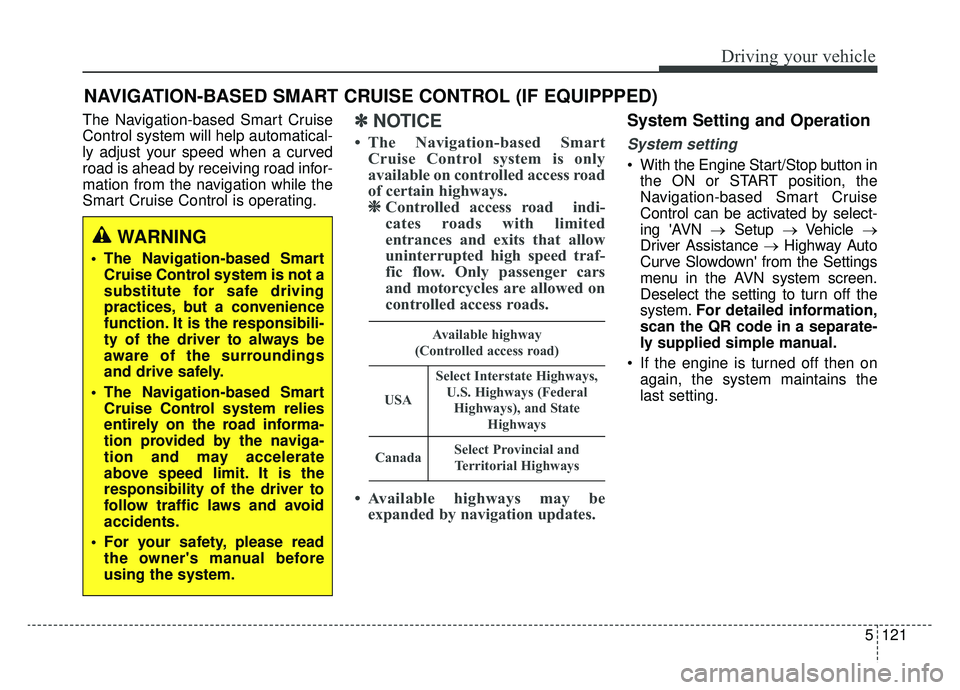
The Navigation-based Smart Cruise
Control system will help automatical-
ly adjust your speed when a curved
road is ahead by receiving road infor-
mation from the navigation while the
Smart Cruise Control is operating.✽ ✽NOTICE
• The Navigation-based Smart
Cruise Control system is only
available on controlled access road
of certain highways.❈ ❈
Controlled access road indi-
cates roads with limited
entrances and exits that allow
uninterrupted high speed traf-
fic flow. Only passenger cars
and motorcycles are allowed on
controlled access roads.
• Available highways may be expanded by navigation updates.
System Setting and Operation
System setting
With the Engine Start/Stop button in
the ON or START position, the
Navigation-based Smart Cruise
Control can be activated by select-
ing 'AVN → Setup →Vehicle →
Driver Assistance → Highway Auto
Curve Slowdown' from the Settings
menu in the AVN system screen.
Deselect the setting to turn off the
system. For detailed information,
scan the QR code in a separate-
ly supplied simple manual.
If the engine is turned off then on again, the system maintains the
last setting.
NAVIGATION-BASED SMART CRUISE CONTROL (IF EQUIPPPED)
WARNING
The Navigation-based SmartCruise Control system is not a
substitute for safe driving
practices, but a convenience
function. It is the responsibili-
ty of the driver to always be
aware of the surroundings
and drive safely.
The Navigation-based Smart Cruise Control system relies
entirely on the road informa-
tion provided by the naviga-
tion and may accelerate
above speed limit. It is the
responsibility of the driver to
follow traffic laws and avoid
accidents.
For your safety, please read the owner's manual before
using the system.
Available highway
(Controlled access road)
USA
Select Interstate Highways, U.S. Highways (FederalHighways), and State Highways
CanadaSelect Provincial andTerritorial Highways