reset KIA NIRO 2017 User Guide
[x] Cancel search | Manufacturer: KIA, Model Year: 2017, Model line: NIRO, Model: KIA NIRO 2017Pages: 552, PDF Size: 14.92 MB
Page 170 of 552
467
Features of your vehicle
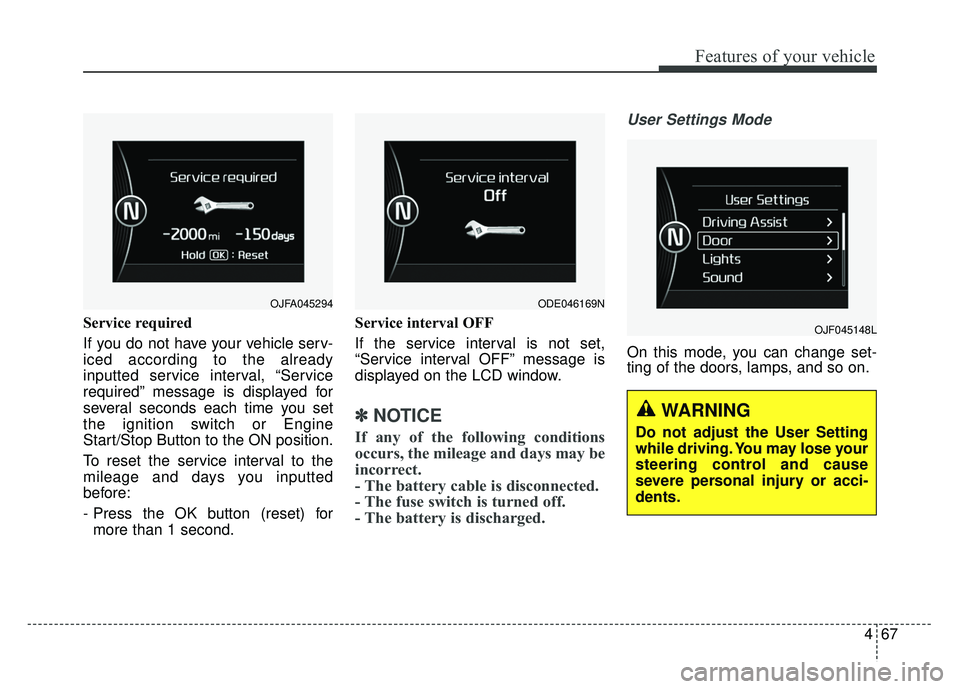
Service required
If you do not have your vehicle serv-
iced according to the already
inputted service interval, “Service
required” message is displayed for
several seconds each time you set
the ignition switch or Engine
Start/Stop Button to the ON position.
To reset the service interval to the
mileage and days you inputted
before:
- Press the OK button (reset) formore than 1 second. Service interval OFF
If the service interval is not set,
“Service interval OFF” message is
displayed on the LCD window.
✽ ✽
NOTICE
If any of the following conditions
occurs, the mileage and days may be
incorrect.
- The battery cable is disconnected.
- The fuse switch is turned off.
- The battery is discharged.
User Settings Mode
On this mode, you can change set-
ting of the doors, lamps, and so on.
OJF045148L
OJFA045294 ODE046169N
WARNING
Do not adjust the User Setting
while driving. You may lose your
steering control and cause
severe personal injury or acci-
dents.
Page 173 of 552
Features of your vehicle
70
4
Other Features
Fuel Economy Auto Reset
- Off : The average fuel economy willnot reset automatically whenever
refueling.
- After Ignition : The average fuel economy will reset automatically
when driving.
- After Refueling : The average fuel economy will reset automatically
when refueling.
❈ For more details, refer to “Trip
Computer” in this chapter.
Fuel Economy Unit : Choose the fuel economy unit. (US gallon,UK
gallon)
Temperature Unit : Choose the temperature unit. (°C, °F)
Tire Pressure Unit : Choose the tire pressure unit. (psi, kPa, Bar)
Reset
You can reset the menus in the User
Settings Mode. All menus in the User
Settings Mode are initialized, except
service interval.Coasting guide (if equipped)
A chime will sound and the coasting
guide indicator will blink four times to
inform the driver when to take the
foot off from the accelerator by antic-
ipating a decelerating event* based
on the analysis of driving routes and
road conditions of the navigation. It
encourages the driver to remove foot
from the pedal and allow coasting
down the road with EV motor only.
This helps prevent unnecessary fuel
consumption and increases fuel effi-
ciency.
❈ Example of a deceleration event is
going down an extended hill, slow-
ing down approaching a toll booth,
and approaching reduced speed
zones.
Press the Engine Start/Stop button
and put the shift lever in P(Park). In
the User Settings Mode, select
Driving Assist, Coasting Guide, and
then On to turn on the system.
Cancel the selection of coasting
guide to turn off the system. For the
explanation of the system, press and
hold the [OK] button.
Page 223 of 552
Features of your vehicle
120
4
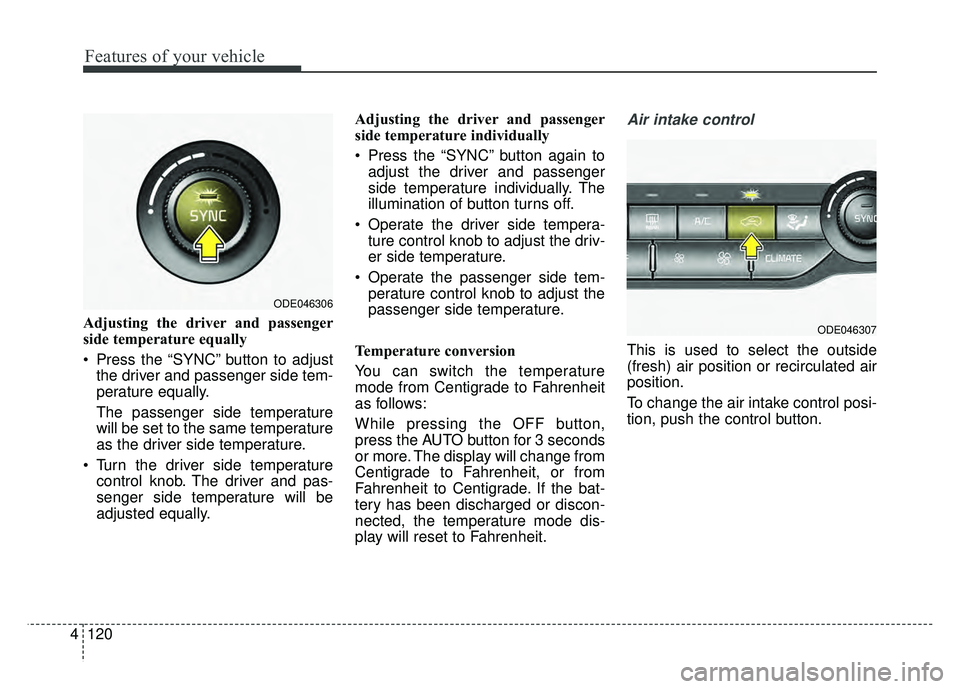
Adjusting the driver and passenger
side temperature equally
Press the “SYNC” button to adjust
the driver and passenger side tem-
perature equally.
The passenger side temperature
will be set to the same temperature
as the driver side temperature.
Turn the driver side temperature control knob. The driver and pas-
senger side temperature will be
adjusted equally. Adjusting the driver and passenger
side temperature individually
Press the “SYNC” button again to
adjust the driver and passenger
side temperature individually. The
illumination of button turns off.
Operate the driver side tempera- ture control knob to adjust the driv-
er side temperature.
Operate the passenger side tem- perature control knob to adjust the
passenger side temperature.
Temperature conversion
You can switch the temperature
mode from Centigrade to Fahrenheit
as follows:
While pressing the OFF button,
press the AUTO button for 3 seconds
or more. The display will change from
Centigrade to Fahrenheit, or from
Fahrenheit to Centigrade. If the bat-
tery has been discharged or discon-
nected, the temperature mode dis-
play will reset to Fahrenheit.
Air intake control
This is used to select the outside
(fresh) air position or recirculated air
position.
To change the air intake control posi-
tion, push the control button.
ODE046307
ODE046306
Page 226 of 552
4123
Features of your vehicle
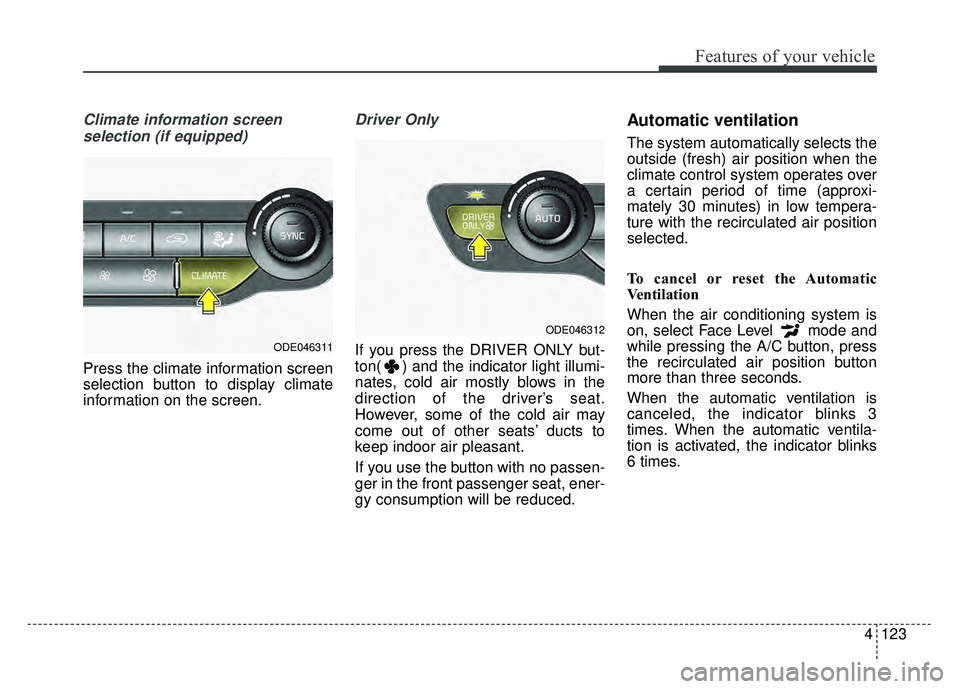
Climate information screen selection (if equipped)
Press the climate information screen
selection button to display climate
information on the screen.
Driver Only
If you press the DRIVER ONLY but-
ton( ) and the indicator light illumi-
nates, cold air mostly blows in the
direction of the driver’s seat.
However, some of the cold air may
come out of other seats’ ducts to
keep indoor air pleasant.
If you use the button with no passen-
ger in the front passenger seat, ener-
gy consumption will be reduced.
Automatic ventilation
The system automatically selects the
outside (fresh) air position when the
climate control system operates over
a certain period of time (approxi-
mately 30 minutes) in low tempera-
ture with the recirculated air position
selected.
To cancel or reset the Automatic
Ventilation
When the air conditioning system is
on, select Face Level mode and
while pressing the A/C button, press
the recirculated air position button
more than three seconds.
When the automatic ventilation is
canceled, the indicator blinks 3
times. When the automatic ventila-
tion is activated, the indicator blinks
6 times.
ODE046312
ODE046311
Page 234 of 552
4131
Features of your vehicle
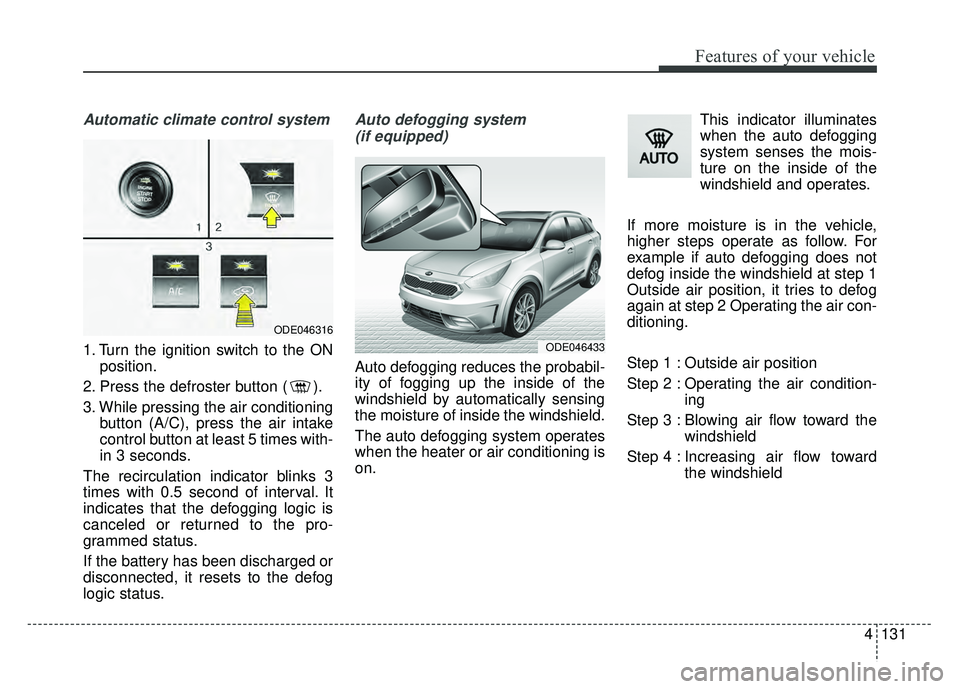
Automatic climate control system
1. Turn the ignition switch to the ONposition.
2. Press the defroster button ( ).
3. While pressing the air conditioning button (A/C), press the air intake
control button at least 5 times with-
in 3 seconds.
The recirculation indicator blinks 3
times with 0.5 second of interval. It
indicates that the defogging logic is
canceled or returned to the pro-
grammed status.
If the battery has been discharged or
disconnected, it resets to the defog
logic status.
Auto defogging system (if equipped)
Auto defogging reduces the probabil-
ity of fogging up the inside of the
windshield by automatically sensing
the moisture of inside the windshield.
The auto defogging system operates
when the heater or air conditioning is
on. This indicator illuminates
when the auto defogging
system senses the mois-
ture on the inside of the
windshield and operates.
If more moisture is in the vehicle,
higher steps operate as follow. For
example if auto defogging does not
defog inside the windshield at step 1
Outside air position, it tries to defog
again at step 2 Operating the air con-
ditioning.
Step 1 : Outside air position
Step 2 : Operating the air condition- ing
Step 3 : Blowing air flow toward the windshield
Step 4 : Increasing air flow toward the windshield
ODE046433
ODE046316
Page 235 of 552

Features of your vehicle
132
4
To cancel or reset the Auto Defogging
System
Press the front windshield defroster
button for 3 seconds when the igni-
tion switch is in the ON position.
When the ADS system is canceled,
Indicator on the button will blink 3
times per 0.5 sec.
When the ADS system is reset,
Indicator on the button will blink 6
times per 0.25 sec.
Do not remove the sensor cover
located on the upper end of the pas-
senger side windshield glass.
Damage to the system parts could
occur and may not be covered by
your vehicle warranty. When the ignition switch is in the ON
position, the clean air function turns
on automatically.
Also, the clean air function turns off
automatically, when the ignition
switch turns to the OFF position.
ODE046321L
CLEAN AIR (IF EQUIPPED)
Page 260 of 552
Audio system
75
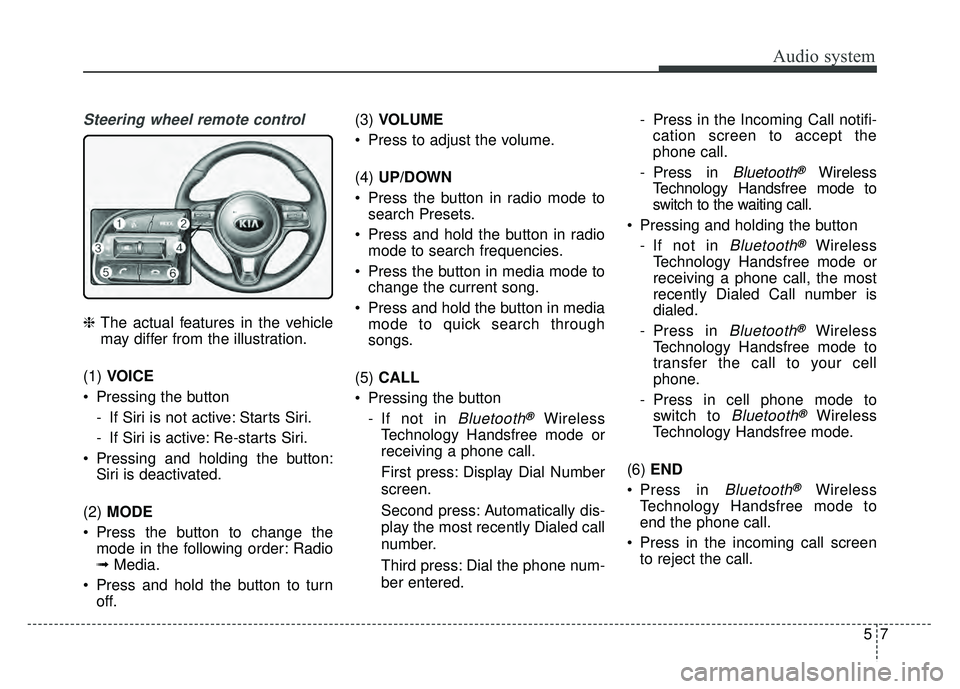
Steering wheel remote control
❈The actual features in the vehicle
may differ from the illustration.
(1) VOICE
Pressing the button - If Siri is not active: Starts Siri.
- If Siri is active: Re-starts Siri.
Pressing and holding the button: Siri is deactivated.
(2) MODE
Press the button to change the mode in the following order: Radio
➟ Media.
Press and hold the button to turn off. (3)
VOLUME
Press to adjust the volume.
(4) UP/DOWN
Press the button in radio mode to search Presets.
Press and hold the button in radio mode to search frequencies.
Press the button in media mode to change the current song.
Press and hold the button in media mode to quick search through
songs.
(5) CALL
Pressing the button - If not in
Bluetooth®Wireless
Technology Handsfree mode or
receiving a phone call.
First press: Display Dial Number
screen.
Second press: Automatically dis-
play the most recently Dialed call
number.
Third press: Dial the phone num-
ber entered. - Press in the Incoming Call notifi-
cation screen to accept the
phone call.
- Press in
Bluetooth®Wireless
Technology Handsfree mode to
switch to the waiting call.
Pressing and holding the button - If not in
Bluetooth®Wireless
Technology Handsfree mode or
receiving a phone call, the most
recently Dialed Call number is
dialed.
- Press in
Bluetooth®Wireless
Technology Handsfree mode to
transfer the call to your cell
phone.
- Press in cell phone mode to switch to
Bluetooth®Wireless
Technology Handsfree mode.
(6) END
Press in
Bluetooth®Wireless
Technology Handsfree mode to
end the phone call.
Press in the incoming call screen to reject the call.
Page 263 of 552
Audio system
510
Radio
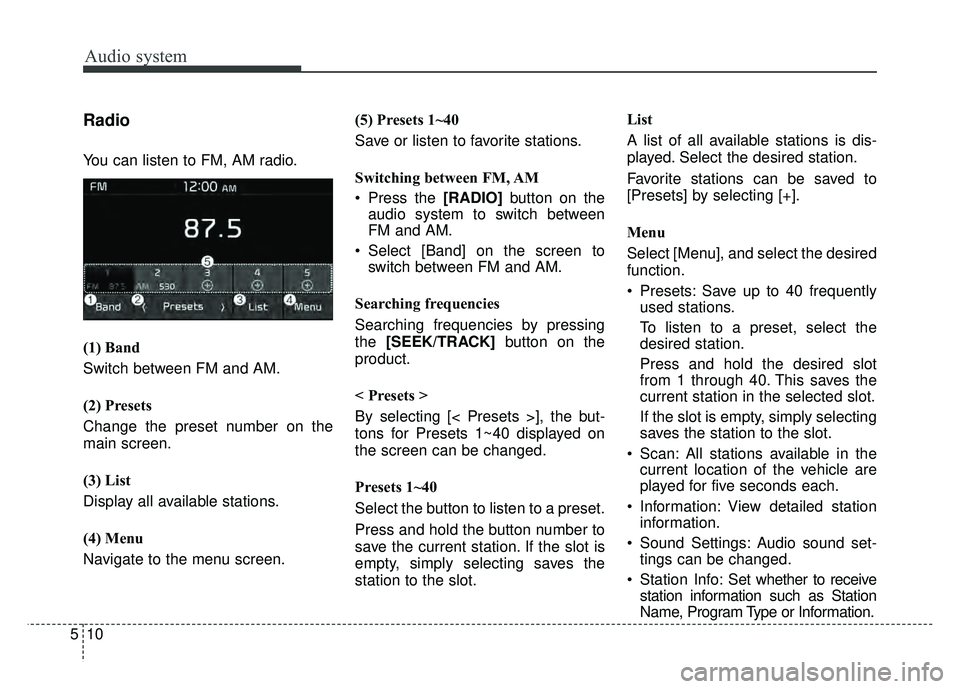
You can listen to FM, AM radio.
(1) Band
Switch between FM and AM.
(2) Presets
Change the preset number on the
main screen.
(3) List
Display all available stations.
(4) Menu
Navigate to the menu screen.(5) Presets 1~40
Save or listen to favorite stations.
Switching between FM, AM
Press the [RADIO]
button on the
audio system to switch between
FM and AM.
Select [Band] on the screen to switch between FM and AM.
Searching frequencies
Searching frequencies by pressing
the [SEEK/TRACK] button on the
product.
< Presets >
By selecting [< Presets >], the but-
tons for Presets 1~40 displayed on
the screen can be changed.
Presets 1~40
Select the button to listen to a preset.
Press and hold the button number to
save the current station. If the slot is
empty, simply selecting saves the
station to the slot. List
A list of all available stations is dis-
played. Select the desired station.
Favorite stations can be saved to
[Presets] by selecting [+].
Menu
Select [Menu], and select the desired
function.
Presets: Save up to 40 frequently
used stations.
To listen to a preset, select the
desired station.
Press and hold the desired slot
from 1 through 40. This saves the
current station in the selected slot.
If the slot is empty, simply selecting
saves the station to the slot.
Scan: All stations available in the current location of the vehicle are
played for five seconds each.
Information: View detailed station information.
Sound Settings: Audio sound set- tings can be changed.
Station Info: Set whether to receive
station information such as Station
Name, Program Type or Information.
Page 269 of 552
Audio system
516
✽
✽NOTICE - Using the iPod®
Devices
• To use the audio system’s iPod®
control function, use the dedicated
cable provided with your iPod®.
• Connecting the iPod®to the vehi-
cle during play may result in a
loud noise that lasts about one to
two seconds. Connect the iPod
®to
the vehicle after stopping or paus-
ing play.
• Connect the iPod
®with the vehicle
in the ACC ON state to begin
charging.
• When connecting the iPod
®cable,
be sure to fully push the cable into
the port.
• When EQ effects are enabled simultaneously on external
devices, such as iPod
®s and the
audio system, the EQ effects may
overlap, causing sound quality
deterioration or distortion.
Deactivate the EQ function for all
external devices, if possible.
• Noise may occur when your iPod
®
or the AUX port is connected.
Disconnect and store separately
when not in use. (Continued)(Continued)
• There may be noise if the audio
system is used with an iPod
®or
AUX external device connected to
the power jack. In these cases, dis-
connect the iPod
®or external
device from the power jack.
• Play may be interrupted, or device malfunctions may occur depend-
ing on the characteristics of your
iPod
®/iPhone®.
• Play may fail if your iPhone®is
connected through both
Bluetooth
®Wireless Technology
and USB. In this case, select Dock
connector or Bluetooth
®Wireless
Technology on your iPhone®to
change the sound output settings.
• If your software version does not support the communication proto-
col or your iPod
®is not recognized
due to device failure, anomalies or
defects, iPod
®mode cannot be
used.
• iPod
®nano (5th generation)
devices may not be recognized if
the battery is low. Charge suffi-
ciently before use. (Continued)(Continued)
• The search and song play order in
the iPod
®device may be different
from the search order in the audio
system.
• If the iPod
®has failed due to an
internal defect, please reset the
iPod
®(consult your iPod®manual).
• Depending on the software ver- sion, the iPod
®may fail to sync
with the system. If the media is
removed or disconnected before
recognition, the previous mode
may not be restored (iPad
®cannot
be charged).
• Cables other than the 1-meter cable provided with iPod
®/iPhone®
products may not be recognized.
• When other music apps are used on your iPod
®, the system sync
function may fail due to malfunc-
tion of the iPod
®application.
Page 287 of 552
Audio system
534
(Continued)
• Contacts can be downloaded onlyfrom the currently connected
Bluetooth
®Wireless Technology
device.
If no Bluetooth
®Wireless Technology
device is connected, the download
contacts button is disabled.
• If the language setting is Korean, Bluetooth
®Wireless Technology
voice prompts are not supported.
System
Press the [SETUP] button on the
audio system ➟ Select [System].
Memory Information: View My Music memory usage.
Language: Change the user lan- guage.
Default: Reset the audio system.
System Information: At the System Information screen, Software version
information, updates are available.
- System Update: At the SystemInformation screen, insert the
USB memory with the latest file
downloaded, and then select the
[Update] to begin updating. The
system with then reboot auto-
matically.
✽ ✽ NOTICE
• The system resets to the default
values, and all saved data and set-
tings are lost.
• This product needs supplemented software updates and additional
functions, which collectively may
take some time to complete,
depending on the amount of data.
• If the Power is disconnected or the USB is removed during an update,
the data might be damaged. Please
wait until the update is complete
while engine is on.
Screen Saver
Set the information displayed when
the audio system is switched off or
the screen is turned off.
Press the [SETUP] button on the
audio system ➟ Select [Screen
Saver].
Analog: An analog clock is dis- played.
Digital: A digital clock is displayed.
None: No information is displayed.
Display Off
To prevent glare, the screen can be
turned off with the audio system in
operation.
Press the [SETUP] button on the
audio system ➟ Select [Display Off].