charging KIA NIRO EV 2020 Navigation System Quick Reference Guide
[x] Cancel search | Manufacturer: KIA, Model Year: 2020, Model line: NIRO EV, Model: KIA NIRO EV 2020Pages: 244, PDF Size: 5.65 MB
Page 68 of 244
2-30
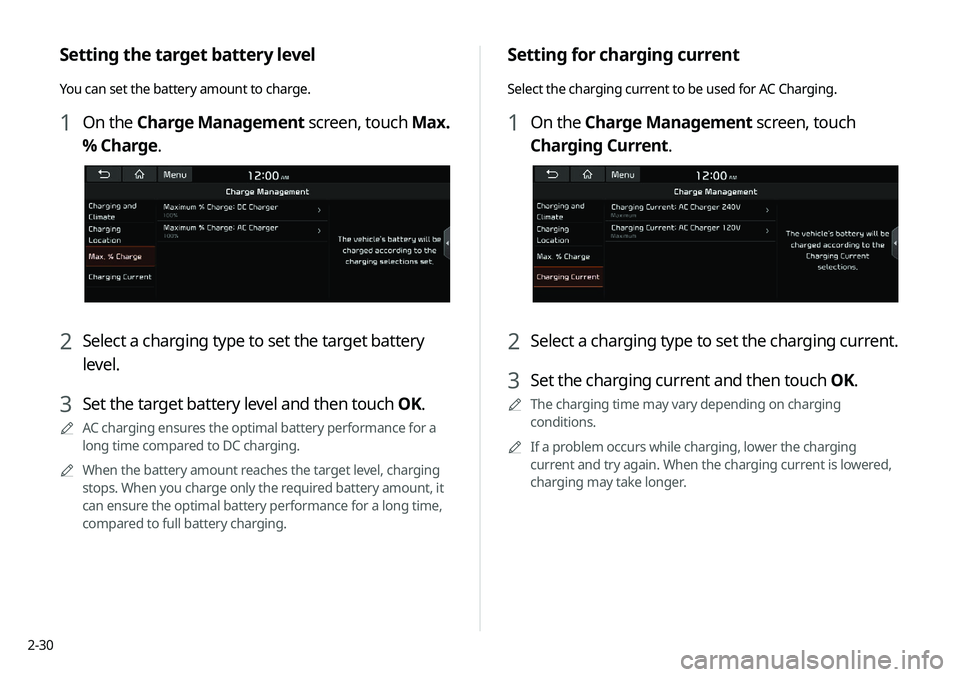
Setting for charging current
Select the charging current to be used for AC Charging.
1 On the Charge Management screen, touch
Charging Current.
2 Select a charging type to set the charging current.
3 Set the charging current and then touch OK.
0000
A
The charging time may vary depending on charging
conditions.
0000
A
If a problem occurs while charging, lower the charging
current and try again. When the charging current is lowered,
charging may take longer.
Setting the target battery level
You can set the battery amount to charge.
1 On the Charge Management screen, touch Max.
% Charge.
2 Select a charging type to set the target battery
level.
3 Set the target battery level and then touch OK.
0000
A
AC charging ensures the optimal battery performance for a
long time compared to DC charging.
0000
A
When the battery amount reaches the target level, charging
stops. When you charge only the required battery amount, it
can ensure the optimal battery performance for a long time,
compared to full battery charging.
Page 71 of 244
2-33
Winter Mode
000EWinter Mode: Can increase the battery temperature in
advance to enhance the charging and driving performance
when scheduling charge or climate controls in winter. This
decreases the drivable distance because it causes to drain the
battery faster.
Warning
000ERange Warning: When the destination is beyond your reach
with the remaining battery amount during route guidance,
the range warning appears.
EV Route
000EShow on the Map: When the destination is guided using the
navigation system, the drivable range under the remaining
battery amount appears on the route. The drivable range
appears in blue, the range beyond reach appears in gray, and
the icon to search for charging stations also appears.
Page 90 of 244
4-6
\334Caution
000EBe sure to start the vehicle before connecting a USB device.
When you start the vehicle after connecting a USB device, the
USB device may get damaged.
000EBe careful of static electricity when connecting or removing a
USB device. It may cause a system failure.
000EBe careful and avoid your body or any object coming into
contact with the USB port on the vehicle. It may cause an
accident or system failures.
000EDo not repeatedly connect and remove the USB connector
within a short time. It may cause device errors or system
failures.
000EDo not use a USB device for purposes other than playback.
When you connect a USB for charging or heating, the system
performance may decrease or it may cause system failures.
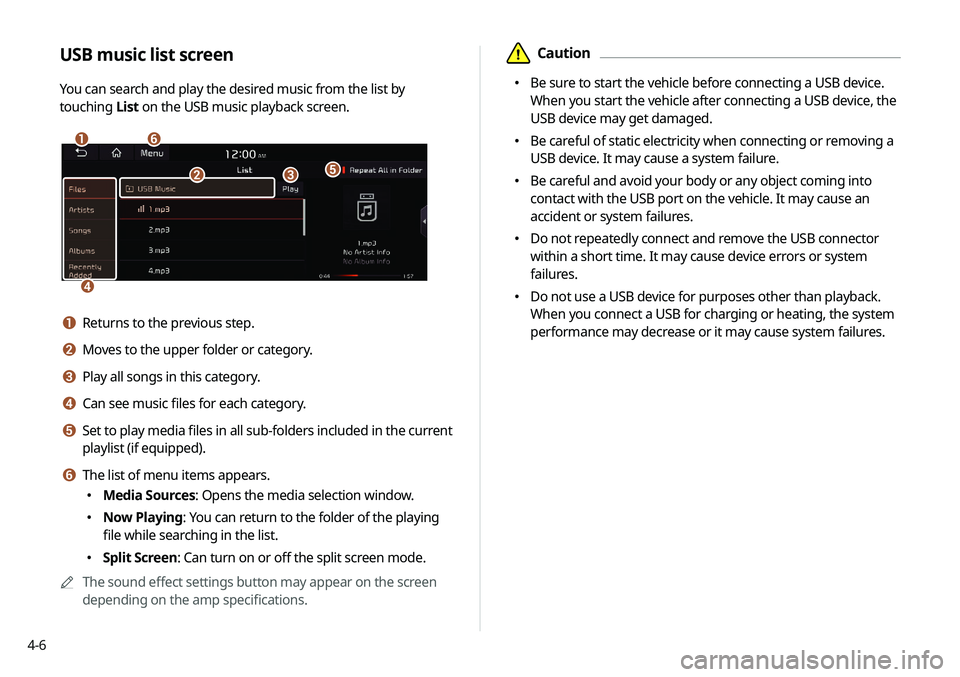
USB music list screen
You can search and play the desired music from the list by
touching
List on the USB music playback screen.
\037\036
\035
\034
\033\032
a Returns to the previous step.
b Moves to the upper folder or category.
c Play all songs in this category.
d Can see music files for each category.
e Set to play media files in all sub-folders included in the current
playlist (if equipped).
f The list of menu items appears.
000EMedia Sources: Opens the media selection window.
000ENow Playing: You can return to the folder of the playing
file while searching in the list.
000ESplit Screen: Can turn on or off the split screen mode.
0000
A
The sound effect settings button may appear on the screen
depending on the amp specifications.
Page 95 of 244

Navigation
Navigation functions
Various ways to find routes Using the address book
Searching for gas stations
Searching for EV (Electric Vehicle) charging stations
05
Page 96 of 244

5-2
Navigation functions
Navigation Menu overview
You can use the navigation system conveniently through various
functions on the Navigation Menu screen.
\037\036
\035
\034
\033\032\031\030
\027\026\025\024\023
Type A
klmn
Type B
a Returns to the previous step.
b Search for a location by entering various types of keywords
such as place name and address.
> See “Searching by keyword.”
c Search for POIs by category to set as a destination.
> See “Searching the nearby points of interest.”
d Select any of previous destinations to set as a destination.
> See “Searching by previous destinations.”
e Register the location or use the address book for setting a
destination.
> See “Using the address book.”
f You can easily search for Kia Dealerships. > See “Searching for
Kia Dealerships (if equipped).”
g You can cancel guidance to the destination. > See “ Stopping the
route guidance.”
h You can see the entire route information to the destination.
i You can edit the current route so that you can travel via
waypoints on the way to the destination.
> See “ Editing the
route.”
j You can change the route search criteria to resume routing.
> See “ Changing the route search criteria.”
k You can set a destination after searching for gas stations or
EV charging stations.
> See “Searching for gas stations ,” “Searching
for EV (Electric Vehicle) charging stations (EV only).”
0000
A
When the station data is received in real time, the menu
name changes to "Real-time Stations."
Page 122 of 244

5-28
Searching for EV (Electric
Vehicle) charging stations
(EV only)
You can search nearby charging stations.
1 On the Navigation Menu screen, touch EV
Charging Stations.
0000AWhen the station data is received in real time, the menu
name changes to "Real-time Stations."
2 Select a destination from the search result.
0000
A
To categorize the searched items, select a category.
0000
A
To sort the search results in a different order, touch on the
attribute to toggle between options.
0000
A
To access the online user’s manual on the Gas Stations
screen, touch Menu >
User's Manual on Web (QR Code)
and then scan the displayed QR code.
3 Check the location of the destination and then
touch Set as Destination.
4 Select the desired route from the searched ones
and touch Start Guidance.
Page 123 of 244
5-29
END USER LICENSE
AGREEMENT
PLEASE READ THIS END USER LICENSE AGREEMENT ("EULA")
CAREFULLY BEFORE USING THE NAVIGATION SYSTEM.
This is a license agreement between you and Hyundai MnSoft,
INC. including its affiliates ("COMPANY") regarding a copy of the
COMPANY navigable map database together with associated
software, media and explanatory printed documentation
published by COMPANY (jointly the "Product"). The Product is
provided for your personal, internal use only and not for resale.
It is protected by copyright and is subject to the following terms
which are agreed to by you, on the one hand, and COMPANY
and its licensors (and their licensors and suppliers) (collectively,
"Licensors") on the other hand.
By using the Product, you accept and agree to all terms and
conditions in this End User License Agreement ("EULA"). IF
YOU DO NOT AGREE TO THE TERMS OF THIS EULA, YOU MUST
PROMPTLY EXIT THE PRODUCT OPERATION PROGRAM AND DO
NOT USE OR ACCESS TO THE PRODUCT. YOU AGREE THAT YOUR
RIGHTS UNDER THIS EULA MAY BE TERMINATED AUTOMATICALLY
WITHOUT NOTICE IF YOU FAIL TO COMPLY WITH ANY TERM(S) OF
THIS EULA.
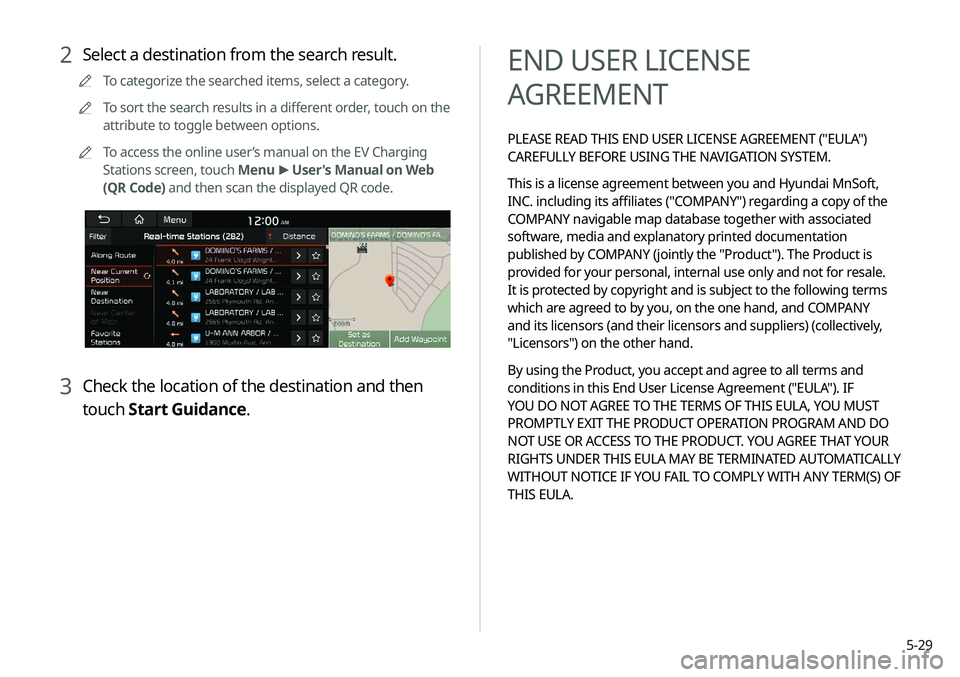
2 Select a destination from the search result.
0000
A
To categorize the searched items, select a category.
0000
A
To sort the search results in a different order, touch on the
attribute to toggle between options.
0000
A
To access the online user’s manual on the EV Charging
Stations screen, touch Menu >
User's Manual on Web
(QR Code) and then scan the displayed QR code.
3 Check the location of the destination and then
touch Start Guidance.
Page 163 of 244
7-13
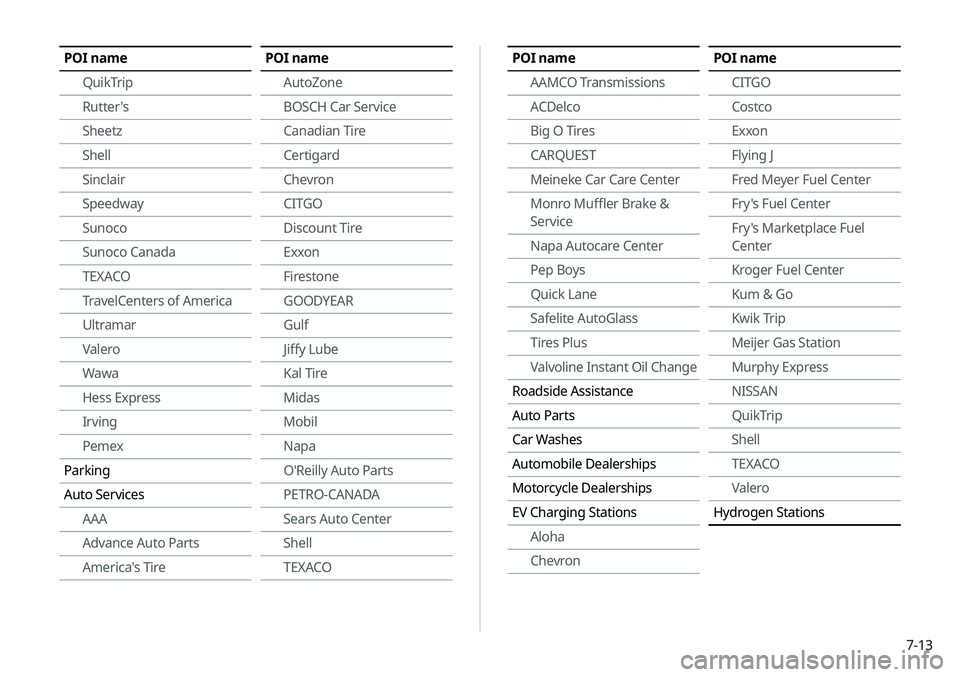
POI nameAAMCO Transmissions
ACDelco
Big O Tires
CARQUEST
Meineke Car Care Center
Monro Muffler Brake &
Service
Napa Autocare Center
Pep Boys
Quick Lane
Safelite AutoGlass
Tires Plus
Valvoline Instant Oil Change
Roadside Assistance
Auto Parts
Car Washes
Automobile Dealerships
Motorcycle Dealerships
EV Charging Stations Aloha
ChevronPOI name
CITGO
Costco
Exxon
Flying J
Fred Meyer Fuel Center
Fry's Fuel Center
Fry's Marketplace Fuel
Center
Kroger Fuel Center
Kum & Go
Kwik Trip
Meijer Gas Station
Murphy Express
NISSAN
QuikTrip
Shell
TEXACO
Valero
Hydrogen StationsPOI name
QuikTrip
Rutter's
Sheetz
Shell
Sinclair
Speedway
Sunoco
Sunoco Canada
TEXACO
TravelCenters of America
Ultramar
Valero
Wawa
Hess Express
Irving
Pemex
Parking
Auto Services AAA
Advance Auto Parts
America's TirePOI name
AutoZone
BOSCH Car Service
Canadian Tire
Certigard
Chevron
CITGO
Discount Tire
Exxon
Firestone
GOODYEAR
Gulf
Jiffy Lube
Kal Tire
Midas
Mobil
Napa
O'Reilly Auto Parts
PETRO-CANADA
Sears Auto Center
Shell
TEXACO
Page 202 of 244
9-20
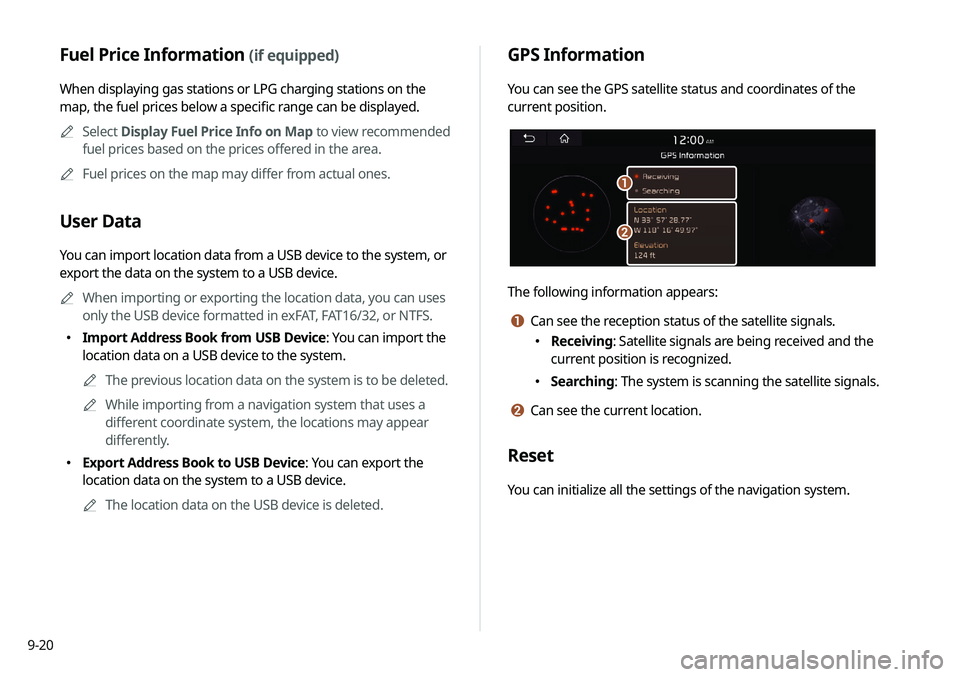
GPS Information
You can see the GPS satellite status and coordinates of the
current position.
\037
\036
The following information appears:
a Can see the reception status of the satellite signals.
000EReceiving: Satellite signals are being received and the
current position is recognized.
000ESearching: The system is scanning the satellite signals.
b Can see the current location.
Reset
You can initialize all the settings of the navigation system.
Fuel Price Information (if equipped)
When displaying gas stations or LPG charging stations on the
map, the fuel prices below a specific range can be displayed.
0000
A
Select Display Fuel Price Info on Map to view recommended
fuel prices based on the prices offered in the area.
0000
A
Fuel prices on the map may differ from actual ones.
User Data
You can import location data from a USB device to the system, or
export the data on the system to a USB device.
0000
A
When importing or exporting the location data, you can uses
only the USB device formatted in exFAT, FAT16/32, or NTFS.
000EImport Address Book from USB Device: You can import the
location data on a USB device to the system.
0000
A
The previous location data on the system is to be deleted.
0000
A
While importing from a navigation system that uses a
different coordinate system, the locations may appear
differently.
000EExport Address Book to USB Device: You can export the
location data on the system to a USB device.
0000
A
The location data on the USB device is deleted.
Page 224 of 244
10-10
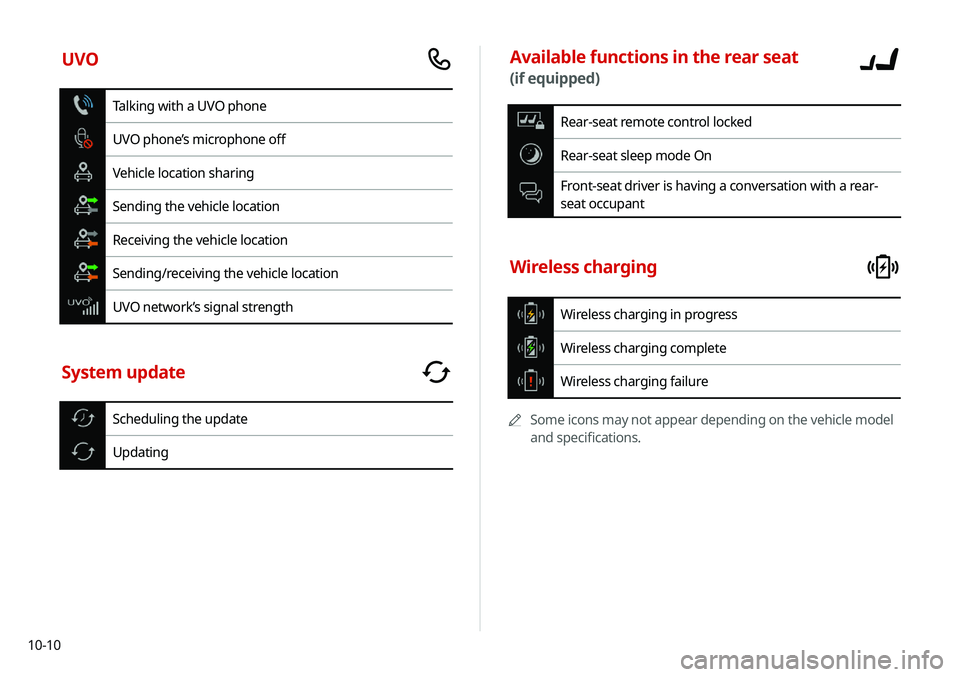
Available functions in the rear seat
(if equipped)
Rear-seat remote control locked
Rear-seat sleep mode On
Front-seat driver is having a conversation with a rear-
seat occupant
Wireless charging
Wireless charging in progress
Wireless charging complete
Wireless charging failure
0000
A
Some icons may not appear depending on the vehicle model
and specifications.
UVO
Talking with a UVO phone
UVO phone’s microphone off
Vehicle location sharing
Sending the vehicle location
Receiving the vehicle location
Sending/receiving the vehicle location
UVO network’s signal strength
System update
Scheduling the update
Updating