Eco KIA Optima 2014 3.G Workshop Manual
[x] Cancel search | Manufacturer: KIA, Model Year: 2014, Model line: Optima, Model: KIA Optima 2014 3.GPages: 479, PDF Size: 13.21 MB
Page 110 of 479
Features of your vehicle
40
4
Recalling positions from memory
1. The shift lever is in P or N (for
Automatic transaxle) with one of
the condition below:
- The ignition switch in the ON position or engine running.
- The ignition switch in the LOCK/OFF or ACC position
while the driver's door is opened.
- The ignition switch in the LOCK/OFF or ACC position and
within 30 seconds after the driver's
door was closed.
2. Press the desired memory button (1 or 2). The system will beep
once, then the driver’s seat will
automatically adjust to the stored
position.
Adjusting the control switch for the
driver seat while the system is recall-
ing the stored position will cause the
movement to stop and move in the
direction that the control switch is
moved.
Easy access function
(if equipped)
With the shift lever in the P position,
the system will move the driver's seat
automatically as follows:
Without smart key system - It will move the driver’s seat rear-ward when the ignition key is
removed and front driver’s door is
opened.
- It will move the driver’s seat for- ward when the ignition key is
inserted.
With smart key system - It will move the driver’s seat rear-ward when the engine start/stop
button is turned to the OFF posi-
tion and front driver’s door is
opened.
- It will move the driver’s seat for- ward when the engine start/stop
button is turned to the ACC or
START position.
You can activate or deactivate this
feature. Refer to "User settings" in
chapter 4.
WARNING
Use caution when recalling
adjustment memory while sit-
ting in the vehicle. Push the seat
position control knob to the
desired position immediately if
the seat moves too far in any
direction.
Page 111 of 479
441
Features of your vehicle
Electric power steering
Power steering uses the motor to
assist you in steering the vehicle. If
the engine is off or if the power steer-
ing system becomes inoperative, the
vehicle may still be steered, but it will
require increased steering effort.
The motor driven power steering is
controlled by the power steering con-
trol unit which senses the steering
wheel torque and vehicle speed to
command the motor.
The steering wheel becomes heavier
as the vehicle’s speed increases and
becomes lighter as the vehicle’s
speed decreases for better control of
the steering wheel.
Should you notice any change in the
effort required to steer during normal
vehicle operation, have the power
steering checked by an authorized
Kia dealer.
✽ ✽NOTICE
The following symptoms may occur
during normal vehicle operation:
• The steering effort is increased
immediately after turning the igni-
tion switch on. This happens as the
system performs the EPS system
diagnostics. When the diagnostics
are completed, the steering wheel
will return to its normal condition
• A click noise may be heard from the EPS relay after the ignition
switch is turned to the ON or
LOCK position.
• Motor noise may be heard when the vehicle is at a stop or at a low
driving speed.
• The steering effort increases if the steering wheel is rotated continuous-
ly when the vehicle is not in motion.
However, after a few minutes, it will
return to its normal conditions.
• When you operate the steering wheel in low temperature, abnor-
mal noise could occur. If tempera-
ture rises, the noise will disappear.
This is a normal condition.
If the Electric Power Steering System
does not operate normally, the warn-
ing light will illuminate on the instru-
ment cluster. The steering wheel may
become difficult to control or operate
abnormally. Take your vehicle to an
authorized Kia dealer and have the
vehicle checked as soon as possible.
STEERING WHEEL
Page 117 of 479
447
Features of your vehicle
To adjust the Zone setting:
1. Determine the desired ZoneNumber based upon your current
location on the Zone Map.
2. Press and hold the button for more than 3 but less than 6 sec-
onds, the current Zone Number
will appear on the display.
3. Pressing and holding the button again will cause the numbers to
increment (Note: they will repeat
…13, 14, 15, 1, 2, …). Releasing
the button when the desired Zone
Number appears on the display
will set the new Zone.
4. Within about 5 seconds the com- pass will start displaying a com-
pass heading again.
There are some conditions that can
cause changes to the vehicle mag-
nets, such as installing a ski rack or a
CB antenna. Body repair work on the
vehicle can also cause changes to the
vehicle's magnetic field. In these situa-
tions, the compass will need to be re-
calibrated to quickly correct for these
changes. To re-calibrate the compass: 1. Press and hold the button for
more than 6 seconds. When the
compass memory is cleared a "C"
will appear in the display.
2. To calibrate the compass, drive the vehicle in 2 complete circles at
less than 8 km/h (5 mph).
Integrated HomeLink
®Wireless
Control System
The HomeLink
®Wireless Control
System provides a convenient way to
replace up to three hand-held radio-
frequency (RF) transmitters with a
single built-in device. This innovative
feature will learn the radio frequency
codes of most current transmitters to
operate devices such as gate opera-
tors, garage door openers, entry
door locks, security systems, even
home lighting. Both standard and
rolling code-equipped transmitters
can be programmed by following the
outlined procedures. Additional
HomeLink
®information can be found
at: www.homelink.com or by calling
1-800-355-3515.
CAUTION
Before programming HomeLink®to a garage door
opener or gate operator, make sure that people and objects areout of the way of the device toprevent potential harm or dam-age. Do not use HomeLink
®with
any garage door opener that lacks the safety stop andreverse features required byU.S. federal safety standards(this includes any garage dooropener model manufacturedbefore April 1, 1982). A garagedoor that cannot detect anobject - signaling the door tostop and reverse - does notmeet current U.S. federal safetystandards. Using a garage dooropener without these featuresincreases the risk of seriousinjury or death.
Page 118 of 479
Features of your vehicle
48
4
Retain the original transmitter of the
RF device you are programming for
use in other vehicles as well as for
future HomeLink
®programming. It is
also suggested that upon the sale of
the vehicle, the programmed
HomeLink
®buttons be erased for
security purposes. Programming HomeLink
®
✽ ✽
NOTICE
• When programming a garage
door opener, it is advised to park
the vehicle outside of the garage.
• It is recommended that a new bat- tery be placed in the hand-held
transmitter of the device being pro-
grammed to HomeLink
®for quick-
er training and accurate transaxle
of the radio-frequency signal.
• Some vehicles may require the ignition switch to be turned to the
second (or "accessories") position
for programming and/or opera-
tion of HomeLink
®.
• In the event that there are still pro- gramming difficulties or questions
after following the programming
steps listed below, contact
HomeLink
®at: www.homelink.com
or 1-800-355-3515.
Standard programming
To train most devices, follow these
instructions:
1. For first-time programming, press
and hold the two outside buttons,
HomeLink
®Channel 1 and
Channel 3 Buttons, until the indi-
cator light begins to flash (after 20
seconds). Release both buttons.
Do not hold the buttons for longer
than 30 seconds.
2. Position the end of your hand-held transmitter 1-3 inches (2-8 cm)
away from the HomeLink
®buttons
while keeping the indicator light in
view.
3. Simultaneously press and hold both the HomeLink
®and hand-
held transmitter button. DO NOT
release the buttons until step 4
has been completed.
4. While continuing to hold the but- tons the red Indicator Status LED
will flash slowly and then rapidly
after HomeLink
®successfully
trains to the frequency signal from
the hand-held transmitter. Release
both buttons.
Page 119 of 479
449
Features of your vehicle
5. Press and hold the just-trainedHomeLink®button and observe
the red Status Indicator LED. If the
indicator light stays on constantly,
programming is complete and
your device should activate when
the HomeLink
®button is pressed
and released.
6. To program the remaining two HomeLink
®buttons, follow steps 2
through 5. Rolling code programming
Rolling code devices which are
"code-protected" and manufactured
after 1996 may be determined by the
following:
Reference the device owner's
manual for verification.
The handheld transmitter appears to program the HomeLink®
Universal Transceiver but does not
activate the device.
Press and hold the trained HomeLink
®button. The device has
the rolling code feature if the indi-
cator light flashes rapidly and then
turns solid after 2 seconds To train rolling code devices, follow
these instructions:
1. At the garage door opener receiv-
er (motor-head unit) in the garage,
locate the "learn" or "smart" but-
ton. This can usually be found
where the hanging antenna wire is
attached to the motor-head unit.
Exact location and color of the but-
ton may vary by garage door
opener brand.
If there is difficulty locating the train-
ing button, reference the device
owner's manual or please visit our
Web site at www.homelink.com.
2. Firmly press and release the "learn" or "smart" button (which
activates the "training light").
✽ ✽NOTICE
There are 30 seconds in which to ini-
tiate step 3.
Page 120 of 479
Features of your vehicle
50
4
3. Return to the vehicle, firmly press
and hold for two seconds the
desired HomeLink
®button then
release. Repeat the
"press/hold/release" sequence a
second time to complete the pro-
gramming. (Some devices may
require you to repeat this
sequence a third time to complete
the programming.)
4. Press and hold the just-trained HomeLink
®button and observe
the red Status Indicator LED. If the
indicator light stays on constantly,
programming is complete and
your device should activate.
5. To program the remaining two HomeLink
®buttons, follow either
steps 1 through 4 above for other
Rolling Code devices or steps 2
through 5 in Standard Programming
for standard devices. Gate operator & Canadian pro-
gramming
During programming, your handheld
transmitter may automatically stop
transmitting. Continue to press the
Integrated HomeLink
®Wireless
Control System button (note steps 2
through 4 in the Standard
Programming portion of this docu-
ment) while you press and re-press
("cycle") your handheld transmitter
every two seconds until the frequen-
cy signal has been learned. The indi-
cator light will flash slowly and then
rapidly after several seconds upon
successful training.
Operating HomeLink
®
To operate, simply press and release
the programmed HomeLink®button.
Activation will now occur for the
trained device (i.e. garage door
opener, gate operator, security sys-
tem, entry door lock, home/office
lighting, etc.). For convenience, the
hand-held transmitter of the device
may also be used at any time. Reprogramming a single
HomeLink
®button
To program a new device to a previ-
ously trained HomeLink
®button, fol-
low these steps:
1. Press and hold the desired HomeLink
®button. Do NOT release
until step 4 has been completed.
2. When the indicator light begins to flash slowly (after 20 seconds),
position the handheld transmitter 1
to 3 inches away from the
HomeLink
®surface.
3. Press and hold the handheld transmitter button. The HomeLink
®
indicator light will flash, first slowly
and then rapidly.
4. When the indicator light begins to flash rapidly, release both buttons.
5. Press and hold the just-trained HomeLink
®button and observe
the red Status Indicator LED. If the
indicator light stays on constantly,
programming is complete and
your new device should activate.
Page 121 of 479
451
Features of your vehicle
Erasing HomeLink®buttons
Individual buttons cannot be erased.
However, to erase all three pro-
grammed buttons:
1. Press and hold the two outer HomeLink
®buttons until the indi-
cator light begins to flash-after 20
seconds.
2. Release both buttons. Do not hold for longer than 30 seconds.
The Integrated HomeLink
®Wireless
Control System is now in the training
(learn) mode and can be pro-
grammed at any time following the
appropriate steps in the
Programming sections above. FCC ID: NZLZTVHL3
IC: 4112A-ZTVHL3
This device complies with Industry
Canada Standard RSS-210.
Operation is subject to the following
two conditions:
1. This device may not cause harm-
ful interference, and
2. This device must accept any inter- ference received, including inter-
ference that may cause undesired
operation. NVS
®and ZNav®are registered
trademarks. Nav®are of Gentex
Corporation, Zeeland, Michigan.
HomeLink
®is a registered trade-
mark owned by Johnson Controls
Technology Company, Holland,
Michigan.
WARNING
The transceiver has been tested
and complies with FCC and
Industry Canada rules. Changes
or modifications not expressly
approved by the party responsi-
ble for compliance could void
the user's authority to operate
the device.
Page 129 of 479
459
Features of your vehicle
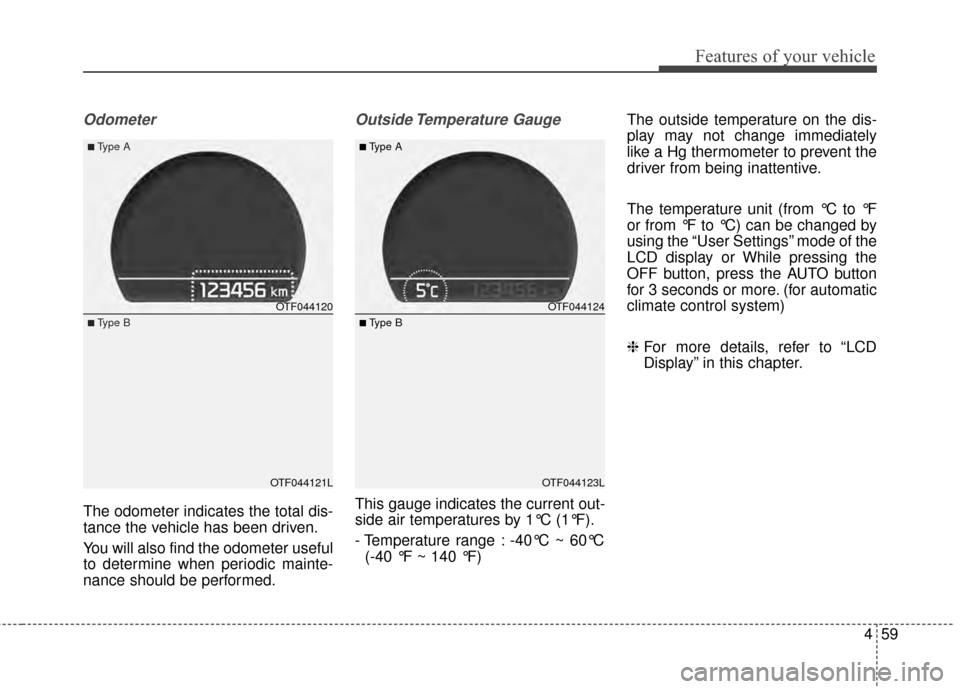
Odometer
The odometer indicates the total dis-
tance the vehicle has been driven.
You will also find the odometer useful
to determine when periodic mainte-
nance should be performed.
Outside Temperature Gauge
This gauge indicates the current out-
side air temperatures by 1°C (1°F).
- Temperature range : -40°C ~ 60°C(-40 °F ~ 140 °F) The outside temperature on the dis-
play may not change immediately
like a Hg thermometer to prevent the
driver from being inattentive.
The temperature unit (from °C to °F
or from °F to °C) can be changed by
using the “User Settings” mode of the
LCD display or While pressing the
OFF button, press the AUTO button
for 3 seconds or more. (for automatic
climate control system)
❈
For more details, refer to “LCD
Display” in this chapter.
OTF044120
OTF044121L
■Type A
■Type B
OTF044124
OTF044123L
■Type A
■ Type B
Page 131 of 479
461
Features of your vehicle
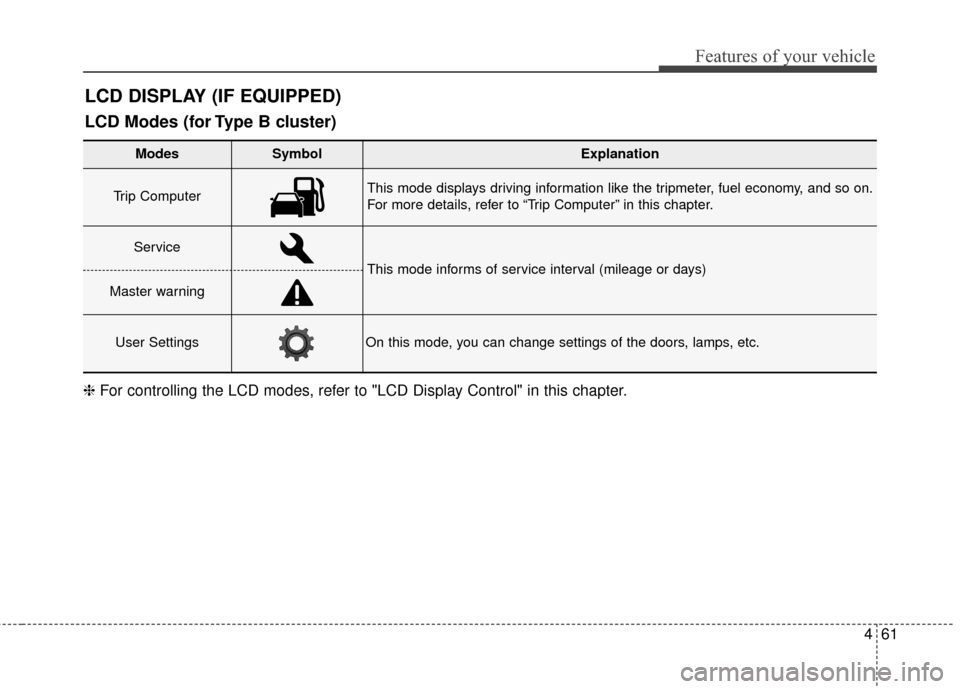
LCD DISPLAY (IF EQUIPPED)
Modes SymbolExplanation
Trip Computer This mode displays driving information like the tripmeter, fuel economy, and so on.
For more details, refer to “Trip Computer” in this chapter.
Service
This mode informs of service interval (mileage or days)
Master warning
User SettingsOn this mode, you can change settings of the doors, lamps, etc.
❈For controlling the LCD modes, refer to "LCD Display Control" in this chapter.
LCD Modes (for Type B cluster)
Page 132 of 479
Features of your vehicle
62
4
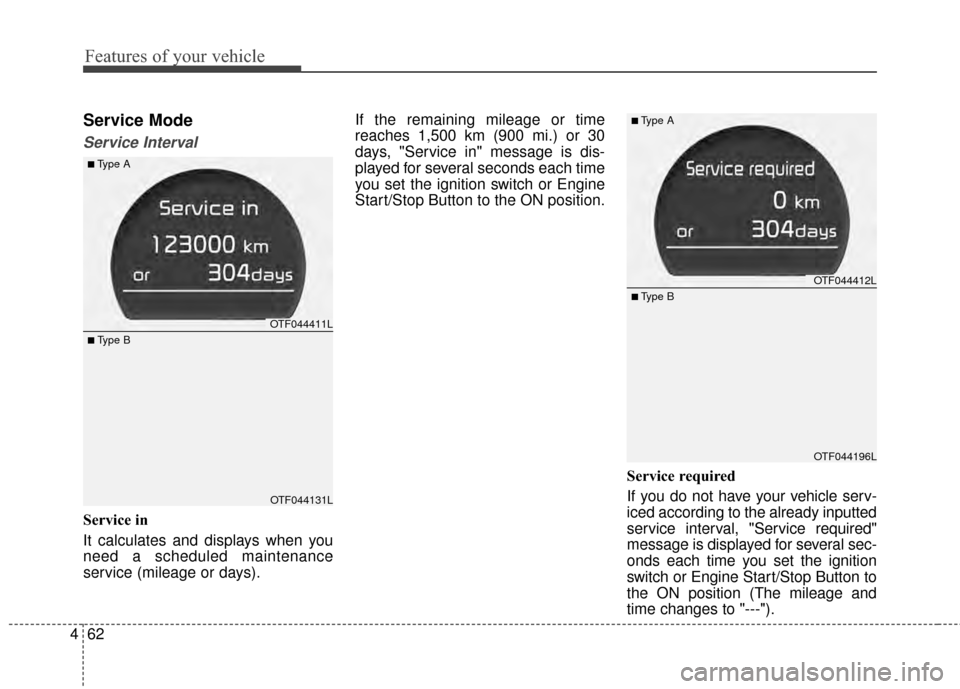
Service Mode
Service Interval
Service in
It calculates and displays when you
need a scheduled maintenance
service (mileage or days). If the remaining mileage or time
reaches 1,500 km (900 mi.) or 30
days, "Service in" message is dis-
played for several seconds each time
you set the ignition switch or Engine
Start/Stop Button to the ON position.
Service required
If you do not have your vehicle serv-
iced according to the already inputted
service interval, "Service required"
message is displayed for several sec-
onds each time you set the ignition
switch or Engine Start/Stop Button to
the ON position (The mileage and
time changes to "---").
OTF044411L
OTF044131L
■Type A
■ Type B
OTF044412L
OTF044196L
■Type A
■ Type B