Eco KIA Optima 2014 3.G Owners Manual
[x] Cancel search | Manufacturer: KIA, Model Year: 2014, Model line: Optima, Model: KIA Optima 2014 3.GPages: 479, PDF Size: 13.21 MB
Page 199 of 479
4129
Features of your vehicle
When using the air conditioningsystem, you may notice clear water
dripping (or even puddling) on the
ground under the passenger side
of the vehicle. This is a normal sys-
tem operation characteristic.
Operating the air conditioning sys- tem in the recirculated air position
provides maximum cooling, how-
ever, continual operation in this
mode may cause the air inside the
vehicle to become stale.
During cooling operation, you may occasionally notice a misty air flow
because of rapid cooling and
humid air intake. This is a normal
system operation characteristic.
If you operate air conditioner excessively, the difference between
the temperature of the outside air
and that of the windshield could
cause the outer surface of the
windshield to fog up, causing loss
of visibility. In this case, set the
mode selection knob or button to
the position and fan speed
control to the lower speed.
Page 203 of 479
4133
Features of your vehicle
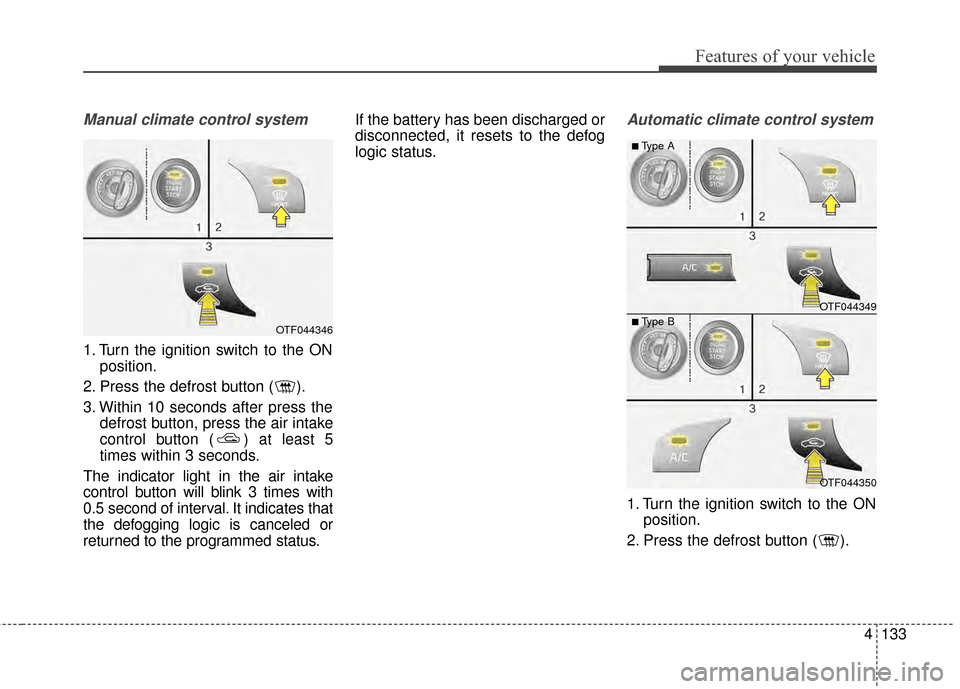
Manual climate control system
1. Turn the ignition switch to the ONposition.
2. Press the defrost button ( ).
3. Within 10 seconds after press the defrost button, press the air intake
control button ( ) at least 5
times within 3 seconds.
The indicator light in the air intake
control button will blink 3 times with
0.5 second of interval. It indicates that
the defogging logic is canceled or
returned to the programmed status. If the battery has been discharged or
disconnected, it resets to the defog
logic status.
Automatic climate control system
1. Turn the ignition switch to the ON
position.
2. Press the defrost button ( ).
OTF044346
OTF044349
OTF044350
■Type A
■Type B
Page 204 of 479
Features of your vehicle
134
4
3. While pressing the air conditioning
button (A/C), press the air intake
control button ( ) at least 5
times within 3 seconds.
The indicator light in the air intake
control button will blink 3 times with
0.5 second of interval. It indicates that
the defogging logic is canceled or
returned to the programmed status.
If the battery has been discharged or
disconnected, it resets to the defog
logic status.Auto defogging system (Only for automatic climate control system,if equipped)
Auto defogging reduces the probabil-
ity of fogging up the inside of the
windshield by automatically sensing
the moisture inside the windshield.
The auto defogging system operates
when the heater or air conditioning is
on. This indicator illuminates
when the auto defogging
system senses the mois-
ture inside the windshield
and operates.
If more moisture is in the vehicle,
higher steps operate as follows. For
example, if auto defogging does not
defog inside the
windshield at step 1 Outside air posi-
tion, it tries to defog again at step 2
Blowing air toward the windshield.
Step 1 : Operating the air conditioning
Step 2 : Outside air position
Step 3 :Blowing air toward the wind-
shield
Step 4 : Increasing air flow toward the windshield
OTF044178N
Page 205 of 479
4135
Features of your vehicle
If your vehicle is equipped with the
auto defogging system, it is automati-
cally activated when the conditions
are met. However, if you would like to
cancel the auto defogging system,
press the front defroster button 4
times within 2 seconds while pressing
the AUTO button. To use the system,
repeat the above procedure again.
- When cancelled : The indicator inthe front defroster button will blink 3
times (interval of 1 seconds) to noti-
fy you that the system is cancelled.
- When activated : The indicator in the front defroster button will blink 6
times (interval of 0.5 seconds) to
notify you that the system is set.
If the battery has been disconnected
or discharged, it resets to the auto
defogging status.✽ ✽ NOTICE
If the A/C off or recirculated air
position is manually selected while
the auto defogging system is on, the
auto defogging indicator will blink 3
times to give notice that manual
operation is canceled.
CAUTION
Do not remove the sensor cover
located on the upper end of thedriver side windshield glass.Damage to the system partscould occur and may not be cov-ered by your vehicle warranty.
Page 212 of 479
Features of your vehicle
142
4
Pressing the 'H" button will
advance the time display by one
hour.
Pressing the "M" button will
advance the time display by one
minute.
To change the 12 hour format to
the 24 hour format, press the "H"
and "M" button at the same time for
more than 5 seconds.
For example, if the time is 10:15
p.m., the display will change to
22:15.
Clothes hanger (if equipped)
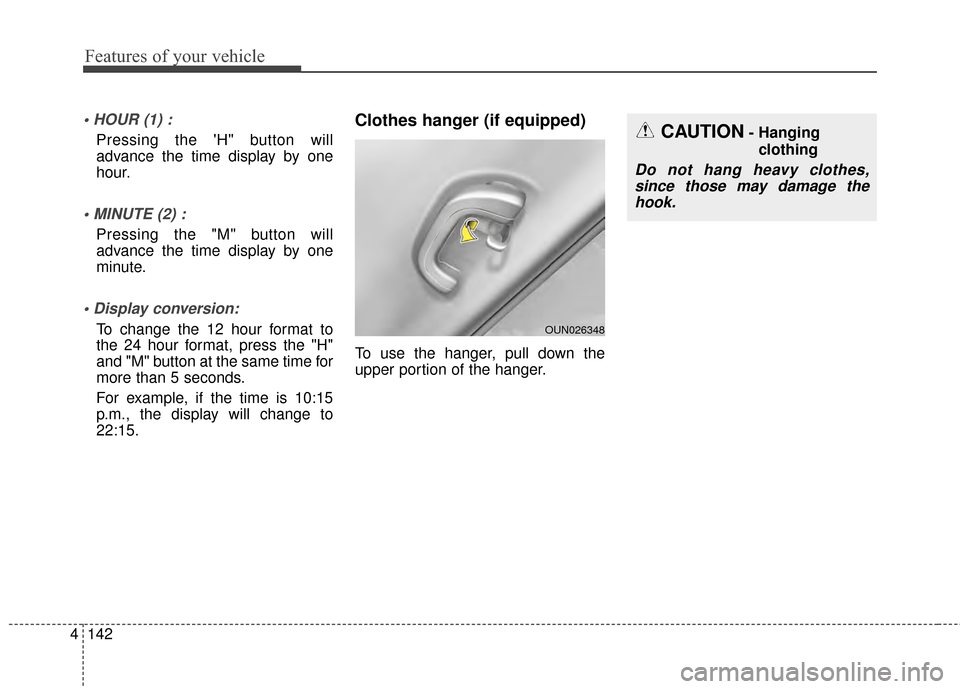
To use the hanger, pull down the
upper portion of the hanger.
CAUTION- Hanging
clothing
Do not hang heavy clothes,since those may damage thehook.
OUN026348
Page 213 of 479
4143
Features of your vehicle
Floor mat anchor(s)
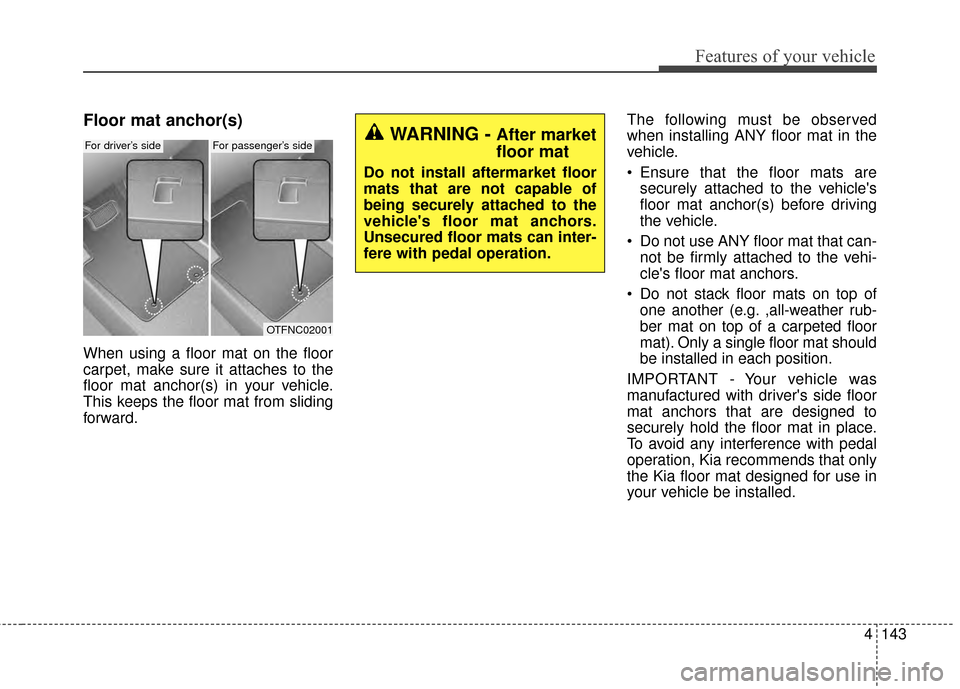
When using a floor mat on the floor
carpet, make sure it attaches to the
floor mat anchor(s) in your vehicle.
This keeps the floor mat from sliding
forward.The following must be observed
when installing ANY floor mat in the
vehicle.
Ensure that the floor mats are
securely attached to the vehicle's
floor mat anchor(s) before driving
the vehicle.
Do not use ANY floor mat that can- not be firmly attached to the vehi-
cle's floor mat anchors.
Do not stack floor mats on top of one another (e.g. ,all-weather rub-
ber mat on top of a carpeted floor
mat). Only a single floor mat should
be installed in each position.
IMPORTANT - Your vehicle was
manufactured with driver's side floor
mat anchors that are designed to
securely hold the floor mat in place.
To avoid any interference with pedal
operation, Kia recommends that only
the Kia floor mat designed for use in
your vehicle be installed.
OTFNC02001
For driver’s sideFor passenger’s sideWARNING - After market
floor mat
Do not install aftermarket floor
mats that are not capable of
being securely attached to the
vehicle's floor mat anchors.
Unsecured floor mats can inter-
fere with pedal operation.
Page 216 of 479
Features of your vehicle
146
4
Steering wheel audio controls
(if equipped)
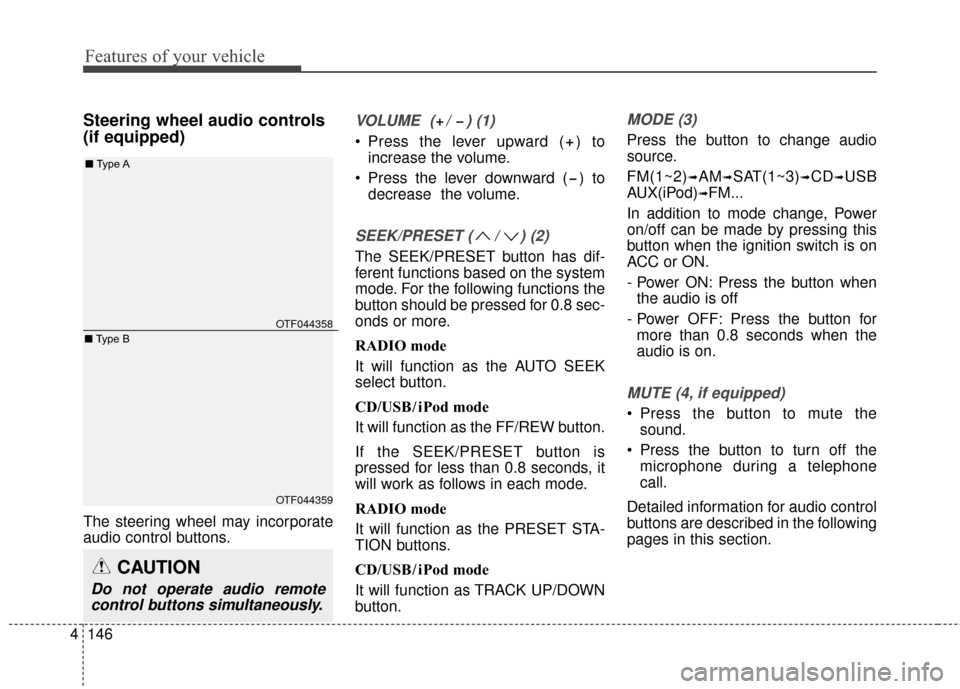
The steering wheel may incorporate
audio control buttons.
VOLUME ( / ) (1)
Press the lever upward ( ) to
increase the volume.
Press the lever downward ( ) to decrease the volume.
SEEK/PRESET ( / ) (2)
The SEEK/PRESET button has dif-
ferent functions based on the system
mode. For the following functions the
button should be pressed for 0.8 sec-
onds or more.
RADIO mode
It will function as the AUTO SEEK
select button.
CD/USB/ iPod mode
It will function as the FF/REW button.
If the SEEK/PRESET button is
pressed for less than 0.8 seconds, it
will work as follows in each mode.
RADIO mode
It will function as the PRESET STA-
TION buttons.
CD/USB/ iPod mode
It will function as TRACK UP/DOWN
button.
MODE (3)
Press the button to change audio
source.
FM(1~2)
➟AM➟SAT(1~3)➟CD➟USB
AUX(iPod)
➟FM...
In addition to mode change, Power
on/off can be made by pressing this
button when the ignition switch is on
ACC or ON.
- Power ON: Press the button when the audio is off
- Power OFF: Press the button for more than 0.8 seconds when the
audio is on.
MUTE (4, if equipped)
Press the button to mute the sound.
Press the button to turn off the microphone during a telephone
call.
Detailed information for audio control
buttons are described in the following
pages in this section.
CAUTION
Do not operate audio remote control buttons simultaneously.
OTF044358
OTF044359
■ Type A
■ Type B
Page 222 of 479
Features of your vehicle
152
4
(Continued)
Turn on the car ignition before using the audio system. Donot operate the audio systemfor long periods of time withthe ignition turned off as suchoperations may lead to batterydischarge.
Do not subject the device to severe shock or impact. Directpressure onto the front side ofthe monitor may cause dam-age to the LCD or touchscreen.
When cleaning the device, make sure to turn off theaudio system and use a dryand smooth cloth. Never usetough materials, chemicalcloths, or solvents (alcohol,benzene, thinners, etc.) assuch materials may damagethe device panel or causecolor/quality deterioration
(Continued)(Continued) Do not place beverages close to the audio system. Spillingbeverages may lead to systemmalfunction.
In case of product malfunction, please contact your place of pur-chase or After Service center.
Placing the audio system within an electromagneticenvironment may result innoise interference.
Prevent caustic solutions such as perfume and cosmet-ic oil from contacting thedashboard because they maycause damage or discol-oration.
Page 223 of 479
4153
Features of your vehicle
USING THE USB DEVICE
To use an external USB device,make sure the device is not con-
nected when starting up the
vehicle. Connect the device after
starting up.
If you start the engine when the USB device is connected, it may
damage the USB device. (USB
flashdrives are very sensitive to
electric shock.)
If the engine is started up or turned off while the external USB
device is connected, the external
USB device may not work.
The System may not play unau- thenticated MP3 or WMA files.
1) It can only play MP3 files with the compression rate
between 8Kbps ~ 320Kbps.
2) It can only play WMA music files with the compression
rate between 8Kbps ~
320Kbps.
Take precautions for static elec- tricity when connecting or discon-
necting the external USB device.
(Continued)(Continued)
An encrypted MP3 PLAYER is
not recognizable.
Depending on the condition of the external USB device, the
connected external USB device
can be unrecognizable.
When the formatted byte/sector setting of External USB device is
not either 512BYTE or
2048BYTE, then the device will
not be recognized.
Use only a USB device format- ted to FAT 12/16/32.
USB devices without USB I/F authentication may not be recog-
nizable.
Make sure the USB connection terminal does not come in con-
tact with the human body or
other objects.
If you repeatedly connect or dis- connect the USB device in a
short period of time, it may break
the device.
(Continued)(Continued)
You may hear a strange noise
when connecting or disconnect-
ing a USB device.
If you disconnect the external USB device during playback in
USB mode, the external USB
device can be damaged or may
malfunction. Therefore, discon-
nect the external USB device
when the audio is turned off or in
another mode. (e.g, Radio, CD)
Depending on the type and capacity of the external USB
device or the type of the files
stored in the device, there is a
difference in the time for recogni-
tion the device.
Do not use the USB device for purposes other than playing
music files.
Playing videos through the USB is not supported.
Use of USB accessories such as rechargers or heaters using USB
I/F may lower performance or
cause trouble.
(Continued)
Page 224 of 479
Features of your vehicle
154
4
(Continued)
Some USB flash memory read-
ers (such as CF, SD, micro SD,
etc.) or external-HDD type
devices can be unrecognizable.
Music files protected by DRM (DIGITAL RIGHTS MANAGE-
MENT) are not recognizable.
The data in the USB memory may be lost while using this
audio. Always back up important
data on a personal storage
device.
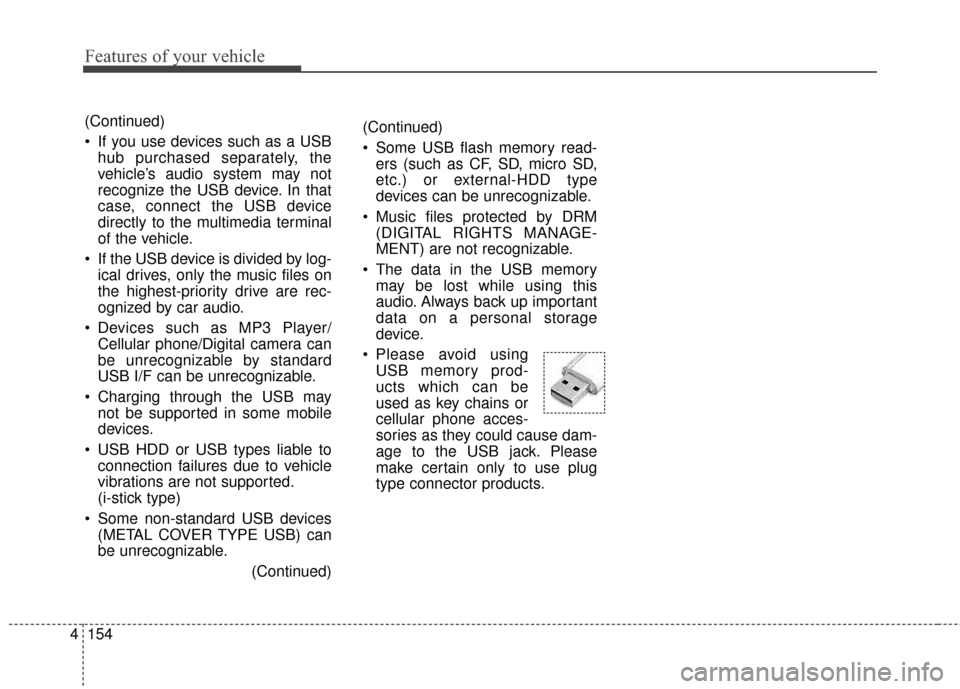
Please avoid using USB memory prod-
ucts which can be
used as key chains or
cellular phone acces-
sories as they could cause dam-
age to the USB jack. Please
make certain only to use plug
type connector products.(Continued)
If you use devices such as a USBhub purchased separately, the
vehicle’s audio system may not
recognize the USB device. In that
case, connect the USB device
directly to the multimedia terminal
of the vehicle.
If the USB device is divided by log- ical drives, only the music files on
the highest-priority drive are rec-
ognized by car audio.
Devices such as MP3 Player/ Cellular phone/Digital camera can
be unrecognizable by standard
USB I/F can be unrecognizable.
Charging through the USB may not be supported in some mobile
devices.
USB HDD or USB types liable to connection failures due to vehicle
vibrations are not supported.
(i-stick type)
Some non-standard USB devices (METAL COVER TYPE USB) can
be unrecognizable.
(Continued)