radio KIA Optima 2016 4.G User Guide
[x] Cancel search | Manufacturer: KIA, Model Year: 2016, Model line: Optima, Model: KIA Optima 2016 4.GPages: 623, PDF Size: 15.4 MB
Page 248 of 623
Audio system
65
FM radio station
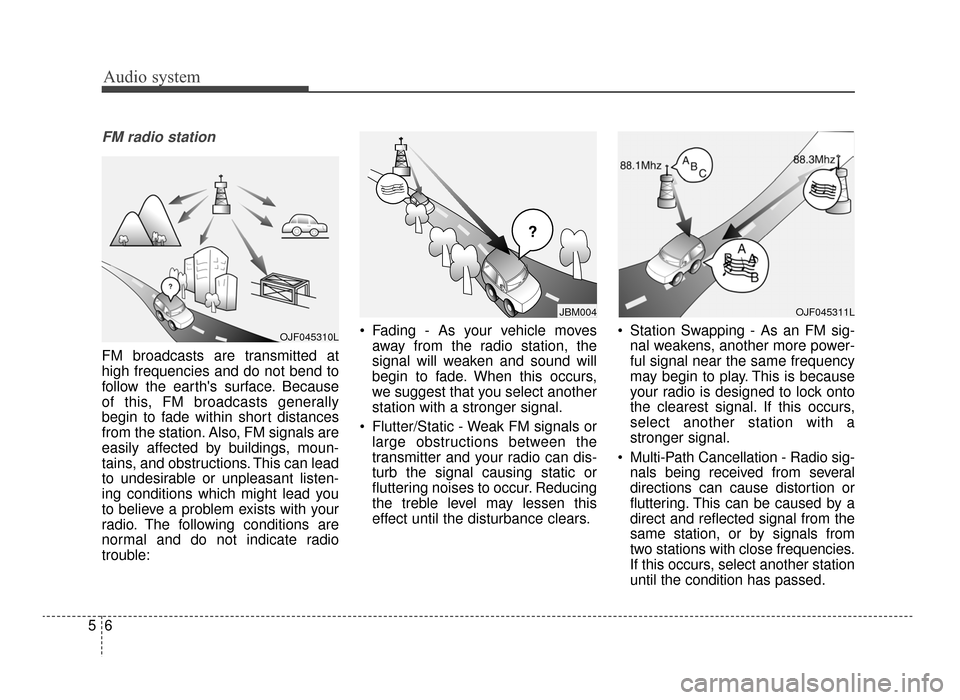
FM broadcasts are transmitted at
high frequencies and do not bend to
follow the earth's surface. Because
of this, FM broadcasts generally
begin to fade within short distances
from the station. Also, FM signals are
easily affected by buildings, moun-
tains, and obstructions. This can lead
to undesirable or unpleasant listen-
ing conditions which might lead you
to believe a problem exists with your
radio. The following conditions are
normal and do not indicate radio
trouble: Fading - As your vehicle moves
away from the radio station, the
signal will weaken and sound will
begin to fade. When this occurs,
we suggest that you select another
station with a stronger signal.
Flutter/Static - Weak FM signals or large obstructions between the
transmitter and your radio can dis-
turb the signal causing static or
fluttering noises to occur. Reducing
the treble level may lessen this
effect until the disturbance clears. Station Swapping - As an FM sig-
nal weakens, another more power-
ful signal near the same frequency
may begin to play. This is because
your radio is designed to lock onto
the clearest signal. If this occurs,
select another station with a
stronger signal.
Multi-Path Cancellation - Radio sig- nals being received from several
directions can cause distortion or
fluttering. This can be caused by a
direct and reflected signal from the
same station, or by signals from
two stations with close frequencies.
If this occurs, select another station
until the condition has passed.
¢¢¢
JBM004
OJF045310L
OJF045311L
JF CAN (ENG) 5 (Audio).qxp 9/23/2015 7:24 PM Page 6
Page 249 of 623
Audio system
57
Using a cellular phone or a two-way radio
When a cellular phone is used inside
the vehicle, noise may be produced
from the audio system. This does not
mean that something is wrong with
the audio equipment. In such a case,
try to operate mobile devices as far
from the audio equipment as possible.
When using a communication sys-
tem such as a cellular phone or a
radio set inside the vehicle, a sepa-
rate external antenna must be fitted.
When a cellular phone or a radio set
is used with an internal antenna
alone, it may interfere with the vehi-
cle's electrical system and adversely
affect safe operation of the vehicle.
WARNING- Cell phone use
Do not use a cellular phone
while driving. Stop at a safe and
legal location to use a cellular
phone.
JF CAN (ENG) 5 (Audio).qxp 9/23/2015 7:24 PM Page 7
Page 251 of 623
Audio system
59
Features of Your Audio
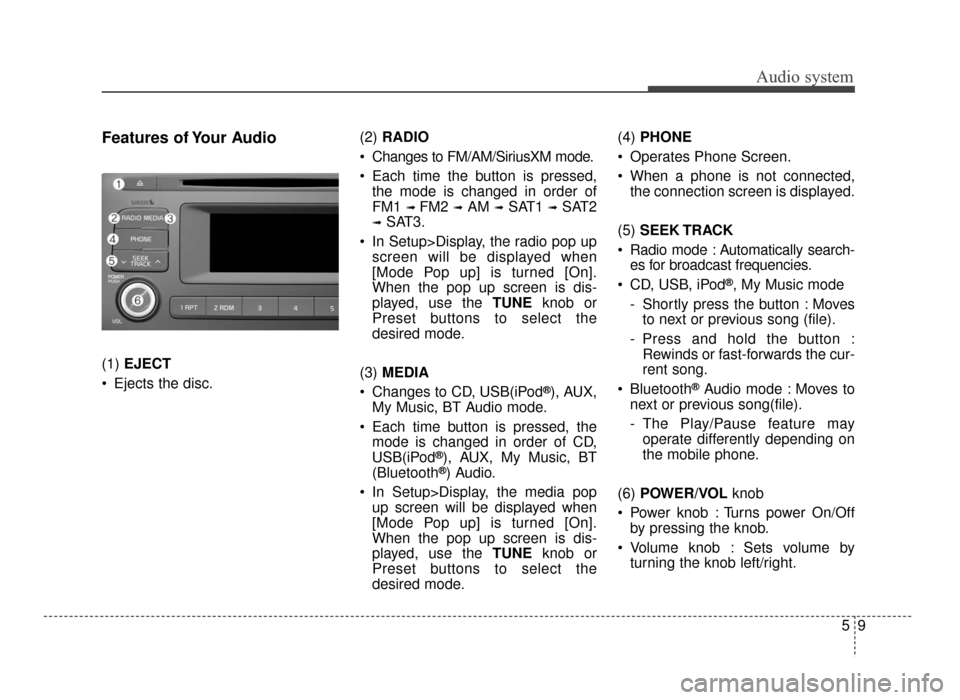
(1) EJECT
Ejects the disc. (2)
RADIO
Changes to FM/AM/SiriusXM mode.
Each time the button is pressed, the mode is changed in order of
FM1
➟ FM2 ➟AM ➟SAT1 ➟SAT2
➟SAT3.
In Setup>Display, the radio pop up screen will be displayed when
[Mode Pop up] is turned [On].
When the pop up screen is dis-
played, use the TUNE knob or
Preset buttons to select the
desired mode.
(3) MEDIA
Changes to CD, USB(iPod
®), AUX,
My Music, BT Audio mode.
Each time button is pressed, the mode is changed in order of CD,
USB(iPod
®), AUX, My Music, BT
(Bluetooth®) Audio.
In Setup>Display, the media pop up screen will be displayed when
[Mode Pop up] is turned [On].
When the pop up screen is dis-
played, use the TUNE knob or
Preset buttons to select the
desired mode. (4)
PHONE
Operates Phone Screen.
When a phone is not connected, the connection screen is displayed.
(5) SEEK TRACK
Radio mode : Automatically search- es for broadcast frequencies.
CD, USB, iPod
®, My Music mode
- Shortly press the button : Moves to next or previous song (file).
- Press and hold the button : Rewinds or fast-forwards the cur-
rent song.
Bluetooth
®Audio mode : Moves to
next or previous song(file).
- The Play/Pause feature may operate differently depending on
the mobile phone.
(6) POWER/VOL knob
Power knob : Turns power On/Off by pressing the knob.
Volume knob : Sets volume by turning the knob left/right.
JF CAN (ENG) 5 (Audio).qxp 9/23/2015 7:24 PM Page 9
Page 252 of 623
![KIA Optima 2016 4.G User Guide Audio system
10
5 (7)
[1] ~ [6] (Preset)
Radio mode: Saves frequencies (channels) or receives saved fre-
quencies (channels).
CD, USB, iPod
®, My Music mode
- [RPT] : Repeat
- [RDM] : Random
In th](/img/2/2973/w960_2973-251.png "KIA Optima 2016 4.G User Guide Audio system
10
5 (7)
[1] ~ [6] (Preset)
Radio mode: Saves frequencies (channels) or receives saved fre-
quencies (channels).
CD, USB, iPod
®, My Music mode
- [RPT] : Repeat
- [RDM] : Random
In th")
Audio system
10
5 (7)
[1] ~ [6] (Preset)
Radio mode: Saves frequencies (channels) or receives saved fre-
quencies (channels).
CD, USB, iPod
®, My Music mode
- [RPT] : Repeat
- [RDM] : Random
In the Radio, Media, Setup, and
Menu pop up screen, the number
menu is selected. (8)
DISP
Each time the button is shortly pressed, sets the Screen Off
➟
Screen On ➟Screen Off.
Audio operation is maintained and only the Screen will be turned Off.
In the Screen Off state, press any button to turn the Screen On again. (9)
SCAN
Radio mode - Shortly press the button :Previews each broadcast for 5
seconds each.
- Press and hold the button : Previews the broadcasts saved
in Preset [1] ~ [6] for 5 seconds
each.
- Press the [SCAN] button again
to continue listening to the cur-
rent frequency.
- SAT Radio does not support the Preset scan feature.
CD, USB, My Music mode - Shortly press the button :Previews each song (file) for 10
seconds each.
- Press the [SCAN] button again
to continue listening to the cur-
rent song (file).
(10) SETUP/CLOCK
Moves to the Display, Sound, Clock, Phone, System setting
modes.
JF CAN (ENG) 5 (Audio).qxp 9/23/2015 7:24 PM Page 10
Page 253 of 623
Audio system
511
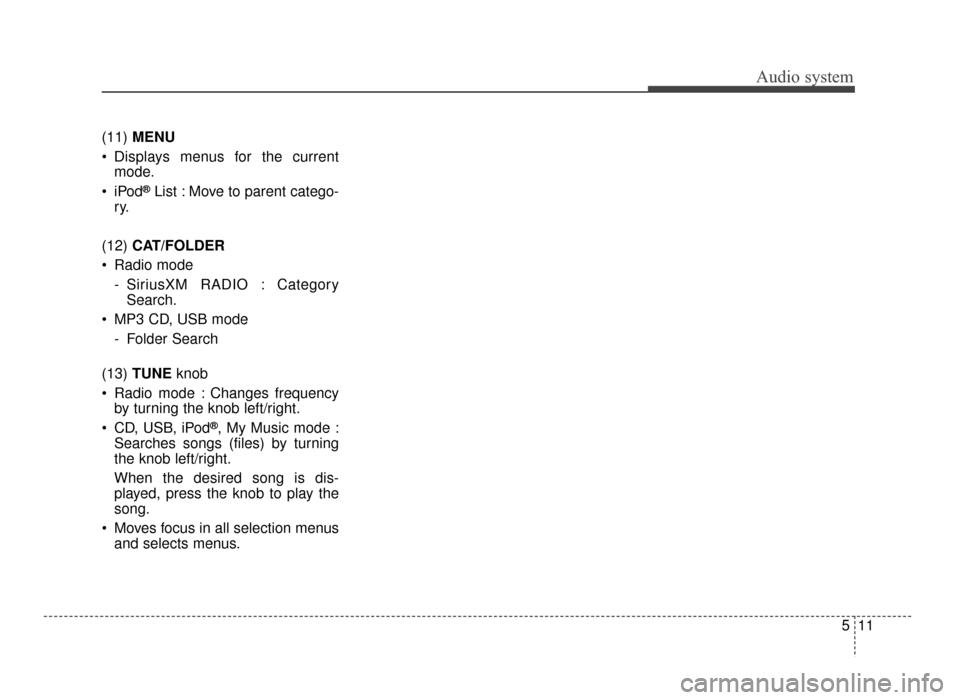
(11)
MENU
Displays menus for the current mode.
®List : Move to parent catego-
ry.
(12) CAT/FOLDER
Radio mode - SiriusXM RADIO : CategorySearch.
MP3 CD, USB mode - Folder Search
(13) TUNE knob
Radio mode : Changes frequency by turning the knob left/right.
CD, USB, iPod
®, My Music mode :
Searches songs (files) by turning
the knob left/right.
When the desired song is dis-
played, press the knob to play the
song.
Moves focus in all selection menus and selects menus.
JF CAN (ENG) 5 (Audio).qxp 9/23/2015 7:24 PM Page 11
Page 257 of 623

Audio system
515
✽
✽NOTICE - Using the USB
Devices
• To use an external USB device,
make sure the device is not con-
nected when starting up the vehi-
cle. Connect the device after start-
ing up.
• If you start the engine when the USB device is connected, it may
damage the USB device. (USB
flashdrives are very sensitive to
electric shock.)
• If the engine is started up or turned off while the external USB
device is connected, the external
USB device may not work.
• The System may not play unau- thenticated MP3 or WMA files.
1) It can only play MP3 files with the compression rate between
8Kbps ~ 320Kbps.
2) It can only play WMA music files with the compression rate
between 8Kbps ~ 320Kbps.
• Take precautions for static electric- ity when connecting or disconnect-
ing the external USB device. (Continued)(Continued)
• An encrypted MP3 PLAYER is
not recognizable.
• Depending on the condition of the external USB device, the connect-
ed external USB device can be
unrecognizable.
• When the formatted byte/sector setting of External USB device is
not either 512BYTE or
2048BYTE, then the device will
not be recognized.
• Use only a USB device formatted to FAT 12/16/32.
• USB devices without USB I/F authentication may not be recog-
nizable.
• Make sure the USB connection terminal does not come in contact
with the human body or other
objects.
• If you repeatedly connect or dis- connect the USB device in a short
period of time, it may break the
device. (Continued)(Continued)
• You may hear a strange noise
when connecting or disconnecting
a USB device.
• If you disconnect the external USB device during playback in USB
mode, the external USB device can
be damaged or may malfunction.
Therefore, disconnect the external
USB device when the audio is
turned off or in another mode.
(e.g, Radio)
• Depending on the type and capac- ity of the external USB device or
the type of files stored in the
device, there is a difference in the
time for recognition the device.
• Do not use the USB device for pur- poses other than playing music
files.
• Playing videos through the USB is not supported.
• Use of USB accessories such as rechargers or heaters using USB
I/F may lower performance or
cause trouble. (Continued)
JF CAN (ENG) 5 (Audio).qxp 9/23/2015 7:24 PM Page 15
Page 264 of 623
![KIA Optima 2016 4.G User Guide Audio system
22
5
Radio Mode
With the Radio Mode Button
SEEK
Press the [SEEK TRACK] button.
Shortly pressing the button : Automatically searches for the next
station.
Pressing and holding the button](/img/2/2973/w960_2973-263.png "KIA Optima 2016 4.G User Guide Audio system
22
5
Radio Mode
With the Radio Mode Button
SEEK
Press the [SEEK TRACK] button.
Shortly pressing the button : Automatically searches for the next
station.
Pressing and holding the button")
Audio system
22
5
Radio Mode
With the Radio Mode Button
SEEK
Press the [SEEK TRACK] button.
Shortly pressing the button : Automatically searches for the next
station.
Pressing and holding the button : While holding the button, frequen-
cy changes without stopping.
When the button is released, auto-
matically searches for the next fre-
quency from that point. Preset SEEK
Press the [1]
~ [6] button.
Shortly pressing the button : Plays the frequency saved in the corre-
sponding button.
Pressing and holding the button : Pressing and holding the desired
button from [1] ~ [6] will save the
currently playing broadcast to the
selected button and sound a BEEP.
SCAN
Press the [SCAN] button.
Shortly pressing the button : The broadcast frequency increases
and previews each broadcast for 5
seconds each. After scanning all
frequencies, returns and plays the
current broadcast frequency.
Pressing and holding the button : Previews the broadcasts saved in
Preset [1]~ [6] for 5 seconds
each. Selecting through manual search
Turn the TUNE
knob left/right to
adjust the frequency.
MENU : Radio
Within [MENU] button is the A.Store
(Auto Store).
A.Store (Auto Store) : [1] Button
Select A.Store (Auto Store) to save
frequencies with superior reception
to presets [1] ~ [6]. If no frequencies
are received, then the most recently
received frequency will be broad-
cast.
JF CAN (ENG) 5 (Audio).qxp 9/23/2015 7:24 PM Page 22
Page 265 of 623
Audio system
523
SiriusXM®Satellite Radio information
Satellite Radio channels :
Enjoy SiriusXM Satellite Radio with a
3-month trial subscription to the
Sirius Select package. You’ll get over
140 channels, including commercial-
free music, plus all your favorite
sports, exclusive talk, entertainment,
and a selection of premium program-
ming. For more information and a
complete list of SiriusXM channels,
visit siriusxm.com in the United
States, siriusxm.ca in Canada, or call
SiriusXM at 1-888-539-7474.
Satellite Radio reception factors :
To receive the satellite signal, your
vehicle has been equipped with a
satellite radio antenna located on the
roof of your vehicle. The vehicle roof
provides the best location for an
unobstructed, open view of the sky, a
requirement of a satellite radio sys-
tem. Like AM/FM, there are several
factors that can affect satellite radio
reception performance :
Antenna obstructions : For optimalreception performance, keep the
antenna clear of snow and ice
build-up and keep luggage and
other material as far away from the
anten na as possible. Terrain: Hills, mountains, tall build-
ings, bridges, tunnels, freeway
overpasses, parking garages,
dense tree foliage and thunder-
storms can interfere with your
reception.
SiriusXM Satellite Radio service :
SiriusXM is a subscription-based
satellite radio service that broad-
casts music, sports, news and enter-
tainment programming to radio
receivers, which are available for
installation in motor vehicles or facto-
ry installed, as well as for the home,
portable and wireless devices, and
through an Internet connection on a
personal computer.
Vehicles that are equipped with a
factory installed SiriusXM Satellite
Radio system include :
Hardware and an introductory trial subscription term, which begins on
the date of sale or lease of the
vehicle.
For a small upgrade fee, access to SiriusXM music channels, and
other select channels over the
Internet using any computer con-
nected to the Internet (U.S. cus-
tomers only). For information on extended sub-
scription terms, contact SiriusXM at
1-888-539-7474.
NOTE :
SiriusXM services require a sub-
scription sold separately, or as a
package, by Sirius XM Radio Inc. If
you decide to continue service
after your trial, the subscription
plan you choose will automatical-
ly renew thereafter and you will be
charged according to your chosen
payment method at then-current
rates. Fees and taxes apply. To
cancel you must call SiriusXM at
1-866-635-2349. See SiriusXM
Customer Agreement for com-
plete terms at www.siriusxm.com.
SiriusXM U.S. satellite and data
services are available only in the
48 contiguous states, DC and
Puerto Rico (with coverage limita-
tions). SiriusXM satellite service is
also available in Canada; see
www.siriusxm. ca. All fees and
programming subject to change.
Sirius, XM and all related marks
and logos are trademarks of Sirius
XM Radio Inc.
JF CAN (ENG) 5 (Audio).qxp 9/23/2015 7:24 PM Page 23
Page 266 of 623
Audio system
24
5
SiriusXM Radio Mode
Using SiriusXM Satellite Radio
Your Kia vehicle is equipped with a 3-
month trial subscription to SiriusXM
so you have access to over 140
channels of music, information, and
entertainment programming.
Activation
In order to extend or reactivate your
Sirius Select subscription, you will
need to contact SiriusXM Customer
Care at 1-800-643-2112. Have your
12-digit RID (Radio Identification
Number) / ESN (Electronic Serial
Number) ready. To retrieve the RID /
ESN, turn on the radio, press the
[RADIO] button, and tune to channel
zero. Please note that the vehicle will need
to be turned on, in Sirius mode, and
have an unobstructed view of the sky
in order for the radio to receive the
activation signal.
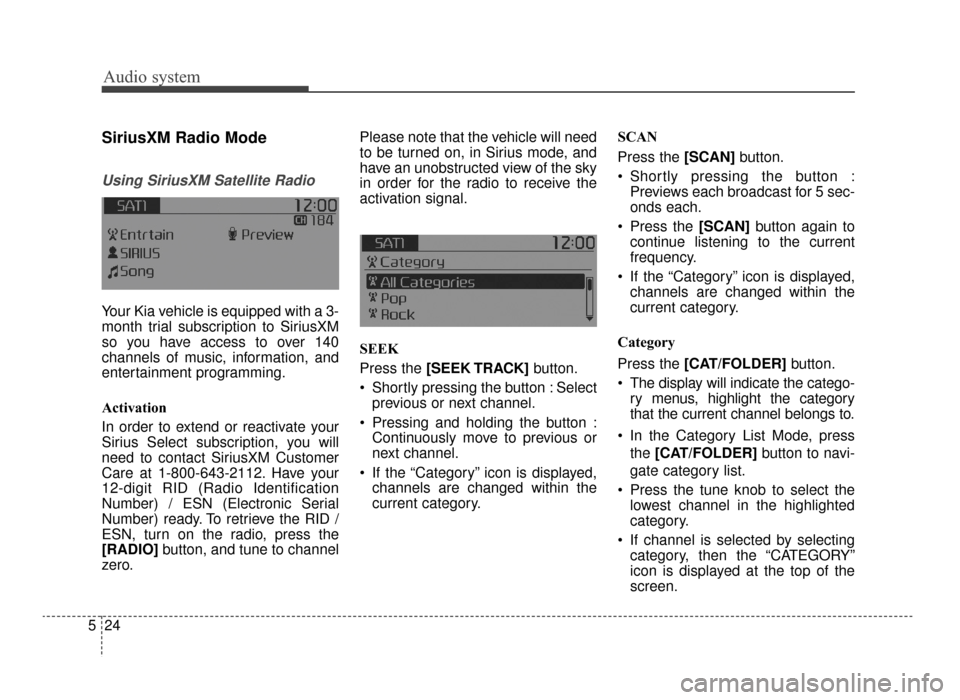
SEEK
Press the [SEEK TRACK]
button.
Shortly pressing the button : Select previous or next channel.
Pressing and holding the button : Continuously move to previous or
next channel.
If the “Category” icon is displayed, channels are changed within the
current category. SCAN
Press the [SCAN]
button.
Shortly pressing the button : Previews each broadcast for 5 sec-
onds each.
Press the [SCAN] button again to
continue listening to the current
frequency.
If the “Category” icon is displayed, channels are changed within the
current category.
Category
Press the [CAT/FOLDER] button.
The display will indicate the catego- ry menus, highlight the category
that the current channel belongs to.
In the Category List Mode, press the [CAT/FOLDER] button to navi-
gate category list.
Press the tune knob to select the lowest channel in the highlighted
category.
If channel is selected by selecting category, then the “CATEGORY”
icon is displayed at the top of the
screen.
JF CAN (ENG) 5 (Audio).qxp 9/23/2015 7:24 PM Page 24
Page 267 of 623
![KIA Optima 2016 4.G User Guide Audio system
525
Preset
Press the [1]
~ [6] button
Shortly pressing the button : Plays the channel saved in the corre-
sponding button.
Pressing and holding the button : Pressing and holding the des](/img/2/2973/w960_2973-266.png "KIA Optima 2016 4.G User Guide Audio system
525
Preset
Press the [1]
~ [6] button
Shortly pressing the button : Plays the channel saved in the corre-
sponding button.
Pressing and holding the button : Pressing and holding the des")
Audio system
525
Preset
Press the [1]
~ [6] button
Shortly pressing the button : Plays the channel saved in the corre-
sponding button.
Pressing and holding the button : Pressing and holding the desired
button from [1] ~ [6] will save the
current broadcast to the selected
button and sound a BEEP.
✽ ✽ Troubleshooting
1. Antenna Error
If this message is displayed, the
antenna or antenna cable is bro-
ken or unplugged. Please consult
with your Kia dealership.
2. No Signal If this message is displayed, it
means that the antenna is covered
and that the SiriusXM Satellite
Radio signal is not available.
Ensure the antenna is uncovered
and has a clear view of the sky.
Tu n e
Rotate
TUNEknob : Changes the
channel number or scrolls catego-
ry list.
Press
TUNEknob : Selects the
menu.
Menu : SiriusXM Radio
Press the [MENU] button.
Info (Information) : [1] Button
Displays the Artist/Song info of the
current song.
JF CAN (ENG) 5 (Audio).qxp 9/23/2015 7:24 PM Page 25