ESP KIA OPTIMA 2017 Owner's Manual
[x] Cancel search | Manufacturer: KIA, Model Year: 2017, Model line: OPTIMA, Model: KIA OPTIMA 2017Pages: 629, PDF Size: 15.24 MB
Page 189 of 629
Features of your vehicle
102
4
The 360° camera monitoring system
is not a substitute for proper and safe
parking procedures. The 360° cam-
era monitoring system may not
detect every object surrounding the
vehicle. Always drive safely and use
caution when parking.
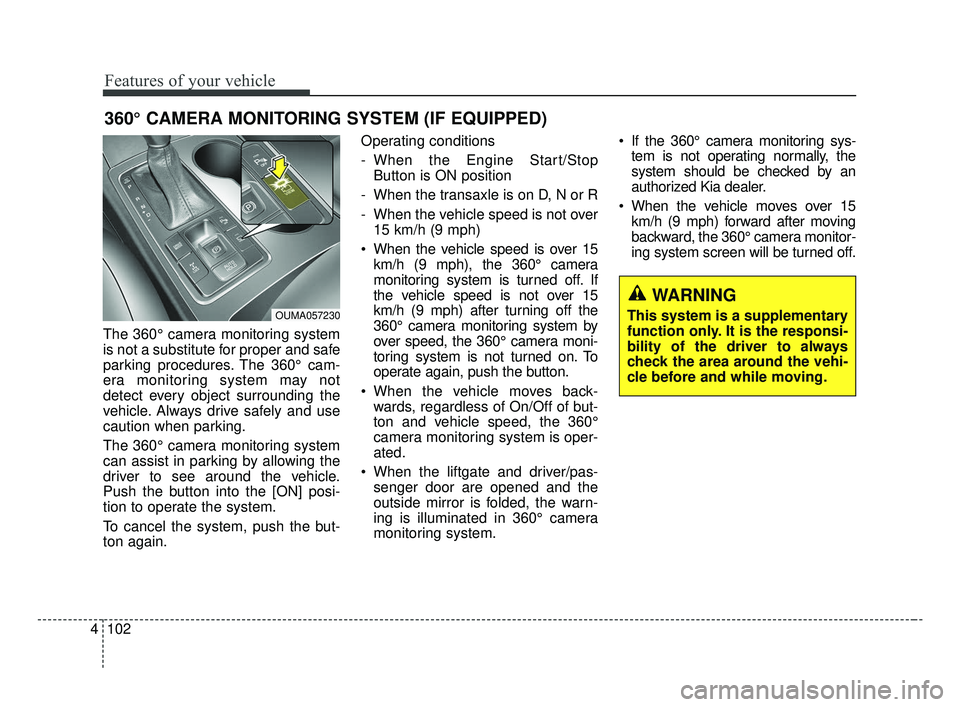
The 360° camera monitoring system
can assist in parking by allowing the
driver to see around the vehicle.
Push the button into the [ON] posi-
tion to operate the system.
To cancel the system, push the but-
ton again. Operating conditions
- When the Engine Start/Stop
Button is ON position
- When the transaxle is on D, N or R
- When the vehicle speed is not over 15 km/h (9 mph)
When the vehicle speed is over 15 km/h (9 mph), the 360° camera
monitoring system is turned off. If
the vehicle speed is not over 15
km/h (9 mph) after turning off the
360° camera monitoring system by
over speed, the 360° camera moni-
toring system is not turned on. To
operate again, push the button.
When the vehicle moves back- wards, regardless of On/Off of but-
ton and vehicle speed, the 360°
camera monitoring system is oper-
ated.
When the liftgate and driver/pas- senger door are opened and the
outside mirror is folded, the warn-
ing is illuminated in 360° camera
monitoring system. If the 360° camera monitoring sys-
tem is not operating normally, the
system should be checked by an
authorized Kia dealer.
When the vehicle moves over 15 km/h (9 mph) forward after moving
backward, the 360° camera monitor-
ing system screen will be turned off.
360° CAMERA MONITORING SYSTEM (IF EQUIPPED)
WARNING
This system is a supplementary
function only. It is the responsi-
bility of the driver to always
check the area around the vehi-
cle before and while moving.OUMA057230
JF CAN (ENG) 4.qxp 2016-09-21 11:16 Page 102
Page 190 of 629
4103
Features of your vehicle
Battery saver function
The purpose of this feature is toprevent the battery from being dis-
charged if the lights are left in the
ON position. The system automati-
cally shuts off the parking lights 30
seconds after the ignition key is
removed and the driver’s door is
opened and closed.
With this feature, the parking lights will turn off automatically if the driver
parks on the side of the road at night
and opens the driver’s side door.
If necessary, to keep the parking
lights on when the ignition key is
removed, perform the following:
1) Open the driver-side door.
2) Turn the parking lights OFF and ON again using the light switch
on the steering column.
Daytime running light
The Daytime Running Lights (DRL)
can make it easier for others to see the
front of your vehicle during the day.
DRL can be helpful in many different
driving conditions, and it is especially
helpful after dawn and before sunset.
The DRL system will turn the dedi-
cated lamp OFF when:
1. The headlight switch is ON.
2. The engine is OFF.
Lighting control
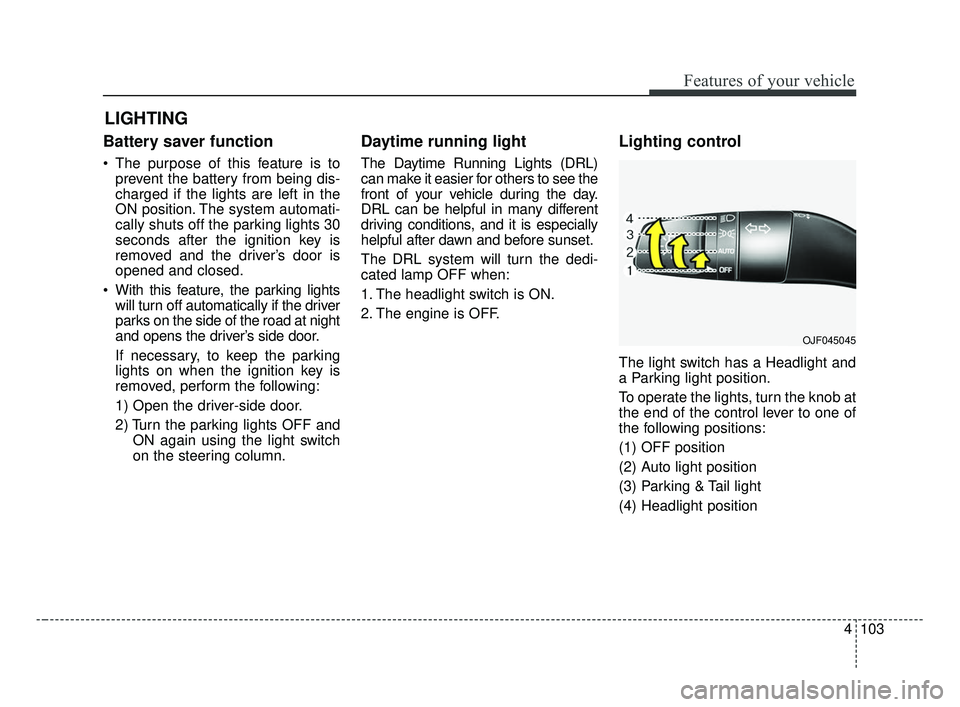
The light switch has a Headlight and
a Parking light position.
To operate the lights, turn the knob at
the end of the control lever to one of
the following positions:
(1) OFF position
(2) Auto light position
(3) Parking & Tail light
(4) Headlight position
LIGHTING
OJF045045
JF CAN (ENG) 4.qxp 2016-09-21 11:16 Page 103
Page 227 of 629
Features of your vehicle
140
4
For maximum defrosting, set the
temperature control to the extreme
right/hot position and the fan speed
control to the highest speed.
If warm air to the floor is desired while defrosting or defogging, set
the mode to the floor-defrost posi-
tion.
Before driving, clear all snow and ice from the windshield, rear win-
dow, outside rear view mirrors, and
all side windows.
Clear all snow and ice from the hood and air inlet in the cowl grill to
improve heater and defroster effi-
ciency and to reduce the probabili-
ty of fogging up the inside of the
windshield.Manual climate control system
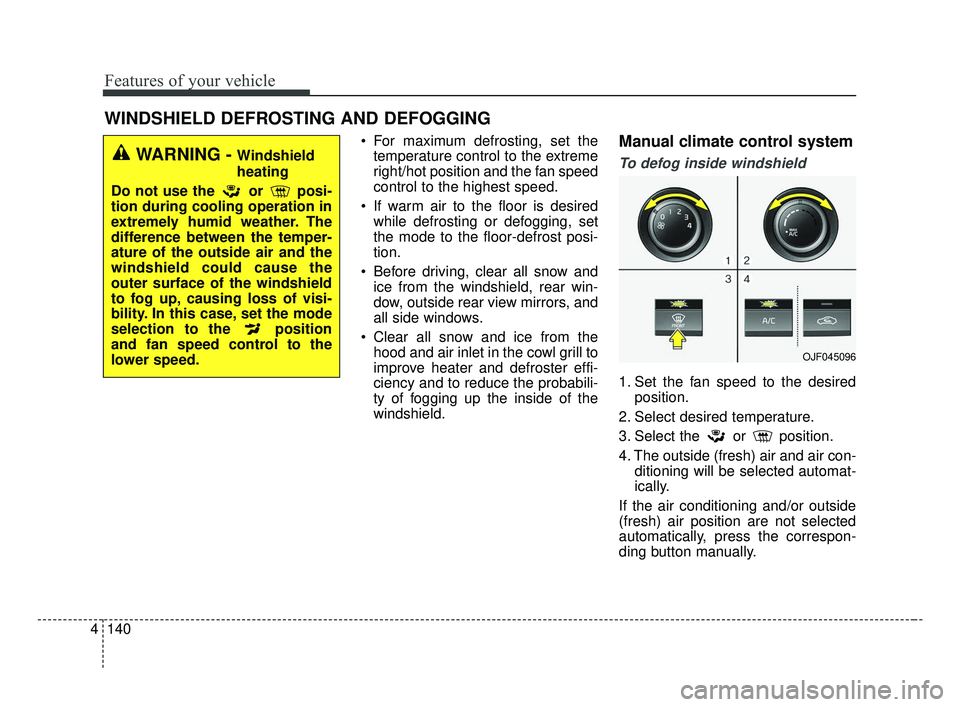
To defog inside windshield
1. Set the fan speed to the desired position.
2. Select desired temperature.
3. Select the or position.
4. The outside (fresh) air and air con- ditioning will be selected automat-
ically.
If the air conditioning and/or outside
(fresh) air position are not selected
automatically, press the correspon-
ding button manually.
WINDSHIELD DEFROSTING AND DEFOGGING
WARNING - Windshield
heating
Do not use the or posi-
tion during cooling operation in
extremely humid weather. The
difference between the temper-
ature of the outside air and the
windshield could cause the
outer surface of the windshield
to fog up, causing loss of visi-
bility. In this case, set the mode
selection to the position
and fan speed control to the
lower speed.
OJF045096
JF CAN (ENG) 4.qxp 2016-09-21 11:18 Page 140
Page 228 of 629
4141
Features of your vehicle
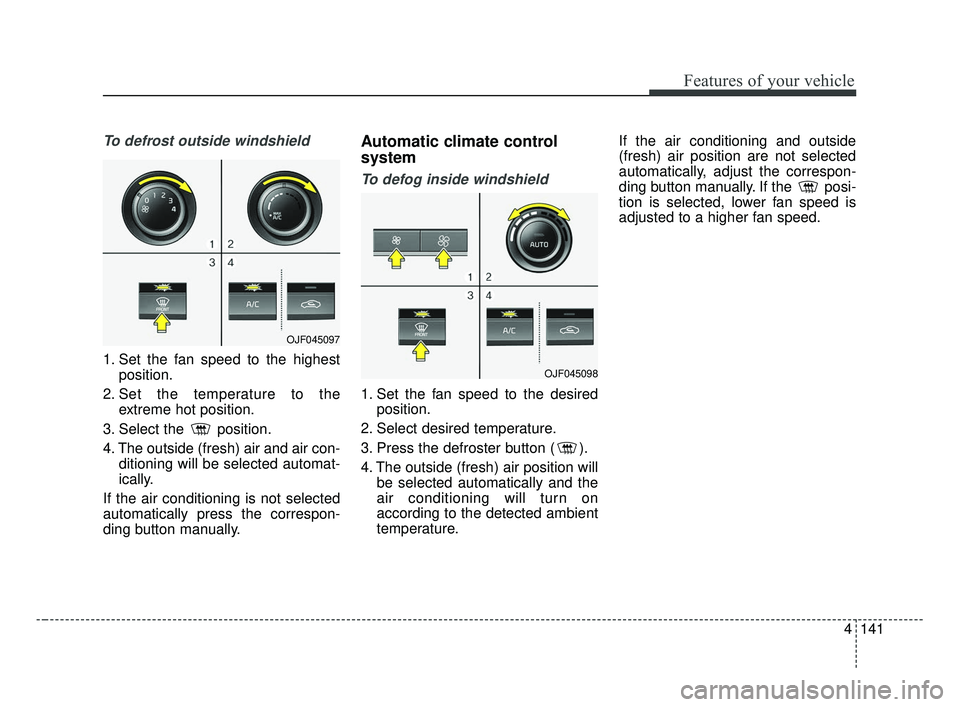
To defrost outside windshield
1. Set the fan speed to the highestposition.
2. Set the temperature to the extreme hot position.
3. Select the position.
4. The outside (fresh) air and air con- ditioning will be selected automat-
ically.
If the air conditioning is not selected
automatically press the correspon-
ding button manually.
Automatic climate control
system
To defog inside windshield
1. Set the fan speed to the desired position.
2. Select desired temperature.
3. Press the defroster button ( ).
4. The outside (fresh) air position will be selected automatically and the
air conditioning will turn on
according to the detected ambient
temperature. If the air conditioning and outside
(fresh) air position are not selected
automatically, adjust the correspon-
ding button manually. If the posi-
tion is selected, lower fan speed is
adjusted to a higher fan speed.
OJF045098
OJF045097
JF CAN (ENG) 4.qxp 2016-09-21 11:18 Page 141
Page 240 of 629
4153
Features of your vehicle
If the wireless charging is not func-
tioning properly, the orange light will
blink and flash for ten seconds then
turn off. In such cases, remove the
smart phone from the pad and
replace it on the pad again, or double
check the charging status.
If you leave the smart phone on the
charging pad when the vehicle igni-
tion is in OFF, the vehicle will alert
you through warning messages and
sound (applicable for vehicles with
voice guidance function) after the
‘Good bye’ function on the instru-
ment cluster ends.
WARNING - Distracted
driving
Driving while distracted can
result in a loss of vehicle con-
trol that may lead to an acci-
dent, severe personal injury,
and death. The driver’s primary
responsibility is in the safe and
legal operation of a vehicle, and
use of any handheld devices,
other equipment, or vehicle sys-
tems which take the driver’s
eyes, attention and focus away
from the safe operation of a
vehicle or which are not permis-
sible by law should never be
used during operation of the
vehicle.CAUTION - Liquid in
Wireless Smart Phone
Charger
Securely close the tray cover when charging your phone to pre-vent liquid from damaging thewireless smart phone chargingsystem.
CAUTION - Metal in
Wireless Charging System
If any metallic object such as coins is located between thewireless charging system andthe smart phone, the chargingmay be disrupted. Also, themetallic object may heat up andpotentially damage the chargingsystem. If there is any metallicobject between the smart phoneand the charging pad, immedi-ately remove the smart phone.Remove the metallic object afterit has cooled down.
JF CAN (ENG) 4.qxp 2016-09-21 11:19 Page 153
Page 247 of 629
Audio system
45
RADIO mode
It will function as the PRESET STA-
TION buttons.
CD/USB/ iPod
®mode
It will function as TRACK UP/DOWN
button.
MODE (3)
Press the button to change audio
source.
FM(1~2)
➟ AM ➟ SAT(1~3) ➟ CD ➟
USB (iPod®) ➟AUX ➟ MY MUSIC ➟
BT Audio ➟ FM...
In addition to mode change, Power
on/off can be made by pressing this
button when the ignition switch is on
ACC or ON.
- Power ON: Press the button when the audio is off
- Power OFF: Press the button for more than 0.8 seconds when the
audio is on.
MUTE (4, if equipped)
Press the button to mute the sound.
Press the button to turn off the microphone during a telephone
call.
Detailed information for audio control
buttons are described in the following
pages in this section.
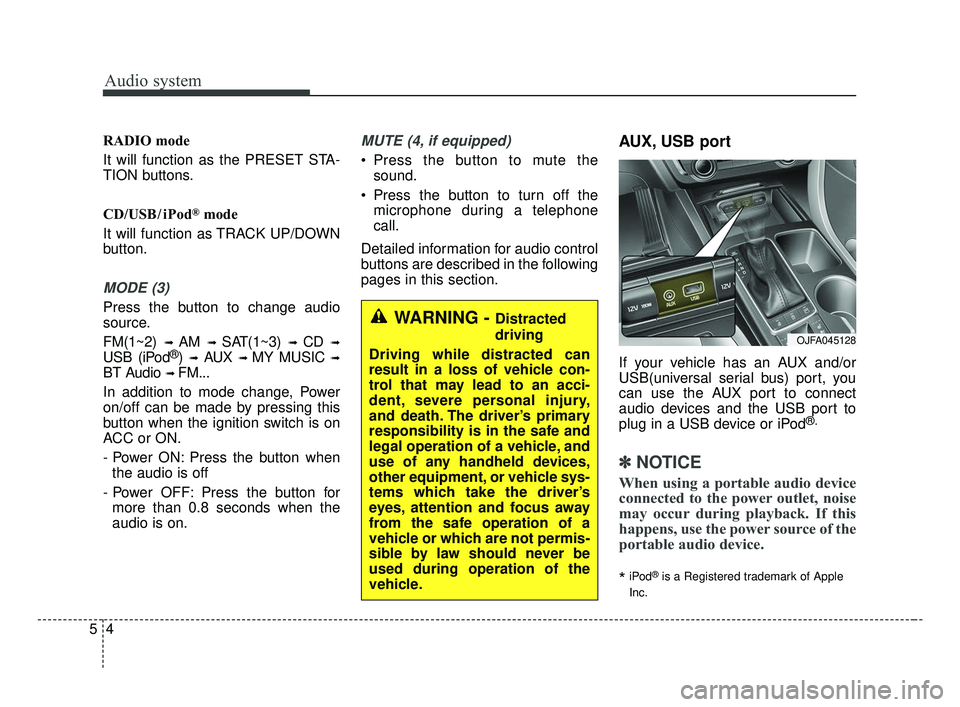
AUX, USB port
If your vehicle has an AUX and/or
USB(universal serial bus) port, you
can use the AUX port to connect
audio devices and the USB port to
plug in a USB device or iPod
®.
✽ ✽ NOTICE
When using a portable audio device
connected to the power outlet, noise
may occur during playback. If this
happens, use the power source of the
portable audio device.
*iPod®is a Registered trademark of Apple
Inc.
OJFA045128
WARNING - Distracted
driving
Driving while distracted can
result in a loss of vehicle con-
trol that may lead to an acci-
dent, severe personal injury,
and death. The driver’s primary
responsibility is in the safe and
legal operation of a vehicle, and
use of any handheld devices,
other equipment, or vehicle sys-
tems which take the driver’s
eyes, attention and focus away
from the safe operation of a
vehicle or which are not permis-
sible by law should never be
used during operation of the
vehicle.
JF CAN (ENG) 5 (Audio).qxp 2016-09-21 11:21 Page 4
Page 256 of 629
Audio system
513
WARNING
- Audio System SafetyWarnings
Do not stare at the screen while driving. Staring at the
screen for prolonged periods
of time could lead to traffic
accidents.
Do not disassemble, assem- ble, or modify the audio sys-
tem. Such acts could result in
accidents, fire, or electric
shock.
Using the phone while driving may lead to a lack of attention
of traffic conditions and
increase the likelihood of
accidents. Use the phone fea-
ture after parking the vehicle.
Exercise caution not to spill water or introduce foreign
objects into the device. Such
acts could lead to smoke, fire,
or product malfunction.
(Continued)
(Continued)
Please refrain from use if thescreen is blank or no sound
can be heard as these signs
may indicate product mal func-
tion. Continued use in such
conditions could lead to acci-
dents (fires, electric shock) or
product malfunctions.
Do not touch the antenna dur- ing thunder or lightening as
such acts may lead to light-
ning induced electric shock.
Do not stop or park in park- ing-restricted areas to operate
the product. Such acts could
lead to traffic accidents.WARNING - Distracted
Driving
Driving while distracted can
result in a loss of vehicle con-
trol that may lead to an acci-
dent, severe personal injury,
and death. The driver’s primary
responsibility is in the safe and
legal operation of a vehicle, and
use of any handheld devices,
other equipment, or vehicle sys-
tems which take the driver’s
eyes, attention and focus away
from the safe operation of a
vehicle or which are not permis-
sible by law should never be
used during operation of the
vehicle.
JF CAN (ENG) 5 (Audio).qxp 2016-09-21 11:22 Page 13
Page 261 of 629
Audio system
18
5
✽ ✽
NOTICE - Using the
Bluetooth®Wireless
Technology Cellular
Phone
• Bluetooth®Wireless Technology
Handsfree refers to a device which
allows the user to conveniently
make phone calls with Bluetooth
®
Wireless Technology mobile
phones through the audio system.
• Bluetooth
®Wireless Technology
allows devices to be connected in a
short distance, including hands-
free devices, stereo headsets, wire-
less remote controllers, etc. For
more information, visit the
Bluetooth
®Wireless Technology
website at www
.Bluetooth.com.
Before using Bluetooth®Wireless
Technology audio features.
• The Bluetooth
®word mark and
logos are registered trademarks
owned by Bluetooth
®SIG, Inc. and
any use of such marks by Kia is
under license. Other trademarks
and trade names are those of their
respective owners. A Bluetooth
®
enabled cell phone is required to
use Bluetooth®Wireless Technology.
(Continued) (Continued)
•
Bluetooth
®Wireless Technology
features supported within the
vehicle are as follows. Some fea-
tures may not be supported
depending on your Bluetooth
®
Wireless Technology device.
- Answering and placing
Bluetooth
®Wireless Technology
Handsfree calls
- Menu operation during call (Switch to Private, Switch to call
waiting, Outgoing volume)
- Download Call History
- Download Mobile Phone book
- Phone book/Call History Auto Download
- Bluetooth
®Wireless Technology
device auto connection
- Bluetooth
®Wireless Technology
Audio
• Before using Bluetooth
®Wireless
Technology related features of the
audio system, refer your phone’s
User’s Manual for phone-side
Bluetooth
®Wireless Technology
operations. (Continued)(Continued)
• The phone must be paired to the
audio system to use Bluetooth
®
Wireless Technology related fea-
tures.
• Pairing and connecting a Bluetooth
®Wireless Technology
enabled mobile phone will work
only when the Bluetooth
®Wireless
Technology option within your
mobile phone has been turned on.
(Methods of turning on the
Bluetooth
®Wireless Technology
enabled feature may differ
depending on the mobile phone.)
• Do not use a cellular phone or per- form Bluetooth
®Wireless
Technology settings (e.g. pairing a
phone) while driving.
• Even if the phone supports Bluetooth
®Wireless Technology,
the phone will not be found during
device searches if the phone has
been set to hidden state or the
Bluetooth
®Wireless Technology
power is turned off. Disable the
hidden state or turn on the
Bluetooth
®Wireless Technology
power prior to searching/connect-
ing with the car audio system. (Continued)
JF CAN (ENG) 5 (Audio).qxp 2016-09-21 11:22 Page 18
Page 264 of 629
Audio system
521
✽ ✽NOTICE - Using Voice
Recognition
• When using the voice recognition
feature, only commands listed
within the user's manual are sup-
ported.
• Be aware that during the opera- tion of the voice recognition sys-
tem, pressing any button other
than the button terminates
voice recognition mode.
• For optimal voice recognition per- formance, position your head
below the microphone above the
driver’s seat and maintain proper
position when speaking voice com-
mands.
• Within the following situations, voice recognition may not function
properly due to external sound.
- When the windows and sunroofare open
- When the blower AC/heater is set to high
- When entering and passing through tunnels
- When driving on rugged and uneven roads
- During severe rain (heavy rains, windstorms) (Continued)(Continued)
• Phone related voice commands can
be used only when a Bluetooth®
Wireless Technology device is con-
nected.
• When making calls by stating a name, the corresponding contact
must be downloaded and stored
within the audio system.
• After downloading the Bluetooth
®
Wireless Technology phone book,
it takes some times to convert the
phone book data into voice infor-
mation. During this time, voice
recognition may not properly
operate.
• Pronounce the voice commands naturally and clearly as if in a nor-
mal conversation.
JF CAN (ENG) 5 (Audio).qxp 2016-09-21 11:22 Page 21
Page 274 of 629
Audio system
531
✽ ✽NOTICE - Using the My Music
• Even if memory is available, a
maximum of 6,000 songs can be
stored.
• The same song can be copied up to 1,000 times.
• Memory info can be checked in the System menu of Setup.
MENU : Bluetooth® Wireless
Technology Audio
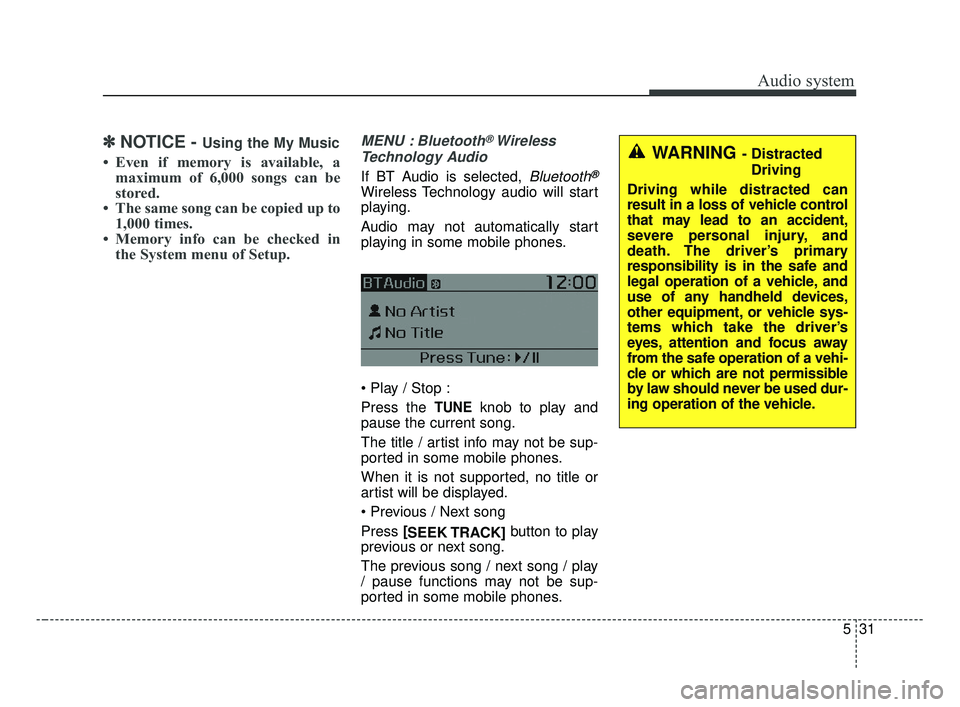
If BT Audio is selected, Bluetooth®
Wireless Technology audio will start
playing.
Audio may not automatically start
playing in some mobile phones.
Press the
TUNEknob to play and
pause the current song.
The title / artist info may not be sup-
ported in some mobile phones.
When it is not supported, no title or
artist will be displayed.
Press [
SEEK TRACK] button to play
previous or next song.
The previous song / next song / play
/ pause functions may not be sup-
ported in some mobile phones.
WARNING - Distracted
Driving
Driving while distracted can
result in a loss of vehicle control
that may lead to an accident,
severe personal injury, and
death. The driver’s primary
responsibility is in the safe and
legal operation of a vehicle, and
use of any handheld devices,
other equipment, or vehicle sys-
tems which take the driver’s
eyes, attention and focus away
from the safe operation of a vehi-
cle or which are not permissible
by law should never be used dur-
ing operation of the vehicle.
JF CAN (ENG) 5 (Audio).qxp 2016-09-21 11:22 Page 31