USB KIA OPTIMA PHEV 2017 Owners Manual
[x] Cancel search | Manufacturer: KIA, Model Year: 2017, Model line: OPTIMA PHEV, Model: KIA OPTIMA PHEV 2017Pages: 604, PDF Size: 13.16 MB
Page 59 of 604
25
Your vehicle at a glance
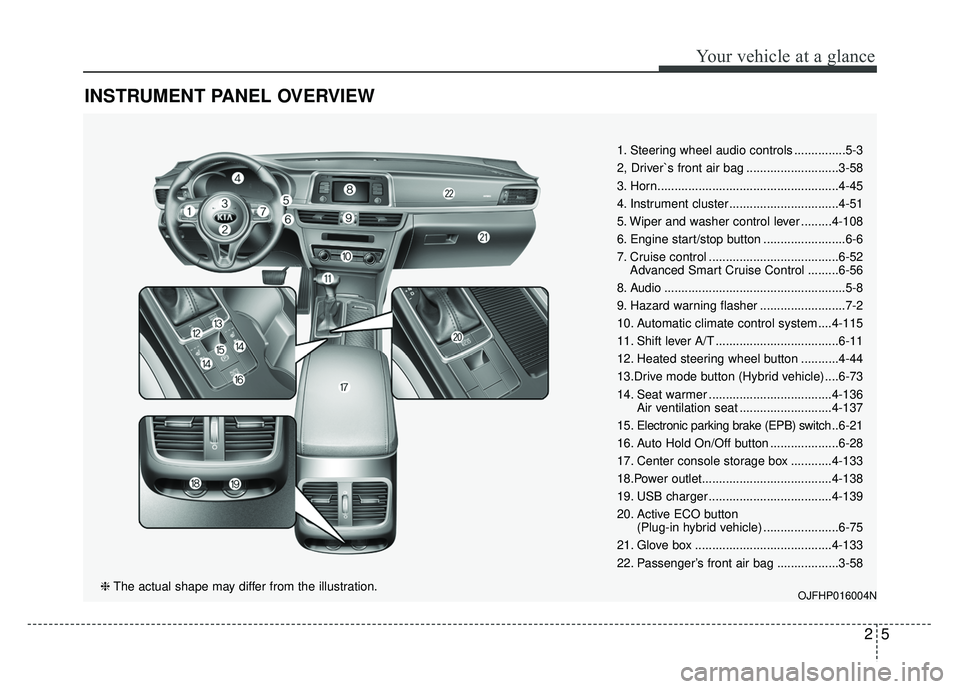
INSTRUMENT PANEL OVERVIEW
1. Steering wheel audio controls ...............5-3
2, Driver`s front air bag ...........................3-58
3. Horn.....................................................4-45
4. Instrument cluster ................................4-51
5. Wiper and washer control lever .........4-108
6. Engine start/stop button ........................6-6
7. Cruise control ......................................6-52Advanced Smart Cruise Control .........6-56
8. Audio .....................................................5-8
9. Hazard warning flasher .........................7-2
10. Automatic climate control system ....4-115
11. Shift lever A/T ....................................6-11
12. Heated steering wheel button ...........4-44
13.Drive mode button (Hybrid vehicle) ....6-73
14. Seat warmer ....................................4-136 Air ventilation seat ...........................4-137
15. Electronic parking brake (EPB) switch .. 6-21
16. Auto Hold On/Off button ....................6-28
17. Center console storage box ............4-133
18.Power outlet......................................4-138
19. USB charger ....................................4-139
20. Active ECO button (Plug-in hybrid vehicle) ......................6-75
21. Glove box ........................................4-133
22. Passenger’s front air bag ..................3-58
OJFHP016004N❈ The actual shape may differ from the illustration.
Page 269 of 604
4139
Features of your vehicle
Plug in battery equipped electronicdevices with reverse current pro-
tection. The current from the bat-
tery may flow into the vehicle’s
electri cal/electronic system and
cause system malfunction.USB charger (if equipped)
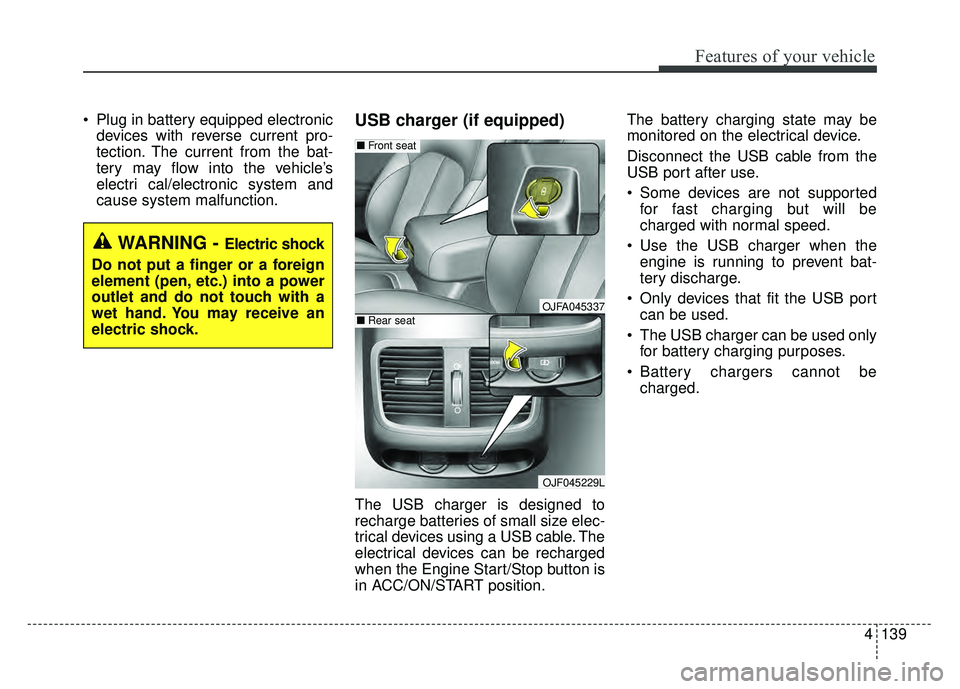
The USB charger is designed to
recharge batteries of small size elec-
trical devices using a USB cable. The
electrical devices can be recharged
when the Engine Start/Stop button is
in ACC/ON/START position. The battery charging state may be
monitored on the electrical device.
Disconnect the USB cable from the
USB port after use.
Some devices are not supported
for fast charging but will be
charged with normal speed.
Use the USB charger when the engine is running to prevent bat-
tery discharge.
Only devices that fit the USB port can be used.
The USB charger can be used only for battery charging purposes.
Battery chargers cannot be charged.
WARNING - Electric shock
Do not put a finger or a foreign
element (pen, etc.) into a power
outlet and do not touch with a
wet hand. You may receive an
electric shock.
OJFA045337
OJF045229L
■ Front seat
■Rear seat
Page 272 of 604

Audio system
Audio System . . . . . . . . . . . . . . . . . . . . . . . . . . . . . . 5-2
• Antenna . . . . . . . . . . . . . . . . . . . . . . . . . . . . . . . . . . . . \
. 5-2
• Steering wheel audio controls. . . . . . . . . . . . . . . . . . . . 5-3
• AUX, USB port . . . . . . . . . . . . . . . . . . . . . . . . . . . . . . . 5-4
• How vehicle audio works . . . . . . . . . . . . . . . . . . . . . . . 5-5
Audio (With Touch Screen) . . . . . . . . . . . . . . . . . . . 5-8
• Features of Your Audio . . . . . . . . . . . . . . . . . . . . . . . . . 5-9
• Radio Mode . . . . . . . . . . . . . . . . . . . . . . . . . . . . . . . . . 5-20
• SiriusXM Radio Mode . . . . . . . . . . . . . . . . . . . . . . . . 5-23
• Media Mode . . . . . . . . . . . . . . . . . . . . . . . . . . . . . . . . . 5-25
• Phone Mode . . . . . . . . . . . . . . . . . . . . . . . . . . . . . . . . . 5-40
• Bluetooth
®Wireless Technology . . . . . . . . . . . . . . . . . 5-41
• Voice Recognition Mode . . . . . . . . . . . . . . . . . . . . . . . 5-48
• Setup Mode . . . . . . . . . . . . . . . . . . . . . . . . . . . . . . . . . 5-56
Declaration of Conformity . . . . . . . . . . . . . . . . . . 5-65
• FCC . . . . . . . . . . . . . . . . . . . . . . . . . . . . . . . . . . . . \
. . . . 5-65
5
Page 274 of 604

Audio system
53
✽
✽NOTICE
Tinted rear window may affect the
proper functioning of the antenna.
Steering wheel audio controls
(if equipped)
The steering wheel may incorporate
audio control buttons.
VOLUME ( / ) (1)
• Press the lever upward ( ) to
increase the volume.
Press the lever downward ( ) to decrease the volume.
SEEK/PRESET ( / ) (2)
The SEEK/PRESET button has dif-
ferent functions based on the system
mode. For the following functions the
button should be pressed for 0.8 sec-
onds or more.
RADIO mode
It will function as the AUTO SEEK
select button.
CD/USB/ iPod
®mode
It will function as the FF/REW button.
If the SEEK/PRESET button is
pressed for less than 0.8 seconds, it
will work as follows in each mode.CAUTION
Do not operate audio remote control buttons simultaneously.
OJFA045307
■Type A
■Type C
■Type B
(Continued)
When putting a sticker on the inside surface of the rear win-dow, be careful not to damageto the rear glass antenna.
Do not put sharp instruments nearby the rear glass antenna.
Page 275 of 604
Audio system
45
RADIO mode
It will function as the PRESET STA-
TION buttons.
CD/USB/ iPod
®mode
It will function as TRACK UP/DOWN
button.
MODE (3)
Press the button to change audio
source.
FM(1~2)
➟ AM ➟ SAT(1~3) ➟ CD ➟
USB (iPod®) ➟AUX ➟ MY MUSIC ➟
BT Audio ➟ FM...
In addition to mode change, Power
on/off can be made by pressing this
button when the ignition switch is on
ACC or ON.
- Power ON: Press the button when the audio is off
- Power OFF: Press the button for more than 0.8 seconds when the
audio is on.
MUTE (4, if equipped)
Press the button to mute the sound.
Press the button to turn off the microphone during a telephone
call.
Detailed information for audio control
buttons are described in the following
pages in this section.
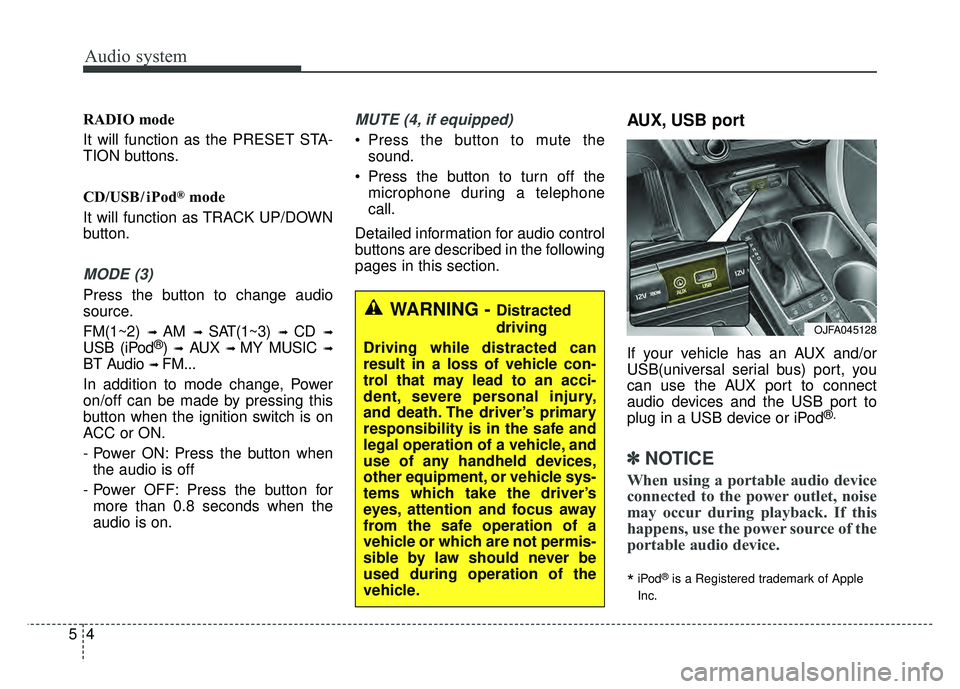
AUX, USB port
If your vehicle has an AUX and/or
USB(universal serial bus) port, you
can use the AUX port to connect
audio devices and the USB port to
plug in a USB device or iPod
®.
✽ ✽ NOTICE
When using a portable audio device
connected to the power outlet, noise
may occur during playback. If this
happens, use the power source of the
portable audio device.
*iPod®is a Registered trademark of Apple
Inc.
OJFA045128
WARNING - Distracted
driving
Driving while distracted can
result in a loss of vehicle con-
trol that may lead to an acci-
dent, severe personal injury,
and death. The driver’s primary
responsibility is in the safe and
legal operation of a vehicle, and
use of any handheld devices,
other equipment, or vehicle sys-
tems which take the driver’s
eyes, attention and focus away
from the safe operation of a
vehicle or which are not permis-
sible by law should never be
used during operation of the
vehicle.
Page 280 of 604

Audio system
59
Features of Your Audio
Head unit
❈The actual features in the vehicle
may differ from the illustration.
(1) EJECT
Ejects the disc.
(2) RADIO
Changes to FM/AM/SiriusXM mode.
Each time the button is pressed, the mode is changed in the order
of FM1
➟FM2 ➟AM ➟SAT1 ➟
SAT2 ➟SAT3. (3)
MEDIA
Changes to CD/USB(iPod
®)/AUX
/My Music/Bluetooth®Audio mode.
Each time the button is pressed, the mode is changed in the order
of CD, USB(iPod
®), AUX, My
Music, BT (Bluetooth®) Audio.
(4) PHONE
Changes to Phone mode.
When a phone is not connected, the connection screen is displayed. (5)
SEEK TRACK
When pressed briefly - Radio mode : plays previous/nextfrequency.
- Media (CD/USB/iPod
®/My Music)
modes : changes the track,
Song(file)
When pressed and held - Radio mode : continuouslychanges the frequency. Upon
release, plays the current fre-
quency.
- Media(CD/USB/iPod
®/My Music)
modes : rewinds or fast forwards
the track or file
- During a Handsfree call, controls the call volume.
(6) POWER/VOL knob
Power knob : Press to turn power on/off.
Volume knob : Turn left/right to con- trol volume.
Page 281 of 604
Audio system
10
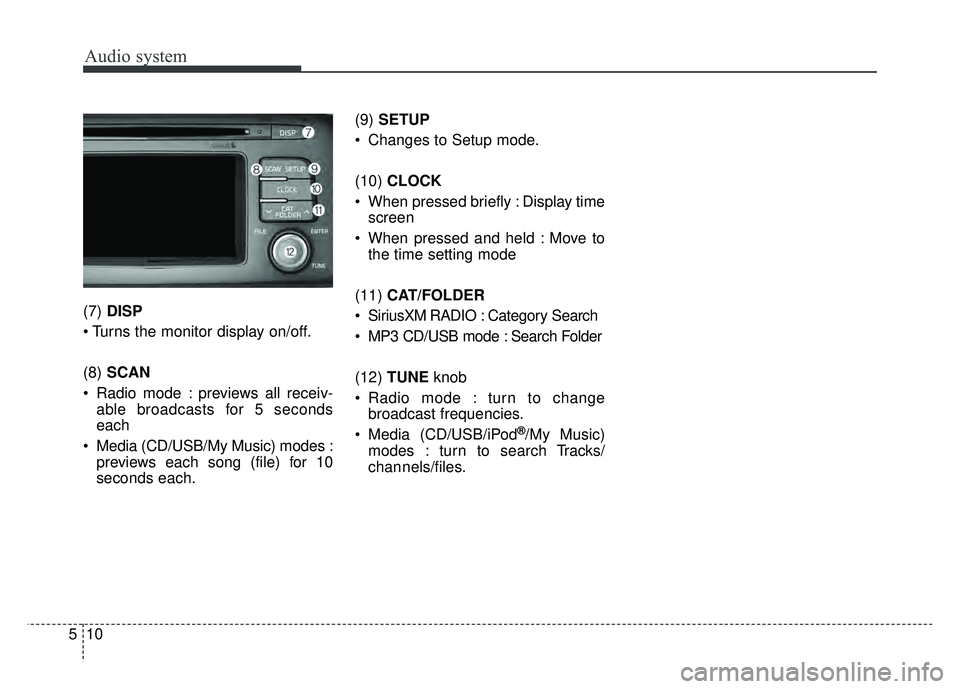
5 (7)
DISP
(8) SCAN
Radio mode : previews all receiv- able broadcasts for 5 seconds
each
Media (CD/USB/My Music) modes : previews each song (file) for 10
seconds each. (9)
SETUP
Changes to Setup mode.
(10) CLOCK
When pressed briefly : Display time screen
When pressed and held : Move to the time setting mode
(11) CAT/FOLDER
SiriusXM RADIO : Category Search
MP3 CD/USB mode : Search Folder
(12) TUNE knob
Radio mode : turn to change broadcast frequencies.
Media (CD/USB/iPod
®/My Music)
modes : turn to search Tracks/
chan nels/files.
Page 283 of 604
Audio system
12
5
✽
✽
NOTICE - Using the USB
Devices
• Connect the USB device after turning on the engine. The USB
device may become damaged if it
is already connected when the
ignition is turned on. The USB
device may not operate properly if
the car ignition is turned on or off
with the USB device connected.
• Be careful for static electricity when connecting/disconnecting
USB devices.
• Encoded MP3 Players will not be recognized when connected as an
external device.
• When connecting an external USB device, the vehicle's audio system
may not recognize the USB
depending on what firmware is
used by USB device or what files
are on the USB.
• Only products formatted with byte/sectors under 64Kbyte will be
recognized.
• This device recognizes USB devices formatted in FAT 12/16/32
file formats. This device does not
recognize files in NTFS file for-
mat. (Continued)(Continued)
• Some USB devices may not be sup-
ported due to compatibility issues.
• Avoid contact between the USB connector and bodily parts or for-
eign objects.
• Repeated connecting/disconnect- ing of USB devices within short
periods of time may result in prod-
uct malfunction.
• A strange noise may occur when disconnecting the USB.
• Make sure to connect/disconnect external USB devices with the
audio power turned off.
• The amount of time required to recognize the USB device may dif-
fer depending on the type, size or
file formats stored on the USB.
Such differences in time are not
indications of malfunctions.
• The vehicle audio system only sup- ports USB devices designed to
play music files
• USB images and videos are not supported. (Continued)(Continued)
• Do not use the USB I/F to charge
batteries or USB accessories that
generate heat. Doing so may lead
to worsened performance or dam-
age to the audio system.
• The audio system may not recog- nize the USB device if separately
purchased USB hubs and exten-
sion cables are being used.
Connect the USB device directly
with the USB port of the vehicle.
• When using mass storage USB devices with separate logical
drives, only files saved to the root
drive can be played.
• Files may not properly operate if application programs are installed
on the USBs.
• The audio system may not operate normally if MP3 Players, cellular
phones, digital cameras, or other
electronic devices (USB devices
not recognized as portable disk
drives) are connected with the
audio system. (Continued)
Page 284 of 604
Audio system
513
(Continued)
• Charging through the USB maynot work for some mobile devices.
• The device may not support nor- mal operation when using a typi-
cal USB memory device (minia-
ture, keychain, etc.). For best
results, use a typical USB device
that has a metal case.
• The device may not support nor- mal operation when using formats
such as HDD Type, CF, or SD
Memory.
• The device will not support files locked by DRM (Digital Rights
Management.)
• USB memory sticks used by con- necting an Adaptor (SD Type or
CF Type) may not be properly rec-
ognized.
• The device may not operate prop- erly when using USB HDDs or
USBs subject to connection fail-
ures caused by vehicle vibrations.
(e.g. i-stick type) (Continued)(Continued)
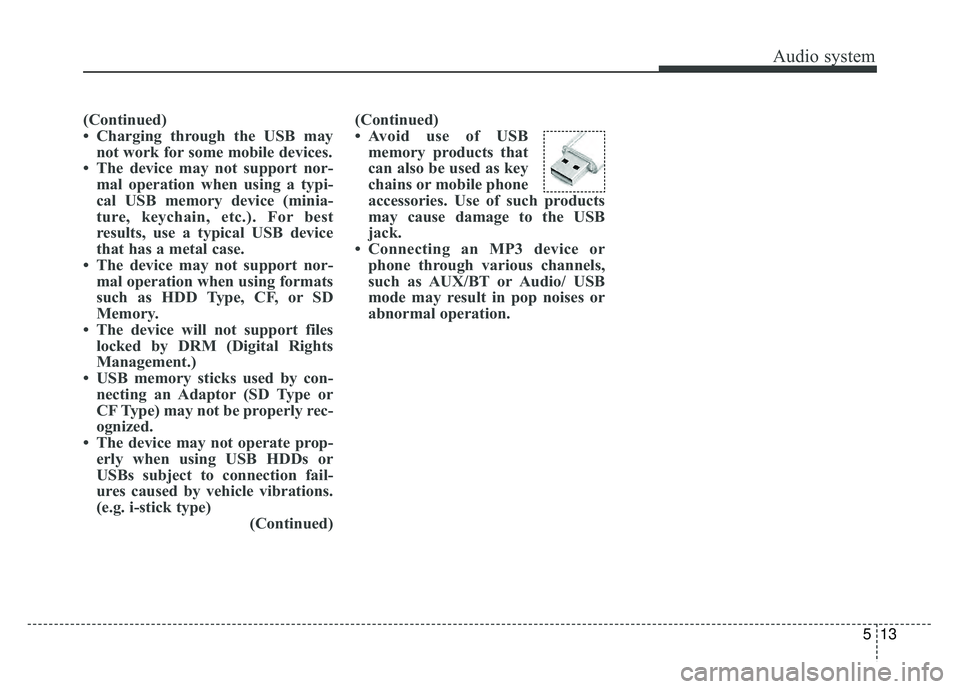
• Avoid use of USB
memory products that
can also be used as key
chains or mobile phone
accessories. Use of such products
may cause damage to the USB
jack.
• Connecting an MP3 device or phone through various channels,
such as AUX/BT or Audio/ USB
mode may result in pop noises or
abnormal operation.
Page 285 of 604
Audio system
14
5
✽
✽
NOTICE - Using an iPod®
• iPod®is a registered trademark of
Apple Inc.
• In order to use the iPod
®with
your vehicle's audio system, you
must use a dedicated iPod
®cable.
(the cable that is supplied when
purchasing iPod
®/iPhone®prod-
ucts)
• If the iPod
®is connected to the
vehicle while it is playing, a high
pitch sound could occur for
approximately 1-2 seconds imme-
diately after connecting. If possi-
ble, connect the iPod
®to the vehi-
cle with the iPod®stopped/paused.
• When the vehicle ignition is set to ACC or ON, connecting the iPod
®
through the iPod®cable will
charge the iPod®through the car
audio system.
• When connecting with the iPod
®
cable, make sure to fully insert the
jack to prevent communication
interference. (Continued)(Continued)
• When the EQ features of an exter-
nal device, such as the iPod
®, and
the audio system are both active,
EQ effects could overlap and
cause sound deterioration and dis-
tortion. Whenever possible, turn
off the EQ feature within the
external device when it is connect-
ed to the audio system.
• Noise may occur when an iPod
®or
AUX device is connected. When
such devices are not being used,
disconnect the device for storage.
• When the iPod
®or AUX device
power is connected to the power
jack, playing the external device
may result in noise. In such cases,
disconnect the power connection
before use.
• Skipping or improper operation may occur depending on the char-
acteristics of your iPod
®/iPhone®
device. (Continued)(Continued)
• If your iPhone
®is connected to
both the Bluetooth®Wireless
Technology and USB, the sound
may not be properly played. In
your iPhone
®, select the Dock con-
nector or Bluetooth®Wireless
Technology to change the sound
output (source).
• iPod
®mode cannot be operated
when the iPod®cannot be recog-
nized due to versions that do not
support communication protocols.
• For fifth generation iPod
®Nano
devices, the iPod®may not be rec-
ognized when the battery level is
low. Please charge the iPod
®for
use.
• The search/play orders shown within the iPod
®device may differ
from the orders shown within the
audio system.
• If the iPod
®malfunctions due to
an iPod®device defect, reset the
iPod®and try again. (To learn
more, refer to your iPod®manual)
(Continued)