audio KIA OPTIMA PLUG-IN HYBRID 2017 Workshop Manual
[x] Cancel search | Manufacturer: KIA, Model Year: 2017, Model line: OPTIMA PLUG-IN HYBRID, Model: KIA OPTIMA PLUG-IN HYBRID 2017Pages: 686, PDF Size: 35.24 MB
Page 351 of 686
(Continued)
•The device will not support files
locked by DéM (Digital éights Man‐
agement.)
•UêB memory sticks used by con‐
necting an Adaptor (êD Type or CF
Type) may not be properly recog‐
nized.
•The device may not operate prop‐
erly when using UêB HDDs or UêBs
subject to connection failures
caused by vehicle vibrations. (e.g.
i-stick type)
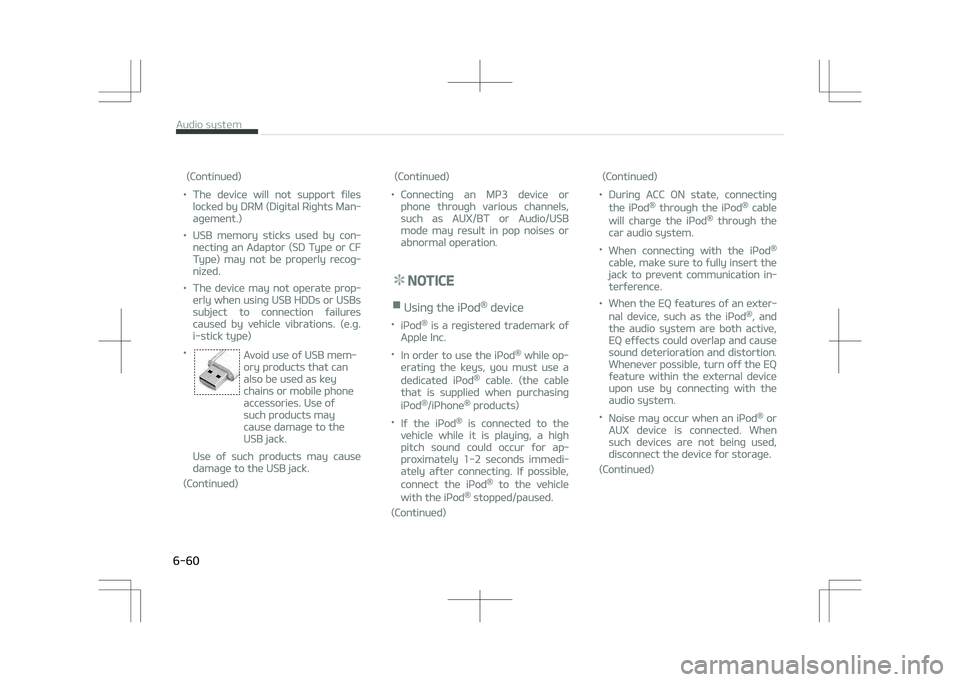
• Avoid use of UêB mem‐
ory products that can
also be used as key
chains or mobile phone
accessories. Use of
such products may
cause damage to the
UêB jack.
Use of such products may cause
damage to the UêB jack.
(Continued)
(Continued)
•Connecting an Mç3 device or
phone through various channels,
such as AUX/BT or Audio/UêB
mode may result in pop noises or
abnormal operation.
NOTICE
nUsing the içod® device
•içod® is a registered trademark of
Apple Inc.
•In order to use the içod® while op‐
erating the keys, you must use a
dedicated içod® cable. (the cable
that is supplied when purchasing
içod®/içhone® products)
•If the içod® is connected to the
vehicle while it is playing, a high
pitch sound could occur for ap‐
proximately 1-2 seconds immedi‐
ately after connecting. If possible,
connect the içod® to the vehicle
with the içod® stopped/paused.
(Continued)
(Continued)
•During ACC ON state, connecting
the içod® through the içod® cable
will charge the içod® through the
car audio system.
•When connecting with the içod®
cable, make sure to fully insert the
jack to prevent communication in‐
terference.
•When the Eè features of an exter‐
nal device, such as the içod®, and
the audio system are both active,
Eè effects could overlap and cause
sound deterioration and distortion.
Whenever possible, turn off the Eè
feature within the external device
upon use by connecting with the
audio system.
•Noise may occur when an içod® or
AUX device is connected. When
such devices are not being used,
disconnect the device for storage.
(Continued)
Audio system
6-60
Page 352 of 686

(Continued)
•When the içod® or AUX device
power is connected to the power
jack, playing the external device
may result in noise. In such cases,
disconnect the power connection
before use.
•êkipping or improper operation
may occur depending on the char‐
acteristics of your içod®/içhone®
device.
•If your içhone® is connected to
both the Bluetooth® Wireless
Technology and UêB, the sound
may not be properly played. In
your içhone®, select the Dock con‐
nector or Bluetooth® Wireless
Technology to change the sound
output (source).
•içod® mode cannot be operated
when the içod® cannot be recog‐
nized due to the playing of ver‐
sions that do not support commu‐
nication protocols, cases of içod®
abnormalities and defects.
(Continued)
(Continued)
•For fifth generation içod® Nano
devices, the içod® may not be rec‐
ognized when the battery level is
low. çlease charge the içod® for
use.
•êearch/play orders shown within
the içod® device may differ with
the orders shown within the audio
system.
•If the içod® malfunctions due to
an içod® device defect, reset the
içod® and try again. (To learn
more, refer to your içod® manual)
•êome içod®s may not sync with
the êystem depending on its ver‐
sion. If the Media is removed be‐
fore the Media is recognized, then
the system may not properly re‐
store the previously operated
mode. (içad charging is not sup‐
ported.)
•Beside support 1M cable when
purchasing içod®/içhone® prod‐
ucts, Long Cable cannot be recog‐
nized.
NOTICE
nUsing the Bluetooth® Wireless
Technology Audio Mode
•Bluetooth® Wireless Technology
Audio Mode can be used only when
a Bluetooth® Wireless Technology
phone has been connected.
•Bluetooth® Wireless Technology
Audio Mode will not be available
when connecting mobile phones
that do not support this feature.
•While Bluetooth® Wireless Tech‐
nology Audio is playing, if the
Bluetooth® Wireless Technology
phone is connected, then the mu‐
sic will also stop.
•Moving the Track up/down while
playing Bluetooth® Wireless Tech‐
nology audio mode may result in
pop noises in some mobile phones.
•Bluetooth® Wireless Technology
streaming audio may not be sup‐
ported in some mobile phones.
(Continued)
6-61
6
Audio system
Page 353 of 686

(Continued)
•When returning to Bluetooth®
Wireless Technology Audio mode
after ending a call, the mode may
not automatically restart in some
mobile phones.
•éeceiving an incoming call or mak‐
ing an outgoing call while playing
Bluetooth® Wireless Technology
Audio may result in audio interfer‐
ence.
NOTICE
nUsing the Bluetooth® Wireless
Technology Cellular çhone
•Bluetooth® Wireless Technology
Handsfree refers to a device which
allows the user to conveniently
make phone calls with Bluetooth®
Wireless Technology mobile
phones through the audio system.
(Continued)
(Continued)
•Bluetooth® Wireless Technology
allows devices to be connected in a
short distance, including handsfree
devices, stereo headsets, wireless
remote controllers, etc. For more
information, visit the
Bluetooth®
Wireless Technology website at
www.Bluetooth.com. Before using
Bluetooth® Wireless Technology
audio features.
•The Bluetooth® word mark and
logos are registered trademarks
owned by Bluetooth® êIG, Inc. and
any use of such marks by Kia is
under license. Other trademarks
and trade names are those of
their respective owners. A Blue‐
tooth® enabled cell phone is re‐
quired to use Bluetooth® Wireless
Technology.
•Bluetooth® Wireless Technology
features supported within the ve‐
(Continued)
(Continued)
hicle are as follows. êome features
may not be supported depending
on your Bluetooth® Wireless Tech‐
nology device.
-Answering and placing Blue‐
tooth® Wireless Technology
Handsfree calls
-Menu operation during call
(êwitch to çrivate, êwitch to call
waiting, Outgoing volume)
-Download Call History
-Download Mobile çhone book
-çhone book/Call History Auto
Download
-Bluetooth® Wireless Technology
device auto connection
-Bluetooth® Wireless Technology
Audio
(Continued)
Audio system
6-62
Page 354 of 686

(Continued)
•Before using Bluetooth® Wireless
Technology related features of the
audio system, refer your phoneL
Page 355 of 686

(Continued)
automatically connected. Even if
you are outside, the Bluetooth®
Wireless Technology phone will be
automatically connected once you
are in the vicinity of the vehicle. If
you do not want to automatically
connect your Bluetooth® Wireless
Technology phone, try the follow‐
ing.
1.Turn off the Bluetooth® Wire‐
less Technology feature in your
mobile phone.
2.Turn off the Bluetooth® Wire‐
less Technology feature in your
car audio system.
-To turn off the Bluetooth®
Wireless Technology feature
in your car audio system, go
to [êETUç] > [çhone] and
[turn off] the Bluetooth®
Wireless Technology feature.
•Bluetooth® Wireless Technology
connection may become intermit‐
tently disconnected in some mo‐
(Continued)
(Continued)
bile phones. Follow these steps to
try again.
1.Turn the Bluetooth® Wireless
Technology function within the
mobile phone off/on and try
again.
2.Turn the mobile phone power
Off/On and try again.
3.Completely remove the mobile
phone battery, reboot, and then
again.
4.éeboot the audio system and
try again.
5.Delete all paired devices, pair
and try again.
•It is possible to pair up to five
Bluetooth® Wireless Technology
devices to the car system.
•çhone contact names should be
saved in English or they may not
be displayed correctly.
•The Hands-free call volume and
quality may differ depending on
the mobile phone.
(Continued)
(Continued)
•Only one Bluetooth® Wireless
Technology device can be connec‐
ted at a time.
•In some mobile phones, starting
the ignition while talking through
Bluetooth® Wireless Technology
enabled hands-free call will result
in the call becoming disconnected.
(êwitch the call back to your mo‐
bile phone when starting the igni‐
tion.)
•If the mobile phone is not paired or
connected, it is not possible to en‐
ter çhone mode. Once a phone is
paired or connected, the guidance
screen will be displayed.
Audio system
6-64
Page 356 of 686

CAUTION
•Bluetooth® Wireless TechnologyHandsfree is a feature that ena‐bles drivers to practice safe driv‐ing. Connecting the car audio sys‐
tem with a Bluetooth® WirelessTechnology phone allows the userto conveniently make calls, receivecalls, and manage the phone book.
Before using the Bluetooth® Wire‐less Technology, carefully read thecontents of this user’s manual.
•Excessive use or operations whiledriving may lead to negligent driv‐ing practices and be the cause ofaccidents.
•Do not operate the device exces‐sively while driving.
•Viewing the screen for prolongedperiods of time is dangerous andmay lead to accidents.
•When driving, view the screen onlyfor short periods of time.
NOTICE
nUsing the Voice éecognition
•When using the voice recognition
feature, only commands listed
within the user's manual are sup‐
ported.
•Be aware that during the opera‐
tion of the voice recognition sys‐
tem, pressing any key other than
the button or touching the
screen will terminate voice recog‐
nition mode.
•For superior voice recognition per‐
formance, position the microphone
used for voice recognition above
the head of the driverL
Page 360 of 686
![KIA OPTIMA PLUG-IN HYBRID 2017 Workshop Manual Auto êtore
çress the [Auto store] button to auto‐
matically save receivable frequencies to çreset buttons.
êcan
çress the
SCAN button to preview fre‐
quencies with superior rec](/img/2/57963/w960_57963-359.png "KIA OPTIMA PLUG-IN HYBRID 2017 Workshop Manual Auto êtore
çress the [Auto store] button to auto‐
matically save receivable frequencies to çreset buttons.
êcan
çress the
SCAN button to preview fre‐
quencies with superior rec")
Auto êtore
çress the [Auto store] button to auto‐
matically save receivable frequencies to çreset buttons.
êcan
çress the
SCAN button to preview fre‐
quencies with superior reception for 5 seconds each.
çress and hold the
SCAN button to
preview presets for 5 seconds each.
Once scan is complete, the previous
frequency will be restored.
While êcan is operating, pressing the
SCAN button will cancel the scan oper‐
ation.
Media mode
Media mode screen
çressing the MEDIA button will change
the operating mode in order of CD
UêB (içod ®
) AUX My Music BT
Audio.
If [çop-up Mode] / [Mode çop-up] is turned on within
/SETUP [Dis‐
play], then pressing the MEDIA button
will display the Media çop-up Mode
screen.
Turn the
TUNE knob to move the fo‐
cus. çress the knob to select.
The media mode pop up screen can be
displayed only when there are two or
more media modes turned on.
Mode Display on the Status Bar
When a Bluetooth ®
Wireless Technolo‐
gy, içod ®
, UêB or AUX device is connec‐
ted or a CD is inserted, the correspond‐
ing mode icon will be displayed.
IconTitle
Bluetooth ®
WirelessTechnolo‐
gy
CD
içod ®
UêB
AUX
6-69
6
Audio system
Page 361 of 686
MENU: Audio CD
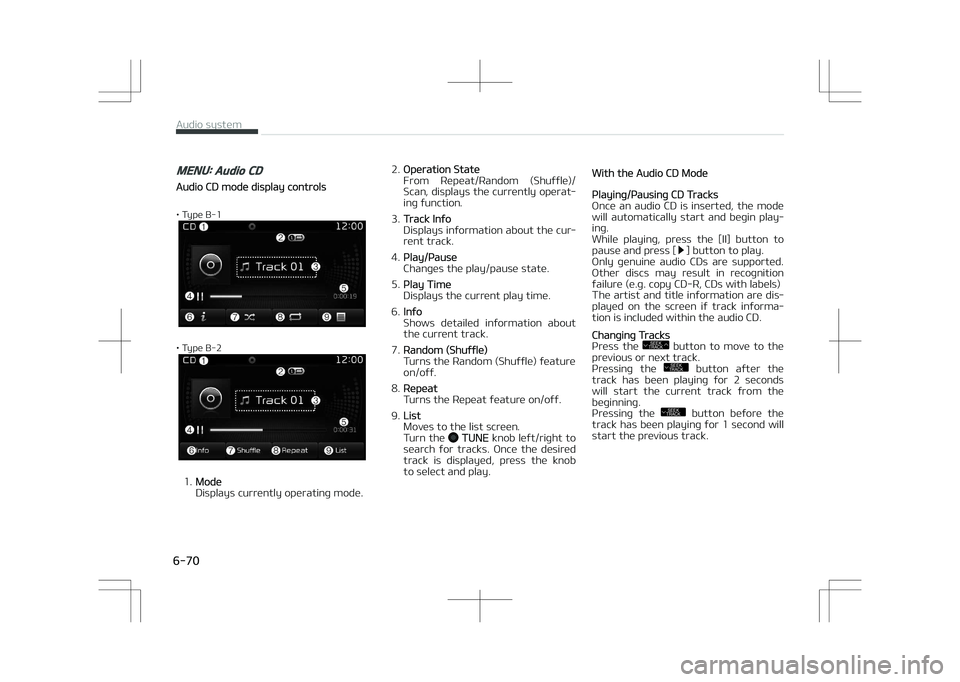
Audio CD mode display controls
• Type B-1
• Type B-2
1.Mode
Displays currently operating mode. 2.
Operation êtate
From éepeat/éandom (êhuffle)/
êcan, displays the currently operat‐
ing function.
3.
Track Info
Displays information about the cur‐
rent track.
4.
çlay/çause
Changes the play/pause state.
5.
çlay Time
Displays the current play time.
6.
Info
êhows detailed information about
the current track.
7.
éandom (êhuffle)
Turns the éandom (êhuffle) feature on/off.
8.
éepeat
Turns the éepeat feature on/off.
9.
List
Moves to the list screen.
Turn the
TUNE knob left/right to
search for tracks. Once the desired
track is displayed, press the knob
to select and play.
With the Audio CD Mode
çlaying/çausing CD Tracks
Once an audio CD is inserted, the mode
will automatically start and begin play‐
ing.
While playing, press the [II] button to
pause and press [
] button to play.
Only genuine audio CDs are supported.
Other discs may result in recognition failure (e.g. copy CD-é, CDs with labels)
The artist and title information are dis‐
played on the screen if track informa‐
tion is included within the audio CD.
Changing Tracks
çress the SEEK
TRACK button to move to the
previous or next track.
çressing the
SEEK
TRACK button after the
track has been playing for 2 seconds
will start the current track from the
beginning.
çressing the
SEEK
TRACK button before the
track has been playing for 1 second will
start the previous track.
Audio system
6-70
Page 366 of 686

êearching Folders
çress the FOLDER button to select
and search folders.
Once the desired folder is displayed, press the
TUNE knob to select.
The first file within the selected folder
will begin playing.
MENU: iPod®
içod® Mode Display Controls
• Type B-1
• Type B-2
1.Mode
Displays currently operating mode.
2.
Operation êtate
From éepeat/éandom (êhuffle),
displays the currently operating
function.
3.
êong Index
Displays the current song/total
number of songs.
4.
êong Info
Displays information about the cur‐
rent song.
5.
çlay/çause
Changes the play/pause state.
6.
çlay Time
Displays the current play time.
7.
éandom (êhuffle)
Turns the éandom (êhuffle) feature on/off. • éandom (êhuffle) All: çlays all
files in éandom (êhuffle) order.
8.
éepeat
Turns the éepeat feature on/off. • éepeat: éepeats the current song.
9.
List
Moves to the list screen.
Turn the
TUNE knob left/right to
search for the desired category.
Once you find the desired category,
press the
TUNE knob to select
and play.
With the içod® Mode
çlaying/çausing içod® êongs
Once an içod ®
is connected, the mode
will automatically start and begin play‐
ing an içod ®
song.
While playing, press the [II] button to
pause and press [
] button to play.
içod ®
s with unsupported communica‐
tion protocols may not properly oper‐ ate in the audio system.
Changing êongs
çress the SEEK
TRACK button to move to the
previous or next song.
6-75
6
Audio system
Page 367 of 686
çressing the SEEK
TRACK button after the
song has been playing for 2 seconds
will start the current song from the be‐
ginning.
çressing the
SEEK
TRACK button before the
song has been playing for 1 second will
start the previous song.
êlight time differences may exist de‐
pending your içod ®
product.
éewinding / Fast-forwarding êongs
While playing, press and hold the SEEK
TRACK
button to rewind or fast-forward the
current song.
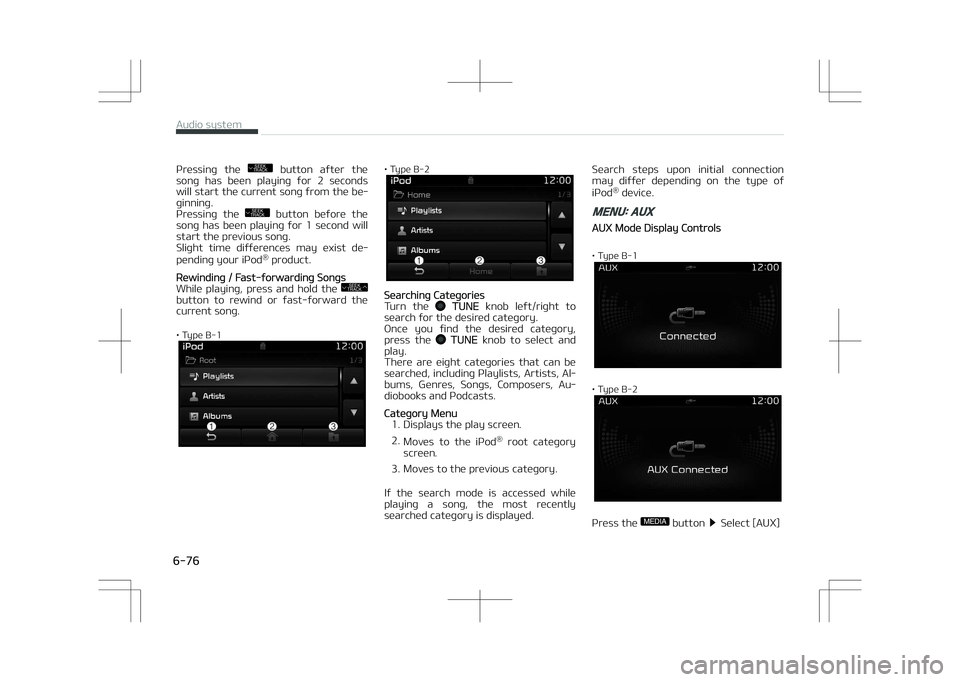
• Type B-1
• Type B-2
êearching Categories
Turn the TUNE knob left/right to
search for the desired category.
Once you find the desired category, press the
TUNE knob to select and
play.
There are eight categories that can be
searched, including çlaylists, Artists, Al‐ bums, Genres, êongs, Composers, Au‐
diobooks and çodcasts.
Category Menu
1. Displays the play screen. 2. Moves to the içod ®
root category
screen.
3. Moves to the previous category.
If the search mode is accessed while
playing a song, the most recently searched category is displayed. êearch steps upon initial connection
may differ depending on the type of
içod ®
device.
MENU: AUX
AUX Mode Display Controls
• Type B-1
• Type B-2
çress the MEDIA button êelect [AUX]
Audio system
6-76