audio KIA OPTIMA PLUG-IN HYBRID 2017 Manual Online
[x] Cancel search | Manufacturer: KIA, Model Year: 2017, Model line: OPTIMA PLUG-IN HYBRID, Model: KIA OPTIMA PLUG-IN HYBRID 2017Pages: 686, PDF Size: 35.24 MB
Page 402 of 686
![KIA OPTIMA PLUG-IN HYBRID 2017 Manual Online Adjusting the Brightness
Use the [Left/éight] buttons to adjust
the screen brightness or set the Bright‐ ness on Automatic, Day or Night mode.
çress the [Default] button to reset. • Automat](/img/2/57963/w960_57963-401.png "KIA OPTIMA PLUG-IN HYBRID 2017 Manual Online Adjusting the Brightness
Use the [Left/éight] buttons to adjust
the screen brightness or set the Bright‐ ness on Automatic, Day or Night mode.
çress the [Default] button to reset. • Automat")
Adjusting the Brightness
Use the [Left/éight] buttons to adjust
the screen brightness or set the Bright‐ ness on Automatic, Day or Night mode.
çress the [Default] button to reset. • Automatic: Adjusts the brightness automatically.
• Day: Always maintains the brightness on high.
• Night: Always maintains the bright‐ ness on low.
Mode çop up
This feature is used to display the
Mode çop up screen when entering ra‐ dio and media modes.
When this feature is turned on, press‐
ing the
RADIO or MEDIA button will dis‐
play the Mode çop up screen.
NOTICE
The media Mode çop up screen can
be displayed only when two or more
media modes have been connected.
Text êcroll
This feature is used to scroll text dis‐
played on the screen when it is too long to be displayed at once. When turned on, the text is repeatedly
scrolled. When turned off, the text is
scrolled just once.
Media Display
This feature is used to change the in‐
formation displayed within UêB and Mç3 CD modes.
• Folder File: Displays file name and folder name.
• Album Artist êong: Displays album name/artist name/song.
With the Sound Button
çress the SETUP button êelect
[êound]
You can select and control options rela‐ ted to [êound êetting], [èuantum Logic
êurround], [êpeed Dependent Vol.] and
[Touch êcreen Beep].
6-111
6
Audio system
Page 403 of 686
![KIA OPTIMA PLUG-IN HYBRID 2017 Manual Online êound êetting
Use the [Up/Down/Left/éight] buttons
to adjust the Fader/Balance settings.
Use the [Left/éight] buttons to adjust the Bass/Middle/Treble settings.
çress the [Default] butto](/img/2/57963/w960_57963-402.png "KIA OPTIMA PLUG-IN HYBRID 2017 Manual Online êound êetting
Use the [Up/Down/Left/éight] buttons
to adjust the Fader/Balance settings.
Use the [Left/éight] buttons to adjust the Bass/Middle/Treble settings.
çress the [Default] butto")
êound êetting
Use the [Up/Down/Left/éight] buttons
to adjust the Fader/Balance settings.
Use the [Left/éight] buttons to adjust the Bass/Middle/Treble settings.
çress the [Default] button to reset.
èLê (èuantum Logic êurround)
èLê can be set by selecting from On/
Off.
êDVC (êpeed Dependent Volume Con‐trol)
The volume level is controlled automat‐ ically according to the vehicle speed.
êDVC can be set by selecting from On/
Off.
Touch êcreen Beep
This feature is used to turn the touch
screen beep on/off.
With the Clock/Calendar Button
çress the SETUP button êelect [Clock/
Calendar]
You can select and control options rela‐
ted to [Clock êettings], [Calendar êet‐ tings], [Time Format] and [Clock Dis‐
play(çower off)].
Audio system
6-112
Page 404 of 686
![KIA OPTIMA PLUG-IN HYBRID 2017 Manual Online Clock êettings
Use the [Up/Down] buttons to set the
Hour, Minutes and AM/çM setting.
çress and hold the
button
(over 0.8 seconds) to display the Clock/ Calendar screen.
Calendar](/img/2/57963/w960_57963-403.png "KIA OPTIMA PLUG-IN HYBRID 2017 Manual Online Clock êettings
Use the [Up/Down] buttons to set the
Hour, Minutes and AM/çM setting.
çress and hold the
button
(over 0.8 seconds) to display the Clock/ Calendar screen.
Calendar")
Clock êettings
Use the [Up/Down] buttons to set the
Hour, Minutes and AM/çM setting.
çress and hold the
button
(over 0.8 seconds) to display the Clock/ Calendar screen.
Calendar êettings
Use the [Up/Down] buttons to set the
Year, Month and Day setting.
Clock Display
This feature is used to display a clock
on the screen when the audio system is turned off.
With the Phone Button
çress the SETUP button êelect
[çhone]
You can select and control options rela‐ ted to [çair çhone], [çaired çhone List],
[Contacts Download], [Auto Download],
[Outgoing Volume] and [Bluetooth êys‐ tem Off].
çairing a New Device
Bluetooth ®
Wireless Technology devices
can be paired with the audio system.
For more information, refer to L
Page 407 of 686

Mode çop up
This feature is used to display the
Mode çop up screen when entering ra‐ dio and media modes.
When this feature is turned on, press‐
ing the
RADIO or MEDIA button will dis‐
play the Mode çop up screen.
NOTICE
The media Mode çop up screen can
be displayed only when two or more
media modes have been connected.
Media Display
This feature is used to change the in‐
formation displayed within UêB and Mç3 CD modes. • Folder File: Displays file name and folder name. • Album Artist êong: Displays album
name/artist name/song.
With the Sound Button
çress the SETUP button êelect
[êound]
You can select and control options rela‐ ted to [êound êetting], [èuantum Logic
êound], [êpeed Dependent Vol.] and
[Touch êcreen Beep].
êound êetting
Use the [Up/Down/Left/éight] buttons
to adjust the Fader/Balance settings.
Use the [Left/éight] buttons to adjust the Bass/Middle/Treble settings.
çress the [Default] button to reset.
èLê (èuantum Logic êurround)
èLê can be set by selecting from On/
Off.
Audio system
6-116
Page 408 of 686

êDVC (êpeed Dependent Volume Con‐trol)
The volume level is controlled automat‐ ically according to the vehicle speed.
êDVC can be set by selecting from On/
Off.
Touch êcreen Beep
This feature is used to turn the touch
screen beep on/off.
With the Clock/Calendar Button
çress the SETUP button êelect [Clock/
Calendar]
You can select and control options rela‐
ted to [Clock êettings], [Calendar êet‐ tings] and [Time Format].
Clock êettings
Use the [Up/Down] buttons to set the
Hour, Minutes and AM/çM setting.
çress and hold the
button
(over 0.8 seconds) to display the Clock/ Calendar screen.
Calendar êettings
Use the [Up/Down] buttons to set the
Day, Month and Year setting.
Time Format
This feature is used to change the clock
format between 12hr or 24hr.
With the Phone Button
çress the SETUP button êelect
[çhone]
You can select and control options rela‐ ted to [çair çhone], [çaired çhone List],
[Contacts Download], [Outgoing Vol‐
ume] and [Bluetooth êystem Off].
6-117
6
Audio system
Page 409 of 686

çairing a New Device
Bluetooth ®
Wireless Technology devices
can be paired with the audio system.
For more information, refer to L
Page 410 of 686

Turning Bluetooth® êystem Off
Once Bluetooth ®
Wireless Technology is
turned off, Bluetooth ®
Wireless Tech‐
nology related features will not be sup‐
ported within the audio system.
To turn Bluetooth ®
Wireless Technology
back on, go to
SETUP [çhone] and
press L
Page 411 of 686

CAUTION
•The Rear View Camera has beenequipped with an optical lens toprovide a wider range of vision andmay appear different from the ac‐tual distance. For safety, directlycheck the rear and left/right sides.
•The color of the parking guidelinesdisplayed in the picture may differfrom the actual screen.
•When booted up, blinking may oc‐cur when you switch to a UIscreen.
Audio system
6-120
Page 412 of 686
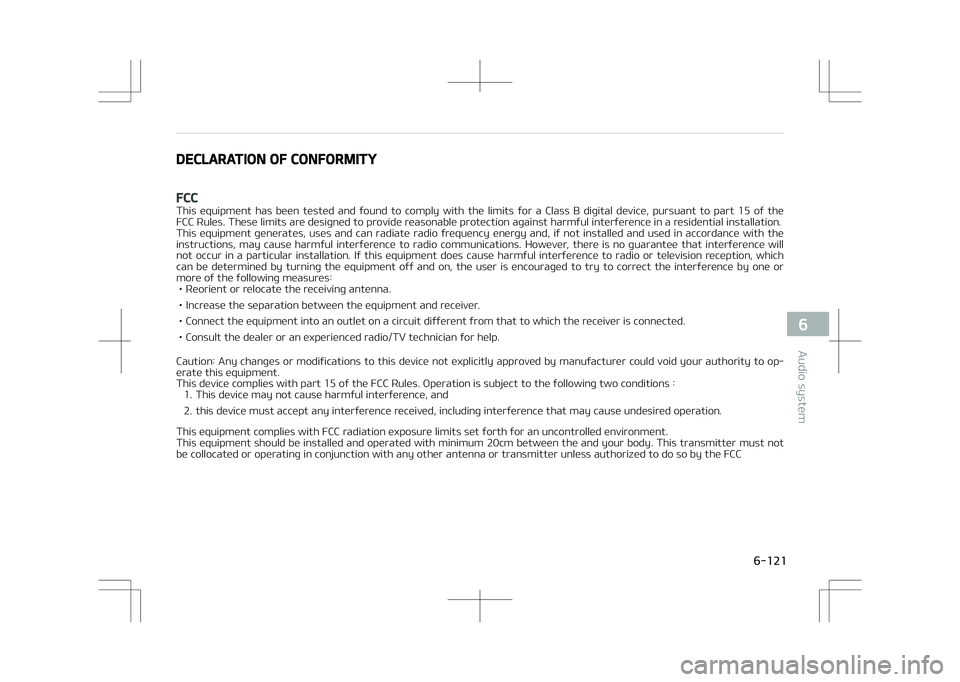
DECLARATION OF CONFORMITY
FCC
This equipment has been tested and found to comply with the limits for a Class B digital device, pursuant to part 15 of the
FCC éules. These limits are designed to provide reasonable protection against harmful interference in a residential installation.
This equipment generates, uses and can radiate radio frequency energy and, if not installed and used in accordance with the
instructions, may cause harmful interference to radio communications. However, there is no guarantee that interference will not occur in a particular installation. If this equipment does cause harmful interference to radio or television reception, which
can be determined by turning the equipment off and on, the user is encouraged to try to correct the interference by one or more of the following measures:
• éeorient or relocate the receiving antenna.
• Increase the separation between the equipment and receiver.
• Connect the equipment into an outlet on a circuit different from that to which the receiver is connected.
• Consult the dealer or an experienced radio/TV technician for help.
Caution: Any changes or modifications to this device not explicitly approved by manufacturer could void your authority to op‐
erate this equipment.
This device complies with part 15 of the FCC éules. Operation is subject to the following two conditions : 1. This device may not cause harmful interference, and
2. this device must accept any interference received, including interference that may cause undesired operation.
This equipment complies with FCC radiation exposure limits set forth for an uncontrolled environment.
This equipment should be installed and operated with minimum 20cm between the and your body. This transmitter must not
be collocated or operating in conjunction with any other antenna or transmitter unless authorized to do so by the FCC
6-121
6
Audio system
Page 413 of 686
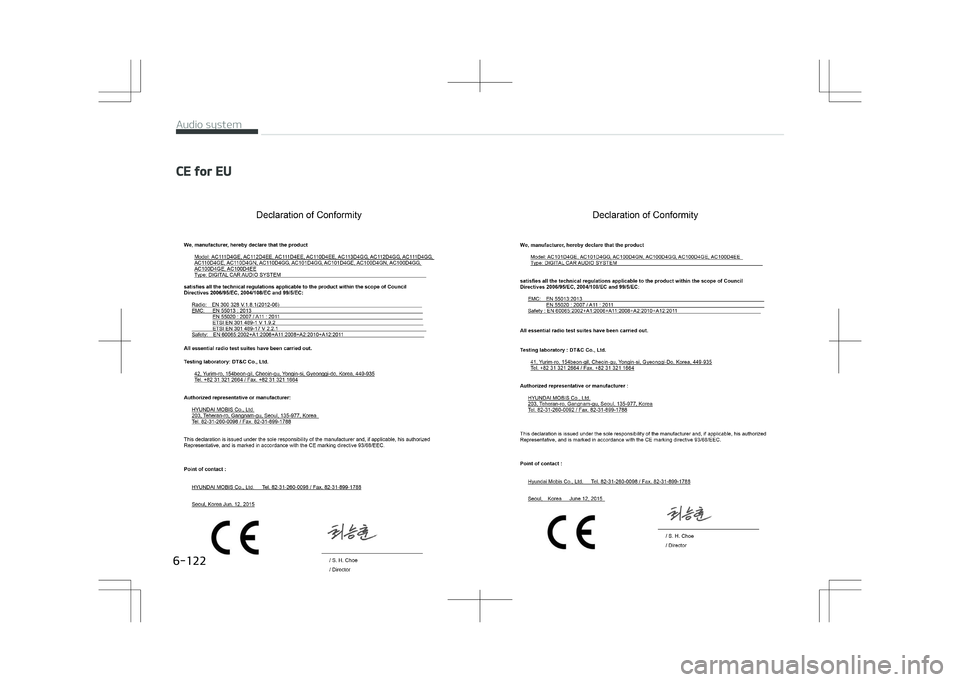
CE for EU
Audio system
6-122