call KIA PICANTO 2012 Owners Manual
[x] Cancel search | Manufacturer: KIA, Model Year: 2012, Model line: PICANTO, Model: KIA PICANTO 2012Pages: 840, PDF Size: 41.16 MB
Page 623 of 840
Features of your vehicle
124
4
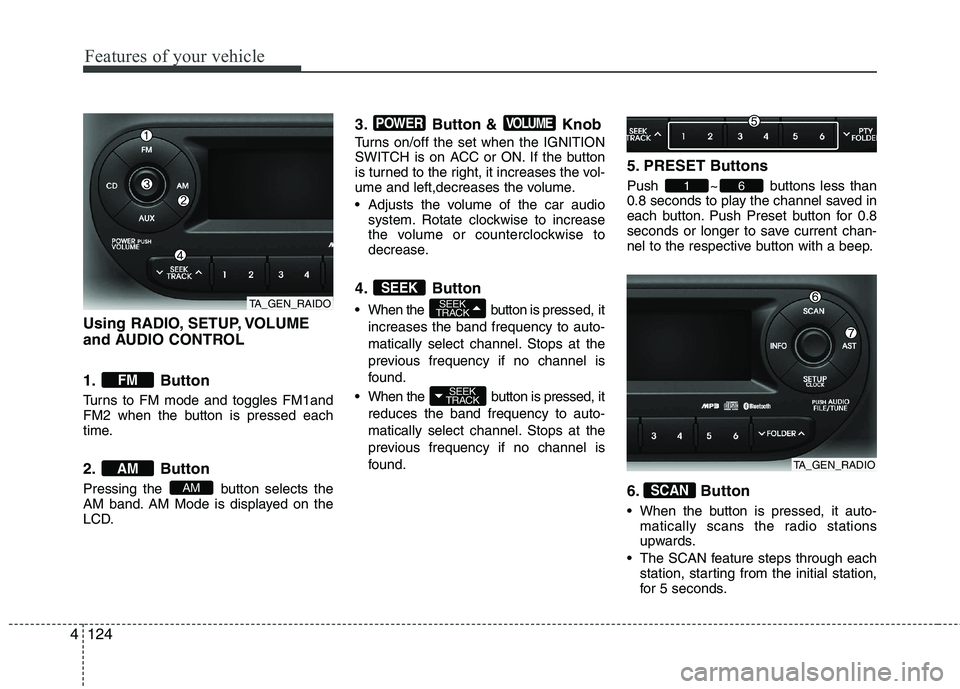
Using RADIO, SETUP, VOLUME
and AUDIO CONTROL
1. Button
Turns to FM mode and toggles FM1and
FM2 when the button is pressed each
time.
2. Button
Pressing the button selects the
AM band. AM Mode is displayed on the
LCD. 3. Button & Knob
Turns on/off the set when the IGNITION
SWITCH is on ACC or ON. If the button
is turned to the right, it increases the vol-
ume and left,decreases the volume.
Adjusts the volume of the car audio
system. Rotate clockwise to increase
the volume or counterclockwise to
decrease.
4. Button
When the button is pre ssed, it
increases the band frequency to auto-
matically select channel. Stops at the
previous frequency if no channel is
found.
When the button is pressed, it reduces the band frequency to auto-
matically select channel. Stops at the
previous frequency if no channel is
found. 5. PRESET Buttons
Push ~ buttons less than
0.8 seconds to play the channel saved in
each button. Push Preset button for 0.8
seconds or longer to save current chan-
nel to the respective button with a beep.
6. Button
When the button is pressed, it auto-
matically scans the radio stations
upwards.
The SCAN feature steps through each station, starting from the initial station,
for 5 seconds.
SCAN
61
SEEK
TRACK
SEEK
TRACKSEEK
VOLUMEPOWER
AM
AM
FM
TA_GEN_RAIDO
TA_GEN_RADIO
Page 624 of 840
4125
Features of your vehicle
Press the button again to stopthe scan feature and to listen to the currently selected channel.
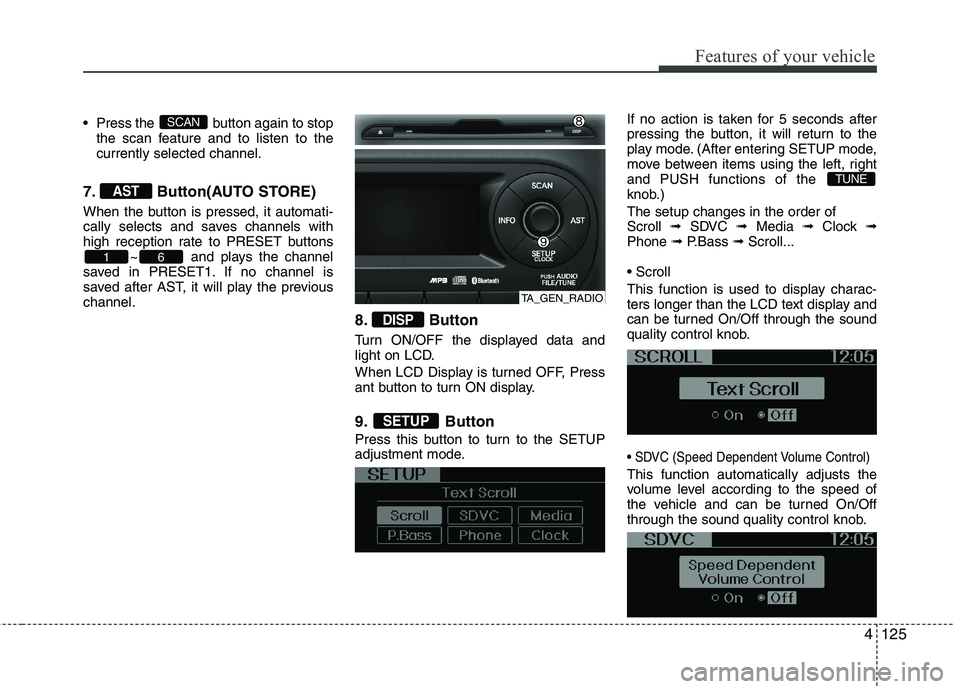
7. Button(AUTO STORE)
When the button is pressed, it automati-
cally selects and saves channels with
high reception rate to PRESET buttons ~ and plays the channel
saved in PRESET1. If no channel is
saved after AST, it will play the previouschannel.
8. Button
Turn ON/OFF the displayed data and
light on LCD.
When LCD Display is turned OFF, Press
ant button to turn ON display.
9. Button
Press this button to turn to the SETUP
adjustment mode.If no action is taken for 5 seconds after
pressing the button, it will return to the
play mode. (After entering SETUP mode,
move between items using the left, rightand PUSH functions of the
knob.) The setup changes in the order of Scroll
➟ SDVC ➟ Media ➟ Clock ➟
Phone ➟ P.Bass ➟ Scroll...
This function is used to display charac-
ters longer than the LCD text display and
can be turned On/Off through the sound
quality control knob.
This function automatically adjusts the
volume level according to the speed of
the vehicle and can be turned On/Off
through the sound quality control knob.
TUNE
SETUP
DISP
61
AST
SCAN
TA_GEN_RADIO
Page 627 of 840
Features of your vehicle
128
4
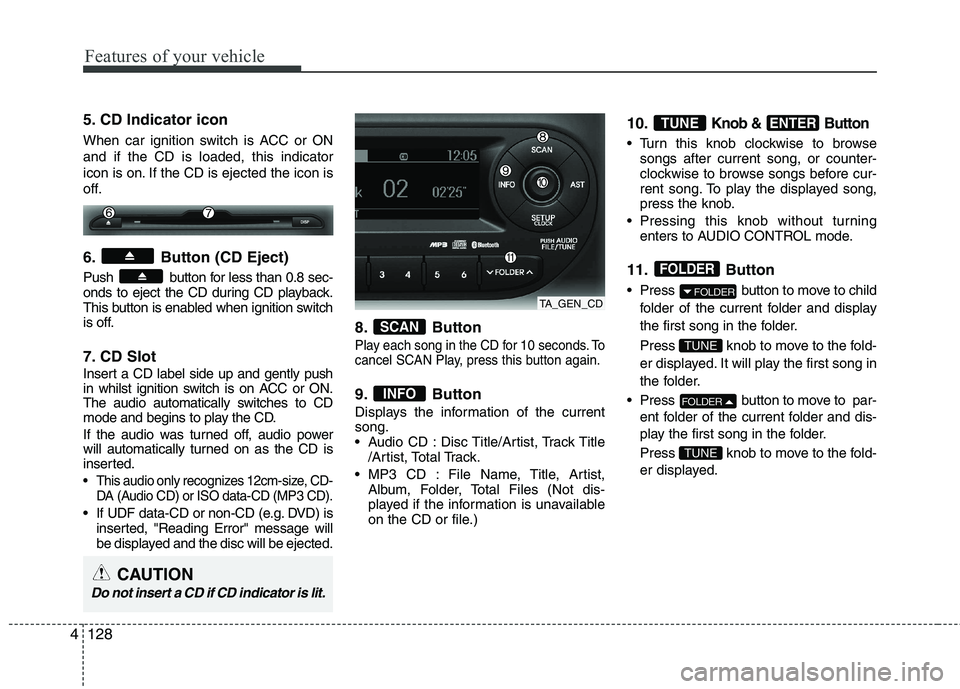
5. CD Indicator icon
When car ignition switch is ACC or ON and if the CD is loaded, this indicator
icon is on. If the CD is ejected the icon is
off.
6. Button (CD Eject)
Push button for less than 0.8 sec-
onds to eject the CD during CD playback.
This button is enabled when ignition switch
is off.
7. CD Slot
Insert a CD label side up and gently push
in whilst ignition switch is on ACC or ON.
The audio automatically switches to CD
mode and begins to play the CD.
If the audio was turned off, audio power
will automatically turned on as the CD is
inserted.
This audio only recognizes 12cm-size, CD-
DA (Audio CD) or ISO data-CD (MP3 CD).
If UDF data-CD or non-CD (e.g. DVD) isinserted, "Reading Error" message will
be displayed and the disc will be ejected. 8. Button
Play each song in the CD for 10 seconds. To
cancel SCAN Play, press this button again.
9. Button
Displays the information of the current song.
Audio CD : Disc Title/Artist, Track Title
/Artist, Total Track.
MP3 CD : File Name, Title, Artist, Album, Folder, Total Files (Not dis-
played if the information is unavailable
on the CD or file.) 10.
Knob & Button
Turn this knob clockwise to browse
songs after current song, or counter-
clockwise to browse songs before cur-
rent song. To play the displayed song,
press the knob.
Pressing this knob without turning enters to AUDIO CONTROL mode.
11. Button
Press button to move to child folder of the current folder and display
the first song in the folder.
Press knob to move to the fold-
er displayed. It will play the first song in
the folder.
Press button to move to par- ent folder of the current folder and dis-
play the first song in the folder.
Press knob to move to the fold-
er displayed.
TUNE
FOLDER
TUNE
FOLDER
FOLDER
ENTERTUNE
INFO
SCAN
TA_GEN_CD
CAUTION
Do not insert a CD if CD indicator is lit.
Page 636 of 840
4137
Features of your vehicle
CAUTION IN USING
BLUETOOTH®
MOBILE
PHONE
Do not use a mobile phone or per- form Bluetooth®settings (e.g.
pairing a phone) whilst driving.
Some Bluetooth
®-enabled phones
may not be recognized by the system or fully compatible withthe system.
Before using Bluetooth
®related
features of the audio system, refer your phone’s User’s Manual for phone-side Bluetooth
®opera-
tions.
The phone must be paired to the audio system to use Bluetooth®
related features.
You will not be able to use the
hands-free feature when yourphone (in the car) is outside of
the mobile service area (e.g. in atunnel, in a underground, in amountainous area, etc.).
If the mobile phone signal is poor or the vehicles interior noise is
too loud, it may be difficult to hearthe other person’s voice during a call.
(Continued)
(continued) Do not place the phone near or inside metallic objects, otherwise
communications with Bluetooth
®
system or mobile service stationscan be disturbed.
While a phone is connected through Bluetooth
®your phone
may discharge quicker than usual for additional Bluetooth
®-related
operations.
Some mobile phones or other devices may cause interferencenoise or malfunction to audio
system. In this case, store thedevice in a different location mayresolve the situation.
Please save your phone name in English, or your phone name may
not be displayed correctly.
Page 637 of 840
Features of your vehicle
138
4
BLUETOOTH ®
PHONE OPERATION
(if equipped)
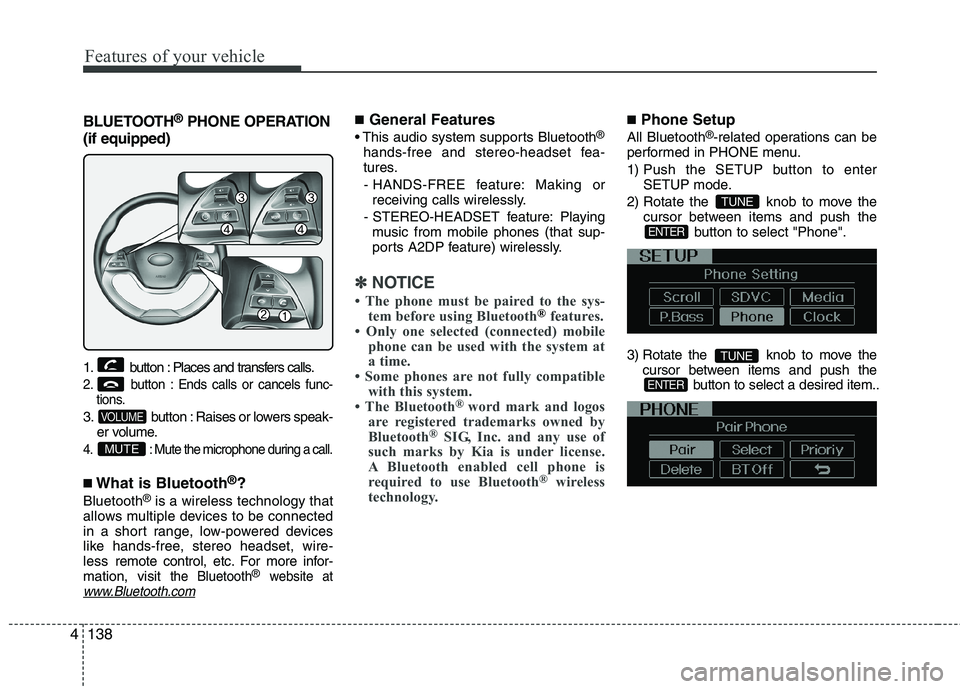
1. button : Places and transfers calls.
2. button : Ends calls or cancels func- tions.
3. button : Raises or lowers speak-er volume.
4. : Mute the microphone during a call.
■What is Bluetooth ®
?
Bluetooth ®
is a wireless technology that
allows multiple devices to be connected
in a short range, low-powered devices
like hands-free, stereo headset, wire-less remote control, etc. For more infor-
mation, visit
the Bluetooth®website atwww.Bluetooth.com
■ General Features
®
hands-free and stereo-headset fea-
tures. - HANDS-FREE feature: Making or receiving calls wirelessly.
- STEREO-HEADSET feature: Playing music from mobile phones (that sup-
ports A2DP feature) wirelessly.
✽✽ NOTICE
The phone must be paired to the sys- tem before using Bluetooth
®features.
Only one selected (connected) mobile phone can be used with the system at
a time.
Some phones are not fully compatible
with this system.
The Bluetooth ®
word mark and logos
are registered trademarks owned by
Bluetooth ®
SIG, Inc. and any use of
such marks by Kia is under license.
A Bluetooth enabled cell phone is
required to use Bluetooth ®
wireless
technology.
■ Phone Setup
All Bluetooth ®
-related operations can be
performed in PHONE menu.
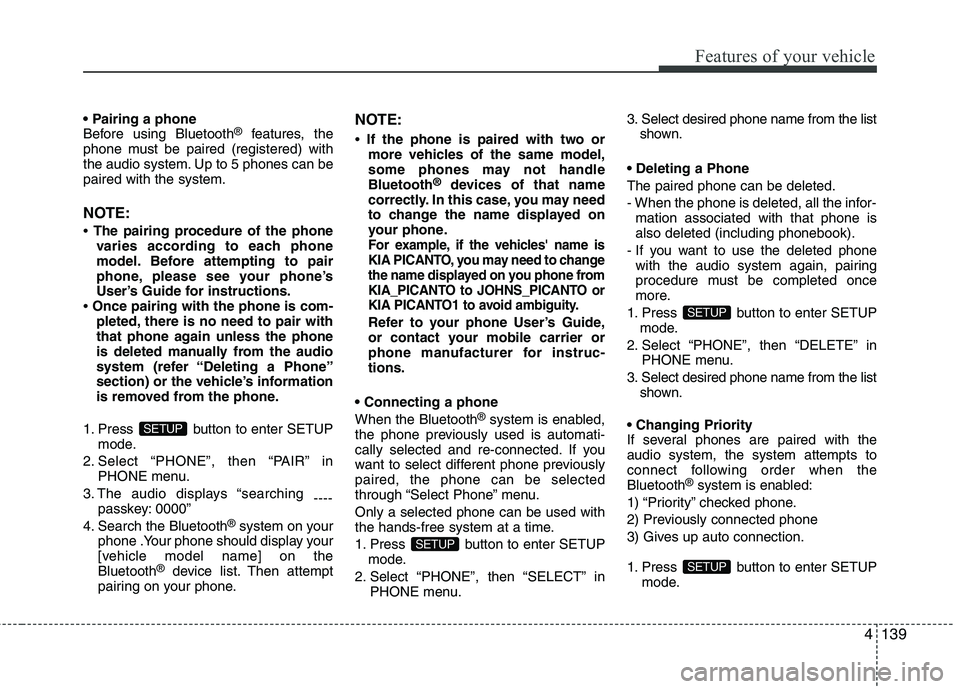
1) Push the SETUP button to enter SETUP mode.
2) Rotate the knob to move the cursor between items and push the
button to select "Phone".
3) Rotate the knob to move the cursor between items and push the button to select a desired item..
ENTER
TUNE
ENTER
TUNE
MUTE
VOLUME
Page 638 of 840
4139
Features of your vehicle
Before using Bluetooth®
features, the
phone must be paired (registered) with
the audio system. Up to 5 phones can bepaired with the system.
NOTE:
The pairing procedure of the phone
varies according to each phone
model. Before attempting to pair
phone, please see your phone’s
User’s Guide for instructions.
Once pairing with the phone is com-
pleted, there is no need to pair with
that phone again unless the phone
is deleted manually from the audio
system (refer “Deleting a Phone”
section) or the vehicle’s information
is removed from the phone.
1. Press button to enter SETUP mode.
2. Select “PHONE”, then “PAIR” in PHONE menu.
3. The audio displays “searching ----
passkey: 0000”
4. Search the Bluetooth ®
system on your
phone .Your phone should display your
[vehicle model name] on theBluetooth ®
device list. Then attempt
pairing on your phone. NOTE:
If the phone is paired with two or
more vehicles of the same model,
some phones may not handleBluetooth ®
devices of that name
correctly. In this case, you may need
to change the name displayed on
your phone.
For example, if the vehicles' name is
KIA PICANTO, you may need to change
the name displayed on you phone from
KIA_PICANTO to JOHNS_PICANTO or
KIA PICANTO1 to avoid ambiguity.
Refer to your phone User’s Guide,
or contact your mobile carrier or
phone manufacturer for instruc-tions.
When the Bluetooth ®
system is enabled,
the phone previously used is automati-
cally selected and re-connected. If you
want to select different phone previouslypaired, the phone can be selected
through “Select Phone” menu. Only a selected phone can be used with
the hands-free system at a time.
1. Press button to enter SETUP mode.
2. Select “PHONE”, then “SELECT” in PHONE menu. 3. Select desired phone name from the list
shown.
The paired phone can be deleted.
- When the phone is deleted, all the infor- mation associated with that phone is also deleted (including phonebook).
- If you want to use the deleted phone with the audio system again, pairing
procedure must be completed once
more.
1. Press button to enter SETUP mode.
2. Select “PHONE”, then “DELETE” in PHONE menu.
3. Select desired phone name from the list shown.
If several phones are paired with theaudio system, the system attempts to
connect following order when theBluetooth ®
system is enabled:
1) “Priority” checked phone.
2) Previously connected phone
3) Gives up auto connection.
1. Press button to enter SETUP mode.
SETUP
SETUP
SETUP
SETUP
Page 639 of 840
Features of your vehicle
140
4
2. Select “PHONE”, then “PRIORITY” in
PHONE menu.
3. Select desired phone name from the list shown.
®
Volume
Bluetooth ®
system volume can be adjust-
ed separately from main volume of the audio system.
1.Press button to enter SETUP
mode.
2. Select “PHONE”, then “BT VOL” in PHONE menu.
3. Adjust volume to desired level by turn-
ing the TUNE knob, then press the
knob to confirm.
Bluetooth ®
ON/OFF
Bluetooth ®
system can be enabled (ON)
or disabled (OFF) by this menu.
- If Bluetooth ®
is disabled, all the com-
mands related to Bluetooth ®
system
prompts whether you wish to turn Bluetooth ®
ON or not.
1. Press button to enter SETUP mode.
2. Select “PHONE”, then “BT OFF” in PHONE menu. ■
Receiving a Phone Call
When receiving a phone call, a ringtone
is audible from speakers and the audio
system changes into telephone mode.
When receiving a phone call, “Incoming”
message and incoming phone number
(if available) are displayed on the audio.
- Press bu t t o n on the steering wheel.
- Press button on the steering wheel.
- Use VOLUME buttons on the steering wheel.
Call):
- Press and hold button on the steering wheel until the audio system
transfers a call to the phone.
■ Talking on the Phone
When talking on the phone, “Active Calls”
message and the other party’s phone
number (if available) are displayed on the
audio.
(if equipped)
- Press button on the audio.
- Press button on the steering wheel.
■ Making a Phone Call
A Call Back can be made by pressing button on the steering wheel.
- This is the same function as using the button solely on the mobile phone.
NOTE: Some phone models require pressing button twice to make a call.
✽✽NOTICE
In the following situations, you or the
other party may have difficulty hearing
each other:
1. Speaking at the same time, your voice may not reach each other parties. (This
is not a malfunction.) Speak alternate-
ly with the other party on the phone.
2. Keep the Bluetooth
®volume to a low
level. High-level volume may result in
distortion and echo.
3. When driving on a rough road.
4. When driving at high speeds.
5. When the window is open.
6. When the air conditioning vents are facing the microphone.
7. When the sound of the air condition- ing fan is loud.
MUTE
SETUP
SETUP
Page 642 of 840
4143
Features of your vehicle
Using RADIO, SETUP, VOLUME
and AUDIO CONTROL
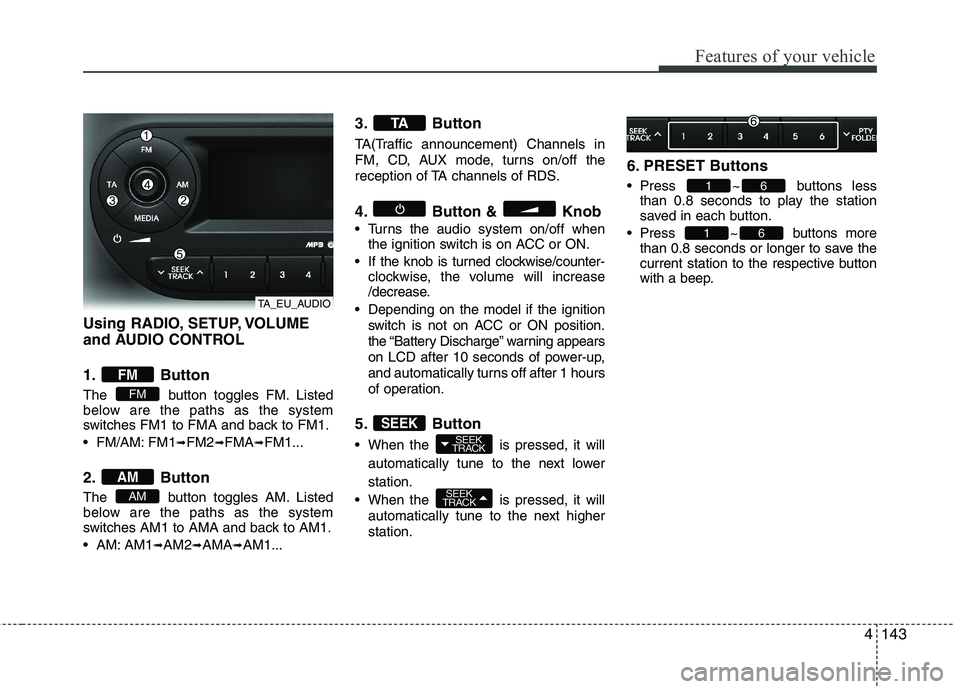
1. Button
The button toggles FM. Listed
below are the paths as the system
switches FM1 to FMA and back to FM1.
FM/AM: FM1➟FM2 ➟FMA ➟FM1...
2. Button
The button toggles AM. Listed
below are the paths as the system
switches AM1 to AMA and back to AM1.
AM: AM1 ➟AM2 ➟AMA ➟AM1... 3. Button
TA(Traffic announcement) Channels in
FM, CD, AUX mode, turns on/off the
reception of TA channels of RDS.
4. Button & Knob
Turns the audio system on/off when
the ignition switch is on ACC or ON.
If the knob is turned clockwise/counter- clockwise, the volume will increase
/decrease.
Depending on the model if the ignition switch is not on ACC or ON position.
the “Battery Discharge” warning appears
on LCD after 10 seconds of power-up,
and automatically turns off after 1 hours
of operation.
5. Button
When the is pressed, it will automatically tune to the next lower station.
When the is pressed, it will automatically tune to the next higher station. 6. PRESET Buttons
Press ~ buttons
less
than 0.8 seconds to play the station
saved in each button.
Press ~ buttons more than 0.8 seconds or longer to save the
current station to the respective button
with a beep.
61
61
SEEK
TRACK
SEEK
TRACKSEEK
TA
AM
AM
FM
FM
TA_EU_AUDIO
Page 643 of 840
Features of your vehicle
144
4
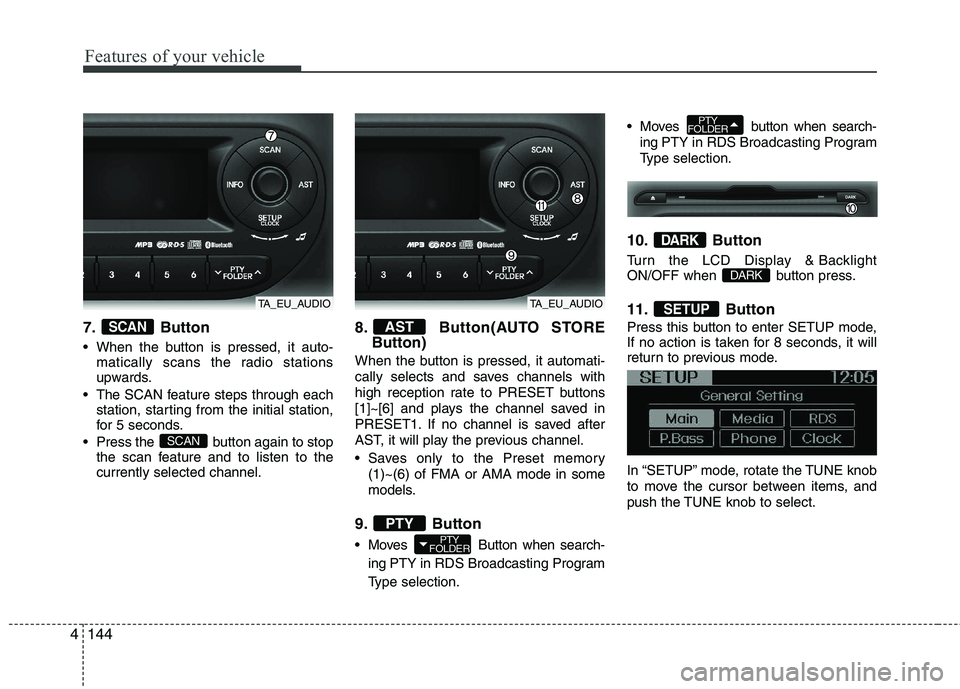
7. Button
When the button is pressed, it auto-
matically scans the radio stations
upwards.
The SCAN feature steps through each station, starting from the initial station,
for 5 seconds.
Press the button again to stop the scan feature and to listen to thecurrently selected channel. 8. Button(AUTO STORE
Button)
When the button is pressed, it automati-
cally selects and saves channels with
high reception rate to PRESET buttons
[1]~[6] and plays the channel saved in
PRESET1. If no channel is saved after
AST, it will play the previous channel.
Saves only to the Preset memory (1)~(6) of FMA or AMA mode in some
models.
9. Button
Moves Button when search- ing PTY in RDS Broadcasting Program
Type selection. Moves button when search-
ing PTY in RDS Broadcasting Program
Type selection.
10. Button
Turn the LCD Display & Backlight
ON/OFF when button press.
11. Button
Press this button to enter SETUP mode,
If no action is taken for 8 seconds, it will
return to previous mode.
In “SETUP” mode, rotate the TUNE knob
to move the cursor between items, and
push the TUNE knob to select.
SETUP
DARK
DARK
PTY
FOLDER
PTY
FOLDERPTY
AST
SCAN
SCAN
TA_EU_AUDIOTA_EU_AUDIO
Page 644 of 840
4145
Features of your vehicle
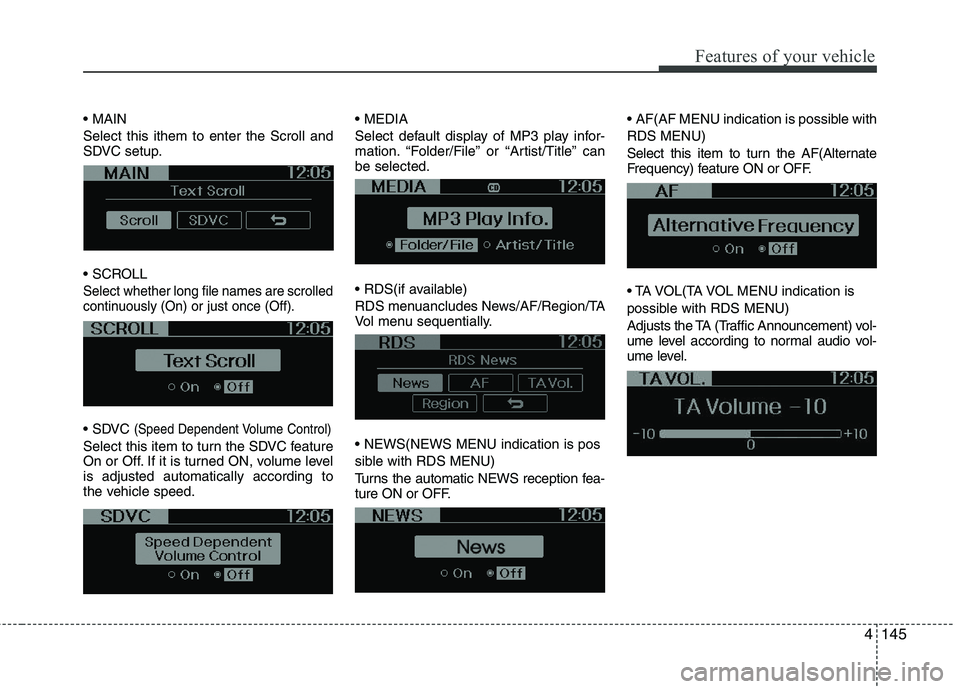
Select this ithem to enter the Scroll and
SDVC setup.
Select whether long file names are scrolled
continuously (On) or just once (Off).
(Speed Dependent Volume Control)
Select this item to turn the SDVC feature
On or Off. If it is turned ON, volume levelis adjusted automatically according to
the vehicle speed.
Select default display of MP3 play infor-
mation. “Folder/File” or “Artist/Title” canbe selected.
RDS menuancludes News/AF/Region/TA
Vol menu sequentially.
sible with RDS MENU)
Turns the automatic NEWS reception fea-
ture ON or OFF. AF(AF MENU indication is possible with RDS MENU)
Select this item to turn the AF(Alternate
Frequency) feature ON or OFF.
MENU indication is
possible with RDS MENU)
Adjusts the TA (Traffic Announcement) vol-
ume level according to normal audio vol-
ume level.