reset KIA Rio 2014 3.G User Guide
[x] Cancel search | Manufacturer: KIA, Model Year: 2014, Model line: Rio, Model: KIA Rio 2014 3.GPages: 397, PDF Size: 7.56 MB
Page 156 of 397
491
Features of your vehicle
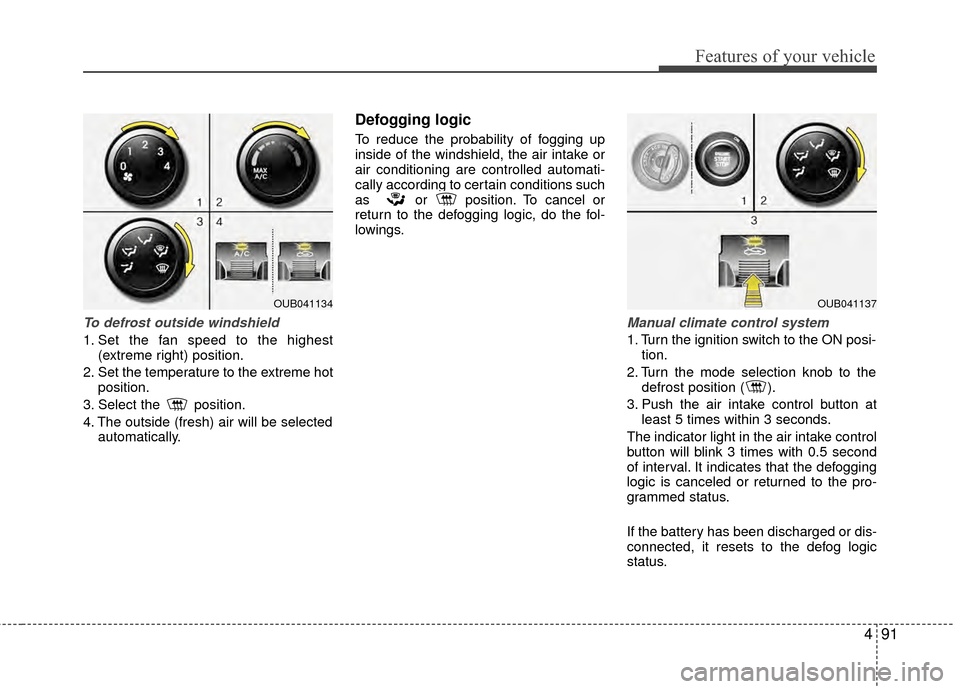
To defrost outside windshield
1. Set the fan speed to the highest(extreme right) position.
2. Set the temperature to the extreme hot position.
3. Select the position.
4. The outside (fresh) air will be selected automatically.
Defogging logic
To reduce the probability of fogging up
inside of the windshield, the air intake or
air conditioning are controlled automati-
cally according to certain conditions such
as or position. To cancel or
return to the defogging logic, do the fol-
lowings.
Manual climate control system
1. Turn the ignition switch to the ON posi-tion.
2. Turn the mode selection knob to the defrost position ( ).
3. Push the air intake control button at least 5 times within 3 seconds.
The indicator light in the air intake control
button will blink 3 times with 0.5 second
of interval. It indicates that the defogging
logic is canceled or returned to the pro-
grammed status.
If the battery has been discharged or dis-
connected, it resets to the defog logic
status.
OUB041134OUB041137
Page 164 of 397
499
Features of your vehicle
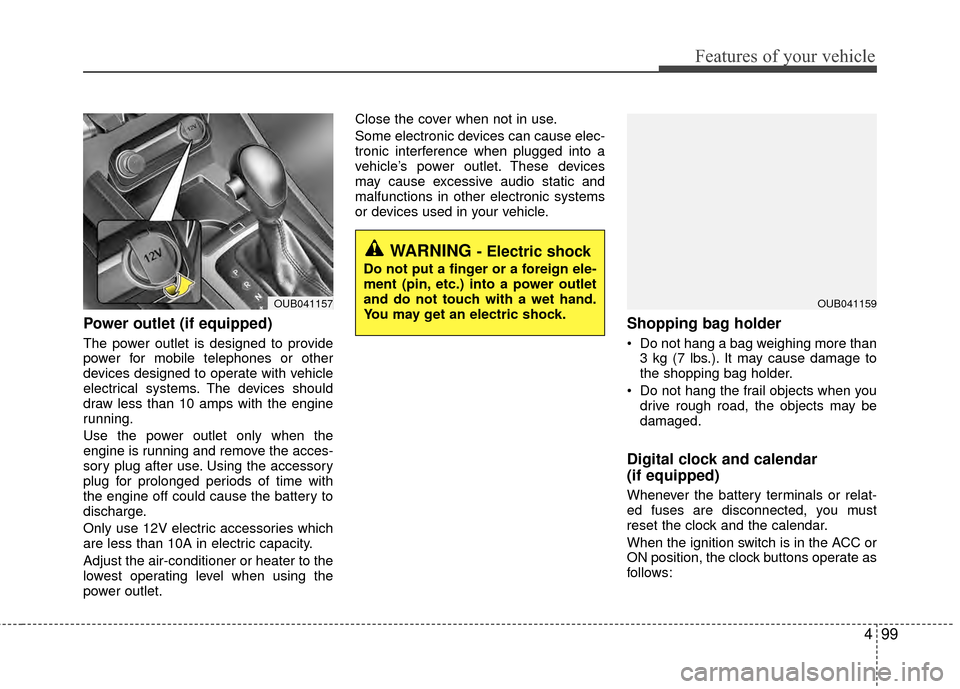
Power outlet (if equipped)
The power outlet is designed to provide
power for mobile telephones or other
devices designed to operate with vehicle
electrical systems. The devices should
draw less than 10 amps with the engine
running.
Use the power outlet only when the
engine is running and remove the acces-
sory plug after use. Using the accessory
plug for prolonged periods of time with
the engine off could cause the battery to
discharge.
Only use 12V electric accessories which
are less than 10A in electric capacity.
Adjust the air-conditioner or heater to the
lowest operating level when using the
power outlet.Close the cover when not in use.
Some electronic devices can cause elec-
tronic interference when plugged into a
vehicle’s power outlet. These devices
may cause excessive audio static and
malfunctions in other electronic systems
or devices used in your vehicle.
Shopping bag holder
Do not hang a bag weighing more than
3 kg (7 lbs.). It may cause damage to
the shopping bag holder.
Do not hang the frail objects when you drive rough road, the objects may be
damaged.
Digital clock and calendar
(if equipped)
Whenever the battery terminals or relat-
ed fuses are disconnected, you must
reset the clock and the calendar.
When the ignition switch is in the ACC or
ON position, the clock buttons operate as
follows:
WARNING - Electric shock
Do not put a finger or a foreign ele-
ment (pin, etc.) into a power outlet
and do not touch with a wet hand.
You may get an electric shock.
OUB041159OUB041157
Page 168 of 397
4103
Features of your vehicle
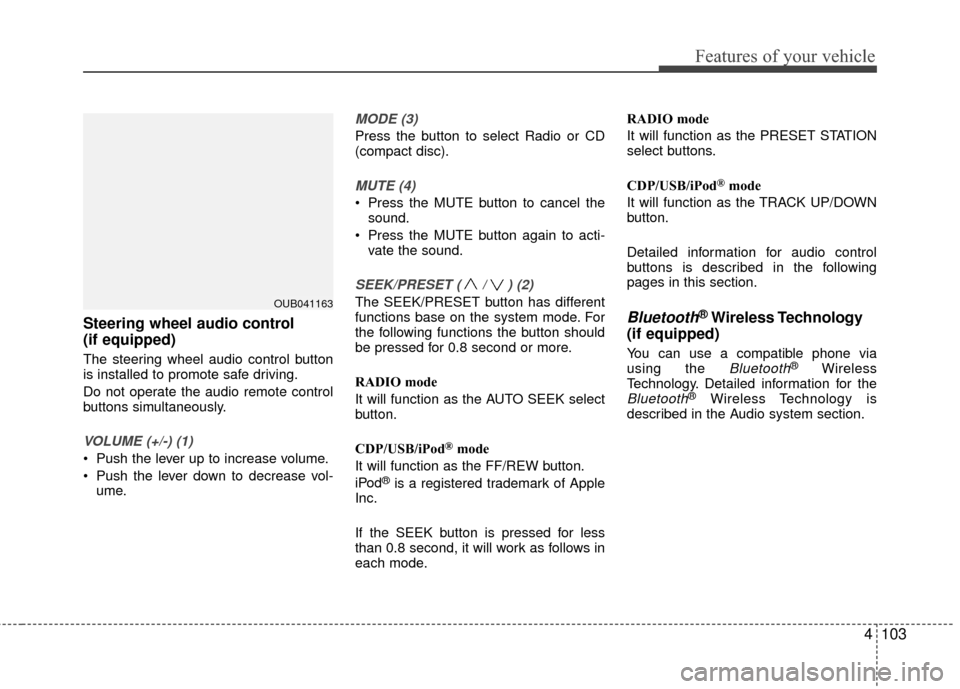
Steering wheel audio control
(if equipped)
The steering wheel audio control button
is installed to promote safe driving.
Do not operate the audio remote control
buttons simultaneously.
VOLUME (+/-) (1)
Push the lever up to increase volume.
Push the lever down to decrease vol-ume.
MODE (3)
Press the button to select Radio or CD
(compact disc).
MUTE (4)
Press the MUTE button to cancel thesound.
Press the MUTE button again to acti- vate the sound.
SEEK/PRESET ( / ) (2)
The SEEK/PRESET button has different
functions base on the system mode. For
the following functions the button should
be pressed for 0.8 second or more.
RADIO mode
It will function as the AUTO SEEK select
button.
CDP/USB/iPod
®mode
It will function as the FF/REW button.
iPod
®is a registered trademark of Apple
Inc.
If the SEEK button is pressed for less
than 0.8 second, it will work as follows in
each mode. RADIO mode
It will function as the PRESET STATION
select buttons.
CDP/USB/iPod
®mode
It will function as the TRACK UP/DOWN
button.
Detailed information for audio control
buttons is described in the following
pages in this section.
Bluetooth®Wireless Technology
(if equipped)
You can use a compatible phone via
using the Bluetooth®Wireless
Technology. Detailed information for the
Bluetooth®Wireless Technology is
described in the Audio system section.
OUB041163
Page 174 of 397
4109
Features of your vehicle
SYSTEM CONTROLLERS
AND FUNCTIONS
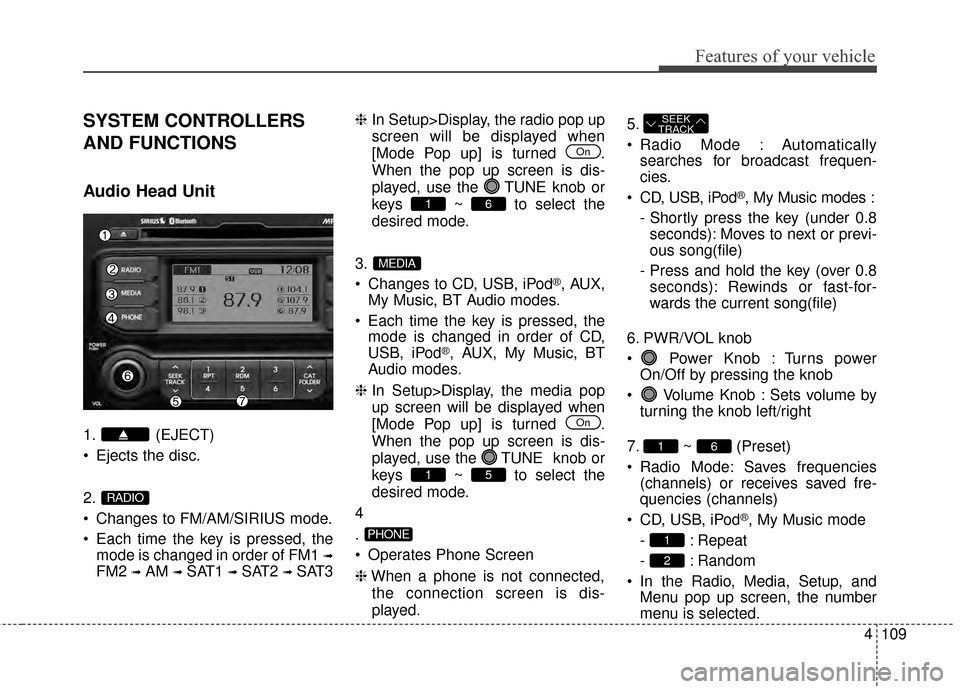
Audio Head Unit
1. (EJECT)
Ejects the disc.
2.
Changes to FM/AM/SIRIUS mode.
Each time the key is pressed, themode is changed in order of FM1
➟
FM2 ➟AM ➟SAT1 ➟SAT2 ➟SAT3 ❈
In Setup>Display, the radio pop up
screen will be displayed when
[Mode Pop up] is turned .
When the pop up screen is dis-
played, use the TUNE knob or
keys ~ to select the
desired mode.
3.
Changes to CD, USB, iPod
®, AUX,
My Music, BT Audio modes.
Each time the key is pressed, the mode is changed in order of CD,
USB, iPod
®, AUX, My Music, BT
Audio modes.
❈ In Setup>Display, the media pop
up screen will be displayed when
[Mode Pop up] is turned .
When the pop up screen is dis-
played, use the TUNE knob or
keys ~ to select the
desired mode.
4
.
Operates Phone Screen
❈ When a phone is not connected,
the connection screen is dis-
played. 5.
Radio Mode : Automatically
searches for broadcast frequen-
cies.
CD, USB, iPod
®, My Music modes :
- Shortly press the key (under 0.8 seconds): Moves to next or previ-
ous song(file)
- Press and hold the key (over 0.8 seconds): Rewinds or fast-for-
wards the current song(file)
6. PWR/VOL knob
Power Knob : Turns power On/Off by pressing the knob
Volume Knob : Sets volume by turning the knob left/right
7. ~ (Preset)
Radio Mode: Saves frequencies (channels) or receives saved fre-
quencies (channels)
CD, USB, iPod
®, My Music mode
- : Repeat
- : Random
In the Radio, Media, Setup, and Menu pop up screen, the number
menu is selected.
2
1
61
SEEK
TRACK
PHONE
51
On
MEDIA
61
On
RADIO
Page 175 of 397
Features of your vehicle
110
4
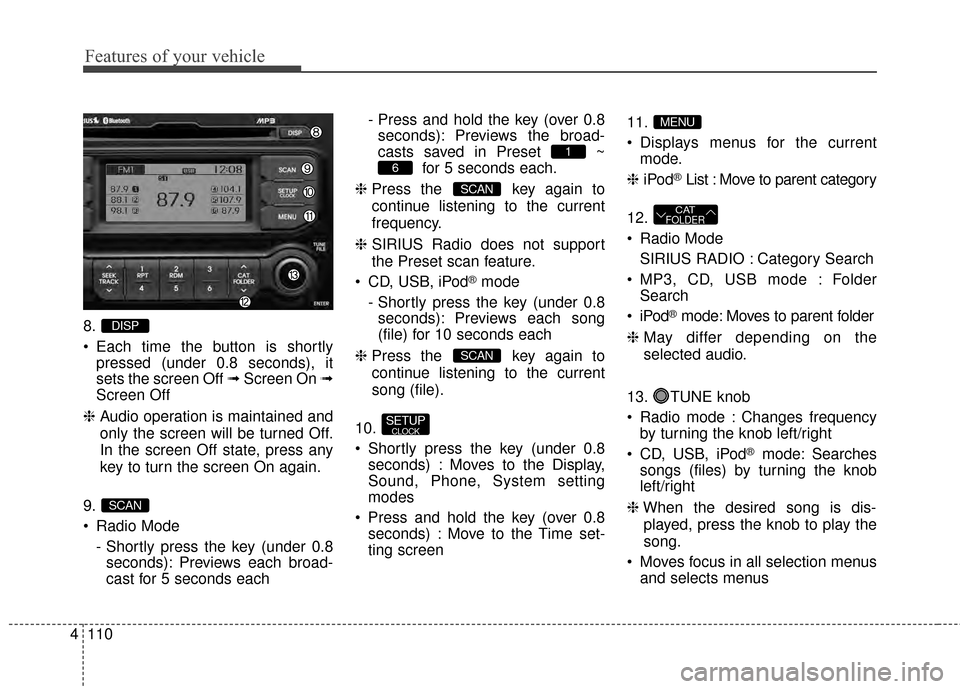
8.
Each time the button is shortly
pressed (under 0.8 seconds), it
sets the screen Off ➟ Screen On ➟
Screen Off
❈ Audio operation is maintained and
only the screen will be turned Off.
In the screen Off state, press any
key to turn the screen On again.
9.
Radio Mode - Shortly press the key (under 0.8seconds): Previews each broad-
cast for 5 seconds each - Press and hold the key (over 0.8
seconds): Previews the broad-
casts saved in Preset ~ for 5 seconds each.
❈ Press the key again to
continue listening to the current
frequency.
❈ SIRIUS Radio does not support
the Preset scan feature.
CD, USB, iPod
®mode
- Shortly press the key (under 0.8 seconds): Previews each song
(file) for 10 seconds each
❈ Press the key again to
continue listening to the current
song (file).
10.
Shortly press the key (under 0.8 seconds) : Moves to the Display,
Sound, Phone, System setting
modes
Press and hold the key (over 0.8 seconds) : Move to the Time set-
ting screen 11.
Displays menus for the current
mode.
❈ iPod
®List : Move to parent category
12.
Radio Mode SIRIUS RADIO : Category Search
MP3, CD, USB mode : Folder Search
®mode: Moves to parent folder
❈ May differ depending on the
selected audio.
13. TUNE knob
Radio mode : Changes frequency by turning the knob left/right
CD, USB, iPod
®mode: Searches
songs (files) by turning the knob
left/right
❈ When the desired song is dis-
played, press the knob to play the
song.
Moves focus in all selection menus and selects menus
CATFOLDER
MENU
SETUPCLOCK
SCAN
SCAN
6
1
SCAN
DISP
Page 182 of 397
4117
Features of your vehicle
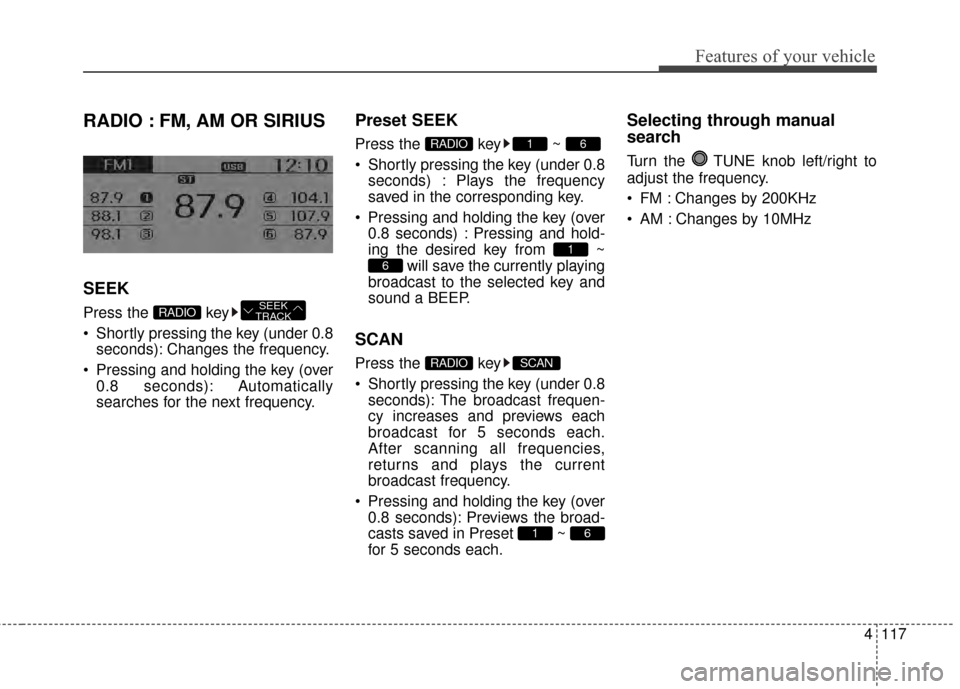
RADIO : FM, AM OR SIRIUS
SEEK
Press the key
Shortly pressing the key (under 0.8seconds): Changes the frequency.
Pressing and holding the key (over 0.8 seconds): Automatically
searches for the next frequency.
Preset SEEK
Press the key ~
Shortly pressing the key (under 0.8seconds) : Plays the frequency
saved in the corresponding key.
Pressing and holding the key (over 0.8 seconds) : Pressing and hold-
ing the desired key from ~ will save the currently playing
broadcast to the selected key and
sound a BEEP.
SCAN
Press the key
Shortly pressing the key (under 0.8 seconds): The broadcast frequen-
cy increases and previews each
broadcast for 5 seconds each.
After scanning all frequencies,
returns and plays the current
broadcast frequency.
Pressing and holding the key (over 0.8 seconds): Previews the broad-
casts saved in Preset ~
for 5 seconds each.
Selecting through manual
search
Turn the TUNE knob left/right to
adjust the frequency.
FM : Changes by 200KHz
AM : Changes by 10MHz
61
SCANRADIO
6
1
61RADIO
SEEK
TRACKRADIO
Page 186 of 397
4121
Features of your vehicle
❈If channel is selected by selecting
category, then the “CATEGORY”
icon is displayed at the top of the
screen.
Preset
Press the key ~
Shortly pressing the key (under 0.8
seconds): Plays the frequency
saved in the corresponding key.
Pressing and holding the key (over 0.8 seconds): Pressing and holding
the desired key from ~
will save the current broadcast to
the selected key and sound a
BEEP.
✽ ✽ Troubleshooting
1. Antenna Error
If this message is displayed, the
antenna or antenna cable is bro-
ken or unplugged. Please consult
with your Kia dealership.
2. Acquiring Signal If this message is displayed, it
means that the antenna is covered
and that the SIRIUS Satellite
Radio signal is not available.
Ensure the antenna is uncovered
and has a clear view of the sky.
Tune
Rotate TUNE knob : Changes
the channel number or scrolls cate-
gory list.
Press TUNE knob : Selects the menu.
Menu
Select category menu through the
TUNE knob Press the
key Select [ Info] through the
TUNE knob or key
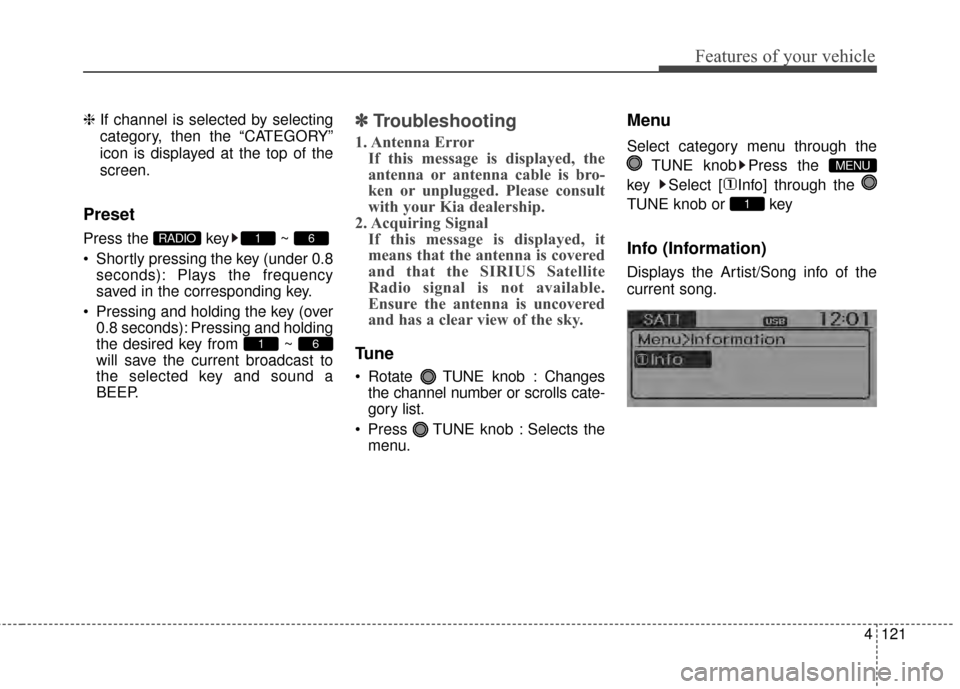
Info (Information)
Displays the Artist/Song info of the
current song.
1
MENU
61
61RADIO
Page 193 of 397
![KIA Rio 2014 3.G User Guide Features of your vehicle
128
4
MENU : iPod®
In iPod®mode, press the key
to set the Repeat, Random,
Information and Search features.
Repeat
Press the key Set [ RPT]
through the
TUNEknob or
key to](/img/2/2954/w960_2954-192.png "KIA Rio 2014 3.G User Guide Features of your vehicle
128
4
MENU : iPod®
In iPod®mode, press the key
to set the Repeat, Random,
Information and Search features.
Repeat
Press the key Set [ RPT]
through the
TUNEknob or
key to")
Features of your vehicle
128
4
MENU : iPod®
In iPod®mode, press the key
to set the Repeat, Random,
Information and Search features.
Repeat
Press the key Set [ RPT]
through the
TUNEknob or
key to repeat the current song.
❈ Press RPT again to turn repeat
off.
Album Random
Press the key Set [ Alb.RDM]
through the TUNEknob or key.
Plays albums within the currently
playing category in random order.
❈Press Alb.RDM again to turn off.
All Random
Press the key Set [ A.RDM]
through the TUNEknob or
key.
Plays all songs within the currently
playing category in random order.
❈ Press A.RDM again to turn off.
Information
Press the key Set [ Info]
through the
TUNEknob or
key.
Displays information of the current
song.
❈ Press the key to turn off
info display.
Some iPod
®models may not sup-
port communication protocol and
files may not properly play.
Supported iPod
®models:
- iPod Mini
®
- iPod 4th(Photo) ~ 6th(Classic) generation
- iPod Nano
®1st~4th generation
- iPod Touch
®1st~2nd generation The order of search or playback of
songs in the iPod
®can be different
from the order searched in the
audio system.
If the iPod
®disabled due to its own
malfunction, reset the iPod®.
(Reset: Refer to iPod®manual)
An iPod
®may not operate normal-
ly on low battery.
Some iPod
®devices, such as the
iPhone, can be connected through
the -interface. The device must
have audio
Bluetooth®Wireless
Technology
capability (such as for
stereo headphone
Bluetooth®
Wireless Technology). The device
can play, but it will not be controlled
by th eaudio system.
To use iPod
®features within the
audio, use the cable provided upon
purchasing an iPod
®device.
Skipping or improper operation may occur depending on the characteris-
tics of your iPod
®/iPhone®device.
MENU
4
MENU
3
MENU
2
MENU
1
MENU
MENU
Page 205 of 397
![KIA Rio 2014 3.G User Guide Features of your vehicle
140
4
Pairing through [PHONE]
Setup
Press the key Select
[Phone] Select [Pair Phone]
Select TUNE knob
1. The following steps are the same
as the steps described in the
“W](/img/2/2954/w960_2954-204.png "KIA Rio 2014 3.G User Guide Features of your vehicle
140
4
Pairing through [PHONE]
Setup
Press the key Select
[Phone] Select [Pair Phone]
Select TUNE knob
1. The following steps are the same
as the steps described in the
“W")
Features of your vehicle
140
4
Pairing through [PHONE]
Setup
Press the key Select
[Phone] Select [Pair Phone]
Select TUNE knob
1. The following steps are the same
as the steps described in the
“When No Devices have been
Paired” section.
Bluetooth®Wireless Technology
features supported within the vehi-
cle are as follows. Some features
may not be supported depending
on your
Bluetooth®Wireless
Technology device.
- Outgoing/Incoming Handsfree calls
- Operations during a call (Switch to Private, Switch to call waiting,
MIC on/off)
- Downloading Call History
- Downloading Mobile Contacts
-
Bluetooth®Wireless Technology
device auto connection
- Bluetooth Audio Streaming
Bluetooth®Wireless
Technology devices can be paired
to the Car Handsfree system.
Bluetooth®device can be
connected at a time.
one
Bluetooth®Wireless
Technology device can be connect-
ed at a time.
while a
Bluetooth®Wireless
Technology device is connected.
Bluetooth®Wireless
Technology Handsfree and
Bluetooth audio related features
are supported.
possible only within devices that
support Handsfree or audio fea-
tures, such as a
Bluetooth®
Wireless Technology mobile phone
or a Bluetooth audio device.
Bluetooth®Wireless
Technology device becomes dis-
connected due to being out of com-
munication range, turning the
device OFF, or a
Bluetooth®
Wireless Technology communica-
tion error, corresponding
Bluetooth®
Wireless Technology devices are
automatically searched and recon-
nected.
due to communication errors
between the car Handsfree and the
Bluetooth®Wireless Technology
device, reset the device by turning
off and back on again. Upon reset-
ting
Bluetooth®Wireless
Technology device, the system will
be restored.
SETUP
Page 219 of 397
Features of your vehicle
154
4
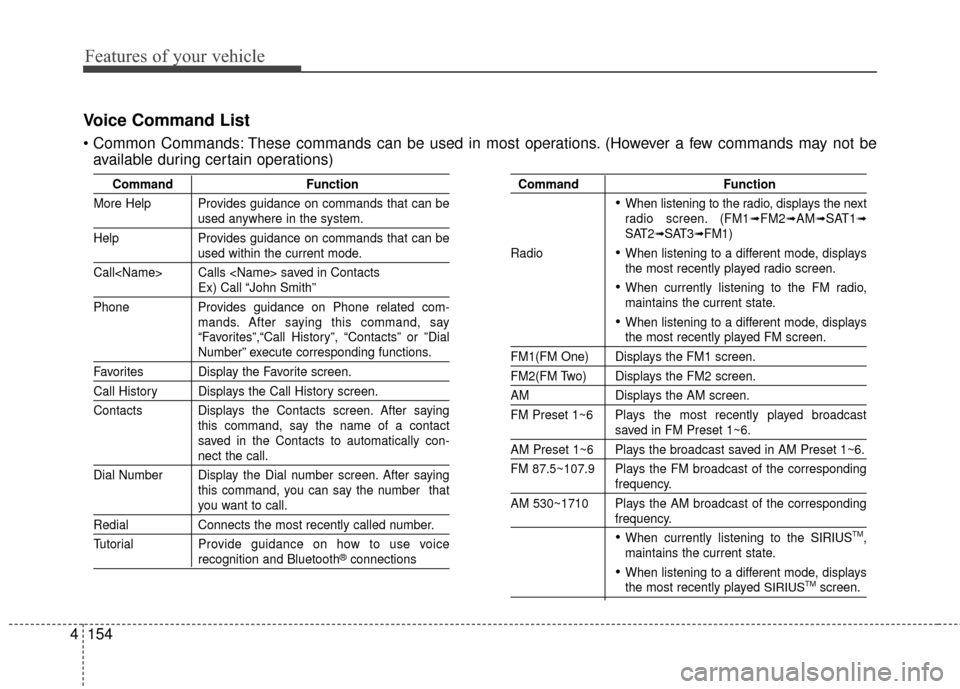
Voice Command List
These commands can be used in most operations. (However a few commands may not be
available during certain operations)
Command Function
More Help Provides guidance on commands that can be
used anywhere in the system.
Help Provides guidance on commands that can be
used within the current mode.
Call
Ex) Call “John Smith”
Phone Provides guidance on Phone related com- mands. After saying this command, say
“Favorites”,“Call History”, “Contacts” or ”Dial
Number” execute corresponding functions.
Favorites Display the Favorite screen.
Call History Displays the Call History screen.
Contacts Displays the Contacts screen. After sayingthis command, say the name of a contact
saved in the Contacts to automatically con-
nect the call.
Dial Number Display the Dial number screen. After saying this command, you can say the number that
you want to call.
RedialConnects the most recently called number.
Tutorial Pro vide guidance on how to use voice
recognition and Bluetooth®connections
Command Function
When listening to the radio, displays the next
radio screen. (FM1➟FM2➟AM➟SAT1➟SAT2➟SAT3➟FM1)
Radio
When listening to a different mode, displays
the most recently played radio screen.
When currently listening to the FM radio,
maintains the current state.
When listening to a different mode, displaysthe most recently played FM screen.
FM1(FM One) Displays the FM1 screen.
FM2(FM Two) Displays the FM2 screen.
AM Displays the AM screen.
FM Preset 1~6 Plays the most recently played broadcast
saved in FM Preset 1~6.
AM Preset 1~6 Plays the broadcast saved in AM Preset 1~6.
FM 87.5~107.9 Plays the FM broadcast of the corresponding
frequency.
AM 530~1710 Plays the AM broadcast of the corresponding
frequency.
When currently listening to the SIRIUSTM,
maintains the current state.
When listening to a different mode, displaysthe most recently played SIRIUSTMscreen.