contacts list KIA RIO HATCHBACK 2013 Owners Manual
[x] Cancel search | Manufacturer: KIA, Model Year: 2013, Model line: RIO HATCHBACK, Model: KIA RIO HATCHBACK 2013Pages: 385, PDF Size: 9.68 MB
Page 191 of 385
![KIA RIO HATCHBACK 2013 Owners Manual Features of your vehicle
116
4
Delete
Select [Phone List] Select mobile
phone through TUNE knob Select
[Delete]
➀Select the desired mobile phone.
➁Delete the selected mobile phone.
\bDeletion co](/img/2/57979/w960_57979-190.png "KIA RIO HATCHBACK 2013 Owners Manual Features of your vehicle
116
4
Delete
Select [Phone List] Select mobile
phone through TUNE knob Select
[Delete]
➀Select the desired mobile phone.
➁Delete the selected mobile phone.
\bDeletion co")
Features of your vehicle
116
4
Delete
Select [Phone List] Select mobile
phone through TUNE knob Select
[Delete]
➀Select the desired mobile phone.
➁Delete the selected mobile phone.
\bDeletion completion is displayed.
❈ When attempting to delete a currently
connected phone, the phone is first
disconnected.
Contacts Download
This feature is used to download con-
tacts and call histories into the audio sys-
tem.
Select [Contacts Download] Select
through
TUNEknob
Auto Download
When connecting a mobile phone, it is
possible to automatically download new
Contacts and Call Histories.
Select [Auto Download] Set /
through TUNE knob
Audio Streaming
Songs (files) saved in your Bluetooth®
wireless technology mobile phone can
be played through the audio system.
Select [Audio Streaming] Set / through TUNE knob
Outgoing Volume
This is used to set the volume of your
voice as heard by the other party while
on a Bluetooth
®wireless technology
handsfree call.
Select [Outgoing Volume] Set vol-
ume through
TUNEknob
❈ Even while on a call, the volume can
be changed by using the
key.SEEK
TRACK
Off
On
Off
On
CAUTION
The download feature may not be
supported in some mobilephones.
If a different operation is per- formed while Contacts are beingdownloaded, downloading will bediscontinued. Contacts already downloaded will be saved.
When downloading new Contacts, delete all previously savedContacts before starting down- load.CAUTION
The Bluetooth®wireless technolo-
gyaudio streaming feature may not be supported in some mobilephones.
CAUTION
When you delete a mobile phone, the mobile phone contacts willalso be erased.
For stable Bluetooth
®communi-
cation, delete the mobile phone from the audio and also delete theaudio from your mobile phone.
Page 216 of 385
4141
Features of your vehicle
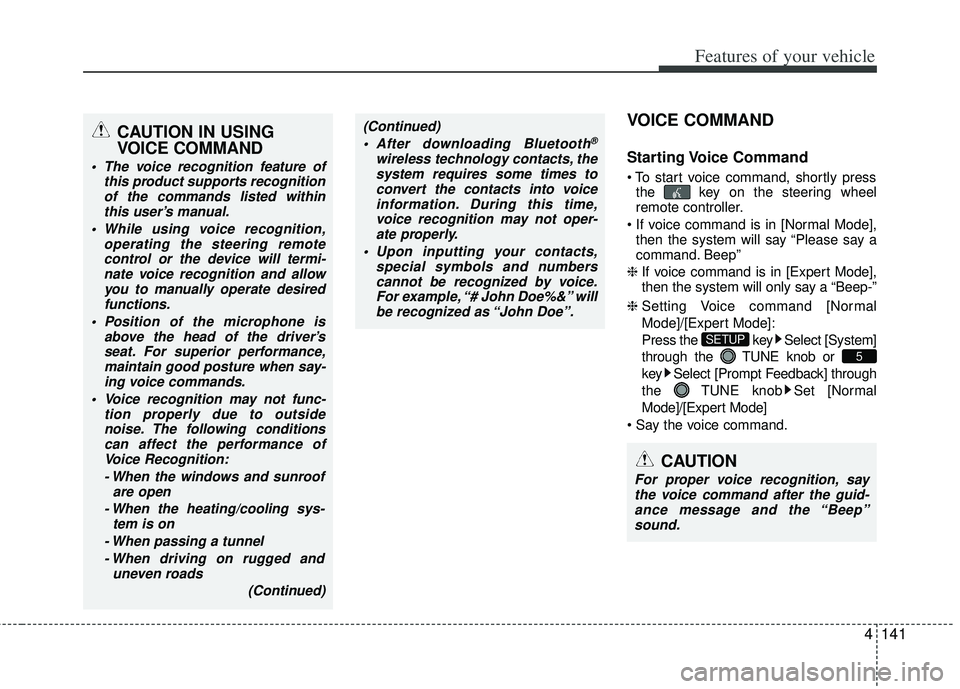
VOICE COMMAND
Starting Voice Command
the key on the steering wheel
remote controller.
then the system will say “Please say a
command. Beep”
❈ If voice command is in [Expert Mode],
then the system will only say a “Beep-”
❈ Setting Voice command [Normal
Mode]/[Expert Mode]:
Press the key Select [System]
through the TUNE knob or
key Select [Prompt Feedback] through
the TUNE knob Set [Normal
Mode]/[Expert Mode]
5
SETUP
CAUTION
For proper voice recognition, say the voice command after the guid- ance message and the “Beep”sound.
(Continued)
After downloading Bluetooth®
wireless technology contacts, thesystem requires some times toconvert the contacts into voiceinformation. During this time,voice recognition may not oper- ate properly.
Upon inputting your contacts, special symbols and numberscannot be recognized by voice.For example, “# John Doe%&” will be recognized as “John Doe”.
CAUTION IN USING
VOICE COMMAND
The voice recognition feature of this product supports recognitionof the commands listed withinthis user’s manual.
While using voice recognition, operating the steering remotecontrol or the device will termi- nate voice recognition and allowyou to manually operate desiredfunctions.
Position of the microphone is above the head of the driver’sseat. For superior performance,maintain good posture when say-ing voice commands.
Voice recognition may not func- tion properly due to outsidenoise. The following conditionscan affect the performance ofVoice Recognition:
- When the windows and sunroof are open
- When the heating/cooling sys- tem is on
- When passing a tunnel - When driving on rugged and uneven roads
(Continued)
Page 219 of 385
Features of your vehicle
144
4
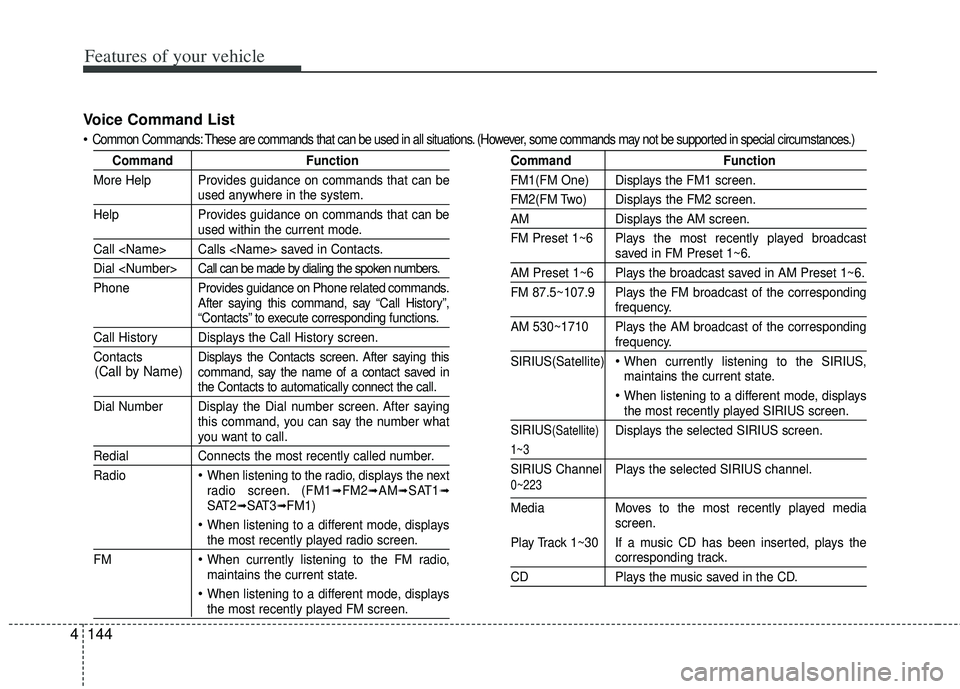
Voice Command List
Common Commands: These are commands that can be used in all situations. (However, some commands may not be supported in special c ircumstances.)
CommandFunction
More Help Provides guidance on commands that can be
used anywhere in the system.
Help Provides guidance on commands that can be
used within the current mode.
Call
Dial
Phone Pro vides guidance on Phone related commands.
After saying this command, say “Call History”,
“Contacts” to execute corresponding functions.
Call History Displays the Call History screen.
Contacts Displays the Contacts screen. After saying this
command, say the name of a contact saved in
the Contacts to automatically connect the call.
Dial Number Display the Dial number screen. After saying this command, you can say the number what
you want to call.
RedialConnects the most recently called number.
Radio
When listening to the radio, displays the next
radio screen. (FM1➟FM2➟AM➟SAT1➟SAT2➟SAT3➟FM1)
When listening to a different mode, displaysthe most recently played radio screen.
FM
When currently listening to the FM radio,
maintains the current state.
When listening to a different mode, displaysthe most recently played FM screen.
Command Function
FM1(FM One) Displays the FM1 screen.
FM2(FM Two) Displays the FM2 screen.
AMDisplays the AM screen.
FM Preset 1~6 Plays the most recently played broadcast
saved in FM Preset 1~6.
AM Preset 1~6 Plays the broadcast saved in AM Preset 1~6.
FM 87.5~107.9 Plays the FM broadcast of the corresponding
frequency.
AM 530~1710 Plays the AM broadcast of the corresponding
frequency.
SIRIUS(Satellite)
When currently listening to the SIRIUS,
maintains the current state.
When listening to a different mode, displaysthe most recently played SIRIUS screen.
SIRIUS
(Satellite)Displays the selected SIRIUS screen.
1~3
SIRIUS Channel Plays the selected SIRIUS channel.
Media Moves to the most recently played media
screen.
Play Track 1~30 If a music CD has been inserted, plays the
corresponding track.
CD Plays the music saved in the CD.
(Call by Name)
0~223