ESP KIA RIO HATCHBACK 2016 User Guide
[x] Cancel search | Manufacturer: KIA, Model Year: 2016, Model line: RIO HATCHBACK, Model: KIA RIO HATCHBACK 2016Pages: 477, PDF Size: 13.46 MB
Page 144 of 477
Features of your vehicle
74
4
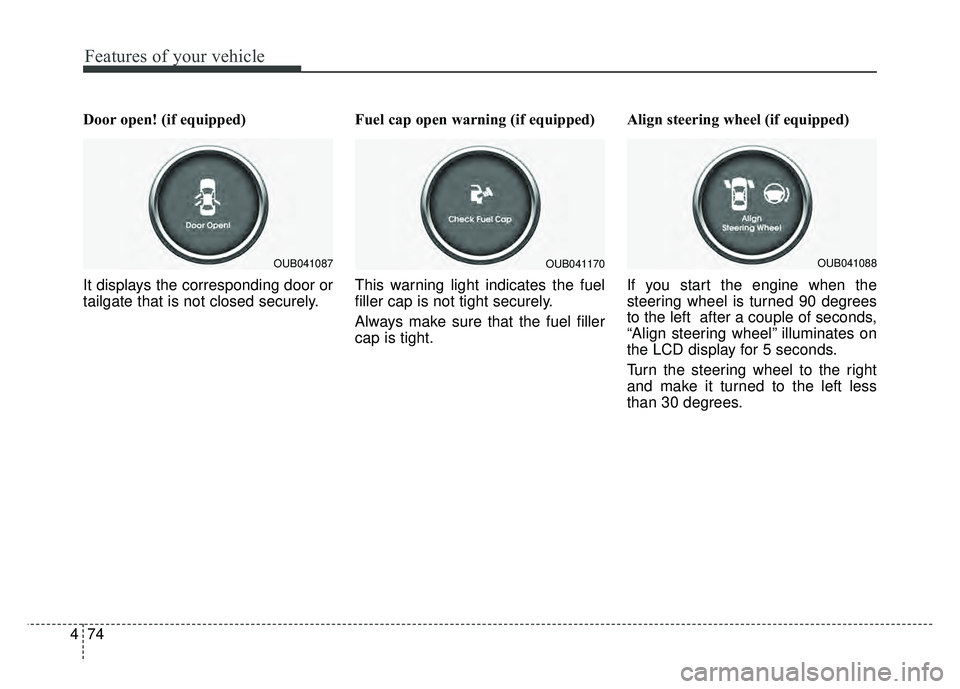
Door open! (if equipped)
It displays the corresponding door or
tailgate that is not closed securely. Fuel cap open warning (if equipped)
This warning light indicates the fuel
filler cap is not tight securely.
Always make sure that the fuel filler
cap is tight.Align steering wheel (if equipped)
If you start the engine when the
steering wheel is turned 90 degrees
to the left after a couple of seconds,
“Align steering wheel” illuminates on
the LCD display for 5 seconds.
Turn the steering wheel to the right
and make it turned to the left less
than 30 degrees.
OUB041087OUB041170OUB041088
Page 146 of 477
Features of your vehicle
76
4
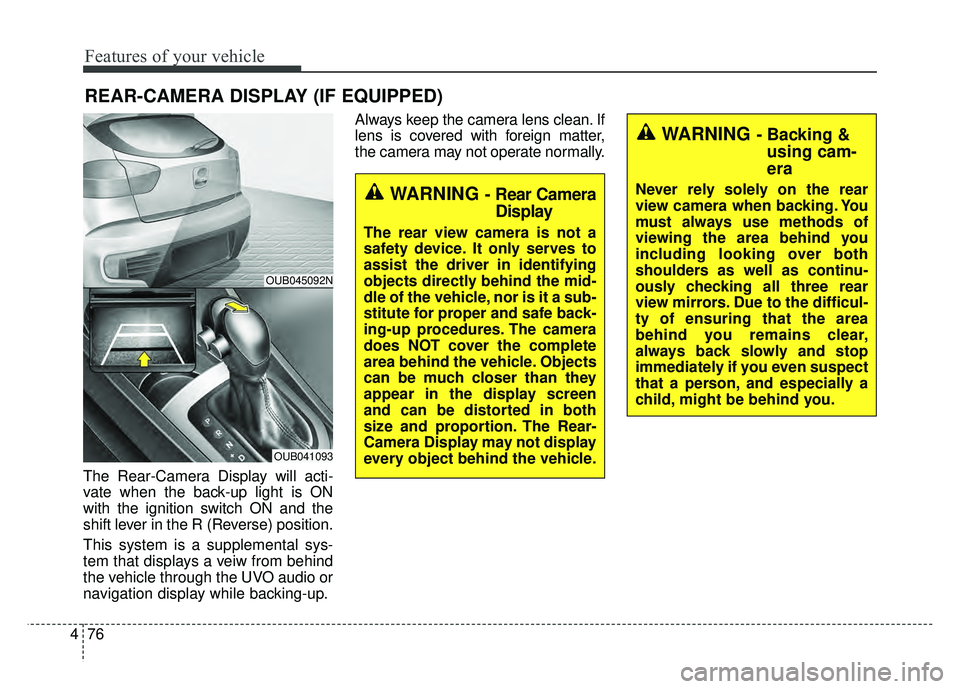
The Rear-Camera Display will acti-
vate when the back-up light is ON
with the ignition switch ON and the
shift lever in the R (Reverse) position.
This system is a supplemental sys-
tem that displays a veiw from behind
the vehicle through the UVO audio or
navigation display while backing-up. Always keep the camera lens clean. If
lens is covered with foreign matter,
the camera may not operate normally.
REAR-CAMERA DISPLAY (IF EQUIPPED)
WARNING - Rear Camera
Display
The rear view camera is not a
safety device. It only serves to
assist the driver in identifying
objects directly behind the mid-
dle of the vehicle, nor is it a sub-
stitute for proper and safe back-
ing-up procedures. The camera
does NOT cover the complete
area behind the vehicle. Objects
can be much closer than they
appear in the display screen
and can be distorted in both
size and proportion. The Rear-
Camera Display may not display
every object behind the vehicle.
WARNING - Backing &using cam-
era
Never rely solely on the rear
view camera when backing. You
must always use methods of
viewing the area behind you
including looking over both
shoulders as well as continu-
ously checking all three rear
view mirrors. Due to the difficul-
ty of ensuring that the area
behind you remains clear,
always back slowly and stop
immediately if you even suspect
that a person, and especially a
child, might be behind you.
OUB045092N
OUB041093
Page 179 of 477
4109
Features of your vehicle
WINDSHIELD DEFROSTING AND DEFOGGING
For maximum defrosting, set thetemperature control to the extreme
right/hot position and the fan speed
control to the highest speed.
If warm air to the floor is desired while defrosting or defogging, set
the mode to the floor-defrost posi-
tion.
Before driving, clear all snow and ice from the windshield, rear win-
dow, outside rear view mirrors, and
all side windows.
Clear all snow and ice from the hood and air inlet in the cowl grill to
improve heater and defroster effi-
ciency and to reduce the probabili-
ty of fogging up the inside of the
windshield.
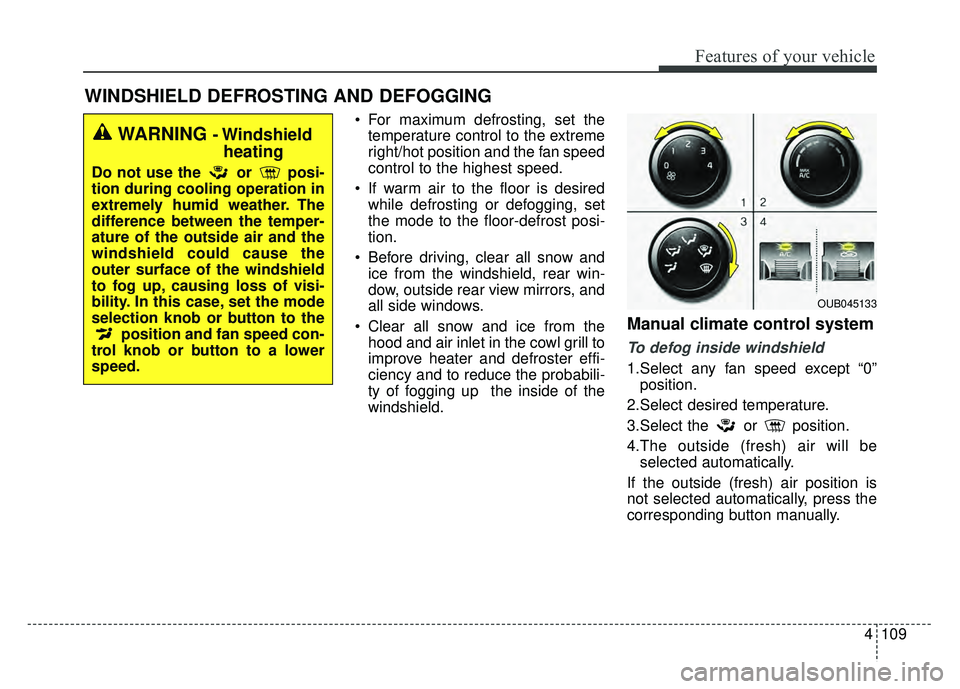
Manual climate control system
To defog inside windshield
1.Select any fan speed except “0”position.
2.Select desired temperature.
3.Select the or position.
4.The outside (fresh) air will be selected automatically.
If the outside (fresh) air position is
not selected automatically, press the
corresponding button manually.
WARNING - Windshield heating
Do not use the or posi-
tion during cooling operation in
extremely humid weather. The
difference between the temper-
ature of the outside air and the
windshield could cause the
outer surface of the windshield
to fog up, causing loss of visi-
bility. In this case, set the mode
selection knob or button to the
position and fan speed con-
trol knob or button to a lower
speed.
OUB045133
Page 180 of 477
Features of your vehicle
110
4
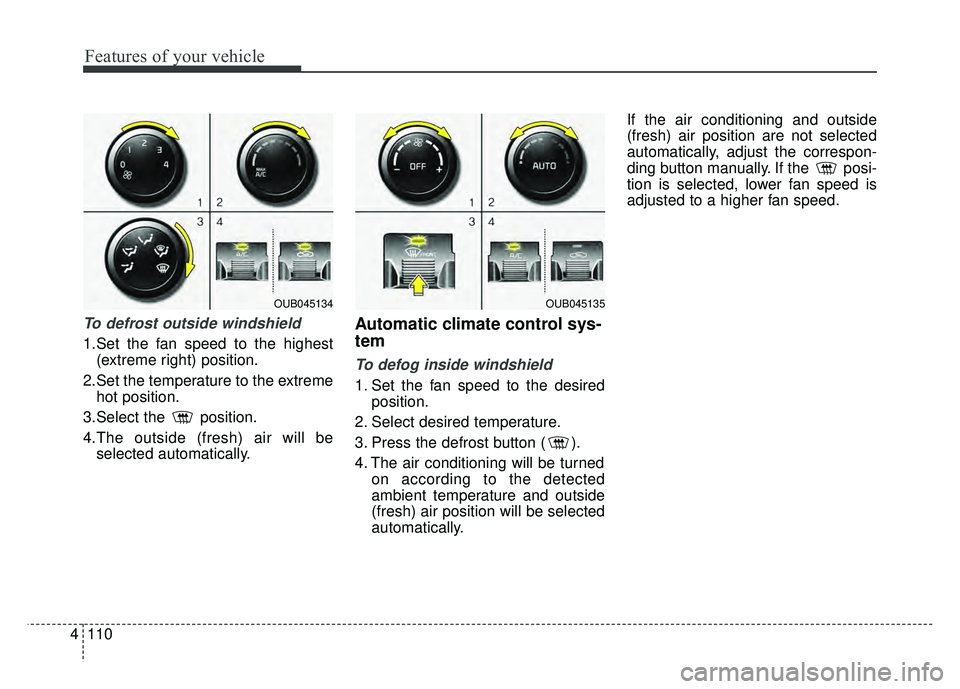
To defrost outside windshield
1.Set the fan speed to the highest
(extreme right) position.
2.Set the temperature to the extreme hot position.
3.Select the position.
4.The outside (fresh) air will be selected automatically.
Automatic climate control sys-
tem
To defog inside windshield
1. Set the fan speed to the desired position.
2. Select desired temperature.
3. Press the defrost button ( ).
4. The air conditioning will be turned on according to the detected
ambient temperature and outside
(fresh) air position will be selected
automatically. If the air conditioning and outside
(fresh) air position are not selected
automatically, adjust the correspon-
ding button manually. If the posi-
tion is selected, lower fan speed is
adjusted to a higher fan speed.
OUB045134OUB045135
Page 205 of 477
Features of your vehicle
4135
Bluetooth®Wireless
Technology(if equipped)
Bluetooth®Wireless Technology
The Bluetooth®word mark and logos
are registered trademarks owned by
Bluetooth SIG, lnc. and any use of
such marks by Kia is under license.
A Bluetooth
®enabled call phone is
required to use
Bluetooth®Wireless
Technology.
Before Using the Bluetooth®
Wireless Technology
Handsfree
What is Bluetooth®?
Bluetooth®refers to a short-dis-
tance wireless networking technolo-
gy which uses a 2.4GHz ~ 2.48GHz
frequency to connect various
devices within a certain distance.
Supported within PCs, external devices, Bluetooth
®phones, PDAs,
various electronic devices, and auto-
motive environments, Bluetooth
®
allows data to be transmitted at high
speeds without having to use a con-
nector cable.
Bluetooth
®Handsfree refers to a
device which allows the user to
conveniently make phone calls with
Bluetooth
®mobile phones through
the audio system.
Bluetooth
®Handsfree may not be
supported in some mobile phones.
To learn more about mobile device
compatibility, visit www
.kia.com.
WARNING
Driving while distracted can
result in a loss of vehicle control
that may lead to an accident,
severe personal injury, and
death. The driver’s primary
responsibility is in the safe and
legal operation of a vehicle, and
use of any handheld devices,
other equipment, or vehicle sys-
tems which take the driver’s
eyes, attention and focus away
from the safe operation of a vehi-
cle or which are not permissible
by law should never be used
during operation of the vehicle.
Page 207 of 477
Features of your vehicle
4137
Voice Recognition
(if equipped)
When using the voice recognitionfeature, only commands listed
within the user's manual are sup-
ported.
Be aware that during the operation of the voice recognition system,
pressing any key other than the key terminate voice recogni-
tion mode.
For optimal voice recognition per- formance, position your head
below the microphone above the
driver’s seat and maintain proper
position when speaking voice com-
mands.
Within the following situations, voice recognition may not function
properly due to external sound.
- When the windows and sunroof are open
- When the blower AC/heater is set to high
- When entering and passing through tunnels
(Continued)(Continued)
- When driving on rugged anduneven roads
- During severe rain (heavy rains, windstorms)
Phone related voice commands can be used only when a
Bluetooth®
Wireless Technology device is con-
nected.
When making calls by stating a name, the corresponding contact
must be downloaded and stored
within the audio system.
After downloading the
Bluetooth®
Wireless Technology phone book,
it takes some times to convert the
phone book data into voice infor-
mation. During this time, voice
recognition may not properly oper-
ate.
Pronounce the voice commands naturally and clearly as if in a nor-
mal conversation.
Page 216 of 477
![KIA RIO HATCHBACK 2016 User Guide Features of your vehicle
146
4
SYSTEM SETTINGS
Press the key
Select [System] Select menu
through TUNE knob
Memory Information
(if equipped)
Displays currently used memory and
total system memory.](/img/2/57984/w960_57984-215.png "KIA RIO HATCHBACK 2016 User Guide Features of your vehicle
146
4
SYSTEM SETTINGS
Press the key
Select [System] Select menu
through TUNE knob
Memory Information
(if equipped)
Displays currently used memory and
total system memory.")
Features of your vehicle
146
4
SYSTEM SETTINGS
Press the key
Select [System] Select menu
through TUNE knob
Memory Information
(if equipped)
Displays currently used memory and
total system memory.
Select [Memory Information] OK
The currently used memory is dis-
played on the left side while the total
system memory is displayed on the
right side.
Prompt Feedback (if equipped)
This feature is used to change voice
command feedback between Normal
and Expert modes.
Select [Prompt Feedback] Set
through
TUNEknob
On : This mode is for beginner users and provides detailed
instructions during voice command
operation. This mode is for expert users
and omits some information during
voice command operation. (When
using Expert mode, guidance
instructions can be heard through
the [Help] or [Menu] commands.
Language
This menu is used to set the display
and voice recognition language.
Select [Language] Set through TUNE knob
❈ The system will reboot after the
language is changed.
❈ Language support by region
- English, Francais, Espanol
SETUP/CLOCK
Page 217 of 477
Features of your vehicle
4147
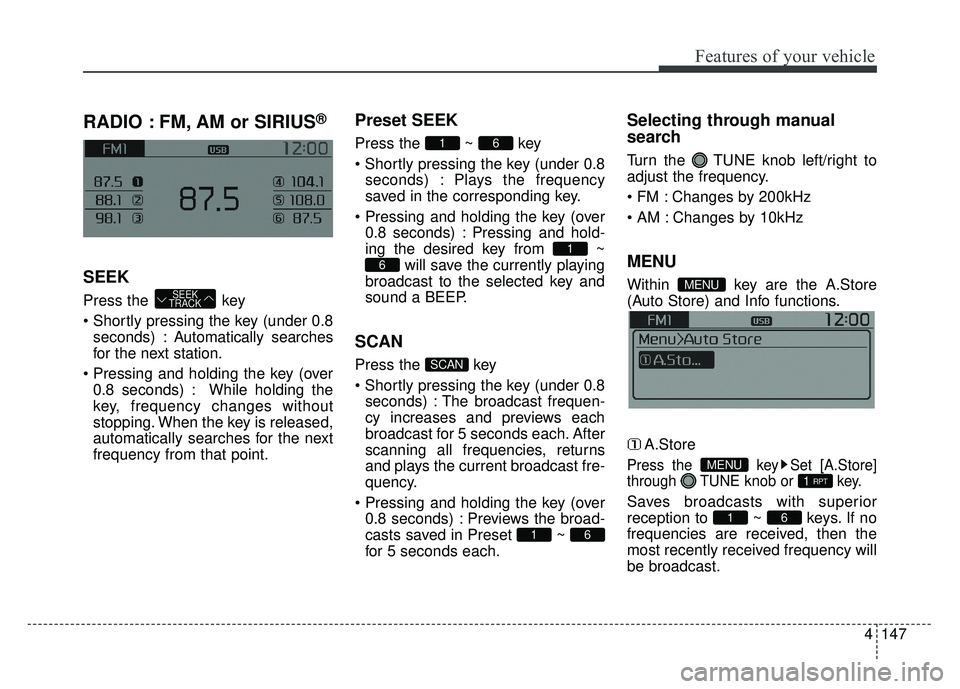
RADIO : FM, AM or SIRIUS®
SEEK
Press the key
seconds) : Autom atically searches
for the next station.
0.8 seconds) : While holding the
key, frequency changes without
stopping. When the key is released,
automatically searches for the next
frequency from that point.
Preset SEEK
Press the ~ key
seconds) : Plays the frequency
saved in the corresponding key.
0.8 seconds) : Pressing and hold-
ing the desired key from ~ will save the currently playing
broadcast to the selected key and
sound a BEEP.
SCAN
Press the key
seconds) : The broadcast frequen-
cy increases and previews each
broadcast for 5 seconds each. After
scanning all frequencies, returns
and plays the current broadcast fre-
quency.
0.8 seconds) : Previews the broad-
casts saved in Preset ~
for 5 seconds each.
Selecting through manual
search
Turn the TUNE knob left/right to
adjust the frequency.
Changes by 200kHz
Changes by 10kHz
MENU
Within key are the A.Store
(Auto Store) and Info functions.
A.Store
Press the key Set [A.Store]
through TUNE knob or key.
Saves broadcasts with superior
reception to ~ keys. If no
frequencies are received, then the
most recently received frequency will
be broadcast.61
1 RPTMENU
MENU
61
SCAN
6
1
61
SEEK
TRACK
Page 220 of 477
Features of your vehicle
150
4
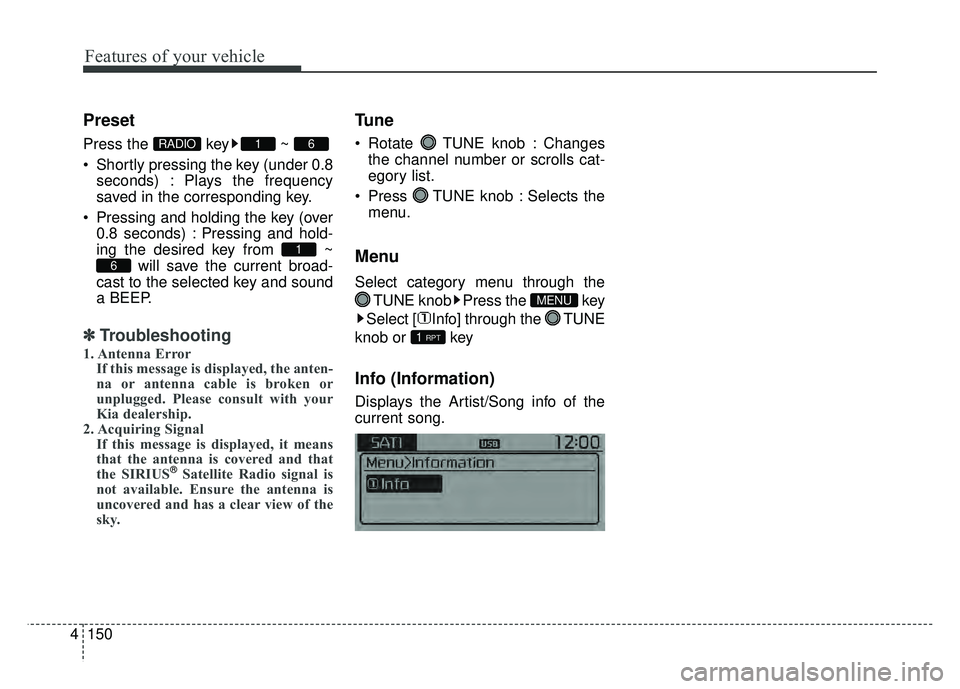
Preset
Press the key ~
Shortly pressing the key (under 0.8
seconds) : Plays the frequency
saved in the corresponding key.
Pressing and holding the key (over 0.8 seconds) : Pressing and hold-
ing the desired key from ~ will save the current broad-
cast to the selected key and sound
a BEEP.
✽ ✽ Troubleshooting
1. Antenna Error
If this message is displayed, the anten-
na or antenna cable is broken or
unplugged. Please consult with your
Kia dealership.
2. Acquiring Signal If this message is displayed, it means
that the antenna is covered and that
the SIRIUS
®Satellite Radio signal is
not available. Ensure the antenna is
uncovered and has a clear view of the
sky.
Tune
Rotate TUNE knob : Changes
the channel number or scrolls cat-
egory list.
Press TUNE knob : Selects the menu.
Menu
Select category menu through the
TUNE knob Press the key
Select [ Info] through the TUNE
knob or key
Info (Information)
Displays the Artist/Song info of the
current song.
1 RPT
MENU
6
1
61RADIO
Page 227 of 477
Features of your vehicle
4157
The Bluetooth®word mark and
logos are registered trademarks
owned by Bluetooth SIG, Inc. and
any use of such marks by Kia is
under license. Other trademarks
and trade names are those of their
respective owners. A Bluetooth
®
enabled cell phone is required to use
Bluetooth®Wireless Technology.
Bluetooth®Wireless Technology
audio can be used only when the
[Audio Streaming] of Phone is
turned .
❈
Setting Bluetooth®Wireless Technology
Audio Streaming : Press the key Select[Phone]
Select [Audio Streaming] through
the TUNE knob Set /
Starting Bluetooth®Wireless
Technology Audio
key to change the
mode in order of CD ➟ USB ➟ AUX
➟ My Music ➟ BT Audio.
Bluetooth®
Wireless Technology audio will start
playing.
❈ Audio may not automatically start
playing in some mobile phones.
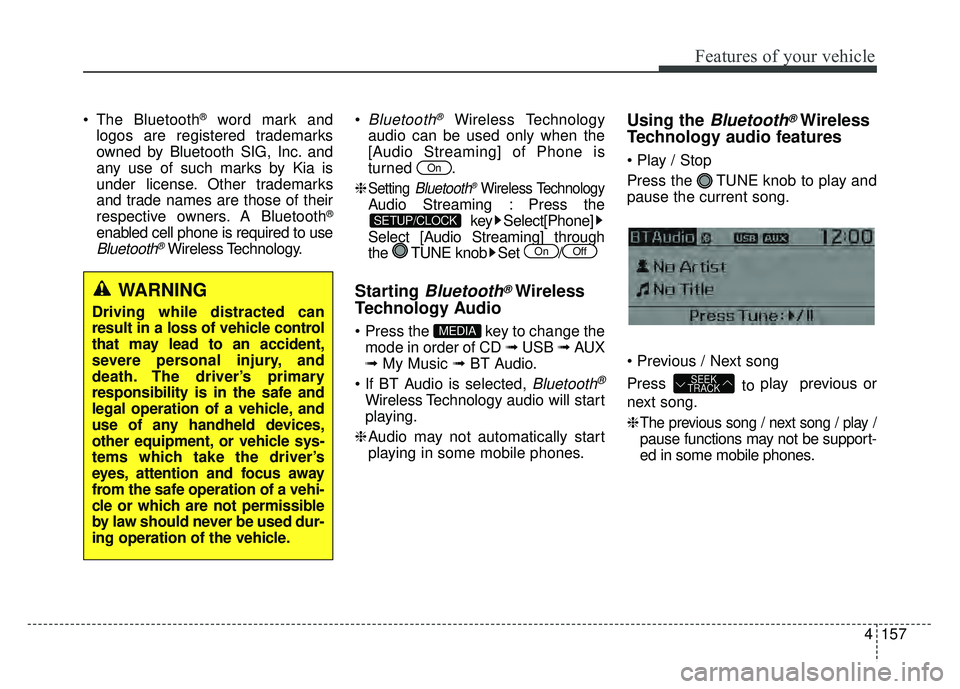
Using the Bluetooth®Wireless
Technology audio features
Press the TUNE knob to play and
pause the current song.
Press to play previous or
next song.
❈
The previous song / next song / play /
pause functions may not be support-
ed in some mobile phones.
SEEK
TRACK
MEDIA
OffOn
SETUP/CLOCK
On
WARNING
Driving while distracted can
result in a loss of vehicle control
that may lead to an accident,
severe personal injury, and
death. The driver’s primary
responsibility is in the safe and
legal operation of a vehicle, and
use of any handheld devices,
other equipment, or vehicle sys-
tems which take the driver’s
eyes, attention and focus away
from the safe operation of a vehi-
cle or which are not permissible
by law should never be used dur-
ing operation of the vehicle.