buttons KIA SEDONA 2017 User Guide
[x] Cancel search | Manufacturer: KIA, Model Year: 2017, Model line: SEDONA, Model: KIA SEDONA 2017Pages: 586, PDF Size: 14.12 MB
Page 176 of 586
Features of your vehicle
74
4
Rolling code programming
To train a garage door opener (or other
rolling code equipped devices) with the
rolling code feature, follow these
instructions after completing the
“Programming” portion of this text. (A
second person may make the following
training procedures quicker & easier.)
4. Locate the “learn” or “smart” but-
ton on the device’s motor head
unit. Exact location and color of
the button may vary by product
brand. If there is difficulty locating
the “learn” or “smart” button, refer-
ence the device’s owner’s manual
or contact HomeLink at 1-800-
355-3515 or on the internet at
www.homelink.com.
5. Press and release the “learn” or “smart” button on the device’s
motor head unit. You have 30 sec-
onds to complete step number 6. 6. Return to the vehicle and firmly
press and release the pro-
grammed HomeLink button up to
three times. The rolling code
equipped device should now rec-
ognize the HomeLink signal and
activate when the HomeLink but-
ton is pressed. The remaining two
buttons may now be programmed
if this has not previously been
done. Refer to the “Programming”
portion of this text. Operating HomeLink
To operate, simply press the pro-
grammed HomeLink button.
Activation will now occur for the
trained product (garage door, securi-
ty system, entry door lock, estate
gate, or home or office lighting). For
convenience, the hand-held trans-
mitter of the device may also be used
at any time. The HomeLink Wireless
Controls System (once programmed)
or the original hand-held transmitter
may be used to activate the device
(e.g. garage door, entry door lock,
etc.). In the event that there are still
programming difficulties, contact
HomeLink at 1-800-355-3515 or on
the internet at www.homelink.com.
Page 177 of 586
475
Features of your vehicle
Erasing programmed HomeLink
buttons
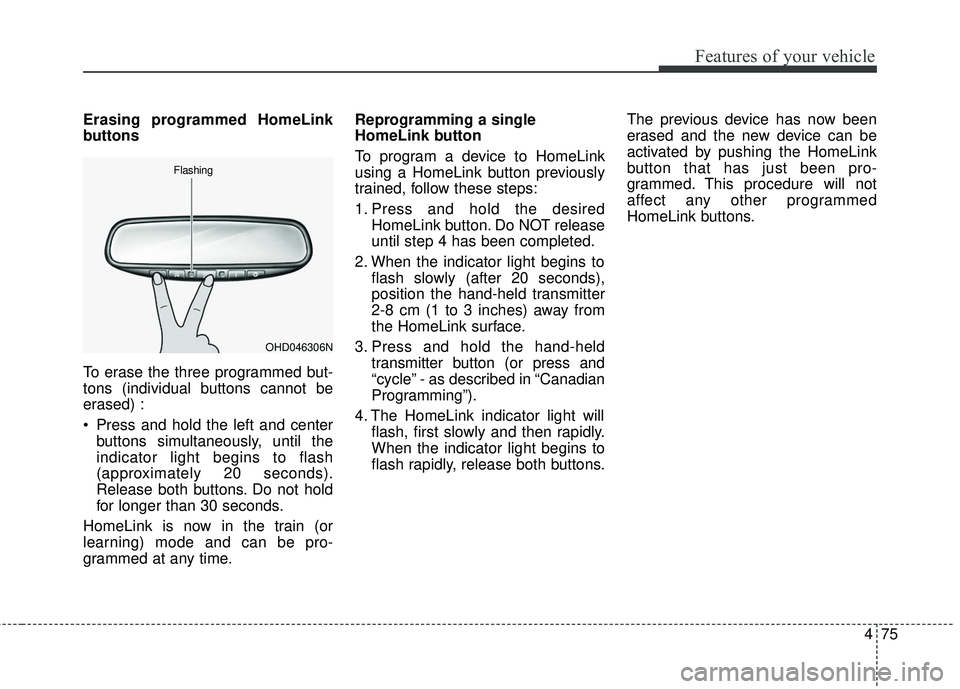
To erase the three programmed but-
tons (individual buttons cannot be
erased) :
Press and hold the left and centerbuttons simultaneously, until the
indicator light begins to flash
(approximately 20 seconds).
Release both buttons. Do not hold
for longer than 30 seconds.
HomeLink is now in the train (or
learning) mode and can be pro-
grammed at any time. Reprogramming a single
HomeLink button
To program a device to HomeLink
using a HomeLink button previously
trained, follow these steps:
1. Press and hold the desired
HomeLink button. Do NOT release
until step 4 has been completed.
2. When the indicator light begins to flash slowly (after 20 seconds),
position the hand-held transmitter
2-8 cm (1 to 3 inches) away from
the HomeLink surface.
3. Press and hold the hand-held transmitter button (or press and
“cycle” - as described in “Canadian
Programming”).
4. The HomeLink indicator light will flash, first slowly and then rapidly.
When the indicator light begins to
flash rapidly, release both buttons. The previous device has now been
erased and the new device can be
activated by pushing the HomeLink
button that has just been pro-
grammed. This procedure will not
affect any other programmed
HomeLink buttons.
OHD046306N
Flashing
Page 185 of 586
483
Features of your vehicle
Instrument Cluster Control
Adjusting Instrument ClusterIllumination
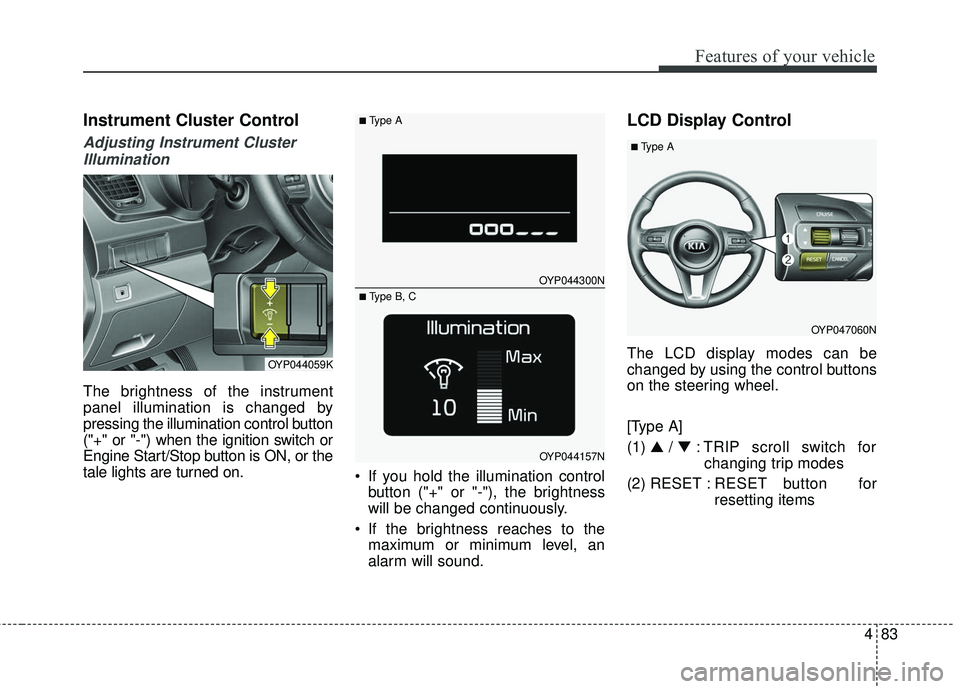
The brightness of the instrument
panel illumination is changed by
pressing the illumination control button
("+" or "-") when the ignition switch or
Engine Start/Stop button is ON, or the
tale lights are turned on. If you hold the illumination control
button ("+" or "-"), the brightness
will be changed continuously.
If the brightness reaches to the maximum or minimum level, an
alarm will sound.
LCD Display Control
The LCD display modes can be
changed by using the control buttons
on the steering wheel.
[Type A]
(1) ▲ /▼ : TRIP scroll switch for
changing trip modes
(2) RESET : RESET button for
resetting itemsOYP044059K
OYP044300N
OYP044157N
■Type A
■ Type B, C
OYP047060N
■Type A
Page 266 of 586
Features of your vehicle
164
4
✽ ✽
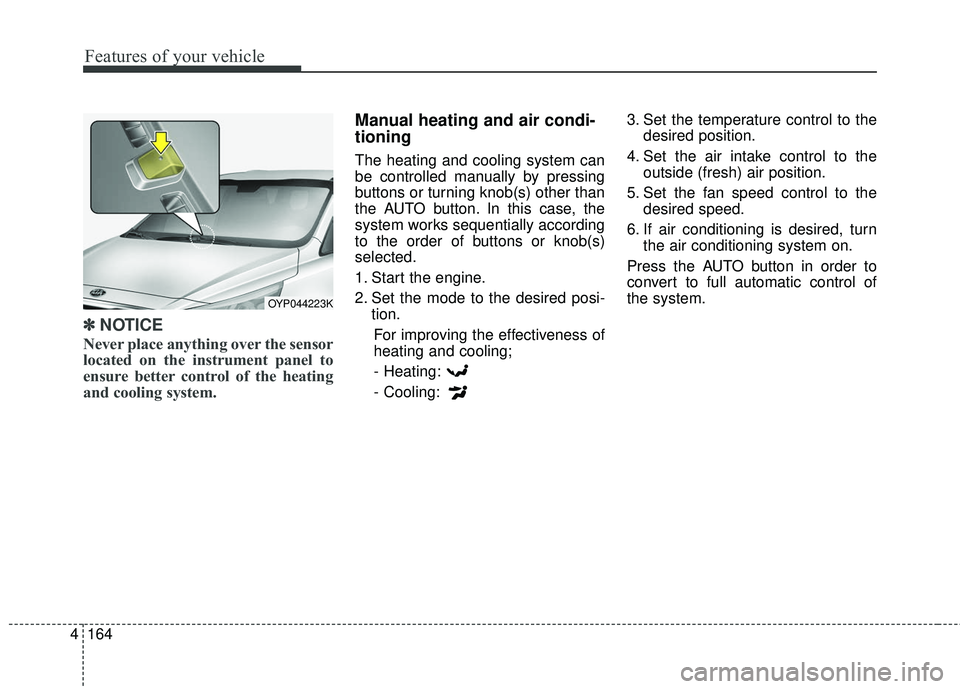
NOTICE
Never place anything over the sensor
located on the instrument panel to
ensure better control of the heating
and cooling system.
Manual heating and air condi-
tioning
The heating and cooling system can
be controlled manually by pressing
buttons or turning knob(s) other than
the AUTO button. In this case, the
system works sequentially according
to the order of buttons or knob(s)
selected.
1. Start the engine.
2. Set the mode to the desired posi-
tion.
For improving the effectiveness of
heating and cooling;- Heating:
- Cooling: 3. Set the temperature control to the
desired position.
4. Set the air intake control to the outside (fresh) air position.
5. Set the fan speed control to the desired speed.
6. If air conditioning is desired, turn the air conditioning system on.
Press the AUTO button in order to
convert to full automatic control of
the system.
OYP044223K
Page 273 of 586
4171
Features of your vehicle
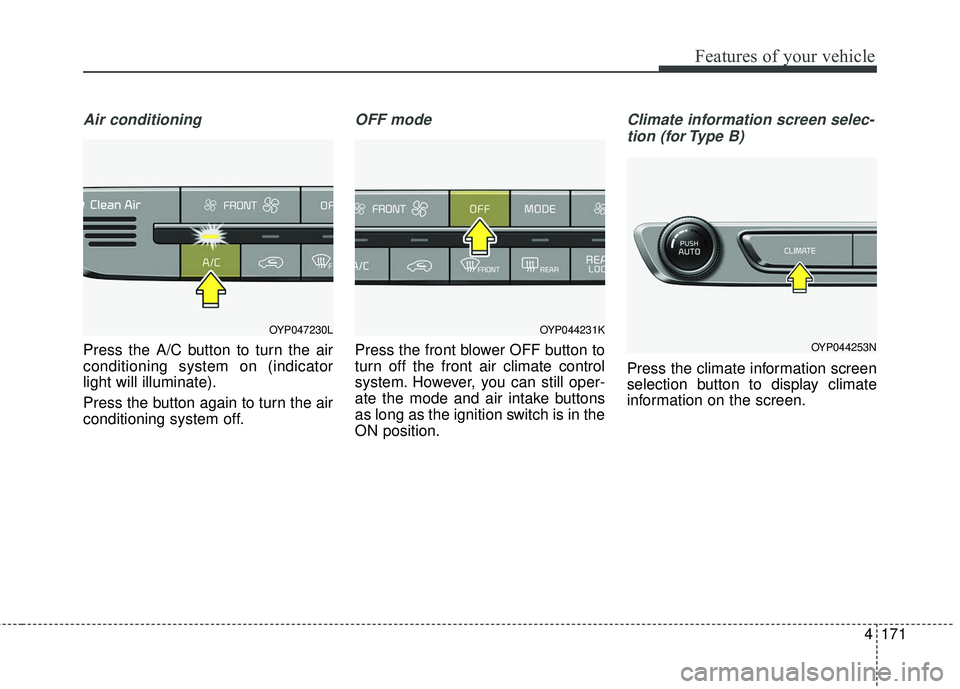
Air conditioning
Press the A/C button to turn the air
conditioning system on (indicator
light will illuminate).
Press the button again to turn the air
conditioning system off.
OFF mode
Press the front blower OFF button to
turn off the front air climate control
system. However, you can still oper-
ate the mode and air intake buttons
as long as the ignition switch is in the
ON position.
Climate information screen selec-tion (for Type B)
Press the climate information screen
selection button to display climate
information on the screen.
OYP044231K
OYP044253N
OYP047230L
Page 298 of 586
Features of your vehicle
196
4
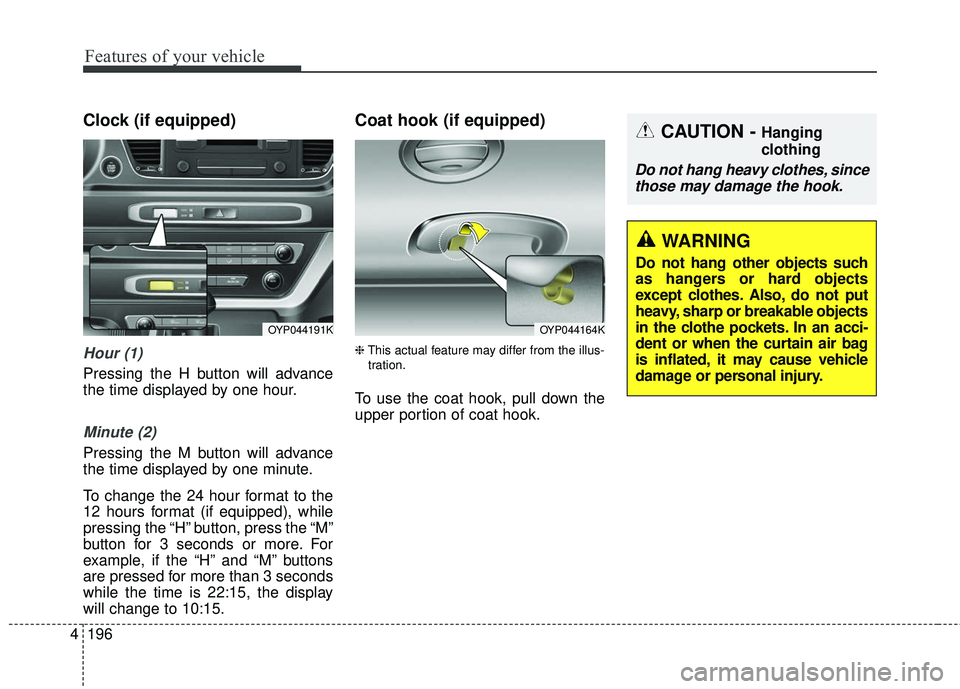
Clock (if equipped)
Hour (1)
Pressing the H button will advance
the time displayed by one hour.
Minute (2)
Pressing the M button will advance
the time displayed by one minute.
To change the 24 hour format to the
12 hours format (if equipped), while
pressing the “H” button, press the “M”
button for 3 seconds or more. For
example, if the “H” and “M” buttons
are pressed for more than 3 seconds
while the time is 22:15, the display
will change to 10:15.
Coat hook (if equipped)
❈ This actual feature may differ from the illus-
tration.
To use the coat hook, pull down the
upper portion of coat hook.
OYP044191KOYP044164K
CAUTION - Hanging
clothing
Do not hang heavy clothes, since those may damage the hook.
WARNING
Do not hang other objects such
as hangers or hard objects
except clothes. Also, do not put
heavy, sharp or breakable objects
in the clothe pockets. In an acci-
dent or when the curtain air bag
is inflated, it may cause vehicle
damage or personal injury.
Page 327 of 586
225
4
Features of your vehicle
✽ ✽
NOTICE - Using Bluetooth®
Wireless Technology
Audio
•Bluetooth®Wireless Technology
Audio mode can only be used if a
Bluetooth
®Wireless Technology-
enabled phone is connected. Only
devices that support Bluetooth
®
Wireless Technology audio can be
used.
• If the Bluetooth
®Wireless
Technology-enabled phone is dis-
connected during play, the music
stops.
• When the TRACK UP/DOWN buttons are used during Bluetooth
®
Wireless Technologyaudio stream-
ing, a popping noise or sound
interruptions may occur, depend-
ing on the cell phone device.
• Depending on the cell phone model, the audio streaming func-
tion may not be supported.
• If a phone call is made or received when music is playing in Bluetooth
®
Wireless Technology Audio mode,
the call may mix with the music. (Continued)(Continued)
• When returning to Bluetooth
®
Wireless Technology Audio mode
after ending a call, play might not
resume automatically for some cell
phone models.
CAUTION
Bluetooth®Wireless Technology
Handsfree is a feature that enables drivers to practicesafe driving. Connecting thecar audio system with aBluetooth
®Wireless Technology
phone allows the user to con- veniently make calls, receivecalls, and manage the phonebook. Before using theBluetooth
®Wireless Technology,
carefully read the contents of this user’s manual.
Excessive use or operations while driving may lead to neg-ligent driving practices and bethe cause of accidents.
Do not operate the device excessively while driving.
Viewing the screen for pro- longed periods of time is dan-gerous and may lead to acci-dents.
When driving, view the screen only for short periods of time.
Page 341 of 586
239
4
Features of your vehicle
Siri
✽ ✽
NOTICE - Using Siri
• If you want to use Siri, you have to
connect your iOS device to multi-
media system through Bluetooth
®
Wireless Technology. (Please
check whether your iOS device
supports Siri and turning Siri On)
• If the iOS version is changed, the functions and response may be dif-
ferent according to the iOS device
and the latest version.
• Siri automatically stops in the fol- lowing events.
1) Outgoing and incoming phone calls.
2) Media (USB, etc.) is connected. (Siri mode is maintained when
iPod
®s are connected)
3) Rear camera is activated. (option)
4) Vehicle is started or engine is turned off.
5) Screen transition buttons, such as RADIO or MEDIA, are
selected. (Continued)(Continued)
6) When a pop-up message is dis- played on the screen due to
accidental execution of Siri.
• The microphone is located above the driver’s seat. To ensure proper
Siri, state your voice while main-
taining proper driving posture.
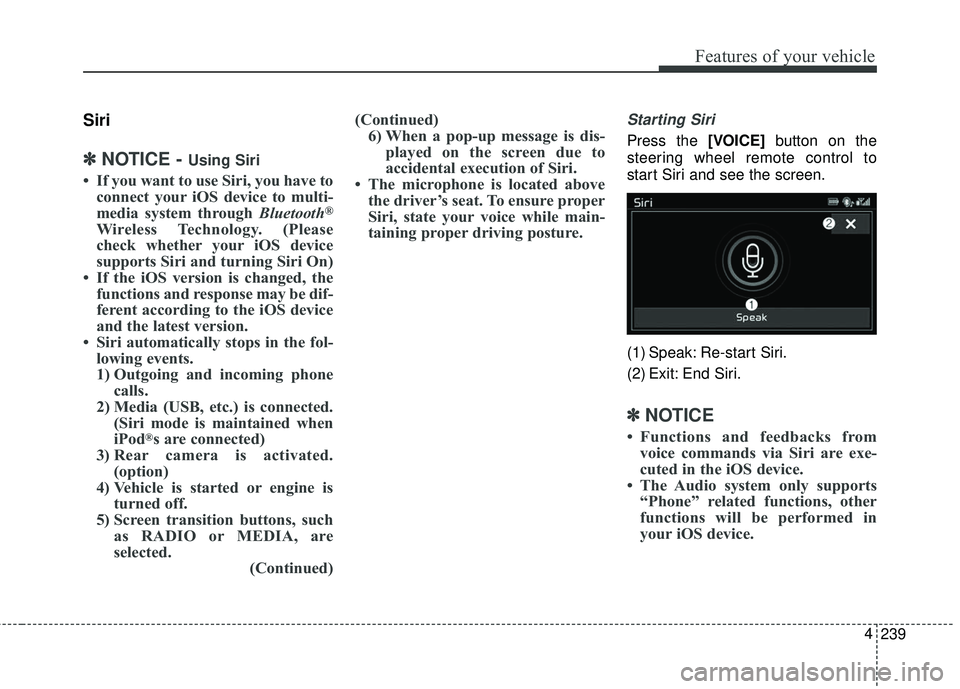
Starting Siri
Press the [VOICE] button on the
steering wheel remote control to
start Siri and see the screen.
(1) Speak: Re-start Siri.
(2) Exit: End Siri.
✽ ✽ NOTICE
• Functions and feedbacks from
voice commands via Siri are exe-
cuted in the iOS device.
• The Audio system only supports “Phone” related functions, other
functions will be performed in
your iOS device.