ECO KIA SELTOS 2022 Navigation System Quick Reference Guide
[x] Cancel search | Manufacturer: KIA, Model Year: 2022, Model line: SELTOS, Model: KIA SELTOS 2022Pages: 316, PDF Size: 10.48 MB
Page 209 of 316

9-21
CUSTOM (if equipped)
You can set to select the drive mode optimized for the driving habits or road conditions.
\225Powertrain: Select a drive mode that performs optimum engine and transmission
control depending on the driving situation.
000DNORMAL: Optimized for balanced comfort.
000DSPORT: Optimized for agile driving.
\225
Steering: Select a drive mode that performs optimum steering wheel control depending
on the driving situation.
000DNORMAL: Optimized for smooth steering.
000DSPORT: Optimized for agile steering.
ECO (EV only)
This is a drive mode for increasing the vehicle's fuel efficiency. You can change the climate
control mode, the active coast energy regeneration level, and speed limit settings.
NORMAL (EV only)
This is a drive mode focused on the driver and passenger's comfort. You can change the
climate control mode and the active coast energy regeneration level.
SPORT (EV only)
This drive mode enables a more dynamic driving performance. You can change the climate
control mode and the active coast energy regeneration level.
Drive Mode Change Alert (if equipped)
You can set how to display the notification message when the drive mode is changed.
\225
Detailed Alert: Displays a detailed notification message along with the vehicle image
when the drive mode is changed.
\225Simple Alert: Displays the notification at the top or on the split screen when the drive
mode is changed.
\225Off: When the drive mode changes, no notification is provided.
Page 210 of 316

9-22
Sport Mode Seat Support (if equipped)
Reinforces seat side bolstering to offer a sporty driving experience.
Coasting (if equipped)
You can enable coasting while driving to improve fuel efficiency. This setting allows the
transmission to disengage the engine while driving in ECO mode or SMART mode, provided
that the coasting conditions are met.0000
A
Coasting is available only when the drive mode supports ECO or SMART mode.
0000
A
Available settings may differ depending on the vehicle model and specifications.
Reset ECO/NORMAL/SPORT (if equipped)
You can reset the drive mode settings to the default values.
0000
A
The display may differ depending on the vehicle model and specifications.
0000
A
See how to improve ECO potential by pressing the Help button from an EV (Electric
Vehicle). In most cases, a vehicle can travel a longer distance when its ECO potential score
is higher (EV only).
Active Sound (if equipped)
Turn on or off the engine sound function which generates a virtual engine sound.
Active Sound Design (if equipped)
Adjust the interior engine sound volume.
Page 211 of 316
9-23
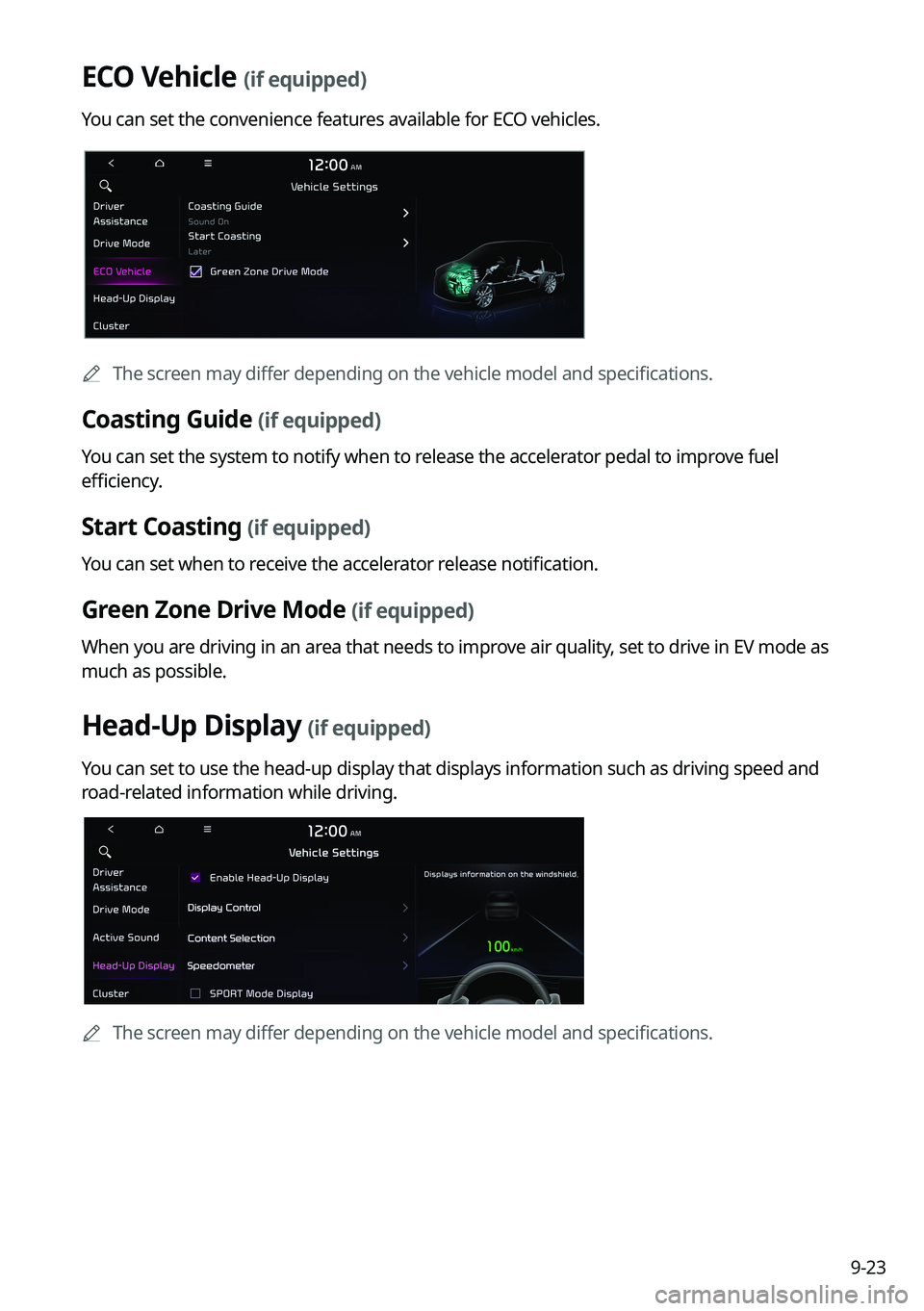
ECO Vehicle (if equipped)
You can set the convenience features available for ECO vehicles.
0000
A
The screen may differ depending on the vehicle model and specifications.
Coasting Guide (if equipped)
You can set the system to notify when to release the accelerator pedal to improve fuel
efficiency.
Start Coasting (if equipped)
You can set when to receive the accelerator release notification.
Green Zone Drive Mode (if equipped)
When you are driving in an area that needs to improve air quality, set to drive in EV mode as
much as possible.
Head-Up Display (if equipped)
You can set to use the head-up display that displays information such as driving speed and
road-related information while driving.
0000
A
The screen may differ depending on the vehicle model and specifications.
Page 213 of 316
9-25
Energy Consumption Reset (if equipped)
You can set to automatically initialize the average fuel economy.
\225After Ignition: The average fuel economy is automatically initialize whenever you drive
the vehicle.
\225After Refueling
: The average fuel economy is automatically initialize whenever you refuel
the vehicle.
\225 After Recharging: The average fuel economy is automatically initialize whenever you
charge the vehicle (EV only).
\225Off: The average fuel economy initialize is unavailable.
Reset Fuel Economy (if equipped)
Select which average fuel economy to display on the cluster.
\225At Vehicle Start: Displays the fuel economy after engine restart.
\225After Refueling: Displays the fuel economy after refueling.
\225After Recharging: Displays the fuel economy after recharging (EV only).
\225Manually: Displays the accumulated fuel economy.
Content Selection (if equipped)
You can set the content to display on the instrument cluster.
\225Wiper/Lights Display: When the wiper or light lever operates, the operation mode
appears.
\225Traffic Signs: Displays the road information such as speed bumps and speed limits.
\225Blind-Spot View: Displays the blind spot view on the instrument cluster when the turn
signal lamp is operating.
\225Icy Road Warning: When the outside temperature drops below 4 °C (39 °F), the
possibility of road icing appears.
Cluster Voice Guidance Volume (if equipped)
You can adjust the voice guidance volume of the cluster.
Welcome Sound (if equipped)
You can set to generate the notification sound when turning on or off the instrument cluster.
Page 215 of 316

9-27
Seat (if equipped)
You can configure the settings of the steering wheel or seats, such as seat position change
notification and automatic control of the steering wheel warmer.
0000
A
The screen may differ depending on the vehicle model and specifications.
Seat Position Change Alert (if equipped)
You can set the system to display a notification message along with the seat image on the
screen when a seat position is changed.
Recline 2nd Row Seat Backs (if equipped)
Adjust the second-row seat back angle.
Smart Posture Care (if equipped)
You can see the recommended driving posture according to your physical data, and the
clinical inspection result for your waist.
Heated/Ventilated Features (if equipped)
You can set to make the driving environment pleasant by controlling the steering wheel
warmer and driver's seat warmer/ventilation.
\225Auto. Controls That Use Climate Control Settings: Automatically controls the heating
wire or ventilation for the driver's seat and steering wheel, in sync with the climate control
function.
000DSteering Wheel Warmer: Steering Wheel Warmer adjusts automatically based on
Climate settings.
000DSeat Warmer/Ventilation: Seat Warmer/Ventilation adjusts automatically based on
Climate settings.
Page 216 of 316

9-28
Seating Easy Access (if equipped)
For convenience upon getting on and off, you can adjust the position of the driver's seat or
steering wheel to secure space inside the vehicle.
\225Seat Slide Easy Access: Can set the distance to automatically move the driver's seat
when getting on or off.
Rear Seat Heating Control (if equipped)
You can set to enable the warmer for the rear-left and rear-right seats.
Lights (if equipped)
You can configure the settings for vehicle lights.
0000
A
The screen may differ depending on the vehicle model and specifications.
Ambient Light (if equipped)
You can set the brightness and color of the ambient light.
One Touch Turn Signal (if equipped)
You can set the number of turn signal lamp flashes when the lamp lever is operated.
Headlight Delay (if equipped)
You can set to turn off the taillights and headlights in 15 seconds after turning off the vehicle
to ensure visibility.
Travel Mode (if equipped)
Prevents blinding oncoming traffic by decreasing the headlamp illumination range. This
option is applicable in countries where traffic can move in opposite directions.
High Beam Assist (if equipped)
You can set to automatically control the high beam when an oncoming vehicle is approaching
to decrease the high beam glare.
Page 217 of 316
9-29
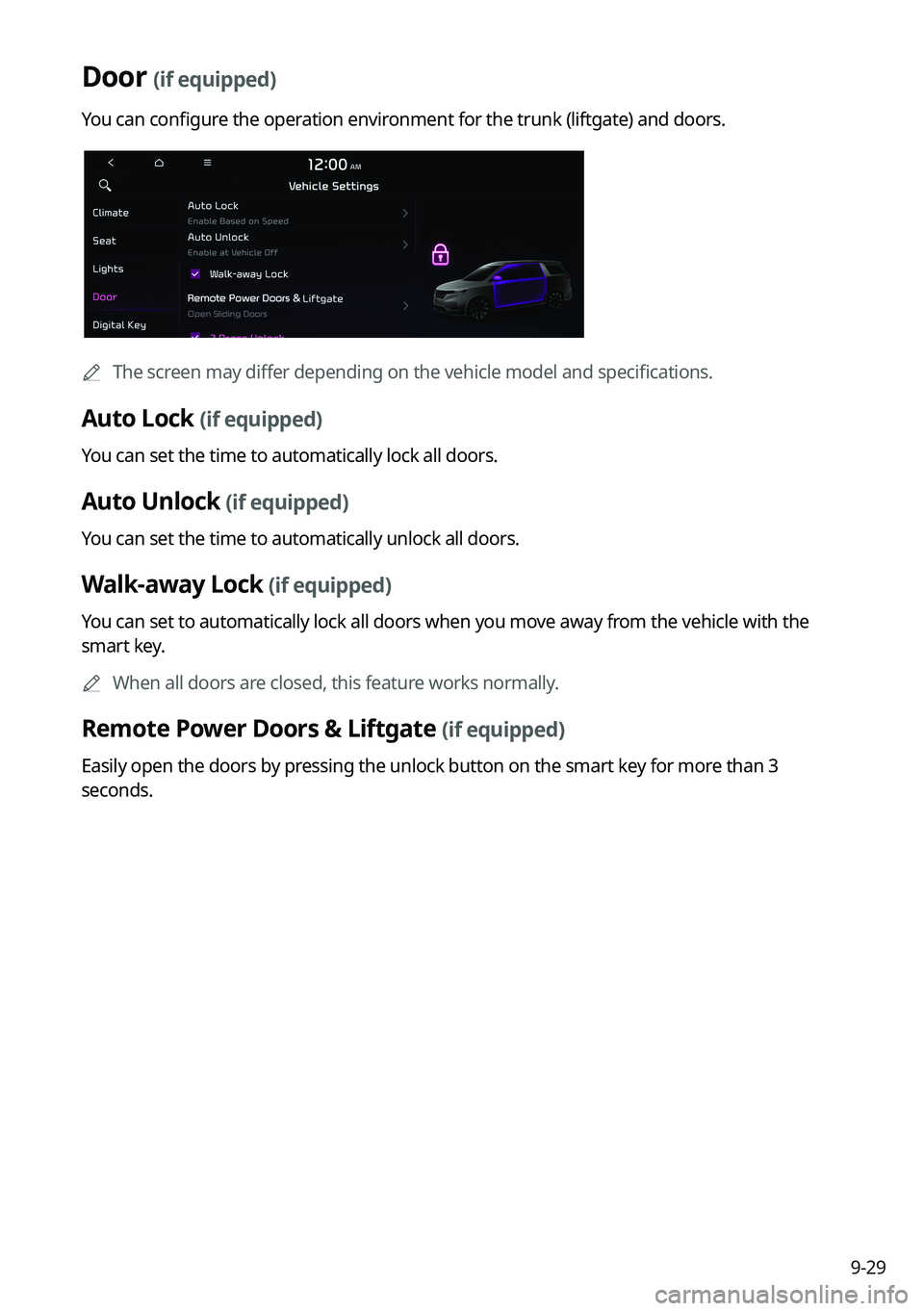
Door (if equipped)
You can configure the operation environment for the trunk (liftgate) and doors.
0000
A
The screen may differ depending on the vehicle model and specifications.
Auto Lock (if equipped)
You can set the time to automatically lock all doors.
Auto Unlock (if equipped)
You can set the time to automatically unlock all doors.
Walk-away Lock (if equipped)
You can set to automatically lock all doors when you move away from the vehicle with the
smart key.
0000
A
When all doors are closed, this feature works normally.
Remote Power Doors & Liftgate (if equipped)
Easily open the doors by pressing the unlock button on the smart key for more than 3
seconds.
Page 235 of 316

9-47
Sound Tuning
You can adjust the sound by adjusting the strengths (output levels) for each audio band: Bass,
Midrange, and Treble. You can also configure settings so that sound is audible more loudly
and clearly at a specific location in the vehicle.0000
A
To reset all audio settings to the default values, press Center.
Driving Guidance
Specify the system's guidance voice type, set a certain sound to override other sounds, and
configure other guidance sound settings.
Parking Safety Priority
When warning sound is generated while parking, the audio volume decreases to make the
sound audible.
Navigation Guidance
You can set to enable the navigation sound to be heard first when using both the navigation
system and Radio/Media system.
Navigation Guidance During Calls
Even during a call, the navigation sound is heard.
Mute Navigation Guidance
Press the Mute button on the steering wheel when the navigation guidance is being output
to set to mute the guidance volume for 10 seconds.
Page 240 of 316

9-52
Parking Safety Priority
When warning sound is generated while parking, the audio volume decreases to make the
sound audible.
Navigation Guidance During Calls
Even during a call, the navigation sound is heard.
Navigation Guidance
You can set to enable the navigation sound to be heard first when using both the navigation
system and Radio/Media system.
Mute Navigation Guidance
Press the Mute button on the steering wheel when the navigation guidance is being output
to set to mute the guidance volume for 10 seconds.
System Volumes
You can adjust the volume for each system function including phone projection.
Subsystem Volumes
You can adjust the volume for each system function and initialize all volume settings.0000
A
To initialize all system sound settings, press Reset.
Connected Devices
You can adjust the volume of the phone projection and initialize all volume settings.
\225Android Auto: Vary the volume of your Android smartphone, connected to the system,
depending on the function.
\225Apple CarPlay: Vary the volume of your iPhone, connected to the system, depending on
the function.
0000
A
To initialize all system sound settings of the phone projection, press Reset.
Page 242 of 316
9-54
Turning on/off the screen touch sound
To turn on or off the touch sound on the screen, press Beep at the top of
the screen.
Configuring the voice recognition settings
(Type1)
You can change the settings for voice recognition.
1 On the All Menus screen, press Setup >
Voice Recognition.
The voice recognition settings screen appears.
2 Configure the settings required:
0000
A
Press Menu >
Search for Settings or press and enter a keyword to search for a
setting item. You can also search for a setting item by voice.
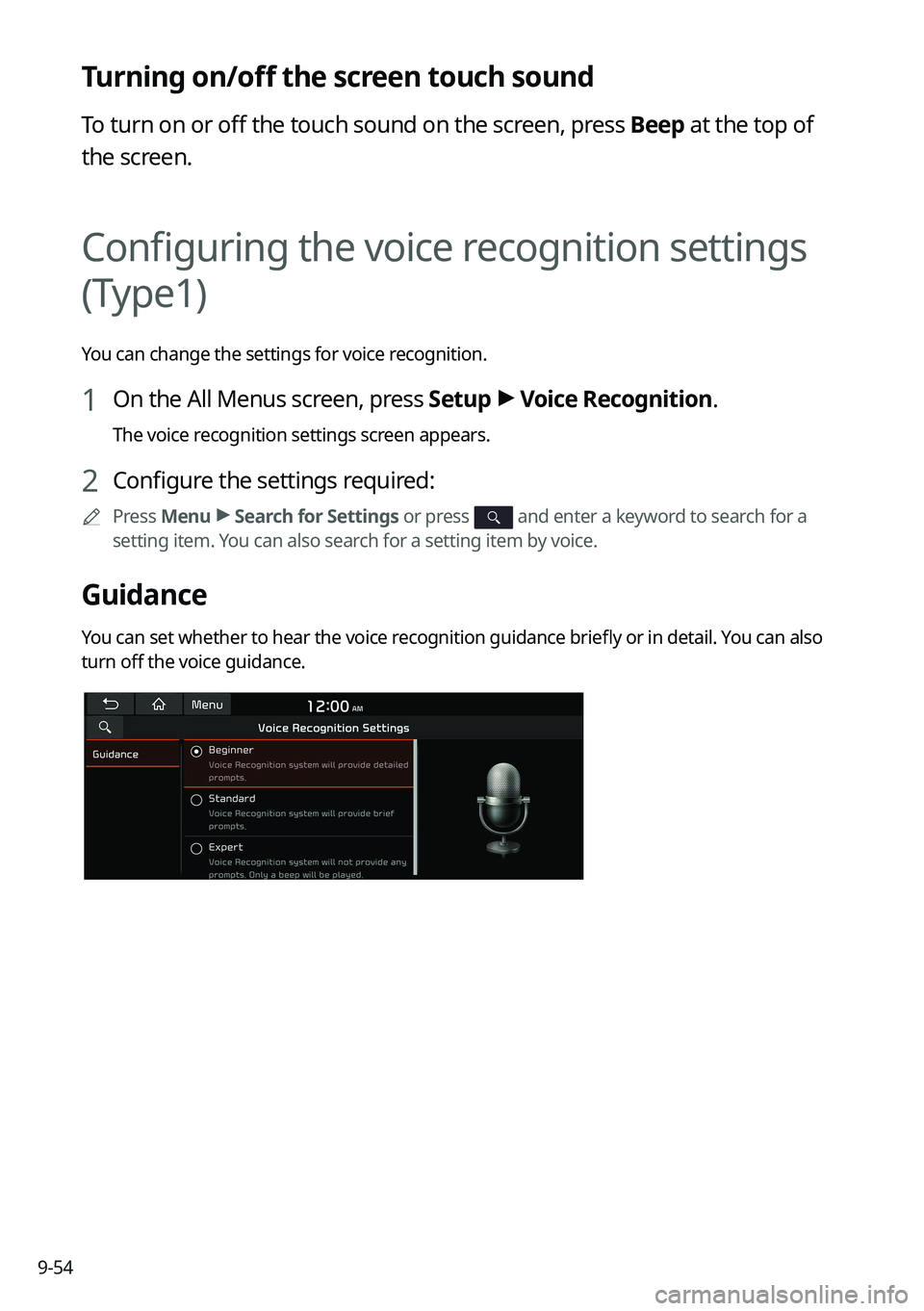
Guidance
You can set whether to hear the voice recognition guidance briefly or in detail. You can also
turn off the voice guidance.