ECO KIA SELTOS 2022 Navigation System Quick Reference Guide
[x] Cancel search | Manufacturer: KIA, Model Year: 2022, Model line: SELTOS, Model: KIA SELTOS 2022Pages: 316, PDF Size: 10.48 MB
Page 101 of 316

5-7
i i Displays the lanes in different colors.
\225Orange: Recommended lane
\225White: Available lane
\225Gray: Unavailable lane
j j Displays quick menu items that can be used during guidance.
k k Can pause or cancel the route guidance. > See "
Stopping the route guidance."
l l Displays the remaining distance to the destination and the estimated time of arrival. For
more details, press the information item.
m m Displays or hides the detailed guidance.
n n Displays the system information on the map. (It can display up to two items.)
\225 Traffic information (with an icon if there is no HD data reception)
\225Bluetooth connection status
o o Check the range you can drive with the current amount of battery (EV only).
0000
A
To see only the map with no destination, press the map area on the Home screen or on
the All Menus screen, press Map. Or press the [ MAP] button on the control panel.
0000
A
The screen may differ depending on the vehicle model and specifications.
\335Warning
Be sure to check the road conditions while driving, because the camera information may get
changed occasionally after a map update to the latest version. Relying solely on the driving
assist system may cause violation of traffic rules and regulations, resulting in an accident.
Page 106 of 316
5-12
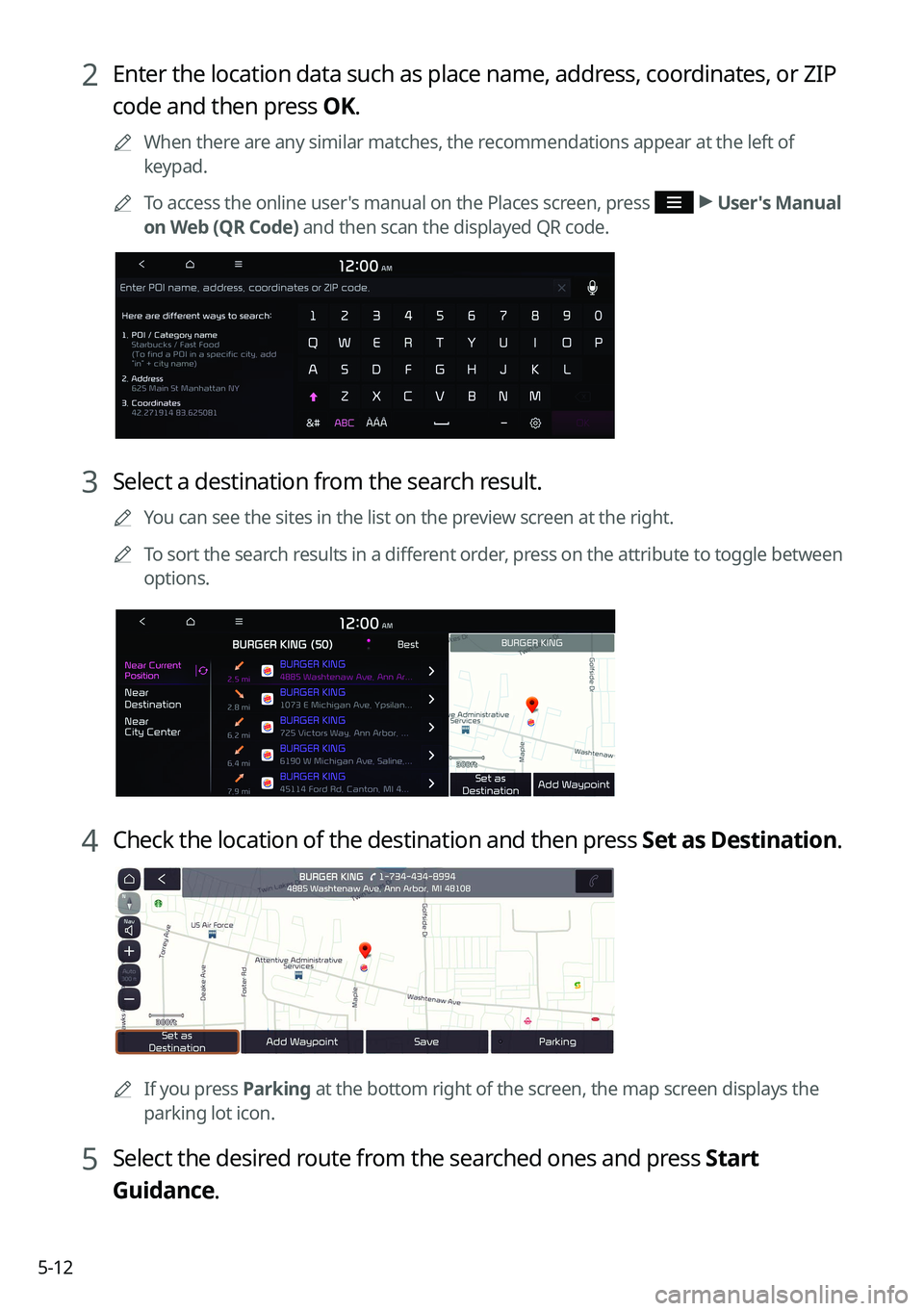
2 Enter the location data such as place name, address, coordinates, or ZIP
code and then press OK.
0000
A
When there are any similar matches, the recommendations appear at the left of
keypad.
0000
A
To access the online user's manual on the Places screen, press
>
User's Manual
on Web (QR Code) and then scan the displayed QR code.
3 Select a destination from the search result.
0000
A
You can see the sites in the list on the preview screen at the right.
0000
A
To sort the search results in a different order, press on the attribute to toggle between
options.
4 Check the location of the destination and then press Set as Destination.
0000A
If you press Parking at the bottom right of the screen, the map screen displays the
parking lot icon.
5 Select the desired route from the searched ones and press Start
Guidance.
Page 124 of 316

5-30
END USER LICENSE AGREEMENT
PLEASE READ THIS END USER LICENSE AGREEMENT ("EULA") CAREFULLY BEFORE USING THE
NAVIGATION SYSTEM.
This is a license agreement between you and Hyundai MnSoft, INC. including its affiliates
("COMPANY") regarding a copy of the COMPANY navigable map database together with
associated software, media and explanatory printed documentation published by COMPANY
(jointly the "Product"). The Product is provided for your personal, internal use only and not for
resale. It is protected by copyright and is subject to the following terms which are agreed to
by you, on the one hand, and COMPANY and its licensors (and their licensors and suppliers)
(collectively, "Licensors") on the other hand.
By using the Product, you accept and agree to all terms and conditions in this End User
License Agreement ("EULA"). IF YOU DO NOT AGREE TO THE TERMS OF THIS EULA, YOU
MUST PROMPTLY EXIT THE PRODUCT OPERATION PROGRAM AND DO NOT USE OR ACCESS
TO THE PRODUCT. YOU AGREE THAT YOUR RIGHTS UNDER THIS EULA MAY BE TERMINATED
AUTOMATICALLY WITHOUT NOTICE IF YOU FAIL TO COMPLY WITH ANY TERM(S) OF THIS
EULA.
Terms and Conditions
Personal Use Only. You agree to use this Product together with COMPANY's authorized
application for the solely personal, non-commercial purposes for which you were licensed,
and not for service bureau, time-sharing or other similar purposes. Accordingly, but subject to
the restrictions set forth in the following paragraphs, you agree not to otherwise reproduce,
copy, modify, decompile, disassemble, create any derivative works of, or reverse engineer any
portion of this Data, and may not transfer or distribute it in any form, for any purpose, except
to the extent permitted by mandatory laws. You may not assign this EULA or any of the rights
or licenses granted under this EULA, except when installed in the system for which it was
created.
Restrictions. Except where you have been specifically licensed to do so by COMPANY, and
without limiting the preceding paragraph, you may not use the Product (i) with any products,
systems, or applications installed or otherwise connected to or in communication with
vehicles, capable of vehicle navigation, positioning, dispatch, real time route guidance, fleet
management or similar applications; or (ii) with or in communication with any positioning
devices or any mobile or wireless-connected electronic or computer devices, including
without limitation cellular phones, palmtop and handheld computers, pagers, and personal
digital assistants or PDAs.
Page 130 of 316
5-36End-User Terms Required by ZENRIN.
The Product utilizes map data that COMPANY licenses
from ZENRIN and the following copyright notices apply to such map data (the "ZENRIN
Data"):
Europe: Junction View Data provided by ZENRIN CO., LTD. Copyright © 20XX, All Rights
Reserved.
Europe: Junction View Data and Exit View Data provided by ZENRIN CO., LTD. Copyright ©
20XX, All Rights Reserved.
North America: Junction View Data provided by ZENRIN USA, INC. Copyright © 20XX, All Rights
Reserved; Junction View Data fourni par ZENRIN USA, INC. Copyright © 20XX. Tous droits
réservés; Las imágenes de las rutas alternas son proveídas por ZENRIN USA, INC. Copyright
© 20XX. Todos los derechos reservados.
© 2013 Hyundai MnSoft. All rights reserved.
Copyright for Brand Icon
The marks of companies displayed by this product to indicate business locations are the
marks of their respective owners. The use of such marks in this product does not imply any
sponsorship, approval, or endorsement by such companies of this product.
Copyright for Junction View
Junction View Data provided by ZENRIN USA, INC. Copyright© 20XX, All rights Reserved.
About Map Updates
You can contact your KIA dealer or call at 1-888-757-0010.
The Data and all copyrights and intellectual property or neighboring rights
therein are owned by HERE and Hyundai MnSoft Inc.
Importance Notice: This is protected by U.S. copyright laws.
You may not extract or reutilize substantial parts of the contents of the
Data, nor reproduce, copy, modify, adapt, translate, disassemble, decompile
or reverse engineer any portion of the Data, except to the extent explicitly
permitted by mandatory laws.
© 1987-2020 HERE. All rights reserved.
Page 136 of 316

6-6
Making a call via Bluetooth
You can connect a Bluetooth device with the hands-free function to use a Bluetooth phone.
The Bluetooth connection allows you to view call details directly from the system screen, and
to make calls safely and easily use your vehicle microphone and speaker.
\335Warning
\225Park the vehicle at a safe place before connecting your mobile phone. It may take the
driver attention off the road and cause a traffic accident which can result in damages,
injuries, and/or death.
\225While driving, do not make a call by dialing a phone number or do not pick up your phone
to talk. Distraction by the use of a mobile phone may cause you not to recognize traffic
flow around and not to cope with unexpected situations. As a result, a traffic accident
may occur. If necessary, use the Bluetooth hands-free function and make the call as short
as possible.
Dialing from the recent call list
Make calls directly from call history of your mobile device.
When you connect your mobile device and system over Bluetooth, the list of recent calls from
the device will be downloaded to the system and you can call them again by selecting them
from the system screen. Your vehicle has a built-in microphone and speaker that make using
mobile phones safe and easy.
1 Perform any of the following methods:
\225On the All Menus screen, press Phone.
\225On the steering wheel, press the Call button.
2 On the Bluetooth Call screen, press .
3 Choose a name from the list.
The system dials the selected number.
0000
A
You can also move to a desired number by using the Move lever/button on the
steering wheel without pressing on the screen.
Page 137 of 316

6-7
0000
A
The download may not work in some phone models.
0000
A
You can download up to 50 call records for each list.
0000
A
Call durations do not appear on the system screen.
0000
A
You cannot download call records when the download is prohibited by the phone. Some
phone models may require approval for a download. When a successful download is not
made, check the phone screen or its settings.
0000
A
When call records are newly downloaded, the previous records are removed.
0000
A
Learn more about receiving calls while using a Bluetooth connection.
> See "Accepting an
incoming call over Bluetooth."
Recent calls list screen
\037
\036\035\034\033
\032\031\030\027
a a Returns to the previous step.
b b View a list of recent calls downloaded to the system from the device.
c c View all recent calls.
d d View only dialed calls in the list.
e e View only received calls in the list.
f f View only missed calls in the list.
g g Make a phone call using voice recognition. > See " Dialing with voice recognition."
h h Find and connect other Bluetooth devices.
i i The list of menu items appears.
\225 Display Off: Turns off the screen. To switch the screen back on, press the screen or
briefly press the power button.
\225Download: Download the list of recent calls from the connected mobile device.
\225Privacy Mode: Activate privacy mode to protect personal data. The data downloaded
from the mobile phone stays hidden while this mode is on.
\225Change Device: Find and connect other Bluetooth devices.
Page 139 of 316

6-9
4 To set a phone number as a favorite, press the button next to it.
The phone number is now added to your favorites list.
5 Choose a contact from the list.
The system dials the selected contact.
0000
A
You can add up to 10 favorite contacts for each device.
0000
A
When another mobile phone is connected, the screen does not display the contacts from
the previous phone, but they are kept in the system until the phone is deleted from the
list.
0000
A
Learn more about receiving calls while using a Bluetooth connection.
> See "Accepting an
incoming call over Bluetooth."
Favorites screen
\037
\036
\035\034\033
a a Returns to the previous step.
b b View a list of favorite contacts.
c c Make a phone call using voice recognition. > See " Dialing with voice recognition."
d d Find and connect other Bluetooth devices.
Page 141 of 316

6-11
3 Select a contact from the list.
The system dials the selected contact.
0000AYou can download only the contacts that can be displayed on the connected Bluetoot\
h
device. The contacts may not appear in some Apps.
0000
A
You can download up to 5,000 contacts for each device.
0000
A
The download may not work in some phone models.
0000
A
Contacts from both the mobile device and its SIM card are downloaded at the same time.
The system may not be able to download SIM card contacts from all phone models.
0000
A
When speed dial numbers are set to contacts on the phone, press and hold a speed
dial number on the dial pad to make a call easily. Some mobile phone models may not
support the speed dial function.
0000
A
You cannot download contacts when the download is prohibited by the phone. Some
phone models may require approval for a download. When a successful download is not
made, check the phone screen or its settings.
0000
A
Depending on the phone model or operation status, downloading may take longer than
usual.
0000
A
When a new contacts list is downloaded, the previous records are removed.
0000
A
The downloaded contacts cannot be edited or deleted from the system.
0000
A
When another mobile phone is connected, the screen does not display the contacts
downloaded from the previous phone, but they are kept in the system until the phone is
deleted from the list.
0000
A
Learn more about receiving calls while using a Bluetooth connection.
> See "Accepting an
incoming call over Bluetooth."
Page 142 of 316
6-12
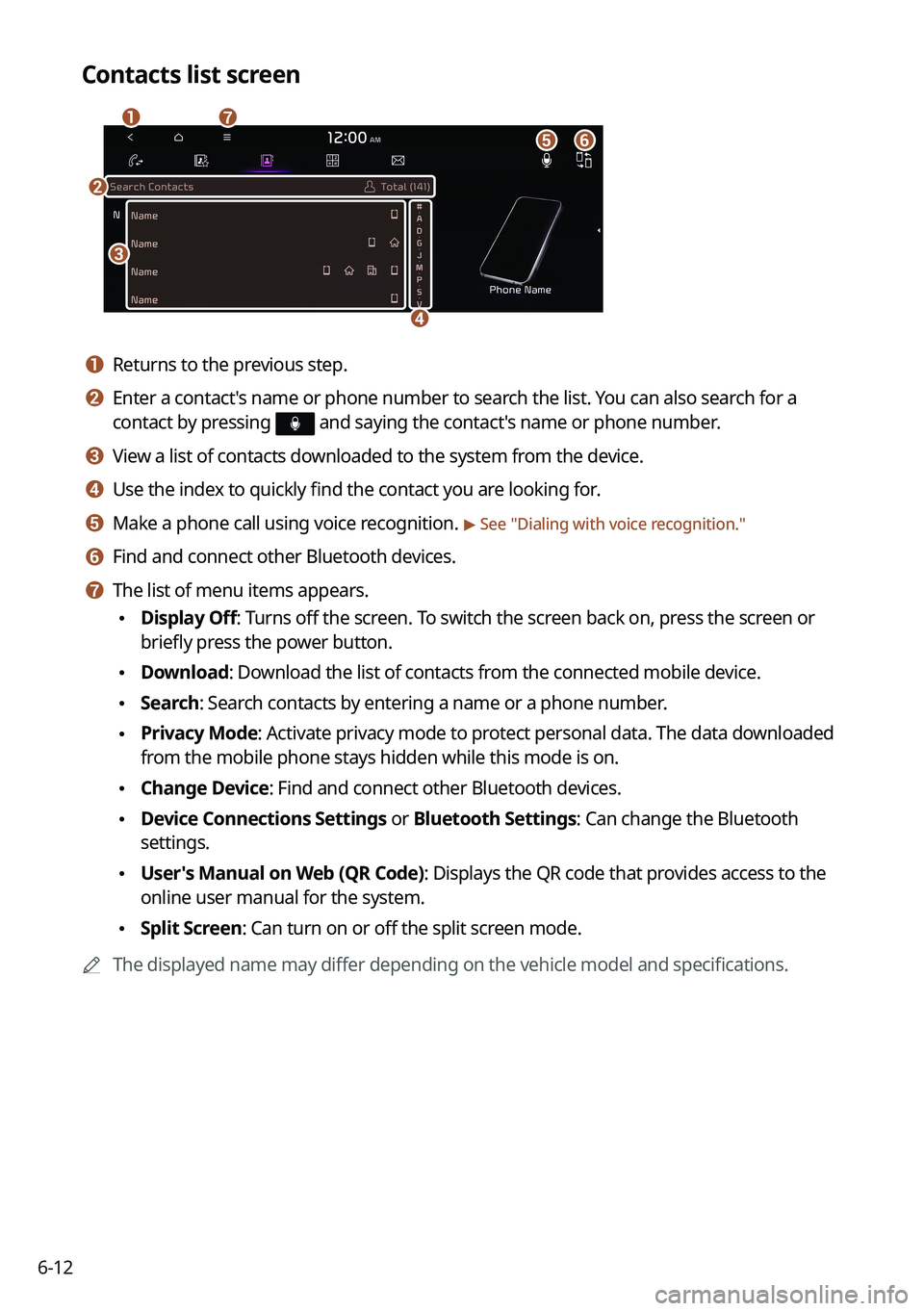
Contacts list screen
\037
\036
\035
\034
\033
\032
\031
a a Returns to the previous step.
b b Enter a contact's name or phone number to search the list. You can also search for a
contact by pressing
and saying the contact's name or phone number.
c c View a list of contacts downloaded to the system from the device.
d d Use the index to quickly find the contact you are looking for.
e e Make a phone call using voice recognition. > See "Dialing with voice recognition."
f f Find and connect other Bluetooth devices.
g g The list of menu items appears.
\225 Display Off: Turns off the screen. To switch the screen back on, press the screen or
briefly press the power button.
\225Download: Download the list of contacts from the connected mobile device.
\225Search: Search contacts by entering a name or a phone number.
\225Privacy Mode: Activate privacy mode to protect personal data. The data downloaded
from the mobile phone stays hidden while this mode is on.
\225Change Device: Find and connect other Bluetooth devices.
\225Device Connections Settings or Bluetooth Settings: Can change the Bluetooth
settings.
\225User's Manual on Web (QR Code): Displays the QR code that provides access to the
online user manual for the system.
\225Split Screen: Can turn on or off the split screen mode.
0000
A
The displayed name may differ depending on the vehicle model and specifications.
Page 143 of 316
6-13
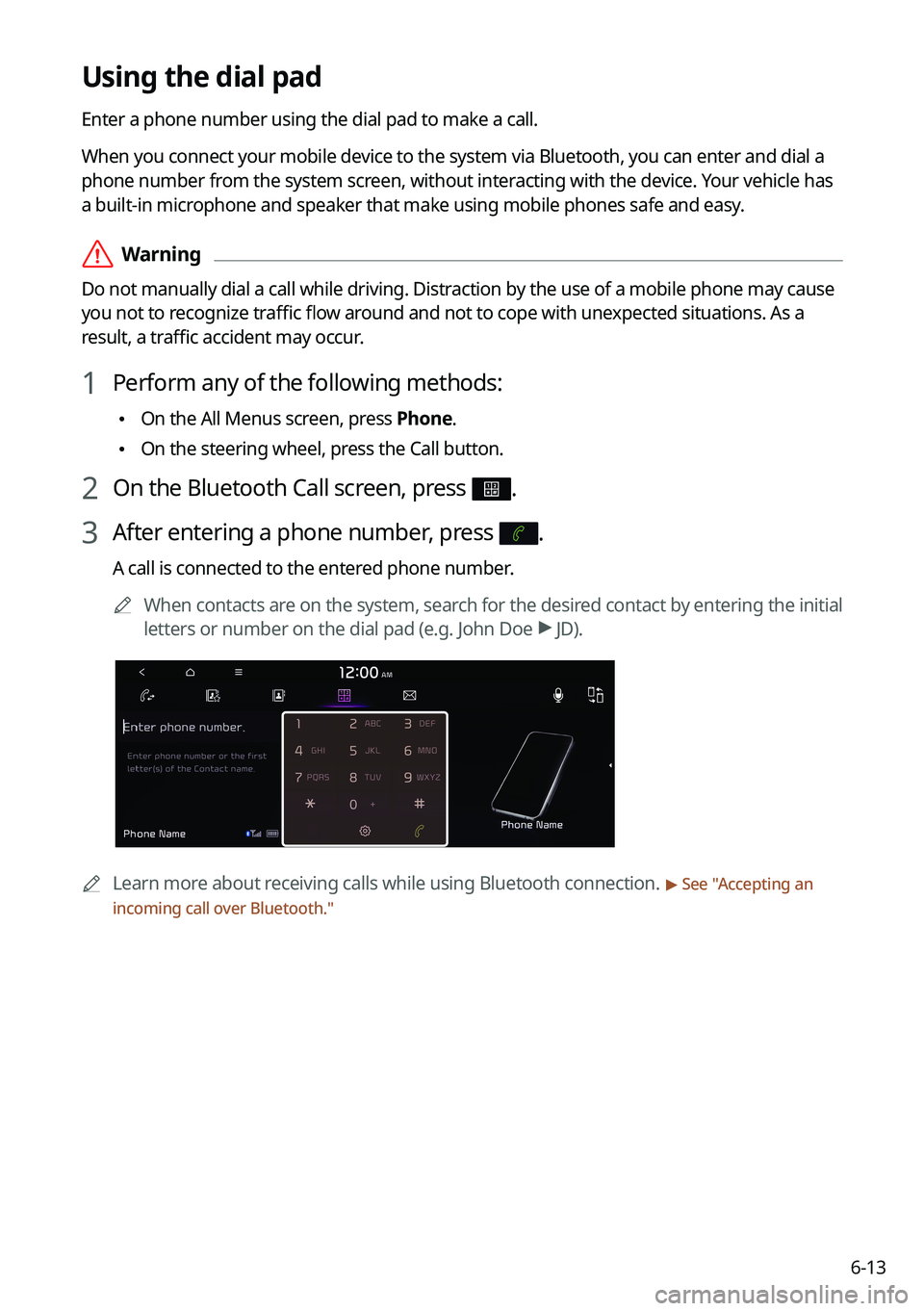
Using the dial pad
Enter a phone number using the dial pad to make a call.
When you connect your mobile device to the system via Bluetooth, you can enter and dial a
phone number from the system screen, without interacting with the device. Your vehicle has
a built-in microphone and speaker that make using mobile phones safe and easy.
\335Warning
Do not manually dial a call while driving. Distraction by the use of a mobile phone may cause
you not to recognize traffic flow around and not to cope with unexpected situations. As a
result, a traffic accident may occur.
1 Perform any of the following methods:
\225On the All Menus screen, press Phone.
\225On the steering wheel, press the Call button.
2 On the Bluetooth Call screen, press .
3 After entering a phone number, press .
A call is connected to the entered phone number.
0000
A
When contacts are on the system, search for the desired contact by entering the initial
letters or number on the dial pad (e.g. John Doe >
JD).
0000A Learn more about receiving calls while using Bluetooth connection. > See "Accepting an
incoming call over Bluetooth."