display KIA SORENTO 2010 User Guide
[x] Cancel search | Manufacturer: KIA, Model Year: 2010, Model line: SORENTO, Model: KIA SORENTO 2010Pages: 399, PDF Size: 40.44 MB
Page 137 of 399
Features of your vehicle
62
4
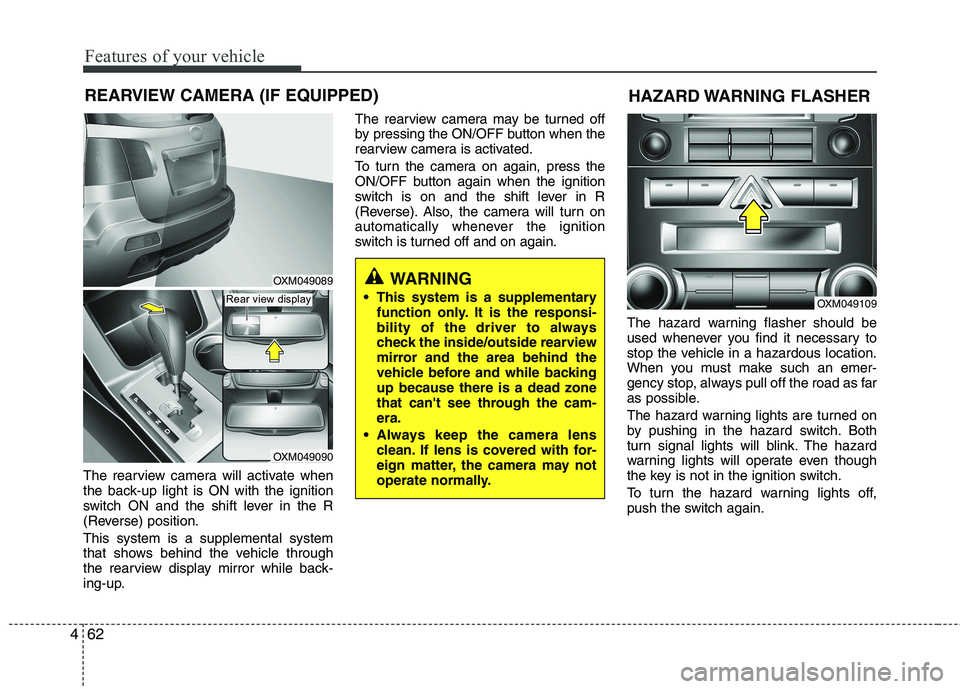
The rearview camera will activate when
the back-up light is ON with the ignition
switch ON and the shift lever in the R
(Reverse) position. This system is a supplemental system
that shows behind the vehicle through
the rearview display mirror while back-
ing-up. The rearview camera may be turned off
by pressing the ON/OFF button when the
rearview camera is activated.
To turn the camera on again, press the
ON/OFF button again when the ignition
switch is on and the shift lever in R
(Reverse). Also, the camera will turn on
automatically whenever the ignition
switch is turned off and on again.
The hazard warning flasher should be
used whenever you find it necessary to
stop the vehicle in a hazardous location.
When you must make such an emer-
gency stop, always pull off the road as far
as possible.
The hazard warning lights are turned on
by pushing in the hazard switch. Both
turn signal lights will blink. The hazard
warning lights will operate even though
the key is not in the ignition switch.
To turn the hazard warning lights off,
push the switch again.
OXM049109
HAZARD WARNING FLASHER
WARNING
This system is a supplementary function only. It is the responsi-
bility of the driver to always
check the inside/outside rearview
mirror and the area behind the
vehicle before and while backingup because there is a dead zone
that can't see through the cam-era.
Always keep the camera lens clean. If lens is covered with for-
eign matter, the camera may not
operate normally.OXM049089
OXM049090
REARVIEW CAMERA (IF EQUIPPED)
Rear view display
Page 161 of 399
Features of your vehicle
86
4
AUTOMATIC CLIMATE CONTROL SYSTEM (IF EQUIPPED)
OXM049151L/OXM049141
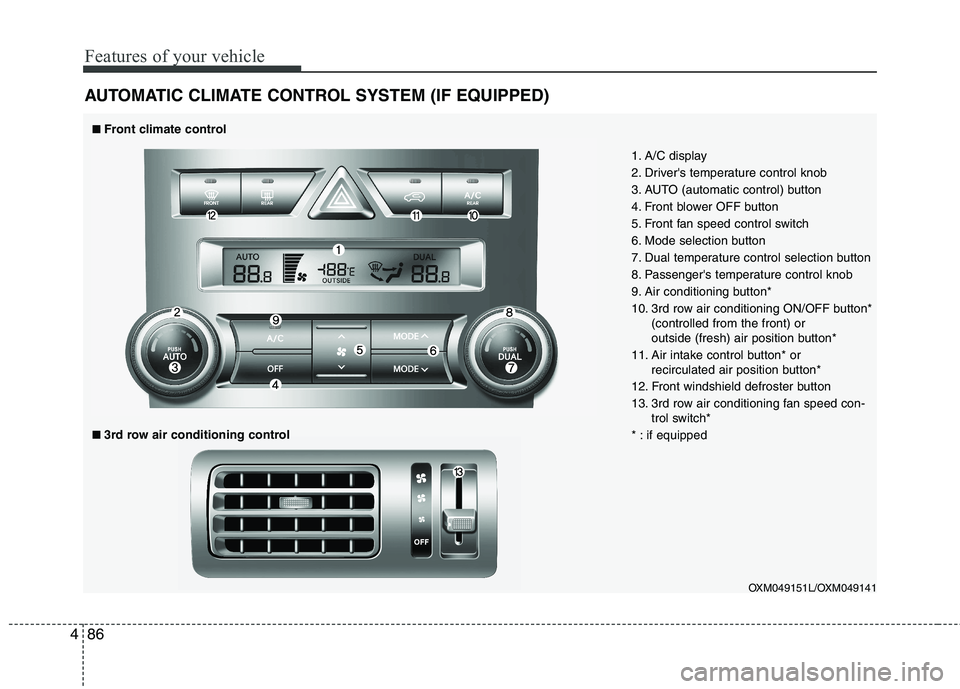
1. A/C display
2. Driver's temperature control knob
3. AUTO (automatic control) button
4. Front blower OFF button
5. Front fan speed control switch
6. Mode selection button
7. Dual temperature control selection button
8. Passenger's temperature control knob
9. Air conditioning button*
10. 3rd row air conditioning ON/OFF button*
(controlled from the front) or
outside (fresh) air position button*
11. Air intake control button* or recirculated air position button*
12. Front windshield defroster button
13. 3rd row air conditioning fan speed con- trol switch*
* : if equipped
■■ Front climate control
■■
3rd row air conditioning control
Page 165 of 399
Features of your vehicle
90
4
Adjusting the driver and passenger side
temperature individually
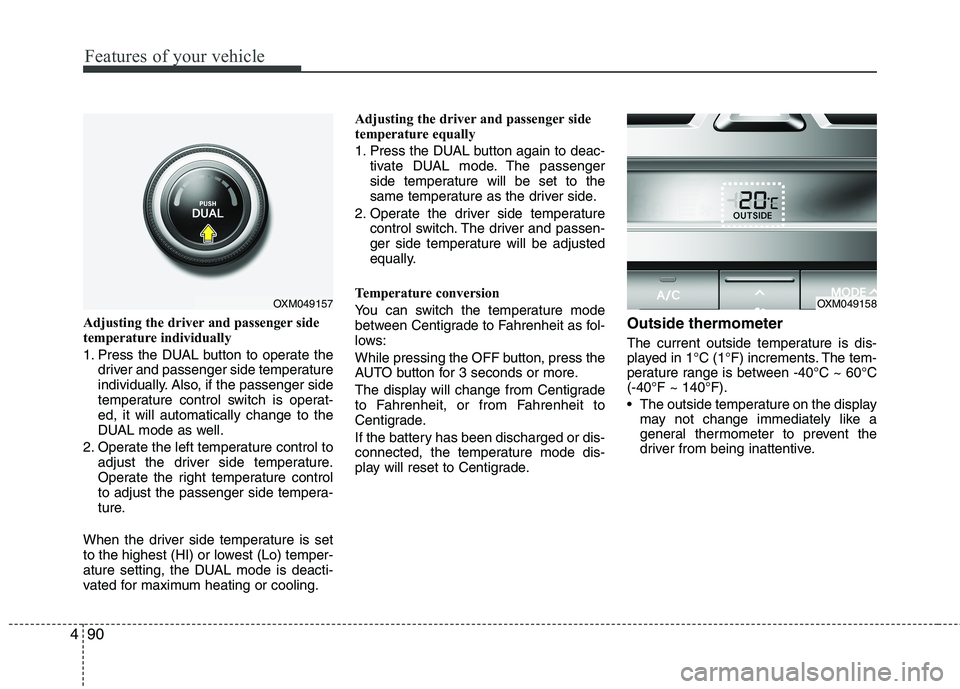
1. Press the DUAL button to operate the
driver and passenger side temperature
individually. Also, if the passenger side
temperature control switch is operat-ed, it will automatically change to the
DUAL mode as well.
2. Operate the left temperature control to adjust the driver side temperature.
Operate the right temperature control
to adjust the passenger side tempera-
ture.
When the driver side temperature is set
to the highest (HI) or lowest (Lo) temper-
ature setting, the DUAL mode is deacti-
vated for maximum heating or cooling. Adjusting the driver and passenger side
temperature equally
1. Press the DUAL button again to deac-
tivate DUAL mode. The passenger
side temperature will be set to the
same temperature as the driver side.
2. Operate the driver side temperature control switch. The driver and passen-
ger side temperature will be adjusted
equally.
Temperature conversion
You can switch the temperature mode
between Centigrade to Fahrenheit as fol-
lows:
While pressing the OFF button, press the
AUTO button for 3 seconds or more.
The display will change from Centigrade
to Fahrenheit, or from Fahrenheit to
Centigrade.
If the battery has been discharged or dis-
connected, the temperature mode dis-
play will reset to Centigrade. Outside thermometer
The current outside temperature is dis-
played in 1°C (1°F) increments. The tem-
perature range is between -40°C ~ 60°C(-40°F ~ 140°F).
The outside temperature on the display
may not change immediately like a
general thermometer to prevent the
driver from being inattentive.
OXM049157OXM049158
Page 171 of 399
Features of your vehicle
96
4
Defogging logic
To reduce the possibility of fogging up
the inside of the windshield, the air intakeor air conditioning are controlled auto-
matically according to certain conditions
such as or position. To cancel or
return to the defogging logic, do the fol-
lowing.
Manual climate control system
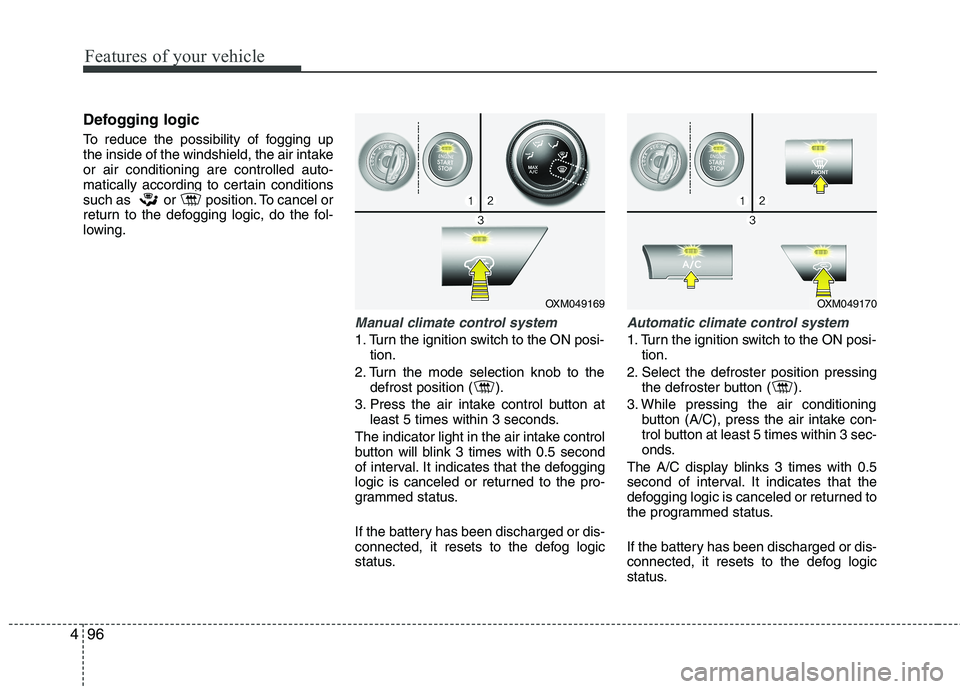
1. Turn the ignition switch to the ON posi-
tion.
2. Turn the mode selection knob to the defrost position ( ).
3. Press the air intake control button at least 5 times within 3 seconds.
The indicator light in the air intake control
button will blink 3 times with 0.5 second
of interval. It indicates that the defogging
logic is canceled or returned to the pro-
grammed status.
If the battery has been discharged or dis-
connected, it resets to the defog logic
status.
Automatic climate control system
1. Turn the ignition switch to the ON posi- tion.
2. Select the defroster position pressing the defroster button ( ).
3. While pressing the air conditioning button (A/C), press the air intake con-
trol button at least 5 times within 3 sec-
onds.
The A/C display blinks 3 times with 0.5
second of interval. It indicates that the
defogging logic is canceled or returned to
the programmed status.
If the battery has been discharged or dis-
connected, it resets to the defog logic
status.
OXM049169OXM049170
Page 177 of 399
Features of your vehicle
102
4
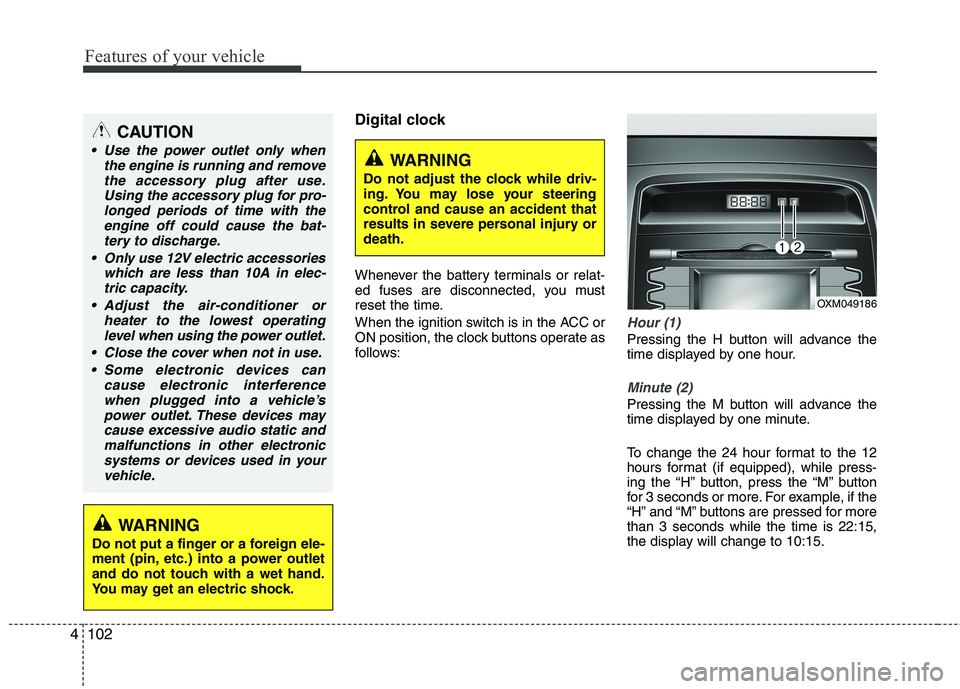
Digital clock
Whenever the battery terminals or relat-
ed fuses are disconnected, you must
reset the time.
When the ignition switch is in the ACC or
ON position, the clock buttons operate as
follows:
Hour (1)
Pressing the H button will advance the
time displayed by one hour.
Minute (2)
Pressing the M button will advance the
time displayed by one minute.
To change the 24 hour format to the 12
hours format (if equipped), while press-
ing the “H” button, press the “M” button
for 3 seconds or more. For example, if the
“H” and “M” buttons are pressed for morethan 3 seconds while the time is 22:15,
the display will change to 10:15.
WARNING
Do not adjust the clock while driv-
ing. You may lose your steering
control and cause an accident that
results in severe personal injury ordeath.
CAUTION
Use the power outlet only when the engine is running and remove
the accessory plug after use.Using the accessory plug for pro-longed periods of time with the engine off could cause the bat-
tery to discharge.
Only use 12V electric accessories which are less than 10A in elec-tric capacity.
Adjust the air-conditioner or heater to the lowest operatinglevel when using the power outlet.
Close the cover when not in use. Some electronic devices can cause electronic interference
when plugged into a vehicle’spower outlet. These devices may cause excessive audio static andmalfunctions in other electronic
systems or devices used in yourvehicle.
WARNING
Do not put a finger or a foreign ele-
ment (pin, etc.) into a power outlet
and do not touch with a wet hand.
You may get an electric shock.
OXM049186
Page 189 of 399
Features of your vehicle
114
4
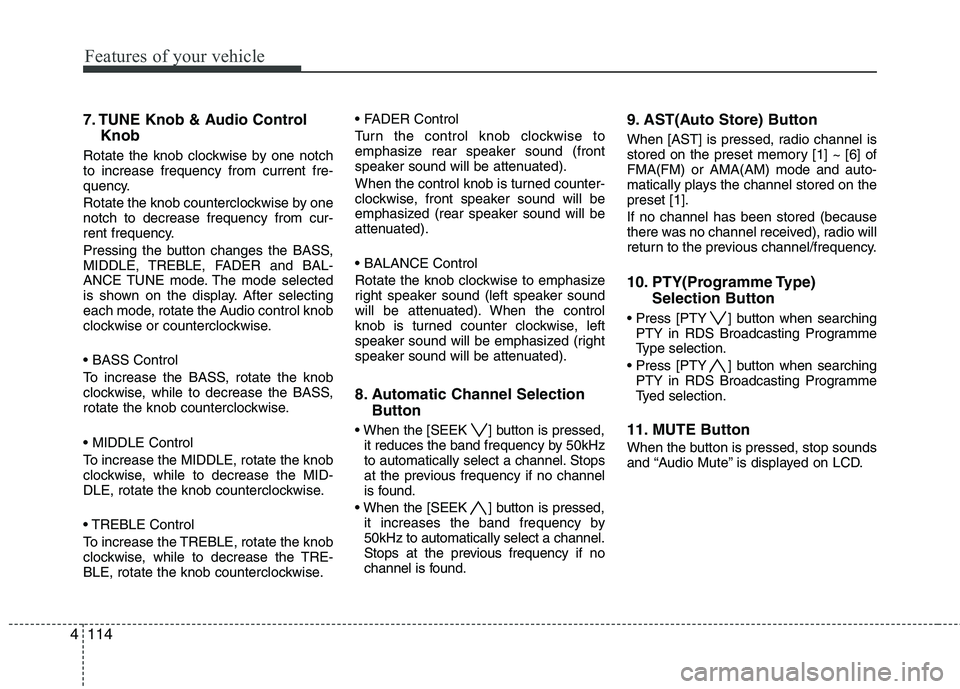
7. TUNE Knob & Audio Control
Knob
Rotate the knob clockwise by one notch to increase frequency from current fre-
quency.
Rotate the knob counterclockwise by one notch to decrease frequency from cur-
rent frequency.
Pressing the button changes the BASS,
MIDDLE, TREBLE, FADER and BAL-
ANCE TUNE mode. The mode selected
is shown on the display. After selecting
each mode, rotate the Audio control knob
clockwise or counterclockwise.
To increase the BASS, rotate the knob
clockwise, while to decrease the BASS,
rotate the knob counterclockwise.
To increase the MIDDLE, rotate the knob
clockwise, while to decrease the MID-
DLE, rotate the knob counterclockwise.
Control
To increase the TREBLE, rotate the knob
clockwise, while to decrease the TRE-
BLE, rotate the knob counterclockwise.
Turn the control knob clockwise to
emphasize rear speaker sound (front
speaker sound will be attenuated).
When the control knob is turned counter-
clockwise, front speaker sound will be
emphasized (rear speaker sound will be
attenuated).
Rotate the knob clockwise to emphasize
right speaker sound (left speaker sound
will be attenuated). When the control
knob is turned counter clockwise, left
speaker sound will be emphasized (right
speaker sound will be attenuated).
8. Automatic Channel Selection
Button
] button is pressed, it reduces the band frequency by 50kHz
to automatically select a channel. Stops
at the previous frequency if no channel
is found.
] button is pressed, it increases the band frequency by50kHz to automatically select a channel.
Stops at the previous frequency if no
channel is found. 9. AST(Auto Store) Button
When [AST] is pressed, radio channel is
stored on the preset memory [1] ~ [6] ofFMA(FM) or AMA(AM) mode and auto-
matically plays the channel stored on thepreset [1]. If no channel has been stored (because
there was no channel received), radio will
return to the previous channel/frequency.
10. PTY(Programme Type)
Selection Button
] button when searching PTY in RDS Broadcasting Programme
Type selection.
] button when searching PTY in RDS Broadcasting Programme
Tyed selection.
11. MUTE Button
When the button is pressed, stop sounds
and “Audio Mute” is displayed on LCD.
Page 191 of 399
Features of your vehicle
116
4
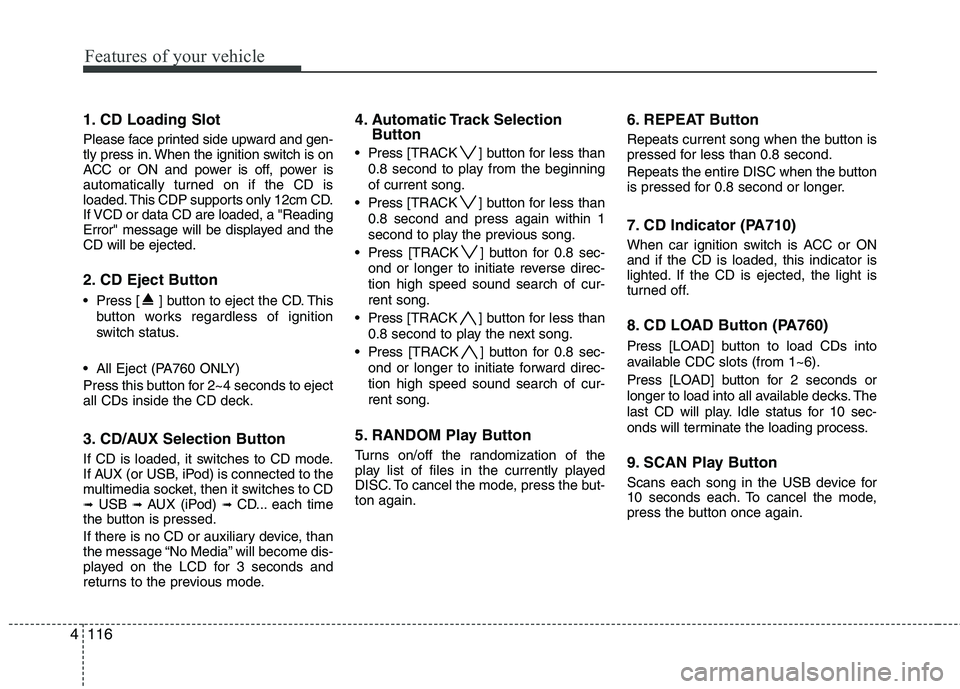
1. CD Loading Slot
Please face printed side upward and gen-
tly press in. When the ignition switch is on
ACC or ON and power is off, power is
automatically turned on if the CD is
loaded. This CDP supports only 12cm CD.
If VCD or data CD are loaded, a "Reading
Error" message will be displayed and theCD will be ejected.
2. CD Eject Button
Press [ ] button to eject the CD. This
button works regardless of ignition
switch status.
All Eject (PA760 ONLY)
Press this button for 2~4 seconds to eject
all CDs inside the CD deck.
3. CD/AUX Selection Button
If CD is loaded, it switches to CD mode.
If AUX (or USB, iPod) is connected to the
multimedia socket, then it switches to CD➟ USB ➟ AUX (iPod) ➟ CD... each time
the button is pressed.
If there is no CD or auxiliary device, than
the message “No Media” will become dis-
played on the LCD for 3 seconds and
returns to the previous mode. 4. Automatic Track Selection
Button
Press [TRACK ] button for less than
0.8 second to play from the beginning of current song.
Press [TRACK ] button for less than
0.8 second and press again within 1
second to play the previous song.
Press [TRACK ] button for 0.8 sec-
ond or longer to initiate reverse direc-tion high speed sound search of cur-rent song.
Press [TRACK ] button for less than
0.8 second to play the next song.
Press [TRACK ] button for 0.8 sec-
ond or longer to initiate forward direc-tion high speed sound search of cur-rent song.
5. RANDOM Play Button
Turns on/off the randomization of the
play list of files in the currently played
DISC. To cancel the mode, press the but-ton again. 6. REPEAT Button
Repeats current song when the button is
pressed for less than 0.8 second.
Repeats the entire DISC when the button
is pressed for 0.8 second or longer.
7. CD Indicator (PA710)
When car ignition switch is ACC or ON and if the CD is loaded, this indicator is
lighted. If the CD is ejected, the light is
turned off.
8. CD LOAD Button (PA760)
Press [LO
AD] button to load CDs into
available CDC slots (from 1~6).
Press [LOAD] button for 2 seconds or
longer to load into all available decks. The
last CD will play. Idle status for 10 sec-
onds will terminate the loading process.
9. SCAN Play Button
Scans each song in the USB device for
10 seconds each. To cancel the mode,
press the button once again.
Page 192 of 399
4117
Features of your vehicle
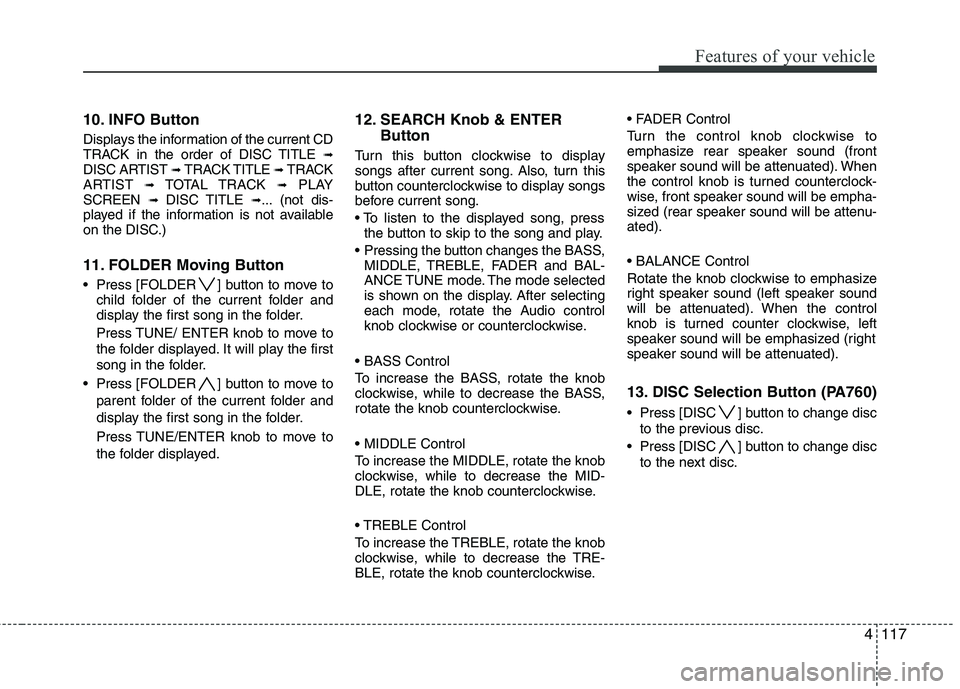
10. INFO Button
Displays the information of the current CD
TRACK in the order of DISC TITLE ➟
DISC ARTIST ➟ TRACK TITLE ➟ TRACK
ARTIST ➟ TOTAL TRACK ➟PLAY
SCREEN ➟ DISC TITLE ➟... (not dis-
played if the information is not available
on the DISC.)
11. FOLDER Moving Button
Press [FOLDER ] button to move to child folder of the current folder and
display the first song in the folder.
Press TUNE/ ENTER knob to move to
the folder displayed. It will play the first
song in the folder.
Press [FOLDER ] button to move to parent folder of the current folder and
display the first song in the folder.
Press TUNE/ENTER knob to move to
the folder displayed. 12. SEARCH Knob & ENTER
Button
Turn this button clockwise to display
songs after current song. Also, turn this
button counterclockwise to display songs
before current song.
the button to skip to the song and play.
MIDDLE, TREBLE, FADER and BAL-
ANCE TUNE mode. The mode selected
is shown on the display. After selecting
each mode, rotate the Audio control
knob clockwise or counterclockwise.
To increase the BASS, rotate the knob
clockwise, while to decrease the BASS,
rotate the knob counterclockwise.
To increase the MIDDLE, rotate the knob
clockwise, while to decrease the MID-
DLE, rotate the knob counterclockwise.
Control
To increase the TREBLE, rotate the knob
clockwise, while to decrease the TRE-
BLE, rotate the knob counterclockwise.
Turn the control knob clockwise to
emphasize rear speaker sound (front
speaker sound will be attenuated). When
the control knob is turned counterclock-
wise, front speaker sound will be empha-
sized (rear speaker sound will be attenu-ated).
Rotate the knob clockwise to emphasize
right speaker sound (left speaker sound
will be attenuated). When the control
knob is turned counter clockwise, left
speaker sound will be emphasized (right
speaker sound will be attenuated).
13. DISC Selection Button (PA760)
Press [DISC ] button to change disc
to the previous disc.
Press [DISC ] button to change disc to the next disc.
Page 196 of 399
4121
Features of your vehicle
1. AUX/USB Selection Button
If USB is connected, it switches to USB
mode. If a CD is loaded or AUX (or USB,
iPod) is connected, then it switches in theorder of CD ➟ USB ➟ AUX ➟ CD ...
each time the button is pressed.
If there is no CD and auxiliary device is
not connected, LCD displays “No Media”
for 3 seconds and returns to previous
mode.
2. TRACK Moving Button
Press the [TRACK ] button for less
than 0.8 second to play from the begin-
ning of the current track.
Press the button for less than 0.8 sec- ond and press it again within 1 second
to move to and play the previous track.
Press the button for 0.8 second or
longer to play the track in reverse
direction in fast speed.
Press the [TRACK ] button for less
than 0.8 second to move to the next
track. Press the button for 0.8 second
or longer to play the track in forward
direction in fast speed. 3. RANDOM Playback Button
Press the button for less than 0.8 second
to start or stop the random playback of
the songs in the current folder.
Press the button for more than 0.8 sec-
ond to randomly play the entire songs in
the USB device.
Press the button again to cancel the mode.
4. REPEAT Button
Press the button for less than 0.8 second to repeat the current song.
Press the button for more than 0.8 sec- ond to repeat all songs in the currently
played folder sequentially (FOLDER
REPEAT)
5. SCAN Selection Button
Scans each song in the USB device for 10 seconds each.
Press the button once again to cancel scanning.
6. INFO Button
Displays the information of the file current-
ly played in the order of FILE NAME
➟
TITLE ➟ ARTIST ➟ ALBUM ➟ FOLDER ➟
TOTAL FILE ➟NORMAL DISPLAY ➟
FILE NAME ➟… (Displays no information
if the file has no song information.) 7. SEARCH Knob & ENTER
Button
Turn this button clockwise to display thesongs ahead of the current song.
Turn the button counterclockwise to dis-
play the songs before the current song.
selected song.
MIDDLE, TREBLE, FADER and BAL-
ANCE TUNE mode. The mode selected
is shown on the display. After selecting
each mode, rotate the Audio control
knob clockwise or counterclockwise.
8. FOLDER Moving Button
Press [FOLDER ] button to move to child folder of the current folder and
display the first song in the folder.
Press TUNE/ ENTER knob to move to
the folder displayed. It will play the first
song in the folder.
Press [FOLDER ] button to move to parent folder display the first song in
the folder.
Press TUNE/ENTER knob to move to
the folder displayed.
Page 199 of 399
Features of your vehicle
124
4
1. iPod Selection Button
If iPod is connected, it switches to the
iPod mode from the previous mode to
play the song files stored in the iPod.
If there is no iPod connected, then it dis-
plays the message "No Media" for 3 sec-
onds and returns to the previous mode.
2. TRACK Moving Button
Press the [TRACK ] but ton for less
than 0.8 second to play from the begin-
ning of the song currently played.
Press the button for less than 0.8 sec- ond and press it again within 1 second
to move to and play the previous track.
Press the button for 0.8 second or
longer to play the song in reverse
direction in fast speed.
Press the [TRACK ] button for less than 0.8 second to move to the next
track.
Press the button for 0.8 second or
longer to play the song in forward direc-
tion in fast speed.
3. REPEAT Button
Repeats the song currently played. 4. RANDOM Playback Button
Press the button for less than 0.8 second
to start or stop the random playback of
the songs within the current category.
Press the button for longer than 0.8 sec-
ond to randomly play all songs in the
entire album of the iPod.
Press the button once again to cancel
the mode.
5. INFO Button
Displays the information of the file cur-
rently played in the order of TITLE
➟
ARTIST ➟ALBUM ➟NORMAL DISPLAY
➟ TITLE ➟... (Displays no information if
the file has no song information.)
6. SEARCH Knob & ENTER
Button
When you rotate the knob clockwise, it
will display the songs (category) ahead
of the song currently played (category in
the same level). Also, when you rotate
the knob counterclockwise, it will display
the songs (category) before the song
currently played (category in the same
level).
song category, press the button to skip
to and play the selected song.
MIDDLE, TREBLE, FADER and BAL-
ANCE TUNE mode. The mode selected
is shown on the display. After selecting
each mode, rotate the Audio control
knob clockwise or counterclockwise.
7. CATEGORY Selection Button
Moves to the upper category from cur-
rently played category of the iPod.
To move to (play) the category (song)
displayed, press TUNE/ENTER knob.
You will be able to search through the
lower category of the selected category.
The order of iPod’s category is SONG,
ALBUMS, ARTISTS, GENRES, and iPod.