display KIA SORENTO 2010 Owner's Manual
[x] Cancel search | Manufacturer: KIA, Model Year: 2010, Model line: SORENTO, Model: KIA SORENTO 2010Pages: 399, PDF Size: 40.44 MB
Page 201 of 399
![KIA SORENTO 2010 Owners Manual Features of your vehicle
126
4
1. FM Selection Button
Turns to FM mode and toggles FM1 and
FM2 when the button is pressed each
time.
2. AM Selection Button
Pressing the [AM] button selects the A](/img/2/40478/w960_40478-200.png "KIA SORENTO 2010 Owners Manual Features of your vehicle
126
4
1. FM Selection Button
Turns to FM mode and toggles FM1 and
FM2 when the button is pressed each
time.
2. AM Selection Button
Pressing the [AM] button selects the A")
Features of your vehicle
126
4
1. FM Selection Button
Turns to FM mode and toggles FM1 and
FM2 when the button is pressed each
time.
2. AM Selection Button
Pressing the [AM] button selects the AM
band. AM Mode is displayed on the LCD.
3. Preset Button
Press the [1]~[6] buttons for less than 0.8
second to play the channel saved in each
button.
Press the [1]~[6] buttons for more than
0.8 second or longer to save current sta-
tion to the respective button with a beep.
4. Power ON/OFF Button &
Volume Control Knob
Press this button to turn the audio sys-
tem ON or OFF if the ignition switch is on
ACC or ON position.
Adjusts the volume of car audio. Rotate
clockwise to increase the volume, or
counterclockwise to decrease. 5. SETUP Button
Press this button to enter the TEXT
SCROLL, SDVC and P.BASS adjustment
mode. If no action is taken for 8 seconds
after pressing the button, it will return to
the play mode. (After entering SETUP
mode, move between items using the
left, right and PUSH functions of the
[TUNE] button.)
The setup items changes from TEXT
SCROLL
↔
SDVC ↔ P.BASS...
Select whether long file names are
scrolled continuously (“ON”) or just once(“OFF”).
Select this item to turn the SDVC(Speed
Dependent Volume Control) feature ON
or OFF. If it is turned ON, volume level isadjusted automatically according to the
vehicle speed.
This function creates virtual sound
effects and allows adjustments to the
BASS level. HIGH
➟
MID ➟LOW ➟OFF
Page 202 of 399
4127
Features of your vehicle
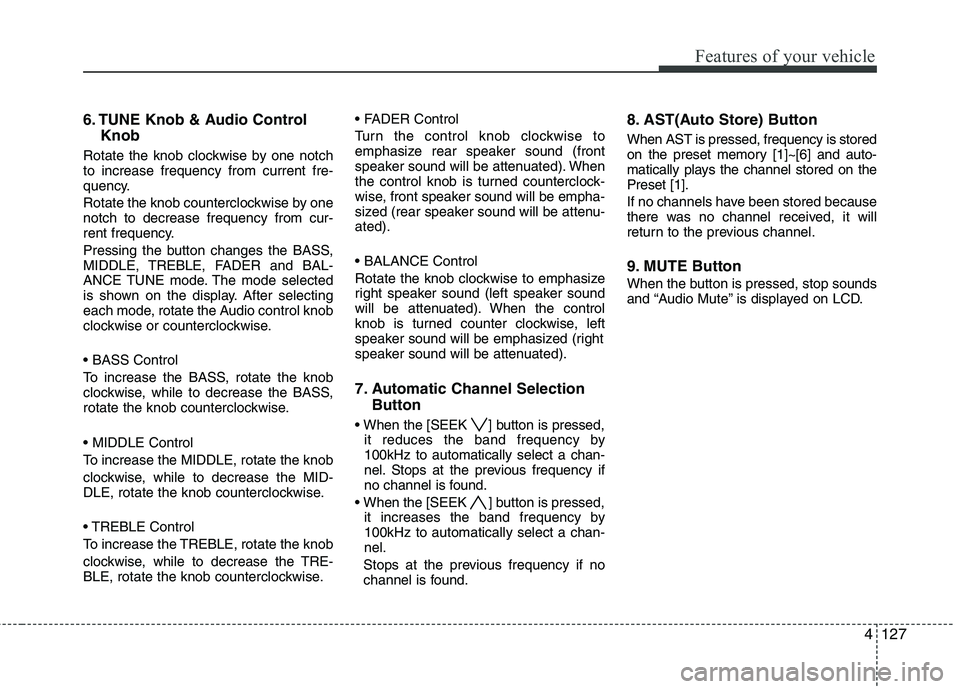
6. TUNE Knob & Audio ControlKnob
Rotate the knob clockwise by one notch to increase frequency from current fre-
quency.
Rotate the knob counterclockwise by one notch to decrease frequency from cur-
rent frequency.
Pressing the button changes the BASS,
MIDDLE, TREBLE, FADER and BAL-
ANCE TUNE mode. The mode selected
is shown on the display. After selecting
each mode, rotate the Audio control knob
clockwise or counterclockwise.
To increase the BASS, rotate the knob
clockwise, while to decrease the BASS,
rotate the knob counterclockwise.
To increase the MIDDLE, rotate the knob
clockwise, while to decrease the MID-
DLE, rotate the knob counterclockwise.
Control
To increase the TREBLE, rotate the knob
clockwise, while to decrease the TRE-
BLE, rotate the knob counterclockwise.
Turn the control knob clockwise to
emphasize rear speaker sound (front
speaker sound will be attenuated). When
the control knob is turned counterclock-
wise, front speaker sound will be empha-
sized (rear speaker sound will be attenu-ated).
Rotate the knob clockwise to emphasize
right speaker sound (left speaker sound
will be attenuated). When the control
knob is turned counter clockwise, left
speaker sound will be emphasized (right
speaker sound will be attenuated).
7. Automatic Channel Selection
Button
] button is pressed, it reduces the band frequency by 100kHz to automatically select a chan-
nel. Stops at the previous frequency if
no channel is found.
] button is pressed, it increases the band frequency by100kHz to automatically select a chan-nel.
Stops at the previous frequency if no
channel is found. 8. AST(Auto Store) Button When AST is pressed, frequency is stored
on the preset memory [1]~[6] and auto-
matically plays the channel stored on thePreset [1].
If no channels have been stored because
there was no channel received, it will
return to the previous channel.
9. MUTE Button
When the button is pressed, stop sounds
and “Audio Mute” is displayed on LCD.
Page 204 of 399
4129
Features of your vehicle
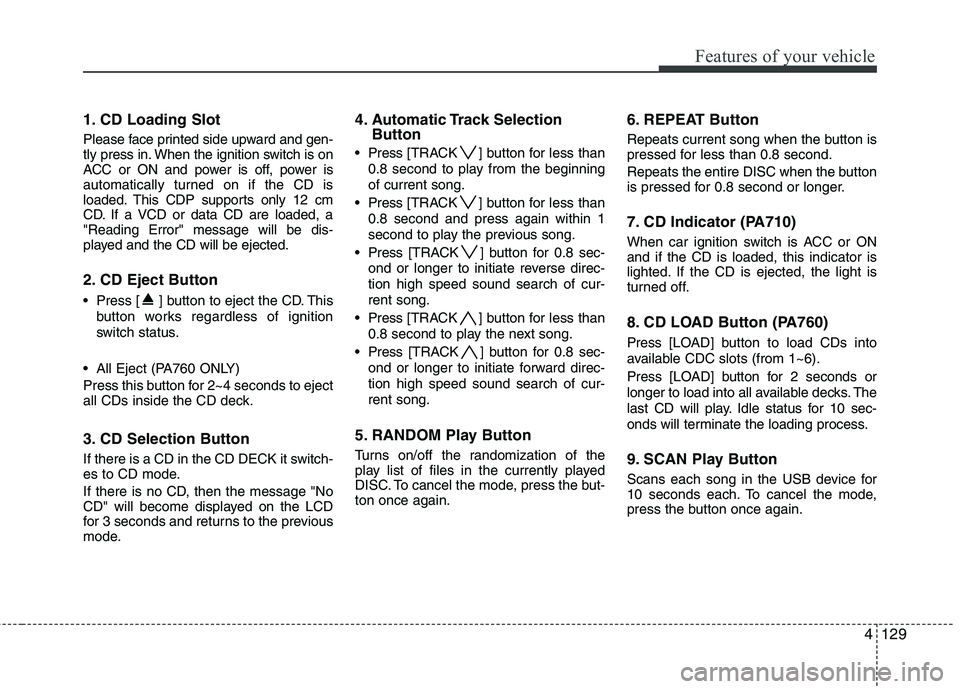
1. CD Loading Slot
Please face printed side upward and gen-
tly press in. When the ignition switch is on
ACC or ON and power is off, power is
automatically turned on if the CD is
loaded. This CDP supports only 12 cm
CD. If a VCD or data CD are loaded, a"Reading Error" message will be dis-
played and the CD will be ejected.
2. CD Eject Button
Press [ ] button to eject the CD. Thisbutton works regardless of ignition
switch status.
All Eject (PA760 ONLY)
Press this button for 2~4 seconds to eject
all CDs inside the CD deck.
3. CD Selection Button
If there is a CD in the CD DECK it switch-
es to CD mode.
If there is no CD, then the message "No
CD" will become displayed on the LCD
for 3 seconds and returns to the previous
mode. 4. Automatic Track Selection
Button
Press [TRACK ] button for less than
0.8 second to play from the beginning of current song.
Press [TRACK ] button for less than
0.8 second and press again within 1
second to play the previous song.
Press [TRACK ] button for 0.8 sec-
ond or longer to initiate reverse direc-tion high speed sound search of cur-rent song.
Press [TRACK ] button for less than
0.8 second to play the next song.
Press [TRACK ] button for 0.8 sec-
ond or longer to initiate forward direc-tion high speed sound search of cur-rent song.
5. RANDOM Play Button
Turns on/off the randomization of the
play list of files in the currently played
DISC. To cancel the mode, press the but-ton once again. 6. REPEAT Button
Repeats current song when the button is
pressed for less than 0.8 second.
Repeats the entire DISC when the button
is pressed for 0.8 second or longer.
7. CD Indicator (PA710)
When car ignition switch is ACC or ON and if the CD is loaded, this indicator is
lighted. If the CD is ejected, the light is
turned off.
8. CD LOAD Button (PA760)
Press [LO
AD] button to load CDs into
available CDC slots (from 1~6).
Press [LOAD] button for 2 seconds or
longer to load into all available decks. The
last CD will play. Idle status for 10 sec-
onds will terminate the loading process.
9. SCAN Play Button
Scans each song in the USB device for
10 seconds each. To cancel the mode,
press the button once again.
Page 205 of 399
Features of your vehicle
130
4
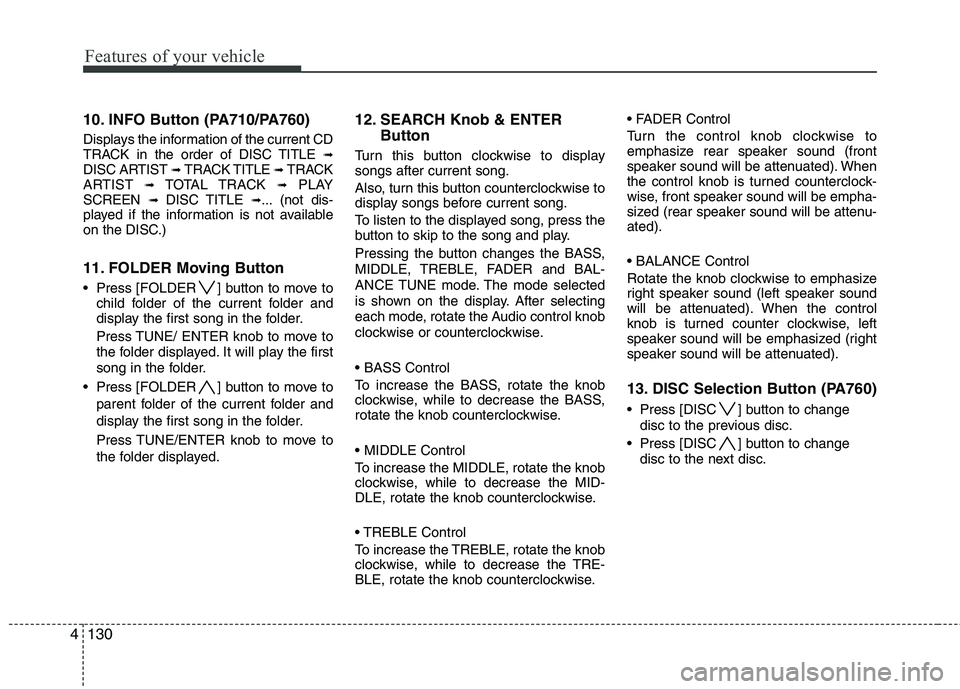
10. INFO Button (PA710/PA760)
Displays the information of the current CD
TRACK in the order of DISC TITLE ➟
DISC ARTIST ➟ TRACK TITLE ➟ TRACK
ARTIST ➟ TOTAL TRACK ➟PLAY
SCREEN ➟ DISC TITLE ➟... (not dis-
played if the information is not available
on the DISC.)
11. FOLDER Moving Button
Press [FOLDER ] button to move to child folder of the current folder and
display the first song in the folder.
Press TUNE/ ENTER knob to move to
the folder displayed. It will play the first
song in the folder.
Press [FOLDER ] button to move to parent folder of the current folder and
display the first song in the folder.
Press TUNE/ENTER knob to move to
the folder displayed. 12. SEARCH Knob & ENTER
Button
Turn this button clockwise to display songs after current song.
Also, turn this button counterclockwise to
display songs before current song.
To listen to the displayed song, press the
button to skip to the song and play.
Pressing the button changes the BASS,
MIDDLE, TREBLE, FADER and BAL-
ANCE TUNE mode. The mode selected
is shown on the display. After selecting
each mode, rotate the Audio control knob
clockwise or counterclockwise.
To increase the BASS, rotate the knob
clockwise, while to decrease the BASS,
rotate the knob counterclockwise.
To increase the MIDDLE, rotate the knob
clockwise, while to decrease the MID-
DLE, rotate the knob counterclockwise.
Control
To increase the TREBLE, rotate the knob
clockwise, while to decrease the TRE-
BLE, rotate the knob counterclockwise.
Turn the control knob clockwise to
emphasize rear speaker sound (front
speaker sound will be attenuated). When
the control knob is turned counterclock-
wise, front speaker sound will be empha-
sized (rear speaker sound will be attenu-ated).
Rotate the knob clockwise to emphasize
right speaker sound (left speaker sound
will be attenuated). When the control
knob is turned counter clockwise, left
speaker sound will be emphasized (right
speaker sound will be attenuated).
13. DISC Selection Button (PA760)
Press [DISC ] button to change
disc to the previous disc.
Press [DISC ] button to change disc to the next disc.
Page 209 of 399
Features of your vehicle
134
4
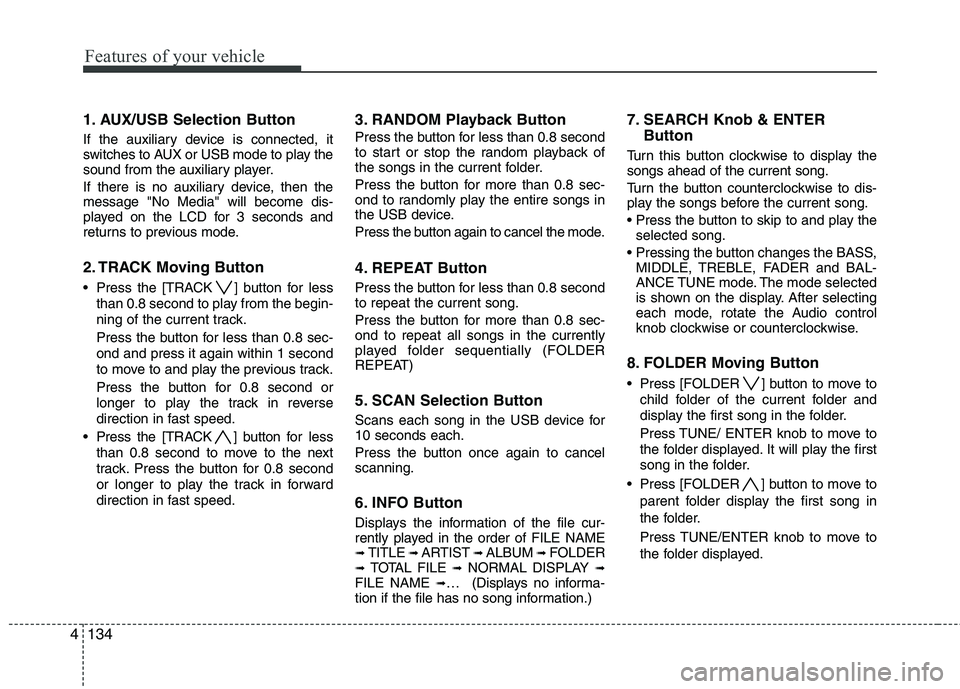
1. AUX/USB Selection Button
If the auxiliary device is connected, it
switches to AUX or USB mode to play the
sound from the auxiliary player.
If there is no auxiliary device, then the message "No Media" will become dis-
played on the LCD for 3 seconds and
returns to previous mode.
2. TRACK Moving Button
Press the [TRACK ] button for less
than 0.8 second to play from the begin-
ning of the current track.
Press the button for less than 0.8 sec- ond and press it again within 1 second
to move to and play the previous track.
Press the button for 0.8 second or
longer to play the track in reverse
direction in fast speed.
Press the [TRACK ] button for less
than 0.8 second to move to the next
track. Press the button for 0.8 second
or longer to play the track in forward
direction in fast speed. 3. RANDOM Playback Button
Press the button for less than 0.8 second
to start or stop the random playback of
the songs in the current folder.
Press the button for more than 0.8 sec-
ond to randomly play the entire songs in
the USB device.
Press the button again to cancel the mode.
4. REPEAT Button
Press the button for less than 0.8 second to repeat the current song.
Press the button for more than 0.8 sec- ond to repeat all songs in the currently
played folder sequentially (FOLDER
REPEAT)
5. SCAN Selection Button
Scans each song in the USB device for 10 seconds each.
Press the button once again to cancel scanning.
6. INFO Button
Displays the information of the file cur-
rently played in the order of FILE NAME➟
TITLE ➟ ARTIST ➟ ALBUM ➟ FOLDER
➟ TOTAL FILE ➟NORMAL DISPLAY ➟
FILE NAME ➟… (Displays no informa-
tion if the file has no song information.) 7. SEARCH Knob & ENTER
Button
Turn this button clockwise to display thesongs ahead of the current song.
Turn the button counterclockwise to dis-
play the songs before the current song.
selected song.
MIDDLE, TREBLE, FADER and BAL-
ANCE TUNE mode. The mode selected
is shown on the display. After selecting
each mode, rotate the Audio control
knob clockwise or counterclockwise.
8. FOLDER Moving Button
Press [FOLDER ] button to move to child folder of the current folder and
display the first song in the folder.
Press TUNE/ ENTER knob to move to
the folder displayed. It will play the first
song in the folder.
Press [FOLDER ] button to move to parent folder display the first song in
the folder.
Press TUNE/ENTER knob to move to
the folder displayed.
Page 212 of 399
4137
Features of your vehicle
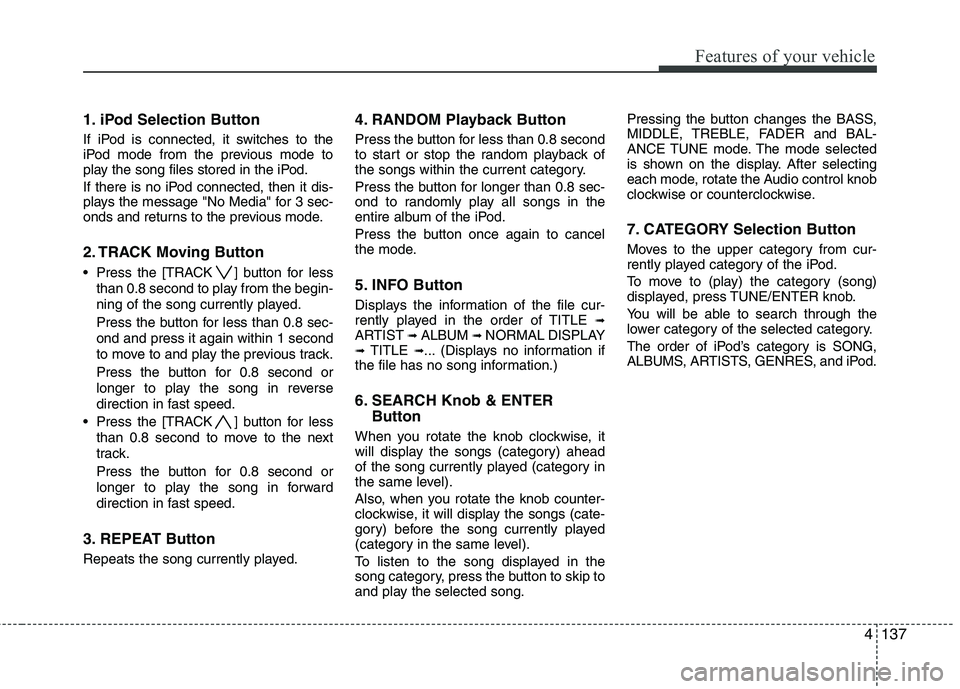
1. iPod Selection Button
If iPod is connected, it switches to the
iPod mode from the previous mode to
play the song files stored in the iPod.
If there is no iPod connected, then it dis-
plays the message "No Media" for 3 sec-
onds and returns to the previous mode.
2. TRACK Moving Button
Press the [TRACK ] button for lessthan 0.8 second to play from the begin-
ning of the song currently played.
Press the button for less than 0.8 sec- ond and press it again within 1 second
to move to and play the previous track.
Press the button for 0.8 second or
longer to play the song in reverse
direction in fast speed.
Press the [TRACK ] button for less than 0.8 second to move to the next
track.
Press the button for 0.8 second or
longer to play the song in forward
direction in fast speed.
3. REPEAT Button
Repeats the song currently played. 4. RANDOM Playback Button
Press the button for less than 0.8 second
to start or stop the random playback of
the songs within the current category.
Press the button for longer than 0.8 sec-
ond to randomly play all songs in the
entire album of the iPod.
Press the button once again to cancel
the mode.
5. INFO Button
Displays the information of the file cur-
rently played in the order of TITLE
➟
ARTIST ➟ALBUM ➟NORMAL DISPLAY
➟ TITLE ➟... (Displays no information if
the file has no song information.)
6. SEARCH Knob & ENTER
Button
When you rotate the knob clockwise, it
will display the songs (category) ahead
of the song currently played (category in
the same level).
Also, when you rotate the knob counter-
clockwise, it will display the songs (cate-
gory) before the song currently played
(category in the same level).
To listen to the song displayed in the
song category, press the button to skip to
and play the selected song. Pressing the button changes the BASS,
MIDDLE, TREBLE, FADER and BAL-
ANCE TUNE mode. The mode selected
is shown on the display. After selecting
each mode, rotate the Audio control knob
clockwise or counterclockwise.
7. CATEGORY Selection Button
Moves to the upper category from cur-
rently played category of the iPod.
To move to (play) the category (song)
displayed, press TUNE/ENTER knob.
You will be able to search through the
lower category of the selected category.
The order of iPod’s category is SONG,
ALBUMS, ARTISTS, GENRES, and iPod.
Page 230 of 399
Driving your vehicle
18
5
For smooth operation, depress the brake
pedal when shifting from N (Neutral) to aforward or reverse gear.Transaxle ranges
The indicator in the instrument cluster
displays the shift lever position when the
ignition switch is in the ON position.
P (Park)
Always come to a complete stop before
shifting into P (Park). This position locks
the transaxle and prevents the frontwheels from rotating.
WARNING - Automatic
transaxle
Always check the surrounding areas near your vehicle for peo-
ple, especially children, beforeshifting a car into D (Drive) or R
(Reverse).
Before leaving the driver’s seat, always make sure the shift lever
is in the P (Park) position; then
set the parking brake fully and
shut the engine off. Unexpected
and sudden vehicle movementcan occur if these precautions
are not followed in the order iden-tified.
CAUTION
To avoid damage to your
transaxle, do not accelerate the
engine in R (Reverse) or any for-ward gear position with thebrakes on.
When stopped on an incline, do not hold the vehicle stationarywith engine power. Use the serv-ice brake or the parking brake.
Do not shift from N (Neutral) or P (Park) into D (Drive), or R
(Reverse) when the engine isabove idle speed.
WARNING
Shifting into P (Park) while the vehicle is in motion will cause the
drive wheels to lock which will
cause you to lose control of the
vehicle.
Do not use the P (Park) position in place of the parking brake.
Always make sure the shift lever
is latched in the P (Park) position
and set the parking brake fully.
Never leave a child unattended in a vehicle.
Page 292 of 399
617
What to do in an emergency
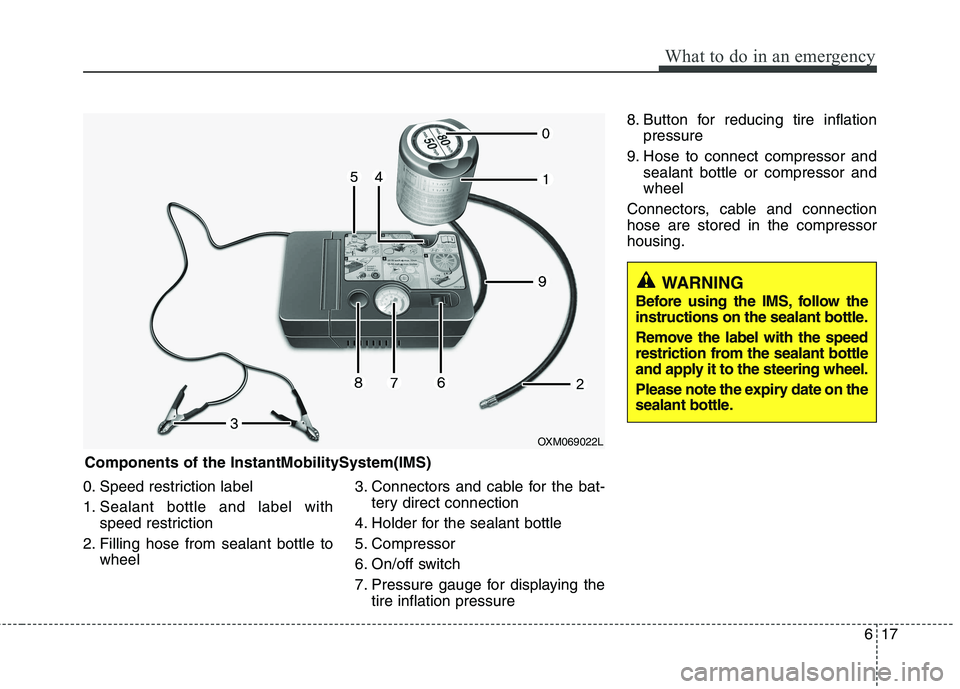
0. Speed restriction label
1. Sealant bottle and label withspeed restriction
2. Filling hose from sealant bottle to wheel 3. Connectors and cable for the bat-
tery direct connection
4. Holder for the sealant bottle
5. Compressor
6. On/off switch
7. Pressure gauge for displaying the tire inflation pressure 8. Button for reducing tire inflation
pressure
9. Hose to connect compressor and sealant bottle or compressor and wheel
Connectors, cable and connectionhose are stored in the compressorhousing.
WARNING
Before using the IMS, follow the
instructions on the sealant bottle.
Remove the label with the speed
restriction from the sealant bottle
and apply it to the steering wheel.
Please note the expiry date on the
sealant bottle.
Components of the InstantMobilitySystem(IMS)
OXM069022L
Page 354 of 399
Maintenance
48
7
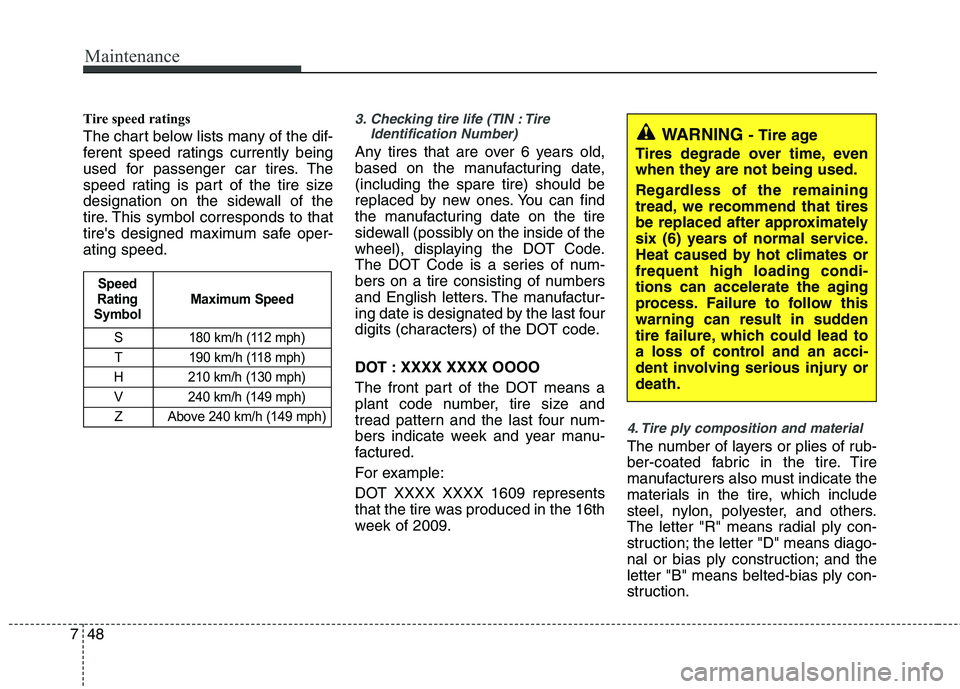
Tire speed ratings
The chart below lists many of the dif-
ferent speed ratings currently being
used for passenger car tires. The
speed rating is part of the tire size
designation on the sidewall of the
tire. This symbol corresponds to that
tire's designed maximum safe oper-ating speed.3. Checking tire life (TIN : Tire
Identification Number)
Any tires that are over 6 years old,
based on the manufacturing date,(including the spare tire) should be
replaced by new ones. You can find
the manufacturing date on the tire
sidewall (possibly on the inside of the
wheel), displaying the DOT Code.
The DOT Code is a series of num-
bers on a tire consisting of numbers
and English letters. The manufactur-
ing date is designated by the last four
digits (characters) of the DOT code.
DOT : XXXX XXXX OOOO
The front part of the DOT means a
plant code number, tire size and
tread pattern and the last four num-
bers indicate week and year manu-
factured.
For example:
DOT XXXX XXXX 1609 represents
that the tire was produced in the 16th
week of 2009.
4. Tire ply composition and material
The number of layers or plies of rub-
ber-coated fabric in the tire. Tire
manufacturers also must indicate the
materials in the tire, which include
steel, nylon, polyester, and others.
The letter "R" means radial ply con-
struction; the letter "D" means diago-
nal or bias ply construction; and theletter "B" means belted-bias ply con-
struction.
S 180 km/h (112 mph)
T 190 km/h (118 mph)
H 210 km/h (130 mph) V 240 km/h (149 mph)
Z Above 240 km/h (149 mph)
Maximum Speed
Speed
Rating
Symbol
WARNING - Tire age
Tires degrade over time, even
when they are not being used.
Regardless of the remaining
tread, we recommend that tires
be replaced after approximately
six (6) years of normal service.
Heat caused by hot climates orfrequent high loading condi-
tions can accelerate the aging
process. Failure to follow this
warning can result in sudden
tire failure, which could lead to
a loss of control and an acci-
dent involving serious injury ordeath.