check KIA SORENTO 2014 Navigation System Quick Reference Guide
[x] Cancel search | Manufacturer: KIA, Model Year: 2014, Model line: SORENTO, Model: KIA SORENTO 2014Pages: 236, PDF Size: 7.61 MB
Page 195 of 236
Using Setup
Setup l
8-9
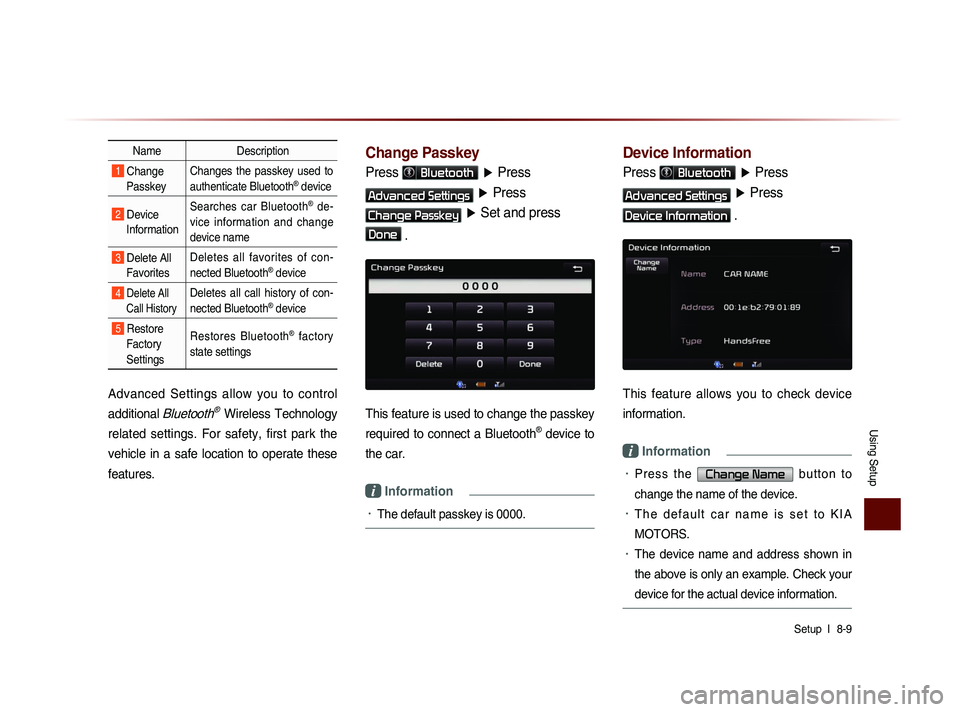
Name Description
1 Change
Passkey Changes the passkey used to
authenticate Bluetooth® device
2 Device
Information Searches car Bluetooth® de-
vice information and change
device name
3 Delete All Favorites Deletes all favorites of con-
nected Bluetooth® device
4 Delete All
Call History Deletes all call history of con-
nected Bluetooth® device
5 Restore Factory
Settings Restores Bluetooth® factory
state settings
Advanced Settings allow you to control
additional
Bluetooth® Wireless Technology
related settings. For safety, first park the
vehicle in a safe location to operate these
features.
Change Passkey
Press Bluetooth ▶ Press
Advanced Settings ▶ Press
Change Passkey ▶ Set and press
Done .
This feature is used to change the passkey
required to connect a Bluetooth
® device to
the car.
i Information
• The default passkey is 0000.
Device Information
Press Bluetooth ▶ Press
Advanced Settings ▶ Press
Device Information .
This feature allows you to check device
information.
i Information
• P r e s s t h e Change Name b u t t o n t o
change the name of the device.
• T h e d e f a u l t c a r n a m e i s s e t t o K I A
MOTORS.
• The device name and address shown in
the above is only an example. Check your
device for the actual device information.
Page 216 of 236
9-6
Appendix
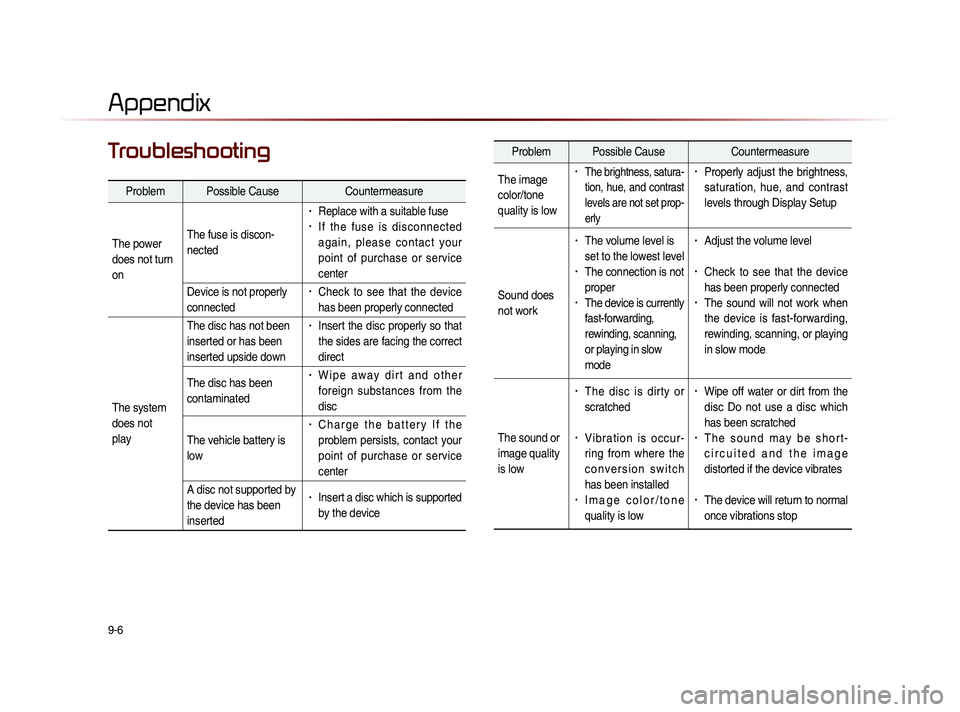
TroubleshootingProblem Possible Cause Countermeasure
The image
color/tone
quality is low
• The brightness, satura-
tion, hue, and contrast
levels are not set prop-
erly• Properly adjust the brightness,
saturation, hue, and contrast
levels through Display Setup
Sound does
not work
• The volume level is
set to the lowest level
• The connection is not
proper
• The device is currently
fast-forwarding,
rewinding, scanning,
or playing in slow
mode
• Adjust the volume level
• Check to see that the device
has been properly connected
• The sound will not work when
the device is fast-forwarding,
rewinding, scanning, or playing
in slow mode
The sound or
image quality
is low
• The disc is dirty or
scratched
• V i b r a t i o n i s o c c u r -
ring from where the
c o n v e r s i o n s w i t c h
has been installed
• I m a g e c o l o r / t o n e
quality is low
• Wipe off water or dirt from the
disc Do not use a disc which
has been scratched
• T h e s o u n d m a y b e s h o r t -
c i r c u i t e d a n d t h e i m a g e
distorted if the device vibrates
• The device will return to normal
once vibrations stop
Appendix
Problem Possible Cause Countermeasure
The power
does not turn
on The fuse is discon-
nected
• Replace with a suitable fuse• I f t h e f u s e i s d i s c o n n e c t e d
a g a i n , p l e a s e c o n t a c t y o u r
point of purchase or service
center
Device is not properly
connected
• Check to see that the device
has been properly connected
The system
does not
play The disc has not been
inserted or has been
inserted upside down
• Insert the disc properly so that
the sides are facing the correct
direct
The disc has been
contaminated
• W i p e a w a y d i r t a n d o t h e r
foreign substances from the
disc
The vehicle battery is
low
• C h a r g e t h e b a t t e r y I f t h e
problem persists, contact your
point of purchase or service
center
A disc not supported by
the device has been
inserted
• Insert a disc which is supported
by the device
Page 218 of 236
9-8
Appendix
FAQ
About Pairing Mobile Phones
Q I cannot pair my mobile phone. What is the cause?
A Check to see that the mobile phone supports Bluetooth
® func-
tion. If your phone is a Bluetooth
® phone, then check to see
whether the Bluetooth
® setting within your phone been is set to
‘Hidden’. If the device is set to hidden, please un-hide the device
(set to unhidden state).
Q What is the difference between pairing a mobile phone and con-
necting a mobile phone?
A Pairing occurs through authenticating the head unit and mobile
phone. Mobile phones paired to the head unit can be connected
and disconnected until the paired mobile phone is deleted from
the system. Bluetooth
® Handsfree features, such as making/
answering calls or managing contacts, are supported only in
mobile phones connected with the head unit. Q
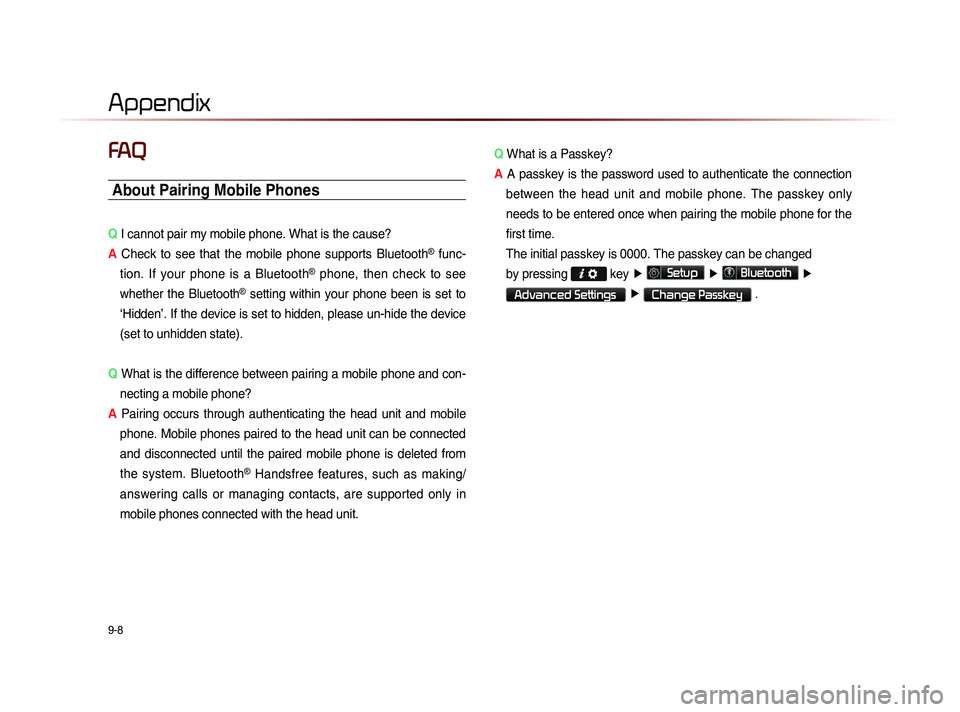
What is a Passkey?
A A passkey is the password used to authenticate the connection
between the head unit and mobile phone. The passkey only
needs to be entered once when pairing the mobile phone for the
first time.
Th
e initial passkey is 0000. The passkey can be changed
by pressing
key ▶
Setup ▶
Bluetooth ▶
Advanced Settings ▶
Change Passkey .
Page 219 of 236
Appendix l
9-9
Appendix
About Making/Answering Phone Calls
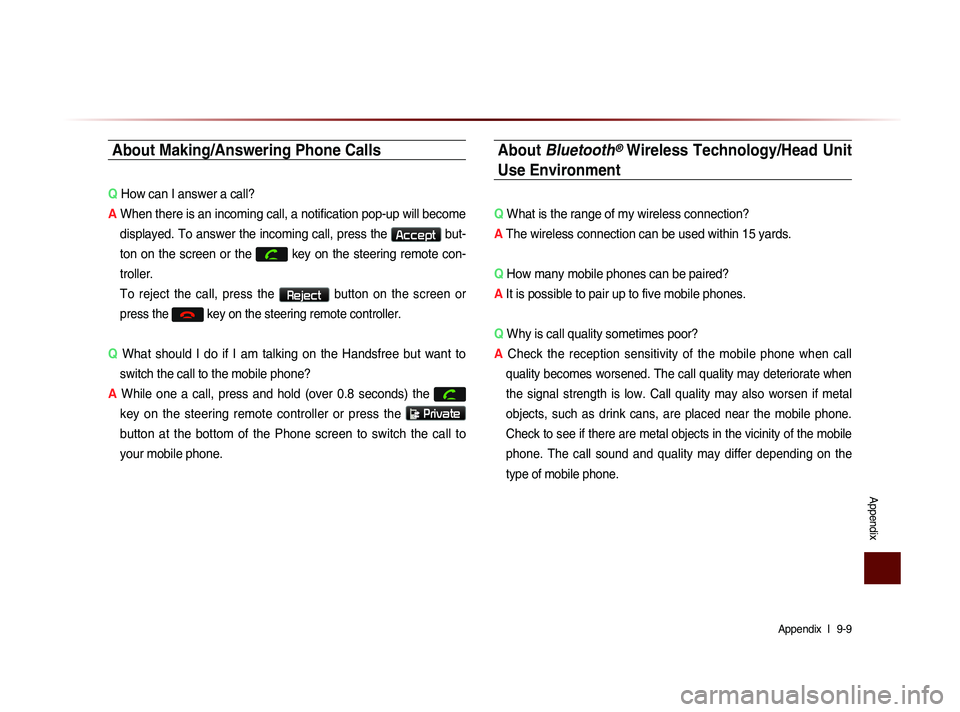
Q How can I answer a call?
A When there is an incoming call, a notification pop-up will become
displayed. To answer the incoming call, press the
Accept but-
ton on the screen or the
key on the steering remote con-
troller.
To reject the call, press the Reject button on the screen or
press the
key on the steering remote controller.
Q What should I do if I am talking on the Handsfree but want to
switch the call to the mobile phone?
A While one a call, press and hold (over 0.8 seconds) the
key on the steering remote controller or press the
Private
button at the bottom of the Phone screen to switch the call to
your mobile phone.
About Bluetooth® Wireless Technology/Head Unit
Use Environment
Q What is the range of my wireless connection?
A The wireless connection can be used within 15 yards.
Q How many mobile phones can be paired?
A It is possible to pair up to five mobile phones.
Q Why is call quality sometimes poor?
A
Check the reception sensitivity of the mobile phone when call
quality becomes worsened. The call quality may deteriorate when
the signal strength is low. Call quality may also worsen if metal
objects, such as drink cans, are placed near the mobile phone.
Check to see if there are metal objects in the vicinity of the mobile
phone. The call sound and quality may differ depending on the
type of mobile phone.
Page 221 of 236
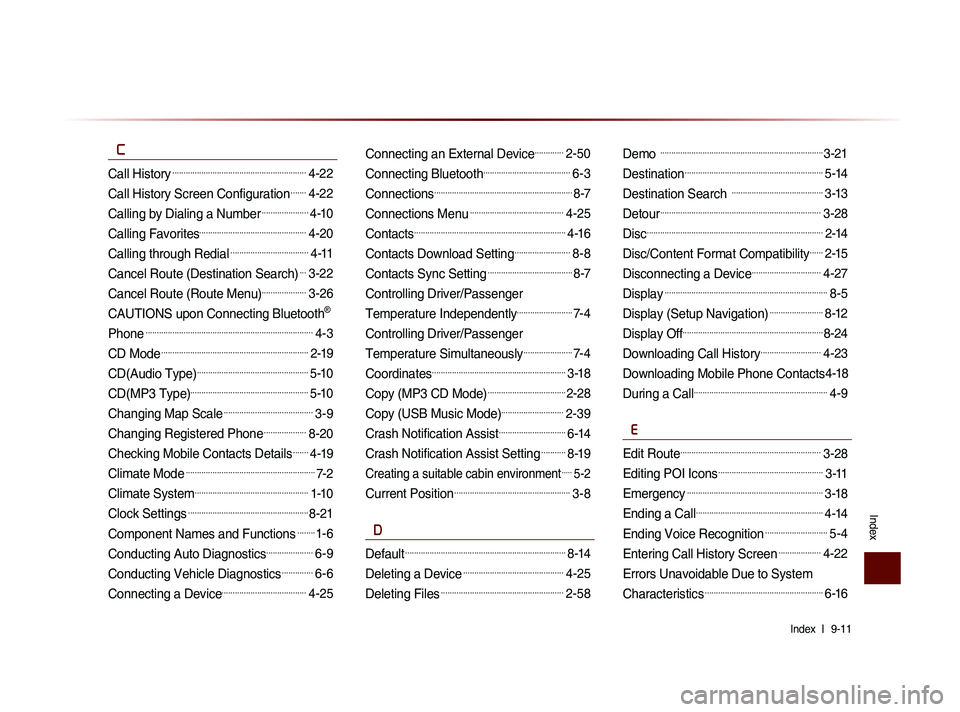
Index l
9-11
Index
C
Call History............................................................4-22
Call History Screen Configuration.......4-22
Calling by Dialing a Number.....................4-10
Calling Favorites................................................4-20
Calling through Redial...................................4-11
Cancel Route (Destination Search)...3-22
Cancel Route (Route Menu)....................3-26
CAUTIONS upon Connecting Bluetooth®
Phone
...........................................................................4-3
CD Mode..................................................................2-19
CD(Audio Type)..................................................5-10
CD(MP3 Type).....................................................5-10
Changing Map Scale........................................3-9
Changing Registered Phone...................8-20
Checking Mobile Contacts Details.......4-19
Climate Mode..........................................................7-2
Climate System...................................................1-10
Clock Settings......................................................8-21
Component Names and Functions........1-6
Conducting Auto Diagnostics.....................6-9
Conducting Vehicle Diagnostics..............6-6
Connecting a Device......................................4-25
Connecting an External Device.............2-50
Connecting Bluetooth.......................................6-3
Connections..............................................................8-7
Connections Menu..........................................4-25
Contacts....................................................................4-16
Contacts Download Setting.........................8-8
Contacts Sync Setting......................................8-7
Controlling Driver/Passenger
Temperature Independently
.........................7-4
Controlling Driver/Passenger
Temperature Simultaneously
......................7-4
Coordinates............................................................3-18
Copy (MP3 CD Mode)...................................2-28
Copy (USB Music Mode)............................2-39
Crash Notification Assist..............................6-14
Crash Notification Assist Setting...........8-19
Creating a suitable cabin environment.....5-2
Current Position....................................................3-8
D
Default........................................................................8-14
Deleting a Device.............................................4-25
Deleting Files.......................................................2-58
Demo .........................................................................3-21
Destination..............................................................5-14
Destination Search .........................................3-13
Detour........................................................................3-28
Disc...............................................................................2-14
Disc/Content Format Compatibility......2-15
Disconnecting a Device...............................4-27
Display.........................................................................8-5
Display (Setup Navigation)........................8-12
Display Off...............................................................8-24
Downloading Call History...........................4-23
Downloading Mobile Phone Contacts4-18
During a Call............................................................4-9
E
Edit Route...............................................................3-28
Editing POI Icons...............................................3-11
Emergency.............................................................3-18
Ending a Call.........................................................4-14
Ending Voice Recognition............................5-4
Entering Call History Screen...................4-22
Errors Unavoidable Due to System
Characteristics
.....................................................6-16