ECO KIA SORENTO 2014 Navigation System Quick Reference Guide
[x] Cancel search | Manufacturer: KIA, Model Year: 2014, Model line: SORENTO, Model: KIA SORENTO 2014Pages: 236, PDF Size: 7.61 MB
Page 8 of 236
6
Favorites..................................................................4-20
Calling Favorites................................................4-20
Selecting/Deleting Favorites
........................4-20
Searching Contacts
..........................................4-21
Call History............................................................4-22
Entering Call History Screen.......................4-22
Call History Screen Configuration
............4-22
Downloading Call History
..............................4-23
Viewing Call History Information
...............4-24
Setting Bluetooth® Connection...............4-25
Connections Menu............................................4-25
Connecting a Device
........................................4-25
Pairing a New Device
......................................4-26
Disconnecting a Device
..................................4-27
Deleting a Device
..............................................4-25
Setting Auto Connection
................................4-28
Using Voice Recognition
Using Voice Recognition...............................5-2
Creating a suitable cabin environment....5-2
Starting Voice Recognition...........................5-3
Starting Voice Recognition.............................5-3
Skipping Prompt Messages
...........................5-3
Re-starting Voice Recognition
......................5-4
Ending Voice Recognition............................5-4
Using Voice Recognition...............................5-5
Adjusting Voice Recognition Volume...5-5
Illustration on Using Voice Recognition
(Setting Home as the Destination)
.........5-6
Voice Command Lists
Voice Command List ........................................5-7
Help Command List............................................5-7
Audio System Command List....................5-8
FM/AM Radio.........................................................5-8
SIRIUS Radio
........................................................5-9
CD(Audio Type)
..................................................5-10
CD(MP3 Type)
....................................................5-10
USB Music
.............................................................5-11
USB Image
............................................................5-11
iPod
...........................................................................5-12
My Music
................................................................5-12
Others
......................................................................5-13
Phone Command List....................................5-13
UVO eServices Command List............. 5-13
Navigation Command List..........................5-14
Destination............................................................5-14
Map
...........................................................................5-15
POI Category List..............................................5-16
UVO eServices (Optional)
About UVO eServices ....................................6-2
Before using UVO eServices.........................6-3
Connecting Bluetooth........................................6-3
Pair a device from Bluetooth-enabled
phone
.............................................................................6-4
Activating UVO eServices...............................6-4
Vehicle Diagnostics............................................6-6
Conducting Vehicle Diagnostics..................6-6
Schedule Service
.................................................6-7
Roadside Assist
....................................................6-8
Scheduled Diagnostics
.....................................6-9
Conducting Auto Diagnostics
........................6-9
My POIs....................................................................6-10
5 Voice Recognition
6 Information
Table of Contents
Page 10 of 236
8
Display.....................................................................8-12
Route Search
.......................................................8-13
Guidance
................................................................8-13
Default
......................................................................8-14
My Places................................................................8-15
My Places..............................................................8-15
Favorite Places
...................................................8-16
Home and Office
................................................8-16
Speed Alerts
.........................................................8-17
Traffic Setup..........................................................8-17
UVO eServices Settings(Optional)......8-18
UVO eServices Settings................................8-18
UVO eServices Activation
.............................8-19
Crash Notification Assist Setting
...............8-19
Changing Registered Phone
.......................8-20
System Information
...........................................8-20
Voice Recognition Settings........................8-21
Clock Settings......................................................8-21
Picture Frame......................................................8-22
Keyboard.................................................................8-22
Language................................................................8-23
System Update...................................................8-23
Display Off...............................................................8-24
Appendix
Product Specification........................................9-2
Before Thinking There is a Product Defect....9-4
Before Thinking the Product Has
Malfunctioned
.........................................................9-5
Troubleshooting....................................................9-6
FAQ................................................................................9-8
About sPairing Mobile Phones.....................9-8
About Making/Answering Phone Calls
....9-9
About
Bluetooth® Wireless Technology/
Head Unit Use Environment
..........................9-9
9 Appendix
Table of Contents
Page 15 of 236
Warnings and Cautions
Basic l
1-3
Safety Cautions
Pay attention to traffic conditions while driving.
In some instances, the navigation may provide guidance through re-
stricted areas.
Operating the device while driving could lead to accidents due to a
lack of attention to external surroundings. First park the vehicle before
operating the device. In addition, the touch screen may not work for
some functions when the vehicle is in motion. The touch screen fea-
ture will be supported once the vehicle has stopped.
Adjust the volume to levels that allow the driver to hear sounds from outside of the vehicle. Driving in a state where external
sounds cannot be heard may lead to accidents.
Pay attention to the volume setting when turning the device on. A sudden output of extreme volume upon turning the device on
could lead to hearing impairment. (Adjust the volume to a suitable
levels before turning off the device.)
If you want to change the position of device installation, please in- quire with your place of purchase or service maintenance center.
Technical expertise is required to install or disassemble the device.
Turn on the car ignition before using this device. Do not operate the Navigation system for long periods of time with the ignition
turned off as such operations may lead to battery discharge.
Upon using the Navigation system for more than 10 minutes with
the car engine turned off, the following warning will be displayed.
After 10 minutes, the warning will be displayed for 3 seconds every
1 minute.
Do not subject the device to severe shock or impact. Direct pres- sure onto the front side of the monitor may cause damage to the
LCD or touch screen.
When cleaning the device, make sure to turn off the device and use a dry and smooth cloth.
Never use tough materials, chemical cloths, or solvents(alcohol, benzene, thinners, etc.) as such materials may damage the de-
vice panel or cause color/quality deterioration.
When experiencing product malfunctions, inquire with your place of purchase or service maintenance center.
Page 17 of 236
Key Product Features
Basic l
1-5
Navigation Voice Guidance
• Voice route guidance to safely and conveniently reach set destinations • Various map scales that enables drivers to accurately view map and surrounding areas
Automatic Correction for Current Location• Automatically corrects current position using map matching and GPS information
Miscellaneous
Bluetooth® Wireless Technology• Convenient use of Bluetooth® Handsfree by using buttons within the steering wheel remote controller
Digital Screen Control Features• Easy control of features through touch screen options
Steering Wheel Remote Controller• Control over audio features, voice recognition and Bluetooth® through the steering wheel remote controller for maximum
convenience
Page 18 of 236
1-6
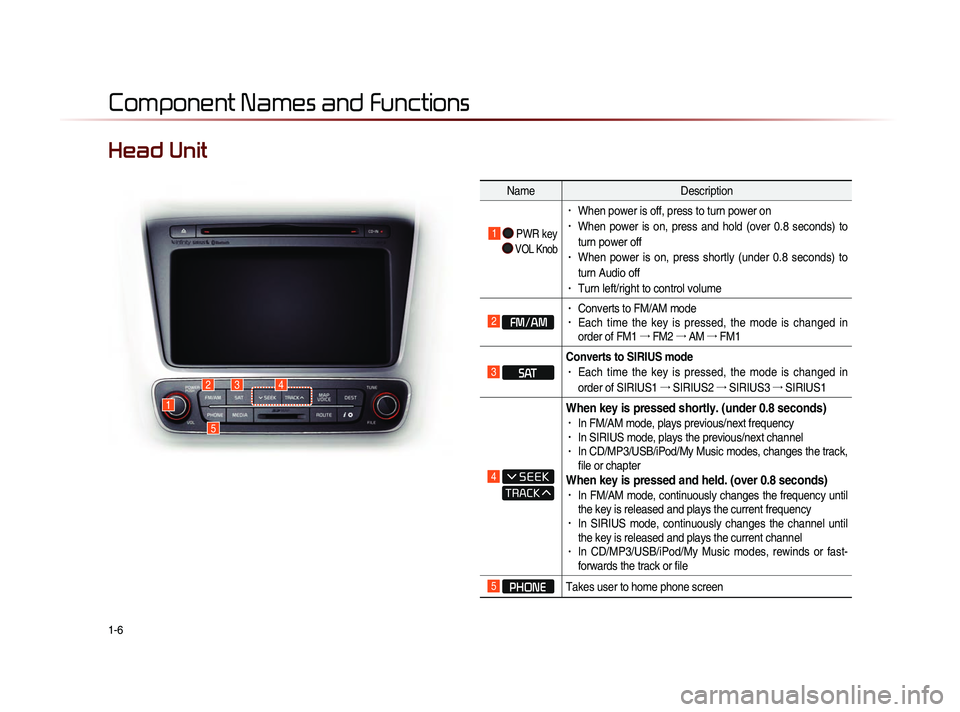
Head Unit
NameDescription
1 PWR key
VOL Knob
• When power is off, press to turn power on• When power is on, press and hold (over 0.8 seconds) to
turn power off
• When power is on, press shortly (under 0.8 seconds) to
turn Audio off
• Turn left/right to control volume
2 FM/AM
• Converts to FM/AM mode • Each time the key is pressed, the mode is changed in
order of FM1 →
FM2 →
AM →
FM1
3 SAT Converts to SIRIUS mode
• Each time the key is pressed, the mode is changed in
order of SIRIUS1 →
SIRIUS2 →
SIRIUS3 →
SIRIUS1
4
When key is pressed shortly. (under 0.8 seconds)• In FM/AM mode, plays previous/next frequency• In SIRIUS mode, plays the previous/next channel• In CD/MP3/USB/iPod/My Music modes, changes the track,
file or chapter
When key is pressed and held. (over 0.8 seconds)• In FM/AM mode, continuously changes the frequency until
the key is released and plays the current frequency
• In SIRIUS mode, continuously changes the channel until
the key is released and plays the current channel
• In CD/MP3/USB/iPod/My Music modes, rewinds or fast-
forwards the track or file
5 PHONE Takes user to home phone screen
Component Names and Functions
1
234
5
Page 20 of 236
1-8
Component Names and Functions
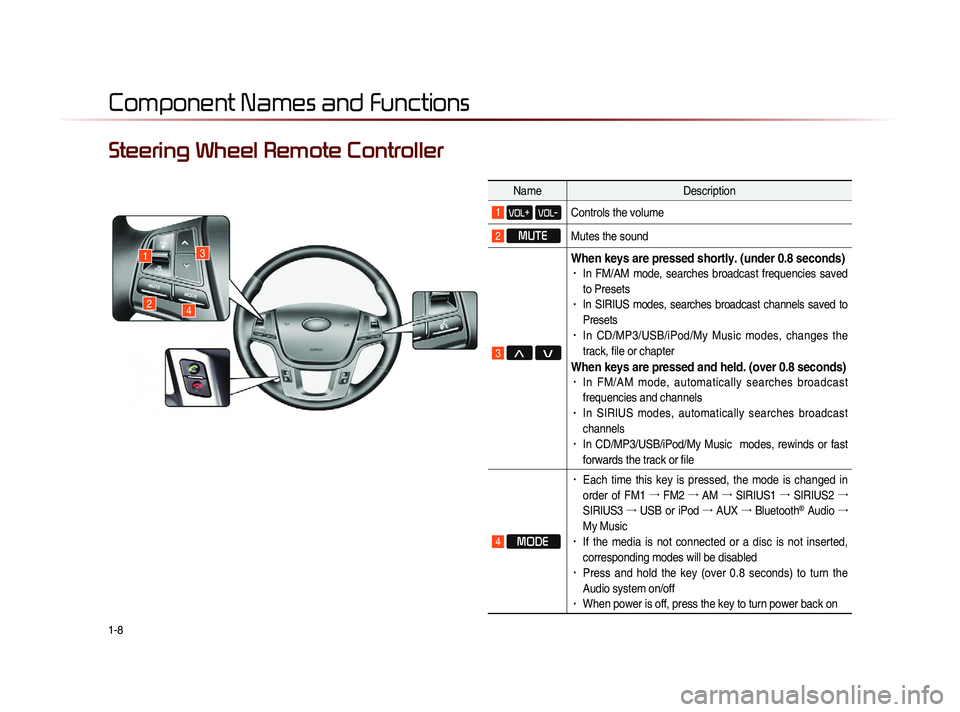
Steering Wheel Remote Controller
NameDescription
1 VOL+ VOL-Controls the volume
2 MUTE
Mutes the sound
3 Λ V
When keys are pressed shortly. (under 0.8 seconds)• In FM/AM mode, searches broadcast frequencies saved
to Presets
• In SIRIUS modes, searches broadcast channels saved to
Presets
• In CD/MP3/USB/iPod/My Music modes, changes the
track, file or chapter
When keys are pressed and held. (over 0.8 seconds)• In FM/AM mode, automatically searches broadcast
frequencies and channels
• In SIRIUS modes, automatically searches broadcast
channels
• In CD/MP3/USB/iPod/My Music modes, rewinds or fast
forwards the track or file
4 MODE
• Each time this key is pressed, the mode is changed in
order of FM1 →
FM2 →
AM →
SIRIUS1 →
SIRIUS2 →
SIRIUS3 →
USB or iPod →
AUX →
Bluetooth
® Audio →
My Music
• If the media is not connected or a disc is not inserted,
corresponding modes will be disabled
• Press and hold the key (over 0.8 seconds) to turn the
Audio system on/off
• When power is off, press the key to turn power back on
1
24
3
Page 21 of 236
Component Names and Functions
Basic l
1-9
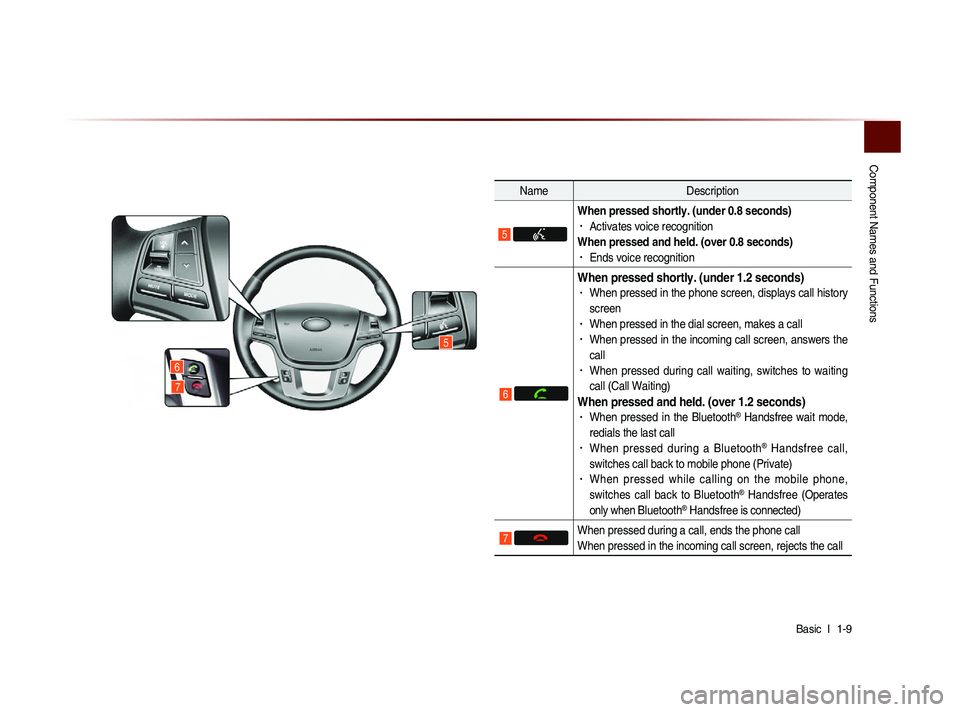
Name Description
5
When pressed shortly. (under 0.8 seconds) • Activates voice recognition
When pressed and held. (over 0.8 seconds)
• Ends voice recognition
6
When pressed shortly. (under 1.2 seconds)• When pressed in the phone screen, displays call history
screen
• When pressed in the dial screen, makes a call• When pressed in the incoming call screen, answers the
call
• When pressed during call waiting, switches to waiting
call (Call Waiting)
When pressed and held. (over 1.2 seconds)• When pressed in the Bluetooth® Handsfree wait mode,
redials the last call
• When pressed during a Bluetooth® Handsfree call,
switches call back to mobile phone (Private)
• When pressed while calling on the mobile phone,
switches call back to Bluetooth® Handsfree (Operates
only when Bluetooth® Handsfree is connected)
7 When pressed during a call, ends the phone call
When pressed in the incoming call screen, rejects the call
6
5
7
Page 24 of 236
1-12
CAUTION
• Pay attention to the volume setting when
turning the device on. Adjust the volume
to a suitable levels before turning off the
device.
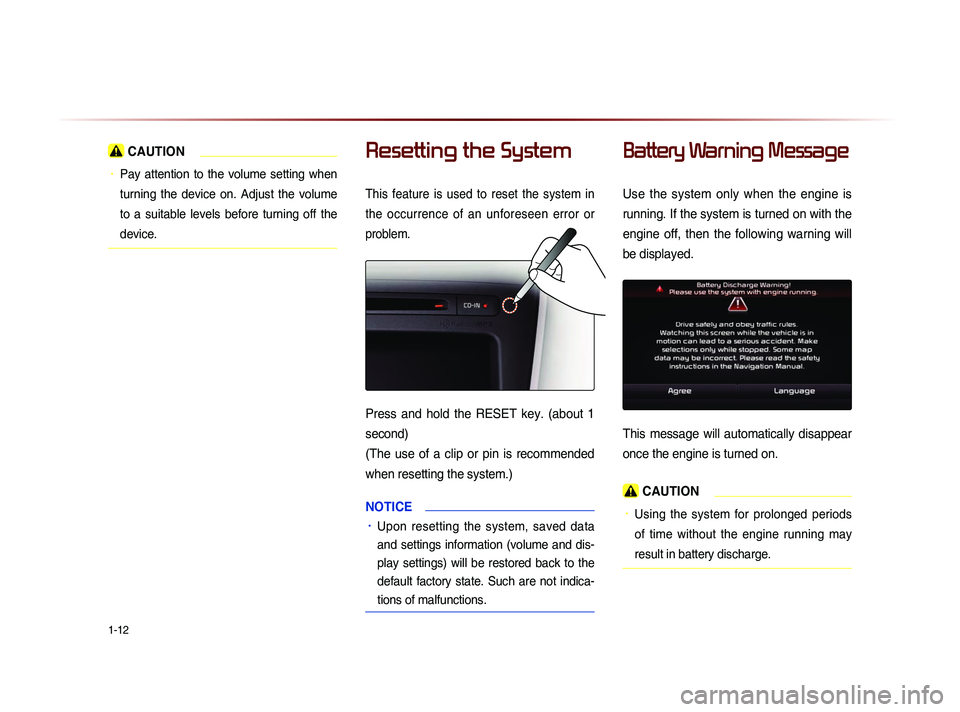
Resetting the System
This feature is used to reset the system in
the occurrence of an unforeseen error or
problem.
Press and hold the RESET key. (about 1
second)
(The use of a clip or pin is recommended
when resetting the system.)
NOTICE
• Upon resetting the system, saved data
and settings information (volume and dis-
play settings) will be restored back to the
default factory state. Such are not indica-
tions of malfunctions.
Battery Warning Message
Use the system only when the engine is
running. If the system is turned on with the
engine off, then the following warning will
be displayed.
This message will automatically disappear
once the engine is turned on.
CAUTION
• Using the system for prolonged periods
of time without the engine running may
result in battery discharge.
Page 26 of 236
2-2
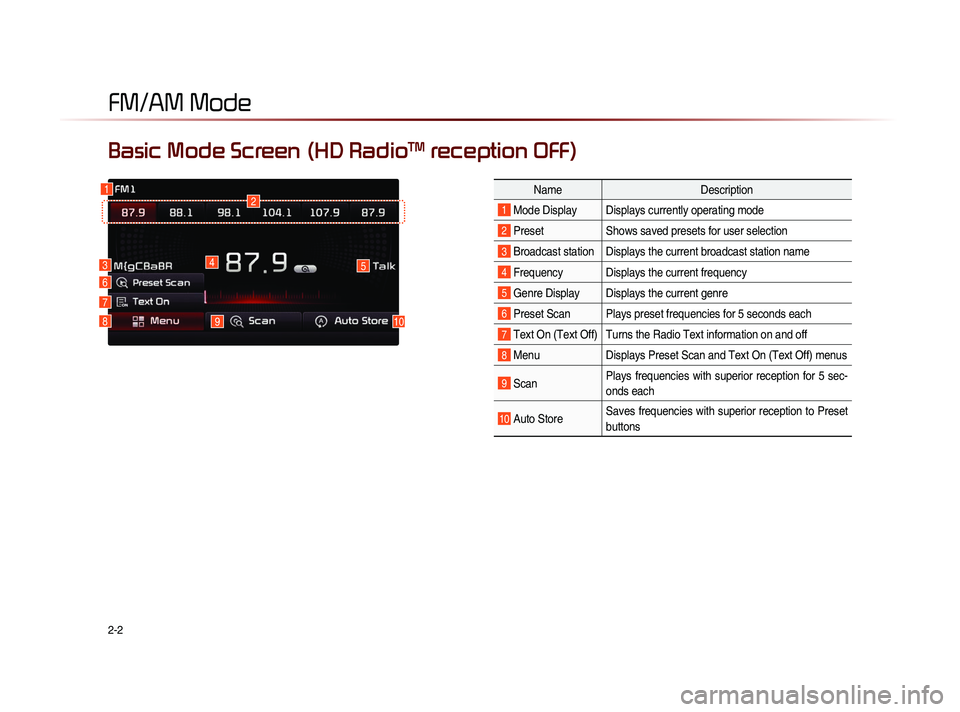
Basic Mode Screen (HD RadioTM reception OFF)
1
7
6
2
45
1098
NameDescription
1 Mode Display Displays currently operating mode
2 PresetShows saved presets for user selection
3 Broadcast station Displays the current broadcast station name
4 Frequency Displays the current frequency
5 Genre Display Displays the current genre
6 Preset Scan Plays preset frequencies for 5 seconds each
7 Text On (Text Off) Turns the Radio Text information on and off
8 MenuDisplays Preset Scan and Text On (Text Off) menus
9 ScanPlays frequencies with superior reception for 5 sec-
onds each
10 Auto StoreSaves frequencies with superior reception to Preset
buttons
FM/AM Mode
3
Page 27 of 236
FM/AM Mode
Audio l
2-3
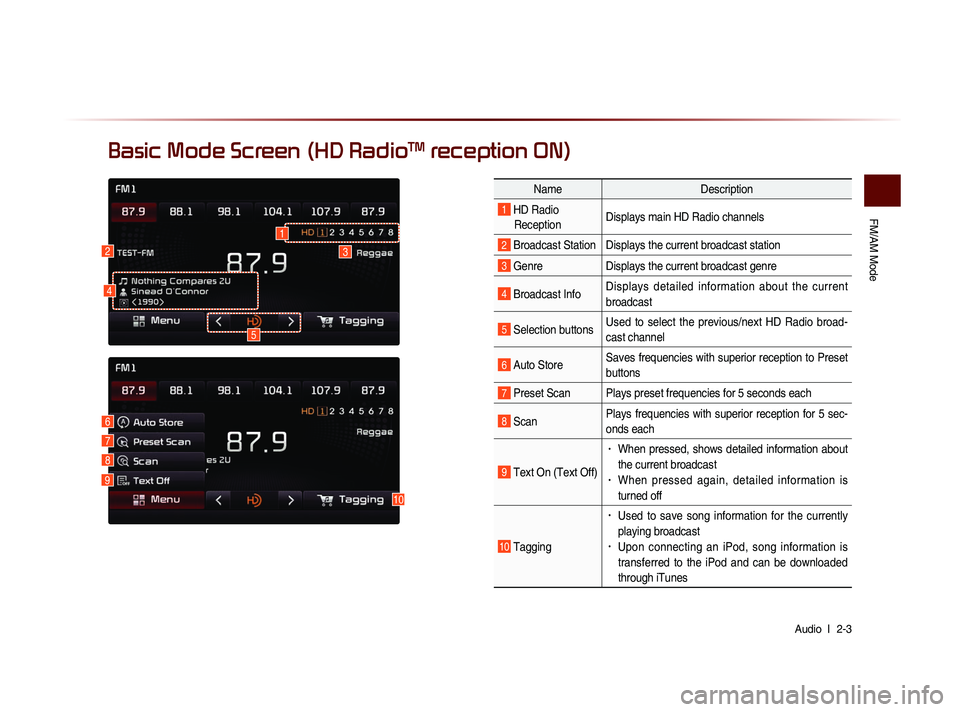
Basic Mode Screen (HD RadioTM reception ON)
10
7
6
8
9
Name Description
1 HD Radio
Reception Displays main HD Radio channels
2 Broadcast Station Displays the current broadcast station
3 Genre
Displays the current broadcast genre
4 Broadcast InfoDisplays detailed information about the current
broadcast
5 Selection buttonsUsed to select the previous/next HD Radio broad-
cast channel
6 Auto StoreSaves frequencies with superior reception to Preset
buttons
7 Preset Scan Plays preset frequencies for 5 seconds each
8 ScanPlays frequencies with superior reception for 5 sec-
onds each
9 Text On (Text Off)
• When pressed, shows detailed information about
the current broadcast
• When pressed again, detailed information is
turned off
10 Tagging
• Used to save song information for the currently
playing broadcast
• Upon connecting an iPod, song information is
transferred to the iPod and can be downloaded
through iTunes
23
5
1
4