air KIA SORENTO 2014 Navigation System Quick Reference Guide
[x] Cancel search | Manufacturer: KIA, Model Year: 2014, Model line: SORENTO, Model: KIA SORENTO 2014Pages: 236, PDF Size: 7.61 MB
Page 7 of 236
Table of Contents l 5
Emergency............................................................3-18
Coordinates
...........................................................3-18
Phone Number
..................................................3-18
Exit/Entrance
......................................................3-19
Setting a Destination
........................................3-19
Route Calculation
..............................................3-21
Demo
.......................................................................3-21
Add Waypoint
......................................................3-22
Route Recalculation
.........................................3-22
Cancel Route
.......................................................3-22
Route Guidance.................................................3-23
Preliminary Guidance Mode........................3-23
Intersection Zoom Mode
................................3-24
Highway Mode
....................................................3-24
Turn List Mode
....................................................3-24
Route Menu .........................................................3-25
Cancel Route.......................................................3-26
Route Overview
..................................................3-26
Route Info
..............................................................3-27
Route Option
........................................................3-27
Detour
......................................................................3-28
Avoid Streets
........................................................3-28
Edit Route
..............................................................3-28
Avoid Area.............................................................3-29
Map Logos and Landmarks
Logo/Landmarks...............................................3-30
Logo..........................................................................3-30
2D Landmarks
.....................................................3-32
Before Use
Before Using the Bluetooth® Handsfree...4-2
What is Bluetooth® Wireless Technology?...4-2
Precautions for Safe Driving.......................4-2
CAUTIONS upon Connecting Bluetooth®
Phone
...........................................................................4-3
Basic Mode Screen
When no Phones Have Been Paired...4-4
Pairing from the Bluetooth® Device...........4-5
When a Phone is Already Paired............4-5
When Pairing Additional Device..................4-7
When There is a Connected Device....4-8
Status Bar Icons...................................................4-8
During a Call............................................................4-9
Status Bar Icons...................................................4-9
Using Bluetooth® Wireless Technology
Making/Answering Calls...............................4-10
Calling by Dialing a Number........................4-10
Making a Call from Speed Dial
..................4-10
Calling through Redial
.....................................4-11
Making a Call from Call History
..................4-11
Answering a Call
................................................4-12
Rejecting a Call
...................................................4-12
Operating Menus during a Call...............4-13
Switching Call to Bluetooth® Phone.........4-13
Switching Call to the Handsfree
................4-13
Ending a Call
........................................................4-14
Switching to Call Waiting
...............................4-14
Setting Mic Volume
...........................................4-15
Adjusting the Ring/Call Volume
.................4-15
Contacts....................................................................4-16
Mobile Contacts Screen Configuration..4-17
Downloading Mobile Phone Contacts
....4-18
Checking Mobile Contacts Details
...........4-19
Adding as a Favorite
........................................4-19
4 Bluetooth® Handsfree
Page 8 of 236
6
Favorites..................................................................4-20
Calling Favorites................................................4-20
Selecting/Deleting Favorites
........................4-20
Searching Contacts
..........................................4-21
Call History............................................................4-22
Entering Call History Screen.......................4-22
Call History Screen Configuration
............4-22
Downloading Call History
..............................4-23
Viewing Call History Information
...............4-24
Setting Bluetooth® Connection...............4-25
Connections Menu............................................4-25
Connecting a Device
........................................4-25
Pairing a New Device
......................................4-26
Disconnecting a Device
..................................4-27
Deleting a Device
..............................................4-25
Setting Auto Connection
................................4-28
Using Voice Recognition
Using Voice Recognition...............................5-2
Creating a suitable cabin environment....5-2
Starting Voice Recognition...........................5-3
Starting Voice Recognition.............................5-3
Skipping Prompt Messages
...........................5-3
Re-starting Voice Recognition
......................5-4
Ending Voice Recognition............................5-4
Using Voice Recognition...............................5-5
Adjusting Voice Recognition Volume...5-5
Illustration on Using Voice Recognition
(Setting Home as the Destination)
.........5-6
Voice Command Lists
Voice Command List ........................................5-7
Help Command List............................................5-7
Audio System Command List....................5-8
FM/AM Radio.........................................................5-8
SIRIUS Radio
........................................................5-9
CD(Audio Type)
..................................................5-10
CD(MP3 Type)
....................................................5-10
USB Music
.............................................................5-11
USB Image
............................................................5-11
iPod
...........................................................................5-12
My Music
................................................................5-12
Others
......................................................................5-13
Phone Command List....................................5-13
UVO eServices Command List............. 5-13
Navigation Command List..........................5-14
Destination............................................................5-14
Map
...........................................................................5-15
POI Category List..............................................5-16
UVO eServices (Optional)
About UVO eServices ....................................6-2
Before using UVO eServices.........................6-3
Connecting Bluetooth........................................6-3
Pair a device from Bluetooth-enabled
phone
.............................................................................6-4
Activating UVO eServices...............................6-4
Vehicle Diagnostics............................................6-6
Conducting Vehicle Diagnostics..................6-6
Schedule Service
.................................................6-7
Roadside Assist
....................................................6-8
Scheduled Diagnostics
.....................................6-9
Conducting Auto Diagnostics
........................6-9
My POIs....................................................................6-10
5 Voice Recognition
6 Information
Table of Contents
Page 10 of 236
8
Display.....................................................................8-12
Route Search
.......................................................8-13
Guidance
................................................................8-13
Default
......................................................................8-14
My Places................................................................8-15
My Places..............................................................8-15
Favorite Places
...................................................8-16
Home and Office
................................................8-16
Speed Alerts
.........................................................8-17
Traffic Setup..........................................................8-17
UVO eServices Settings(Optional)......8-18
UVO eServices Settings................................8-18
UVO eServices Activation
.............................8-19
Crash Notification Assist Setting
...............8-19
Changing Registered Phone
.......................8-20
System Information
...........................................8-20
Voice Recognition Settings........................8-21
Clock Settings......................................................8-21
Picture Frame......................................................8-22
Keyboard.................................................................8-22
Language................................................................8-23
System Update...................................................8-23
Display Off...............................................................8-24
Appendix
Product Specification........................................9-2
Before Thinking There is a Product Defect....9-4
Before Thinking the Product Has
Malfunctioned
.........................................................9-5
Troubleshooting....................................................9-6
FAQ................................................................................9-8
About sPairing Mobile Phones.....................9-8
About Making/Answering Phone Calls
....9-9
About
Bluetooth® Wireless Technology/
Head Unit Use Environment
..........................9-9
9 Appendix
Table of Contents
Page 15 of 236
Warnings and Cautions
Basic l
1-3
Safety Cautions
Pay attention to traffic conditions while driving.
In some instances, the navigation may provide guidance through re-
stricted areas.
Operating the device while driving could lead to accidents due to a
lack of attention to external surroundings. First park the vehicle before
operating the device. In addition, the touch screen may not work for
some functions when the vehicle is in motion. The touch screen fea-
ture will be supported once the vehicle has stopped.
Adjust the volume to levels that allow the driver to hear sounds from outside of the vehicle. Driving in a state where external
sounds cannot be heard may lead to accidents.
Pay attention to the volume setting when turning the device on. A sudden output of extreme volume upon turning the device on
could lead to hearing impairment. (Adjust the volume to a suitable
levels before turning off the device.)
If you want to change the position of device installation, please in- quire with your place of purchase or service maintenance center.
Technical expertise is required to install or disassemble the device.
Turn on the car ignition before using this device. Do not operate the Navigation system for long periods of time with the ignition
turned off as such operations may lead to battery discharge.
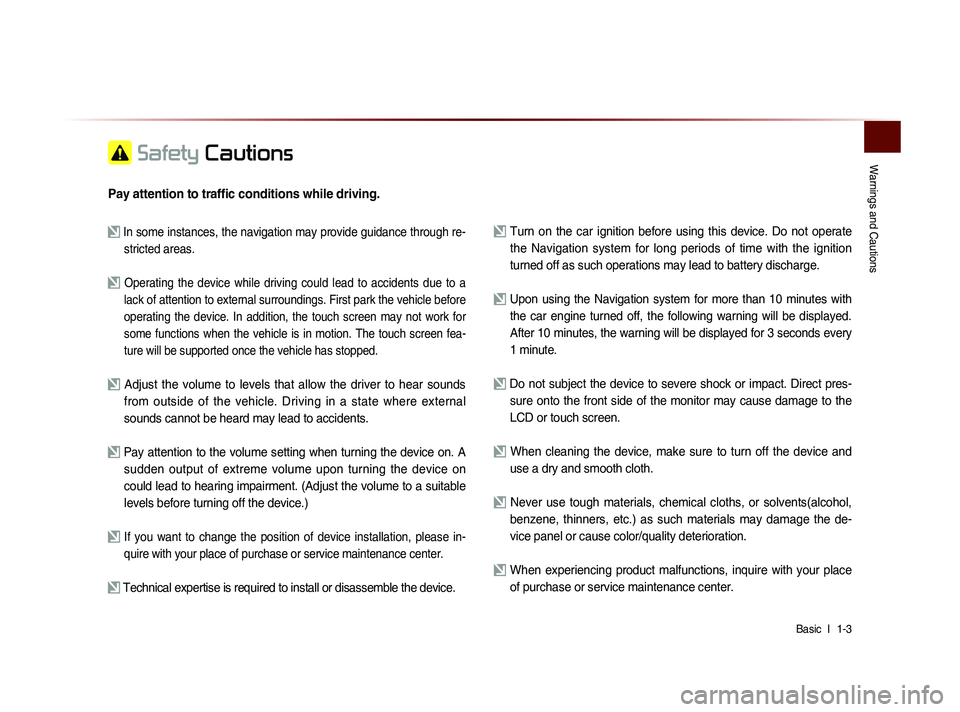
Upon using the Navigation system for more than 10 minutes with
the car engine turned off, the following warning will be displayed.
After 10 minutes, the warning will be displayed for 3 seconds every
1 minute.
Do not subject the device to severe shock or impact. Direct pres- sure onto the front side of the monitor may cause damage to the
LCD or touch screen.
When cleaning the device, make sure to turn off the device and use a dry and smooth cloth.
Never use tough materials, chemical cloths, or solvents(alcohol, benzene, thinners, etc.) as such materials may damage the de-
vice panel or cause color/quality deterioration.
When experiencing product malfunctions, inquire with your place of purchase or service maintenance center.
Page 22 of 236
1-10
Component Names and Functions
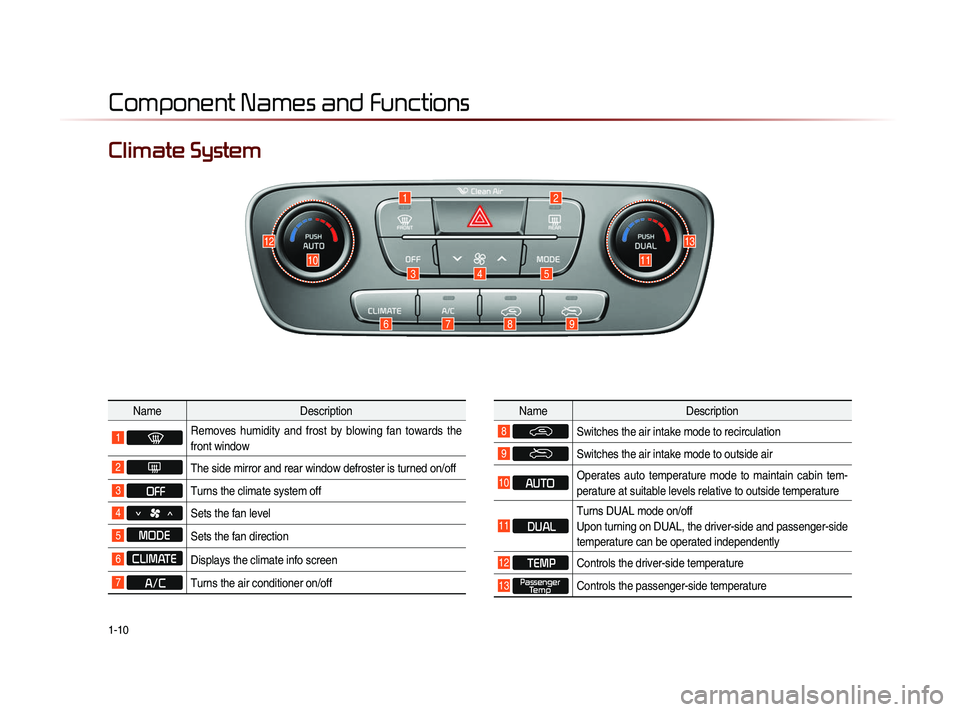
Climate System
NameDescription
1 Removes humidity and frost by blowing fan towards the
front window
2 The side mirror and rear window defroster is turned on/off
3 OFFTurns the climate system off
4 Sets the fan level
5 MODE
Sets the fan direction
6 CLIMATE Displays the climate info screen
7 A/CTurns the air conditioner on/off
Name
Description
8 Switches the air intake mode to recirculation
9 Switches the air intake mode to outside air
10 AUTO Operates auto temperature mode to maintain cabin tem-
perature at suitable levels relative to outside temperature
11 DUAL Turns DUAL mode on/off
Upon turning on DUAL, the driver-side and passenger-side
temperature can be operated independently
12 TEMP
Controls the driver-side temperature
13 Passenger
Temp Controls the passenger-side temperature
5
6789
12
111034
1213
Page 77 of 236
Bluetooth
® Audio Mode
Audio l
2-53
Selecting Bluetooth® Audio Files
While playing ▶ Press the
,
key ▶ Selects the previous/
next file.
i Information
• The title/artist info may not be supported
in some mobile phones. When it is not
supported, only the symbol will be dis-
played.
• The play/pause feature may operate dif-
ferently depending on the mobile phone.
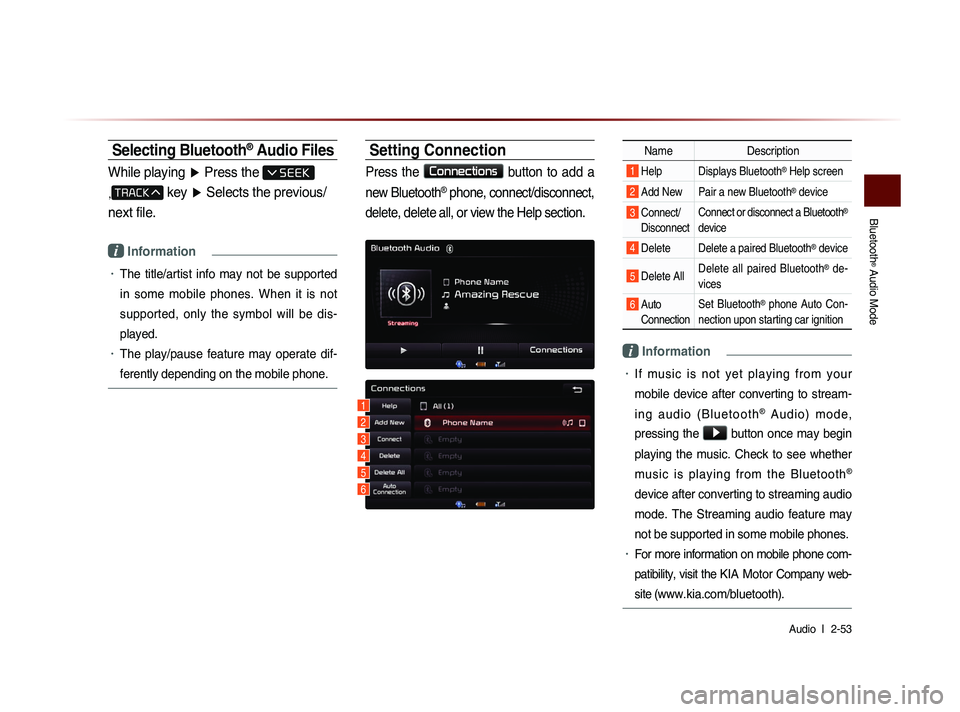
Setting Connection
Press the Connections
button to add a
new Bluetooth
® phone, connect/disconnect,
delete, delete all, or view the Help section.
Name Description
1 Help Displays Bluetooth® Help screen
2 Add New Pair a new Bluetooth® device
3 Connect/
Disconnect Connect or disconnect a Bluetooth®
device
4 Delete Delete a paired Bluetooth® device
5 Delete All Delete all paired Bluetooth® de-
vices
6 Auto Connection Set Bluetooth® phone Auto Con-
nection upon starting car ignition
i Information
• If music is not yet playing from your
mobile device after converting to stream-
i n g a u d i o ( B l u e t o o t h
® A u d i o ) m o d e ,
pressing the
▶ button once may begin
playing the music. Check to see whether
music is playing from the Bluetooth
®
device after converting to streaming audio
mode. The Streaming audio feature may
not be supported in some mobile phones.
• For more information on mobile phone com-
patibility, visit the
KIA Motor Company web-
site (
www.kia.com/bluetooth).
1
3
4
5
6
2
Page 97 of 236
Using the Navigation
Navigation l
3-15
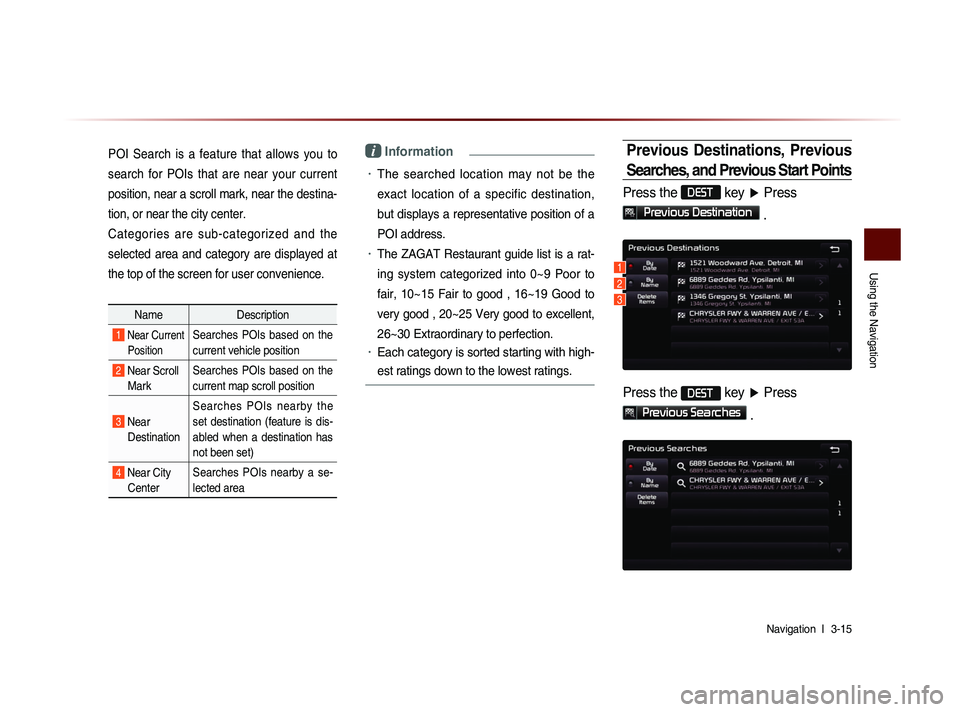
POI Search is a feature that allows you to
search for POIs that are near your current
position, near a scroll mark, near the destina-
tion, or near the city center.
Categories are sub-categorized and the
selected area and category are displayed at
the top of the screen for user convenience.
Name Description
1 Near Current
PositionSearches POIs based on the
current vehicle position
2 Near Scroll Mark Searches POIs based on the
current map scroll position
3 Near
Destination Searches POIs nearby the
set destination (feature is dis-
abled when a destination has
not been set)
4 Near City
Center Searches POIs nearby a se-
lected area
i Information
• The searched location may not be the
exact location of a specific destination,
but displays a representative position of a
POI address.
• The ZAGAT Restaurant guide list is a rat-
ing system categorized into 0~9 Poor to
fair, 10~15 Fair to good , 16~19 Good to
very good , 20~25 Very good to excellent,
26~30 Extraordinary to perfection.
• Each category is sorted starting with high-
est ratings down to the lowest ratings.
Previous Destinations, Previous
Searches, and Previous Start Points
Press the DEST key ▶ Press
Previous Destination
.
Press the DEST
key ▶ Press
Previous Searches
.
1
2
3
Page 112 of 236

3-30
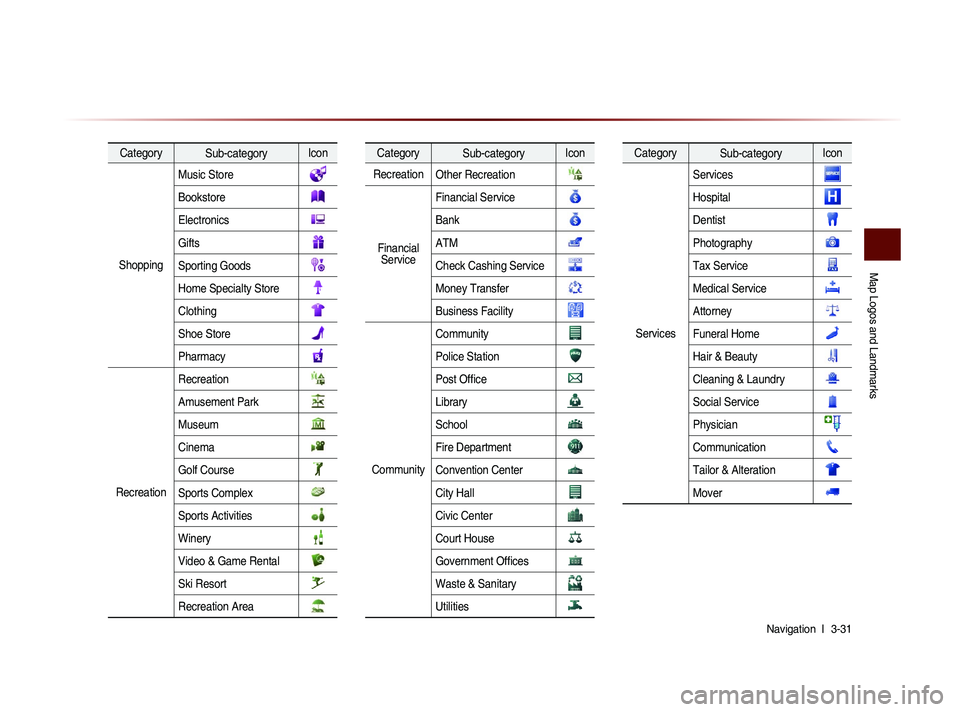
These are landmark and logo icons that display facilities within 2D map mode. The size of the
symbol may be displayed differently according to the map scale. Symbols may change without
prior notice during map updates. Symbols shown within the manual represent a portion of all
symbols and shou as a reference. Logo/Landmarks
Map Logos and Landmarks
Category Sub-category Icon
Restaurant Restaurant
American
French
Italian
Continental
Mexican
Japanese
Chinese
Korean
Vegetarian Food
Seafood
Latin American
Asian
African
Category Sub-category Icon
Restaurant Coffee Shop
Others
AutomotiveAutomotive
Hyundai Dealership
KIA Dealership
Gas Station
Parking
Auto service
Road Assistance
Automobile Dealership
Auto Parts
Rest Area
Car Wash
Motorcycle Dealership
Travel
TravelAirport
Category
Sub-category Icon
Travel Hotel
Tourist Information
Tourist Attraction
Travel Agent
City Center
Rental Car Agency
Campground
Ferry Terminal
Bus Station
Local Transit
Train Station
Shopping
Shopping
Department Store
Convenience Store
Shopping Center
Grocery Store
Logo
Page 113 of 236
Map Logos and Landmarks
Navigation l
3-31
Category Sub-category Icon
Shopping Music Store
Bookstore
Electronics
Gifts
Sporting Goods
Home Specialty Store
Clothing
Shoe Store
Pharmacy
Recreation Recreation
Amusement Park
Museum
Cinema
Golf Course
Sports Complex
Sports Activities
Winery
Video & Game Rental
Ski Resort
Recreation Area
Category
Sub-category Icon
Recreation Other Recreation
Financial
Service Financial Service
Bank
ATM
Check Cashing Service
Money Transfer
Business Facility
Community Community
Police Station
Post Offi ce
Library
School
Fire Department
Convention Center
City Hall
Civic Center
Court House
Government Offi ces
Waste & Sanitary
Utilities
Category
Sub-category Icon
Services Services
Hospital
Dentist
Photography
Tax Service
Medical Service
Attorney
Funeral Home
Hair & Beauty
Cleaning & Laundry
Social Service
Physician
Communication
Tailor & Alteration
Mover
Page 114 of 236
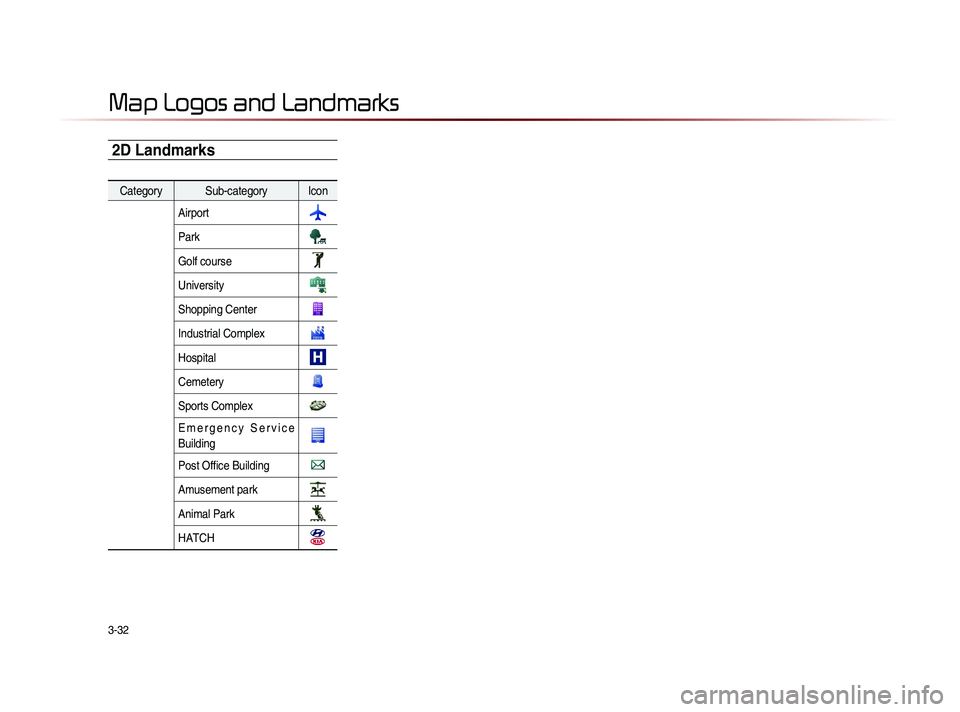
3-32
2D Landmarks
Map Logos and Landmarks
Category Sub-category IconAirport
Park
Golf course
University
Shopping Center
Industrial Complex
Hospital
Cemetery
Sports Complex
E m e r g e n c y S e r v i c e
Building
Post Offi ce Building
Amusement park
Animal Park
HATCH