check KIA SORENTO 2014 Navigation System Quick Reference Guide
[x] Cancel search | Manufacturer: KIA, Model Year: 2014, Model line: SORENTO, Model: KIA SORENTO 2014Pages: 236, PDF Size: 7.61 MB
Page 7 of 236
Table of Contents l 5
Emergency............................................................3-18
Coordinates
...........................................................3-18
Phone Number
..................................................3-18
Exit/Entrance
......................................................3-19
Setting a Destination
........................................3-19
Route Calculation
..............................................3-21
Demo
.......................................................................3-21
Add Waypoint
......................................................3-22
Route Recalculation
.........................................3-22
Cancel Route
.......................................................3-22
Route Guidance.................................................3-23
Preliminary Guidance Mode........................3-23
Intersection Zoom Mode
................................3-24
Highway Mode
....................................................3-24
Turn List Mode
....................................................3-24
Route Menu .........................................................3-25
Cancel Route.......................................................3-26
Route Overview
..................................................3-26
Route Info
..............................................................3-27
Route Option
........................................................3-27
Detour
......................................................................3-28
Avoid Streets
........................................................3-28
Edit Route
..............................................................3-28
Avoid Area.............................................................3-29
Map Logos and Landmarks
Logo/Landmarks...............................................3-30
Logo..........................................................................3-30
2D Landmarks
.....................................................3-32
Before Use
Before Using the Bluetooth® Handsfree...4-2
What is Bluetooth® Wireless Technology?...4-2
Precautions for Safe Driving.......................4-2
CAUTIONS upon Connecting Bluetooth®
Phone
...........................................................................4-3
Basic Mode Screen
When no Phones Have Been Paired...4-4
Pairing from the Bluetooth® Device...........4-5
When a Phone is Already Paired............4-5
When Pairing Additional Device..................4-7
When There is a Connected Device....4-8
Status Bar Icons...................................................4-8
During a Call............................................................4-9
Status Bar Icons...................................................4-9
Using Bluetooth® Wireless Technology
Making/Answering Calls...............................4-10
Calling by Dialing a Number........................4-10
Making a Call from Speed Dial
..................4-10
Calling through Redial
.....................................4-11
Making a Call from Call History
..................4-11
Answering a Call
................................................4-12
Rejecting a Call
...................................................4-12
Operating Menus during a Call...............4-13
Switching Call to Bluetooth® Phone.........4-13
Switching Call to the Handsfree
................4-13
Ending a Call
........................................................4-14
Switching to Call Waiting
...............................4-14
Setting Mic Volume
...........................................4-15
Adjusting the Ring/Call Volume
.................4-15
Contacts....................................................................4-16
Mobile Contacts Screen Configuration..4-17
Downloading Mobile Phone Contacts
....4-18
Checking Mobile Contacts Details
...........4-19
Adding as a Favorite
........................................4-19
4 Bluetooth® Handsfree
Page 12 of 236
iPod®
iPod® is a registered trademark of Apple Inc.
Bluetooth® Wireless Technology
The Bluetooth® Wireless Technology word mark and logos are registered
trademarks owned by
Bluetooth® Wireless Technology SIG, Inc. and any
use of such marks by Kia is under license.
A
Bluetooth® Wireless Technology enabled cell phone is required to use
Bluetooth® Wireless Technology. Bluetooth® Wireless Technology phone
compatibility can be checked by visiting www.kia.com/bluetooth.
HD Radio™ Technology
HD Radio Technology manufactured under license from iBiquity
Digital Corporation. U.S. and Foreign Patents.
HD Radio™ and the HD, HD Radio, and "Arc" logos are proprietary
trademarks of iBiquity Digital Corp.
Page 67 of 236
USB Mode
Audio l
2-43
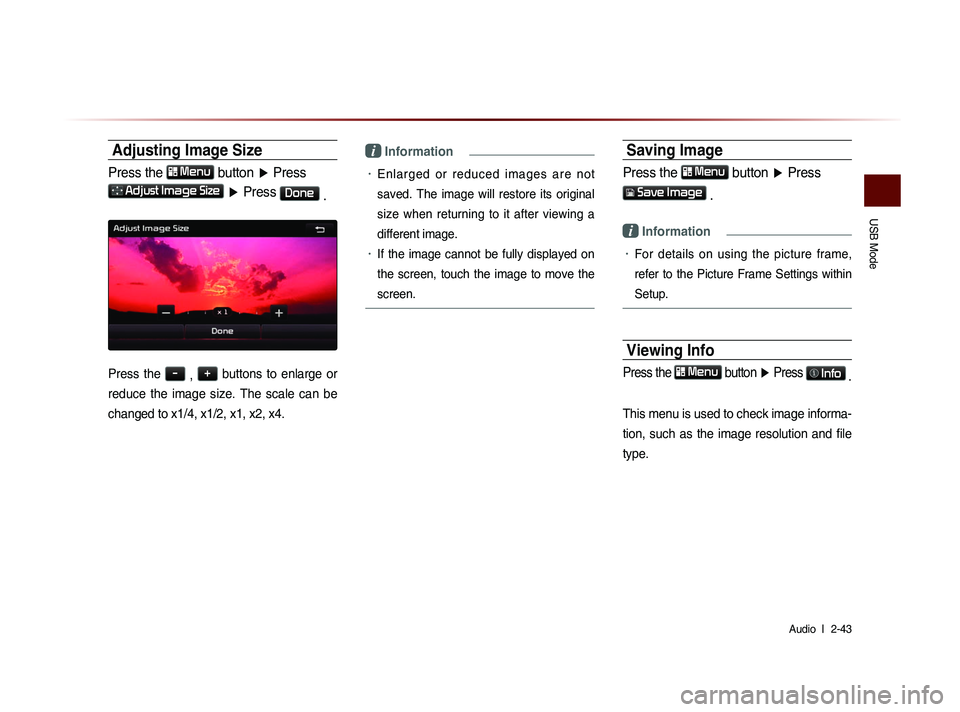
Adjusting Image Size
Press the Menu
button ▶ Press
Adjust Image Size ▶ Press Done
.
Press the -
, +
buttons to enlarge or
reduce the image size. The scale can be
changed to x1/4, x1/2, x1, x2, x4.
i Information
• Enlarged or reduced images are not
saved. The image will restore its original
size when returning to it after viewing a
different image.
• If the image cannot be fully displayed on
the screen, touch the image to move the
screen.
Saving Image
Press the Menu button ▶ Press
Save Image
.
i Information
• For details on using the picture frame,
refer to the Picture Frame Settings within
Setup.
Viewing Info
Press the Menu
button ▶ Press Info
.
This menu is used to check image informa-
tion, such as the image resolution and file
type.
Page 77 of 236
Bluetooth
® Audio Mode
Audio l
2-53
Selecting Bluetooth® Audio Files
While playing ▶ Press the
,
key ▶ Selects the previous/
next file.
i Information
• The title/artist info may not be supported
in some mobile phones. When it is not
supported, only the symbol will be dis-
played.
• The play/pause feature may operate dif-
ferently depending on the mobile phone.
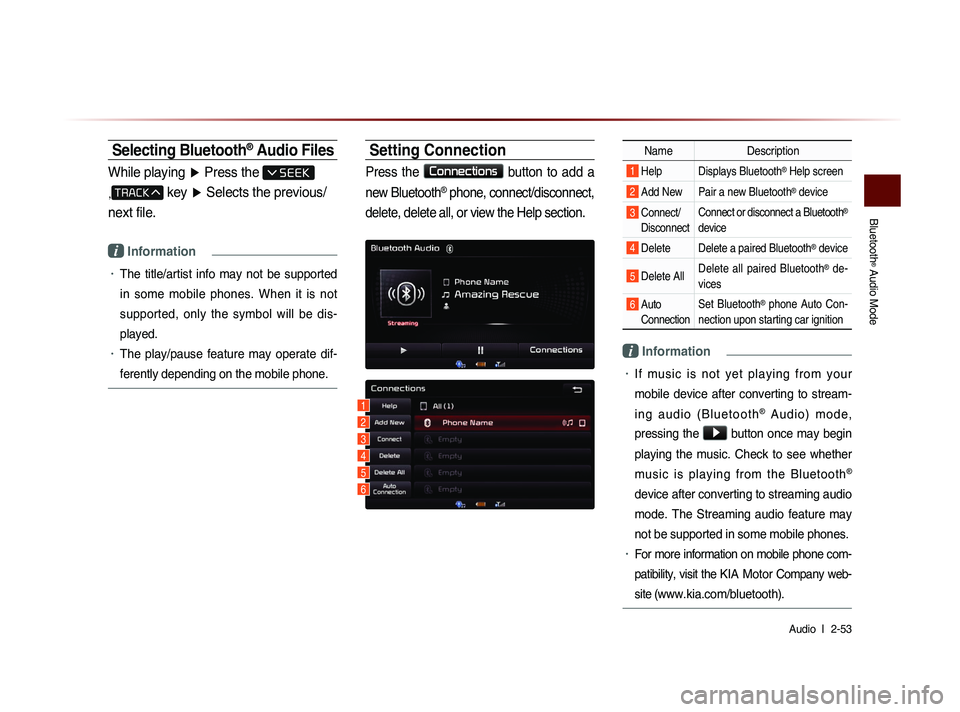
Setting Connection
Press the Connections
button to add a
new Bluetooth
® phone, connect/disconnect,
delete, delete all, or view the Help section.
Name Description
1 Help Displays Bluetooth® Help screen
2 Add New Pair a new Bluetooth® device
3 Connect/
Disconnect Connect or disconnect a Bluetooth®
device
4 Delete Delete a paired Bluetooth® device
5 Delete All Delete all paired Bluetooth® de-
vices
6 Auto Connection Set Bluetooth® phone Auto Con-
nection upon starting car ignition
i Information
• If music is not yet playing from your
mobile device after converting to stream-
i n g a u d i o ( B l u e t o o t h
® A u d i o ) m o d e ,
pressing the
▶ button once may begin
playing the music. Check to see whether
music is playing from the Bluetooth
®
device after converting to streaming audio
mode. The Streaming audio feature may
not be supported in some mobile phones.
• For more information on mobile phone com-
patibility, visit the
KIA Motor Company web-
site (
www.kia.com/bluetooth).
1
3
4
5
6
2
Page 101 of 236
Using the Navigation
Navigation l
3-19
i Information
• The phone number and location may
differ for some POIs. In addition, the fol-
lowing types of facilities may be more
frequently located in other locations.
• Locations of department stores, muse-
ums, and amusement parks may some-
w h a t d i f f e r f r o m t h e s e t d e s t i n a t i o n .
Check the exact address when trying to
reach such destinations.
• Within general information newspapers,
there are cases when phone numbers of
concert halls actually list the numbers of
management companies. In such cases,
destination searches will be made to the
management companies.
• The telephone number and addresses
may change at any time.
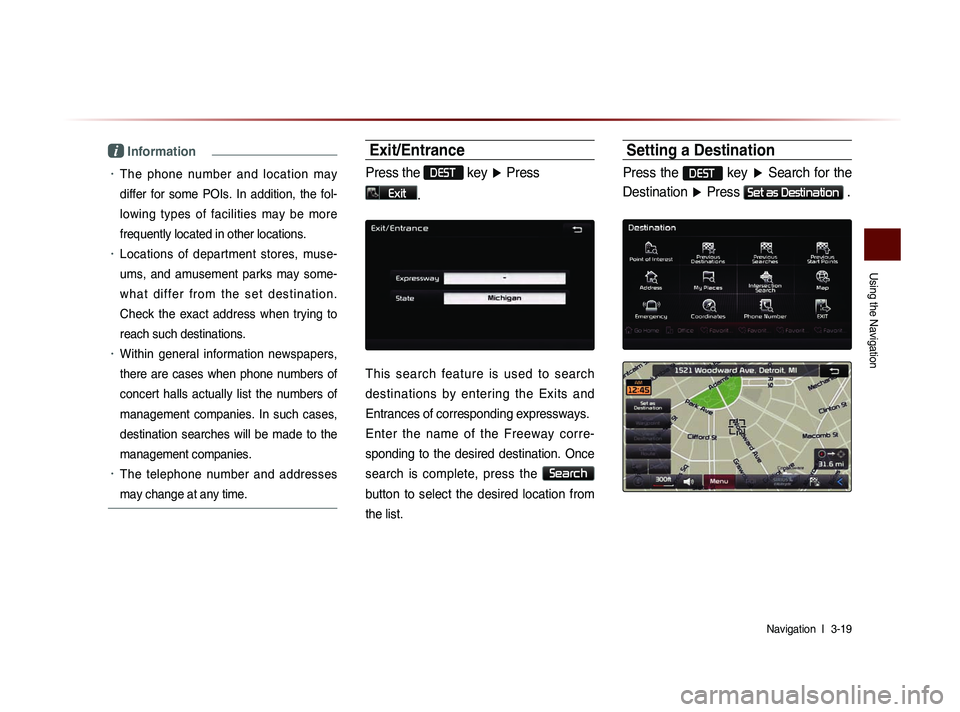
Exit/Entrance
Press the DEST key ▶ Press
Exit.
This search feature is used to search
destinations by entering the Exits and
Entrances of corresponding expressways.
Enter the name of the Freeway corre-
sponding to the desired destination. Once
search is complete, press the
Search
button to select the desired location from
the list.
Setting a Destination
Press the DEST key ▶ Search for the
Destination ▶ Press
Set as Destination .
Page 103 of 236
Using the Navigation
Navigation l
3-21
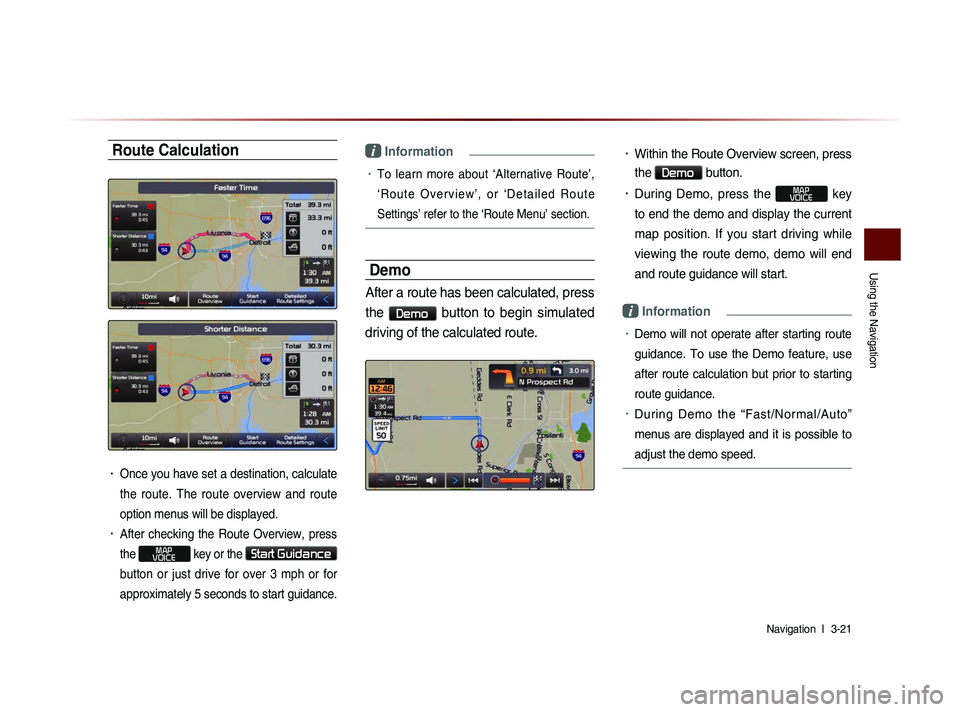
Route Calculation
• Once you have set a destination, calculate
the route. The route overview and route
option menus will be displayed.
• After checking the Route Overview, press
the
MAP
VOICE key or the Start Guidance
button or just drive for over 3 mph or for
approximately 5 seconds to start guidance.
i Information
• To learn more about ‘Alternative Route’,
‘ R o u t e O v e r v i e w ’ , o r ‘ D e t a i l e d R o u t e
Settings’ refer to the ‘Route Menu’ section.
Demo
After a route has been calculated, press
the
Demo button to begin simulated
driving of the calculated route.
• Within the Route Overview screen, press
the
Demo button.
• During Demo, press the MAP
VOICE key
to end the demo and display the current
map position. If you start driving while
viewing the route demo, demo will end
and route guidance will start.
i Information
• Demo will not operate after starting route
guidance. To use the Demo feature, use
after route calculation but prior to starting
route guidance.
• During Demo the “Fast/Normal/Auto”
menus are displayed and it is possible to
adjust the demo speed.
Page 106 of 236
3-24
Using the Navigation
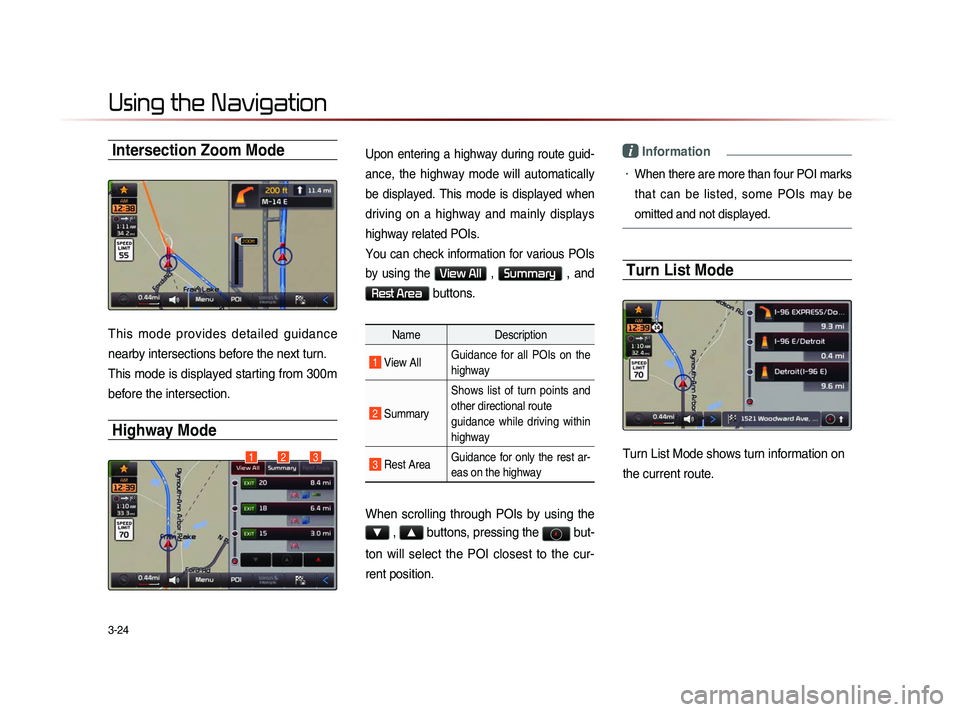
Intersection Zoom Mode
This mode provides detailed guidance
nearby intersections before the next turn.
This mode is displayed starting from 300m
before the intersection.
Highway Mode
Upon entering a highway during route guid-
ance, the highway mode will automatically
be displayed. This mode is displayed when
driving on a highway and mainly displays
highway related POIs.
You can check information for various POIs
by using the
View All , Summary , and
Rest Area buttons.
NameDescription
1 View AllGuidance for all POIs on the
highway
2
Summary Shows list of turn points and
other directional route
guidance while driving within
highway
3 Rest Area
Guidance for only the rest ar-
eas on the highway
When scrolling through POIs by using the
▼ , ▲ buttons, pressing the
but-
ton will select the POI closest to the cur-
rent position.
i Information
• When there are more than four POI marks
that can be listed, some POIs may be
omitted and not displayed.
Turn List Mode
Turn List Mode shows turn information on
the current route.123
Page 113 of 236
Map Logos and Landmarks
Navigation l
3-31
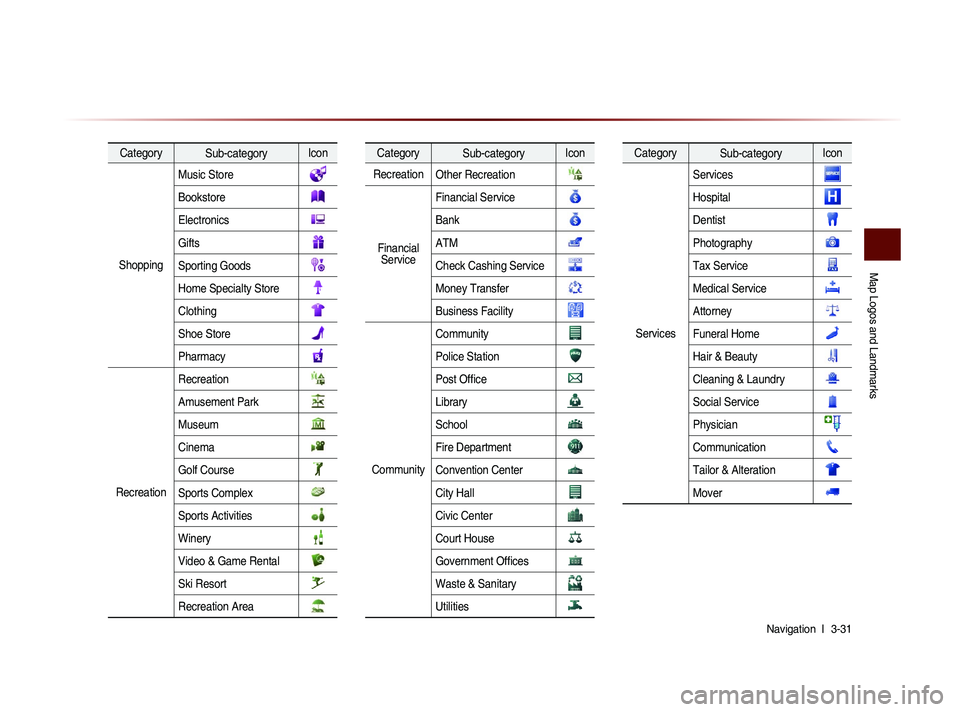
Category Sub-category Icon
Shopping Music Store
Bookstore
Electronics
Gifts
Sporting Goods
Home Specialty Store
Clothing
Shoe Store
Pharmacy
Recreation Recreation
Amusement Park
Museum
Cinema
Golf Course
Sports Complex
Sports Activities
Winery
Video & Game Rental
Ski Resort
Recreation Area
Category
Sub-category Icon
Recreation Other Recreation
Financial
Service Financial Service
Bank
ATM
Check Cashing Service
Money Transfer
Business Facility
Community Community
Police Station
Post Offi ce
Library
School
Fire Department
Convention Center
City Hall
Civic Center
Court House
Government Offi ces
Waste & Sanitary
Utilities
Category
Sub-category Icon
Services Services
Hospital
Dentist
Photography
Tax Service
Medical Service
Attorney
Funeral Home
Hair & Beauty
Cleaning & Laundry
Social Service
Physician
Communication
Tailor & Alteration
Mover
Page 117 of 236
Bluetooth® Handsfree l
4-3
Before Use
CAUTIONS upon Connecting
Bluetooth
® Phone
Before connecting the head unit with the mobile phone, check to see that the mobile phone supports Bluetooth® features.
Even if the phone supports Bluetooth® Wireless Technology, the
phone will not be found during device searches if the phone has
been set to hidden state or the Bluetooth
® power is turned off.
Disable the hidden state or turn on the Bluetooth® power prior to
searching/connecting with the head unit.
If Auto Connection is used, the Bluetooth® phone is automatically
connected when the ignition is turned on, making it unnecessary to
have to connect the phone with the head unit every time.
If you do not want automatic connection with your Bluetooth® de-
vice, turn the Bluetooth® feature off of the Bluetooth® device.
To set Auto Connection, go to ▶ Setup ▶
Bluetooth ▶ Connections ▶ Auto Connection.
The car name can be set at ▶ Setup ▶
Bluetooth ▶ Advanced Settings ▶
Device Information
.
The passkey needed to connect the mobile phone can be verified/
changed at
▶ Setup ▶ Bluetooth ▶
Advanced Settings
▶ Change Passkey .
If the Bluetooth® audio does not play, go to ▶ Setup
▶ Bluetooth ▶ Streaming Audio Setting . If the feature
is set to
Off , turn On and try again.
Park the vehicle when connecting the head unit with the mobile phone.
Bluetooth® connection may become intermittently disconnected in
some mobile phones. Follow these steps to try again.
1. Turn the Bluetooth® function within the mobile phone OFF/ON and try
again.
2. Turn the mobile phone power OFF/ON and try again.
3. Completely remove the mobile phone battery, reboot, and then again.
4. Reboot the Audio Navigation System and try again.
5. Delete all paired devices, pair and try again.
The handsfree call volume and quality may differ depending on the mobile phone.
Pairing Bluetooth® devices and use of other Bluetooth® features
are not supported when the vehicle is in motion. For safety, please
first park your vehicle.
When downloading contacts, phenomenon not described within
this user’s manual may be related with the mobile device. When
such occurs, inquire within the mobile phone manufacturer.
Page 130 of 236
4-16
Using Bluetooth® Wireless Technology
Contacts
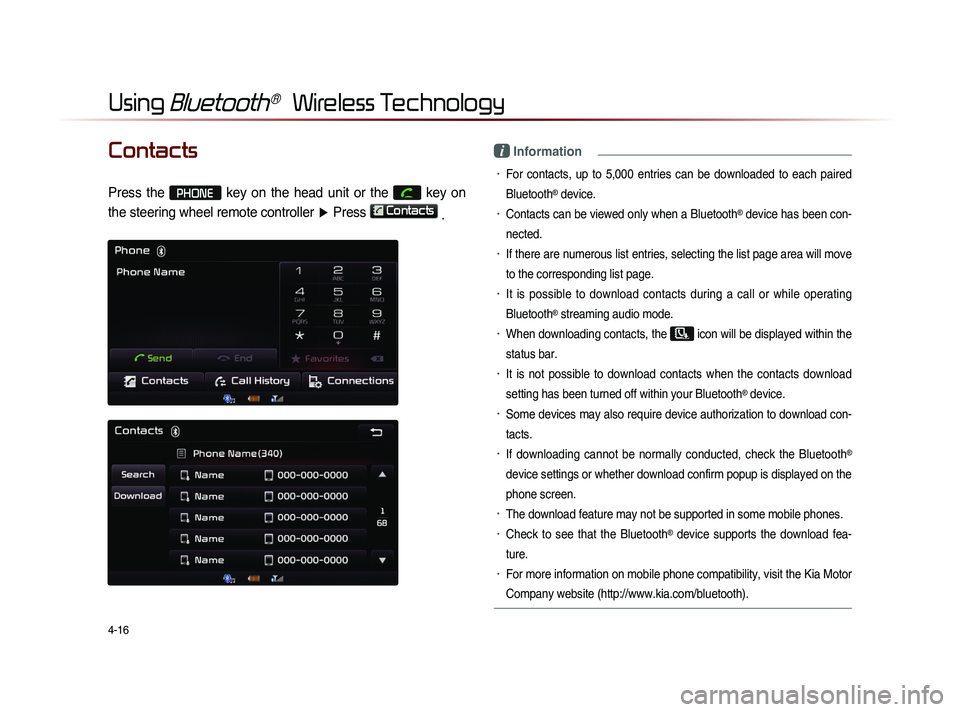
Press the PHONE key on the head unit or the
key on
the steering wheel remote controller ▶ Press
Contacts
.
i Information
• For contacts, up to 5,000 entries can be downloaded to each paired
Bluetooth
® device.
• Contacts can be viewed only when a Bluetooth® device has been con-
nected.
• If there are numerous list entries, selecting the list page area will move
to the corresponding list page.
• It is possible to download contacts during a call or while operating
Bluetooth
® streaming audio mode.
• When downloading contacts, the icon will be displayed within the
status bar.
• It is not possible to download contacts when the contacts download
setting has been turned off within your Bluetooth
® device.
• Some devices may also require device authorization to download con-
tacts.
• If downloading cannot be normally conducted, check the Bluetooth®
device settings or whether download confirm popup is displayed on the
phone screen.
• The download feature may not be supported in some mobile phones.
• Check to see that the Bluetooth® device supports the download fea-
ture.
• For more information on mobile phone compatibility, visit the Kia Motor
Company website (http://www.kia.com/bluetooth).