key KIA Sorento 2015 3.G Repair Manual
[x] Cancel search | Manufacturer: KIA, Model Year: 2015, Model line: Sorento, Model: KIA Sorento 2015 3.GPages: 508, PDF Size: 7.59 MB
Page 284 of 508
4 193
Features of your vehicle
Bluetooth
®Wireless Technology
AUDIO
What is
Bluetooth
®Wireless
Technology
?
Bluetooth
®Wireless Technology is a
wireless technology that allows mul-
tiple devices to be connected in a
short range, low-powered devices
like hands-free, stereo headset, wire-
less remote controller, etc. For more
information, visit
the
Bluetooth
®
Wireless Technology
website at
www
.Bluetooth.com
Before using
Bluetooth
®
Wireless
Technology audio features
Bluetooth
®
Wireless Technology
audio may not be supported
depending on the compatibility of
your
Bluetooth
®Wireless Technology
mobile phone.
In order to use Bluetooth
®Wireless
Technology audio, you must first
pair and connect the Bluetooth
®
Wireless Technology mobile phone.
Bluetooth
®
Wireless Technology
audio can be used only when the
[Audio Streaming] of Phone is
turned .
❈ Setting
Bluetooth
®Wireless Technology
Audio Streaming : Press the
key Select [Phone] through the tune
knob or key Select [Audio
Streaming] through the TUNE
knob Set
/
Starting
Bluetooth
®Wireless
Technology Audio
Press the key to change the
mode in order of
CD➟ USB➟ AUX➟My Music➟ BT
Audio.
If BT Audio is selected,
Bluetooth
®
Wireless Technology audio will start
playing.
❈ Audio may not automatically start
playing in some mobile phones.
Using the
Bluetooth
®Wireless
Technology audio features
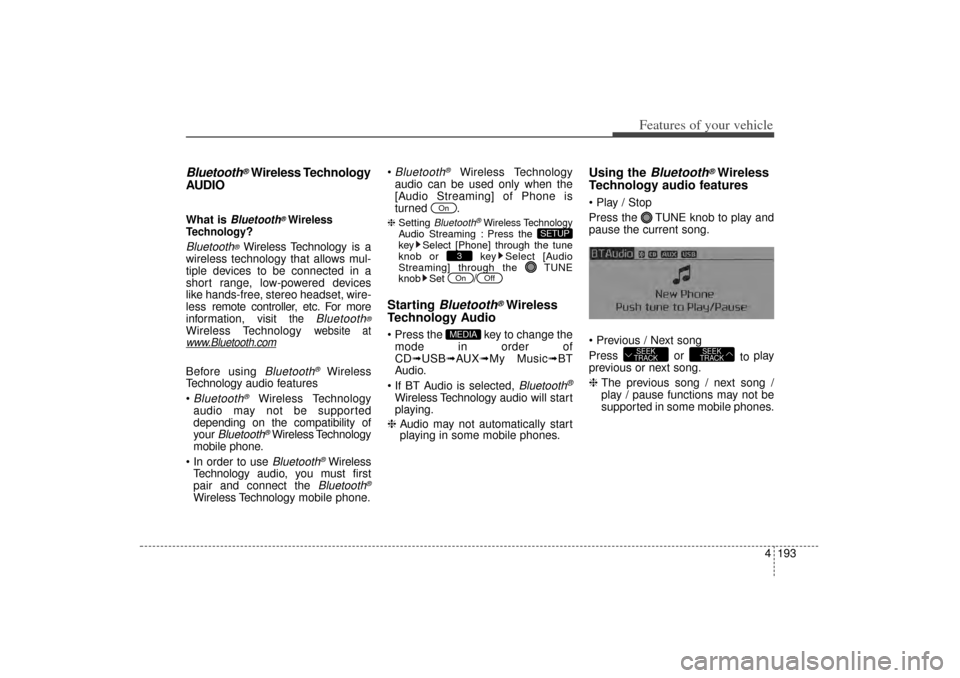
Play / Stop
Press the TUNE knob to play and
pause the current song.
Previous / Next song
Press or to play
previous or next song.
❈ The previous song / next song /
play / pause functions may not be
supported in some mobile phones.
SEEK
TRACK
SEEK
TRACK
MEDIA
Off
On3
SETUP
On
XM(FL) CAN(ENG) 4b(AUDIO).qxp 1/23/2013 3:42 PM Page 193
Page 285 of 508
Features of your vehicle194
4PHONEMaking a call using the
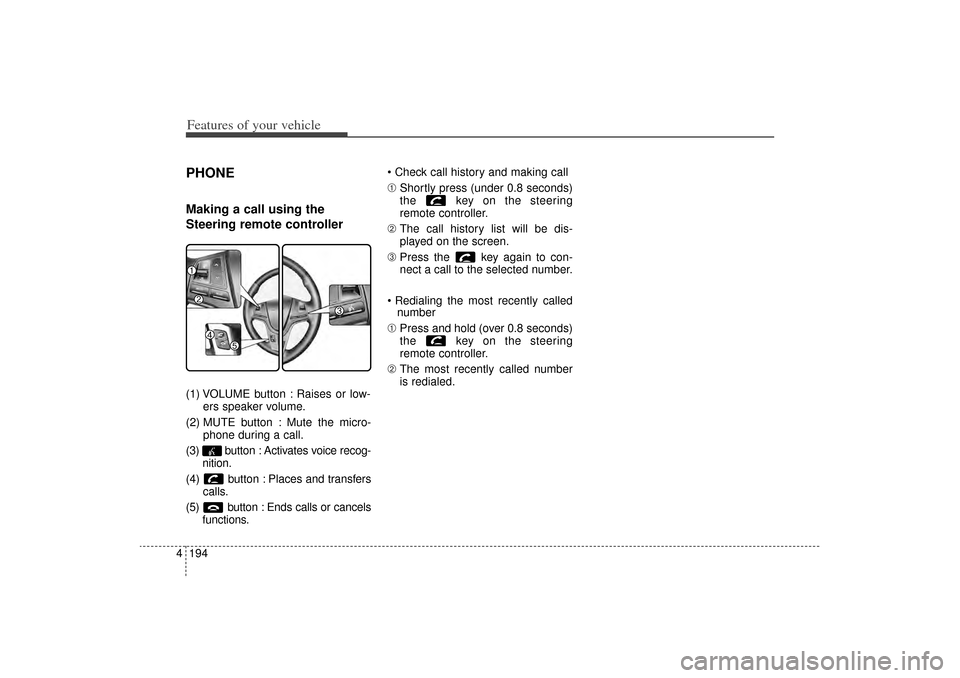
Steering remote controller(1) VOLUME button : Raises or low-
ers speaker volume.
(2) MUTE button : Mute the micro- phone during a call.
(3) button : Activates voice recog- nition.
(4) button : Places and transfers calls.
(5) button : Ends calls or cancels functions. Check call history and making call
➀
Shortly press (under 0.8 seconds)
the key on the steering
remote controller.
➁ The call history list will be dis-
played on the screen.
\b Press the key again to con-
nect a call to the selected number.
Redialing the most recently called number
➀ Press and hold (over 0.8 seconds)
the key on the steering
remote controller.
➁ The most recently called number
is redialed.
XM(FL) CAN(ENG) 4b(AUDIO).qxp 1/23/2013 3:43 PM Page 194
Page 286 of 508
4 195
Features of your vehicle
Bluetooth
®Wireless Technology
Pairing a Bluetooth
®
Wireless
Technology wireless technolo-
gy Device
What is Bluetooth
®
Wireless
Technology Pairing?
Pairing refers to the process of syn-
chronizing your
Bluetooth
®
Wireless
Technology phone or device with the
car audio system for connection.
Pairing is necessary to connect and
use the
Bluetooth
®
Wireless
Technology feature.
Pairing Key / Key
on the Steering Remote
ControllerWhen No Devices have been
Paired1. Press the key or the key on the steering remote con-
troller. The following screen is dis-
played.
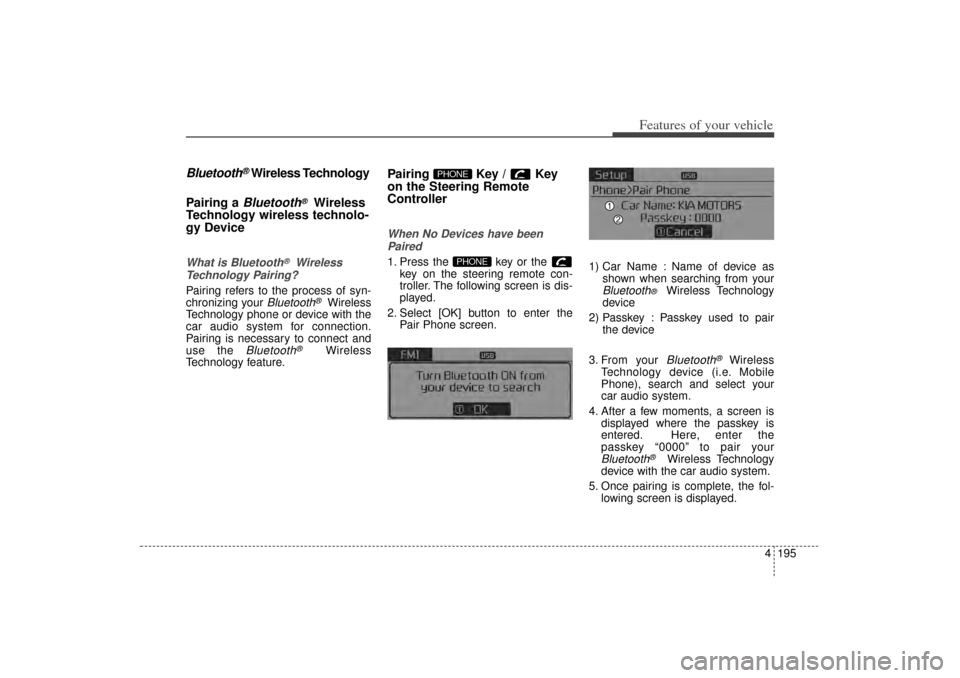
2. Select [OK] button to enter the Pair Phone screen. 1) Car Name : Name of device as
shown when searching from your
Bluetooth
®
Wireless Technology
device
2) Passkey : Passkey used to pair the device
3. From your Bluetooth
®
Wireless
Technology device (i.e. Mobile
Phone), search and select your
car audio system.
4. After a few moments, a screen is displayed where the passkey is
entered. Here, enter the
passkey “0000” to pair your
Bluetooth
®
Wireless Technology
device with the car audio system.
5. Once pairing is complete, the fol- lowing screen is displayed.
PHONE
PHONE
XM(FL) CAN(ENG) 4b(AUDIO).qxp 1/23/2013 3:43 PM Page 195
Page 287 of 508
Features of your vehicle196
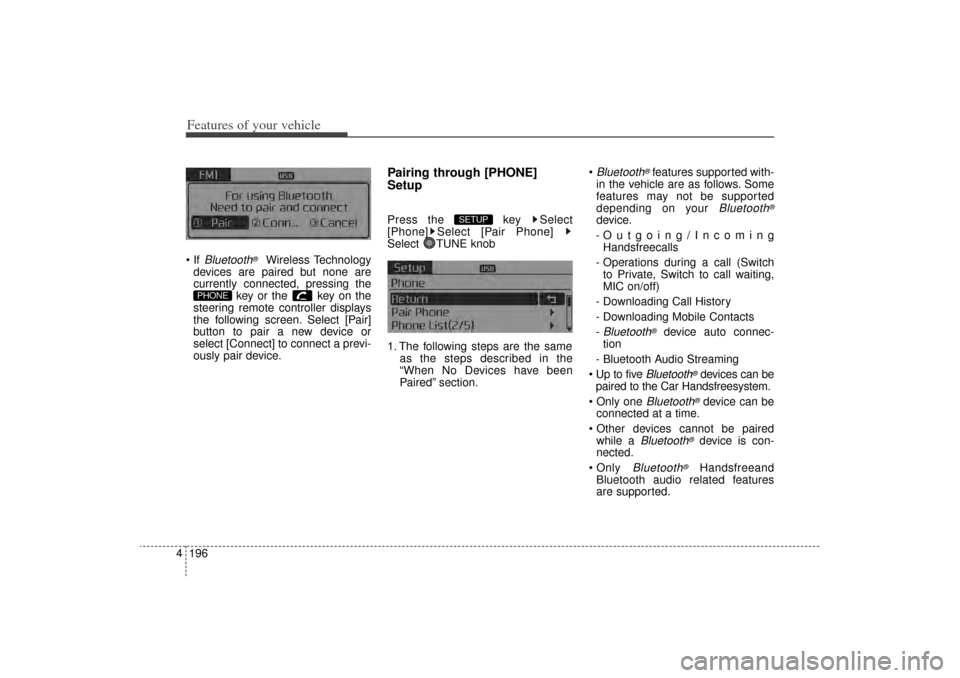
4 If
Bluetooth
®
Wireless Technology
devices are paired but none are
currently connected, pressing the key or the key on the
steering remote controller displays
the following screen. Select [Pair]
button to pair a new device or
select [Connect] to connect a previ-
ously pair device.
Pairing through [PHONE]
SetupPress the key Select
[Phone] Select [Pair Phone]
Select TUNE knob
1. The following steps are the same as the steps described in the
“When No Devices have been
Paired” section.
Bluetooth
®features supported with-
in the vehicle are as follows. Some
features may not be supported
depending on your
Bluetooth
®
device.
-Outgoing/Incoming Handsfreecalls
- Operations during a call (Switch to Private, Switch to call waiting,
MIC on/off)
- Downloading Call History
- Downloading Mobile Contacts
-Bluetooth
®
device auto connec-
tion
- Bluetooth Audio Streaming
Up to five
Bluetooth
®devices can be
paired to the Car Handsfreesystem.
Only one
Bluetooth
®device can be
connected at a time.
Other devices cannot be paired while a
Bluetooth
®device is con-
nected.
Only
Bluetooth
®
Handsfreeand
Bluetooth audio related features
are supported.
SETUP
PHONE
XM(FL) CAN(ENG) 4b(AUDIO).qxp 1/23/2013 3:43 PM Page 196
Page 288 of 508
4 197
Features of your vehicle
Normal operations are possibleonly within devices that support
Handsfree or audio features, such
as a
Bluetooth
®mobile phone or a
Bluetooth audio device.
If a connected Bluetooth
®
device
becomes disconnected due to
being out of communication range,
turning the device OFF, or a
Bluetooth
®
communication error,
corresponding
Bluetooth
®
devices
are automatically searched and
connected.
the system becomes unstable due to communication errors between
the car Handsfreeand the
Bluetooth
®
device, reset the
Bluetooth
®and try
again. Upon resetting
Bluetooth
®, the
system is restored to its factory
release state.
After Pairing is complete, a con- tacts download request is sent
once to the mobile phone. As some
mobile phones may require confir-
mation upon receiving a download
request, check the mobile phone
screen.
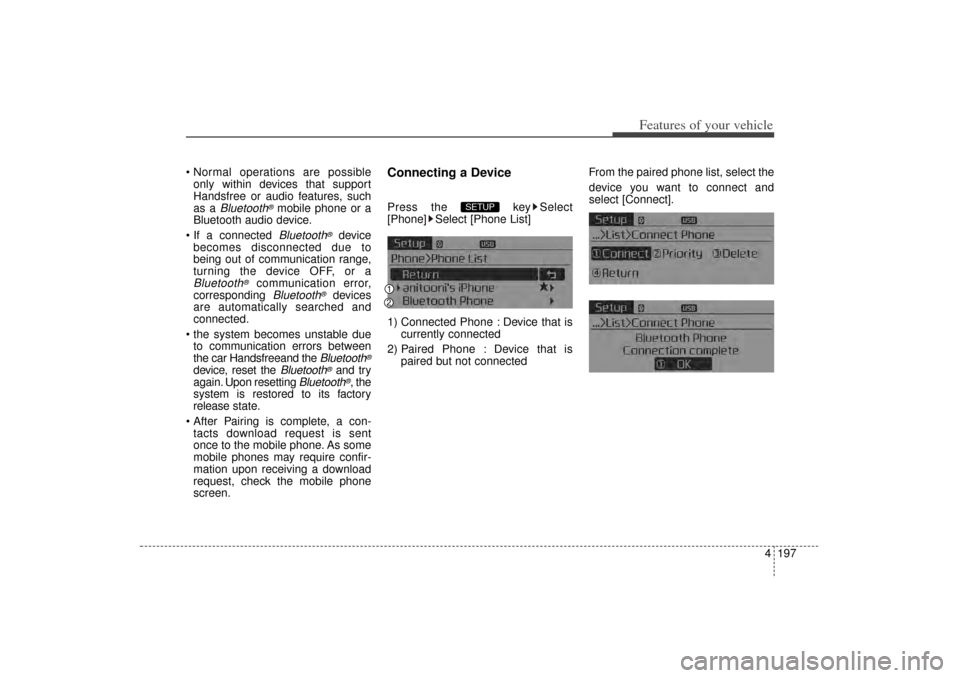
Connecting a DevicePress the key Select
[Phone] Select [Phone List]
1) Connected Phone : Device that is currently connected
2) Paired Phone : Device that is paired but not connected From the paired phone list, select the
device you want to connect and
select [Connect].
SETUP
XM(FL) CAN(ENG) 4b(AUDIO).qxp 1/23/2013 3:43 PM Page 197
Page 289 of 508
Features of your vehicle198
4Changing PriorityWhat is Priority?It is possible to pair up to fiveBluetooth
®
Wireless Technology
devices with the car audio system.
As a result, the “Change Priority’ fea-
ture is used to set the connection pri-
ority of paired phones.
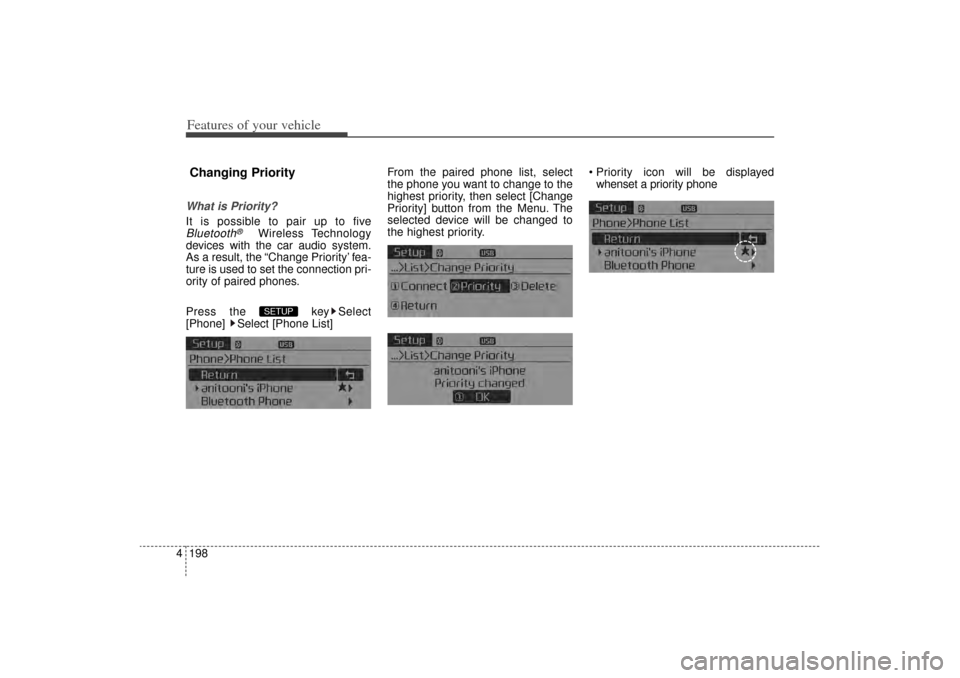
Press the key Select
[Phone] Select [Phone List] From the paired phone list, select
the phone you want to change to the
highest priority
, then select [Change
Priority] button from the Menu. The
selected device will be changed to
the highest priority. Priority icon will be displayed
whenset a priority phoneSETUP
XM(FL) CAN(ENG) 4b(AUDIO).qxp 1/23/2013 3:43 PM Page 198
Page 290 of 508
![KIA Sorento 2015 3.G Repair Manual 4 199
Features of your vehicle
Disconnecting a DevicePress the key Select
[Phone] Select [Phone List]
From the paired phone list, select the
currently connected device and
select [Disconnect] button.](/img/2/2967/w960_2967-289.png "KIA Sorento 2015 3.G Repair Manual 4 199
Features of your vehicle
Disconnecting a DevicePress the key Select
[Phone] Select [Phone List]
From the paired phone list, select the
currently connected device and
select [Disconnect] button.")
4 199
Features of your vehicle
Disconnecting a DevicePress the key Select
[Phone] Select [Phone List]
From the paired phone list, select the
currently connected device and
select [Disconnect] button.
Deleting a DevicePress the key Select
[Phone] Select [Phone List]
From the paired phone list, select the
device you want to delete and select
[Delete] button. When deleting the currently con-
nected device, the device will auto-
matically be disconnected to pro-
ceed with the deleting process.
If a paired
Bluetooth
®
Wireless
Technology device is deleted, the
device’s call history and contacts
data will also be deleted.
To re-use a deleted device, you must pair the device again.
SETUP
SETUP
XM(FL) CAN(ENG) 4b(AUDIO).qxp 1/23/2013 3:43 PM Page 199
Page 291 of 508
Features of your vehicle200
4USING
Bluetooth
®
Wireless
Technology
Phone Menu ScreenPhone MenusWith a
Bluetooth
®
Wireless
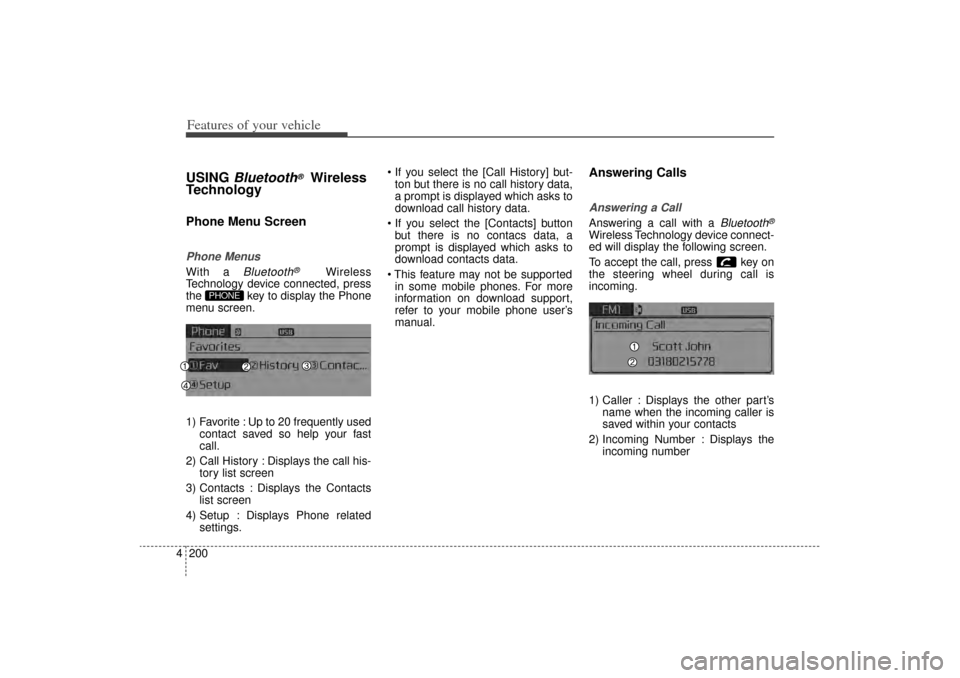
Technology device connected, press
the key to display the Phone
menu screen.
1) Favorite : Up to 20 frequently used contact saved so help your fast
call.
2) Call History : Displays the call his- tory list screen
3) Contacts : Displays the Contacts list screen
4) Setup : Displays Phone related settings. If you select the [Call History] but-
ton but there is no call history data,
a prompt is displayed which asks to
download call history data.
If you select the [Contacts] button but there is no contacs data, a
prompt is displayed which asks to
download contacts data.
This feature may not be supported in some mobile phones. For more
information on download support,
refer to your mobile phone user’s
manual.
Answering CallsAnswering a CallAnswering a call with a
Bluetooth
®
Wireless Technology device connect-
ed will display the following screen.
To accept the call, press key on
the steering wheel during call is
incoming.
1) Caller : Displays the other part’s name when the incoming caller is
saved within your contacts
2) Incoming Number : Displays the incoming number
PHONE
XM(FL) CAN(ENG) 4b(AUDIO).qxp 1/23/2013 3:43 PM Page 200
Page 292 of 508
4 201
Features of your vehicle
When the incoming call pop-up isdisplayed, most Audio and SETUP
mode features will not operate.
Only the call volume can be oper-
ated.
The telephone number may not be properly displayed in some mobile
phones.
When a call is answered with the mobile phone, the call mode will
automatically convert to Private
mode.
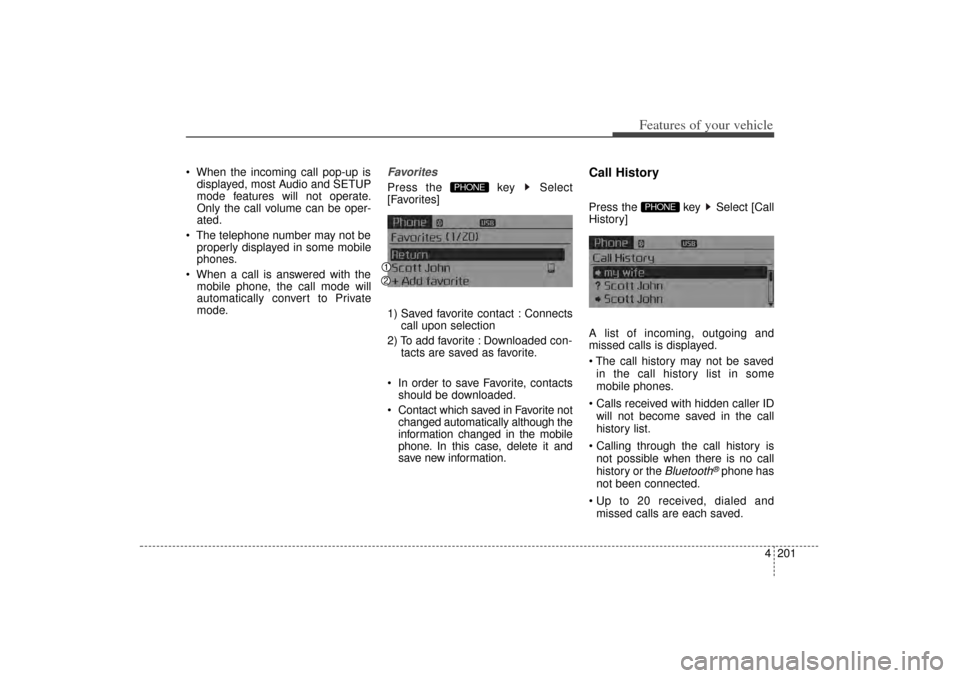
FavoritesPress the key Select
[Favorites]
1) Saved favorite contact : Connects call upon selection
2) To add favorite : Downloaded con- tacts are saved as favorite.
In order to save Favorite, contacts should be downloaded.
Contact which saved in Favorite not changed automatically although the
information changed in the mobile
phone. In this case, delete it and
save new information.
Call HistoryPress the key Select [Call
History]
A list of incoming, outgoing and
missed calls is displayed.
The call history may not be saved
in the call history list in some
mobile phones.
Calls received with hidden caller ID will not become saved in the call
history list.
Calling through the call history is not possible when there is no call
history or the
Bluetooth
®phone has
not been connected.
Up to 20 received, dialed and missed calls are each saved.
PHONE
PHONE
XM(FL) CAN(ENG) 4b(AUDIO).qxp 1/23/2013 3:43 PM Page 201
Page 293 of 508
![KIA Sorento 2015 3.G Repair Manual Features of your vehicle202
4 Time of received/dialed calls and
call time information are not saved.ContactsPress the key Select
[Contacts]
The list of saved phone book entries
is displayed. Up to](/img/2/2967/w960_2967-292.png "KIA Sorento 2015 3.G Repair Manual Features of your vehicle202
4 Time of received/dialed calls and
call time information are not saved.ContactsPress the key Select
[Contacts]
The list of saved phone book entries
is displayed. Up to")
Features of your vehicle202
4 Time of received/dialed calls and
call time information are not saved.ContactsPress the key Select
[Contacts]
The list of saved phone book entries
is displayed. Up to 1,000 contacts saved in your
Bluetooth
®
phone can be down-
loaded into the car contacts.
Contacts that have been down-
loaded to the car cannot be edited
or deleted on the phone.
Mobile phone contacts are man- aged separately for each paired
Bluetooth
®device(max 1 devices x
5,000 contacts each). Previously
downloaded data is maintained
even if the Bluetooth
®device has
been disconnected. (However, the
contacts and call history saved to
the phone will be deleted if a paired
phone is deleted.)
It is possible to download contacts even during Bluetooth streaming
audio.
When downloading contacts, the icon will be displayed within the sta-
tus bar. It is not possible to commence
download when the contacts down-
load feature has been turned off
within the
Bluetooth
®
device. In
addition, some devices may require
device authorization upon attempt-
ing to download contacts. If down-
loading does not normally occur,
check the
Bluetooth
®device set-
tings or the screen state.
The download feature may not be supported in some mobile phones.
Check to see that the Bluetooth
®
device supports the download fea-
ture. For more information of sup-
ported
Bluetooth
®
devices and
function support, visit.
PHONE
XM(FL) CAN(ENG) 4b(AUDIO).qxp 1/23/2013 3:43 PM Page 202