ESP KIA Sorento 2016 3.G Owner's Guide
[x] Cancel search | Manufacturer: KIA, Model Year: 2016, Model line: Sorento, Model: KIA Sorento 2016 3.GPages: 565, PDF Size: 10.63 MB
Page 237 of 565
4153
Features of your vehicle
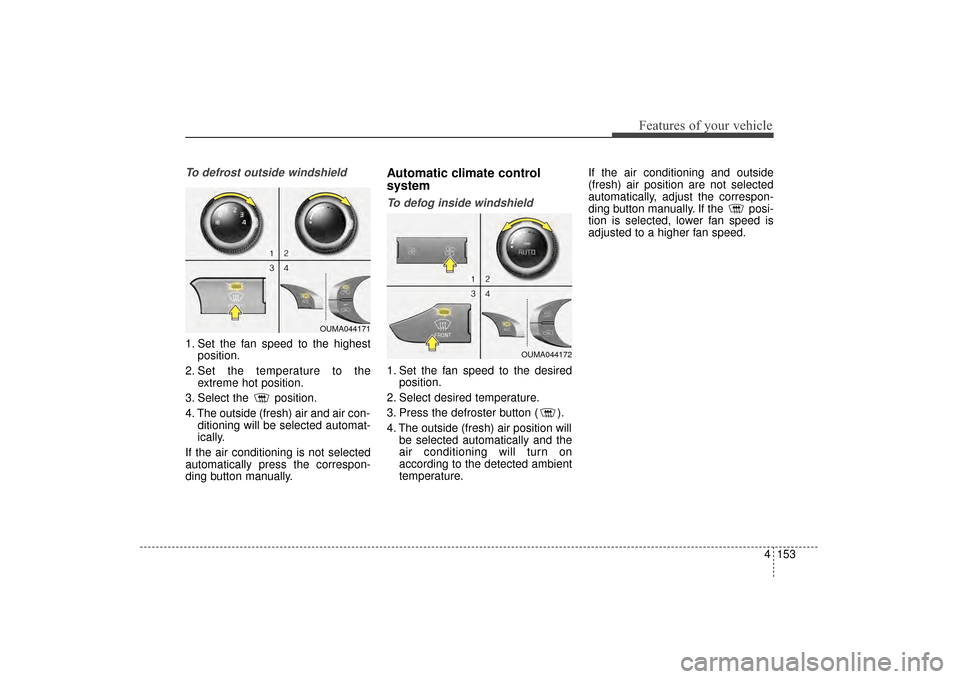
To defrost outside windshield
1. Set the fan speed to the highestposition.
2. Set the temperature to the extreme hot position.
3. Select the position.
4. The outside (fresh) air and air con- ditioning will be selected automat-
ically.
If the air conditioning is not selected
automatically press the correspon-
ding button manually.
Automatic climate control
system
To defog inside windshield
1. Set the fan speed to the desired position.
2. Select desired temperature.
3. Press the defroster button ( ).
4. The outside (fresh) air position will be selected automatically and the
air conditioning will turn on
according to the detected ambient
temperature. If the air conditioning and outside
(fresh) air position are not selected
automatically, adjust the correspon-
ding button manually. If the posi-
tion is selected, lower fan speed is
adjusted to a higher fan speed.
OUMA044172
OUMA044171
UM CAN (ENG) 4.qxp 12/1/2014 12:59 PM Page 153
Page 254 of 565
Features of your vehicle
170
4
EXTERIOR FEATURES
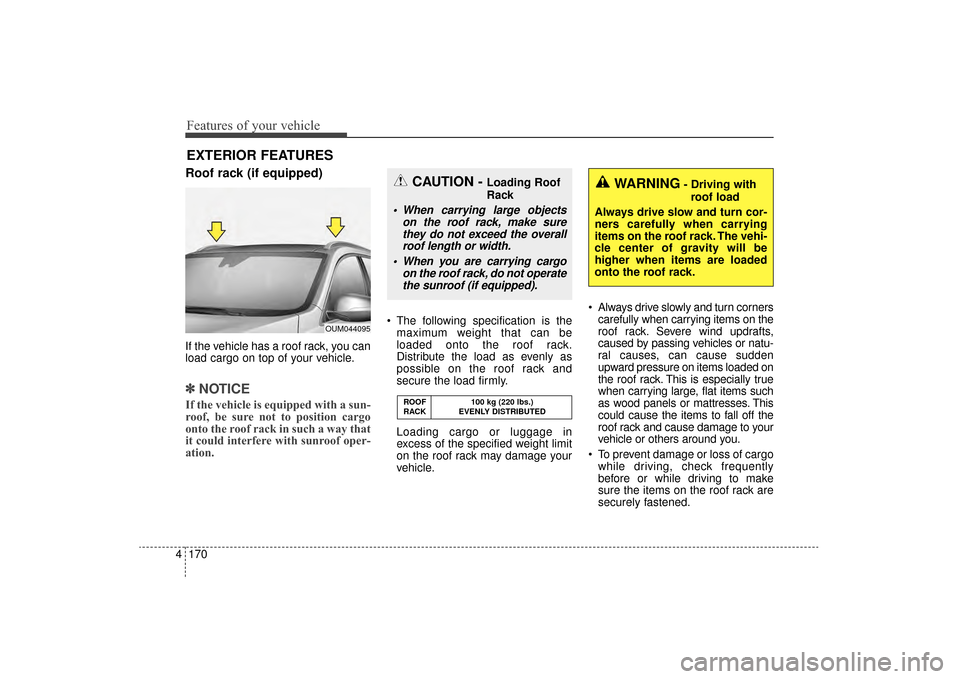
Roof rack (if equipped)
If the vehicle has a roof rack, you can
load cargo on top of your vehicle.
✽ ✽
NOTICE
If the vehicle is equipped with a sun-
roof, be sure not to position cargo
onto the roof rack in such a way that
it could interfere with sunroof oper-
ation.
The following specification is the
maximum weight that can be
loaded onto the roof rack.
Distribute the load as evenly as
possible on the roof rack and
secure the load firmly.
Loading cargo or luggage in
excess of the specified weight limit
on the roof rack may damage your
vehicle. Always drive slowly and turn corners
carefully when carrying items on the
roof rack. Severe wind updrafts,
caused by passing vehicles or natu-
ral causes, can cause sudden
upward pressure on items loaded on
the roof rack. This is especially true
when carrying large, flat items such
as wood panels or mattresses. This
could cause the items to fall off the
roof rack and cause damage to your
vehicle or others around you.
To prevent damage or loss of cargo while driving, check frequently
before or while driving to make
sure the items on the roof rack are
securely fastened.OUM044095
CAUTION - Loading Roof
Rack
When carrying large objects on the roof rack, make surethey do not exceed the overallroof length or width.
When you are carrying cargo on the roof rack, do not operatethe sunroof (if equipped).
WARNING- Driving with
roof load
Always drive slow and turn cor-
ners carefully when carrying
items on the roof rack. The vehi-
cle center of gravity will be
higher when items are loaded
onto the roof rack.
ROOF 100 kg (220 lbs.)
RACK EVENLY DISTRIBUTED
UM CAN (ENG) 4.qxp 12/1/2014 1:00 PM Page 170
Page 256 of 565
Features of your vehicle
172
4
Steering wheel remote
controller
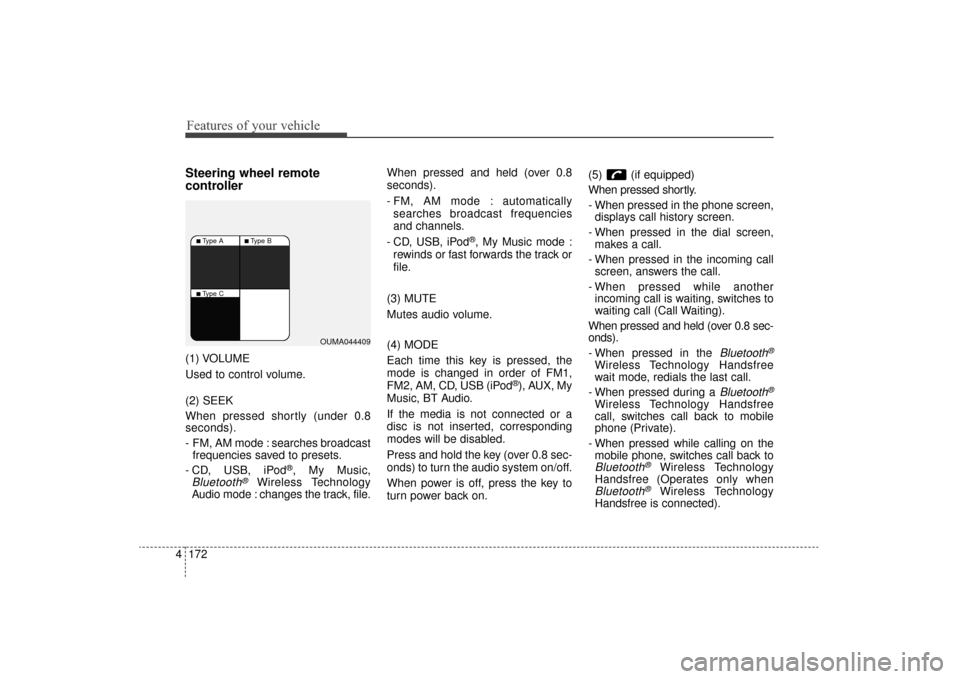
(1) VOLUME
Used to control volume.
(2) SEEK
When pressed shortly (under 0.8
seconds).
- FM, AM mode : searches broadcast
frequencies saved to presets.
- CD, USB, iPod
®, My Music,
Bluetooth®Wireless Technology
Audio mode : changes the track, file. When pressed and held (over 0.8
seconds).
- FM, AM mode : automatically
searches broadcast frequencies
and channels.
- CD, USB, iPod
®, My Music mode :
rewinds or fast forwards the track or
file.
(3) MUTE
Mutes audio volume.
(4) MODE
Each time this key is pressed, the
mode is changed in order of FM1,
FM2, AM, CD, USB (iPod
®), AUX, My
Music, BT Audio.
If the media is not connected or a
disc is not inserted, corresponding
modes will be disabled.
Press and hold the key (over 0.8 sec-
onds) to turn the audio system on/off.
When power is off, press the key to
turn power back on. (5) (if equipped)
When pressed shortly.
- When pressed in the phone screen,
displays call history screen.
- When pressed in the dial screen, makes a call.
- When pressed in the incoming call screen, answers the call.
- When pressed while another incoming call is waiting, switches to
waiting call (Call Waiting).
When pressed and held (over 0.8 sec-
onds).
- When pressed in the
Bluetooth®
Wireless Technology Handsfree
wait mode, redials the last call.
- When pressed during a
Bluetooth®
Wireless Technology Handsfree
call, switches call back to mobile
phone (Private).
- When pressed while calling on the mobile phone, switches call back to
Bluetooth®Wireless Technology
Handsfree (Operates only when
Bluetooth®Wireless Technology
Handsfree is connected).
OUMA044409
■Type A■Type B
■Type C
UM CAN (ENG) 4b (Audio).qxp 11/7/2014 3:01 PM Page 172
Page 257 of 565
4173
Features of your vehicle
(6) (if equipped)
Ends phone call.
(7) (if equipped)
When pressed shortly.
- Starts voice recognition.
- When selected during a voiceprompt, stops the prompt and con-
verts to voice command waiting
state.
When pressed and held (over 0.8 sec-
onds).
- Ends voice recognition.
❈ The Bluetooth
®word mark and
logos are registered trademarks
owned by Bluetooth SIG, Inc. and
any use of such marks by Kia is
under license. Other trademarks
and trade names are those of their
respective owners. A compatible
Bluetooth
®enabled cell phone is
required to use Bluetooth®wire-
less technology.
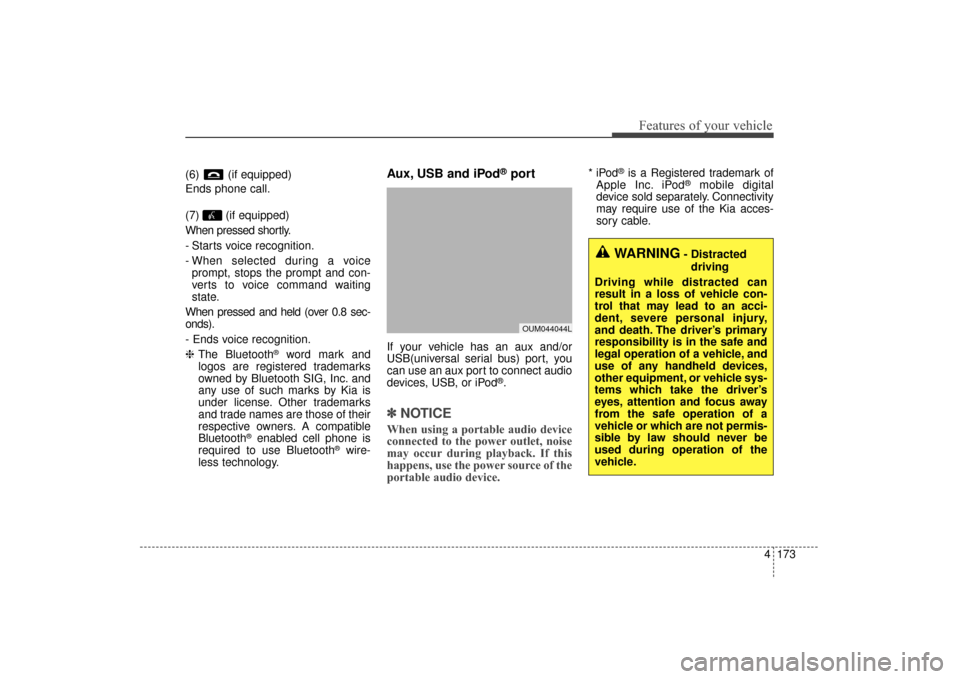
Aux, USB and iPod®port
If your vehicle has an aux and/or
USB(universal serial bus) port, you
can use an aux port to connect audio
devices, USB, or iPod
®.
✽ ✽ NOTICE
When using a portable audio device
connected to the power outlet, noise
may occur during playback. If this
happens, use the power source of the
portable audio device.
* iPod®is a Registered trademark of
Apple Inc. iPod®mobile digital
device sold separately. Connectivity
may require use of the Kia acces-
sory cable.
OUM044044L
WARNING- Distracted
driving
Driving while distracted can
result in a loss of vehicle con-
trol that may lead to an acci-
dent, severe personal injury,
and death. The driver’s primary
responsibility is in the safe and
legal operation of a vehicle, and
use of any handheld devices,
other equipment, or vehicle sys-
tems which take the driver’s
eyes, attention and focus away
from the safe operation of a
vehicle or which are not permis-
sible by law should never be
used during operation of the
vehicle.
UM CAN (ENG) 4b (Audio).qxp 11/7/2014 3:01 PM Page 173
Page 264 of 565
Features of your vehicle
180
4
(Continued)
Some iPod
®devices, such as the
iPhone®, can be connected
through the
Bluetooth®Wireless
Technology interface. The device
must have audio
Bluetooth®
Wireless Technology capability
(such as for stereo headphone
Bluetooth®Wireless Technology ).
The device can play, but it will not
be controlled by the audio system.
To use iPod
®features within the
audio mode, use the cable provid-
ed upon purchasing an iPod
®
device.
Skipping or improper operation may occur depending on the char-
acteristics of your iPod
®/iPhone®
device.
If your iPhone
®is connected to
both the
Bluetooth®Wireless
Technology and USB, only iPod®
mode will be supported during
Bluetooth®Audio Streaming. To use
Bluetooth®Audio Streaming, dis-
connect iPod®cable with iPhone®.
(Continued) (Continued)
When connecting iPod
®with the
iPod®Power Cable, insert the con-
nector to the multimedia socket
completely. If not inserted complete-
ly, communications between iPod
®
and audio may be interrupted.
When adjusting the sound effects of the iPod
®and the audio system,
the sound effects of both devices
will overlap and might reduce or
distort the quality of the sound.
Deactivate (turn off) the equalizer function of an iPod
®when adjust-
ing the audio system’s volume, and
turn off the equalizer of the audio
system when using the equalizer of
an iPod
®.
When not using iPod
®with car
audio, detach the iPod®cable from
iPod®. Otherwise, iPod®may remain
in accessory mode, and may not
work properly.
Bluetooth®Wireless
Technology(if equipped)
Bluetooth®Wireless Technology
The Bluetooth®word mark and logos
are registered trademarks owned by
Bluetooth SIG, lnc. and any use of
such marks by Kia is under license.
A
Bluetooth®enabled call phone is
required to use
Bluetooth®wireless
technology.
WARNING
Driving while distracted can
result in a loss of vehicle control
that may lead to an accident,
severe personal injury, and
death. The driver’s primary
responsibility is in the safe and
legal operation of a vehicle, and
use of any handheld devices,
other equipment, or vehicle sys-
tems which take the driver’s
eyes, attention and focus away
from the safe operation of a vehi-
cle or which are not permissible
by law should never be used
during operation of the vehicle.
UM CAN (ENG) 4b (Audio).qxp 11/7/2014 3:01 PM Page 180
Page 266 of 565
Features of your vehicle
182
4
Park the vehicle when connecting
the head unit with the mobile
phone.
Bluetooth®connection may become
intermittently disconnected in some
mobile phones. Follow these steps
to try again.
1. Within the mobile phone, turn the
Bluetooth®function off/on
and try again.
2. Turn the mobile phone power Off/On and try again.
3. Reboot the audio system and try again.
4. Delete all paired devices, pair and try again.
Handsfree call quality and volume may differ depending on the model
of your mobile phone.
Voice Recognition
(if equipped)
When using the voice recognitionfeature, only commands listed
within the user's manual are sup-
ported.
Be aware that during the operation of the voice recognition system,
pressing any key other than the key terminate voice recogni-
tion mode.
For optimal voice recognition per- formance, position your head
below the microphone above the
driver’s seat and maintain proper
position when speaking voice com-
mands.
Within the following situations, voice recognition may not function
properly due to external sound.
- When the windows and sunroof are open
- When the blower AC/heater is set to high
- When entering and passing through tunnels
(Continued)(Continued)
- When driving on rugged and uneven roads
- During severe rain (heavy rains, windstorms)
Phone related voice commands can be used only when a
Bluetooth®
Wireless Technology device is con-
nected.
When making calls by stating a name, the corresponding contact
must be downloaded and stored
within the audio system.
After downloading the
Bluetooth®
Wireless Technology phone book,
it takes some times to convert the
phone book data into voice infor-
mation. During this time, voice
recognition may not properly oper-
ate.
Pronounce the voice commands naturally and clearly as if in a nor-
mal conversation.
UM CAN (ENG) 4b (Audio).qxp 11/7/2014 3:01 PM Page 182
Page 273 of 565
![KIA Sorento 2016 3.G Owners Guide 4189
Features of your vehicle
SYSTEM SETTINGS
Press the key Select
[System] Select menu through TUNE knob
Memory Information
Displays currently used memory and
total system memory.
Select [Memory In](/img/2/2978/w960_2978-272.png "KIA Sorento 2016 3.G Owners Guide 4189
Features of your vehicle
SYSTEM SETTINGS
Press the key Select
[System] Select menu through TUNE knob
Memory Information
Displays currently used memory and
total system memory.
Select [Memory In")
4189
Features of your vehicle
SYSTEM SETTINGS
Press the key Select
[System] Select menu through TUNE knob
Memory Information
Displays currently used memory and
total system memory.
Select [Memory Information] OK
The currently used memory is dis-
played on the left side while the total
system memory is displayed on the
right side.
Prompt Feedback
This feature is used to change voice
command feedback between Normal
and Expert modes.
Select [Prompt Feedback] Set
through
TUNEknob
On : This mode is for beginner users and provides detailed
instructions during voice command
operation. This mode is for expert users
and omits some information during
voice command operation. (When
using Expert mode, guidance
instructions can be heard through
the [Help] or [Menu] commands.
Language
This menu is used to set the display
and voice recognition language.
Select [Language]
Set through TUNE knob
❈ The system will reboot after the
language is changed.
❈ Language support by region
- English, Francais, Espanol
SETUPCLOCK
UM CAN (ENG) 4b (Audio).qxp 11/7/2014 3:01 PM Page 189
Page 274 of 565
Features of your vehicle
190
4
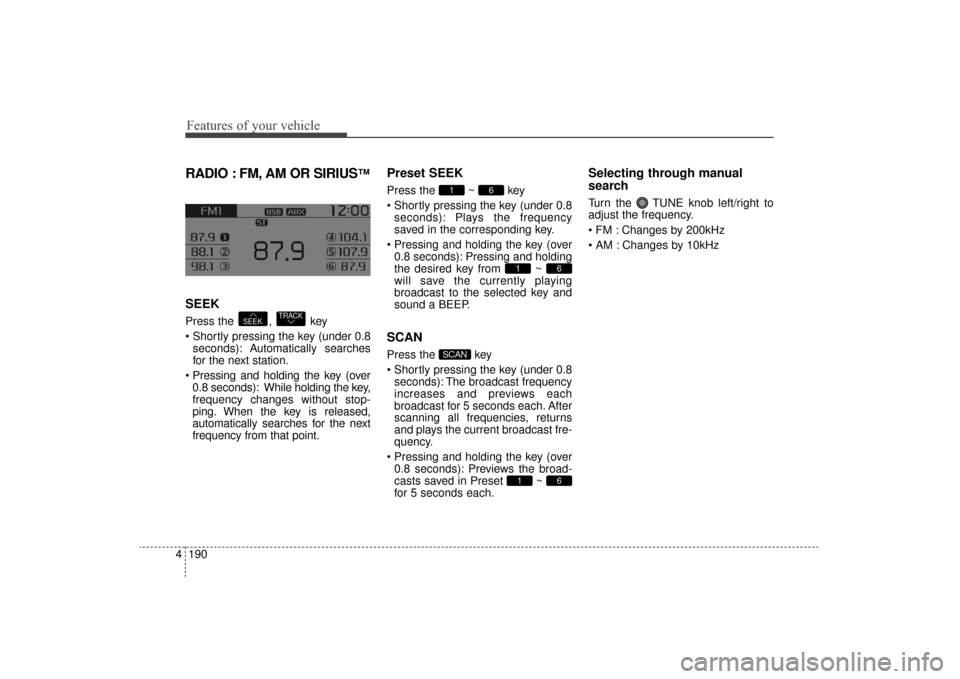
RADIO : FM, AM OR SIRIUS™
SEEK
Press the , key
seconds): A utomatically searches
for the next station.
0.8 seconds): While holding the key,
frequency changes without stop-
ping. When the key is released,
automatically searches for the next
frequency from that point.
Preset SEEK
Press the ~ key
seconds): Plays the frequency
saved in the corresponding key.
0.8 seconds): Pressing and holding
the desired key from ~
will save the currently playing
broadcast to the selected key and
sound a BEEP.
SCAN
Press the key
seconds): The broadcast frequency
increases and previews each
broadcast for 5 seconds each. After
scanning all frequencies, returns
and plays the current broadcast fre-
quency.
0.8 seconds): Previews the broad-
casts saved in Preset ~
for 5 seconds each.
Selecting through manual
search
Turn the TUNE knob left/right to
adjust the frequency.
Changes by 200kHz
Changes by 10kHz
61
SCAN
61
61
TRACKSEEK
UM CAN (ENG) 4b (Audio).qxp 11/7/2014 3:01 PM Page 190
Page 278 of 565
Features of your vehicle
194
4
Preset
Press the key ~
Shortly pressing the key (under 0.8
seconds): Plays the frequency
saved in the corresponding key.
Pressing and holding the key (over 0.8 seconds): Pressing and holding
the desired key from ~
will save the current broadcast to
the selected key and sound a
BEEP.
✽ ✽ Troubleshooting
1. Antenna Error
If this message is displayed, the
antenna or antenna cable is bro-
ken or unplugged. Please consult
with your Kia dealership.
2. No Signal If this message is displayed, it
means that the antenna is covered
and that the SIRIUS™ Satellite
Radio signal is not available.
Ensure the antenna is uncovered
and has a clear view of the sky.
Tune
Rotate TUNE knob : Changes
the channel number or scrolls cat-
egory list.
Press TUNE knob : Selects the menu.
Menu
Select category menu through the
TUNE knob Press the
key Select [ Info] through the TUNE knob or key
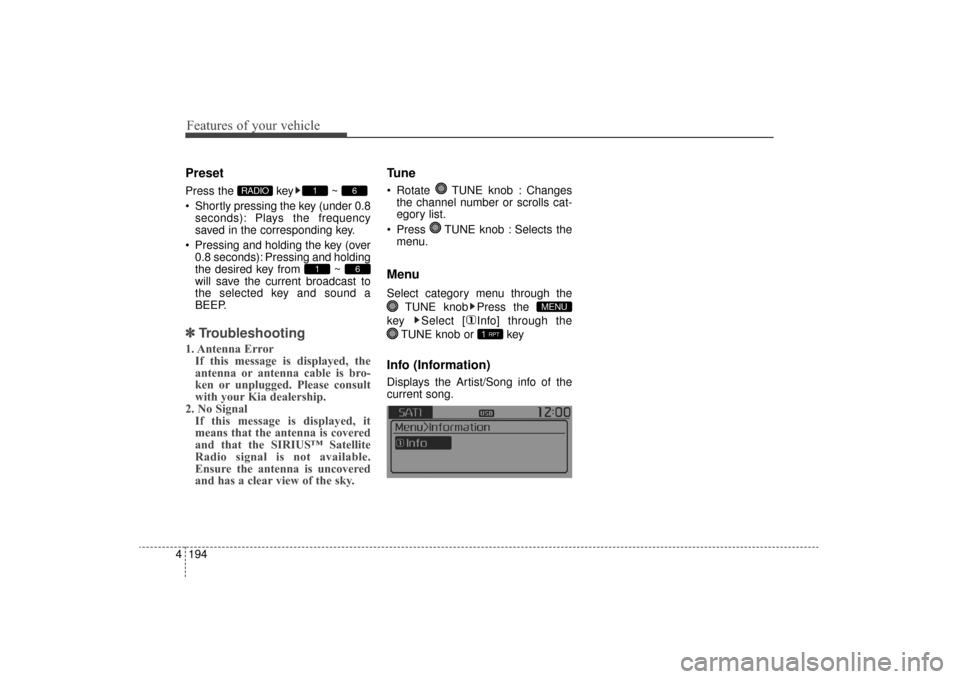
Info (Information)
Displays the Artist/Song info of the
current song.
1 RPT
MENU
61
61RADIO
UM CAN (ENG) 4b (Audio).qxp 11/7/2014 3:01 PM Page 194
Page 286 of 565
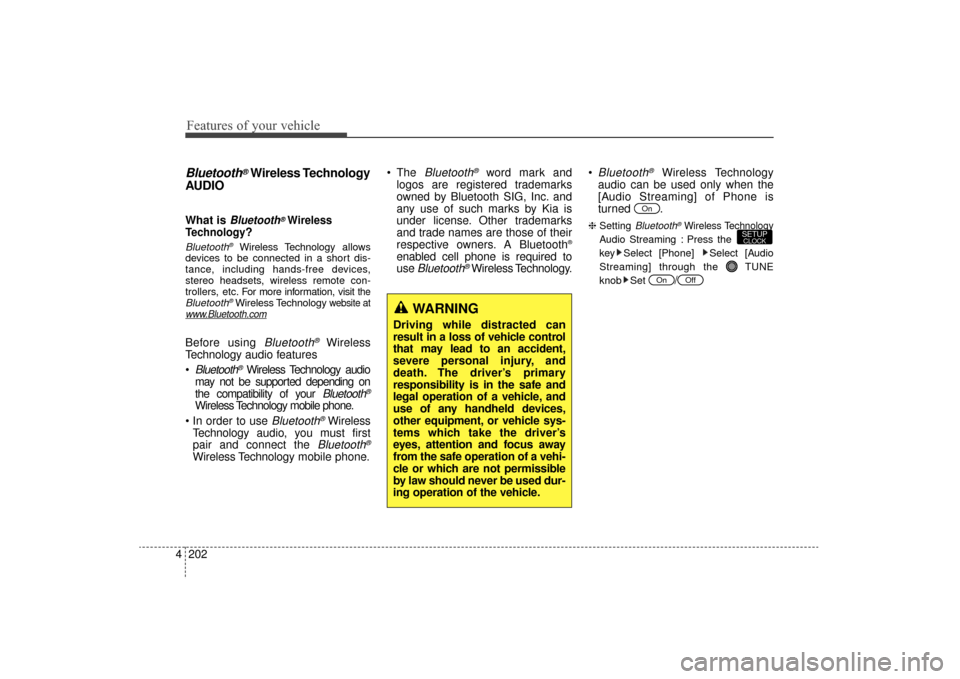
Features of your vehicle
202
4
Bluetooth®Wireless Technology
AUDIO
What is Bluetooth®Wireless
Technology
?
Bluetooth®Wireless Technology allows
devices to be connected in a short dis-
tance, including hands-free devices,
stereo headsets, wireless remote con-
trollers, etc. For more infor mation, visit
theBluetooth®Wireless Technologywebsite atwww.Bluetooth.com
Before using Bluetooth®Wireless
Technology audio features
Bluetooth®Wireless Technology audio
may not be supported depending on
the compatibility of your
Bluetooth®
Wireless Technology mobile phone.
Bluetooth®Wireless
Technology audio, you must first
pair and connect the
Bluetooth®
Wireless Technology mobile phone. The
Bluetooth®word mark and
logos are registered trademarks
owned by Bluetooth SIG, Inc. and
any use of such marks by Kia is
under license. Other trademarks
and trade names are those of their
respective owners. A Bluetooth
®
enabled cell phone is required to
use
Bluetooth®Wireless Technology.
Bluetooth®Wireless Technology
audio can be used only when the
[Audio Streaming] of Phone is
turned .
❈ Setting Bluetooth®Wireless Technology
Audio Streaming : Press the
key Select [Phone] Select [Audio
Streaming] through the TUNE
knob Set
/OffOn
SETUPCLOCK
On
WARNING
Driving while distracted can
result in a loss of vehicle control
that may lead to an accident,
severe personal injury, and
death. The driver’s primary
responsibility is in the safe and
legal operation of a vehicle, and
use of any handheld devices,
other equipment, or vehicle sys-
tems which take the driver’s
eyes, attention and focus away
from the safe operation of a vehi-
cle or which are not permissible
by law should never be used dur-
ing operation of the vehicle.
UM CAN (ENG) 4b (Audio).qxp 11/7/2014 3:01 PM Page 202