phone KIA Sorento 2017 3.G User Guide
[x] Cancel search | Manufacturer: KIA, Model Year: 2017, Model line: Sorento, Model: KIA Sorento 2017 3.GPages: 576, PDF Size: 7.82 MB
Page 265 of 576
Features of your vehicle
180 4
(Continued)
If you use devices such as a USB
hub purchased separately, the
vehicle’s audio system may not
recognize the USB device. In that
case, connect the USB device
directly to the multimedia terminal
of the vehicle.
If the USB device is divided by log-
ical drives, only the music files on
the highest-priority drive are recog-
nized by car audio.
Devices such as MP3 Player/
Cellular phone/Digital camera can
be unrecognizable by standard
USB I/F can be unrecognizable.
Charging through the USB may not
be supported in some mobile
devices.
USB HDD or USB types liable to
connection failures due to vehicle
vibrations are not supported. (i-stick
type)
Some non-standard USB devices
(METAL COVER TYPE USB) can
be unrecognizable.
(Continued)(Continued)
Some USB flash memory readers
(such as CF, SD, micro SD, etc.) or
external-HDD type devices can be
unrecognizable.
Music files protected by DRM (DIGI-
TAL RIGHTS MANAGEMENT) are
not recognizable.
The data in the USB memory may
be lost while using this audio.
Always back up important data on
a personal storage device.
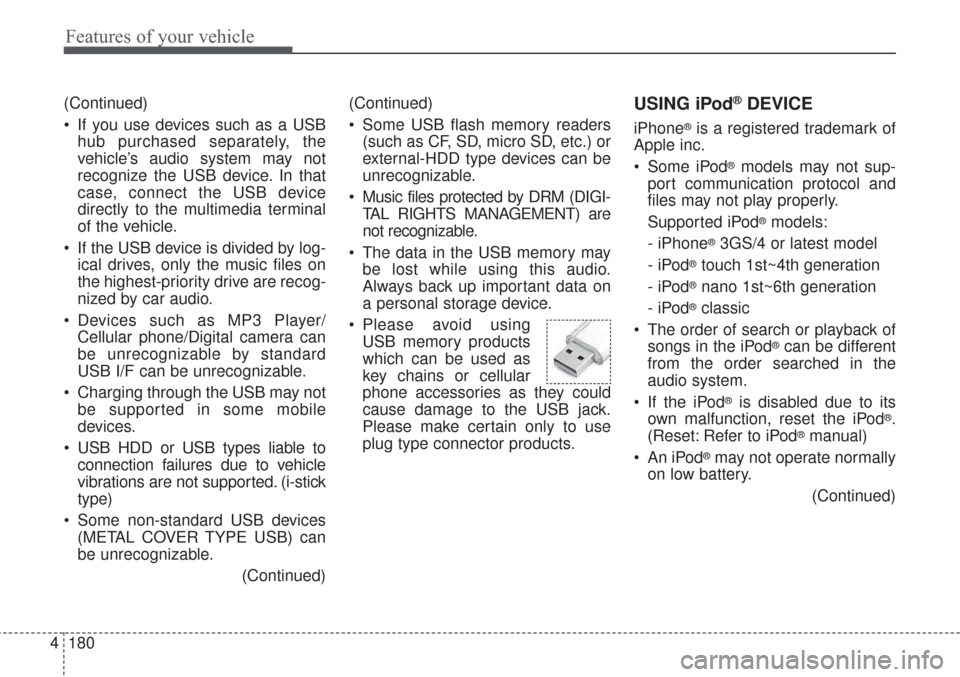
Please avoid using
USB memory products
which can be used as
key chains or cellular
phone accessories as they could
cause damage to the USB jack.
Please make certain only to use
plug type connector products.USING iPod®DEVICE
iPhone®is a registered trademark of
Apple inc.
Some iPod
®models may not sup-
port communication protocol and
files may not play properly.
Supported iPod
®models:
- iPhone
®3GS/4 or latest model
- iPod
®touch 1st~4th generation
- iPod
®nano 1st~6th generation
- iPod
®classic
The order of search or playback of
songs in the iPod
®can be different
from the order searched in the
audio system.
If the iPod
®is disabled due to its
own malfunction, reset the iPod®.
(Reset: Refer to iPod®manual)
An iPod
®may not operate normally
on low battery.
(Continued)
Page 266 of 576
4181
Features of your vehicle
(Continued)
Some iPod
®devices, such as the
iPhone®, can be connected
through the
Bluetooth®Wireless
Technology interface. The device
must have audio
Bluetooth®
Wireless Technology capability
(such as for stereo headphone
Bluetooth®Wireless Technology ).
The device can play, but it will not
be controlled by the audio system.
To use iPod
®features within the
audio mode, use the cable provid-
ed upon purchasing an iPod
®
device.
Skipping or improper operation
may occur depending on the char-
acteristics of your iPod
®/iPhone®
device.
If your iPhone
®is connected to
both the
Bluetooth®Wireless
Technology and USB, only iPod®
mode will be supported during
Bluetooth®Audio Streaming. To use
Bluetooth®Audio Streaming, dis-
connect iPod®cable with iPhone®.
(Continued)(Continued)
When connecting iPod
®with the
iPod®Power Cable, insert the con-
nector to the multimedia socket
completely. If not inserted complete-
ly, communications between iPod
®
and audio may be interrupted.
When adjusting the sound effects
of the iPod
®and the audio system,
the sound effects of both devices
will overlap and might reduce or
distort the quality of the sound.
Deactivate (turn off) the equalizer
function of an iPod
®when adjust-
ing the audio system’s volume, and
turn off the equalizer of the audio
system when using the equalizer of
an iPod
®.
When not using iPod
®with car
audio, detach the iPod®cable from
iPod®. Otherwise, iPod®may remain
in accessory mode, and may not
work properly.
Bluetooth®Wireless
Technology(if equipped)
Bluetooth®Wireless Technology
The Bluetooth®word mark and logos
are registered trademarks owned by
Bluetooth
®SIG, lnc. and any use of
such marks by Kia is under license.
A
Bluetooth®enabled cell phone is
required to use
Bluetooth®Wireless
Technology.
WARNING
Driving while distracted can
result in a loss of vehicle control
that may lead to an accident,
severe personal injury, and
death. The driver’s primary
responsibility is in the safe and
legal operation of a vehicle, and
use of any handheld devices,
other equipment, or vehicle sys-
tems which take the driver’s
eyes, attention and focus away
from the safe operation of a vehi-
cle or which are not permissible
by law should never be used
during operation of the vehicle.
Page 267 of 576
Features of your vehicle
182 4
Before Using the Bluetooth®
Wireless Technology
Handsfree
What is Bluetooth®?
Bluetooth®refers to a short-dis-
tance wireless networking technolo-
gy which uses a 2.4GHz ~ 2.48GHz
frequency to connect various
devices within a certain distance.
Supported within PCs, external
devices, Bluetooth
®phones, PDAs,
various electronic devices, and auto-
motive environments, Bluetooth
®
allows data to be transmitted at high
speeds without having to use a con-
nector cable.
Bluetooth
®Handsfree refers to a
device which allows the user to
conveniently make phone calls with
Bluetooth
®mobile phones through
the audio system.
Bluetooth
®Handsfree may not be
supported in some mobile phones. To
learn more about mobile device com-
patibility, visit http://www
.kia.com/
us/en/content/owners/bluetooth.
Precautions for Safe Driving
Bluetooth®Handsfree is a feature
that enables drivers to practice
safe driving. Connecting the head
unit with a Bluetooth
®phone allows
the user to conveniently make and
receive calls and use contacts.
Before using Bluetooth
®, carefully
read the contents of this user’s
manual.
Excessive use or operations while
driving may lead to negligent driving
practices and result in accidents.
Refrain from excessive operations
while driving.
Viewing the screen for prolonged
periods of time is dangerous and
may lead to accidents. When driv-
ing, view the screen only for short
periods of time.
When connecting a Bluetooth®
Phone
Before connecting the head unit
with the mobile phone, check to
see that the mobile phone sup-
por ts Bluetooth
®features.
Even if the phone supports Bluetooth
®,
the phone will not be found during
device searches if the phone has
been set to hidden state or the
Bluetooth
®power is turned off.
Disable the hidden state or turn on
the Bluetooth
®power prior to
searching/connecting with the Head
unit.
If you do not want an automatic con-
nection with your Bluetooth
®device,
turn off the Bluetooth®feature with-
in your mobile phone.
The Handsfree call volume and
quality may differ depending on the
mobile phone.
Page 268 of 576
4183
Features of your vehicle
Park the vehicle when connecting
the head unit with the mobile
phone.
Bluetooth
®connection may become
intermittently disconnected in some
mobile phones. Follow these steps
to try again.
1. Within the mobile phone, turn
the Bluetooth
®function off/on
and try again.
2. Turn the mobile phone power
Off/On and try again.
3. Completely remove the mobile
phone battery (if possible),
reboot, and then try again.
4. Reboot the audio system and try
again.
5. Delete all paired devices, pair
and try again.
Voice Recognition
(if equipped)
When using the voice recognition
feature, only commands listed
within the user's manual are sup-
ported.
Be aware that during the operation
of the voice recognition system,
pressing any key other than the
key terminate voice recogni-
tion mode.
For optimal voice recognition per-
formance, position your head
below the microphone above the
driver’s seat and maintain proper
position when speaking voice com-
mands.
Within the following situations,
voice recognition may not function
properly due to external sound.
- When the windows and sunroof
are open
- When the blower AC/heater is set
to high
- When entering and passing through
tunnels
(Continued)(Continued)
- When driving on rugged and
uneven roads
- During severe rain (heavy rains,
windstorms)
Phone related voice commands can
be used only when a
Bluetooth®
Wireless Technology device is con-
nected.
When making calls by stating a
name, the corresponding contact
must be downloaded and stored
within the audio system.
After downloading the
Bluetooth®
Wireless Technology phone book,
it takes some time to convert the
phone book data into voice infor-
mation. During this time, voice
recognition may not properly oper-
ate.
Pronounce the voice commands
naturally and clearly as if in a nor-
mal conversation.
Page 270 of 576
4185
Features of your vehicle
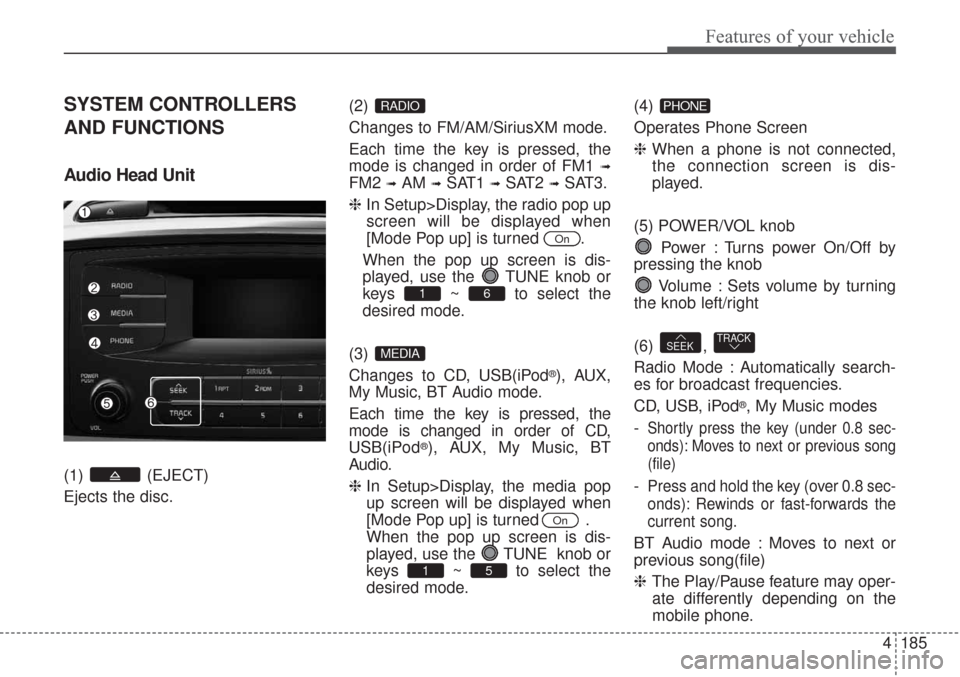
SYSTEM CONTROLLERS
AND FUNCTIONS
Audio Head Unit
(1) (EJECT)
Ejects the disc.(2)
Changes to FM/AM/SiriusXM mode.
Each time the key is pressed, the
mode is changed in order of FM1
➟
FM2 ➟AM ➟SAT1 ➟SAT2 ➟SAT3.
❈In Setup>Display, the radio pop up
screen will be displayed when
[Mode Pop up] is turned .
When the pop up screen is dis-
played, use the TUNE knob or
keys ~ to select the
desired mode.
(3)
Changes to CD, USB(iPod
®), AUX,
My Music, BT Audio mode.
Each time the key is pressed, the
mode is changed in order of CD,
USB(iPod
®), AUX, My Music, BT
Audio.
❈In Setup>Display, the media pop
up screen will be displayed when
[Mode Pop up] is turned .
When the pop up screen is dis-
played, use the TUNE knob or
keys ~ to select the
desired mode.(4)
Operates Phone Screen
❈When a phone is not connected,
the connection screen is dis-
played.
(5) POWER/VOL knob
Power : Turns power On/Off by
pressing the knob
Volume : Sets volume by turning
the knob left/right
(6) ,
Radio Mode : Automatically search-
es for broadcast frequencies.
CD, USB, iPod
®, My Music modes
-
Shortly press the key (under 0.8 sec-
onds): Moves to next or previous song
(file)
-Press and hold the key (over 0.8 sec-
onds): Rewinds or fast-forwards the
current song.
BT Audio mode : Moves to next or
previous song(file)
❈The Play/Pause feature may oper-
ate differently depending on the
mobile phone.
TRACKSEEK
PHONE
51
On
MEDIA
61
On
RADIO
Page 271 of 576
Features of your vehicle
186 4
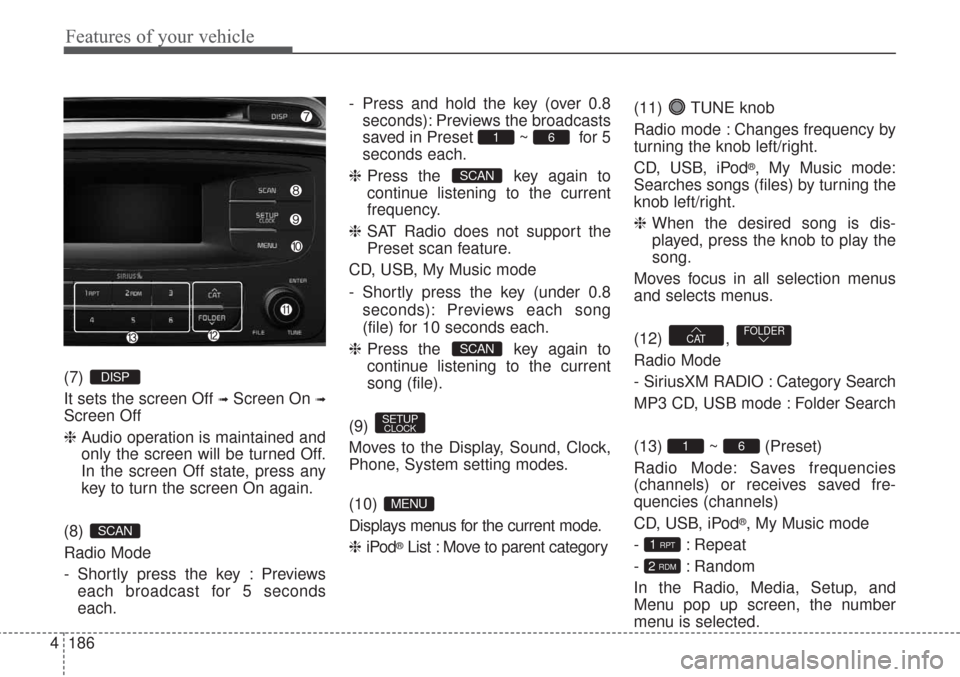
(7)
It sets the screen Off
➟Screen On ➟
Screen Off
❈Audio operation is maintained and
only the screen will be turned Off.
In the screen Off state, press any
key to turn the screen On again.
(8)
Radio Mode
- Shortly press the key : Previews
each broadcast for 5 seconds
each.- Press and hold the key (over 0.8
seconds): Previews the broadcasts
saved in Preset ~ for 5
seconds each.
❈Press the key again to
continue listening to the current
frequency.
❈SAT Radio does not support the
Preset scan feature.
CD, USB, My Music mode
- Shortly press the key (under 0.8
seconds): Previews each song
(file) for 10 seconds each.
❈Press the key again to
continue listening to the current
song (file).
(9)
Moves to the Display, Sound, Clock,
Phone, System setting modes.
(10)
Displays menus for the current mode.
❈iPod
®List : Move to parent category(11) TUNE knob
Radio mode : Changes frequency by
turning the knob left/right.
CD, USB, iPod
®, My Music mode:
Searches songs (files) by turning the
knob left/right.
❈When the desired song is dis-
played, press the knob to play the
song.
Moves focus in all selection menus
and selects menus.
(12) ,
Radio Mode
- SiriusXMRADIO : Category Search
MP3 CD, USB mode : Folder Search
(13) ~ (Preset)
Radio Mode: Saves frequencies
(channels) or receives saved fre-
quencies (channels)
CD, USB, iPod
®, My Music mode
- : Repeat
- : Random
In the Radio, Media, Setup, and
Menu pop up screen, the number
menu is selected.
2 RDM
1 RPT
61
FOLDERCAT
MENU
SETUPCLOCK
SCAN
SCAN
61
SCAN
DISP
Page 288 of 576
4203
Features of your vehicle
Bluetooth®Wireless Technology
AUDIO
What is Bluetooth®Wireless
Technology
?
Bluetooth®Wireless Technology
allows devices to be connected in a
short distance, including hands-free
devices, stereo headsets, wireless
remote controllers, etc. For more
information, visit the
Bluetooth®
Wireless Technology website at
www.Bluetooth.com
Before using
Bluetooth®Wireless
Technologyaudio features
Bluetooth®Wireless Technology audio
may not be supported depending on
the compatibility of your
Bluetooth®
Wireless Technology mobile phone.
Bluetooth®Wireless
Technologyaudio, you must first
pair and connect the
Bluetooth®
Wireless Technologymobile phone. The Bluetooth
®word mark and
logos are registered trademarks
owned by Bluetooth
®SIG, Inc. and
any use of such marks by Kia is
under license. Other trademarks
and trade names are those of their
respective owners. A Bluetooth
®
enabled cell phone is required to
use
Bluetooth®Wireless Technology.
Bluetooth®Wireless Technology
audio can be used only when the
[Audio Streaming] of Phone is
turned .
On
WARNING
Driving while distracted can
result in a loss of vehicle control
that may lead to an accident,
severe personal injury, and
death. The driver’s primary
responsibility is in the safe and
legal operation of a vehicle, and
use of any handheld devices,
other equipment, or vehicle sys-
tems which take the driver’s
eyes, attention and focus away
from the safe operation of a vehi-
cle or which are not permissible
by law should never be used dur-
ing operation of the vehicle.
Page 289 of 576
Features of your vehicle
204 4
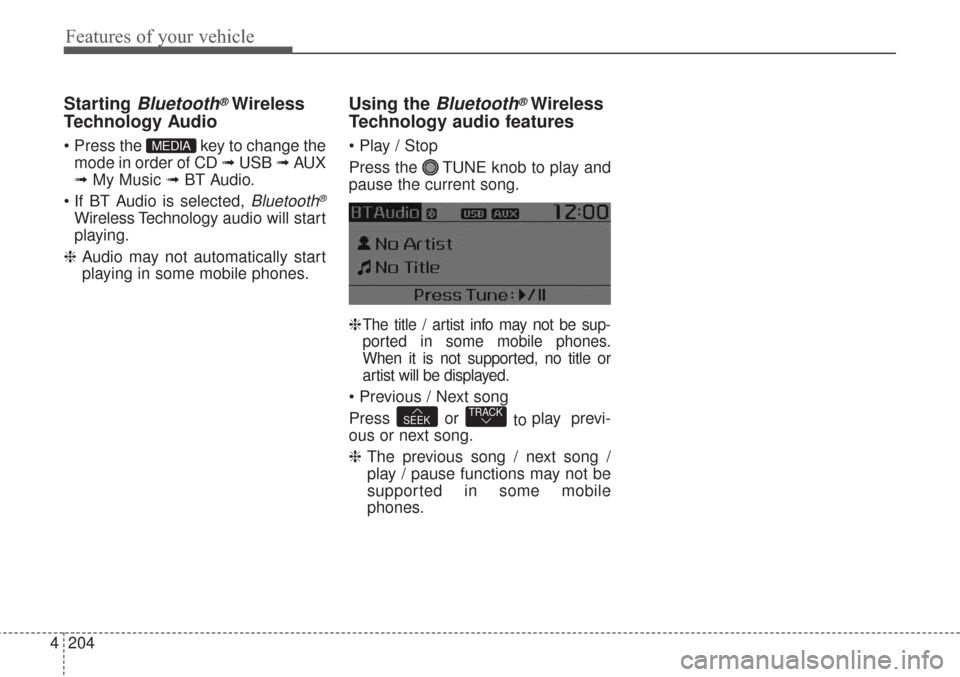
Starting Bluetooth®Wireless
Technology Audio
key to change the
mode in order of CD ➟ USB ➟ AUX
➟ My Music ➟ BT Audio.
Bluetooth®
Wireless Technology audio will start
playing.
❈Audio may not automatically start
playing in some mobile phones.
Using the Bluetooth®Wireless
Technology audio features
Press the TUNE knob to play and
pause the current song.
❈
The title / artist info may not be sup-
ported in some mobile phones.
When it is not supported, no title or
artist will be displayed.
Press or
to play previ-
ous or next song.
❈The previous song / next song /
play / pause functions may not be
supported in some mobile
phones.TRACKSEEK
MEDIA
Page 290 of 576
4205
Features of your vehicle
PHONE
Before using the Bluetooth®Wireless
Technology phone features
Bluetooth®Wireless
Technologyphone, you must first
pair and connect the
Bluetooth®
Wireless Technologymobile phone.
connected, it is not possible to
enter Phone mode. Once a phone
is paired or connected, the guid-
ance screen will be displayed.
tion (IGN/ACC ON), the
Bluetooth®
Wireless Technologyphone will be
automatically connected. Even if
you are outside, the
Bluetooth®
Wireless Technologyphone will be
automatically connected once you
are in the vicinity of the vehicle. If
you do not want automatic
Bluetooth®Wireless Technology
phone connection, set the
Bluetooth®Wireless Technology
power to OFF
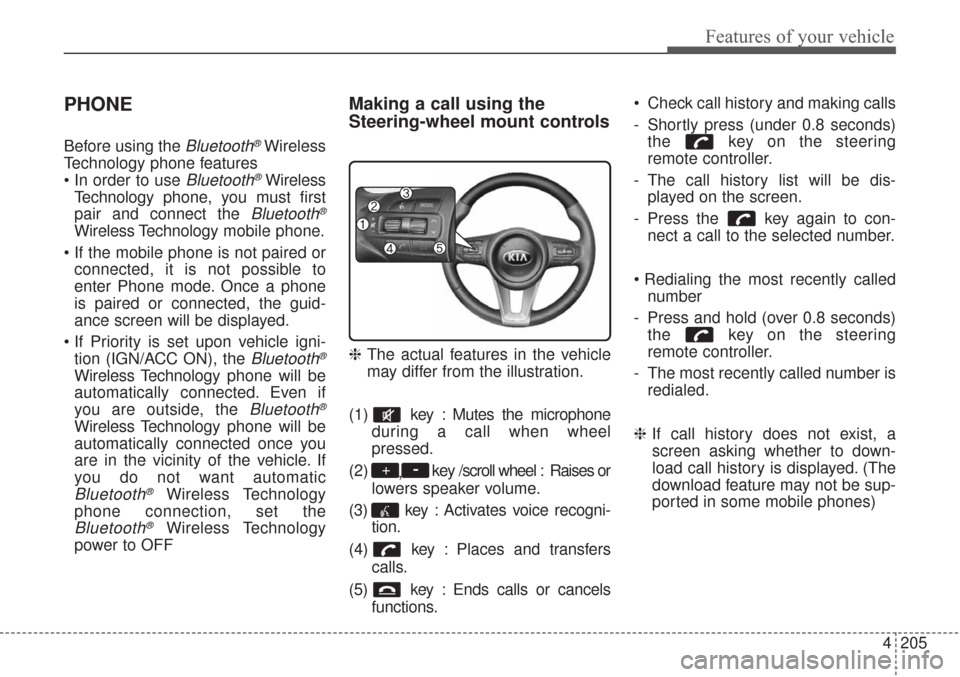
Making a call using the
Steering-wheel mount controls
❈The actual features in the vehicle
may differ from the illustration.
(1) key : Mutes the microphone
during a call when wheel
pressed.
(2)
,key /scroll wheel : Raises or
lowers speaker volume.
(3) key : Activates voice recogni-
tion.
(4) key : Places and transfers
calls.
(5) key : Ends calls or cancels
functions. Check call history and making calls
- Shortly press (under 0.8 seconds)
the key on the steering
remote controller.
- The call history list will be dis-
played on the screen.
- Press the key again to con-
nect a call to the selected number.
number
- Press and hold (over 0.8 seconds)
the key on the steering
remote controller.
- The most recently called number is
redialed.
❈If call history does not exist, a
screen asking whether to down-
load call history is displayed. (The
download feature may not be sup-
ported in some mobile phones)
-+
Page 291 of 576
Features of your vehicle
206 4
Bluetooth®Wireless Technology
Pairing a
Bluetooth®Wireless
Technology Device
What is Bluetooth®Wireless
Technology Pairing?
Pairing refers to the process of syn-
chronizing your
Bluetooth®Wireless
Technology phone or device with the
car audio system for connection.
Pairing is necessary to connect and
use the
Bluetooth®Wireless
Technology feature.
The Bluetooth
®word mark and logos
are registered trademarks owned by
Bluetooth
®SIG, Inc. and any use of
such marks by Kia is under license.
Other trademarks and trade names
are those of their respective owners.
A Bluetooth
®enabled cell phone is
required to use
Bluetooth®Wireless
Technology.
WARNING
Driving while distracted can
result in a loss of vehicle control
that may lead to an accident,
severe personal injury, and
death. The driver’s primary
responsibility is in the safe and
legal operation of a vehicle, and
use of any handheld devices,
other equipment, or vehicle sys-
tems which take the driver’s
eyes, attention and focus away
from the safe operation of a vehi-
cle or which are not permissible
by law should never be used dur-
ing operation of the vehicle.