USB port KIA Soul 2016 2.G Owner's Manual
[x] Cancel search | Manufacturer: KIA, Model Year: 2016, Model line: Soul, Model: KIA Soul 2016 2.GPages: 556, PDF Size: 21.35 MB
Page 229 of 556
4149
Features of your vehicle
RADIO mode
It will function as the PRESET STA-
TION select buttons.
USB mode
It will function as the FILE UP/DOWN
button.
MODE (3)
Press the button to select Radio,
USB or AUX.
Detailed information for audio control
buttons is described in the following
pages in this section.
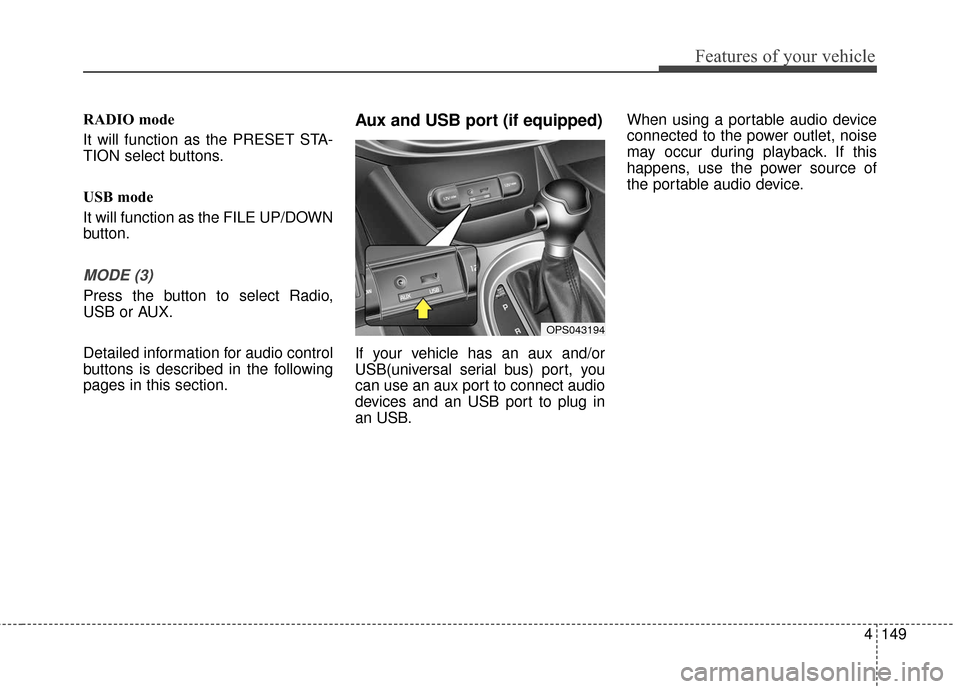
Aux and USB port (if equipped)
If your vehicle has an aux and/or
USB(universal serial bus) port, you
can use an aux port to connect audio
devices and an USB port to plug in
an USB.When using a portable audio device
connected to the power outlet, noise
may occur during playback. If this
happens, use the power source of
the portable audio device.
OPS043194
Page 235 of 556
4155
Features of your vehicle
(Continued)
You may hear a strange noisewhen connecting or disconnect-
ing a USB device.
If you disconnect the external USB device during playback in
USB mode, the external USB
device can be damaged or may
malfunction. Therefore, discon-
nect the external USB device
when the audio is turned off or in
another mode. (e.g, Radio)
Depending on the type and capacity of the external USB
device or the type of the files
stored in the device, there is a
difference in the time for recogni-
tion the device.
Do not use the USB device for purposes other than playing
music files.
Playing videos through the USB is not supported.
Use of USB accessories such as rechargers or heaters using USB
I/F may lower performance or
cause trouble.
(Continued) (Continued)
Some USB flash memory read-
ers (such as CF, SD, micro SD,
etc.) or external-HDD type
devices can be unrecognizable.
Music files protected by DRM (DIGITAL RIGHTS MANAGE-
MENT) are not recognizable.
The data in the USB memory may be lost while using this
audio. Always back up important
data on a personal storage
device.
Please avoid using USB memory prod-
ucts which can be
used as key chains or
cellular phone acces-
sories as they could cause dam-
age to the USB jack. Please
make certain only to use plug
type connector products.(Continued)
If you use devices such as aUSB hub purchased separately,
the vehicle’s audio system may
not recognize the USB device. In
that case, connect the USB
device directly to the multimedia
terminal of the vehicle.
If the USB device is divided by logical drives, only the music
files on the highest-priority drive
are recognized by car audio.
Devices such as MP3 Player/ Cellular phone/Digital camera
can be unrecognizable by stan-
dard USB I/F can be unrecogniz-
able.
Charging through the USB may not be supported in some mobile
devices.
USB HDD or USB types liable to connection failures due to vehi-
cle vibrations are not supported.
(i-stick type)
Some non-standard USB devices (METAL COVER TYPE
USB) can be unrecognizable.
(Continued)
Page 236 of 556
Features of your vehicle
156
4
(Continued)
Some iPod
®devices, such as the
iPhone®, can be connected
through the
Bluetooth®Wireless
Technology interface. The device
must have audio
Bluetooth®
Wireless Technology capability
(such as for stereo headphone
Bluetooth®Wireless Technology ).
The device can play, but it will not
be controlled by the audio system.
To use iPod
®features within the
audio, use the cable provided upon
purchasing an iPod
®device.
Skipping or improper operation may occur depending on the char-
acteristics of your iPod
®/iPhone®
device.
If your iPhone
®is connected to
both the
Bluetooth®Wireless
Technology and USB, only support
iPod
®mode because the sound
may not be properly played in
Bluetooth®Audio Streaming. To
use
Bluetooth®Audio Streaming,
disconnect iPod®cable with
iPhone®.
(Continued) (Continued)
When connecting iPod
®with the
iPod®Power Cable, insert the con-
nector to the multimedia socket
completely. If not inserted com-
pletely, communications between
iPod
®and audio may be interrupt-
ed.
When adjusting the sound effects of the iPod
®and the audio system,
the sound effects of both devices
will overlap and might reduce or
distort the quality of the sound.
Deactivate (turn off) the equalizer function of an iPod
®when adjust-
ing the audio system’s volume, and
turn off the equalizer of the audio
system when using the equalizer of
an iPod
®.
When not using iPod
®with car
audio, detach the iPod®cable from
iPod®. Otherwise, iPod®may
remain in accessory mode, and
may not work properly.
Beside support 1M cable when purchasing iPod/iPhone products,
Long Cable cannot be recognized.
USING iPod®DEVICE
iPhone®is a registered grademark of
Apple inc.
Some iPod
®models may not sup-
port communication protocol and
files may not properly play.
Supported iPod
®models:
- iPhone
®3GS/4
- iPod
®touch 1st~4th generation
- iPod
®nano 1st~6th generation
- iPod
®classic
The order of search or playback of songs in the iPod
®can be different
from the order searched in the
audio system.
If the iPod
®is disabled due to its
own malfunction, reset the iPod®.
(Reset: Refer to iPod®manual)
An iPod
®may not operate normally
on low battery.
(Continued)
Page 243 of 556
4163
Features of your vehicle
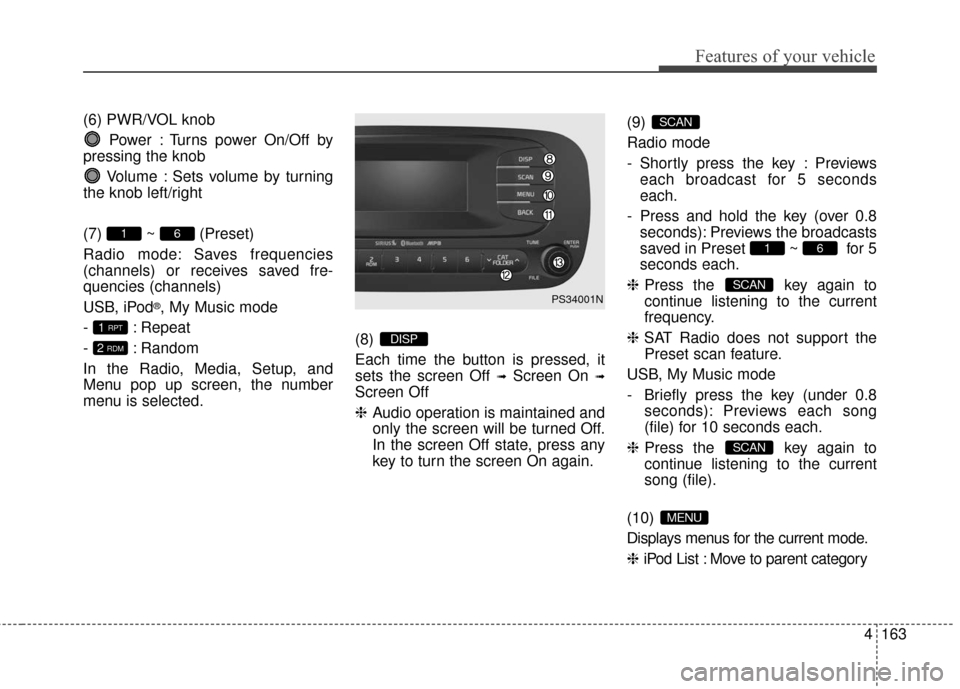
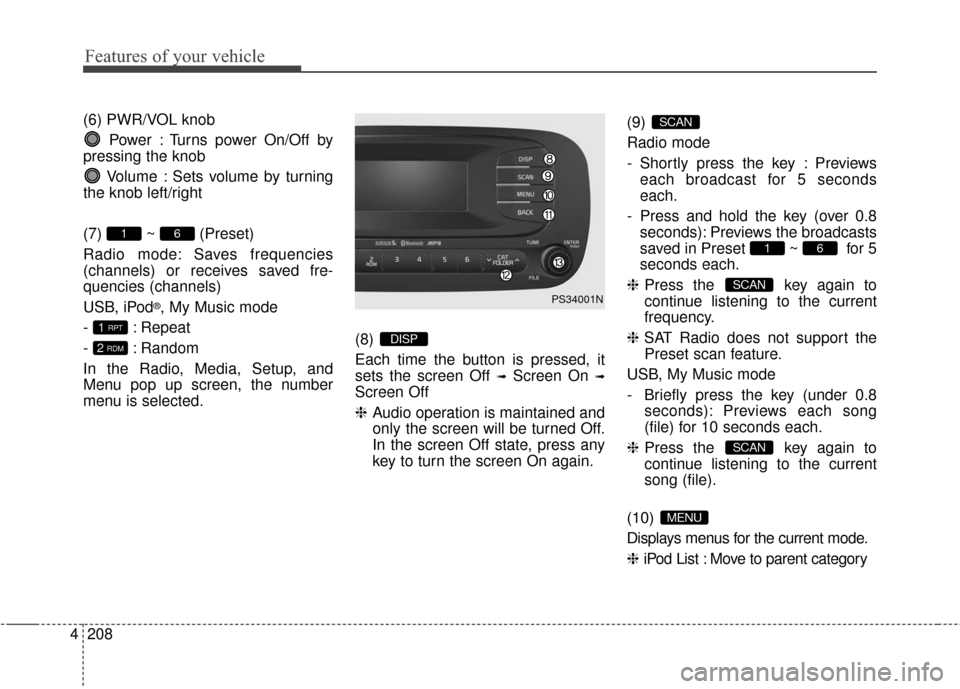
(6) PWR/VOL knobPower : Turns power On/Off by
pressing the knob
Volume : Sets volume by turning
the knob left/right
(7) ~ (Preset)
Radio mode: Saves frequencies
(channels) or receives saved fre-
quencies (channels)
USB, iPod
®, My Music mode
- : Repeat
- : Random
In the Radio, Media, Setup, and
Menu pop up screen, the number
menu is selected. (8)
Each time the button is pressed, it
sets the screen Off
➟Screen On ➟
Screen Off
❈
Audio operation is maintained and
only the screen will be turned Off.
In the screen Off state, press any
key to turn the screen On again. (9)
Radio mode
- Shortly press the key : Previews
each broadcast for 5 seconds
each.
- Press and hold the key (over 0.8 seconds): Previews the broadcasts
saved in Preset ~ for 5
seconds each.
❈ Press the key again to
continue listening to the current
frequency.
❈ SAT Radio does not support the
Preset scan feature.
USB, My Music mode
- Briefly press the key (under 0.8 seconds): Previews each song
(file) for 10 seconds each.
❈ Press the key again to
continue listening to the current
song (file).
(10)
Displays menus for the current mode.
❈ iPod List : Move to parent category
MENU
SCAN
SCAN
61
SCAN
DISP2 RDM
1 RPT
61
PS34001N
Page 255 of 556
4175
Features of your vehicle
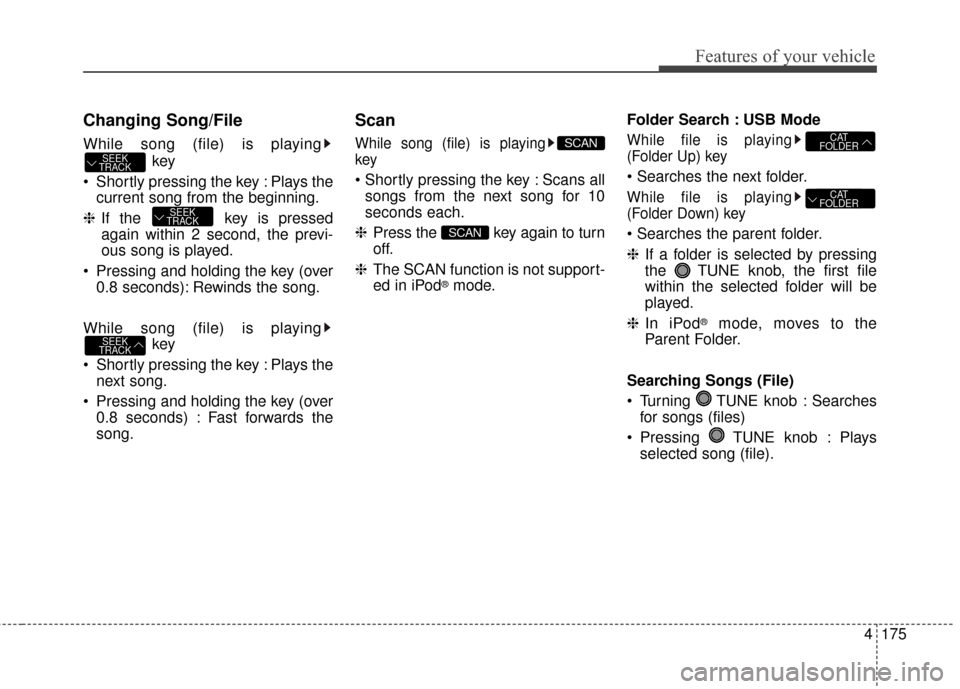
Changing Song/File
While song (file) is playingkey
Shortly pressing the key : Plays the current song from the beginning.
❈ If the key is pressed
again within 2 second, the previ-
ous song is played.
Pressing and holding the key (over 0.8 seconds): Rewinds the song.
While song (file) is playing key
Shortly pressing the key : Plays the next song.
Pressing and holding the key (over 0.8 seconds) : Fast forwards the
song.
Scan
While song (file) is playing
key
Scans allsongs from the next song for 10
seconds each.
❈ Press the key again to turn
off.
❈ The SCAN function is not support-
ed in iPod
®mode. Folder Search : USB Mode
While file is playing
(Folder Up) key
While file is playing
(Folder Down) key
❈
If a folder is selected by pressing
the TUNE knob, the first file
within the selected folder will be
played.
❈ In iPod
®mode, moves to the
Parent Folder.
Searching Songs (File)
Turning TUNE knob : Searches for songs (files)
Pressing TUNE knob : Plays selected song (file).
CAT
FOLDER
CAT
FOLDER
SCAN
SCAN
SEEK
TRACK
SEEK
TRACK
SEEK
TRACK
Page 261 of 556
![KIA Soul 2016 2.G Owners Manual 4181
Features of your vehicle
Bluetooth®Wireless Technology
audio can be used only when the
[Audio Streaming] of Phone is
turned .Starting Bluetooth®Wireless
Technology Audio
Press the key to chan](/img/2/2979/w960_2979-260.png "KIA Soul 2016 2.G Owners Manual 4181
Features of your vehicle
Bluetooth®Wireless Technology
audio can be used only when the
[Audio Streaming] of Phone is
turned .Starting Bluetooth®Wireless
Technology Audio
Press the key to chan")
4181
Features of your vehicle
Bluetooth®Wireless Technology
audio can be used only when the
[Audio Streaming] of Phone is
turned .Starting Bluetooth®Wireless
Technology Audio
Press the key to change
the mode in order of USB➟AUX
➟My Music➟BT Audio.
If BT Audio is selected,
Bluetooth®
Wireless Technology audio will start
playing.
❈ Audio may not automatically start
playing in some mobile phones.
Using the Bluetooth®Wireless
Technology audio features
Press the TUNE knob to play and
pause the current song.
❈ The title / artist info may not be
supported in some mobile phone.
When it is not supported, no
title/no artist will be displayed.
Press or to play
previous or next song.
❈ The previous song / next song /
play / pause functions may not be
supported in some mobile
phones.
SEEK
TRACKSEEK
TRACK
MEDIAOn
Page 288 of 556
Features of your vehicle
208
4
(6) PWR/VOL knob
Power : Turns power On/Off by
pressing the knob
Volume : Sets volume by turning
the knob left/right
(7) ~ (Preset)
Radio mode: Saves frequencies
(channels) or receives saved fre-
quencies (channels)
USB, iPod
®, My Music mode
- : Repeat
- : Random
In the Radio, Media, Setup, and
Menu pop up screen, the number
menu is selected. (8)
Each time the button is pressed, it
sets the screen Off
➟Screen On ➟
Screen Off
❈
Audio operation is maintained and
only the screen will be turned Off.
In the screen Off state, press any
key to turn the screen On again. (9)
Radio mode
- Shortly press the key : Previews
each broadcast for 5 seconds
each.
- Press and hold the key (over 0.8 seconds): Previews the broadcasts
saved in Preset ~ for 5
seconds each.
❈ Press the key again to
continue listening to the current
frequency.
❈ SAT Radio does not support the
Preset scan feature.
USB, My Music mode
- Briefly press the key (under 0.8 seconds): Previews each song
(file) for 10 seconds each.
❈ Press the key again to
continue listening to the current
song (file).
(10)
Displays menus for the current mode.
❈ iPod List : Move to parent category
MENU
SCAN
SCAN
61
SCAN
DISP2 RDM
1 RPT
61
PS34001N
Page 300 of 556
Features of your vehicle
220
4
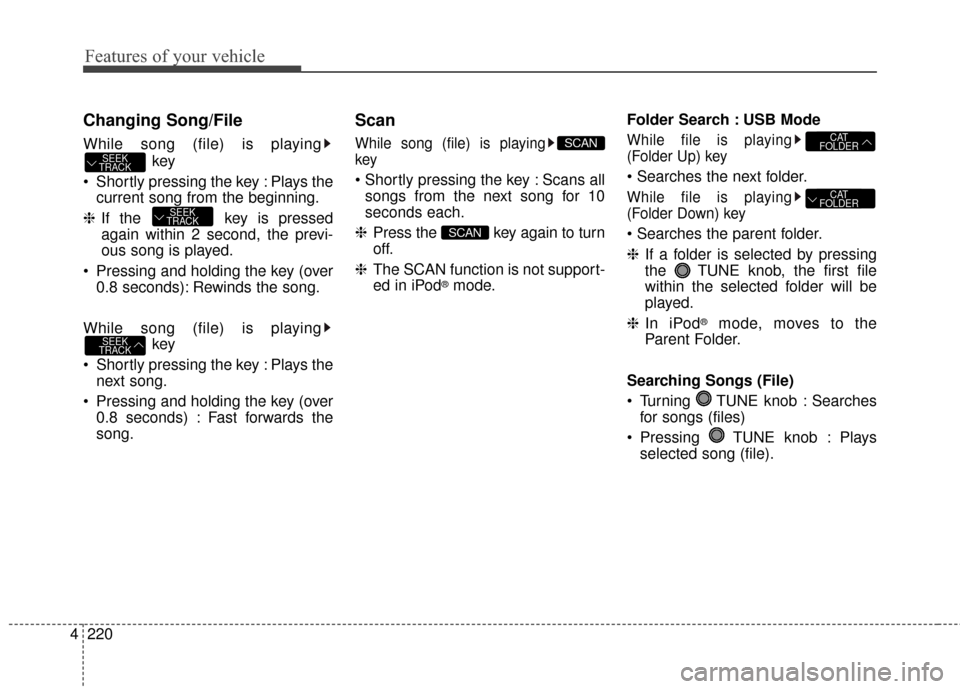
Changing Song/File
While song (file) is playing
key
Shortly pressing the key : Plays the current song from the beginning.
❈ If the key is pressed
again within 2 second, the previ-
ous song is played.
Pressing and holding the key (over 0.8 seconds): Rewinds the song.
While song (file) is playing key
Shortly pressing the key : Plays the next song.
Pressing and holding the key (over 0.8 seconds) : Fast forwards the
song.
Scan
While song (file) is playing
key
Scans allsongs from the next song for 10
seconds each.
❈ Press the key again to turn
off.
❈ The SCAN function is not support-
ed in iPod
®mode. Folder Search : USB Mode
While file is playing
(Folder Up) key
While file is playing
(Folder Down) key
❈
If a folder is selected by pressing
the TUNE knob, the first file
within the selected folder will be
played.
❈ In iPod
®mode, moves to the
Parent Folder.
Searching Songs (File)
Turning TUNE knob : Searches for songs (files)
Pressing TUNE knob : Plays selected song (file).
CAT
FOLDER
CAT
FOLDER
SCAN
SCAN
SEEK
TRACK
SEEK
TRACK
SEEK
TRACK
Page 306 of 556
![KIA Soul 2016 2.G Owners Manual Features of your vehicle
226
4
Bluetooth®Wireless Technology
audio can be used only when the
[Audio Streaming] of Phone is
turned .
❈ Setting
Bluetooth®Wireless
Technology
Audio Streaming :
Press](/img/2/2979/w960_2979-305.png "KIA Soul 2016 2.G Owners Manual Features of your vehicle
226
4
Bluetooth®Wireless Technology
audio can be used only when the
[Audio Streaming] of Phone is
turned .
❈ Setting
Bluetooth®Wireless
Technology
Audio Streaming :
Press")
Features of your vehicle
226
4
Bluetooth®Wireless Technology
audio can be used only when the
[Audio Streaming] of Phone is
turned .
❈ Setting
Bluetooth®Wireless
Technology
Audio Streaming :
Press the key Select
[Phone] Select [Audio Streaming]
through the TUNE knob Set
/
Starting Bluetooth®Wireless
Technology Audio
Press the key to change
the mode in order of USB➟AUX
➟My Music➟BT Audio.
If BT Audio is selected,
Bluetooth®
Wireless Technology audio will start
playing.
❈ Audio may not automatically start
playing in some mobile phones.
Using the Bluetooth®Wireless
Technology audio features
Press the TUNE knob to play and
pause the current song.
❈ The title / artist info may not be
supported in some mobile phone.
When it is not supported, no
title/no artist will be displayed.
Press or to play
previous or next song.
❈ The previous song / next song /
play / pause functions may not be
supported in some mobile
phones.
SEEK
TRACKSEEK
TRACK
MEDIA
OffOn
SETUPCLOCK
On
Page 549 of 556
Index
2I
Active ECO system. . . . . . . . . . . . . . . . . . . . . . . . . . . . 5-42Active ECO operation . . . . . . . . . . . . . . . . . . . . . . . 5-42
Limitation of Active ECO operation . . . . . . . . . . . . 5-42
When Active ECO is activated . . . . . . . . . . . . . . . . . 5-42
Air bag - advanced supplemental restraint system . . . 3-39 Adding equipment to or modifying yourair bag-equipped vehicle . . . . . . . . . . . . . . . . . . . . 3-63
Additional safety precautions. . . . . . . . . . . . . . . . . . 3-63
Air bag warning label. . . . . . . . . . . . . . . . . . . . . . . . 3-63
Air bag warning light . . . . . . . . . . . . . . . . . . . . . . . . 3-42
Curtain air bag . . . . . . . . . . . . . . . . . . . . . . . . . . . . . 3-56
Do not Installing a child restraint on a front passenger's seat . . . . . . . . . . . . . . . . . . . . . . . . . . . 3-42
Driver's and passenger's front air bag . . . . . . . . . . . 3-51
How does the air bag system operate . . . . . . . . . . . 3-40
Inflation and non-inflation conditions of the air bag . . 3-57
Occupant Detection System (ODS) . . . . . . . . . . . . . 3-46
Side air bag. . . . . . . . . . . . . . . . . . . . . . . . . . . . . . . . 3-54
SRS care . . . . . . . . . . . . . . . . . . . . . . . . . . . . . . . . . . 3-62\
SRS components and functions . . . . . . . . . . . . . . . . 3-43
Air cleaner . . . . . . . . . . . . . . . . . . . . . . . . . . . . . . . . . . 7-45\
Filter replacement. . . . . . . . . . . . . . . . . . . . . . . . . . . 7-45
Air conditioning system . . . . . . . . . . . . . . . . . . . . . . . . . 8-5
Appearance care . . . . . . . . . . . . . . . . . . . . . . . . . . . . . . 7-96 Exterior care . . . . . . . . . . . . . . . . . . . . . . . . . . . . . . . 7-96
Interior care . . . . . . . . . . . . . . . . . . . . . . . . . . . . . . 7-102 Audio system . . . . . . . . . . . . . . . . . . . . . . . . . . . . . . . 4-147
Antenna . . . . . . . . . . . . . . . . . . . . . . . . . . . . . . . . . 4-147
Audio remote control . . . . . . . . . . . . . . . . . . . . . . . 4-148
Aux and USB port . . . . . . . . . . . . . . . . . . . . . . . . . 4-149
Speaker lights . . . . . . . . . . . . . . . . . . . . . . . . . . . . . 4-150
Automatic climate control system . . . . . . . . . . . . . . . 4-114 Automatic heating and air conditioning. . . . . . . . . 4-115
Checking the amount of air conditionerrefrigerant and compressor lubricant . . . . . . . . . . 4-125
Climate control air filter. . . . . . . . . . . . . . . . . . . . . 4-125
Manual heating and air conditioning . . . . . . . . . . . 4-116
System operation . . . . . . . . . . . . . . . . . . . . . . . . . . 4-123
Automatic transaxle . . . . . . . . . . . . . . . . . . . . . . . . . . . 5-17 Automatic transaxle operation . . . . . . . . . . . . . . . . . 5-17
Good driving practices . . . . . . . . . . . . . . . . . . . . . . . 5-22
Battery. . . . . . . . . . . . . . . . . . . . . . . . . . . . . . . . . . . . \
. . 7-53 Battery recharging . . . . . . . . . . . . . . . . . . . . . . . . . . 7-54
For best battery service . . . . . . . . . . . . . . . . . . . . . . 7-53
Reset items . . . . . . . . . . . . . . . . . . . . . . . . . . . . . . . . 7-55
Before driving . . . . . . . . . . . . . . . . . . . . . . . . . . . . . . . . . 5-4 Before entering vehicle . . . . . . . . . . . . . . . . . . . . . . . 5-4
Before starting . . . . . . . . . . . . . . . . . . . . . . . . . . . . . . 5-5
Necessary inspections . . . . . . . . . . . . . . . . . . . . . . . . 5-4
Brake system. . . . . . . . . . . . . . . . . . . . . . . . . . . . . . . . . 5-23 Anti-lock brake system (ABS) . . . . . . . . . . . . . . . . . 5-27
A
B