AUX KIA SOUL 2019 Owners Manual
[x] Cancel search | Manufacturer: KIA, Model Year: 2019, Model line: SOUL, Model: KIA SOUL 2019Pages: 564, PDF Size: 14.2 MB
Page 239 of 564

Audio system
Audio System . . . . . . . . . . . . . . . . . . . . . . . . . . . . . . 5-2
• Antenna . . . . . . . . . . . . . . . . . . . . . . . . . . . . . . . . . . . . \
. 5-2
• Audio remote control . . . . . . . . . . . . . . . . . . . . . . . . . . 5-3
• AUX and USB port . . . . . . . . . . . . . . . . . . . . . . . . . . . . 5-4
• Speaker lights. . . . . . . . . . . . . . . . . . . . . . . . . . . . . . . . . 5-4
• How vehicle audio works . . . . . . . . . . . . . . . . . . . . . . . 5-6
Audio (With Touch Screen) . . . . . . . . . . . . . . . . . . 5-10
• Feature of Your Audio . . . . . . . . . . . . . . . . . . . . . . . . . 5-11
• Radio . . . . . . . . . . . . . . . . . . . . . . . . . . . . . . . . . . . . \
. . . 5-17
• SiriusXM . . . . . . . . . . . . . . . . . . . . . . . . . . . . . . . . . . . 5-\
19
• Media . . . . . . . . . . . . . . . . . . . . . . . . . . . . . . . . . . . . \
. . 5-21
• Phone . . . . . . . . . . . . . . . . . . . . . . . . . . . . . . . . . . . . \
. . 5-32
• Voice Recognition . . . . . . . . . . . . . . . . . . . . . . . . . . . . 5-41
• Siri . . . . . . . . . . . . . . . . . . . . . . . . . . . . . . . . . . . . \
. . . . . 5-49
• Setup . . . . . . . . . . . . . . . . . . . . . . . . . . . . . . . . . . . . \
. . . 5-50
Declaration of Conformity . . . . . . . . . . . . . . . . . . 5-52
• IC . . . . . . . . . . . . . . . . . . . . . . . . . . . . . . . . . . . . \
. . . . . 5-52
5
Page 242 of 564
Audio system
54
RADIO mode
It will function as the PRESET STA-
TION select buttons.
USB mode
It will function as the FILE UP/DOWN
button.
MODE (3)
Press the button to select Radio,
USB or AUX.
Detailed information for audio control
buttons is described in the following
pages in this section.
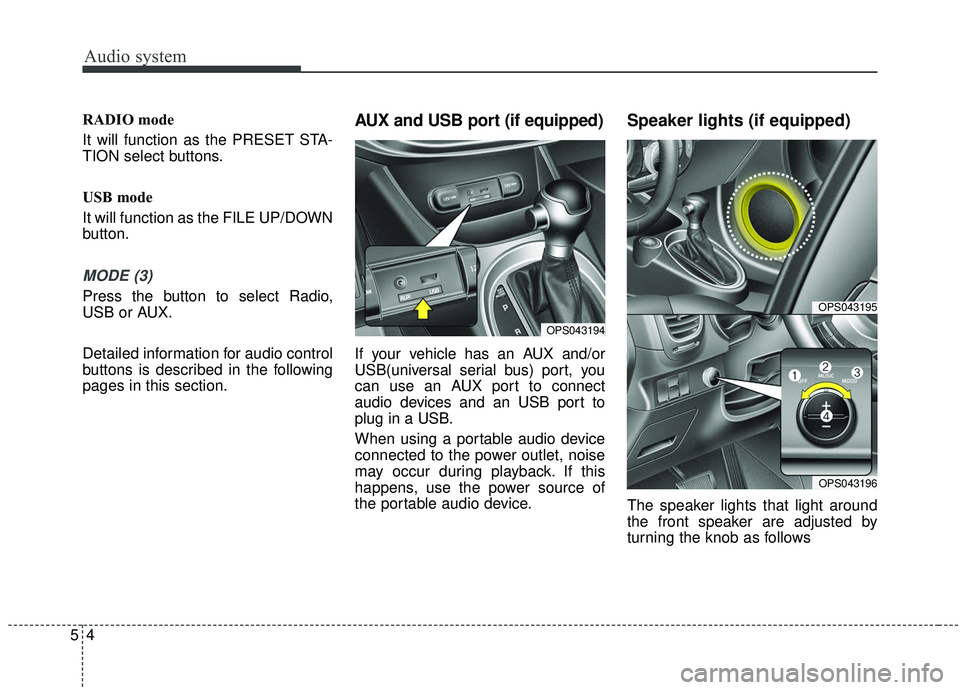
AUX and USB port (if equipped)
If your vehicle has an AUX and/or
USB(universal serial bus) port, you
can use an AUX port to connect
audio devices and an USB port to
plug in a USB.
When using a portable audio device
connected to the power outlet, noise
may occur during playback. If this
happens, use the power source of
the portable audio device.
Speaker lights (if equipped)
The speaker lights that light around
the front speaker are adjusted by
turning the knob as follows
OPS043194
OPS043195
OPS043196
Page 249 of 564
Audio system
11
5
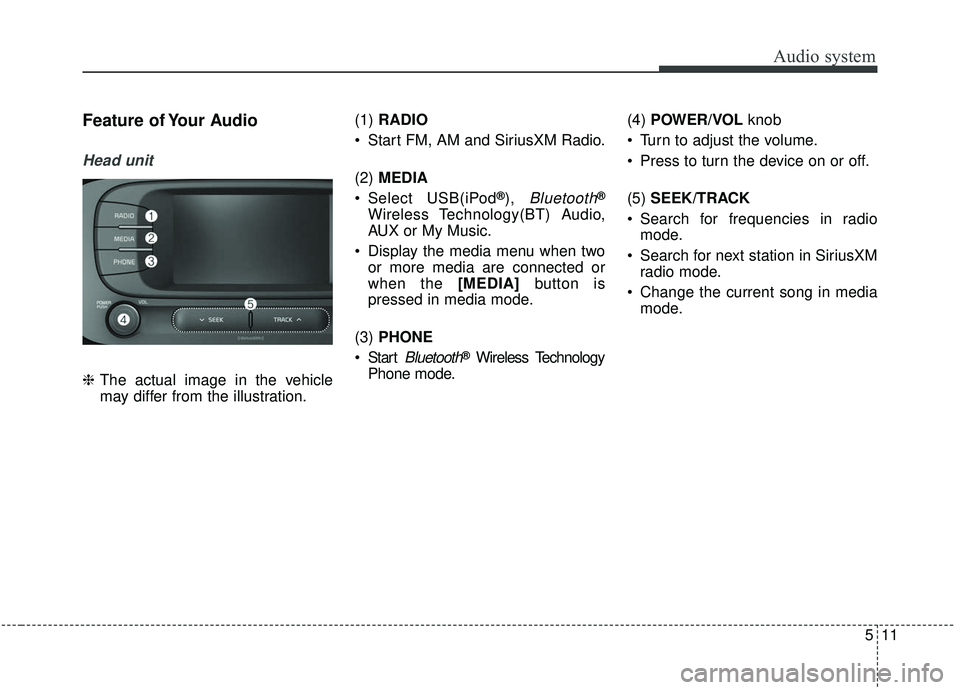
Feature of Your Audio
Head unit
❈ The actual image in the vehicle
may differ from the illustration. (1)
RADIO
Start FM, AM and SiriusXM Radio.
(2) MEDIA
Select USB(iPod
®), Bluetooth®
Wireless Technology(BT) Audio,
AUX or My Music.
Display the media menu when two or more media are connected or
when the [MEDIA] button is
pressed in media mode.
(3) PHONE
Start
Bluetooth®Wireless Technology
Phone mode. (4)
POWER/VOL knob
Turn to adjust the volume.
Press to turn the device on or off.
(5) SEEK/TRACK
Search for frequencies in radio mode.
Search for next station in SiriusXM radio mode.
Change the current song in media mode.
Page 251 of 564
Audio system
13
5
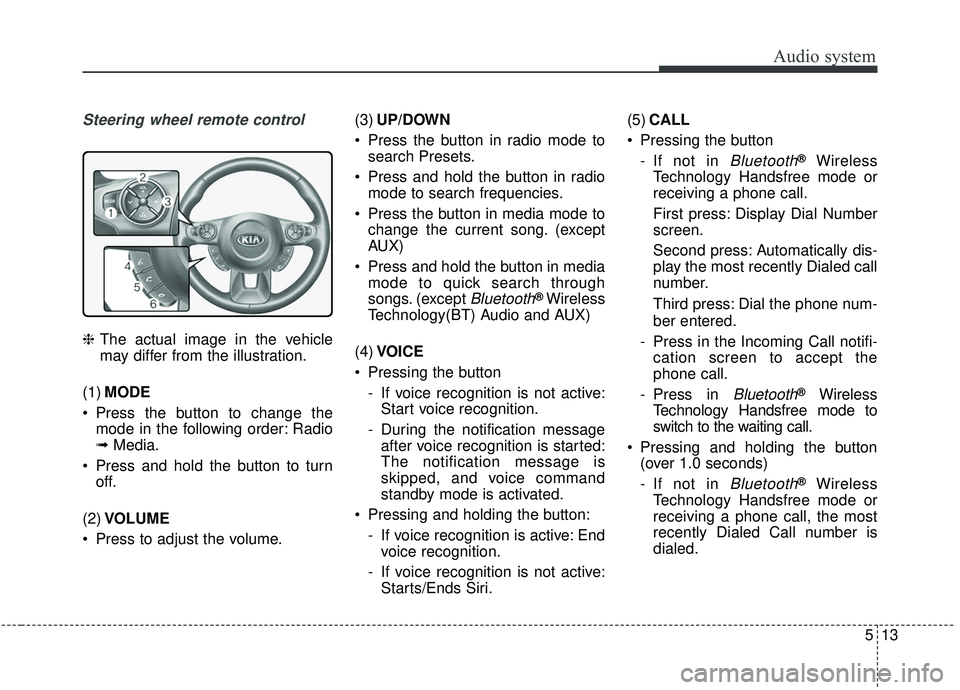
Steering wheel remote control
❈ The actual image in the vehicle
may differ from the illustration.
(1) MODE
Press the button to change the mode in the following order: Radio
➟ Media.
Press and hold the button to turn off.
(2) VOLUME
Press to adjust the volume. (3)
UP/DOWN
Press the button in radio mode to search Presets.
Press and hold the button in radio mode to search frequencies.
Press the button in media mode to change the current song. (except
AUX)
Press and hold the button in media mode to quick search through
songs. (except
Bluetooth®Wireless
Technology(BT) Audio and AUX)
(4) VOICE
Pressing the button - If voice recognition is not active:Start voice recognition.
- During the notification message after voice recognition is started:
The notification message is
skipped, and voice command
standby mode is activated.
Pressing and holding the button: - If voice recognition is active: Endvoice recognition.
- If voice recognition is not active: Starts/Ends Siri. (5)
CALL
Pressing the button - If not in
Bluetooth®Wireless
Technology Handsfree mode or
receiving a phone call.
First press: Display Dial Number
screen.
Second press: Automatically dis-
play the most recently Dialed call
number.
Third press: Dial the phone num-
ber entered.
- Press in the Incoming Call notifi- cation screen to accept the
phone call.
- Press in
Bluetooth®Wireless
Technology Handsfree mode to
switch to the waiting call.
Pressing and holding the button (over 1.0 seconds)
- If not in
Bluetooth®Wireless
Technology Handsfree mode or
receiving a phone call, the most
recently Dialed Call number is
dialed.
Page 261 of 564
Audio system
23
5
(Continued)
• Use of aftermarket USB hubs and
extension cables can result in the
vehicle’s audio system failing to
recognize your USB device.
Connect the USB device directly to
the multimedia port of your vehi-
cle.
• When using high-capacity USB devices with logical drive divi-
sions, only files saved on the high-
est level logical drive can be
played.
If applications are loaded on a
USB drive, file playback may fail.
• Some MP3 players, cell phones, digital cameras, etc. (USB devices
that are not recognized as mobile
storage) may not operate normally
when connected.
• USB charging may not be sup- ported by some mobile devices.
• Operation is guaranteed only for standard (Metal Cover Type) USB
Memory drives.
• Operation of HDD, CF, SD and memory stick devices is not guar-
anteed. (Continued)(Continued)
• DRM (Digital Rights Management)
files cannot be played.
• SD-type USB memory, CF-type USB memory, and other USB
memory devices that require
adapters for connection are not
supported.
• Proper operation of USB HDDs or USB
drives with connectors
that loosen due to vehi-
cle vibrations is not guaranteed.
(iStick, etc.)
• USB products that are used as key chains or cell phone accessories
may damage the USB jack and
affect proper file playback. Please
refrain from use. Use only prod-
ucts with plug connectors, as
shown in the following illustration.
• When MP3 devices or cell phones are connected simultaneously
through AUX, BT Audio and USB
modes, a popping noise or mal-
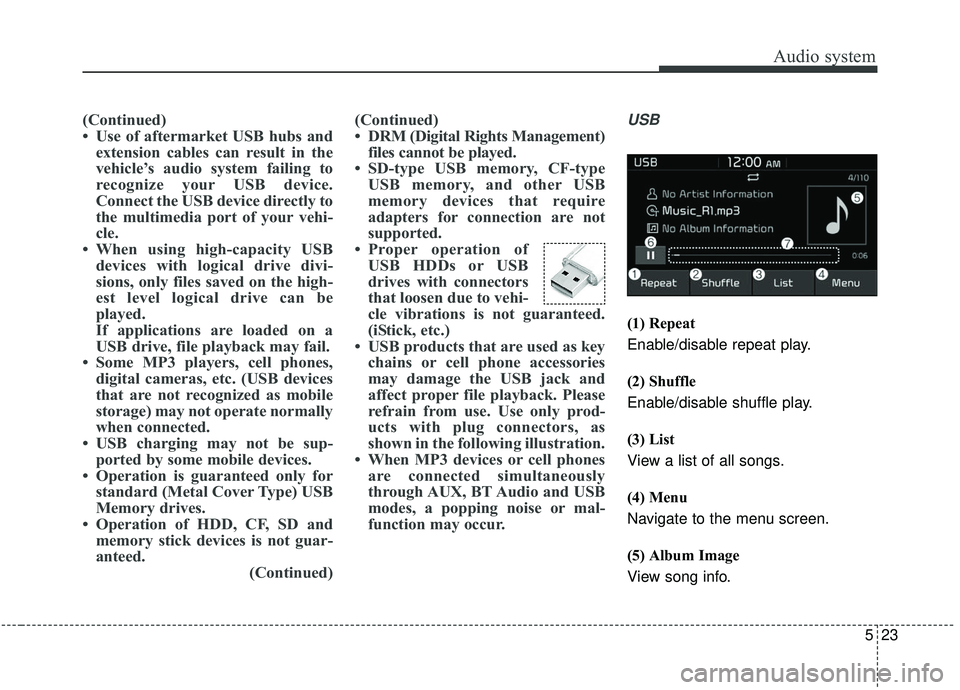
function may occur.USB
(1) Repeat
Enable/disable repeat play.
(2) Shuffle
Enable/disable shuffle play.
(3) List
View a list of all songs.
(4) Menu
Navigate to the menu screen.
(5) Album Image
View song info.
Page 263 of 564
![KIA SOUL 2019 Owners Manual Audio system
25
5
Menu
Select the [Menu], and select the
desired function.
Save to My Music: Songs on your
USB device can be saved to My
Music.
(1) File: Select a file to save
.
(2) Mark All: Select](/img/2/40387/w960_40387-262.png "KIA SOUL 2019 Owners Manual Audio system
25
5
Menu
Select the [Menu], and select the
desired function.
Save to My Music: Songs on your
USB device can be saved to My
Music.
(1) File: Select a file to save
.
(2) Mark All: Select")
Audio system
25
5
Menu
Select the [Menu], and select the
desired function.
Save to My Music: Songs on your
USB device can be saved to My
Music.
(1) File: Select a file to save
.
(2) Mark All: Select all files.
(3) Unmark All: Deselect all files.
(4) Save: Save the selected files.
- Select the files you want to save, and select the [Save]. This saves
the selected files to My Music.
- Saving is canceled if voice recognition or Siri is activated.
- Up to 6,000 files can be saved.
- The currently playing file on the USB device cannot be changed
while saving. - My Music cannot be used while
saving.
- Up to 700 MB can be saved.
Information: Detailed information on the currently playing song is dis-
played.
Sound Settings: Audio sound set- tings can be changed.
✽ ✽ NOTICE
-
Using the iPod®Devices
• To use the audio system’s iPod®
control function, use the dedicated
cable provided with your iPod®.
• Connecting the iPod®to the vehi-
cle during play may result in a
loud noise that lasts about one to
two seconds. Connect the iPod
®to
the vehicle after stopping or paus-
ing play.
• Connect the iPod
®with the vehicle
in the ACC ON state to begin
charging.
• When connecting the iPod
®cable,
be sure to fully push the cable into
the port.
• When Equalizer effects are enabled simultaneously on exter-
nal devices, such as iPod
®s and the
audio system, the Equalizer effects
may overlap, causing sound quali-
ty deterioration or distortion.
Deactivate the Equalizer function
for all external devices, if possible.
• Noise may occur when your iPod
®
or the AUX port is connected.
Disconnect and store separately
when not in use. (Continued)
Page 264 of 564
Audio system
526
(Continued)
• There may be noise if the audiosystem is used with an iPod
®or
AUX external device connected to
the power jack. In these cases, dis-
connect the iPod
®or external
device from the power jack.
• Play may be interrupted, or device malfunctions may occur depend-
ing on the characteristics of your
iPod
®/iPhone®/iPad®.
• Play may fail if your iPhone®is
connected through both
Bluetooth
®Wireless Technology
and USB. In this case, select Dock
connector or Bluetooth
®Wireless
Technology on your iPhone®to
change the sound output settings.
• If your software version does not support the communication proto-
col or your iPod
®is not recognized
due to device failure, anomalies or
defects, iPod
®mode cannot be
used.
• iPod
®nano (5th generation)
devices may not be recognized if
the battery is low. Charge suffi-
ciently before use. (Continued)(Continued)
• The search and song play order in
the iPod
®device may be different
from the search order in the audio
system.
• If the iPod
®has failed due to an
internal defect, please reset the
iPod
®(consult your iPod®manu-
al).
• Depending on the software ver- sion, the iPod
®may fail to sync
with the system. If the media is
removed or disconnected before
recognition, the previous mode
may not be restored (iPad
®cannot
be charged).
• Cables other than the 1-meter cable provided with iPod
®/iPhone®/iPad®
products may not be recognized.
• When other music apps are used on your iPod
®, the system sync
function may fail due to malfunc-
tion of the iPod
®application.
iPod®
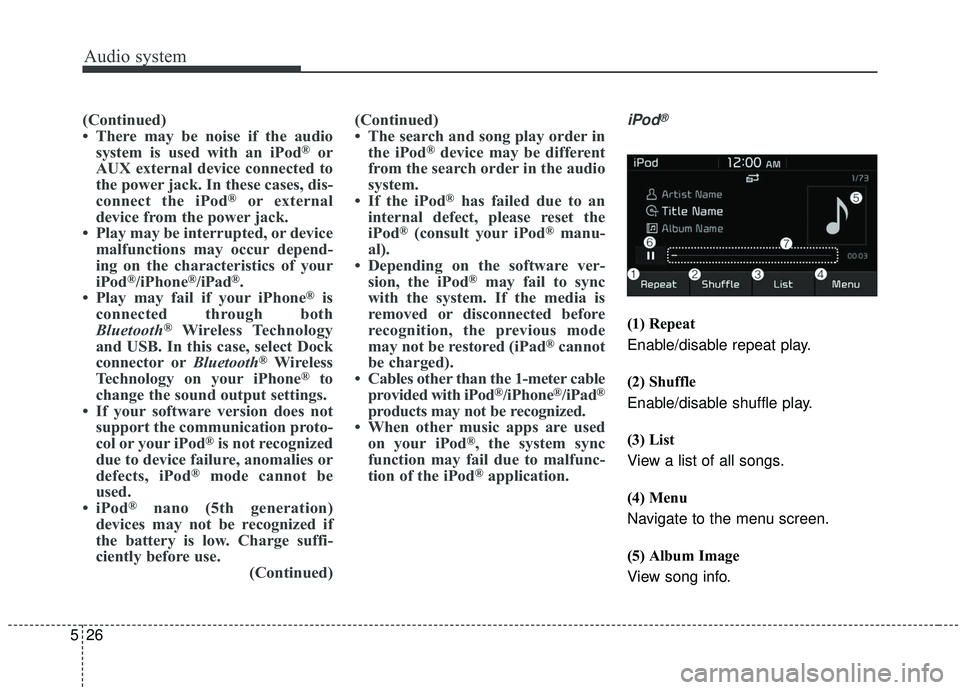
(1) Repeat
Enable/disable repeat play.
(2) Shuffle
Enable/disable shuffle play.
(3) List
View a list of all songs.
(4) Menu
Navigate to the menu screen.
(5) Album Image
View song info.
Page 268 of 564
![KIA SOUL 2019 Owners Manual Audio system
530Repeat play
Select the [Repeat] to enable or dis-
able ‘Repeat all’, ‘Repeat current
song’ or ‘Repeat category’ play.
Repeat all: All songs in the
playlist are repeated.](/img/2/40387/w960_40387-267.png "KIA SOUL 2019 Owners Manual Audio system
530Repeat play
Select the [Repeat] to enable or dis-
able ‘Repeat all’, ‘Repeat current
song’ or ‘Repeat category’ play.
Repeat all: All songs in the
playlist are repeated.")
Audio system
530Repeat play
Select the [Repeat] to enable or dis-
able ‘Repeat all’, ‘Repeat current
song’ or ‘Repeat category’ play.
Repeat all: All songs in the
playlist are repeated.
Repeat current song: The cur- rently playing song is repeated.
Repeat category: Repeat all songs in the current category.
✽ ✽ NOTICE
The repeat play function is engaged,
depending on the operation of the
connected Bluetooth
®Wireless
Technology device.
Shuffle play
Select the [Shuffle] to enable/disable
‘Shuffle’, ‘Shuffle category’ play.
Shuffle: Songs are played in random order.
Shuffle category: Songs within the current category are played in
random order.
✽ ✽ NOTICE
The shuffle function is engaged,
depending on the operation of the
connected Bluetooth
®Wireless
Technology device.
Menu
Select the [Menu], and select the
desired function.
Connections: The currently con-
nected
Bluetooth®Wireless
Technology device can be changed.
Information: Detailed information on the currently playing song is dis-
played.
Sound Settings: Audio sound set- tings can be changed.
✽ ✽ NOTICE
• Depending on the connected
Bluetooth device, mobile phone, or
the music player you are using,
playback controls may differ.
• Depending on the music player you are using, streaming may not
be supported.
AUX
Running AUX
Press the [MEDIA] button, and
select [AUX].
Connect the external device con- nection jack to the AUX terminal to
run AUX.
(1) Sound Settings: Audio sound set- tings can be changed.
Page 285 of 564
Audio system
47
5
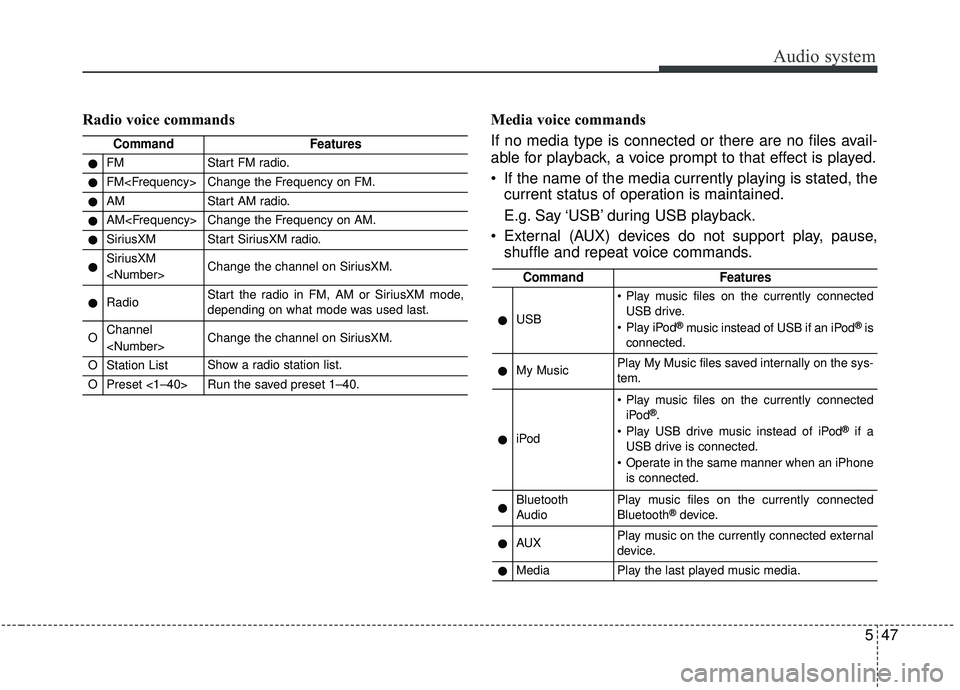
Radio voice commands Media voice commands
If no media type is connected or there are no files avail-
able for playback, a voice prompt to that effect is played.
If the name of the media currently playing is stated, the current status of operation is maintained.
E.g. Say ‘USB’ during USB playback.
External (AUX) devices do not support play, pause, shuffle and repeat voice commands.
CommandFeatures
●FMStart FM radio.
●FM
●AMStart AM radio.
●AM
●SiriusXMStart SiriusXM radio.
●SiriusXM
●RadioStart the radio in FM, AM or SiriusXM mode,
depending on what mode was used last.
OChannel
OStation ListShow a radio station list.
OPreset <1–40>Run the saved preset 1–40.
CommandFeatures
●USB
Play music files on the currently connected
USB drive.
Play iPod
®music instead of USB if an iPod®is
connected.
●My MusicPlay My Music files saved internally on the sys-
tem.
●iPod
Play music files on the currently connected iPod®.
Play USB drive music instead of iPod®if a
USB drive is connected.
Operate in the same manner when an iPhone is connected.
●Bluetooth
AudioPlay music files on the currently connected
Bluetooth®device.
●AUXPlay music on the currently connected external
device.
●MediaPlay the last played music media.
Page 290 of 564
Audio system
552
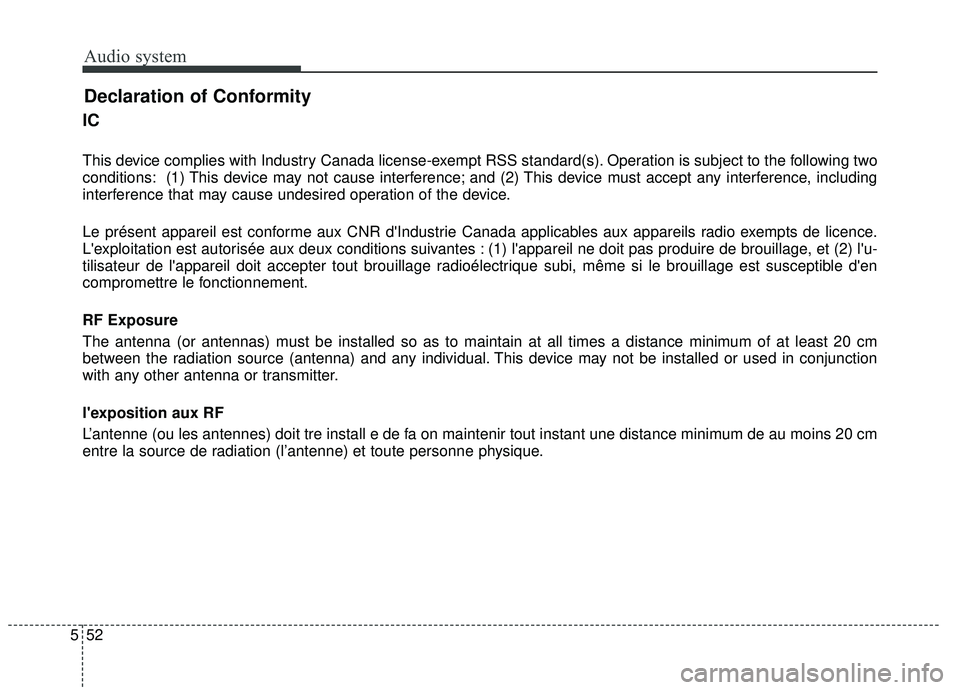
IC
This device complies with Industry Canada license-exempt RSS standard(s). Operation is subject to the following two
conditions: (1) This device may not cause interference; and (2) This device must accept any interference, including
interference that may cause undesired operation of the device.
Le présent appareil est conforme aux CNR d'Industrie Canada applicables aux appareils radio exempts de licence.
L'exploitation est autorisée aux deux conditions suivantes : (1) l'appareil ne doit pas produire de brouillage, et (2) l'u-
tilisateur de l'appareil doit accepter tout brouillage radioélectrique subi, même si le brouillage est susceptible d'en
compromettre le fonctionnement.
RF Exposure
The antenna (or antennas) must be installed so as to maintain at all times a distance minimum of at least 20 cm
between the radiation source (antenna) and any individual. This device may not be installed or used in conjunction
with any other antenna or transmitter.
l'exposition aux RF
L’antenne (ou les antennes) doit tre install e de fa on maintenir tout instant une distance minimum de au moins 20 cm
entre la source de radiation (l’antenne) et toute personne physique.
Declaration of Conformity