buttons KIA SOUL 2019 Owners Manual
[x] Cancel search | Manufacturer: KIA, Model Year: 2019, Model line: SOUL, Model: KIA SOUL 2019Pages: 564, PDF Size: 14.2 MB
Page 16 of 564
25
Your vehicle at a glance
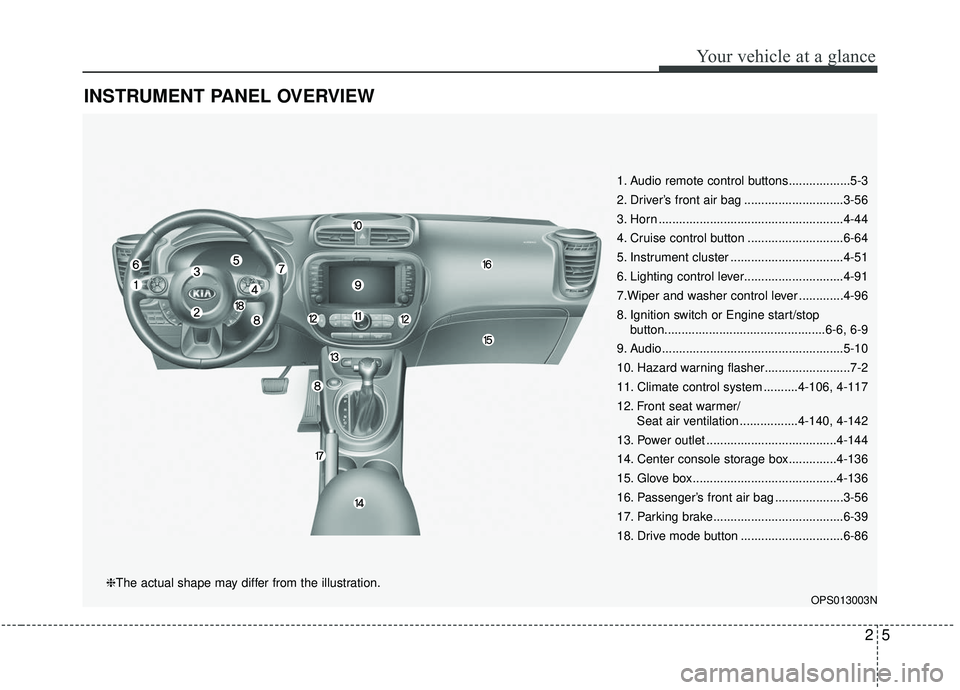
INSTRUMENT PANEL OVERVIEW
1. Audio remote control buttons..................5-3
2. Driver’s front air bag .............................3-56
3. Horn ......................................................4-44
4. Cruise control button ............................6-64
5. Instrument cluster .................................4-51
6. Lighting control lever.............................4-91
7.Wiper and washer control lever .............4-96
8. Ignition switch or Engine start/stopbutton...............................................6-6, 6-9
9. Audio.....................................................5-10
10. Hazard warning flasher.........................7-2
11. Climate control system ..........4-106, 4-117
12. Front seat warmer/ Seat air ventilation .................4-140, 4-142
13. Power outlet ......................................4-144
14. Center console storage box..............4-136
15. Glove box ..........................................4-136
16. Passenger’s front air bag ....................3-56
17. Parking brake......................................6-39
18. Drive mode button ..............................6-86
OPS013003N
❈The actual shape may differ from the illustration.
Page 138 of 564
Features of your vehicle
52
4
Instrument Cluster Control
Adjusting Instrument Cluster
Illumination
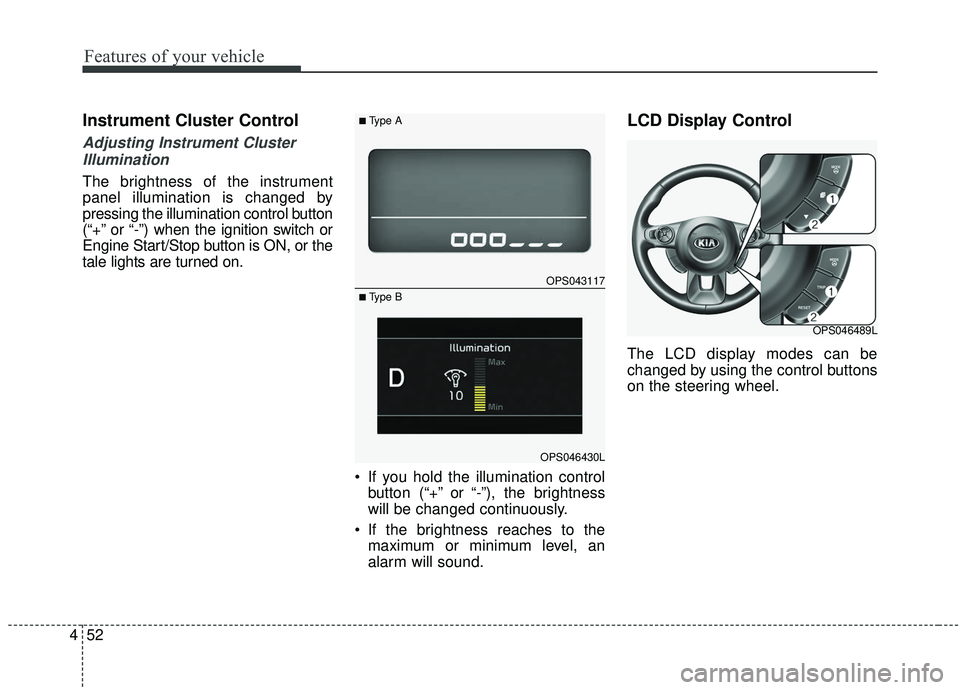
The brightness of the instrument
panel illumination is changed by
pressing the illumination control button
(“+” or “-”) when the ignition switch or
Engine Start/Stop button is ON, or the
tale lights are turned on.
If you hold the illumination controlbutton (“+” or “-”), the brightness
will be changed continuously.
If the brightness reaches to the maximum or minimum level, an
alarm will sound.
LCD Display Control
The LCD display modes can be
changed by using the control buttons
on the steering wheel.
OPS043117
OPS046430L
■Type A
■ Type B
OPS046489L
Page 205 of 564
4119
Features of your vehicle
Never place anything over the sensor
located on the instrument panel to
ensure better control of the heating
and cooling system.
Manual heating and air condi-
tioning
The heating and cooling system can
be controlled manually by pushing
buttons other than the AUTO button.
In this case, the system works
sequentially according to the order of
buttons selected.
When pressing any button (or turning
any knob) except AUTO button while
automatic operation, the functions
not selected will be controlled auto-
matically.
1. Start the engine.
2. Set the mode to the desired posi-tion.
3. Set the temperature control to the desired position.
4. Set the air intake control to the outside (fresh) air position.
5. Set the fan speed control to the desired speed.
6. If air conditioning is desired, turn the air conditioning system on.
Press the AUTO button in order to
convert to full automatic control of
the system.
Mode selection
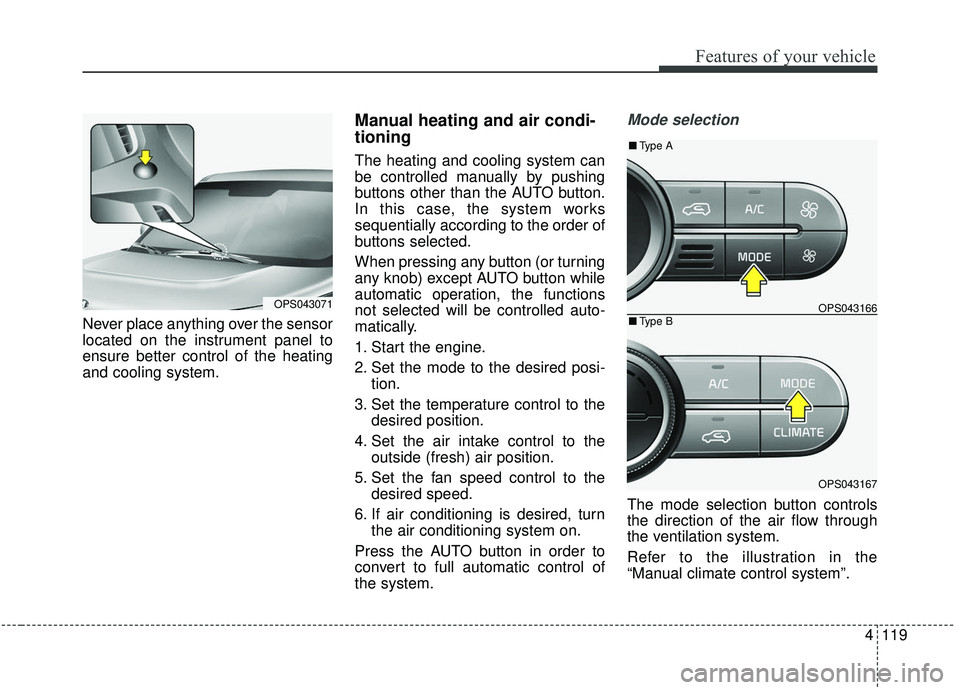
The mode selection button controls
the direction of the air flow through
the ventilation system.
Refer to the illustration in the
“Manual climate control system”.
OPS043071OPS043166
OPS043167
■ Type B
■Type A
Page 212 of 564
Features of your vehicle
126
4
Air conditioning
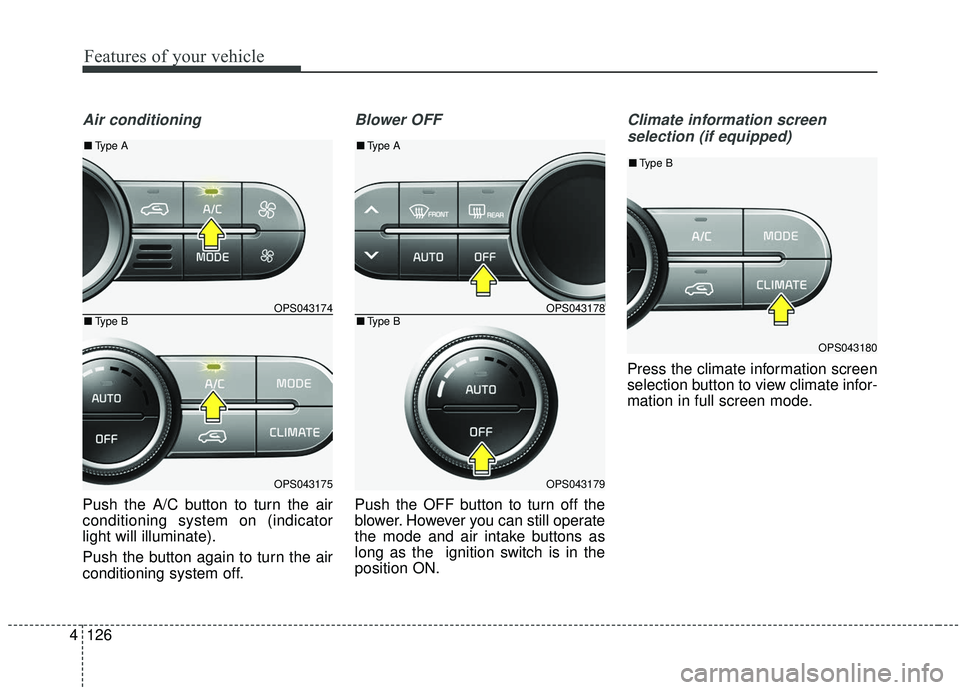
Push the A/C button to turn the air
conditioning system on (indicator
light will illuminate).
Push the button again to turn the air
conditioning system off.
Blower OFF
Push the OFF button to turn off the
blower. However you can still operate
the mode and air intake buttons as
long as the ignition switch is in the
position ON.
Climate information screen
selection (if equipped)
Press the climate information screen
selection button to view climate infor-
mation in full screen mode.
OPS043178
OPS043179
■ Type B
■Type A
OPS043180
■Type B
OPS043174
OPS043175
■Type B
■Type A
Page 241 of 564
Audio system
35
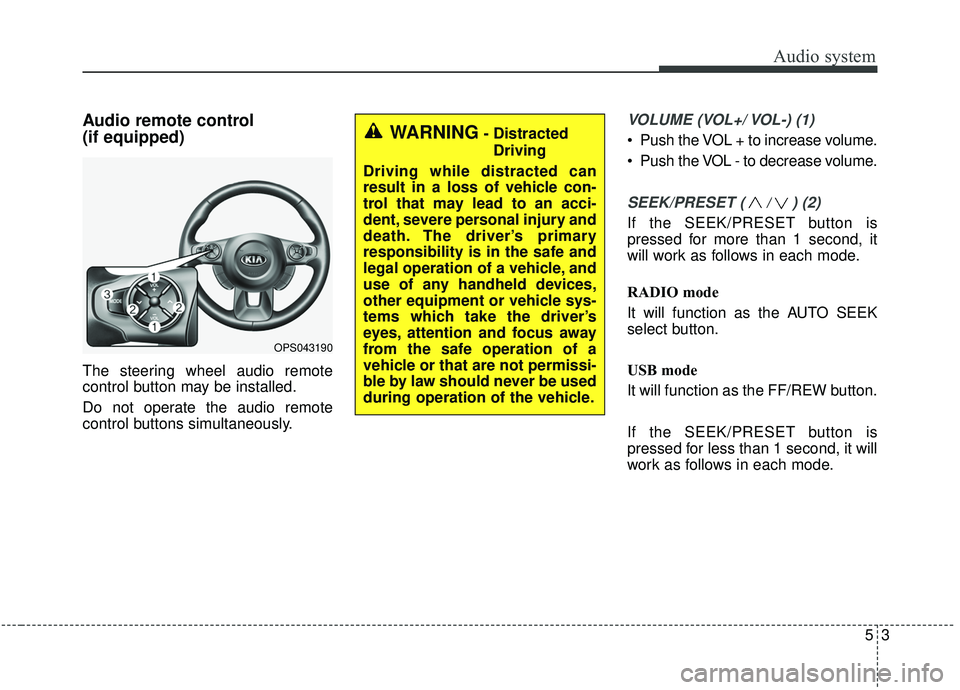
Audio remote control
(if equipped)
The steering wheel audio remote
control button may be installed.
Do not operate the audio remote
control buttons simultaneously.
VOLUME (VOL+/ VOL-) (1)
Push the VOL + to increase volume.
Push the VOL - to decrease volume.
SEEK/PRESET ( / ) (2)
If the SEEK/PRESET button is
pressed for more than 1 second, it
will work as follows in each mode.
RADIO mode
It will function as the AUTO SEEK
select button.
USB mode
It will function as the FF/REW button.
If the SEEK/PRESET button is
pressed for less than 1 second, it will
work as follows in each mode.
OPS043190
WARNING- DistractedDriving
Driving while distracted can
result in a loss of vehicle con-
trol that may lead to an acci-
dent, severe personal injury and
death. The driver’s primary
responsibility is in the safe and
legal operation of a vehicle, and
use of any handheld devices,
other equipment or vehicle sys-
tems which take the driver’s
eyes, attention and focus away
from the safe operation of a
vehicle or that are not permissi-
ble by law should never be used
during operation of the vehicle.
Page 242 of 564
Audio system
54
RADIO mode
It will function as the PRESET STA-
TION select buttons.
USB mode
It will function as the FILE UP/DOWN
button.
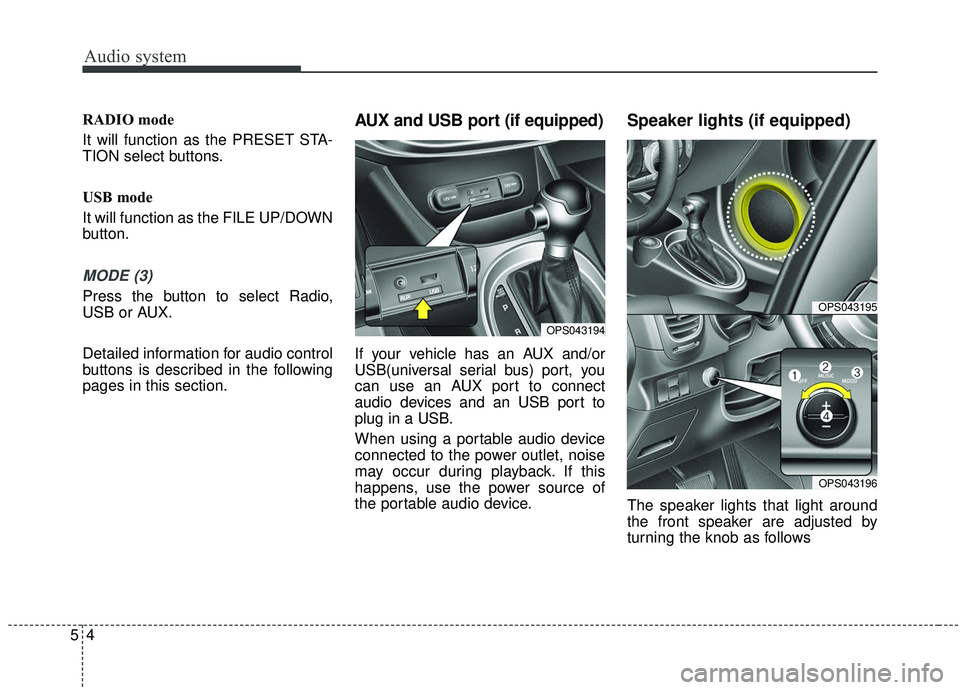
MODE (3)
Press the button to select Radio,
USB or AUX.
Detailed information for audio control
buttons is described in the following
pages in this section.
AUX and USB port (if equipped)
If your vehicle has an AUX and/or
USB(universal serial bus) port, you
can use an AUX port to connect
audio devices and an USB port to
plug in a USB.
When using a portable audio device
connected to the power outlet, noise
may occur during playback. If this
happens, use the power source of
the portable audio device.
Speaker lights (if equipped)
The speaker lights that light around
the front speaker are adjusted by
turning the knob as follows
OPS043194
OPS043195
OPS043196
Page 266 of 564
![KIA SOUL 2019 Owners Manual Audio system
528
✽ ✽NOTICE
Operation cannot be carried out
correctly due to iPod®application
malfunction.
Playing iPod files
Select [Play iPod Files] to play songs
saved on your iPod
®.
If there](/img/2/40387/w960_40387-265.png "KIA SOUL 2019 Owners Manual Audio system
528
✽ ✽NOTICE
Operation cannot be carried out
correctly due to iPod®application
malfunction.
Playing iPod files
Select [Play iPod Files] to play songs
saved on your iPod
®.
If there")
Audio system
528
✽ ✽NOTICE
Operation cannot be carried out
correctly due to iPod®application
malfunction.
Playing iPod files
Select [Play iPod Files] to play songs
saved on your iPod
®.
If there are no songs saved on your
iPod
®, the [Play iPod Files] is dis-
abled.
✽ ✽ NOTICE
-
Using Bluetooth®Wireless
Technology Audio
• Bluetooth®Wireless Technology
Audio mode can only be used if a
Bluetooth
®Wireless Technology-
enabled phone is connected. Only
devices that support Bluetooth
®
Wireless Technology audio can be
used.
• If the Bluetooth
®Wireless
Technology-enabled phone is dis-
connected during play, the music
stops.
• When the TRACK UP/DOWN buttons are used during
Bluetooth
®Wireless Technology
audio streaming, a popping noise
or sound interruptions may occur,
depending on the cell phone
device.
• Depending on the cell phone model, the audio streaming func-
tion may not be supported. (Continued)(Continued)
• If a phone call is made or received
when music is playing in
Bluetooth
®Wireless Technology
Audio mode, the call may mix with
the music.
• When returning to Bluetooth
®
Wireless Technology Audio mode
after ending a call, play might not
resume automatically for some cell
phone models.
Page 279 of 564
Audio system
41
5
Voice Recognition
✽ ✽
NOTICE
-
Using the Voice Recognition
• Voice recognition is a safety tech-
nology that recognizes user voice
commands and executes multime-
dia functions during driving.
• Unfortunately, due to technical limitations, the system is unable to
recognize all voice commands. To
address these limitations, the voice
commands that the system recog-
nizes are displayed on the screen.
Use the displayed commands.
• Because human speech varies, voice recognition is sometimes
unable to properly recognize user
voice commands. In these cases,
repeat the voice command dis-
played on the screen, or use the
button on the screen to execute the
desired function.
Precautions to ensure smooth voice
recognition
If the language setting is Korean,
voice recognition is not supported.
Voice recognition only supports voice commands indicated on-
screen or in the user manual.
For proper voice recognition, speak after the beep, which
sounds after voice notification.
Voice recognition automatically stops in the following events.
1) Outgoing and incoming phone calls.
2) Media (USB, etc.) is connected (voice recognition mode is main-
tained when iPod
®s are connected).
3) Rear camera is activated
(if
equipped)
.
4) Vehicle is started or engine is turned off.
5) Screen transition buttons, such as [RADIO] or [MEDIA], are
selected.
6) When a pop-up message is dis- played on the screen due to
accidental execution of the voice
recognition function. The voice recognition microphone
is located above the driver’s seat.
To ensure proper voice recogni-
tion, state voice commands while
maintaining proper driving posture.
Better voice recognition is possible if you speak naturally and clearly,
as you would in normal conversa-
tion.
In the following situations, outdoor noise may prevent proper voice
recognition.
1) Wind noise from an open win- dow or sunroof may disrupt
voice recognition.
2) Operating the climate blower at a high level may cause wind
noise that disrupts voice recog-
nition. The recommended set-
ting is 3 or below.
3) When passing through tunnels, vehicle echoes may disrupt
voice recognition.
4) When passing over uneven ter- rain, vehicle noise may disrupt
voice recognition.
5) Noise from rain in heavy storms may disrupt voice recognition.
Page 287 of 564
Audio system
49
5
Siri
✽ ✽
NOTICE - Using Siri
• Android device is not supported to
use Siri.
• If you want to use Siri, you have to connect your iOS device to the
multimedia system through
Bluetooth
®Wireless Technology.
(Please check whether your iOS
device supports Siri and turning
Siri On)
• If the iOS version is changed, the functions and response may be dif-
ferent according to the iOS device
and the latest version.
• Siri automatically stops in the fol- lowing events.
1) Outgoing and incoming phone calls.
2) Media (USB, etc.) is connected. (Siri mode is maintained when
iPod
®s are connected)
3) Rear camera is activated
(if
equipped).
4) Vehicle is started or engine is
turned off. (Continued)(Continued)
5) Screen transition buttons, such as RADIO or MEDIA, are
selected.
6) When a pop-up message is dis- played on the screen due to
accidental execution of Siri.
• The microphone is located above the driver’s seat. To ensure proper
Siri, state your voice while main-
taining proper driving posture.
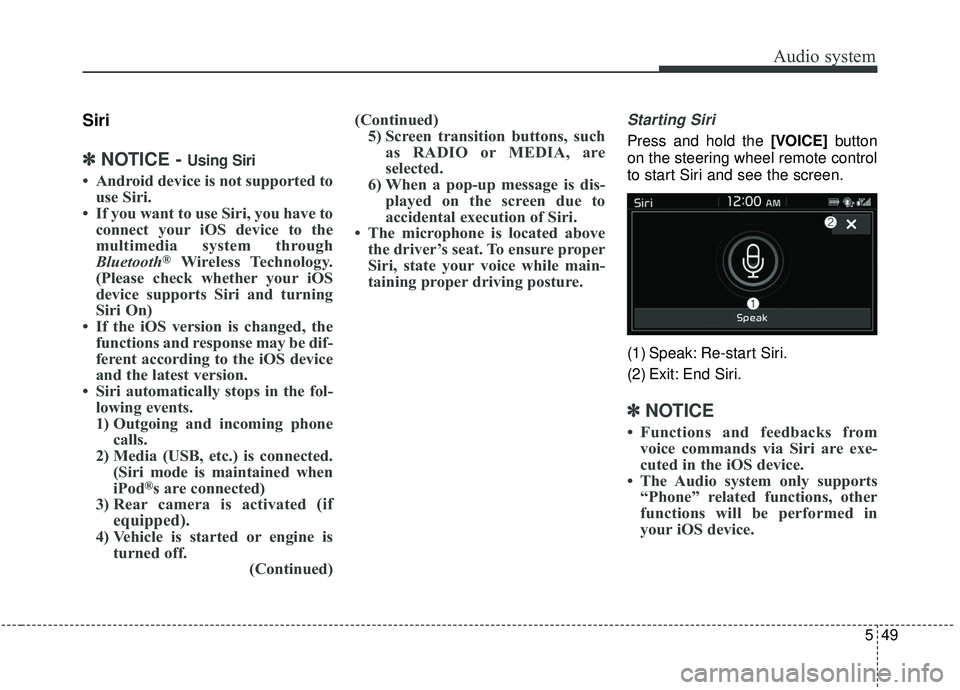
Starting Siri
Press and hold the [VOICE] button
on the steering wheel remote control
to start Siri and see the screen.
(1) Speak: Re-start Siri.
(2) Exit: End Siri.
✽ ✽ NOTICE
• Functions and feedbacks from
voice commands via Siri are exe-
cuted in the iOS device.
• The Audio system only supports “Phone” related functions, other
functions will be performed in
your iOS device.