display KIA SOUL 2020 Features and Functions Guide
[x] Cancel search | Manufacturer: KIA, Model Year: 2020, Model line: SOUL, Model: KIA SOUL 2020Pages: 50, PDF Size: 4.05 MB
Page 22 of 50
SOUL FEATURES & FUNCTIONS GUIDE20
STEERING WHEEL CONTROLS
*IF EQUIPPED †LEGAL DISCL AIMERS ON BACK INSIDE COVER
Voice Recognition Tips Video
To view a video on your mobile device, snap this QR Code or visit the listed website Refer to page 2 for more information
www.youtube.com/KiaFeatureVideos
QR CODE
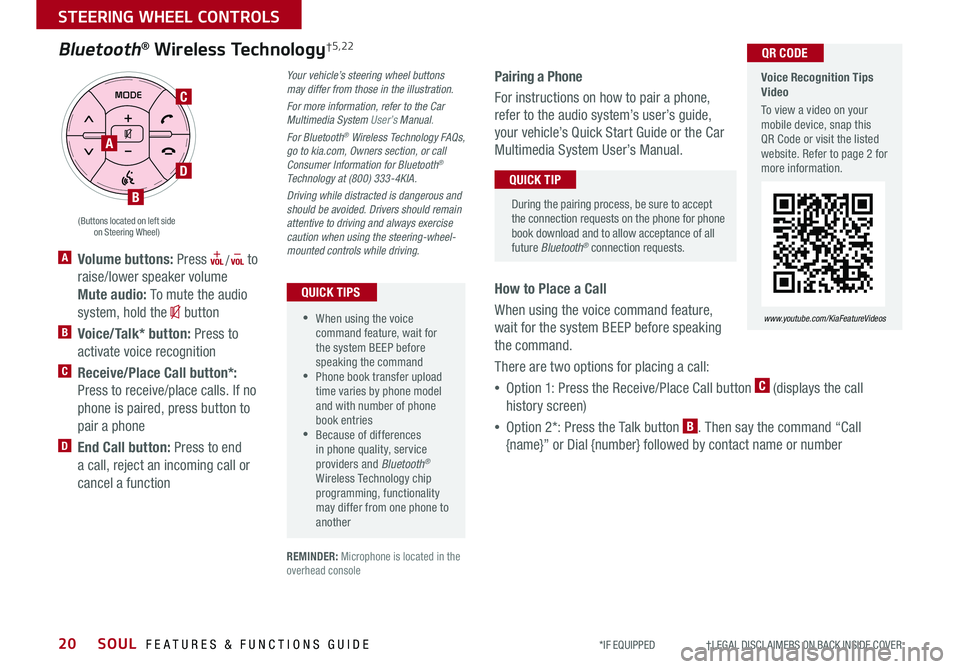
A Volume buttons: Press / to
raise/lower speaker volume
Mute audio: To mute the audio
system, hold the button
B Voice/Talk* button: Press to
activate voice recognition
C Receive/Place Call button*:
Press to receive/place calls If no
phone is paired, press button to
pair a phone
D End Call button: Press to end
a call, reject an incoming call or
cancel a function
Your vehicle’s steering wheel buttons may differ from those in the illustration.
For more information, refer to the Car Multimedia System User’s Manual.
For Bluetooth® Wireless Technology FAQs, go to kia.com, Owners section, or call Consumer Information for Bluetooth® Technology at (800) 333-4KIA.
Driving while distracted is dangerous and should be avoided. Drivers should remain attentive to driving and always exercise caution when using the steering-wheel-mounted controls while driving.
•When using the voice command feature, wait for the system BEEP before speaking the command • Phone book transfer upload time varies by phone model and with number of phone book entries •Because of differences in phone quality, service providers and Bluetooth® Wireless Technology chip programming, functionality may differ from one phone to another
QUICK TIPS
REMINDER: Microphone is located in the overhead console
Pairing a Phone
For instructions on how to pair a phone,
refer to the audio system’s user’s guide,
your vehicle’s Quick Start Guide or the Car
Multimedia System User’s Manual
How to Place a Call
When using the voice command feature,
wait for the system BEEP before speaking
the command
There are two options for placing a call:
•Option 1: Press the Receive/Place Call button C (displays the call
history screen)
•Option 2*: Press the Talk button B Then say the command “Call
{name}” or Dial {number} followed by contact name or number
During the pairing process, be sure to accept the connection requests on the phone for phone book download and to allow acceptance of all future Bluetooth® connection requests
QUICK TIP
Bluetooth® Wireless Technology†5,22
RES
SET+ _<
<
CRUISE
CANCEL OK
RES
SET+ _<
<
CRUISE
CANCEL OK+>>-
MODE
+>
>-
MODE
A
B
C
D
(Buttons located on left side on Steering Wheel)
Page 24 of 50
SOUL FEATURES & FUNCTIONS GUIDE22
STEERING WHEEL CONTROLS
*IF EQUIPPED †LEGAL DISCL AIMERS ON BACK INSIDE COVER
AUDIO SYSTEMS
For further UVO link operations, refer to the Car Multimedia System User's Manual. For other audio system information, refer to pages 23-25.
UVO link Activation*†1
1 Follow these steps to activate UVO on your vehicle’s head unit:
a Press SETUP key
b Press UVO icon
c Press UVO or Service Activation
2 Agree to Terms of Service and Privacy Policy and
press SUBMIT
3 Enter smartphone number or email address
to receive a verification code, then press SUBMIT
4a. Follow these steps if using your phone number to
receive your verification code:
a Check your phone for a SMS (text message)
b Open the link in your SMS A page will open
requesting that you create your account
Note: If you already have a Kia Owners Portal account using the phone number as your
login ID, you will need to provide your password prior to receiving the verification code
c Enter your first name, last name, email, phone number, an account password, and
click CRE ATE ACCOUNT A page will open displaying your verification code
d Enter the code in the head unit and press ACTIVATE
e Go back to the page with your verification code and press “I have entered my PIN ”
A link will be provided to download the Kia Access with UVO link app from your app
store After installing the app, log in and enjoy
Continued on next page
REMINDER: If the steering wheel becomes too warm, turn the system off The heated steering wheel may cause burns even at low temperatures, especially if used for long periods of time
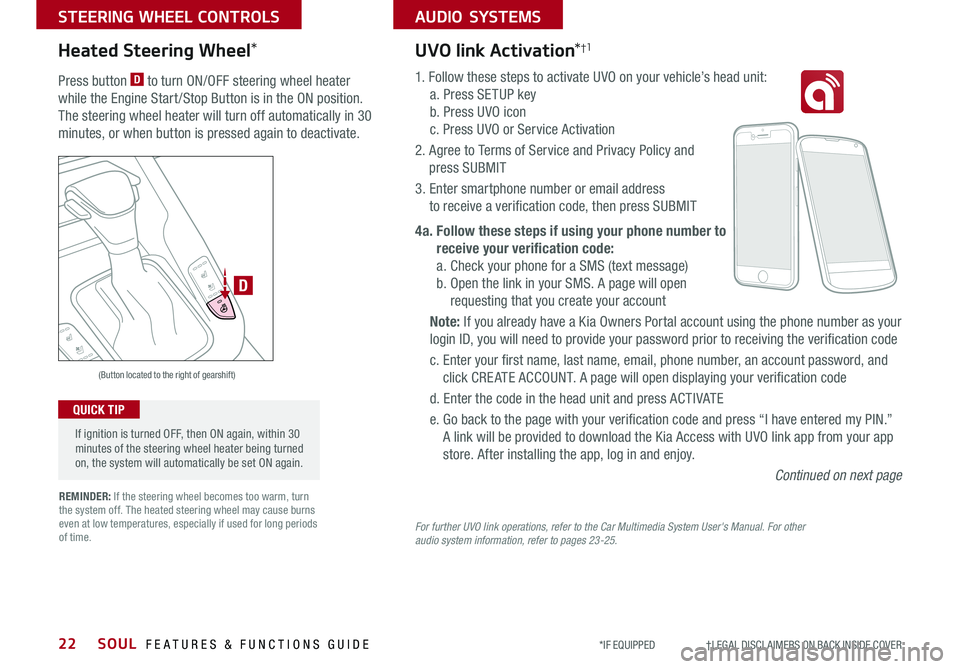
(Button located to the right of gearshift)
D
Heated Steering Wheel*
Press button D to turn ON/OFF steering wheel heater
while the Engine Start /Stop Button is in the ON position
The steering wheel heater will turn off automatically in 30
minutes, or when button is pressed again to deactivate
If ignition is turned OFF, then ON again, within 30 minutes of the steering wheel heater being turned on, the system will automatically be set ON again
QUICK TIP
Page 25 of 50
23ALWAYS CHECK THE OWNER’S MANUAL FOR COMPLETE OPER ATING INFORMATION AND SAFET Y WARNINGS *IF EQUIPPED †LEGAL DISCL AIMERS ON BACK INSIDE COVER
AUDIO SYSTEMS
For other audio system information, refer to pages 22-25.
Driving while distracted can result in a loss of vehicle control that may lead to an accident, severe bodily injury, and death. The driver’s primary responsibility is in the safe and legal operation of a vehicle, and use of any handheld devices, other equipment, or vehicle systems which take the driver’s eyes, attention and focus away from the safe operation of a vehicle or which are not permissible by law should never be used during operation of the vehicle.
UVO link Activation*†1UVO link Activation*†1 (continued)
4b. Follow these steps if using your email to
receive your verification code:
a Check your email The email will be from
reset@notifications myuvo com
b Open link inside email A page will open
requesting that you create your account
Note: If you already have a Kia Owners Portal
account using the email as your login ID, you
will need to provide your password prior to
receiving the verification code
c Enter your first name, last name, email,
phone number, and account password, and
click CRE ATE ACCOUNT A page will open
displaying your verification code
d Enter the code in the head unit and press
ACTIVATE
e Go back to the page with your verification
code and press “I have entered my PIN ”
A link will be provided to download the Kia
Access with UVO link app from your app
store After installing the app, log in
and enjoy
Android AutoTM†3 / Apple CarPlay® Setup†4
Android Auto™*
Setting up Android Auto™:
1 From an Android Auto™ compatible device, download the Android Auto™ app from the Google
Play™ Store†10
2 Open the Android Auto™ app and proceed with the onscreen instructions to complete setup on
the mobile device
How to start Android Auto™:
1 Press the SETUP key on your audio system’s control panel
2 2 Press the Phone Projection or Device Connection button, select Android Auto™, then
select ENABLE ANDROID AUTO Accept all terms, conditions and requests on the head unit and
phone in order to use Android Auto™
3 Connect the Android™ device with the vehicle’s USB port using the manufacturer’s cable
provided with your phone
4 From the vehicle’s Kia home screen, select the Android Auto™ button, where you’ll see all the
Android Auto™ supported apps
Apple CarPlay®*
Setting up and starting Apple CarPlay®:
1 On the head unit, press the SETUP key
2 Press the Phone Projection or Device Connection button,
select Apple CarPlay® then select ENABLE APPLE CARPL AY
(Accept all terms, conditions and requests on the head unit
and phone in order to use Apple CarPlay®)
3 Connect the Apple CarPlay® compatible iPhone® with
the vehicle’s USB port using the manufacturer’s cable
provided with your iPhone®
4 From the vehicle’s home screen, select the Apple
CarPlay® button, where you’ll see all the Apple
CarPlay® supported apps
REMINDERS:
• Android Auto™ compatibility requirements: Micro-USB cable that came with your phone, OS Android™ 5 0 or higher, compatible Android™ smartphone and data and wireless plan for applicable feature(s)
• Apple CarPlay® compatibility requirements: Apple Lightning cable, latest iOS software, iPhone® 5 or later and data and wireless plan for applicable feature(s)
• It is recommended to always update your phone to the latest operating system release
Page 26 of 50
SOUL FEATURES & FUNCTIONS GUIDE24
AUDIO SYSTEMS
*IF EQUIPPED †LEGAL DISCL AIMERS ON BACK INSIDE COVER
RADIO
MEDIA
TRACK SEEKHOME
PHONE
SETUP
Standard Audio System Video
To view a video on your mobile device, snap this QR Code or visit the listed website Refer to page 2 for more information
www.youtube.com/KiaFeatureVideos
QR CODE
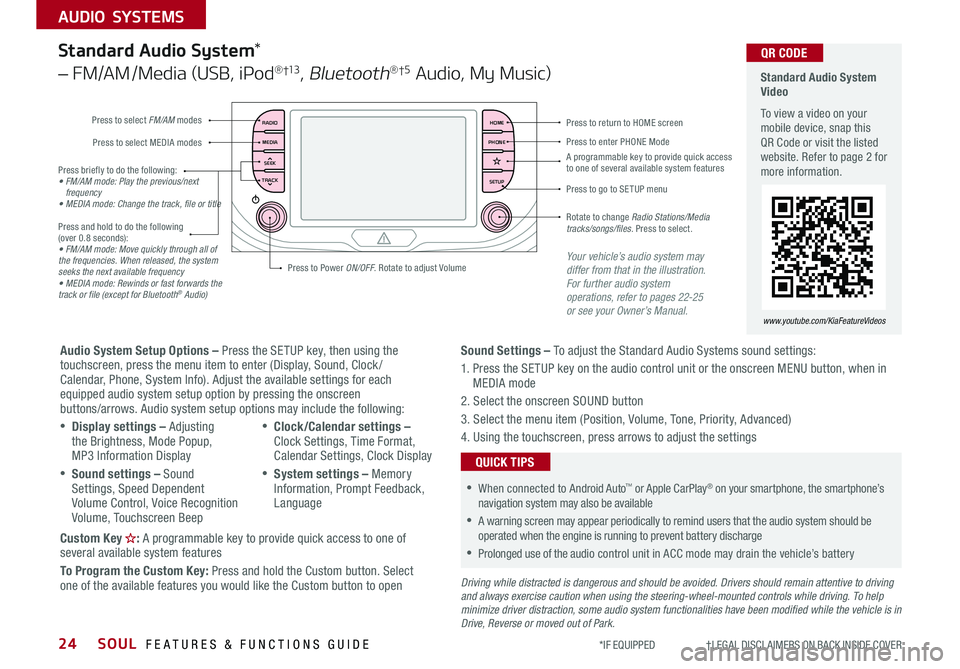
Press to select FM/AM modes
A programmable key to provide quick access to one of several available system features
Press to Power ON/OFF Rotate to adjust Volume
Press to select MEDIA modesPress to enter PHONE Mode
Press to return to HOME screen
Press briefly to do the following:• FM/AM mode: Play the previous/next frequency• MEDIA mode: Change the track, file or title Press and hold to do the following (over 0 8 seconds):• FM/AM mode: Move quickly through all of the frequencies. When released, the system seeks the next available frequency• MEDIA mode: Rewinds or fast forwards the track or file (except for Bluetooth® Audio)
Press to go to SE TUP menu
Rotate to change Radio Stations/Media tracks/songs/files. Press to select
Standard Audio System*
– FM/AM /Media (USB, iPod® †13, Bluetooth®†5 Audio, My Music)
Audio System Setup Options – Press the SETUP key, then using the touchscreen, press the menu item to enter (Display, Sound, Clock / Calendar, Phone, System Info) Adjust the available settings for each equipped audio system setup option by pressing the onscreen buttons/arrows Audio system setup options may include the following:
•Display settings – Adjusting the Brightness, Mode Popup, MP3 Information Display
•Sound settings – Sound Settings, Speed Dependent Volume Control, Voice Recognition Volume, Touchscreen Beep
•Clock/Calendar settings – Clock Settings, Time Format, Calendar Settings, Clock Display
•System settings – Memory Information, Prompt Feedback, Language
Custom Key : A programmable key to provide quick access to one of several available system features
To Program the Custom Key: Press and hold the Custom button Select one of the available features you would like the Custom button to open
Your vehicle’s audio system may differ from that in the illustration. For further audio system operations, refer to pages 22-25 or see your Owner’s Manual.
Sound Settings – To adjust the Standard Audio Systems sound settings:
1 Press the SETUP key on the audio control unit or the onscreen MENU button, when in MEDIA mode
2 Select the onscreen SOUND button
3 Select the menu item (Position, Volume, Tone, Priority, Advanced)
4 Using the touchscreen, press arrows to adjust the settings
Driving while distracted is dangerous and should be avoided. Drivers should remain attentive to driving and always exercise caution when using the steering-wheel-mounted controls while driving. To help minimize driver distraction, some audio system functionalities have been modified while the vehicle is in Drive, Reverse or moved out of Park.
•When connected to Android Auto™ or Apple CarPlay® on your smartphone, the smartphone’s navigation system may also be available
•A warning screen may appear periodically to remind users that the audio system should be operated when the engine is running to prevent battery discharge
•Prolonged use of the audio control unit in ACC mode may drain the vehicle’s battery
QUICK TIPS
Page 27 of 50
25ALWAYS CHECK THE OWNER’S MANUAL FOR COMPLETE OPER ATING INFORMATION AND SAFET Y WARNINGS *IF EQUIPPED †LEGAL DISCL AIMERS ON BACK INSIDE COVER
AUDIO SYSTEMS
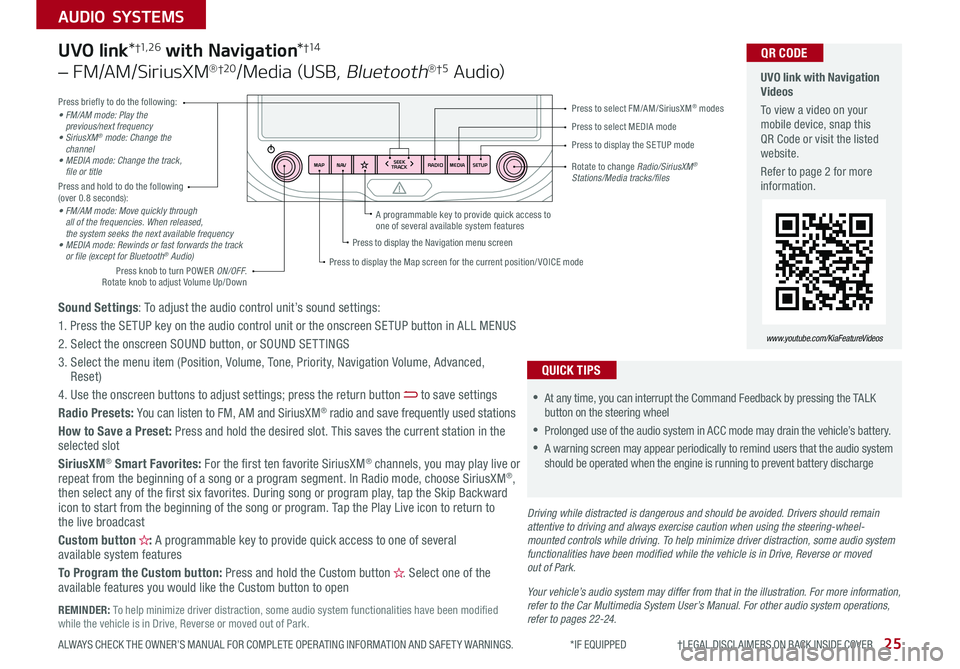
RADIO
SEEK
TRACK
N AV
MAP MEDIASETUP
A programmable key to provide quick access to one of several available system features
Driving while distracted is dangerous and should be avoided. Drivers should remain attentive to driving and always exercise caution when using the steering-wheel-mounted controls while driving. To help minimize driver distraction, some audio system functionalities have been modified while the vehicle is in Drive, Reverse or moved out of Park.
Press briefly to do the following:• FM/AM mode: Play the previous/next frequency• SiriusXM® mode: Change the channel• MEDIA mode: Change the track, file or titlePress and hold to do the following (over 0 8 seconds):• FM/AM mode: Move quickly through all of the frequencies. When released, the system seeks the next available frequency• MEDIA mode: Rewinds or fast forwards the track or file (except for Bluetooth® Audio)
Press to select MEDIA mode
Press to select FM/AM/SiriusXM® modes
Rotate to change Radio/SiriusXM® Stations/Media tracks/files
Press to display the Map screen for the current position/ VOICE mode
Press to display the Navigation menu screen
Press to display the SE TUP mode
UVO link with Navigation Videos
To view a video on your mobile device, snap this QR Code or visit the listed website
Refer to page 2 for more information
QR CODE
www.youtube.com/KiaFeatureVideos
Sound Settings: To adjust the audio control unit’s sound settings:
1 Press the SETUP key on the audio control unit or the onscreen SETUP button in ALL MENUS
2 Select the onscreen SOUND button, or SOUND SET TINGS
3 Select the menu item (Position, Volume, Tone, Priority, Navigation Volume, Advanced, Reset)
4 Use the onscreen buttons to adjust settings; press the return button to save settings
Radio Presets: You can listen to FM, AM and SiriusXM® radio and save frequently used stations
How to Save a Preset: Press and hold the desired slot This saves the current station in the selected slot
SiriusXM® Smart Favorites: For the first ten favorite SiriusXM® channels, you may play live or repeat from the beginning of a song or a program segment In Radio mode, choose SiriusXM®, then select any of the first six favorites During song or program play, tap the Skip Backward icon to start from the beginning of the song or program Tap the Play Live icon to return to the live broadcast
Custom button : A programmable key to provide quick access to one of several available system features
To Program the Custom button: Press and hold the Custom button Select one of the available features you would like the Custom button to open
UVO link*†1, 2 6 with Navigation*†1 4
– FM/AM/SiriusXM®†2 0/Media (USB, Bluetooth®†5 Au d io)
•
•At any time, you can interrupt the Command Feedback by pressing the TALK button on the steering wheel
•Prolonged use of the audio system in ACC mode may drain the vehicle’s battery
•A warning screen may appear periodically to remind users that the audio system should be operated when the engine is running to prevent battery discharge
QUICK TIPS
Your vehicle’s audio system may differ from that in the illustration. For more information, refer to the Car Multimedia System User’s Manual. For other audio system operations, refer to pages 22-24.
Press knob to turn POWER ON/OFF Rotate knob to adjust Volume Up/Down
REMINDER: To help minimize driver distraction, some audio system functionalities have been modified while the vehicle is in Drive, Reverse or moved out of Park
Page 28 of 50
SOUL FEATURES & FUNCTIONS GUIDE26*IF EQUIPPED
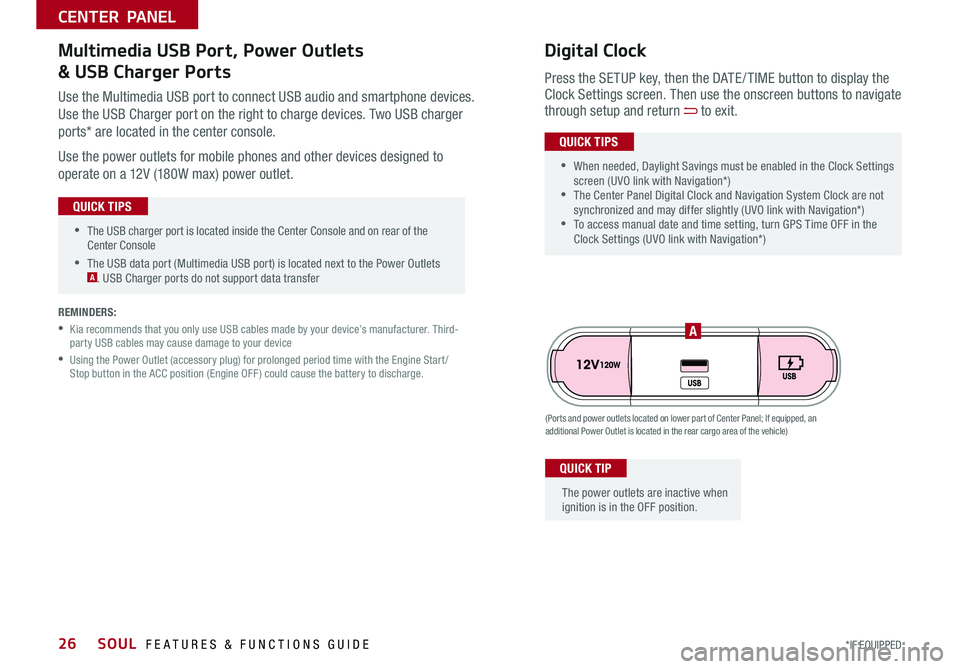
•The USB charger port is located inside the Center Console and on rear of the Center Console
•The USB data port (Multimedia USB port) is located next to the Power Outlets A USB Charger ports do not support data transfer
QUICK TIPS
CENTER PANEL
Use the Multimedia USB port to connect USB audio and smartphone devices
Use the USB Charger port on the right to charge devices Two USB charger
ports* are located in the center console
Use the power outlets for mobile phones and other devices designed to
operate on a 12V (180W max) power outlet
(Ports and power outlets located on lower part of Center Panel; If equipped, an additional Power Outlet is located in the rear cargo area of the vehicle)
Press the SETUP key, then the DATE / TIME button to display the Clock Settings screen Then use the onscreen buttons to navigate through setup and return to exit
•
•When needed, Daylight Savings must be enabled in the Clock Settings screen (UVO link with Navigation*) •The Center Panel Digital Clock and Navigation System Clock are not synchronized and may differ slightly (UVO link with Navigation*) •To access manual date and time setting, turn GPS Time OFF in the Clock Settings (UVO link with Navigation*)
QUICK TIPS
Digital ClockMultimedia USB Port, Power Outlets
& USB Charger Ports
The power outlets are inactive when ignition is in the OFF position
QUICK TIP
A
REMINDERS:
•
Kia recommends that you only use USB cables made by your device’s manufacturer Third-party USB cables may cause damage to your device
•
Using the Power Outlet (accessory plug) for prolonged period time with the Engine Start /Stop button in the ACC position (Engine OFF ) could cause the battery to discharge
Page 31 of 50
29ALWAYS CHECK THE OWNER’S MANUAL FOR COMPLETE OPER ATING INFORMATION AND SAFET Y WARNINGS *IF EQUIPPED
CENTER PANEL
68ºF 68ºFSYNC
Auto Defogging System Video
To view video on your mobile device, snap this QR Code or visit the listed website Refer to page 2 for more information
www.youtube.com/KiaFeatureVideos
QR CODE
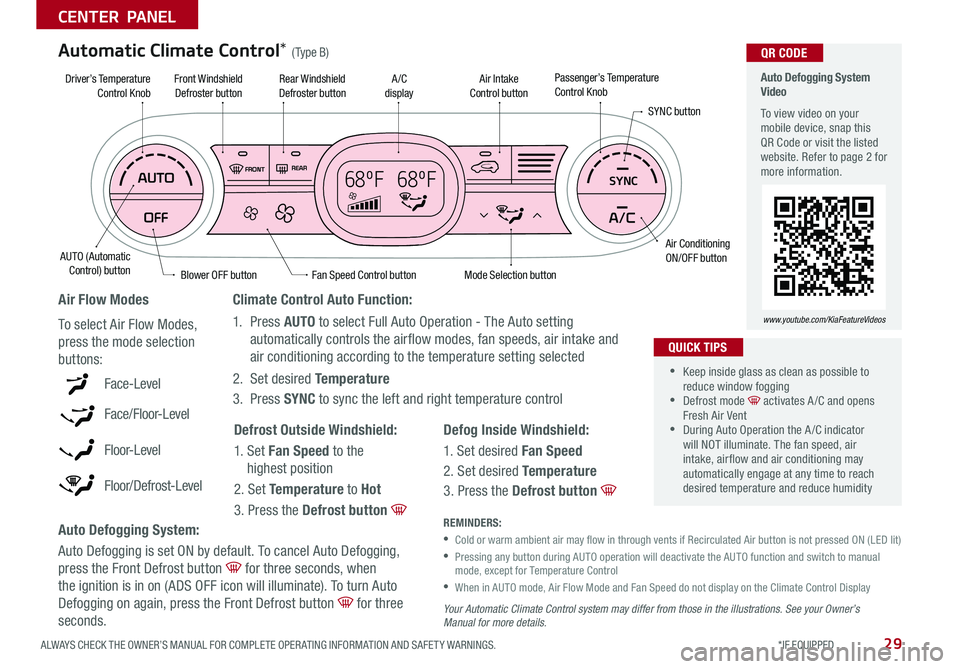
Fan Speed Control buttonMode Selection button
A /C displayRear Windshield Defroster button
AUTO (Automatic Control) button
Air Intake Control buttonFront Windshield Defroster button
Air ConditioningON/OFF button
SYNC button
Driver’s TemperatureControl KnobPassenger’s TemperatureControl Knob
Blower OFF button
REMINDERS:
•
Cold or warm ambient air may flow in through vents if Recirculated Air button is not pressed ON (LED lit)
•
Pressing any button during AUTO operation will deactivate the AUTO function and switch to manual mode, except for Temperature Control
•
When in AUTO mode, Air Flow Mode and Fan Speed do not display on the Climate Control Display
Your Automatic Climate Control system may differ from those in the illustrations. See your Owner’s Manual for more details.
Defog Inside Windshield:
1 Set desired Fan Speed
2 Set desired Temperature
3 Press the Defrost button
Defrost Outside Windshield:
1 Set Fan Speed to the
highest position
2 Set Temperature to Hot
3 Press the Defrost button
Auto Defogging System:
Auto Defogging is set ON by default To cancel Auto Defogging,
press the Front Defrost button for three seconds, when
the ignition is in on (ADS OFF icon will illuminate) To turn Auto
Defogging on again, press the Front Defrost button for three
seconds
Climate Control Auto Function:
1 Press AUTO to select Full Auto Operation - The Auto setting
automatically controls the airflow modes, fan speeds, air intake and
air conditioning according to the temperature setting selected
2 Set desired Temperature
3 Press SYNC to sync the left and right temperature controlFace-Level
Face/Floor-Level
F lo o r- L evel
Floor/Defrost-Level
Air Flow Modes
To select Air Flow Modes,
press the mode selection
buttons:
Automatic Climate Control* (Type B)
•
•Keep inside glass as clean as possible to reduce window fogging •Defrost mode activates A /C and opens Fresh Air Vent •During Auto Operation the A /C indicator will NOT illuminate The fan speed, air intake, air flow and air conditioning may automatically engage at any time to reach desired temperature and reduce humidity
QUICK TIPS
Page 33 of 50

31
CENTER PANEL
Dual Clutch Transmission (DCT)*
Some Kia vehicles are equipped with Dual Clutch Transmission (DCT ) for both automatic and manual transmissions
The following are unique driving tips of the Dual Clutch Transmission:
• To hold the vehicle stationary on an incline, the service brake or parking brake MUST be used or the gear shift MUST be in the (P) Park position
If the vehicle is held stationary by applying the accelerator pedal on a slope, the clutch/transmission may overheat, resulting in damage
• Avoid aggressive launches on steep grades as this may result in an overheated clutch and transmission
• A slight time lag may be experienced at takeoff from standstill during aggressive acceleration maneuvers
If the clutch is overheating an amber-colored warning light will be displayed on the instrument cluster
Should this condition occur, pull over and place the vehicle in Park and idle the engine.
Refer to the Owner’s Manual for additional information on DCT operation or call Kia Consumer Affairs for additional information.
Sportmatic® Shifting Video To view a video on your mobile device, snap this QR Code or visit the listed website
Refer to page 2 for more information
www.youtube.com/KiaFeatureVideos
QR CODE
•
•Press brake pedal and depress release button to move gear shift from N to P, N to R or from P to any gear •Manual Mode downshifts are made automatically when the vehicle slows down When the vehicle stops, 1st gear is automatically selected
QUICK TIPS
P: Park
R: Reverse
N: Neutral
D: Drive
[+]: Manual Mode Upshift
[–]: Manual Mode Downshift
Manual Mode:
To enter Manual mode, move shift lever from D to left gate A
To shift while in Manual mode, move shift lever up [+] to
upshift or down [–] to downshift
Automatic Gear Shift with Sportmatic® Shifting*†21
A
ALWAYS CHECK THE OWNER’S MANUAL FOR COMPLETE OPER ATING INFORMATION AND SAFET Y WARNINGS *IF EQUIPPED †LEGAL DISCL AIMERS ON BACK INSIDE COVER
Page 41 of 50

39
OTHER KEY FEATURES
ALWAYS CHECK THE OWNER’S MANUAL FOR COMPLETE OPER ATING INFORMATION AND SAFET Y WARNINGS *IF EQUIPPED
( Type A )
B
For illustrative purposes only. Display may vary
Sunroof Operation Video To view a video on your mobile device, snap this QR Code or visit the listed website
Refer to page 2 for more information
www.youtube.com/KiaFeatureVideos
QR CODE
Do not adjust the sunroof or sunshade while driving. This could result in loss of control of the vehicle.
Sunroof Open Warning*
If the Sunroof is not fully closed, the warning will chime and display on the LCD screen* B when:
•The ignition is turned off (Smart Key*)
•The ignition key is removed
•The driver’s door is opened
To stop the Sunroof/Sunshade at any position, push or pull the sunroof control lever in any direction (one detent)
QUICK TIP
To slide the Sunshade and Sunroof:
•Open automatically: Slide the lever A backward to the farthest
position (second detent)
•Close automatically: Slide the lever A forward to the farthest
position (second detent)
Tilt the Sunroof:
•Raise: Push lever A upward
•Lower: Push lever A forward
•Auto Close: Slide the lever A forward
REMINDERS:
•If open, the Sunroof will also close when the toggle button is pressed
•Sunshade needs to remain OPEN while Sunroof is open and vehicle is moving
The sunroof and sunshade operation is controlled through a multidirectional button/lever A
The ignition needs to be in the ON position to operate the Sunroof and Sunshade
Sunroof Operation with Power Sunshade*
A
Page 42 of 50

SOUL FEATURES & FUNCTIONS GUIDE40
OTHER KEY FEATURES
*IF EQUIPPED †LEGAL DISCL AIMERS ON BACK INSIDE COVER
(Rear Camera)
(Rear-Camera Display)
P
R
N
DSHIFTL OCK
RELEASE
Rear View Monitor*†6
The Rear View Monitor is a supplemental system that displays the view behind the
vehicle through the audio system screens while the vehicle is in Reverse
The Rear View Monitor activates when the:
1 Engine Start /Stop button* is in the ON position (green light)
2
Gear Shift Lever is in the R (Reverse) position
The Rear View Monitor is not a substitute for proper and safe backing-up procedures. The Rear View Monitor may not display every object behind the vehicle. Always drive safely and use caution when backing up.
For illustrative purposes only. Display may vary.
REMINDER: Always drive carefully and use caution when backing up