music KIA SOUL 2021 Navigation System Quick Reference Guide
[x] Cancel search | Manufacturer: KIA, Model Year: 2021, Model line: SOUL, Model: KIA SOUL 2021Pages: 211, PDF Size: 6.67 MB
Page 138 of 211
7-16
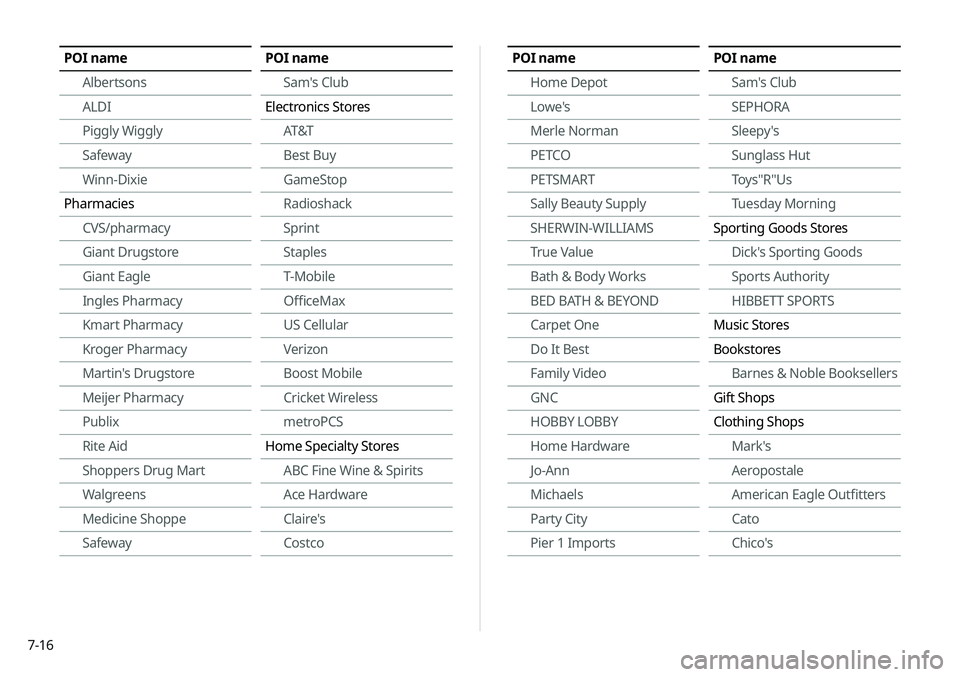
POI nameAlbertsons
ALDI
Piggly Wiggly
Safeway
Winn-Dixie
Pharmacies CVS/pharmacy
Giant Drugstore
Giant Eagle
Ingles Pharmacy
Kmart Pharmacy
Kroger Pharmacy
Martin's Drugstore
Meijer Pharmacy
Publix
Rite Aid
Shoppers Drug Mart
Walgreens
Medicine Shoppe
SafewayPOI name
Sam's Club
Electronics Stores AT&T
Best Buy
GameStop
Radioshack
Sprint
Staples
T-Mobile
OfficeMax
US Cellular
Verizon
Boost Mobile
Cricket Wireless
metroPCS
Home Specialty Stores ABC Fine Wine & Spirits
Ace Hardware
Claire's
CostcoPOI name
Home Depot
Lowe's
Merle Norman
PETCO
PETSMART
Sally Beauty Supply
SHERWIN-WILLIAMS
True Value
Bath & Body Works
BED BATH & BEYOND
Carpet One
Do It Best
Family Video
GNC
HOBBY LOBBY
Home Hardware
Jo-Ann
Michaels
Party City
Pier 1 ImportsPOI nameSam's Club
SEPHORA
Sleepy's
Sunglass Hut
Toys"R"Us
Tuesday Morning
Sporting Goods Stores Dick's Sporting Goods
Sports Authority
HIBBETT SPORTS
Music Stores
Bookstores Barnes & Noble Booksellers
Gift Shops
Clothing Shops Mark's
Aeropostale
American Eagle Outfitters
Cato
Chico's
Page 158 of 211
![KIA SOUL 2021 Navigation System Quick Reference Guide 9-4
TUNE Knob Function
You can change the [TUNE/FILE] knob’s function on the map.
Changes Stations, Tracks, etc., in the Audio
System
You can search music or adjust the radio frequency by using the](/img/2/55175/w960_55175-157.png "KIA SOUL 2021 Navigation System Quick Reference Guide 9-4
TUNE Knob Function
You can change the [TUNE/FILE] knob’s function on the map.
Changes Stations, Tracks, etc., in the Audio
System
You can search music or adjust the radio frequency by using the")
9-4
TUNE Knob Function
You can change the [TUNE/FILE] knob’s function on the map.
Changes Stations, Tracks, etc., in the Audio
System
You can search music or adjust the radio frequency by using the
[TUNE/ FILE] knob on the map.
Zooms In/Out on the Map
You can zoom in or out the map by using the [TUNE/ FILE] knob
on the map.
Configuring the advanced
system settings
You can configure the settings for notification and button actions.
1 On the All Menus screen, touch Setup >
Advanced.
The advanced settings screen appears.
2 Configure the settings required:
Return to Map: Set Time
You can set the system to automatically display the map screen
after a specified period of time when switched to the Radio/Media
mode screen while using the navigation.
0000
A
This function works while driving once a destination has been
set.
0000
A
This feature is not available on the phone projection screen.
Page 173 of 211
9-19
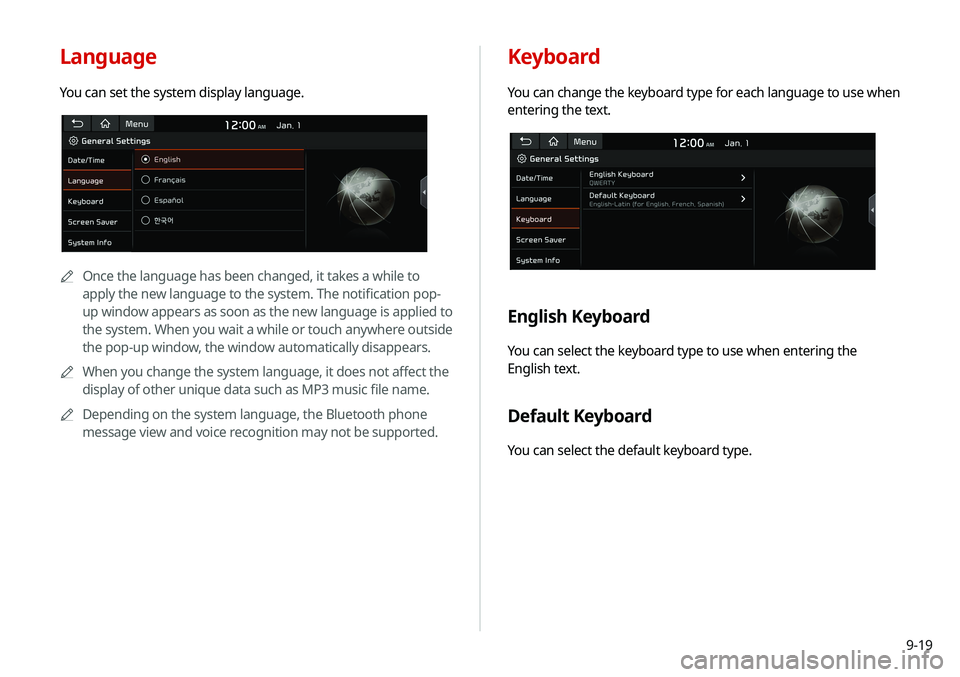
Keyboard
You can change the keyboard type for each language to use when
entering the text.
English Keyboard
You can select the keyboard type to use when entering the
English text.
Default Keyboard
You can select the default keyboard type.
Language
You can set the system display language.
0000
A
Once the language has been changed, it takes a while to
apply the new language to the system. The notification pop-
up window appears as soon as the new language is applied to
the system. When you wait a while or touch anywhere outside
the pop-up window, the window automatically disappears.
0000
A
When you change the system language, it does not affect the
display of other unique data such as MP3 music file name.
0000
A
Depending on the system language, the Bluetooth phone
message view and voice recognition may not be supported.
Page 189 of 211
10-11
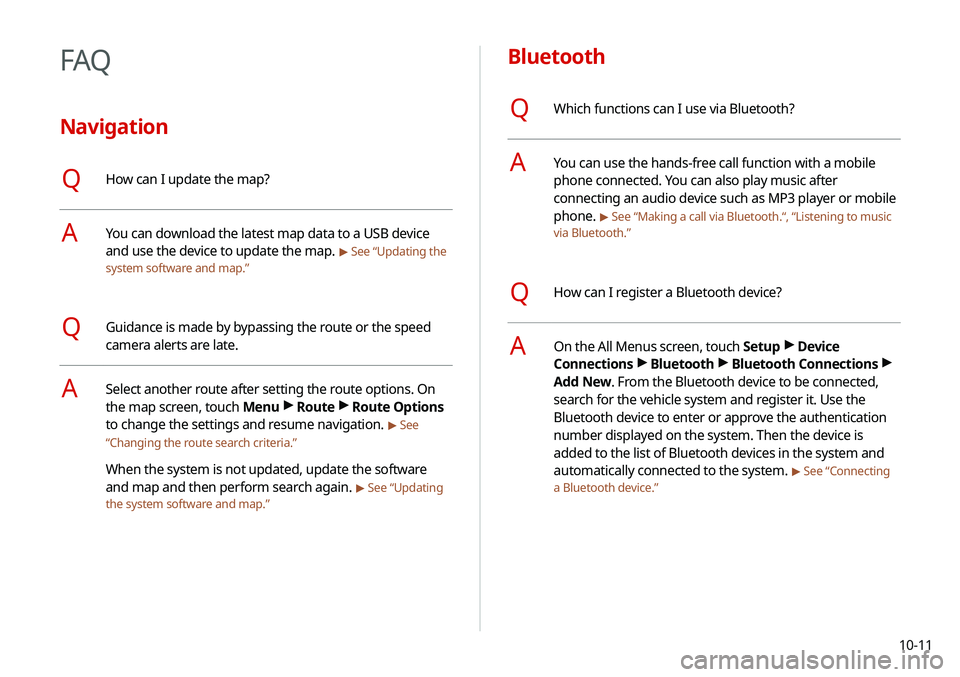
Bluetooth
QWhich functions can I use via Bluetooth?
AYou can use the hands-free call function with a mobile
phone connected. You can also play music after
connecting an audio device such as MP3 player or mobile
phone.
> See “Making a call via Bluetooth.“, “Listening to music
via Bluetooth.”
QHow can I register a Bluetooth device?
AOn the All Menus screen, touch Setup >
Device
Connections >
Bluetooth >
Bluetooth Connections >
Add New. From the Bluetooth device to be connected,
search for the vehicle system and register it. Use the
Bluetooth device to enter or approve the authentication
number displayed on the system. Then the device is
added to the list of Bluetooth devices in the system and
automatically connected to the system.
> See “Connecting
a Bluetooth device.”
FAQ
Navigation
QHow can I update the map?
AYou can download the latest map data to a USB device
and use the device to update the map.
> See “Updating the
system software and map.”
QGuidance is made by bypassing the route or the speed
camera alerts are late.
ASelect another route after setting the route options. On
the map screen, touch Menu >
Route >
Route Options
to change the settings and resume navigation.
> See
“ Changing the route search criteria.”
When the system is not updated, update the software
and map and then perform search again.
> See “Updating
the system software and map.”
Page 191 of 211
10-13
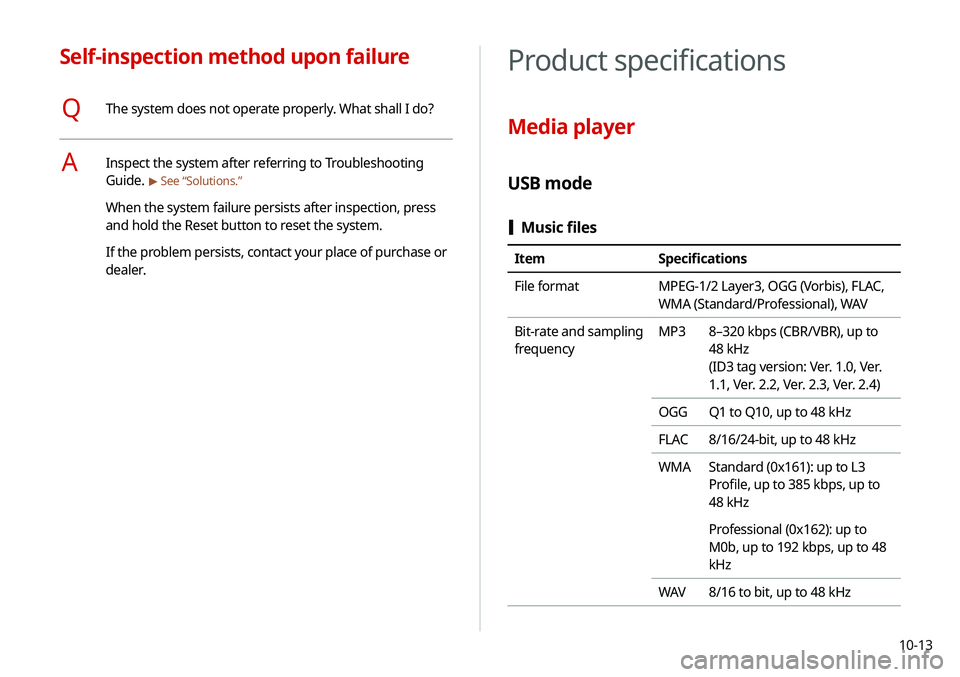
Product specifications
Media player
USB mode
[Music files
Item Specifications
File format MPEG-1/2 Layer3, OGG (Vorbis), FLAC,
WMA (Standard/Professional), WAV
Bit-rate and sampling
frequency MP3
8–320 kbps (CBR/VBR), up to
48 kHz
(ID3 tag version: Ver. 1.0, Ver.
1.1, Ver. 2.2, Ver. 2.3, Ver. 2.4)
OGG Q1 to Q10, up to 48 kHz
FLAC 8/16/24-bit, up to 48 kHz
WMA Standard (0x161): up to L3
Profile, up to 385 kbps, up to
48 kHz
Professional (0x162): up to
M0b, up to 192 kbps, up to 48
kHz
WAV 8/16 to bit, up to 48 kHz
Self-inspection method upon failure
QThe system does not operate properly. What shall I do?
AInspect the system after referring to Troubleshooting
Guide.
> See “Solutions.”
When the system failure persists after inspection, press
and hold the Reset button to reset the system.
If the problem persists, contact your place of purchase or
dealer.
Page 192 of 211
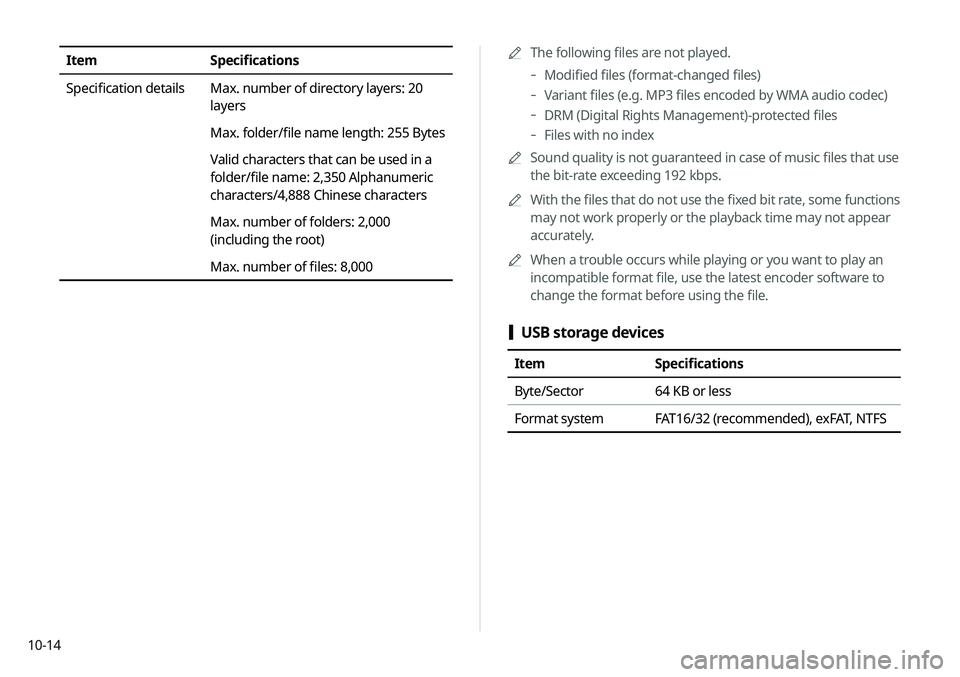
10-140000
A
The following files are not played.
-Modified files (format-changed files)
-Variant files (e.g. MP3 files encoded by WMA audio codec)
-DRM (Digital Rights Management)-protected files
-Files with no index
0000
A
Sound quality is not guaranteed in case of music files that use
the bit-rate exceeding 192 kbps.
0000
A
With the files that do not use the fixed bit rate, some functions
may not work properly or the playback time may not appear
accurately.
0000
A
When a trouble occurs while playing or you want to play an
incompatible format file, use the latest encoder software to
change the format before using the file.
[USB storage devices
Item Specifications
Byte/Sector 64 KB or less
Format system FAT16/32 (recommended), exFAT, NTFS
Item Specifications
Specification details Max. number of directory layers: 20
layers
Max. folder/file name length: 255 Bytes
Valid characters that can be used in a
folder/file name: 2,350 Alphanumeric
characters/4,888 Chinese characters
Max. number of folders: 2,000
(including the root)
Max. number of files: 8,000
Page 199 of 211
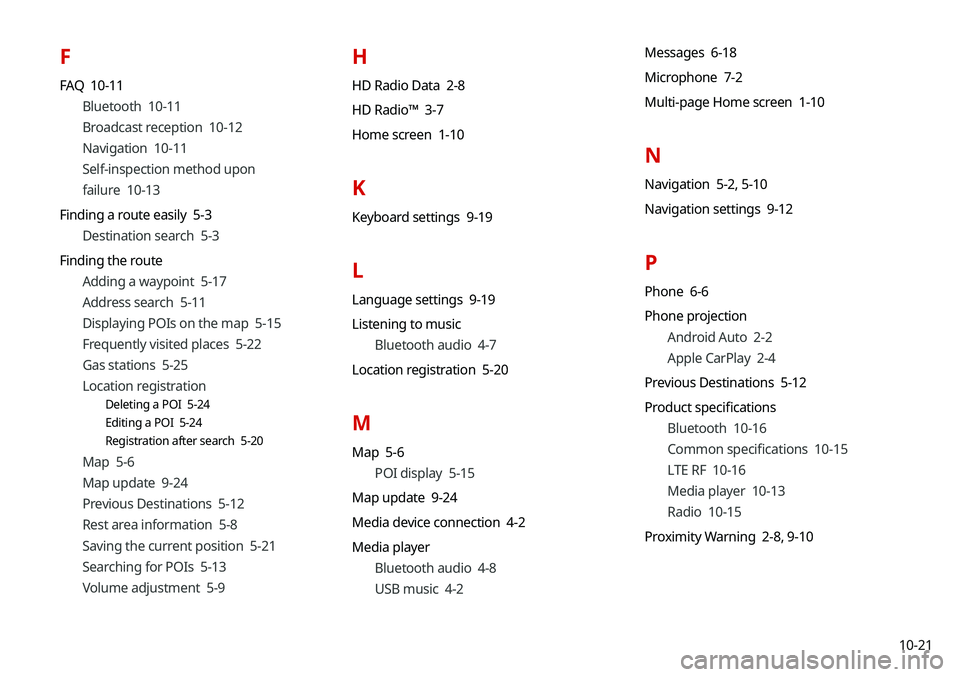
10-21
F
FAQ 10-11Bluetooth 10-11
Broadcast reception 10-12
Navigation 10-11
Self-inspection method upon
failure 10-13
Finding a route easily 5-3 Destination search 5-3
Finding the route Adding a waypoint 5-17
Address search 5-11
Displaying POIs on the map 5-15
Frequently visited places 5-22
Gas stations 5-25
Location registration
Deleting a POI 5-24
Editing a POI 5-24
Registration after search 5-20
Map 5-6
Map update 9-24
Previous Destinations 5-12
Rest area information 5-8
Saving the current position 5-21
Searching for POIs 5-13
Volume adjustment 5-9
H
HD Radio Data 2-8
HD Radio™ 3-7
Home screen 1-10
K
Keyboard settings 9-19
L
Language settings 9-19
Listening to musicBluetooth audio 4-7
Location registration 5-20
M
Map 5-6 POI display 5-15
Map update 9-24
Media device connection 4-2
Media player Bluetooth audio 4-8
USB music 4-2 Messages 6-18
Microphone 7-2
Multi-page Home screen 1-10
N
Navigation 5-2,
5-10
Navigation settings 9-12
P
Phone 6-6
Phone projection Android Auto 2-2
Apple CarPlay 2-4
Previous Destinations 5-12
Product specifications Bluetooth 10-16
Common specifications 10-15
LTE RF 10-16
Media player 10-13
Radio 10-15
Proximity Warning 2-8, 9-10
Page 201 of 211

10-23
U
Update 9-24
USB file specifications 10-13
USB music 4-2
USB port 4-2
USB storage device specifications 10-14
Using the sound mood lamp 2-11
Using the touch screen 1-6
UVOService 8-2
UVO menu
Diagnosing the vehicle 8-6
Driving Information 8-5
My POIs 8-7
Roadside Assistance 8-6
Settings 8-9, 9-16
Virtual Assistant 8-8
Voice Local Search 8-9
V
Voice memo 7-19
Voice recognition
Help 7-4
Microphone 7-2
Navigation commands 7-7
Other commands 7-10
POI name 7-11
Radio commands 7-10
Using the voice recognition 7-2
Volume setting 7-4
Voice recognition settings 9-11