USB KIA Soul EV 2016 2.G Owner's Guide
[x] Cancel search | Manufacturer: KIA, Model Year: 2016, Model line: Soul EV, Model: KIA Soul EV 2016 2.GPages: 524, PDF Size: 25.82 MB
Page 269 of 524
4199
Features of your vehicle
BASIC METHOD OF USE :
USB / iPod
®/ My Music
Press the key to change the
mod mode in order of USB(iPod®) ➟
AUX ➟ My Music ➟ BT Audio.
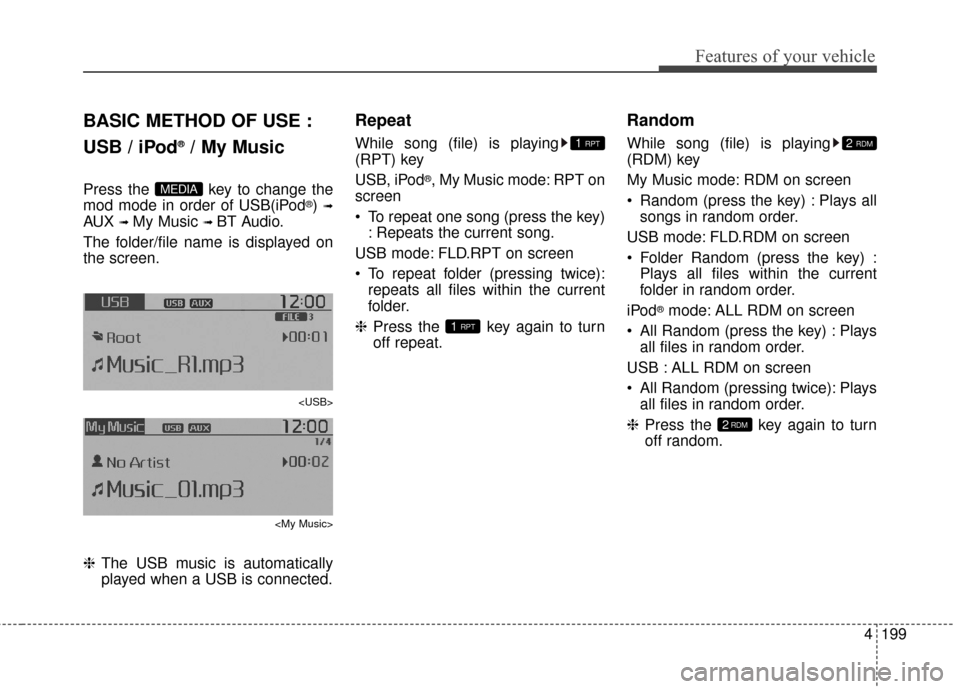
The folder/file name is displayed on
the screen.
❈ The USB music is automatically
played when a USB is connected.
Repeat
While song (file) is playing
(RPT) key
USB, iPod
®, My Music mode: RPT on
screen
To repeat one song (press the key) : Repeats the current song.
USB mode: FLD.RPT on screen
To repeat folder (pressing twice): repeats all files within the current
folder.
❈ Press the key again to turn
off repeat.
Random
While song (file) is playing
(RDM) key
My Music mode: RDM on screen
Random (press the key) : Plays all
songs in random order.
USB mode: FLD.RDM on screen
Folder Random (press the key) : Plays all files within the current
folder in random order.
iPod
®mode: ALL RDM on screen
All Random (press the key) : Plays all files in random order.
USB : ALL RDM on screen
All Random (pressing twice): Plays all files in random order.
❈ Press the key again to turn
off random.
2RDM
2 RDM
1 RPT
1 RPT
MEDIA
Page 270 of 524
Features of your vehicle
200
4
Changing Song/File
While song (file) is playing
key
Shortly pressing the key : Plays the current song from the beginning.
❈ If the key is pressed
again within 2 second, the previ-
ous song is played.
Pressing and holding the key (over 0.8 seconds): Rewinds the song.
While song (file) is playing key
Shortly pressing the key : Plays the next song.
Pressing and holding the key (over 0.8 seconds) : Fast forwards the
song.
Scan
While song (file) is playing
key
Scans allsongs from the next song for 10
seconds each.
❈ Press the key again to turn
off.
❈ The SCAN function is not support-
ed in iPod
®mode. Folder Search : USB Mode
While file is playing
(Folder Up) key
While file is playing
(Folder Down) key
❈
If a folder is selected by pressing
the TUNE knob, the first file
within the selected folder will be
played.
❈ In iPod
®mode, moves to the
Parent Folder.
Searching Songs (File)
Turning TUNE knob : Searches for songs (files)
Pressing TUNE knob : Plays selected song (file).
CAT
FOLDER
CAT
FOLDER
SCAN
SCAN
SEEK
TRACK
SEEK
TRACK
SEEK
TRACK
Page 271 of 524
![KIA Soul EV 2016 2.G Owners Guide 4201
Features of your vehicle
MENU : USB
Press the USB mode key to
set the Repeat, Folder Random,
Folder Repeat, All Random,
Information, and Copy features.
Repeat
Press the key Set [ RPT]
through t](/img/2/2980/w960_2980-270.png "KIA Soul EV 2016 2.G Owners Guide 4201
Features of your vehicle
MENU : USB
Press the USB mode key to
set the Repeat, Folder Random,
Folder Repeat, All Random,
Information, and Copy features.
Repeat
Press the key Set [ RPT]
through t")
4201
Features of your vehicle
MENU : USB
Press the USB mode key to
set the Repeat, Folder Random,
Folder Repeat, All Random,
Information, and Copy features.
Repeat
Press the key Set [ RPT]
through the TUNE knob or
key to repeat the current song.
❈Press RPT again to turn off.
Folder Random
Press the key Set [ F.RDM]
through the
TUNEknob or
key to randomly play songs within the
current folder.
❈ Press F.RDM again to turn off.
Folder Repeat
Press the key Set [ F.RPT]
through the TUNE knob or
key to repeat songs within the cur-
rent folder.
❈Press F.RPT again to turn off.
All Random
Press the key Set [
A.RDM] through the TUNE knob
or key to randomly play all
songs within the USB.
❈Press A.RDM again to turn off.
Information
Press the key Set [ Info]
through the TUNE knob or
key to display information of the cur-
rent song.
❈Press the key to turn off
info display.
MENU
5
MENU
4
MENU
3
MENU
2 RDM
MENU
1 RPT
MENU
MENU
Page 272 of 524
![KIA Soul EV 2016 2.G Owners Guide Features of your vehicle
202
4
Copy
Press the key Set [ Copy]
through the TUNE knob or
key.
This is used to copy the current song
into My Music. You can play the
copied Music in My Music mode.
❈](/img/2/2980/w960_2980-271.png "KIA Soul EV 2016 2.G Owners Guide Features of your vehicle
202
4
Copy
Press the key Set [ Copy]
through the TUNE knob or
key.
This is used to copy the current song
into My Music. You can play the
copied Music in My Music mode.
❈")
Features of your vehicle
202
4
Copy
Press the key Set [ Copy]
through the TUNE knob or
key.
This is used to copy the current song
into My Music. You can play the
copied Music in My Music mode.
❈ If another key is pressed while
copying is in progress, a pop up
asking you whether to cancel
copying is displayed.
❈ If another media is connected or
inserted (USB, iPod
®, AUX) while
copying is in progress, copying is
canceled.
❈ Music will not be played while
copying is in progress.
MENU : iPod®
In iPod®mode, press the key
to set the Repeat, Random,
Information and Search features.
Repeat
Press the key Set [ RPT]
through the TUNE knob or
key to repeat the current song.
❈ Press RPT again to turn repeat off.
Random
Press the key Set [ RDM]
through the TUNE knob or
key.
Plays all songs within the currently
playing category in random order.
❈Press RDM again to turn off.
Information
Press the key Set [ Info]
through the TUNE knob or key.
Displays information of the current
song.
❈Press the key to turn off
info display.
Search
Press the key Set [
Search] through the TUNE knob
or key.
Displays iPod
®category list.
❈ Searching iPod
®category is
key pressed, move to par-
ent category.MENU
4
MENU
MENU
3
MENU
2 RDM
MENU
1 RPT
MENU
MENU
6
MENU
Page 276 of 524
Features of your vehicle
206
4
Starting Bluetooth®Wireless
Technology Audio
Press the key to change
the mode in order of USB➟AUX
➟My Music➟BT Audio.
If BT Audio is selected,
Bluetooth®
Wireless Technology audio will start
playing.
❈ Audio may not automatically start
playing in some mobile phones.
Using the Bluetooth®Wireless
Technology audio features
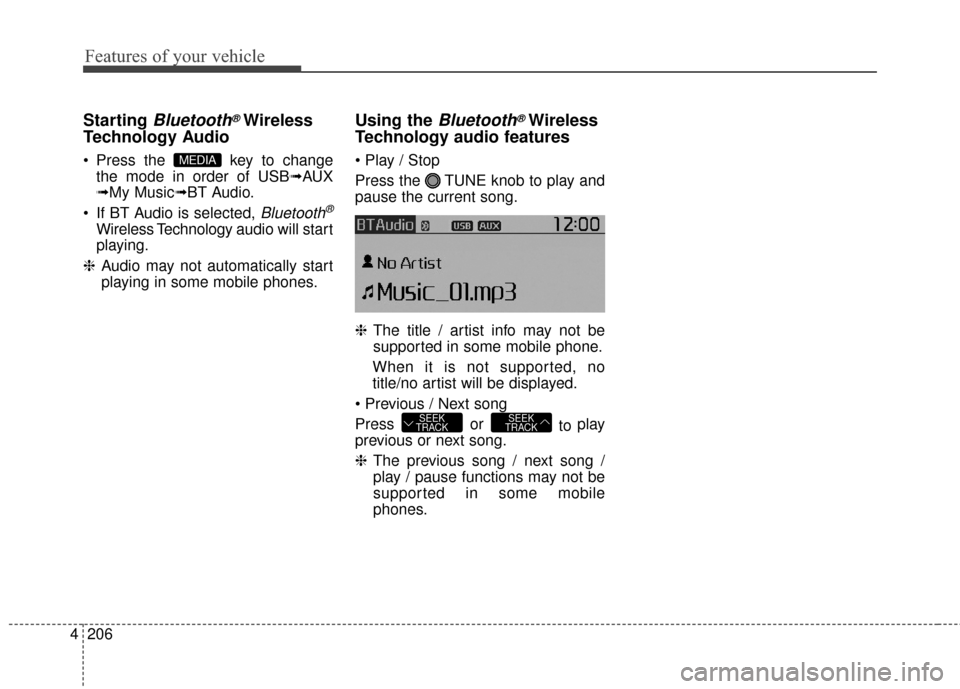
Press the TUNE knob to play and
pause the current song.
❈ The title / artist info may not be
supported in some mobile phone.
When it is not supported, no
title/no artist will be displayed.
Press or to play
previous or next song.
❈ The previous song / next song /
play / pause functions may not be
supported in some mobile
phones.
SEEK
TRACKSEEK
TRACK
MEDIA
Page 277 of 524
4207
Features of your vehicle
PHONE(IF EQUIPPED)
Before using the Bluetooth®Wireless
Technology phone features
Bluetooth®Wireless
Technology phone, you must first
pair and connect the
Bluetooth®
Wireless Technology mobile phone.
connected, it is not possible to
enter Phone mode. Once a phone
is paired or connected, the guid-
ance screen will be displayed.
tion (IGN/ACC ON), the
Bluetooth®
Wireless Technology phone will be
automatically connected. Even if
you are outside, the
Bluetooth®
Wireless Technology phone will be
automatically connected once you
are in the vicinity of the vehicle. If
you do not want automatic
Bluetooth®Wireless Technology
phone connection, set the
Bluetooth®Wireless Technology
power to OFF
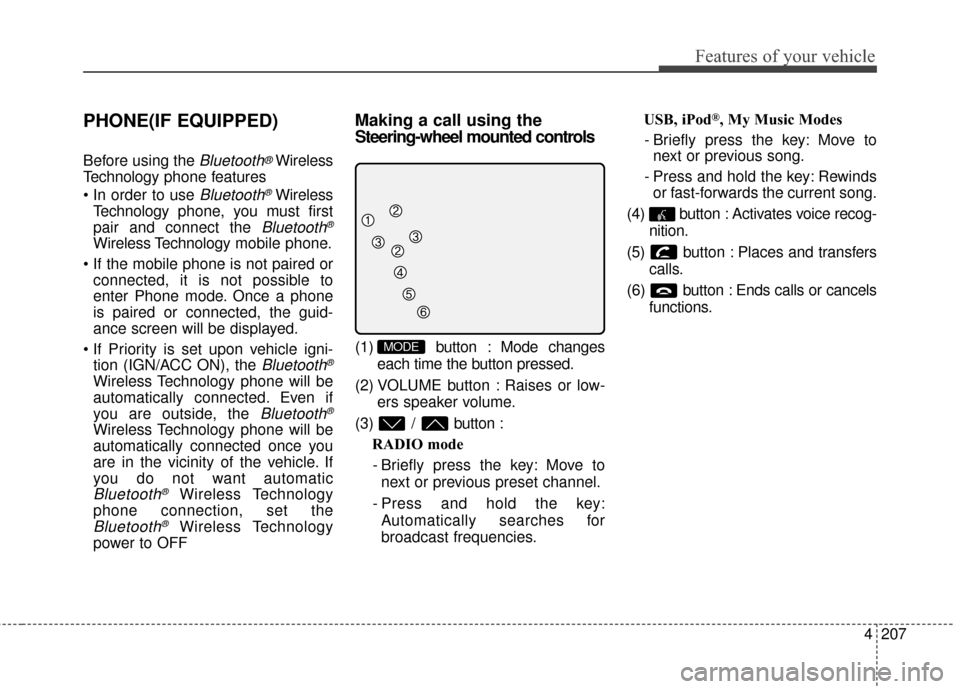
Making a call using the
Steering-wheel mounted controls
(1) button : Mode changes
each time the button pressed.
(2) VOLUME button : Raises or low- ers speaker volume.
(3) / button : RADIO mode
- Briefly press the key: Move to next or previous preset channel.
- Press and hold the key: Automatically searches for
broadcast frequencies. USB, iPod
®, My Music Modes
- Briefly press the key: Move to next or previous song.
- Press and hold the key: Rewinds or fast-forwards the current song.
(4) button : Activates voice recog- nition.
(5) button : Places and transfers calls.
(6) button : Ends calls or cancels functions.
MODE
Page 293 of 524
4223
Features of your vehicle
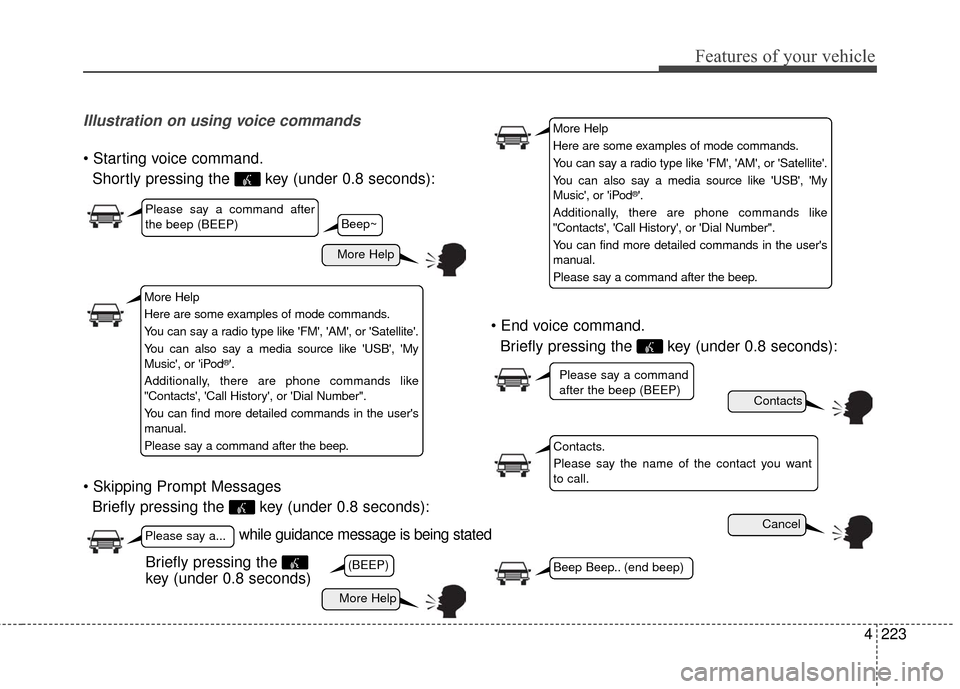
Illustration on using voice commands
Shortly pressing the key (under 0.8 seconds):
Briefly pressing the key (under 0.8 seconds):
Briefly pressing the key (under 0.8 seconds):
while guidance message is being stated
More Help
Contacts
Cancel
More Help
Please say a command after
the beep (BEEP)
Please say a...
Contacts.
Please say the name of the contact you want
to call.
(BEEP)
Please say a command
after the beep (BEEP)
Beep Beep.. (end beep)Briefly pressing the
key (under 0.8 seconds)
Beep~
More Help
Here are some examples of mode commands.
You can say a radio type like 'FM', 'AM', or 'Satellite'.
You can also say a media source like 'USB', 'My
Music', or 'iPod
®'.
Additionally, there are phone commands like
"Contacts', 'Call History', or 'Dial Number".
You can find more detailed commands in the user's
manual.
Please say a command after the beep.
More Help
Here are some examples of mode commands.
You can say a radio type like 'FM', 'AM', or 'Satellite'.
You can also say a media source like 'USB', 'My
Music', or 'iPod
®'.
Additionally, there are phone commands like
"Contacts', 'Call History', or 'Dial Number".
You can find more detailed commands in the user's
manual.
Please say a command after the beep.
Page 295 of 524
4225
Features of your vehicle
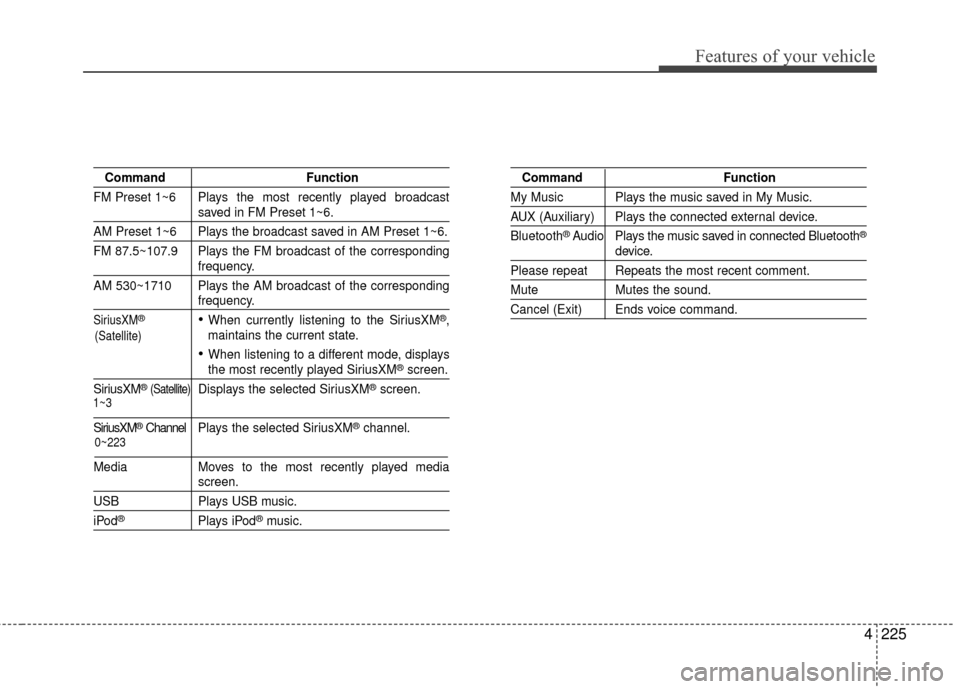
CommandFunction
FM Preset 1~6 Plays the most recently played broadcast
saved in FM Preset 1~6.
AM Preset 1~6 Plays the broadcast saved in AM Preset 1~6.
FM 87.5~107.9 Plays the FM broadcast of the corresponding
frequency.
AM 530~1710 Plays the AM broadcast of the corresponding
frequency.
SiriusXM®When currently listening to the SiriusXM®,
maintains the current state.
When listening to a different mode, displaysthe most recently played SiriusXM®screen.
SiriusXM
® (Satellite)Displays the selected SiriusXM®screen.
SiriusXM®Channel P l ay s the selected SiriusXM®channel.
Media Moves to the most recently played media
screen.
USB Plays USB music.
iPod®Plays iPod®music.
Command Function
My Music Plays the music saved in My Music.
AUX (Auxiliary) Plays the connected external device.
Bluetooth
®Audio Plays the music saved in connected Bluetooth®
device.
Please repeat Repeats the most recent comment.
Mute Mutes the sound.
Cancel (Exit) Ends voice command.
0~223
1~3
(Satellite)
Page 297 of 524
4227
Features of your vehicle
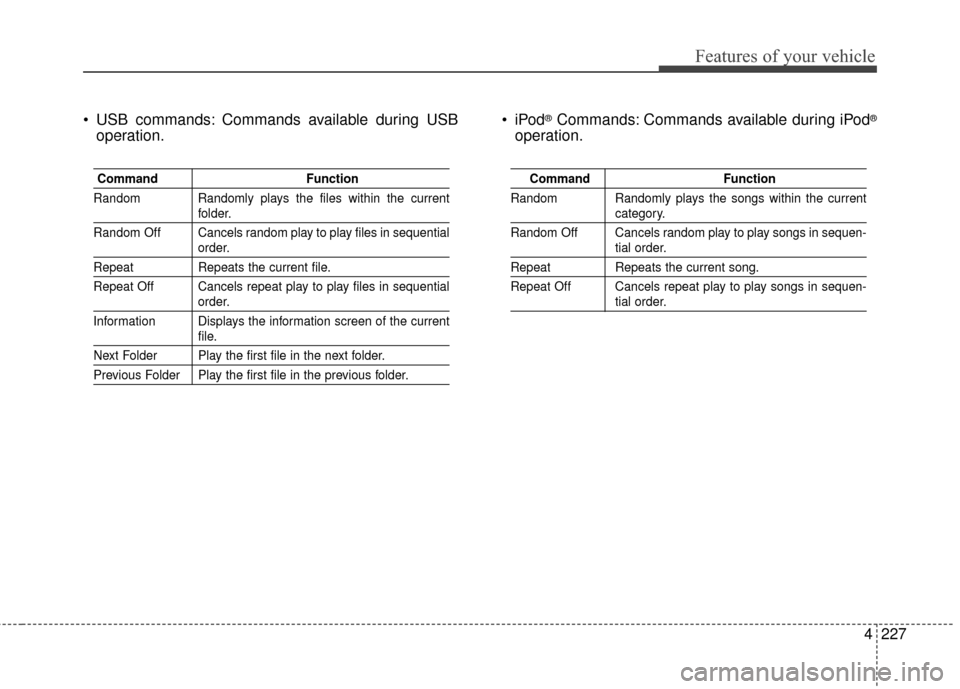
USB commands: Commands available during USBoperation. ®Commands: Commands available during iPod®
operation.
Command
Function
Random Randomly plays the files within the current
folder.
Random Off Cancels random play to play files in sequential
order.
Repeat Repeats the current file.
Repeat Off Cancels repeat play to play files in sequential
order.
Information Displays the information screen of the current
file.
Next Folder Play the first file in the next folder.
Previous Folder Play the first file in the previous folder.
Command Function
Random Randomly plays the songs within the current
category.
Random Off Cancels random play to play songs in sequen-
tial order.
Repeat Repeats the current song.
Repeat Off Cancels repeat play to play songs in sequen-
tial order.
Page 459 of 524
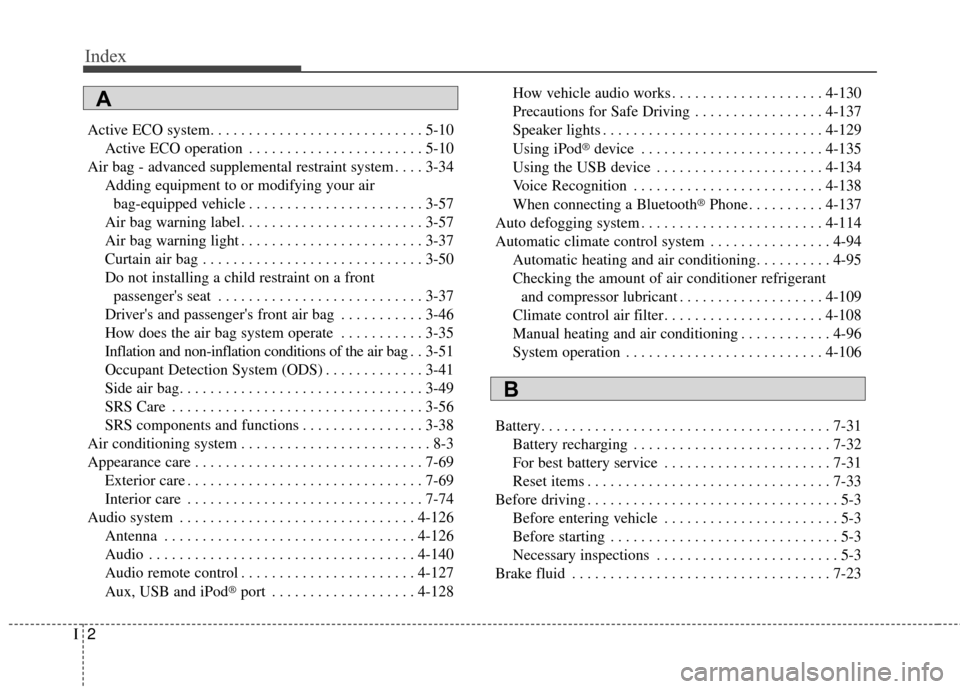
Index
2I
Active ECO system. . . . . . . . . . . . . . . . . . . . . . . . . . . . 5-10Active ECO operation . . . . . . . . . . . . . . . . . . . . . . . 5-10
Air bag - advanced supplemental restraint system . . . . 3-34 Adding equipment to or modifying your airbag-equipped vehicle . . . . . . . . . . . . . . . . . . . . . . . 3-57
Air bag warning label. . . . . . . . . . . . . . . . . . . . . . . . 3-57
Air bag warning light . . . . . . . . . . . . . . . . . . . . . . . . 3-37
Curtain air bag . . . . . . . . . . . . . . . . . . . . . . . . . . . . . 3-50
Do not installing a child restraint on a front passenger's seat . . . . . . . . . . . . . . . . . . . . . . . . . . . 3-37
Driver's and passenger's front air bag . . . . . . . . . . . 3-46
How does the air bag system operate . . . . . . . . . . . 3-35
Inflation and non-inflation conditions of the air bag . . 3-51
Occupant Detection System (ODS) . . . . . . . . . . . . . 3-41
Side air bag. . . . . . . . . . . . . . . . . . . . . . . . . . . . . . . . 3-49
SRS Care . . . . . . . . . . . . . . . . . . . . . . . . . . . . . . . . . 3-56
SRS components and functions . . . . . . . . . . . . . . . . 3-38
Air conditioning system . . . . . . . . . . . . . . . . . . . . . . . . . 8-3
Appearance care . . . . . . . . . . . . . . . . . . . . . . . . . . . . . . 7-69 Exterior care . . . . . . . . . . . . . . . . . . . . . . . . . . . . . . . 7-69
Interior care . . . . . . . . . . . . . . . . . . . . . . . . . . . . . . . 7-74
Audio system . . . . . . . . . . . . . . . . . . . . . . . . . . . . . . . 4-126 Antenna . . . . . . . . . . . . . . . . . . . . . . . . . . . . . . . . . 4-126
Audio . . . . . . . . . . . . . . . . . . . . . . . . . . . . . . . . . . . 4-\
140
Audio remote control . . . . . . . . . . . . . . . . . . . . . . . 4-127
Aux, USB and iPod
®port . . . . . . . . . . . . . . . . . . . 4-128 How vehicle audio works . . . . . . . . . . . . . . . . . . . . 4-130
Precautions for Safe Driving . . . . . . . . . . . . . . . . . 4-137
Speaker lights . . . . . . . . . . . . . . . . . . . . . . . . . . . . . 4-129
Using iPod
®device . . . . . . . . . . . . . . . . . . . . . . . . 4-135
Using the USB device . . . . . . . . . . . . . . . . . . . . . . 4-134
Voice Recognition . . . . . . . . . . . . . . . . . . . . . . . . . 4-138
When connecting a Bluetooth
®Phone. . . . . . . . . . 4-137
Auto defogging system . . . . . . . . . . . . . . . . . . . . . . . . 4-114
Automatic climate control system . . . . . . . . . . . . . . . . 4-94 Automatic heating and air conditioning. . . . . . . . . . 4-95
Checking the amount of air conditioner refrigerantand compressor lubricant . . . . . . . . . . . . . . . . . . . 4-109
Climate control air filter. . . . . . . . . . . . . . . . . . . . . 4-108
Manual heating and air conditioning . . . . . . . . . . . . 4-96
System operation . . . . . . . . . . . . . . . . . . . . . . . . . . 4-106
Battery. . . . . . . . . . . . . . . . . . . . . . . . . . . . . . . . . . . . \
. . 7-31 Battery recharging . . . . . . . . . . . . . . . . . . . . . . . . . . 7-32
For best battery service . . . . . . . . . . . . . . . . . . . . . . 7-31
Reset items . . . . . . . . . . . . . . . . . . . . . . . . . . . . . . . . 7-33
Before driving . . . . . . . . . . . . . . . . . . . . . . . . . . . . . . . . . 5-3 Before entering vehicle . . . . . . . . . . . . . . . . . . . . . . . 5-3
Before starting . . . . . . . . . . . . . . . . . . . . . . . . . . . . . . 5-3
Necessary inspections . . . . . . . . . . . . . . . . . . . . . . . . 5-3
Brake fluid . . . . . . . . . . . . . . . . . . . . . . . . . . . . . . . . . . 7-23\
A
B