charging KIA SOUL EV 2018 Workshop Manual
[x] Cancel search | Manufacturer: KIA, Model Year: 2018, Model line: SOUL EV, Model: KIA SOUL EV 2018Pages: 496, PDF Size: 15.13 MB
Page 191 of 496
Features of your vehicle
60
4
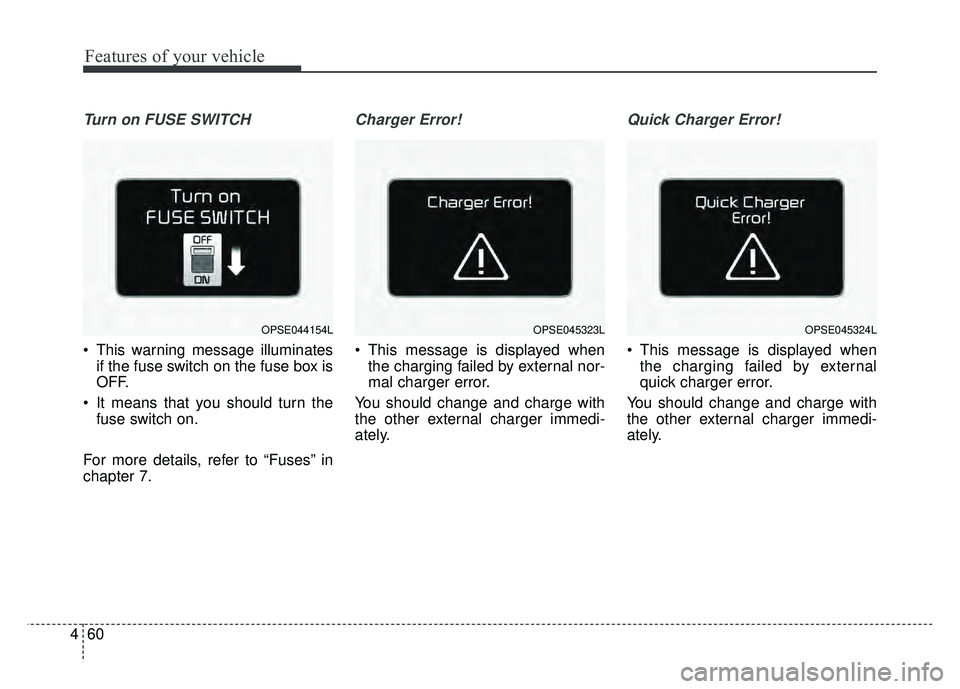
Turn on FUSE SWITCH
This warning message illuminates
if the fuse switch on the fuse box is
OFF.
It means that you should turn the fuse switch on.
For more details, refer to “Fuses” in
chapter 7.
Charger Error!
This message is displayed when the charging failed by external nor-
mal charger error.
You should change and charge with
the other external charger immedi-
ately.
Quick Charger Error!
This message is displayed when the charging failed by external
quick charger error.
You should change and charge with
the other external charger immedi-
ately.
OPSE044154LOPSE045323LOPSE045324L
Page 193 of 496
Features of your vehicle
62
4
Manual reset
To clear the average energy con-
sumption manually, press the but-
ton (MOVE) on the steering wheel for
more than 1 second when the aver-
age energy consumption is displayed.
Automatic reset
To make the average energy con-
sumption be reset automatically
whenever recharging, select the
“Auto Reset” mode in User Settings
menu of the LCD display (Refer to
“LCD Display”).
Under “Auto Reset” mode, the aver-
age energy consumption will be
cleared to zero (---) when the driving
distance exceeds 0.19 mile (300m)
after recharging more than 10%.Instant energy consumption (2)
This mode displays the instant ener- gy consumption during the last few
seconds when the vehicle speed is
more than 10 km/h (6.2 MPH).
- Instant energy consumptionrange : 0.0 ~ 8miles/kwh
Trip A/B
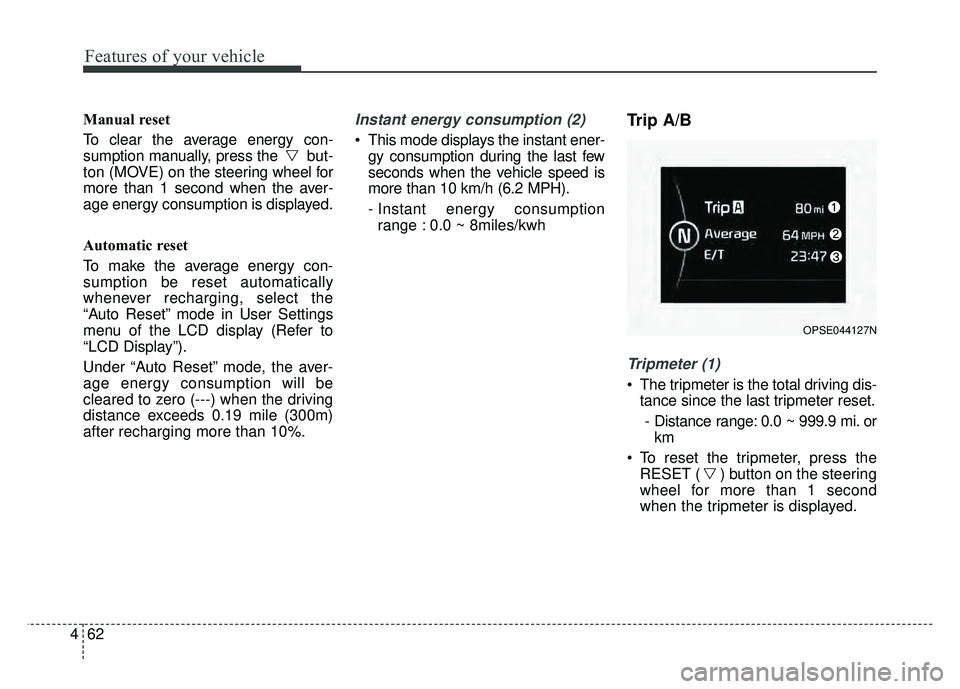
Tripmeter (1)
The tripmeter is the total driving dis- tance since the last tripmeter reset.
- Distance range: 0.0 ~ 999.9 mi. or km
To reset the tripmeter, press the RESET ( ) button on the steering
wheel for more than 1 second
when the tripmeter is displayed.
OPSE044127N
Page 194 of 496
463
Features of your vehicle
Average Vehicle Speed (2)
The average vehicle speed is cal-culated by the total driving dis-
tance and driving time since the
last average vehicle speed reset.
- Speed range: 160 MPH or 200km/h
To reset the average vehicle speed, press the RESET ( ) button on
the steering wheel for more than 1
second when the average vehicle
speed is displayed.
✽ ✽ NOTICE
• The average vehicle speed is not dis-
played if the driving distance is less
than 0.03 miles (50 meters) or the
driving time is less than 10 seconds
since the POWER button is turned
to ON.
• Even if the vehicle is not in motion, the average vehicle speed
keeps going while the vehicle is in
the ready ( ) mode.
Elapsed Time (3)
The elapsed time is the total driv-
ing time since the last elapsed time
reset.
- Time range (hh:mm): 00:00 ~ 99:59
To reset the elapsed time, press the RESET ( ) button on the
steering wheel for more than 1
second when the elapsed time is
displayed.
✽ ✽ NOTICE
Even if the vehicle is not in motion,
the elapsed time keeps going while
the vehicle is in the ready ( )
mode.
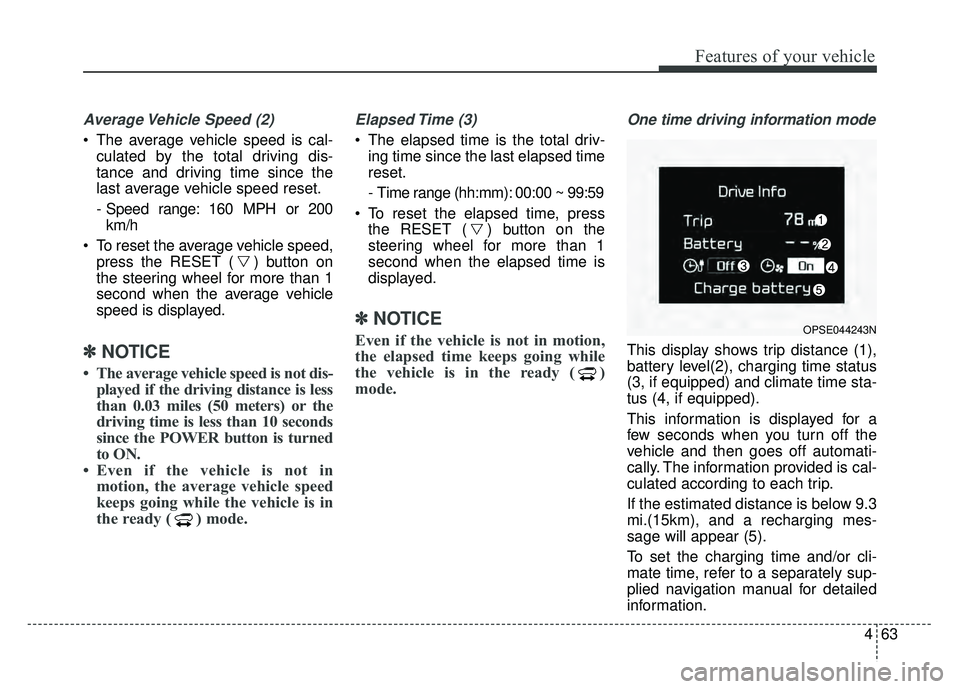
One time driving information mode
This display shows trip distance (1),
battery level(2), charging time status
(3, if equipped) and climate time sta-
tus (4, if equipped).
This information is displayed for a
few seconds when you turn off the
vehicle and then goes off automati-
cally. The information provided is cal-
culated according to each trip.
If the estimated distance is below 9.3
mi.(15km), and a recharging mes-
sage will appear (5).
To set the charging time and/or cli-
mate time, refer to a separately sup-
plied navigation manual for detailed
information.
OPSE044243N
Page 201 of 496
Features of your vehicle
70
4
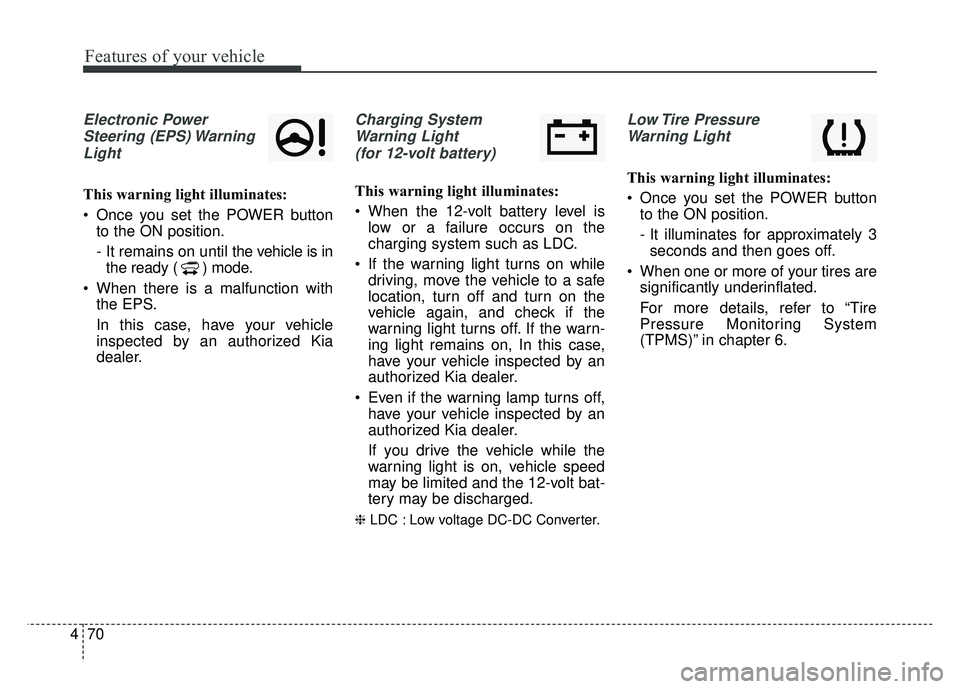
Electronic Power
Steering (EPS) WarningLight
This warning light illuminates:
Once you set the POWER button to the ON position.
- It remains on until the vehicle is inthe ready ( ) mode.
When there is a malfunction with the EPS.
In this case, have your vehicle
inspected by an authorized Kia
dealer.
Charging System
Warning Light (for 12-volt battery)
This warning light illuminates:
When the 12-volt battery level is low or a failure occurs on the
charging system such as LDC.
If the warning light turns on while driving, move the vehicle to a safe
location, turn off and turn on the
vehicle again, and check if the
warning light turns off. If the warn-
ing light remains on, In this case,
have your vehicle inspected by an
authorized Kia dealer.
Even if the warning lamp turns off, have your vehicle inspected by an
authorized Kia dealer.
If you drive the vehicle while the
warning light is on, vehicle speed
may be limited and the 12-volt bat-
tery may be discharged.
❈ LDC : Low voltage DC-DC Converter.
Low Tire Pressure
Warning Light
This warning light illuminates:
Once you set the POWER button to the ON position.
- It illuminates for approximately 3seconds and then goes off.
When one or more of your tires are significantly underinflated.
For more details, refer to “Tire
Pressure Monitoring System
(TPMS)” in chapter 6.
Page 203 of 496
Features of your vehicle
72
4
Indicator Lights
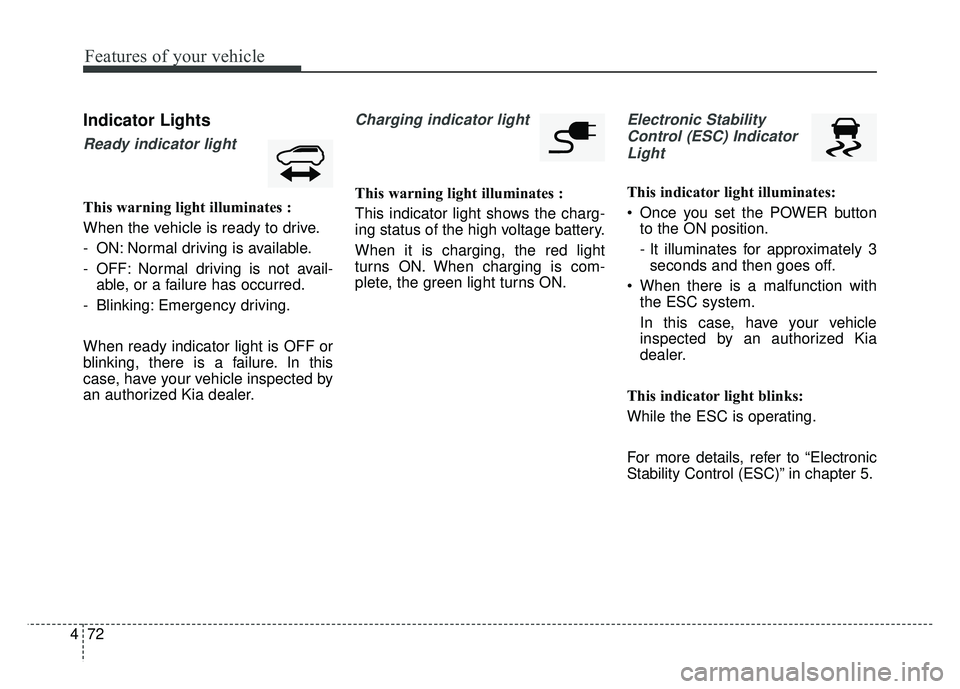
Ready indicator light
This warning light illuminates :
When the vehicle is ready to drive.
- ON: Normal driving is available.
- OFF: Normal driving is not avail-
able, or a failure has occurred.
- Blinking: Emergency driving.
When ready indicator light is OFF or
blinking, there is a failure. In this
case, have your vehicle inspected by
an authorized Kia dealer.
Charging indicator light
This warning light illuminates :
This indicator light shows the charg-
ing status of the high voltage battery.
When it is charging, the red light
turns ON. When charging is com-
plete, the green light turns ON.
Electronic Stability Control (ESC) IndicatorLight
This indicator light illuminates:
Once you set the POWER button to the ON position.
- It illuminates for approximately 3seconds and then goes off.
When there is a malfunction with the ESC system.
In this case, have your vehicle
inspected by an authorized Kia
dealer.
This indicator light blinks:
While the ESC is operating.
For more details, refer to “Electronic
Stability Control (ESC)” in chapter 5.
Page 223 of 496
Features of your vehicle
92
4
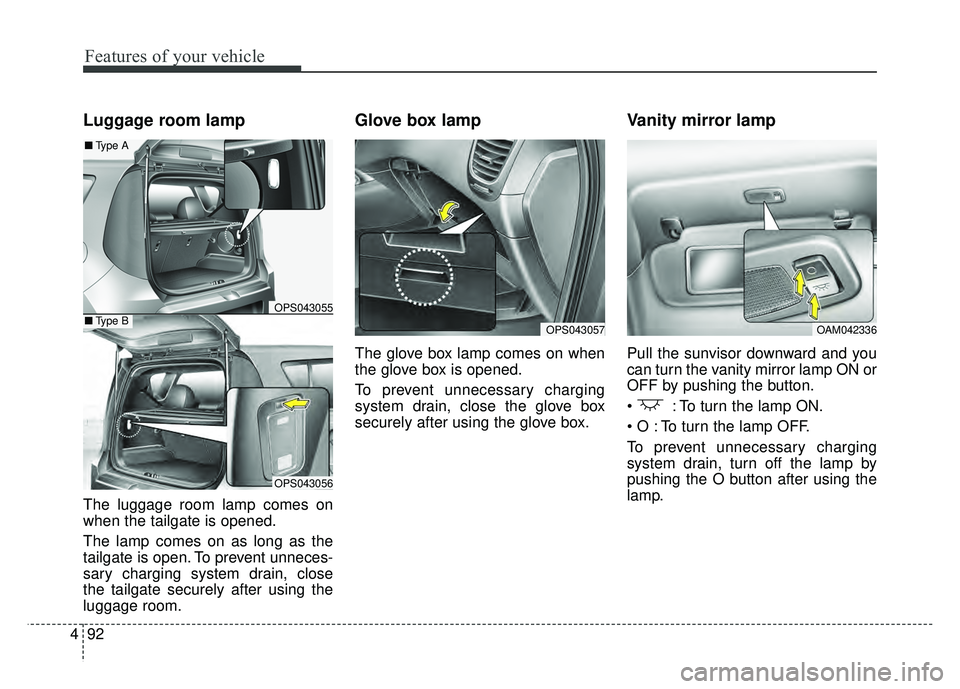
Luggage room lamp
The luggage room lamp comes on
when the tailgate is opened.
The lamp comes on as long as the
tailgate is open. To prevent unneces-
sary charging system drain, close
the tailgate securely after using the
luggage room.
Glove box lamp
The glove box lamp comes on when
the glove box is opened.
To prevent unnecessary charging
system drain, close the glove box
securely after using the glove box.
Vanity mirror lamp
Pull the sunvisor downward and you
can turn the vanity mirror lamp ON or
OFF by pushing the button.
: To turn the lamp ON.
To turn the lamp OFF.
To prevent unnecessary charging
system drain, turn off the lamp by
pushing the O button after using the
lamp.
OPS043057OAM042336
OPS043055
OPS043056
■ Type B
■Type A
Page 236 of 496
4105
Features of your vehicle
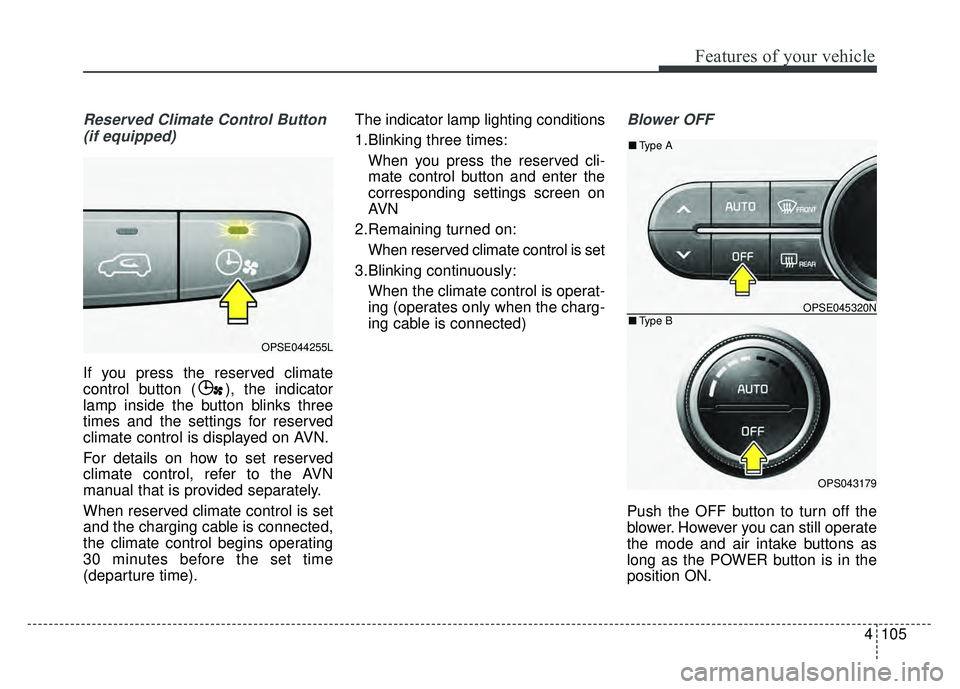
Reserved Climate Control Button(if equipped)
If you press the reserved climate
control button ( ), the indicator
lamp inside the button blinks three
times and the settings for reserved
climate control is displayed on AVN.
For details on how to set reserved
climate control, refer to the AVN
manual that is provided separately.
When reserved climate control is set
and the charging cable is connected,
the climate control begins operating
30 minutes before the set time
(departure time). The indicator lamp lighting conditions
1.Blinking three times:
When you press the reserved cli-
mate control button and enter the
corresponding settings screen on
AVN
2.Remaining turned on: When reserved climate control is set
3.Blinking continuously: When the climate control is operat-
ing (operates only when the charg-
ing cable is connected)
Blower OFF
Push the OFF button to turn off the
blower. However you can still operate
the mode and air intake buttons as
long as the POWER button is in the
position ON.
OPSE044255L
OPSE045320N
OPS043179
■ Type B
■Type A
Page 267 of 496
Features of your vehicle
136
4
USING iPod®DEVICE
iPhone®is a registered grademark of
Apple inc.
Some iPod
®models may not sup-
port communication protocol and
files may not properly play.
Supported iPod
®models:
- iPhone
®3GS/4
- iPod
®touch 1st~4th generation
- iPod
®nano 1st~6th generation
- iPod
®classic
The order of search or playback of songs in the iPod
®can be different
from the order searched in the
audio system.
If the iPod
®is disabled due to its
own malfunction, reset the iPod®.
(Reset: Refer to iPod®manual)
An iPod
®may not operate normally
on low battery.
(Continued)
(Continued)
Some USB flash memory read-
ers (such as CF, SD, micro SD,
etc.) or external-HDD type
devices can be unrecognizable.
Music files protected by DRM (DIGITAL RIGHTS MANAGE-
MENT) are not recognizable.
The data in the USB memory may be lost while using this
audio. Always back up important
data on a personal storage
device.
Please avoid using USB memory prod-
ucts which can be
used as key chains or
cellular phone acces-
sories as they could cause dam-
age to the USB jack. Please
make certain only to use plug
type connector products.
(Continued)
If you use devices such as aUSB hub purchased separately,
the vehicle’s audio system may
not recognize the USB device. In
that case, connect the USB
device directly to the multimedia
terminal of the vehicle.
If the USB device is divided by logical drives, only the music
files on the highest-priority drive
are recognized by car audio.
Devices such as MP3 Player/ Cellular phone/Digital camera
can be unrecognizable by stan-
dard USB I/F can be unrecogniz-
able.
Charging through the USB may not be supported in some mobile
devices.
USB HDD or USB types liable to connection failures due to vehi-
cle vibrations are not supported.
(i-stick type)
Some non-standard USB devices (METAL COVER TYPE
USB) can be unrecognizable.
(Continued)
Page 285 of 496
154
4
Features of your vehicle
✽
✽
NOTICE - Using the USB
Devices
• Starting the vehicle while a USB
device is connected can damage
the device. Please disconnect USB
devices before starting the vehicle.
• Starting the vehicle or stopping the engine while an external USB
device is connected can result in
failure of the external USB device
to operate.
• Be cautious of static electricity when connecting/disconnecting
external USB devices.
• An encrypted MP3 player is not recognized when connected as an
external device.
• External USB devices may not be recognized, depending on the state
of the external USB device.
• Only products with byte/sectors formatted at 4 KB or lower are
recognized.
• Only USB devices in FAT12/16/32 format are recognized; NTFS and
ExFAT file systems are not recog-
nized.
• Some USB devices are not recog- nized due to compatibility issues. (Continued)(Continued)
• Do not touch the USB connections.
• Connecting and disconnecting
USB devices rapidly over a short
period of time can cause equip-
ment failure.
• Abnormal sounds may be audible when the USB device is discon-
nected.
• Turn the audio off before connect- ing or disconnecting external USB
devices.
• Recognition may take longer depending on the type, capacity or
file format of the external USB
device. This is not a product mal-
function.
• Use of USB devices for purposes other than playing music files is
prohibited.
• Image display and video playback are not supported.
• Use of USB accessories, including charge and heat though the USB
I/F, can lead to reduced product
performance or malfunctions. Do
not use USB devices or accessories
for these purposes. (Continued)(Continued)
• Use of aftermarket USB hubs and
extension cables can result in the
vehicle’s audio system failing to
recognize your USB device.
Connect the USB device directly to
the multimedia port of your vehi-
cle.
• When using high-capacity USB devices with logical drive divi-
sions, only files saved on the high-
est level logical drive can be
played.
If applications are loaded on a
USB drive, file playback may fail.
• Some MP3 players, cell phones, digital cameras, etc. (USB devices
that are not recognized as mobile
storage) may not operate normally
when connected.
• USB charging may not be sup- ported by some mobile devices.
• Operation is guaranteed only for standard (Metal Cover Type) USB
Memory drives.
• Operation of HDD, CF, SD and memory stick devices is not guar-
anteed. (Continued)
Page 289 of 496
158
4
Features of your vehicle
✽
✽
NOTICE - Using the iPod®
Devices
• To use the audio system’s iPod®
control function, use the dedicated
cable provided with your iPod®.
• Connecting the iPod®to the vehi-
cle during play may result in a
loud noise that lasts about one to
two seconds. Connect the iPod
®to
the vehicle after stopping or paus-
ing play.
• Connect the iPod
®with the vehicle
in the ACC ON state to begin
charging.
• When connecting the iPod
®cable,
be sure to fully push the cable into
the port.
• When EQ effects are enabled simultaneously on external
devices, such as iPod
®s and the
audio system, the EQ effects may
overlap, causing sound quality
deterioration or distortion.
Deactivate the EQ function for all
external devices, if possible.
• Noise may occur when your iPod
®
or the AUX port is connected.
Disconnect and store separately
when not in use. (Continued)(Continued)
• There may be noise if the audio
system is used with an iPod
®or
AUX external device connected to
the power jack. In these cases, dis-
connect the iPod
®or external
device from the power jack.
• Play may be interrupted, or device malfunctions may occur depend-
ing on the characteristics of your
iPod
®/iPhone®.
• Play may fail if your iPhone®is
connected through both
Bluetooth
®Wireless Technology
and USB. In this case, select Dock
connector or Bluetooth
®Wireless
Technology on your iPhone®to
change the sound output settings.
• If your software version does not support the communication proto-
col or your iPod
®is not recognized
due to device failure, anomalies or
defects, iPod
®mode cannot be
used.
• iPod
®nano (5th generation)
devices may not be recognized if
the battery is low. Charge suffi-
ciently before use. (Continued)(Continued)
• The search and song play order in
the iPod
®device may be different
from the search order in the audio
system.
• If the iPod
®has failed due to an
internal defect, please reset the
iPod
®(consult your iPod®manu-
al).
• Depending on the software ver- sion, the iPod
®may fail to sync
with the system. If the media is
removed or disconnected before
recognition, the previous mode
may not be restored (iPad
®cannot
be charged).
• Cables other than the 1-meter cable provided with iPod
®/iPhone®
products may not be recognized.
• When other music apps are used on your iPod
®, the system sync
function may fail due to malfunc-
tion of the iPod
®application.