display KIA SOUL EV 2018 Workshop Manual
[x] Cancel search | Manufacturer: KIA, Model Year: 2018, Model line: SOUL EV, Model: KIA SOUL EV 2018Pages: 496, PDF Size: 15.13 MB
Page 296 of 496
![KIA SOUL EV 2018 Workshop Manual 4165
Features of your vehicle
- Select the file to delete, thenpress the [Delete] to delete it.
- If Siri is activated, phone calls are received or made during
delete, delete will be canceled.
Add to](/img/2/55107/w960_55107-295.png "KIA SOUL EV 2018 Workshop Manual 4165
Features of your vehicle
- Select the file to delete, thenpress the [Delete] to delete it.
- If Siri is activated, phone calls are received or made during
delete, delete will be canceled.
Add to")
4165
Features of your vehicle
- Select the file to delete, thenpress the [Delete] to delete it.
- If Siri is activated, phone calls are received or made during
delete, delete will be canceled.
Add to Playlist: Frequently played songs can be paired in a [Playlist].
- Songs can be played from the[Playlist].
Information: Detailed info on the currently playing song is displayed.
Sound Settings: Audio sound set- tings can be changed.
Delete from Playlist
When a song in the playlist is play-
ing, press the [Menu] and select
[Delete from Playlist].
Select the song to delete, then press
[Delete].
Page 297 of 496
166
4
Features of your vehicle
Pandora
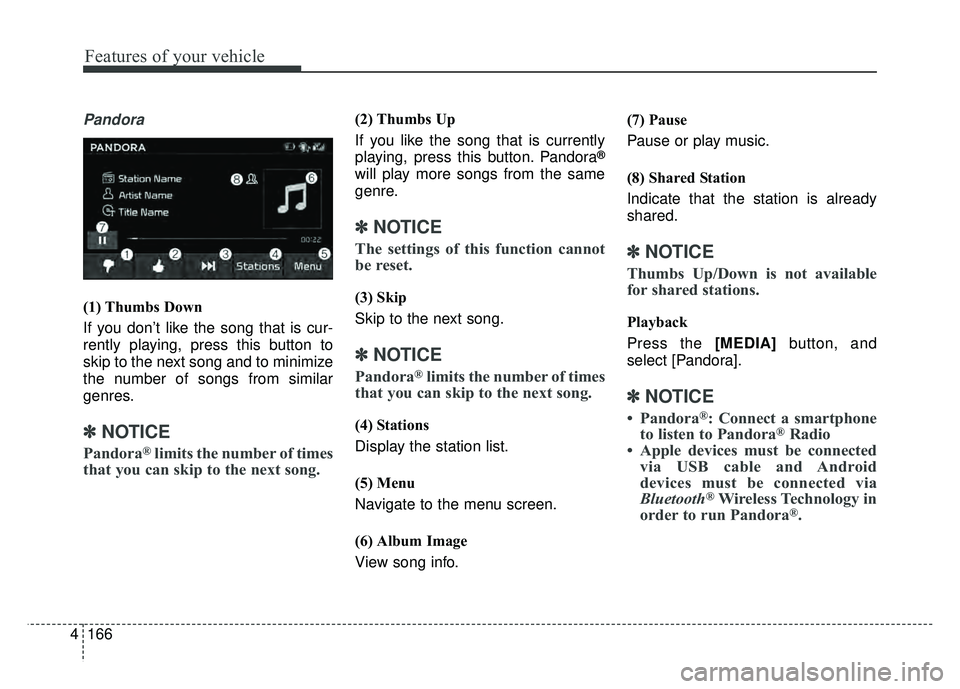
(1) Thumbs Down
If you don’t like the song that is cur-
rently playing, press this button to
skip to the next song and to minimize
the number of songs from similar
genres.
✽ ✽
NOTICE
Pandora®limits the number of times
that you can skip to the next song.
(2) Thumbs Up
If you like the song that is currently
playing, press this button. Pandora
®
will play more songs from the same
genre.
✽ ✽ NOTICE
The settings of this function cannot
be reset.
(3) Skip
Skip to the next song.
✽ ✽NOTICE
Pandora®limits the number of times
that you can skip to the next song.
(4) Stations
Display the station list.
(5) Menu
Navigate to the menu screen.
(6) Album Image
View song info. (7) Pause
Pause or play music.
(8) Shared Station
Indicate that the station is already
shared.
✽ ✽
NOTICE
Thumbs Up/Down is not available
for shared stations.
Playback
Press the [MEDIA] button, and
select [Pandora].
✽ ✽ NOTICE
• Pandora®: Connect a smartphone
to listen to Pandora®Radio
• Apple devices must be connected via USB cable and Android
devices must be connected via
Bluetooth
®Wireless Technology in
order to run Pandora®.
Page 298 of 496
![KIA SOUL EV 2018 Workshop Manual 4167
Features of your vehicle
Menu
Press the [Menu] and select the
desired function.
Bookmark: Add the song that iscurrently playing to your book-
marks list.
✽ ✽ NOTICE
• You can view your boo](/img/2/55107/w960_55107-297.png "KIA SOUL EV 2018 Workshop Manual 4167
Features of your vehicle
Menu
Press the [Menu] and select the
desired function.
Bookmark: Add the song that iscurrently playing to your book-
marks list.
✽ ✽ NOTICE
• You can view your boo")
4167
Features of your vehicle
Menu
Press the [Menu] and select the
desired function.
Bookmark: Add the song that iscurrently playing to your book-
marks list.
✽ ✽ NOTICE
• You can view your bookmarked
songs on your online Pandora®
profile. Go to pandora.com, then
go to [Your profile] above the
player. That will bring up a page
with your stations and book-
marked songs.
• The settings of this function can- not be reset.
Quit: Exit Pandora®mode and
return to previous audio mode.
Information: Detailed info on the currently playing song is displayed.
Sound Settings: Audio sound set- tings can be changed.
Page 303 of 496
![KIA SOUL EV 2018 Workshop Manual 172
4
Features of your vehicle
If there are connected devices
Select the [PHONE] button on the
audio system ➟ Select [Settings] ➟
Select [Connections] ➟ Select
Bluetooth®Wireless Technology dev](/img/2/55107/w960_55107-302.png "KIA SOUL EV 2018 Workshop Manual 172
4
Features of your vehicle
If there are connected devices
Select the [PHONE] button on the
audio system ➟ Select [Settings] ➟
Select [Connections] ➟ Select
Bluetooth®Wireless Technology dev")
172
4
Features of your vehicle
If there are connected devices
Select the [PHONE] button on the
audio system ➟ Select [Settings] ➟
Select [Connections] ➟ Select
Bluetooth®Wireless Technology device
to connect ➟ Select [Connect] ➟
Connect
Bluetooth®Wireless Technology.
✽ ✽ NOTICE
• Only one Bluetooth®Wireless
Technology device can be connect-
ed at a time.
• When a Bluetooth
®Wireless
Technology device is connected,
other devices cannot be paired.
Accepting/rejecting phone calls
Receiving phone calls with
Bluetooth®Wireless Technology con-
nected.
(1) Caller name: If the caller number is in your contacts, the correspon-
ding name is displayed.
(2) Incoming phone number: Incoming phone number is displayed.
(3) Accept: Accept call.
(4) Reject: Reject call.
✽ ✽ NOTICE
• When the incoming call screen is
displayed, audio mode and the set-
tings screen cannot be shown.
Only call volume control is sup-
ported.
• Some Bluetooth
®Wireless Technology
devices may not support the call
reject function.
• Some Bluetooth
®Wireless Technology
devices may not support the phone
number display function.
Page 304 of 496
![KIA SOUL EV 2018 Workshop Manual 4173
Features of your vehicle
Operation during calls
Incoming call with Bluetooth®
Wireless Technology connected ➟
Select [Accept].
(1) Call duration: Call duration display.
(2) Caller name: If th](/img/2/55107/w960_55107-303.png "KIA SOUL EV 2018 Workshop Manual 4173
Features of your vehicle
Operation during calls
Incoming call with Bluetooth®
Wireless Technology connected ➟
Select [Accept].
(1) Call duration: Call duration display.
(2) Caller name: If th")
4173
Features of your vehicle
Operation during calls
Incoming call with Bluetooth®
Wireless Technology connected ➟
Select [Accept].
(1) Call duration: Call duration display.
(2) Caller name: If the caller number is in your contacts, the corresponding
name is displayed.
(3) Incoming phone number: Incoming phone number is displayed.
(4) Keypad: Number keypad for Automatic Response Service input
is displayed.
(5) Private: Call is transferred to a cell phone.
(6) Outgoing Volume: Adjust outgo- ing voice volume.
(7) End: End call.
✽ ✽ NOTICE
• Some Bluetooth®Wireless Technology
devices may not support the
Private function.
• The outgoing voice volume may vary depending on the type of
Bluetooth
®Wireless Technology
device. If the outgoing voice vol-
ume is too high or low, adjust the
Out Vol.
Favorites
Select the [PHONE] button on the
audio system ➟ Select [Favorites] ➟
Favorites list displayed.
(1) Favorites list: A list of paired favorites is displayed.
Connect a call when selected. (2) Add to Favorites: Add a down-
loaded phone number to favorites.
(3) Delete: Delete a saved favorites.
✽ ✽ NOTICE
• Up to 20 favorites can be paired
for each paired Bluetooth®
Wireless Technology device.
• Favorites can be accessed when the Bluetooth
®Wireless Technology
device they were paired from is
connected.
• The audio system does not down- load favorites from Bluetooth
®
Wireless Technology devices.
Favorites must be newly saved
before use.
• To add to favorites, contacts must be downloaded first.
• Saved favorites are not updated even if the contacts of the connected
Bluetooth
®Wireless Technology
device are changed. In this case,
favorites need to be deleted and
added again.
Page 305 of 496
![KIA SOUL EV 2018 Workshop Manual 174
4
Features of your vehicle
Call history
Select the [PHONE] button on the
audio system ➟ Select [Call history]
➟ Call history is displayed.
(1) Call history: Display the down- loaded call histo](/img/2/55107/w960_55107-304.png "KIA SOUL EV 2018 Workshop Manual 174
4
Features of your vehicle
Call history
Select the [PHONE] button on the
audio system ➟ Select [Call history]
➟ Call history is displayed.
(1) Call history: Display the down- loaded call histo")
174
4
Features of your vehicle
Call history
Select the [PHONE] button on the
audio system ➟ Select [Call history]
➟ Call history is displayed.
(1) Call history: Display the down- loaded call history list.
Connect a call when selected.
(2) Sort by: Sort by all calls, dialed calls, received calls or missed calls.
(3) Download: Download call history from connected
Bluetooth®Wireless
Technology devices.
✽ ✽ NOTICE
• Up to 50 dialed, received and
missed calls are saved.
• When the latest call history is received, the existing call history is
deleted.
Contacts
Select the [PHONE] button on the
audio system ➟ Select [Contacts] ➟
Select letter (ABC) ➟ Contacts dis-
played.
(1) Contacts: Display downloaded contacts.
Connect a call when selected.
(2) Download: Download contacts from connected
Bluetooth®
Wireless Technology devices.
✽ ✽NOTICE
• Only supported contacts format
can be downloaded and displayed
from the Bluetooth
®Wireless
Technology device, contacts from
some applications will not be
included.
• Up to 2,000 contacts can be saved.
• In some cases, additional confir- mation from your Bluetooth
®
Wireless Technology device is nec-
essary when downloading con-
tacts. If downloading of contacts
unsuccessful, consult your
Bluetooth
®Wireless Technology
device’s settings or the audio
screen to approve the download.
• Contacts without phone numbers are not displayed.
Page 306 of 496
![KIA SOUL EV 2018 Workshop Manual 4175
Features of your vehicle
Dial
Select the [PHONE]button on the
audio ➟Select [Dial].
(1) Phone number entry window: The phone number entered using the
keypad is displayed.
(2) Clear - Press to](/img/2/55107/w960_55107-305.png "KIA SOUL EV 2018 Workshop Manual 4175
Features of your vehicle
Dial
Select the [PHONE]button on the
audio ➟Select [Dial].
(1) Phone number entry window: The phone number entered using the
keypad is displayed.
(2) Clear - Press to")
4175
Features of your vehicle
Dial
Select the [PHONE]button on the
audio ➟Select [Dial].
(1) Phone number entry window: The phone number entered using the
keypad is displayed.
(2) Clear - Press to delete individual digits.
- Press and hold to delete theentire phone number.
(3) Keypad: Enter phone number.
(4)
Bluetooth®Wireless Technology
phone name
- The name of the connected
Bluetooth®Wireless Technology
device is displayed.
- Contacts matching the keypad number/letter input are displayed.(5) Call
- Enter and select a phone num-ber to call.
- Select without entering a phone number to see the most recent
dialed call.
Connections
Select the [PHONE] button on the
audio ➟Select [Connections].
- For connections setting, refer to Setup ➟Select [Bluetooth] ➟
Select [Connections] page.
Setup
Select the [PHONE] button on the
audio ➟Select [Settings].
- For phone Setup, refer to Setup page ➟Select [Bluetooth].
Page 308 of 496
![KIA SOUL EV 2018 Workshop Manual 4177
Features of your vehicle
Setup
Access Display, Sound, Date/Time,
Bluetooth, System, Screen Saver
and Display Off settings.
Select the [SETUP]button on the
audio system.
Display
Select the [SETUP](/img/2/55107/w960_55107-307.png "KIA SOUL EV 2018 Workshop Manual 4177
Features of your vehicle
Setup
Access Display, Sound, Date/Time,
Bluetooth, System, Screen Saver
and Display Off settings.
Select the [SETUP]button on the
audio system.
Display
Select the [SETUP")
4177
Features of your vehicle
Setup
Access Display, Sound, Date/Time,
Bluetooth, System, Screen Saver
and Display Off settings.
Select the [SETUP]button on the
audio system.
Display
Select the [SETUP] button on the
audio system ➟ Select [Display].
Mode: Audio screen brightness can be adjusted to the time of day.
Illumination: The brightness of the audio screen can be changed.
Sound
Select the [SETUP] button on the
audio system ➟ Select [Sound].
Position: Sound balance and pan- ning can be adjusted.
Tone: Sound tone color can be adjusted.
Speed Dependent Volume: Automatically adjust volume based
on vehicle speed.
Beep: Select whether to play a sound when the screen is touched.
Date/Time
Select the [SETUP] button on the
audio system ➟ Select [Date/Time].
Set Time: Set the time displayed on the audio screen.
Time Format: Choose between 12- hour and 24-hour time formats.
Set Date: Set the date displayed on the audio screen.
Bluetooth
Select the [SETUP] button on the
audio system ➟ Select [Bluetooth].
Connections: Control pairing, dele- tion, connection and disconnection
of
Bluetooth®Wireless Technology
devices.
Auto Connection Priority: Set the connection priority of
Bluetooth®
Wireless Technology devices when
the vehicle is started.
Download Contacts: Contacts can be downloaded from connected
Bluetooth®Wireless Technology
devices.
Bluetooth Voice Prompts: Play or mute voice prompts for
Bluetooth®
Wireless Technology device pair-
ing, connection and errors.
WARNING- Date/Time
Setting Distraction
Adjusting the date/time setting
while driving can result in a loss
of vehicle control that may lead
to an accident, severe personal
injury, and death.
Page 310 of 496
![KIA SOUL EV 2018 Workshop Manual 4179
Features of your vehicle
Screen Saver
Set the information displayed when
the audio system is switched off or
the screen is turned off.
Select the [SETUP]button on the
audio system ➟ Select [Scr](/img/2/55107/w960_55107-309.png "KIA SOUL EV 2018 Workshop Manual 4179
Features of your vehicle
Screen Saver
Set the information displayed when
the audio system is switched off or
the screen is turned off.
Select the [SETUP]button on the
audio system ➟ Select [Scr")
4179
Features of your vehicle
Screen Saver
Set the information displayed when
the audio system is switched off or
the screen is turned off.
Select the [SETUP]button on the
audio system ➟ Select [Screen
Saver].
Analog: An analog clock is dis- played.
Digital: A digital clock is displayed.
None: No information is displayed.
Display Off
To prevent glare, the screen can be
turned off with the audio system in
operation.
Select the [SETUP] button on the
audio system ➟ Select [Display Off].
Page 319 of 496
57
Driving your vehicle
Starting the vehicle
1. Carry the smart key or leave itinside the vehicle.
2. Make sure the parking brake is firmly applied
3. Place the transaxle shift lever in P (Park). Depress the brake pedal
fully.
4. Press the POWER button until the ready " " indicator light in the
cluster is turned on. Even if the smart key is in the vehi-
cle, if it is far away from you, the
vehicle may not start.
When the POWER button is in the ACC position or above, if any door
is opened, the system checks for
the smart key. If the smart key is
not in the vehicle, a message "key
is not in the vehicle" will appear on
the LCD display. And if all doors
are closed, the chime will sound for
5 seconds. The indicator or warn-
ing will turn off while the vehicle is
moving. Always have the smart key
with you.CAUTION
If the vehicle stalls while thevehicle is in motion, do notattempt to move the shift leverto the P (Park) position. If thetraffic and road conditions per-mit, you may put the shift leverin the N (Neutral) position whilethe vehicle is still moving andpress the POWER button in anattempt to restart the vehicle.
WARNING- Proper
footwear
Always wear appropriate shoes
when operating your vehicle.
Unsuitable shoes (high heels, ski
boots, sandals, etc.) may inter-
fere with your ability to use the
brake and accelerator pedals.