display KIA Sportage 2016 QL / 4.G Repair Manual
[x] Cancel search | Manufacturer: KIA, Model Year: 2016, Model line: Sportage, Model: KIA Sportage 2016 QL / 4.GPages: 501, PDF Size: 18.95 MB
Page 310 of 501
4223
Features of your vehicle
USING Bluetooth®Wireless
Technology
Phone Menu Screen
Phone Menus
With a Bluetooth®Wireless
Technology device connected, press
the key to display the Phone
menu screen.
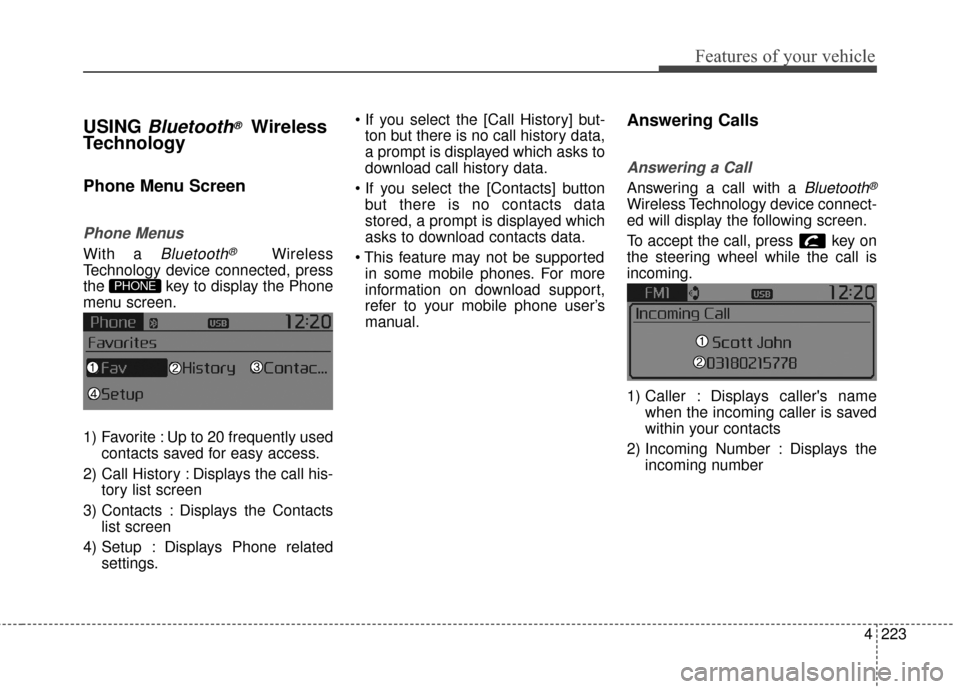
1) Favorite : Up to 20 frequently used contacts saved for easy access.
2) Call History : Displays the call his- tory list screen
3) Contacts : Displays the Contacts list screen
4) Setup : Displays Phone related settings.
ton but there is no call history data,
a prompt is displayed which asks to
download call history data.
but there is no contacts data
stored, a prompt is displayed which
asks to download contacts data.
in some mobile phones. For more
information on download support,
refer to your mobile phone user’s
manual.
Answering Calls
Answering a Call
Answering a call with a Bluetooth®
Wireless Technology device connect-
ed will display the following screen.
To accept the call, press key on
the steering wheel while the call is
incoming.
1) Caller : Displays caller's name when the incoming caller is saved
within your contacts
2) Incoming Number : Displays the incoming number
PHONE
Page 311 of 501
Features of your vehicle
224
4
displayed, most Audio and SETUP
mode features are disabled. Only
the call volume will operate.
properly displayed in some mobile
phones.
mobile phone, the call mode will
automatically revert to Private
mode.Favorites
Press the key Select
[Favorites]
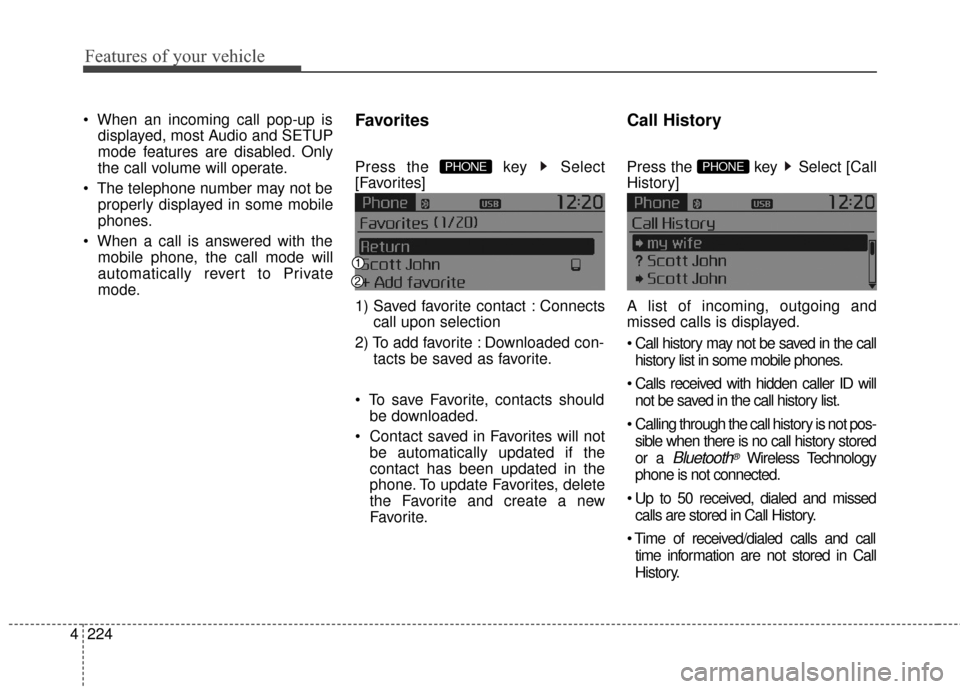
1) Saved favorite contact : Connects call upon selection
2) To add favorite : Downloaded con- tacts be saved as favorite.
save Favorite, contacts should be downloaded.
be automatically updated if the
contact has been updated in the
phone. To update Favorites, delete
the Favorite and create a new
Favorite.
Call History
Press the key Select [Call
History]
A list of incoming, outgoing and
missed calls is displayed.
history list in some mobile phones.
not be saved in the call history list.
Calling through the call history is not pos- sible when there is no call history stored
or a
Bluetooth®Wireless Technology
phone is not connected.
calls are stored in Call History.
time information are not stored in Call
History.
PHONE PHONE
Page 312 of 501
![KIA Sportage 2016 QL / 4.G Repair Manual 4225
Features of your vehicle
Contacts
Press the key Select
[Contacts]
The list of saved phone book entries
is displayed.
NOTE:
Find a contact in an alphabetical
order, press the key.
Bluetooth®Wir](/img/2/2981/w960_2981-311.png "KIA Sportage 2016 QL / 4.G Repair Manual 4225
Features of your vehicle
Contacts
Press the key Select
[Contacts]
The list of saved phone book entries
is displayed.
NOTE:
Find a contact in an alphabetical
order, press the key.
Bluetooth®Wir")
4225
Features of your vehicle
Contacts
Press the key Select
[Contacts]
The list of saved phone book entries
is displayed.
NOTE:
Find a contact in an alphabetical
order, press the key.
Bluetooth®Wireless Technology
phone can be downloaded into the
car contacts. Contacts that have
been downloaded to the car cannot
be edited or deleted on the phone.
aged separately for each paired
Bluetooth®Wireless Technology
device (max 5 devices x 1,000 con-
tacts each). Previously downloaded
data is maintained even if the
Bluetooth®Wireless Technology
device has been disconnected.
(However, the contacts and call his-
tory saved to the phone will be
deleted if a paired phone is delet-
ed.)
during Bluetooth streaming audio.
icon will be displayed within the sta-
tus bar.
loading a contact list when the con-
tact download feature has been
turned off within the
Bluetooth®
Wireless Technology device. In
addition, some devices may require device authorization upon attempt-
ing to download contacts. If down-
loading does not normally occur,
check the
Bluetooth®Wireless
Technology device settings or the
screen state.
not be supported in some mobile
phones. For more information of
supported
Bluetooth®devices and
function support, refer to your
phone’s user manual.
MENU
PHONE
Page 314 of 501
4227
Features of your vehicle
1) Connect/Disconnect Phone :Connect/ disconnects currently
selected phone
2) Change Priority : Sets currentlyselected phone to highest connec-
tion priority
3) Delete : Deletes the currently selected phone
4) Return : Moves to the previous screen
mobile phone supports contacts
downloads, refer to your mobile
phone user’s manual.
phone can be downloaded
Downloading Contacts
Press the key Select
[Phone] Select [Contacts Download]
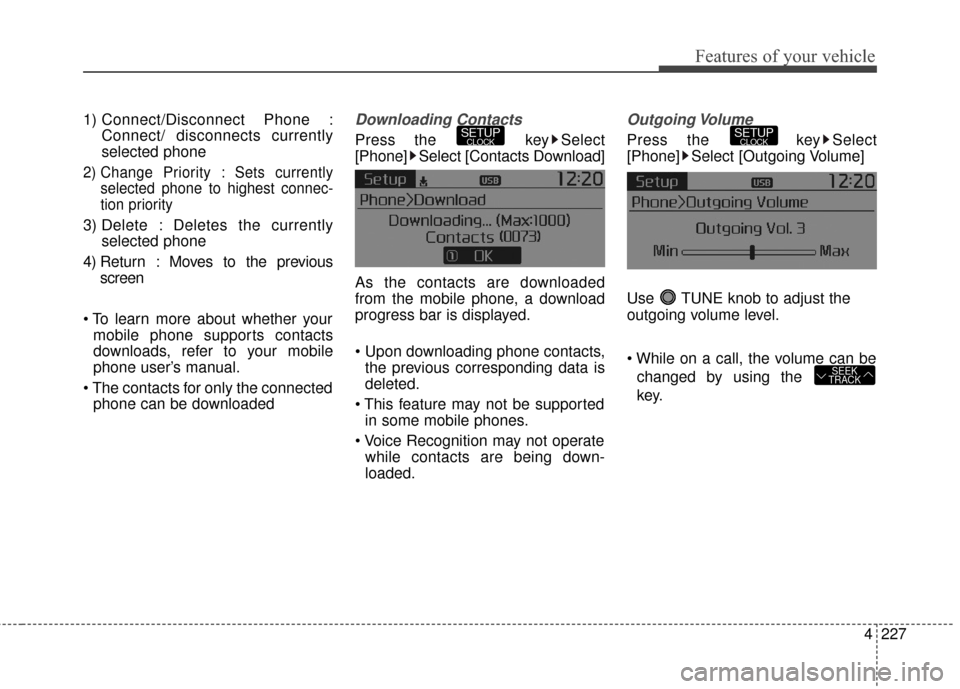
As the contacts are downloaded
from the mobile phone, a download
progress bar is displayed.
the previous corresponding data is
deleted.
in some mobile phones.
while contacts are being down-
loaded.
Outgoing Volume
Press the key Select
[Phone] Select [Outgoing Volume]
Use TUNE knob to adjust the
outgoing volume level.
changed by using the
key.
SEEK
TRACK
SETUPCLOCKSETUPCLOCK
Page 319 of 501
Features of your vehicle
232
4
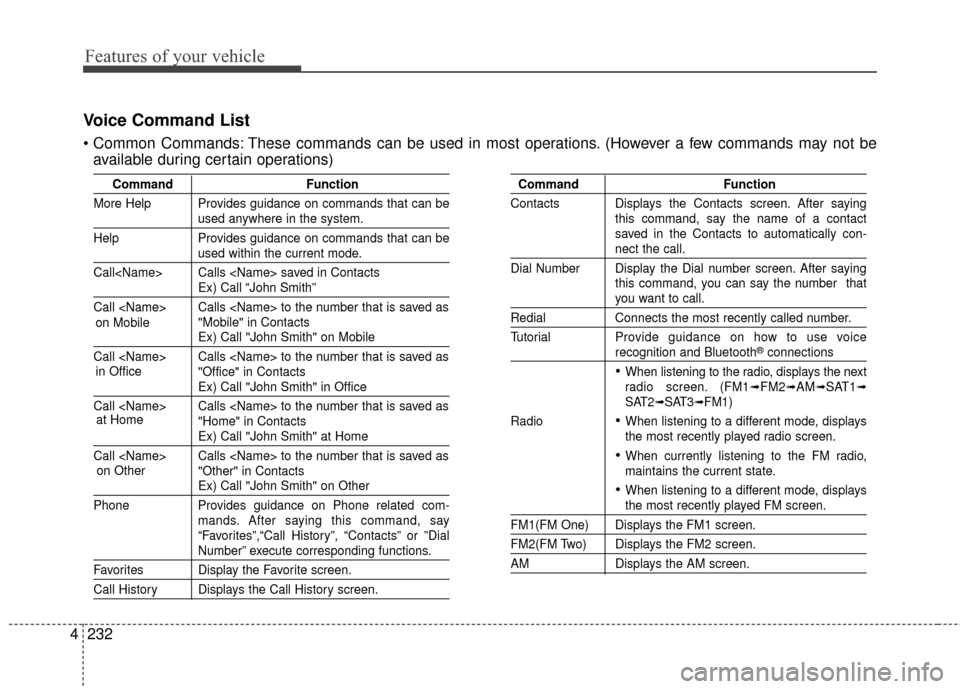
Voice Command List
These commands can be used in most operations. (However a few commands may not be
available during certain operations)
Command Function
More Help Provides guidance on commands that can be
used anywhere in the system.
Help Provides guidance on commands that can be
used within the current mode.
Call
Ex) Call “John Smith”
Call
Ex) Call "John Smith" on Mobile
Call
Ex) Call "John Smith" in Office
Call
Ex) Call "John Smith" at Home
Call
Ex) Call "John Smith" on Other
Phone Provides guidance on Phone related com- mands. After saying this command, say
“Favorites”,“Call History”, “Contacts” or ”Dial
Number” execute corresponding functions.
Favorites Display the Favorite screen.
Call History Displays the Call History screen.
Command Function
Contacts Displays the Contacts screen. After saying this command, say the name of a contact
saved in the Contacts to automatically con-
nect the call.
Dial Number Display the Dial number screen. After saying this command, you can say the number that
you want to call.
RedialConnects the most recently called number.
Tutorial Pro vide guidance on how to use voice
recognition and Bluetooth®connections
When listening to the radio, displays the next
radio screen. (FM1➟FM2➟AM➟SAT1➟SAT2➟SAT3➟FM1)
Radio
When listening to a different mode, displays
the most recently played radio screen.
When currently listening to the FM radio,
maintains the current state.
When listening to a different mode, displaysthe most recently played FM screen.
FM1(FM One) Displays the FM1 screen.
FM2(FM Two) Displays the FM2 screen.
AM Displays the AM screen.
in Office
at Home
on Other
on Mobile
Page 320 of 501
4233
Features of your vehicle
CommandFunction
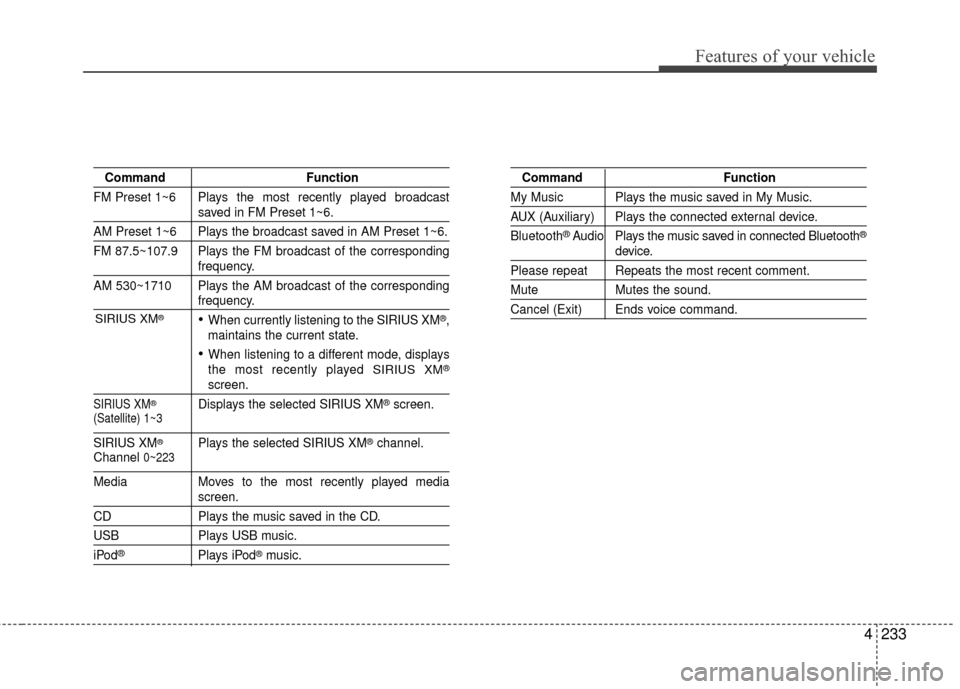
FM Preset 1~6 Plays the most recently played broadcast
saved in FM Preset 1~6.
AM Preset 1~6 Plays the broadcast saved in AM Preset 1~6.
FM 87.5~107.9 Plays the FM broadcast of the corresponding
frequency.
AM 530~1710 Plays the AM broadcast of the corresponding
frequency.
When currently listening to the SIRIUS XM®,
maintains the current state.
When listening to a different mode, displays
the most recently played SIRIUS XM®
screen.
SIRIUS XM®Displays the selected SIRIUS XM®screen.
SIRIUS XM®Plays the selected SIRIUS XM®channel.
Media Moves to the most recently played mediascreen.
CD Plays the music saved in the CD.
USBPlays USB music.
iPod®Plays iPod®music.
Command Function
My Music Plays the music saved in My Music.
AUX (Auxiliary) Plays the connected external device.
Bluetooth
®Audio Plays the music saved in connected Bluetooth®
device.
Please repeat Repeats the most recent comment.
Mute Mutes the sound.
Cancel (Exit) Ends voice command.
Channel 0~223
(Satellite) 1~3
SIRIUS XM®
Page 321 of 501
Features of your vehicle
234
4
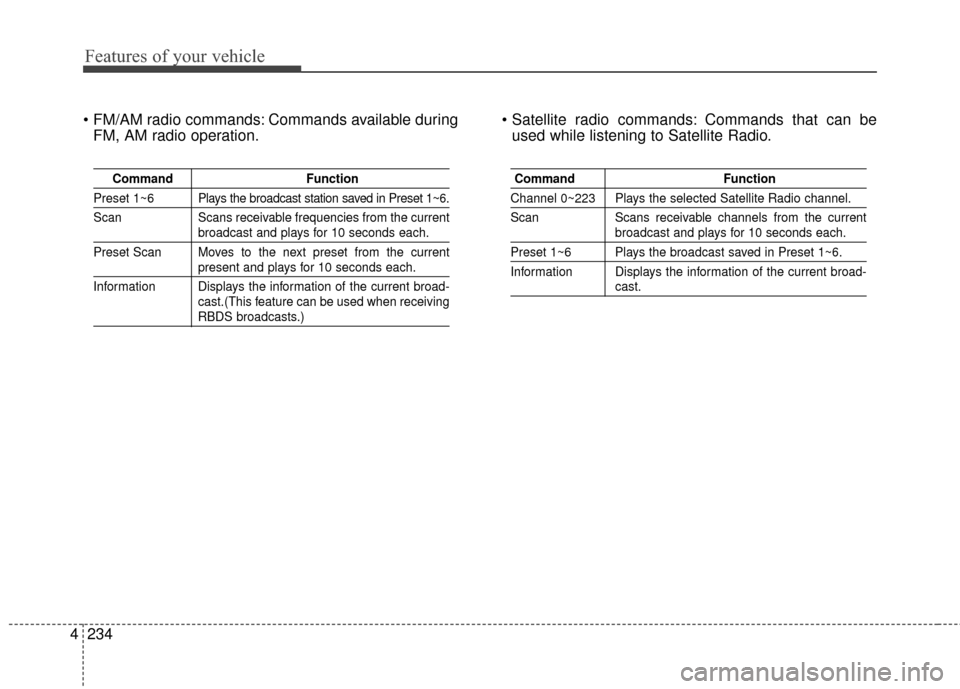
Commands available during
FM, AM radio operation. Commands that can be
used while listening to Satellite Radio.
Command Function
Preset 1~6 Plays the broadcast station saved in Preset 1~6.
Scan Scans receivable frequencies from the current
broadcast and plays for 10 seconds each.
Preset Scan Moves to the next preset from the current
present and plays for 10 seconds each.
Information Displays the information of the current broad- cast.(This feature can be used when receiving
RBDS broadcasts.)
Command Function
Channel 0~223 Plays the selected Satellite Radio channel.
Scan Scans receivable channels from the current
broadcast and plays for 10 seconds each.
Preset 1~6 Plays the broadcast saved in Preset 1~6.
Information Displays the information of the current broad-
cast.
Page 322 of 501
4235
Features of your vehicle
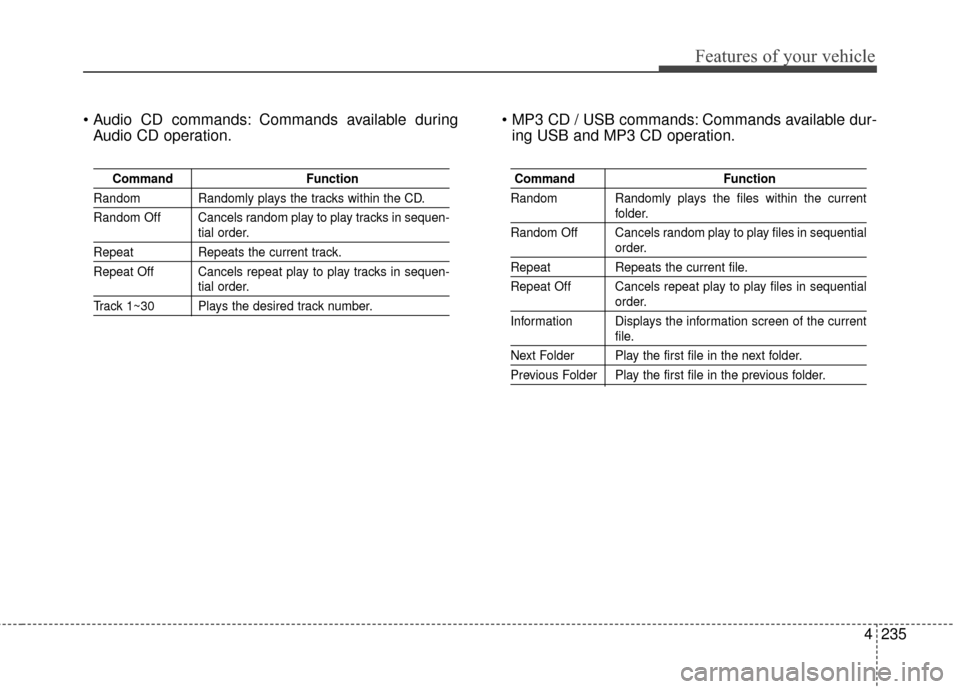
Commands available duringAudio CD operation. Commands available dur-
ing USB and MP3 CD operation.
Command Function
Random Randomly plays the tracks within the CD.
Random Off Cancels random play to play tracks in sequen-
tial order.
RepeatRepeats the current track.
Repeat Off Cancels repeat play to play tracks in sequen-
tial order.
Track 1~30 Plays the desired track number.
Command Function
Random Randomly plays the files within the current
folder.
Random Off Cancels random play to play files in sequential
order.
Repeat Repeats the current file.
Repeat Off Cancels repeat play to play files in sequential
order.
Information Displays the information screen of the current
file.
Next Folder Play the first file in the next folder.
Previous Folder Play the first file in the previous folder.
Page 341 of 501
Driving your vehicle
16
5
For smooth operation, depress the
brake pedal when shifting from N(Neutral) to a forward or reversegear.
When stopped on an incline, do not
hold the vehicle with the engine
power. Use the service brake or the
parking brake.
E060101AAM
Transaxle ranges
The indicator in the instrument clus-
ter displays the shift lever position
when the ignition switch is in the ON
position.
P (Park)
Always come to a complete stop
before shifting into P (Park). This
position locks the transaxle and pre-
vents the drive wheels from rotating.
Shifting into P (Park) while the vehi-
cle is in motion will cause the drive
wheels to lock which will cause you
to lose control of the vehicle.
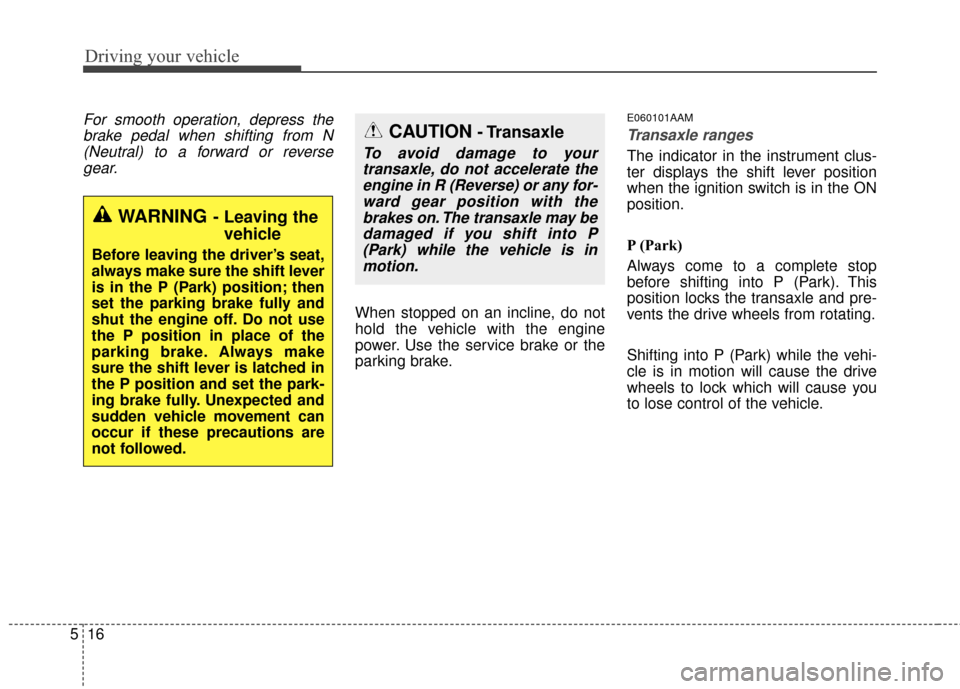
WARNING- Leaving the vehicle
Before leaving the driver’s seat,
always make sure the shift lever
is in the P (Park) position; then
set the parking brake fully and
shut the engine off. Do not use
the P position in place of the
parking brake. Always make
sure the shift lever is latched in
the P position and set the park-
ing brake fully. Unexpected and
sudden vehicle movement can
occur if these precautions are
not followed.
CAUTION- Transaxle
To avoid damage to your
transaxle, do not accelerate theengine in R (Reverse) or any for-ward gear position with thebrakes on. The transaxle may bedamaged if you shift into P(Park) while the vehicle is inmotion.
Page 457 of 501
739
Maintenance
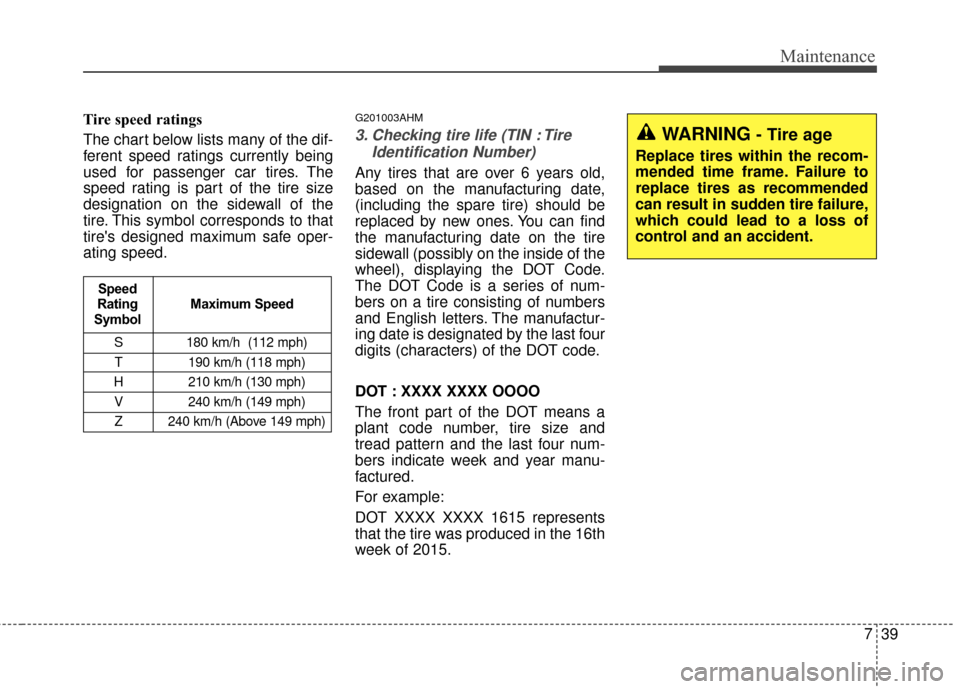
Tire speed ratings
The chart below lists many of the dif-
ferent speed ratings currently being
used for passenger car tires. The
speed rating is part of the tire size
designation on the sidewall of the
tire. This symbol corresponds to that
tire's designed maximum safe oper-
ating speed.G201003AHM
3. Checking tire life (TIN : TireIdentification Number)
Any tires that are over 6 years old,
based on the manufacturing date,
(including the spare tire) should be
replaced by new ones. You can find
the manufacturing date on the tire
sidewall (possibly on the inside of the
wheel), displaying the DOT Code.
The DOT Code is a series of num-
bers on a tire consisting of numbers
and English letters. The manufactur-
ing date is designated by the last four
digits (characters) of the DOT code.
DOT : XXXX XXXX OOOO
The front part of the DOT means a
plant code number, tire size and
tread pattern and the last four num-
bers indicate week and year manu-
factured.
For example:
DOT XXXX XXXX 1615 represents
that the tire was produced in the 16th
week of 2015.
S 180 km/h (112 mph)
T 190 km/h (118 mph)
H 210 km/h (130 mph) V 240 km/h (149 mph)Z 240 km/h (Above 149 mph)
Maximum Speed
Speed
Rating
Symbol
WARNING- Tire age
Replace tires within the recom-
mended time frame. Failure to
replace tires as recommended
can result in sudden tire failure,
which could lead to a loss of
control and an accident.