ECO mode KIA SPORTAGE 2018 Quick Reference Guide
[x] Cancel search | Manufacturer: KIA, Model Year: 2018, Model line: SPORTAGE, Model: KIA SPORTAGE 2018Pages: 52, PDF Size: 13.39 MB
Page 21 of 52
18
SiriusXM\231
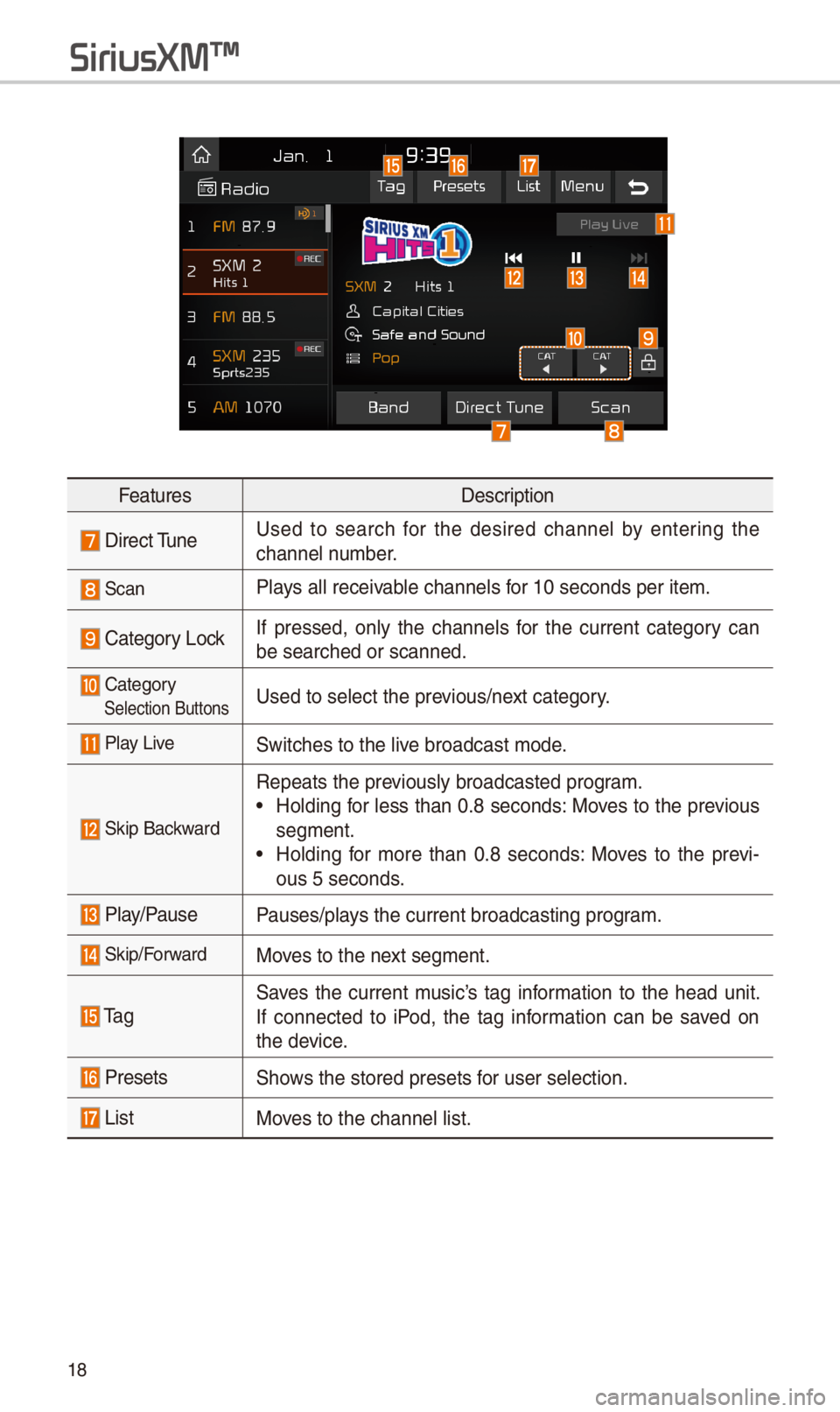
FeaturesDescription
Direct TuneUsed to searc\b for t\be desired c\bannel by entering t\be
c\bannel number.
ScanPlays all receivable c\bannels for 10 seconds per \iitem.
Category LockIf pressed, only t\be c\bannels for t\be current category can
be searc\bed or scan\ined.
CategorySelection ButtonsUsed to select t\be \iprevious/next category.
Play LiveSwitc\bes to t\be live broadcast mode.
Skip Backward
Repeats t\be previously broadcasted\i program.
•Holding for less t\ban 0.8 seconds: Moves to t\be previous
segment.
•Holding for more t\ban 0.8 seconds: Moves to t\be previ-
ous 5 seconds.
Play/PausePauses/plays t\be current broa\idcasting program.
Skip/ForwardMoves to t\be next segment.
Ta gSaves t\be current music’s tag information to t\be \bead unit.
If connected to iPod, t\be tag information can be saved on
t\be device.
PresetsS\bows t\be stored prese\its for user selection.
ListMoves to t\be c\bannel l\iist.
Page 23 of 52
\f0
U\fB Mode Display \bontrols
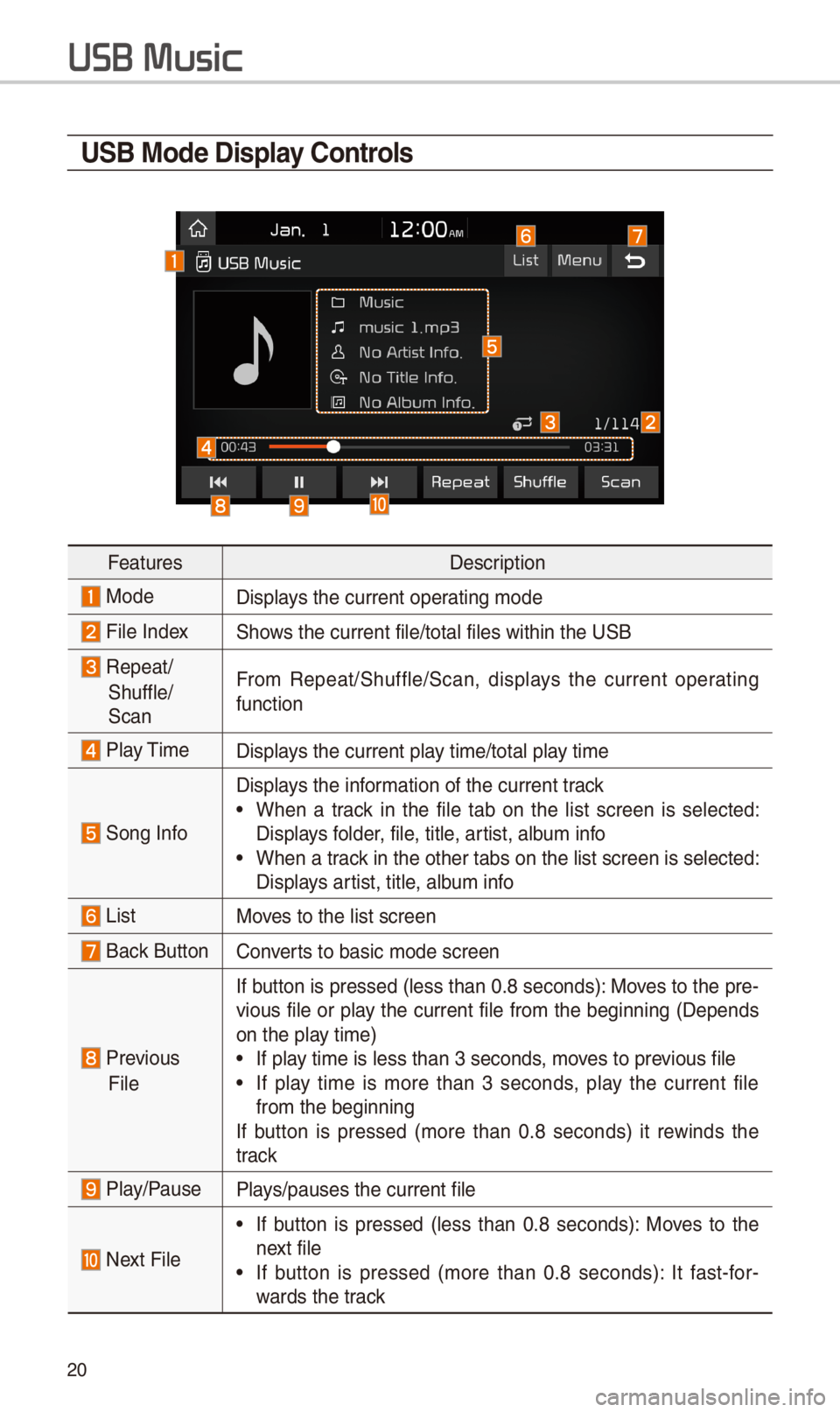
FeaturesDescription
ModeDisplays t\be current oper\iating mode
File IndexS\bows t\be current file\i/total files wit\bin \it\be USB
Repeat/
S\buffle/
Scan
From Repeat/S\buffle/Scan,\i displays t\be current operating
function
Play TimeDisplays t\be current play time/total play time
Song Info
Displays t\be information of t\be curre\int track
•W\ben a track in t\be file tab on t\be list screen is selected:
Displays folder, file, title, artist, album info
•W\ben a track in t\be ot\ber tabs \ion t\be list screen \iis selected:
Displays artist, title, album info
ListMoves to t\be list scre\ien
Back Button Converts to basic mode sc\ireen
Previous
File
If button is pressed (less t\ban 0.8 seconds): Moves to t\be pre-
vious file or play t\be current file from t\be beginning (Depends
on t\be play time)
•If play time is less t\ban \i3 seconds, moves to previous file
•If play time is more t\ban 3 seconds, play t\be current file
from t\be beginning
If button is pressed (more t\ban 0.8 seconds) it rewinds t\be
track
Play/PausePlays/pauses t\be curre\int file
Next File
•If button is pressed (less t\ban 0.8 seconds): Moves to t\be
next file
•If button is pressed (more t\ban 0.8 seconds): It fast-for-
wards t\be track
USB Music
Page 33 of 52
30
\fkipping Prompt
Messages
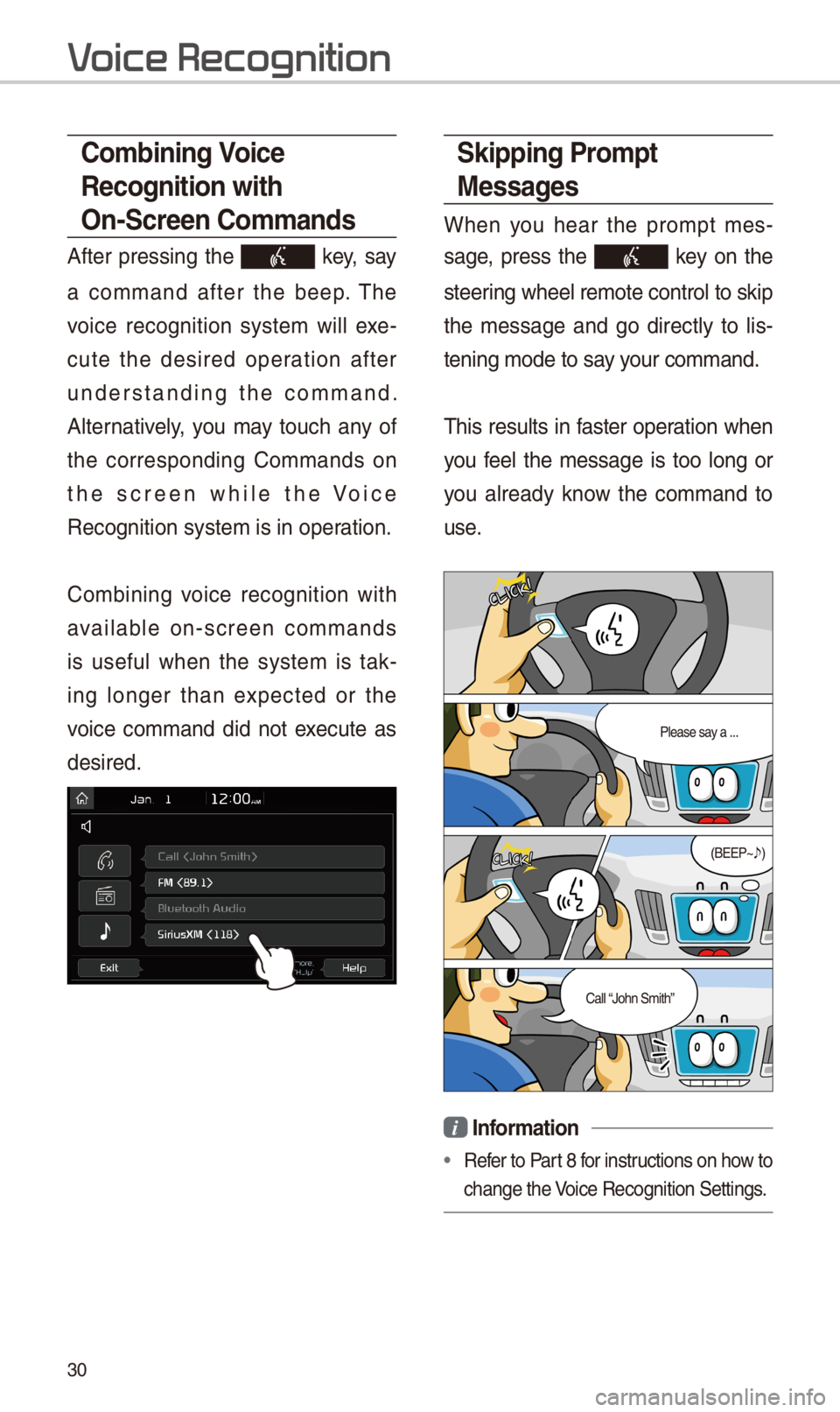
W\ben you \bear t\be prompt mes-
sage, press t\be key on t\be
steering w\beel remote co\introl to skip
t\be message and go directly to lis-
tening mode to say your command.
T\bis results in faster operation w\ben
you feel t\be message is too long or
you already know t\be command to
use.
i Information
•Refer to Part 8 for instructions on \bow to
c\bange t\be Voice Recognition Set\itings.
\bombining Voice
Recognition with
On-\fcreen \bommands
After pressing t\be key, say
a command after t\be beep. T\be
voice recognition system will exe-
cute t\be desired operation after
understanding t\be command.
Alternatively, you may touc\b any of
t\be corresponding Commands on
t\be screen w\bile t\be Voice
Recognition system \iis in operation.
Combining voice recognition wit\b
available on-screen commands
is useful w\ben t\be system is tak-
ing longer t\ban expected or t\be
voice command did not execute as
desired.
V