phone KIA SPORTAGE 2019 Features and Functions Guide
[x] Cancel search | Manufacturer: KIA, Model Year: 2019, Model line: SPORTAGE, Model: KIA SPORTAGE 2019Pages: 50, PDF Size: 3.91 MB
Page 4 of 50
VIDEOS & QR CODES - SMARTPHONES, TABLETS AND COMPUTERS
2*IF EQUIPPED SPORTAGE FEATURES & FUNCTIONS GUIDE
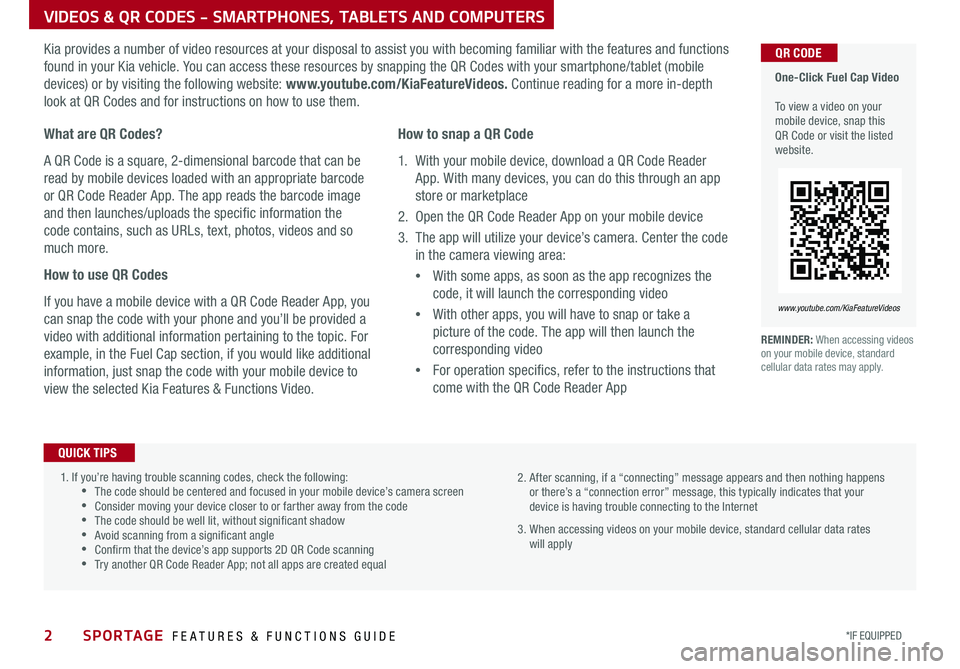
One-Click Fuel Cap Video To view a video on your mobile device, snap this QR Code or visit the listed website
www.youtube.com/KiaFeatureVideos
QR CODEKia provides a number of video resources at your disposal to assist you with becoming familiar with the features and functions
found in your Kia vehicle You can access these resources by snapping the QR Codes with your smartphone/tablet (mobile
devices) or by visiting the following website: www.youtube.com/KiaFeatureVideos. Continue reading for a more in-depth
look at QR Codes and for instructions on how to use them
REMINDER: When accessing videos on your mobile device, standard cellular data rates may apply
What are QR Codes?
A QR Code is a square, 2-dimensional barcode that can be
read by mobile devices loaded with an appropriate barcode
or QR Code Reader App The app reads the barcode image
and then launches/uploads the specific information the
code contains, such as URLs, text, photos, videos and so
much more
How to use QR Codes
If you have a mobile device with a QR Code Reader App, you
can snap the code with your phone and you’ll be provided a
video with additional information pertaining to the topic For
example, in the Fuel Cap section, if you would like additional
information, just snap the code with your mobile device to
view the selected Kia Features & Functions Video
How to snap a QR Code
1 With your mobile device, download a QR Code Reader
App With many devices, you can do this through an app
store or marketplace
2 Open the QR Code Reader App on your mobile device
3 The app will utilize your device’s camera Center the code
in the camera viewing area:
•
With some apps, as soon as the app recognizes the
code, it will launch the corresponding video
•
With other apps, you will have to snap or take a
picture of the code The app will then launch the
corresponding video
•
For operation specifics, refer to the instructions that
come with the QR Code Reader App
1 If you’re having trouble scanning codes, check the following: •The code should be centered and focused in your mobile device’s camera screen •Consider moving your device closer to or farther away from the code •The code should be well lit, without significant shadow •Avoid scanning from a significant angle •Confirm that the device’s app supports 2D QR Code scanning •Try another QR Code Reader App; not all apps are created equal
2 After scanning, if a “connecting” message appears and then nothing happens or there’s a “connection error” message, this typically indicates that your device is having trouble connecting to the Internet
3 When accessing videos on your mobile device, standard cellular data rates will apply
QUICK TIPS
Page 20 of 50
18SPORTAGE FEATURES & FUNCTIONS GUIDE
STEERING WHEEL CONTROLS
*IF EQUIPPED †LEGAL DISCL AIMERS ON BACK INSIDE COVER
TH E S YSTE M
Bluetooth® Wireless Technology†4,20
A
CD
B
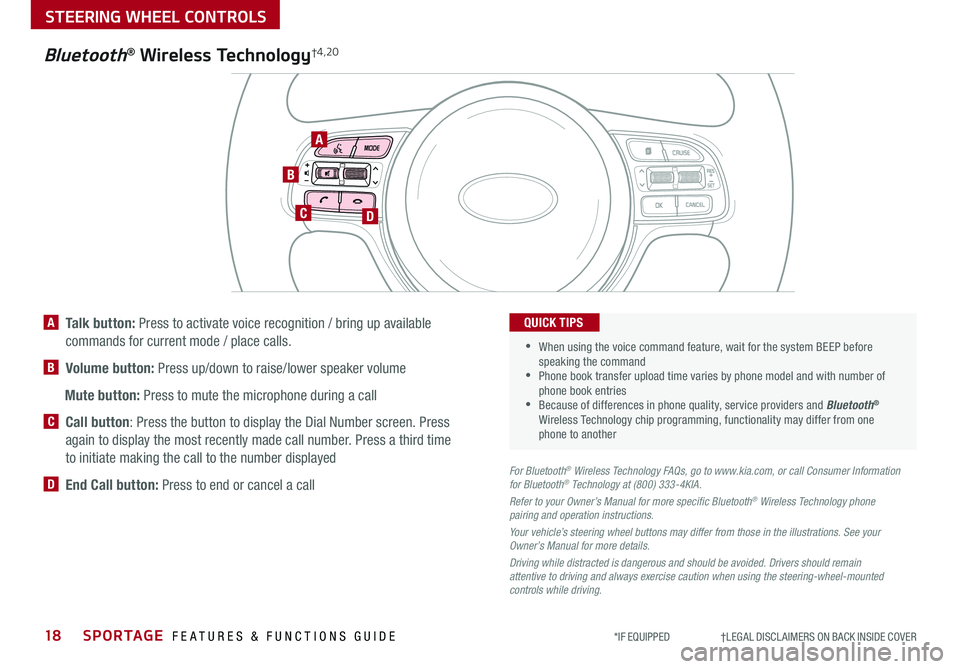
A Talk button: Press to activate voice recognition / bring up available
commands for current mode / place calls
B Volume button: Press up/down to raise/lower speaker volume
Mute button: Press to mute the microphone during a call
C Call button: Press the button to display the Dial Number screen Press
again to display the most recently made call number Press a third time
to initiate making the call to the number displayed
D End Call button: Press to end or cancel a callFor Bluetooth® Wireless Technology FAQs, go to www.kia.com, or call Consumer Information for Bluetooth® Technology at (800) 333-4KIA.
Refer to your Owner’s Manual for more specific Bluetooth® Wireless Technology phone pairing and operation instructions.
Your vehicle’s steering wheel buttons may differ from those in the illustrations. See your Owner’s Manual for more details.
Driving while distracted is dangerous and should be avoided. Drivers should remain attentive to driving and always exercise caution when using the steering-wheel-mounted controls while driving.
•
•
When using the voice command feature, wait for the system BEEP before speaking the command •Phone book transfer upload time varies by phone model and with number of phone book entries •Because of differences in phone quality, service providers and Bluetooth® Wireless Technology chip programming, functionality may differ from one phone to another
QUICK TIPS
Page 21 of 50
19
STEERING WHEEL CONTROLS
ALWAYS CHECK THE OWNER’S MANUAL FOR COMPLETE OPER ATING INFORMATION AND SAFET Y WARNINGS *IF EQUIPPED †LEGAL DISCL AIMERS ON BACK INSIDE COVER
Voice Recognition and Phone Contact Tips
To help optimize the Bluetooth® Wireless
Technology Voice Recognition system, below
are some tips and reminders Improve the
performance by making a few simple changes
to your phone contacts:
•Use full names (first and last names) vs
short or single-syllable names (“John
Smith” vs “Dad," “Smith Residence” vs
“Home”)
•Avoid using special characters, emoji’s or
hyphenated names (@, &, #, /, -, *, +, etc )
•Avoid using acronyms (“In Case of
Emergency” vs “ICE”) or words with all
capital letters
•Spell words completely, no abbreviations
(“Doctor Smith” vs “Dr Smith”)
The system may have difficulty understanding
some accents or uncommon names Below are
other tips to optimize using the voice recognition
Bluetooth® Wireless Technology†4,20
Pairing a Phone
For instructions on how to pair a phone, refer to the audio system’s
user’s guide or your vehicle’s Quick Start Guide
How to Place a Call
When using the voice command feature, wait for the system BEEP
before speaking the command
There are two options for placing a call using the Steering Wheel
controls:
•Option 1: Press the Receive/Place Call button C (system displays
the call history with the most recent calls)
•Option 2: Press the Talk button A (system will BEEP to indicate it is
ready for call placement) Then say the command “Call {name}” or
“Dial {number}”
During the pairing process, be sure to accept the connection requests on the phone for phone book download and to allow acceptance of all future Bluetooth® connection requests
QUICK TIP
•When placing a call, speak in a natural, moderate tone, with clear pronunciation The system may have trouble recognizing commands if you speak too soft or too loud •Always wait for the beep before speaking any commands •Close windows and sunroof and turn off A /C Open windows, sunroof, weather (wind/rain), or an A /C fan operating at higher speeds can interfere with Voice Recognition •Press the talk button and say “Help” to get a list of available commands
QUICK TIPS
Voice Recognition Tips Video To view a video on your mobile device, snap this QR Code or visit the listed website
Refer to page 2 for more information
www.youtube.com/KiaFeatureVideos
QR CODE
Page 22 of 50
AUDIO SYSTEMS
Audio System Setup Options
Press the SETUP key, then using the touchscreen, press the menu item to enter (Display, Sound, Clock /
Calendar, Phone, System) Adjust the available settings for each equipped audio system setup option by
pressing the onscreen buttons/arrows Audio system setup options may include the following:
To adjust the Sound settings (bass, middle,
treble, fader, balance) – When in the SETUP
menu, select Sound and then Sound Setting
Adjust the settings by pressing the onscreen
arrows and then Return to exit
Your vehicle’s audio system may differ from that in the
illustration. See your Owner’s Manual for more details.
REMINDER: To help minimize driver distraction, some audio system functionalities have been modified while the vehicle is in Drive, Reverse or moved out of Park
•Display settings - Adjusting the Brightness, Mode Popup, Media Display
•Sound settings - Sound Settings (fader, balance, bass, middle, treble), Speed Dependent
Volume Control, Voice Recognition Volume, Touchscreen Beep
•Clock/Calendar settings - Clock Settings, Calendar Settings, Time Format, Clock Display
•Phone settings - Pair Phone, Paired Phone List, Contacts Download, Outgoing Volume,
Bluetooth® System Off
•System settings - Memory Information, Prompt Feedback, Language
Standard Audio System*
FM/AM/SiriusXM®/Media (CD, MP3, USB, iPod, Aux, My Music, Bluetooth® Au dio)*
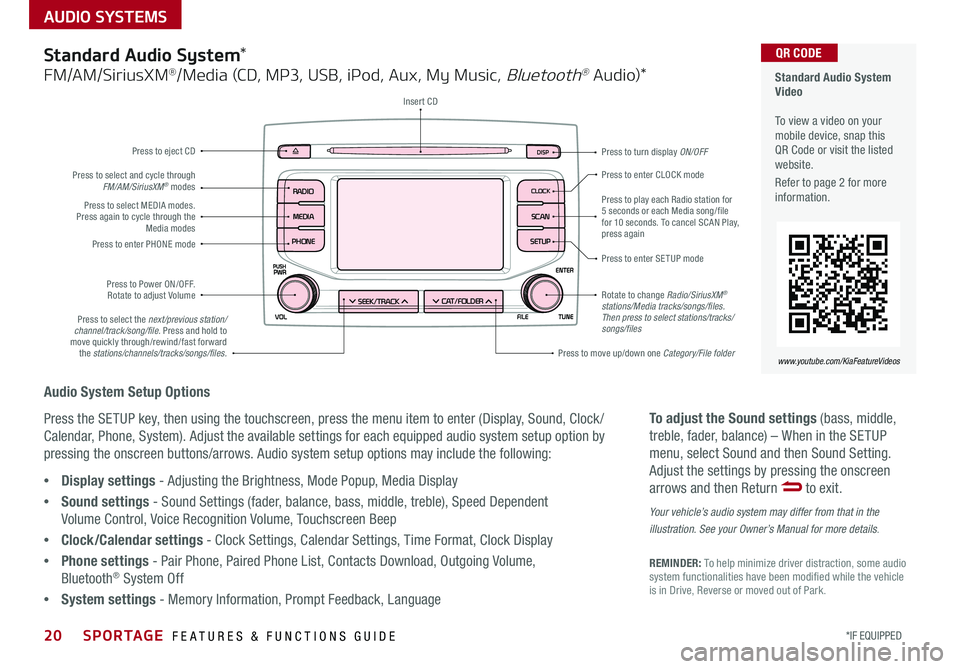
Rotate to change Radio/SiriusXM® stations/Media tracks/songs/files. Then press to select stations/tracks/songs/files
Press to move up/down one Category/File folder
DISP
CAT/FO LDER
SEEK/T RACK
RADIO
M EDIA
CLO CK
SETU P
SCA
N
PHONE
Press to play each Radio station for 5 seconds or each Media song/file for 10 seconds To cancel SCAN Play, press again
Press to enter SETUP mode
Press to enter CLOCK mode
Press to turn display ON/OFF
Insert CD
Press to eject CD
Press to select the next/previous station/channel/track/song/file. Press and hold to move quickly through/rewind/fast forward the stations/channels/tracks/songs/files.
Press to select and cycle through FM/AM/SiriusXM® modes
Press to Power ON/OFF Rotate to adjust Volume
Press to select MEDIA modes Press again to cycle through the Media modesPress to enter PHONE mode
20*IF EQUIPPED SPORTAGE FEATURES & FUNCTIONS GUIDE
Standard Audio System Video To view a video on your mobile device, snap this QR Code or visit the listed website
Refer to page 2 for more information
www.youtube.com/KiaFeatureVideos
QR CODE
Page 23 of 50
AUDIO SYSTEMS
21
For further UVO operations, refer to the Car Multimedia System User's Manual. For other audio system information, refer to pages 20-23.
UVO eServices†1 / Android AutoTM †3 / Apple CarPlay® Setup*†11
ALWAYS CHECK THE OWNER’S MANUAL FOR COMPLETE OPER ATING INFORMATION AND SAFET Y WARNINGS *IF EQUIPPED †LEGAL DISCL AIMERS ON BACK INSIDE COVER
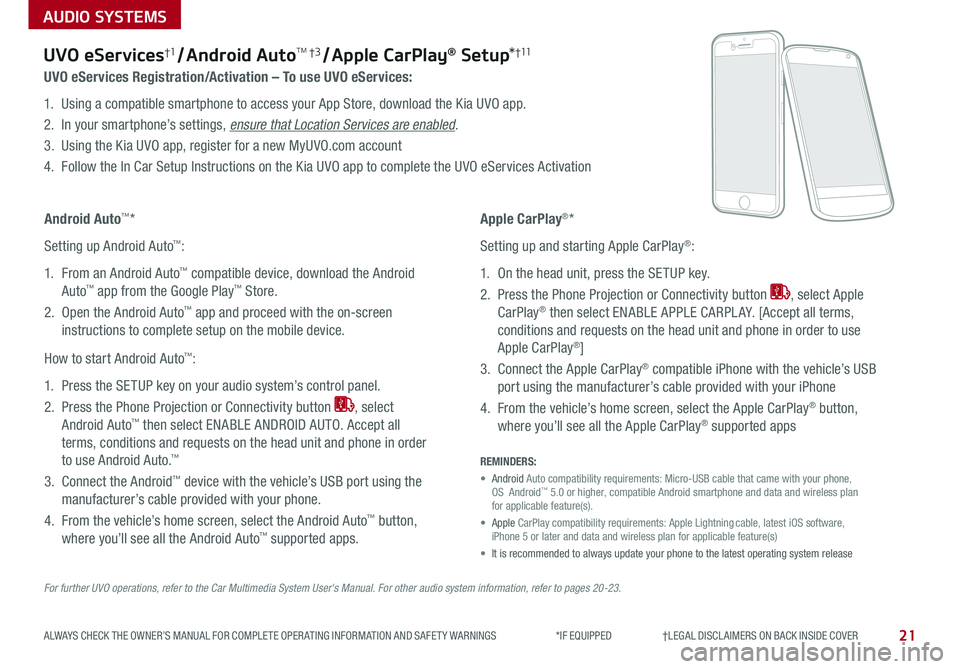
UVO eServices Registration/Activation – To use UVO eServices:
1 Using a compatible smartphone to access your App Store, download the Kia UVO app
2 In your smartphone’s settings, ensure that Location Services are enabled
3 Using the Kia UVO app, register for a new MyUVO com account
4 Follow the In Car Setup Instructions on the Kia UVO app to complete the UVO eServices Activation
Apple CarPlay®*
Setting up and starting Apple CarPlay®:
1 On the head unit, press the SETUP key
2 Press the Phone Projection or Connectivity button , select Apple
CarPlay® then select ENABLE APPLE CARPL AY [Accept all terms,
conditions and requests on the head unit and phone in order to use
Apple CarPlay®]
3 Connect the Apple CarPlay® compatible iPhone with the vehicle’s USB
port using the manufacturer’s cable provided with your iPhone
4 From the vehicle’s home screen, select the Apple CarPlay® button,
where you’ll see all the Apple CarPlay® supported apps
Android Auto™*
Setting up Android Auto™:
1 From an Android Auto™ compatible device, download the Android
Auto™ app from the Google Play™ Store
2 Open the Android Auto™ app and proceed with the on-screen
instructions to complete setup on the mobile device
How to start Android Auto™:
1 Press the SETUP key on your audio system’s control panel
2 Press the Phone Projection or Connectivity button , select
Android Auto™ then select ENABLE ANDROID AUTO Accept all
terms, conditions and requests on the head unit and phone in order
to use Android Auto ™
3 Connect the Android™ device with the vehicle’s USB port using the
manufacturer’s cable provided with your phone
4 From the vehicle’s home screen, select the Android Auto™ button,
where you’ll see all the Android Auto™ supported apps
REMINDERS:
• Android Auto compatibility requirements: Micro-USB cable that came with your pho\
ne, OS Android™ 5 0 or higher, compatible Android smartphone and data and wireless plan for applicable feature(s)
• Apple CarPlay compatibility requirements: Apple Lightning cable, latest iOS software, iPhone 5 or later and data and wireless plan for applicable feature(s)\
• It is recommended to always update your phone to the latest operating syste\
m release
Page 24 of 50
22SPORTAGE FEATURES & FUNCTIONS GUIDE
AUDIO SYSTEMS
*IF EQUIPPED †LEGAL DISCL AIMERS ON BACK INSIDE COVER
Your vehicle’s audio system may differ from that in the illustration. For further audio system operations, refer to pages 20-23. For more information, refer to the Car Multimedia System User's Manual.
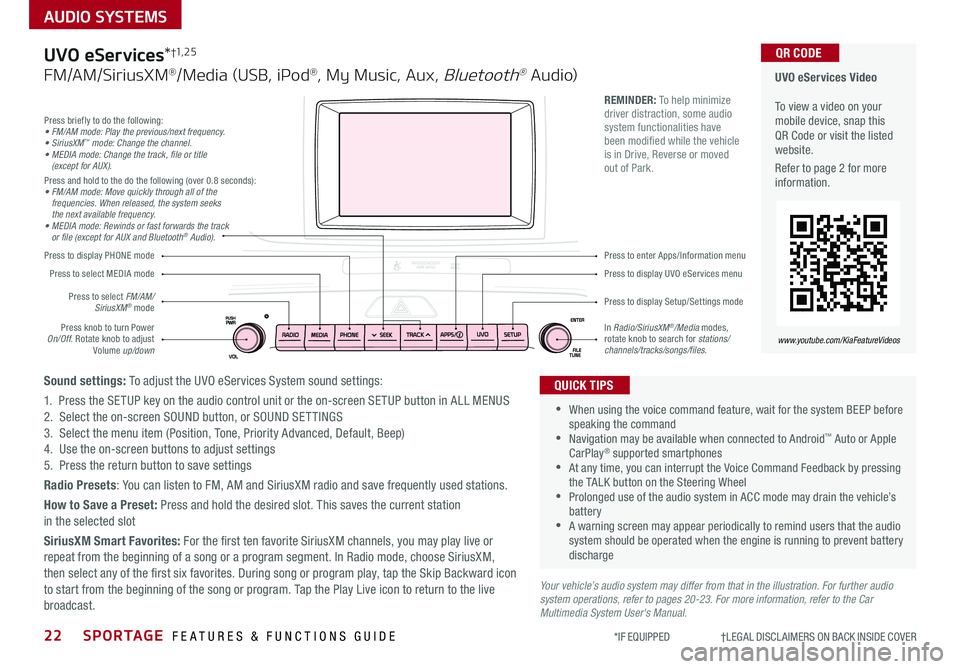
Press to display PHONE mode
Press to display Setup/Settings mode
Press to display UVO eServices menu
Press to enter Apps/Information menu
Press briefly to do the following:• FM/AM mode: Play the previous/next frequency.• SiriusXM™ mode: Change the channel.• MEDIA mode: Change the track, file or title (except for AUX).Press and hold to the do the following (over 0 8 seconds):• FM/AM mode: Move quickly through all of the frequencies. When released, the system seeks the next available frequency.• MEDIA mode: Rewinds or fast forwards the track or file (except for AUX and Bluetooth® Audio).
Press knob to turn Power On/Off Rotate knob to adjust Volume up/down
Press to select MEDIA mode
Press to select FM/AM/SiriusXM® mode
In Radio/SiriusXM®/Media modes, rotate knob to search for stations/ channels/tracks/songs/files.
UVO eServices Video To view a video on your mobile device, snap this QR Code or visit the listed website
Refer to page 2 for more information
www.youtube.com/KiaFeatureVideos
QR CODE
•
•When using the voice command feature, wait for the system BEEP before speaking the command •Navigation may be available when connected to Android™ Auto or Apple CarPlay® supported smartphones •At any time, you can interrupt the Voice Command Feedback by pressing the TALK button on the Steering Wheel •Prolonged use of the audio system in ACC mode may drain the vehicle’s battery •A warning screen may appear periodically to remind users that the audio system should be operated when the engine is running to prevent battery discharge
QUICK TIPS
REMINDER: To help minimize driver distraction, some audio system functionalities have been modified while the vehicle is in Drive, Reverse or moved out of Park
UVO eServices*†1, 2 5
FM/AM/SiriusXM®/Media (USB, iPod®, My Music, Aux, Bluetooth® Au dio)
Sound settings: To adjust the UVO eServices System sound settings:
1 Press the SETUP key on the audio control unit or the on-screen SETUP button in ALL MENUS2 Select the on-screen SOUND button, or SOUND SET TINGS3 Select the menu item (Position, Tone, Priority Advanced, Default, Beep)4 Use the on-screen buttons to adjust settings 5 Press the return button to save settings
Radio Presets: You can listen to FM, AM and SiriusXM radio and save frequently used stations
How to Save a Preset: Press and hold the desired slot This saves the current station in the selected slot
SiriusXM Smart Favorites: For the first ten favorite SiriusXM channels, you may play live or repeat from the beginning of a song or a program segment In Radio mode, choose SiriusXM, then select any of the first six favorites During song or program play, tap the Skip Backward icon to start from the beginning of the song or program Tap the Play Live icon to return to the live broadcast
Page 26 of 50
24*IF EQUIPPED SPORTAGE FEATURES & FUNCTIONS GUIDE
CENTER PANEL
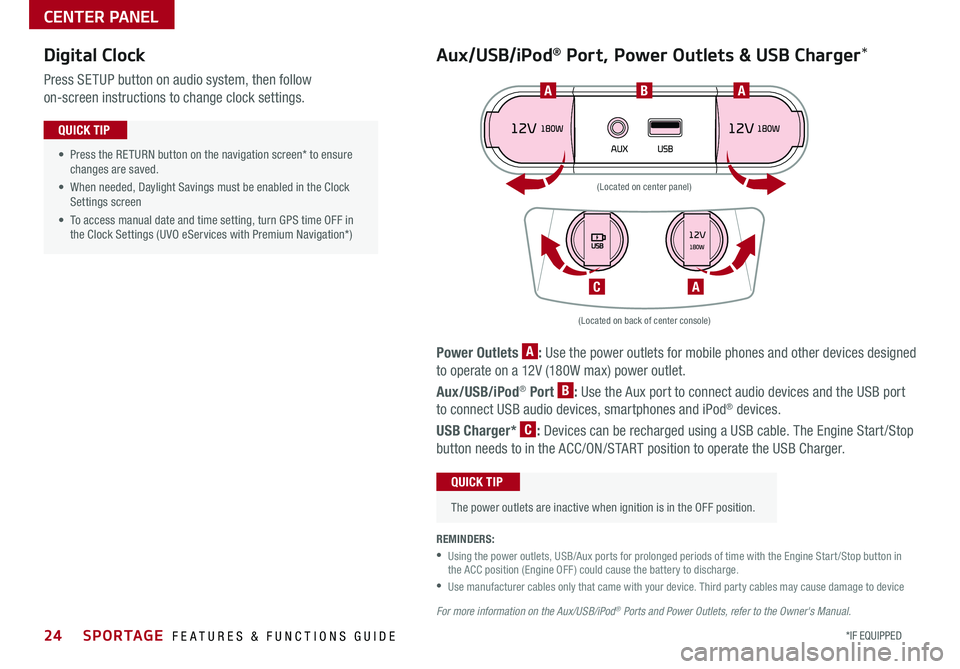
Power Outlets A: Use the power outlets for mobile phones and other devices designed
to operate on a 12V (180W max) power outlet
Aux/USB/iPod® Port B: Use the Aux port to connect audio devices and the USB port
to connect USB audio devices, smartphones and iPod® devices
USB Charger* C: Devices can be recharged using a USB cable The Engine Start /Stop
button needs to in the ACC/ON/START position to operate the USB Charger
• Press the RETURN button on the navigation screen* to ensure changes are saved
• When needed, Daylight Savings must be enabled in the Clock Settings screen
• To access manual date and time setting, turn GPS time OFF in the Clock Settings (UVO eServices with Premium Navigation*)
QUICK TIP
REMINDERS:
•
Using the power outlets, USB/Aux ports for prolonged periods of time with the Engine Start /Stop button in the ACC position (Engine OFF ) could cause the battery to discharge
•
Use manufacturer cables only that came with your device Third party cables may cause damage to device
For more information on the Aux/USB/iPod® Ports and Power Outlets, refer to the Owner's Manual.
(Located on back of center console)
(Located on center panel)
BAA
AC
Digital Clock
Press SETUP button on audio system, then follow
on-screen instructions to change clock settings
Aux/USB/iPod® Port, Power Outlets & USB Charger*
The power outlets are inactive when ignition is in the OFF position
QUICK TIP
Page 36 of 50
SPORTAGE FEATURES & FUNCTIONS GUIDE
OTHER KEY FEATURES
34*IF EQUIPPED †LEGAL DISCL AIMERS ON BACK INSIDE COVER
HOLD
Lock
Unlock
HOLD
Engine Start/Stop Button & Smart Key Video To view a video on your mobile device, snap this QR Code or visit the listed website
Refer to page 2 for more information
www.youtube.com/KiaFeatureVideos
QR CODE
HOLD
F
H
I
G
A
B
C
D
E
Remote button configuration may vary depending on vehicle options. For more information on the Mechanical Key, please refer to your Owner’s Manual.
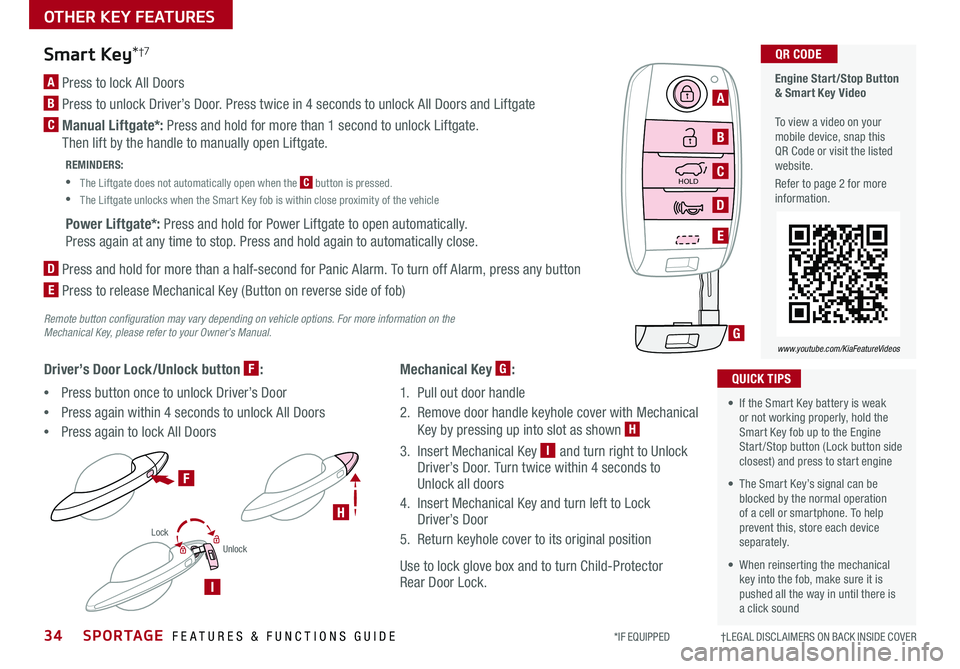
Mechanical Key G:
1 Pull out door handle
2 Remove door handle keyhole cover with Mechanical
Key by pressing up into slot as shown H
3 Insert Mechanical Key I and turn right to Unlock Driver’s Door Turn twice within 4 seconds to Unlock all doors
4 Insert Mechanical Key and turn left to Lock Driver’s Door
5 Return keyhole cover to its original position
Use to lock glove box and to turn Child-Protector Rear Door Lock
Driver’s Door Lock/Unlock button F:
•Press button once to unlock Driver’s Door
•Press again within 4 seconds to unlock All Doors
•Press again to lock All Doors
Smart Key*†7
A Press to lock All Doors
B Press to unlock Driver’s Door Press twice in 4 seconds to unlock All Doors and Liftgate
C Manual Liftgate*: Press and hold for more than 1 second to unlock Liftgate
Then lift by the handle to manually open Liftgate
REMINDERS:
•
The Liftgate does not automatically open when the C button is pressed
•
The Liftgate unlocks when the Smart Key fob is within close proximity of the vehicle
Power Liftgate*: Press and hold for Power Liftgate to open automatically
Press again at any time to stop Press and hold again to automatically close
D
Press and hold for more than a half-second for Panic Alarm To turn off Alarm, press any button
E
Press to release Mechanical Key (Button on reverse side of fob)
•
• If the Smart Key battery is weak or not working properly, hold the Smart Key fob up to the Engine Start /Stop button (Lock button side closest) and press to start engine
• The Smart Key’s signal can be blocked by the normal operation of a cell or smartphone To help prevent this, store each device separately
• When reinserting the mechanical key into the fob, make sure it is pushed all the way in until there is a click sound
QUICK TIPS
Page 47 of 50
LEGAL DISCLAIMERSSales Consultant:
______________________________________________________________
Date:
____________________
Sales Manager:
________________________________________________________________
Date:
____________________
Customer:
_____________________________________________________________________
Date:
____________________
2. Airbags: For maximum protection, always wear your seat belt.
3. Android Auto: Android Auto is a trademark of Google, Inc.. Android™ is a registered trademark of Google, Inc. Distracted driving can result in a loss of vehicle control. Never use a handheld device or vehicle system that takes your focus away from safe vehicle operation. Navigation is for information purposes only, and Kia does not make any warranties about the accuracy of the information.
4. Bluetooth® Wireless Technology: A compatible Bluetooth® wireless technology-enabled cell phone is required to use Bluetooth® wireless technology. The Bluetooth® word mark and logos are registered trademarks owned by Bluetooth SIG, Inc. and any use of such marks by Kia is under license. Other trademarks and trade names are those of their respective owners. A Bluetooth® enabled cell phone is required to use Bluetooth® wireless technology.
5. Driver Assist Features – Parking Distance Warning-Forward/Reverse, Blind-Spot Collision Warning with Lane Change Assist, Rear Cross-Traffic Collision Warning, Lane Departure Warning, Rear Camera Display, Forward Collision-Avoidance Assist / Forward Collision Warning: These features are not substitutes for safe driving, and may not detect all objects surrounding vehicle. Always drive safely and use caution.
6. Electronic Stability Control (ESC)/Traction Control System (TCS)/Hill-start Assist Control (HAC), Downhill Brake Control (DBC): No system, no matter how advanced, can compensate for all driver error and/or driving conditions. Always drive responsibly.
7. Engine Start/Stop Button with Smart Key: Always come to a complete stop before turning the engine on or off. However, if you have an emergency while the vehicle is in motion and must turn the engine off, you can turn the engine off to the ACC position by pressing the Start/Stop button for more than 3 seconds o\
r 3 times in succession. If the vehicle is still moving, you can restart the engine by pressing the Start/Stop button with the s\
hift lever in Neutral (N). With the engine off, power assist for steering and braking will be disabled, and the vehicle will be more difficult to control.
8. Front Seat Headrest Adjustment: Never attempt to adjust headrests when vehicle is in motion.
9. Google Play™ Store is a trademark of Google, Inc. ©2018 Google Inc. All rights reserved. Google and the Google Logo are registered trademarks of Google Inc.
10. HomeLink®: Homelink® is a registered trademark of Gentex Corporation.
11. iPhone®/iPod®, Apple CarPlay™: Apple CarPlay, iPhone, iPod are registered trademarks of Apple Inc. Distracted driving can result in a loss of vehicle control. Never use a handheld device or vehicle system that takes your focus away from safe vehicle operation.
12. Navigation: Distracted driving can result in a loss of vehicle control. When operating a vehicle, never use a handheld device or vehicle system that takes your focus away from safe vehicle operation. Navigation is for information purposes only, and Kia does not make any warranties about the accuracy of the information.
13. Occupant Detection System (ODS): Kia vehicles use a number of different ODS types that vary by model. Children age 12 and under should always be seated in the REAR seats.
14. Power Liftgate/Smart Power Liftgate: Driving with the trunk open may be unlawful and can draw dangerous exhaust fumes into your vehicle; if you choose to do so, keep air vents and all windows open for proper ventilation.15. Roadside Assist: 24-hour Enhanced Roadside Assistance is a service plan provided by Kia Motors America, Inc. Certain limitations apply. Coverage details are available in the Kia Warranty and Consumer Information Manual. For access to Enhanced Roadside Assistance, a connected mobile phone via Bluetooth® within the cellular service coverage area is required.
16. Seat adjustments: Reclining the passenger seats can reduce the effectiveness of the safety restraint system and may lead to additional injury in an accident.
17. Seat Belts / Airbags: For maximum protection, always wear your seatbelt.
18. Seat warmers: Use extreme caution when using the seat warmers to avoid burns. Refer to the Owner’s Manual for more information.
19. SiriusXM®: SiriusXM Satellite Radio, SiriusXM Traffic and SiriusXM Travel Link each require a subscription sold separately, or as a package, by SiriusXM Radio Inc. If you decide to continue your service at the end of your trial subscription, the plan you choose will automatically renew and bill at then-current r\
ates until you call 1-866-635-2349 to cancel. See SiriusXM Customer Agreement for complete terms at www.siriusxm.com. Other fees and taxes will apply. All fees and programming are subject to change. Not all vehicles or devices are capable of receiving all services offered by SiriusXM. Data displays and individual product availability vary by vehicle hardware. Current information and features may not be available in all locations, or on all receivers. Weather Forecast, Current Conditions may not be available in all locations. Images above are for representative purposes only and are not real products. For actual features and images of real products, consult the vehicle manufacturer. SiriusXM is not responsible for any errors or inaccuracies in the data services or their use in the vehicle. Travel Link Stocks displays current price and daily delta of around 7,000 actively reported securiti\
es traded on the NYSE®, NASDAQ® and AMEX®. The service is delayed approximately 20 minutes. SiriusXM satellite service is available only to those at least 18 years of age in the 48 contiguous USA, DC, and Puerto Rico (with coverage limitations). SiriusXM Internet Radio service is available throughout our satellite service area and in AK and HI. © 2018 SiriusXM Radio Inc. Sirius, XM and all related marks and logos are trademarks of SiriusXM Radio Inc.
20. Sportmatic® is a registered trademark of Kia Motors America.
21. Steering Wheel Controls: Driving while distracted is dangerous and should be avoided. Remain attentive to driving and be cautious when using steering-wheel-mounted controls while driving\
.
22. Sunvisors: Sunvisor may not shield all direct light. Do not operate the vehicle if Sunvisor is impairing your visibility.
23. Tilt/Telescoping Steering Wheel: Never attempt to adjust steering wheel position when vehicle is in motion.
24. Tire Pressure Monitoring System (TPMS): Even with Tire Pressure Monitoring System, check tire pressure on regular basis.
25. Vehicle Diagnostics: Vehicle Diagnostics checks powertrain, chassis and air bag systems, and is not a substitute for maintenance. See UVO eServices Maintenance Feature or Owner’s Manual for maintenance schedule.
Driving while distracted is dangerous and should be avoided. Drivers should remain attentive to driving and always exercise caution when using the steering-wheel-mounted controls while dri\
ving.
Driving while distracted can result in a loss of vehicle control that may lead to an accident, severe personal injury and death. The driver’s primary responsibility is in the safe and legal operation of a vehicle, and use of any handheld devices, other equipment or vehicle systems which take the driver’s eyes, attention and focus away from the safe operation of a vehicle or that are not permissible by law should never be used during operation of the vehicle.
Safety Features: No system, no matter how advanced, can compensate for all driver error and/or driving conditions. Always drive responsibly.
1. Purchase/lease of certain new Kia vehicles may include a complimentary UVO eServices subscription (length of subscription varies by vehicle model and year) starting from new vehicle retail sale/lease date as recorded by the dealer. After your complimentary UVO eServices subscription expires, your access to UVO eServices will immediately terminate. Use of UVO eServices is subject to agreement to the UVO Privacy Policy available at https://www.myuvo.com/legal/privacy-policy.shtml) and Terms of Service (available at https://www.myuvo.com/legal/terms-of-service.shtml). UVO eServices transferrable to subsequent owner during the original UVO eServices service term. Only use UVO eServices when safe to do so. UVO eServices App is available from the App Store® or Google Play™ Store. Kia Motors America, Inc. reserves the right to change or discontinue UVO eServices at any time without prior notification or incurring any future obligation. Message and data rates may apply. Cellular and GPS coverage is required to use most features. UVO eServices features may vary by model, model year, and trim level. Features and specifications are subject to change. For more on details and limitations, visit https://www.myuvo.com/ or your authorized Kia dealer. Google and logos are trademarks of Google, Inc. App Store is a service mark of Apple, Inc.
Page 48 of 50
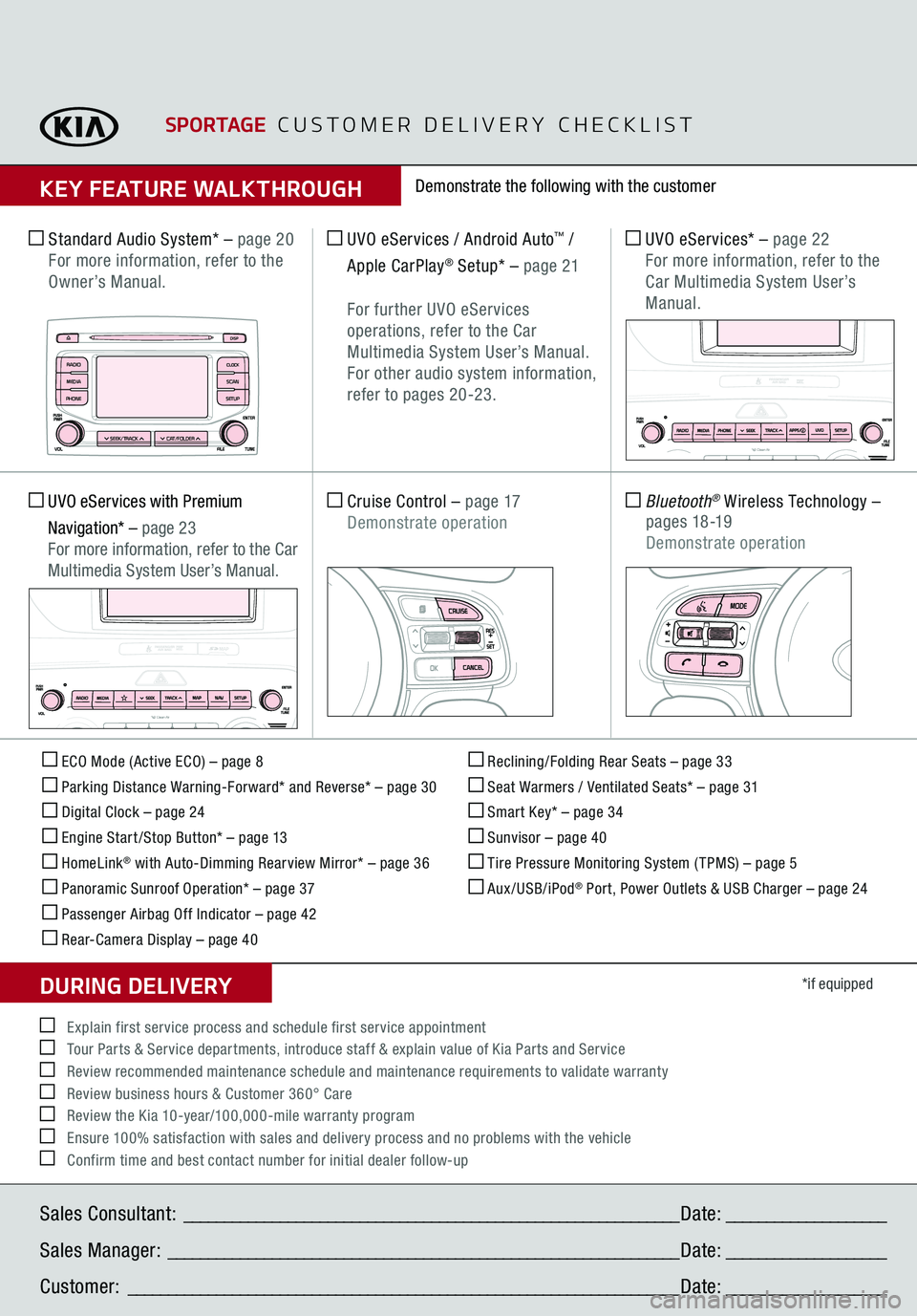
ECO Mode (Active ECO) – page 8 Parking Distance Warning-Forward* and Reverse* – page 30 Digital Clock – page 24 Engine Start /Stop Button* – page 13 HomeLink
® with Auto-Dimming Rearview Mirror* – page 36
Panoramic Sunroof Operation* – page 37 Passenger Airbag Off Indicator – page 42 Rear-Camera Display – page 40
Reclining/Folding Rear Seats – page 33 Seat Warmers / Ventilated Seats* – page 31 Smart Key* – page 34 Sunvisor – page 40 Tire Pressure Monitoring System ( TPMS) – page 5 Aux/USB/iPod
® Port, Power Outlets & USB Charger – page 24
*if equipped
Standard Audio System*
– page 20
For more information, refer to the Owner’s Manual.
UVO eServices / Android Auto
™ /
Apple CarPlay
® Setup*
– page 21
For further UVO eServices
operations, refer to the Car Multimedia System User’s Manual. For other audio system information, refer to pages 20-23.
UVO eServices*
– page 22
For more information, refer to the
Car Multimedia System User’s Manual.
Cruise Control
– page 17
Demonstrate operation
Bluetooth
® Wireless Technology
–
p a g e s 18 -19
Demonstrate operation
UVO eServices with Premium Navigation*
– page 23
For more information, refer to the Car Multimedia System User’s Manual.
Demonstrate the following with the customer
SPORTAGE
CUSTOMER DELIVERY CHECKLIST
KEY FEATURE WALKTHROUGHSales Consultant:
______________________________________________________________
Date:
____________________
Sales Manager:
________________________________________________________________
Date:
____________________
Customer:
_____________________________________________________________________
Date:
____________________
Explain first service process and schedule first service appointment Tour Parts & Service departments, introduce staff & explain value of Kia Parts and Service Review recommended maintenance schedule and maintenance requirements to validate warranty Review business hours & Customer 360° Care Review the Kia 10-year/100,000-mile warranty program Ensure 100% satisfaction with sales and delivery process and no problems with the vehicle Confirm time and best contact number for initial dealer follow-upDURING DELIVERY
DISP
C AT/FO LDER
SEEK/T RACK
RADIO
M EDIA
CLO CKSETU P
SCA
N
PHONE
T H E S YSTE M