phone Lexus CT200h 2013 (in English) User Guide
[x] Cancel search | Manufacturer: LEXUS, Model Year: 2013, Model line: CT200h, Model: Lexus CT200h 2013Pages: 688
Page 291 of 688

289
5Audio system
CT200h_OM_OM76102E_(EE)
Optimal use of the audio
system ............................. 371Audio settings ................... 372
Audio menu screen
operation ......................... 376
5-14. Using the radio (Lexus
Display Audio System)
Radio operation................. 379
5-15. Playing an audio CD and
MP3/WMA/AAC discs
(Lexus Display Audio Sys-
tem)
CD player operation.......... 381
5-16. Using an external device
(Lexus Display Audio Sys-
tem)
Listening to an iPod .......... 387
Using USB memory
device.............................. 391
Using the AUX port.......... 396
5-17. Connecting Bluetooth
®
(Lexus Display Audio Sys-
tem)
Steps for using Bluetooth
®
devices ............................ 397
Registering a Bluetooth
®
device.............................. 399
Selecting a Bluetooth
®
device.............................. 400
Connecting a Bluetooth
®
audio player .................... 401
Connecting a Bluetooth
®
phone .............................. 402
Displaying a Bluetooth
®
device details .................. 403
Page 292 of 688

290
CT200h_OM_OM76102E_(EE)
Detailed Bluetooth®
settings ............................ 4045-18. Bluetooth® Audio (Lexus
Display Audio System)
Listening to Bluetooth
®
Audio .............................. 405
5-19. Bluetooth
® Phone (Lexus
Display Audio System)
Using a Bluetooth
®
Phone .............................. 407
Making a call .................... 409
Receiving a call ................ 412
Speaking on the phone...... 413
Using a Bluetooth
®
phone messages .............. 415
Using the steering wheel
switches .......................... 418
Bluetooth
® phone settings 419
5-20. Phonebook (Lexus
Display Audio System)
Contact settings................. 421
Messaging setting ............. 424
5-21. Bluetooth
® (Lexus
Display Audio System)
What to do if...
(Troubleshooting) ........... 425
Bluetooth
®........................ 428
5-22. Other function (Lexus
Display Audio System)
“Information” screen ........ 433
MirrorLink™ .................... 434
USB photo ........................ 437
Speech command system .. 439
Some of the functions cannot be operated while driving.
Page 294 of 688
2915-1. Basic Operations
5
Audio system
CT200h_OM_OM76102E_(EE)
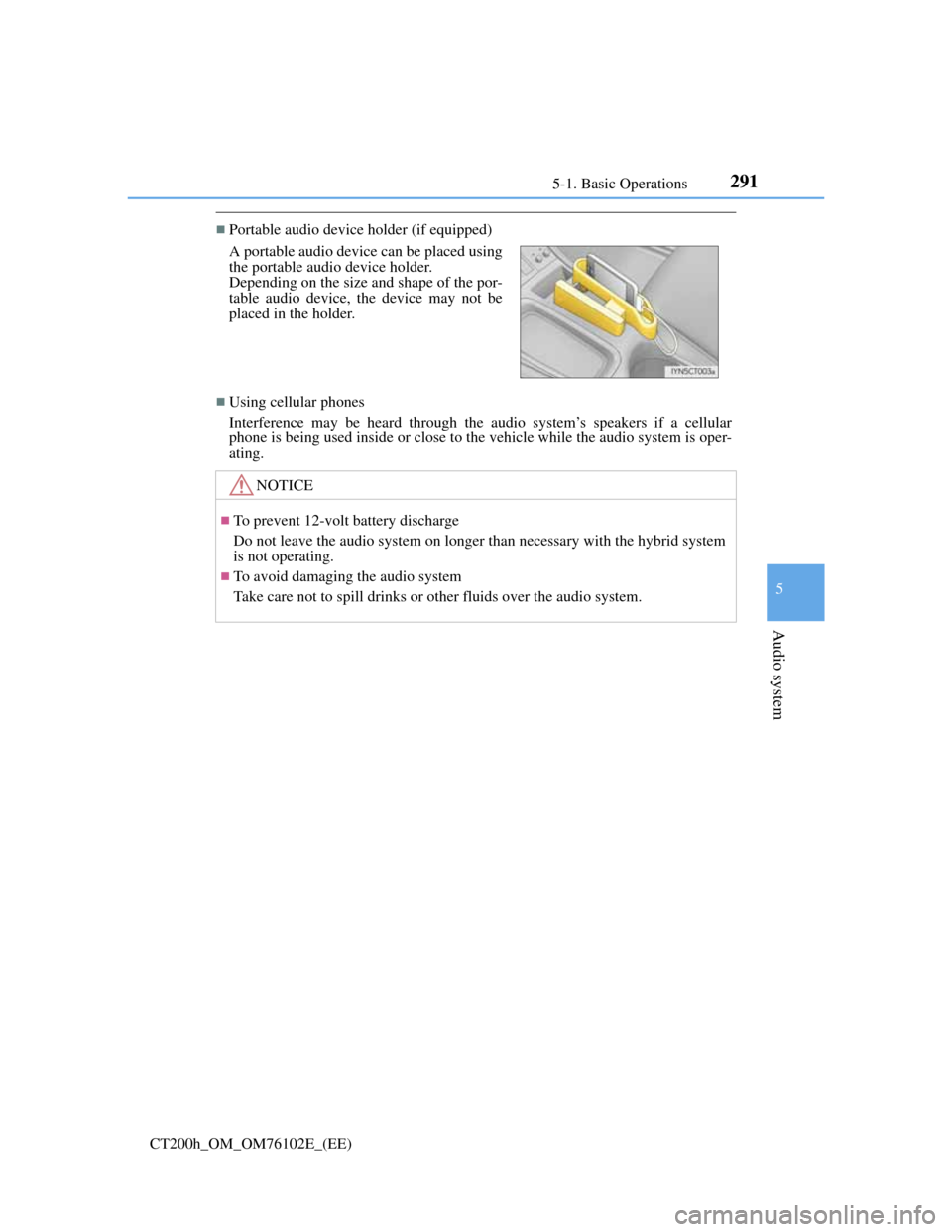
Portable audio device holder (if equipped)
Using cellular phones
Interference may be heard through the audio system’s speakers if a cellular
phone is being used inside or close to the vehicle while the audio system is oper-
ating. A portable audio device can be placed using
the portable audio device holder.
Depending on the size and shape of the por-
table audio device, the device may not be
placed in the holder.
NOTICE
To prevent 12-volt battery discharge
Do not leave the audio system on longer than necessary with the hybrid system
is not operating.
To avoid damaging the audio system
Take care not to spill drinks or other fluids over the audio system.
Page 316 of 688
3135-5. Using an external device
5
Audio system
CT200h_OM_OM76102E_(EE)
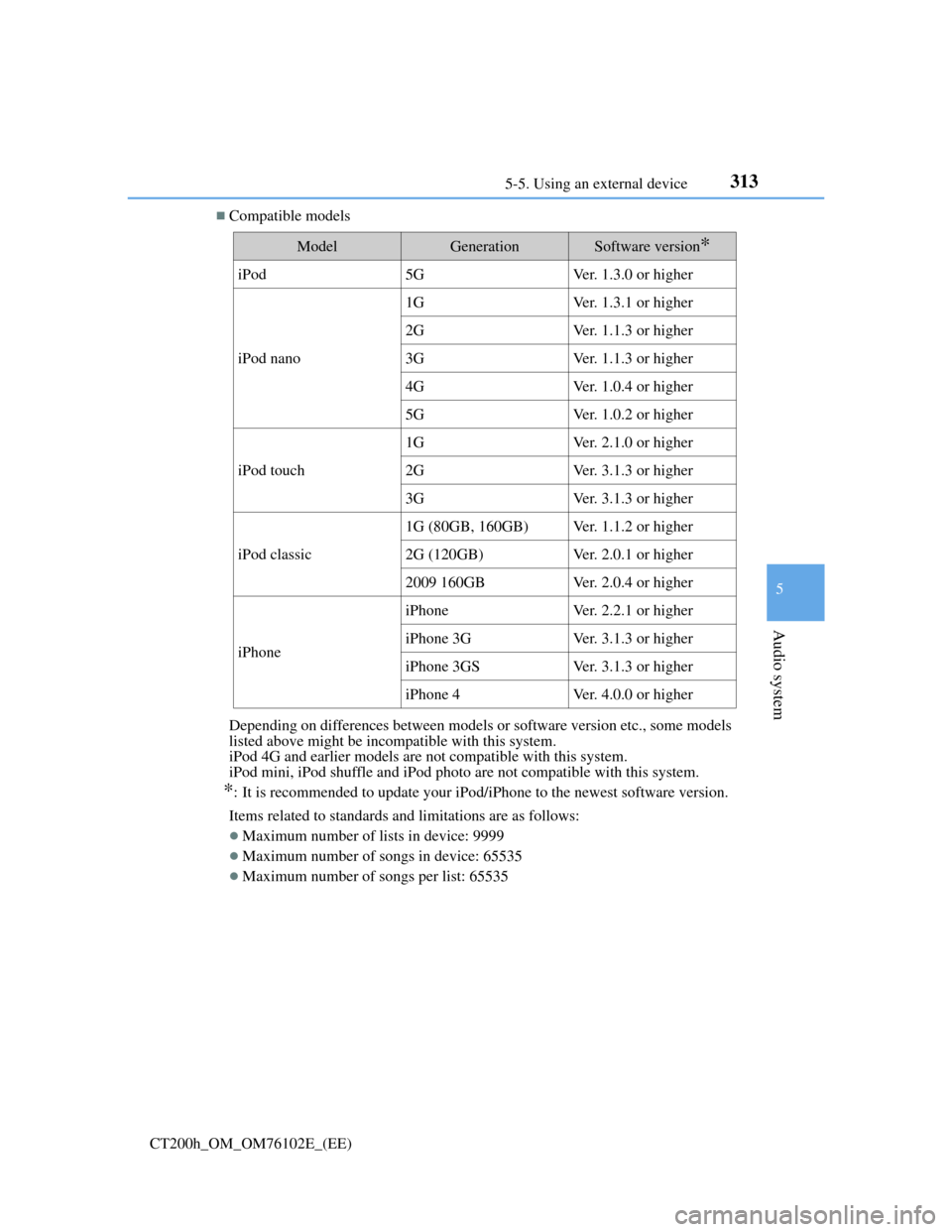
Compatible models
Depending on differences between models or software version etc., some models
listed above might be incompatible with this system.
iPod 4G and earlier models are not compatible with this system.
iPod mini, iPod shuffle and iPod photo are not compatible with this system.
*: It is recommended to update your iPod/iPhone to the newest software version.
Items related to standards and limitations are as follows:
Maximum number of lists in device: 9999
Maximum number of songs in device: 65535
Maximum number of songs per list: 65535
ModelGenerationSoftware version*
iPod5GVer. 1.3.0 or higher
iPod nano
1GVer. 1.3.1 or higher
2GVer. 1.1.3 or higher
3GVer. 1.1.3 or higher
4GVer. 1.0.4 or higher
5GVer. 1.0.2 or higher
iPod touch
1GVer. 2.1.0 or higher
2GVer. 3.1.3 or higher
3GVer. 3.1.3 or higher
iPod classic
1G (80GB, 160GB)Ver. 1.1.2 or higher
2G (120GB)Ver. 2.0.1 or higher
2009 160GBVer. 2.0.4 or higher
iPhone
iPhoneVer. 2.2.1 or higher
iPhone 3GVer. 3.1.3 or higher
iPhone 3GSVer. 3.1.3 or higher
iPhone 4Ver. 4.0.0 or higher
Page 324 of 688

321
5 5-6. Using Bluetooth® devices
Audio system
CT200h_OM_OM76102E_(EE)
Bluetooth® audio/phone
The following can be performed using Bluetooth® wireless communica-
tion:
Bluetooth® audio
The Bluetooth
® audio system enables you to enjoy music played on a
portable digital audio player (portable player) from the vehicle
speakers via wireless communication.
This audio system supports Bluetooth
®, a wireless data system capa-
ble of playing portable audio music without cables. If your portable
player does not support Bluetooth
®, the Bluetooth® audio system
will not function.
Bluetooth® phone (hands-free phone system)
This system supports Bluetooth
®, which allows you to make or
receive calls without using cables to connect a cellular phone and the
system, and without operating the cellular phone.
Page 325 of 688

3225-6. Using Bluetooth® devices
CT200h_OM_OM76102E_(EE)
Device registration/connection flow
3. Check connection status
(P. 323)3. Check connection status
(P. 323)
4. Use Bluetooth® audio
(P. 342)4. Use Bluetooth® phone
(P. 344)
1. Register the Bluetooth®
device to be used with
audio system (P. 327)
1. Register the Bluetooth®
phone to be used with
audio system (P. 328)
Audio
Hands-free phone
2. Selecting a portable
player to be used (P.2. Selecting a cellular phone
to be used (P. 334)
Page 326 of 688

3235-6. Using Bluetooth® devices
5
Audio system
CT200h_OM_OM76102E_(EE)
Display
A message, name, phone number,
etc. is displayed.
Lower-case characters and special
characters cannot be displayed.
Displays information that is too
long to be displayed at one time
on the display (press and hold)
Selects speed dials
Selects items such as menu and number
Turn: Selects an item
Press: Inputs the selected item
Bluetooth
® connection condition
If “BT” is not displayed, the hands-free system cannot be used.
Reception level
Audio unit
1
2
Microphone
3
4
5
6
Page 327 of 688
3245-6. Using Bluetooth® devices
CT200h_OM_OM76102E_(EE)
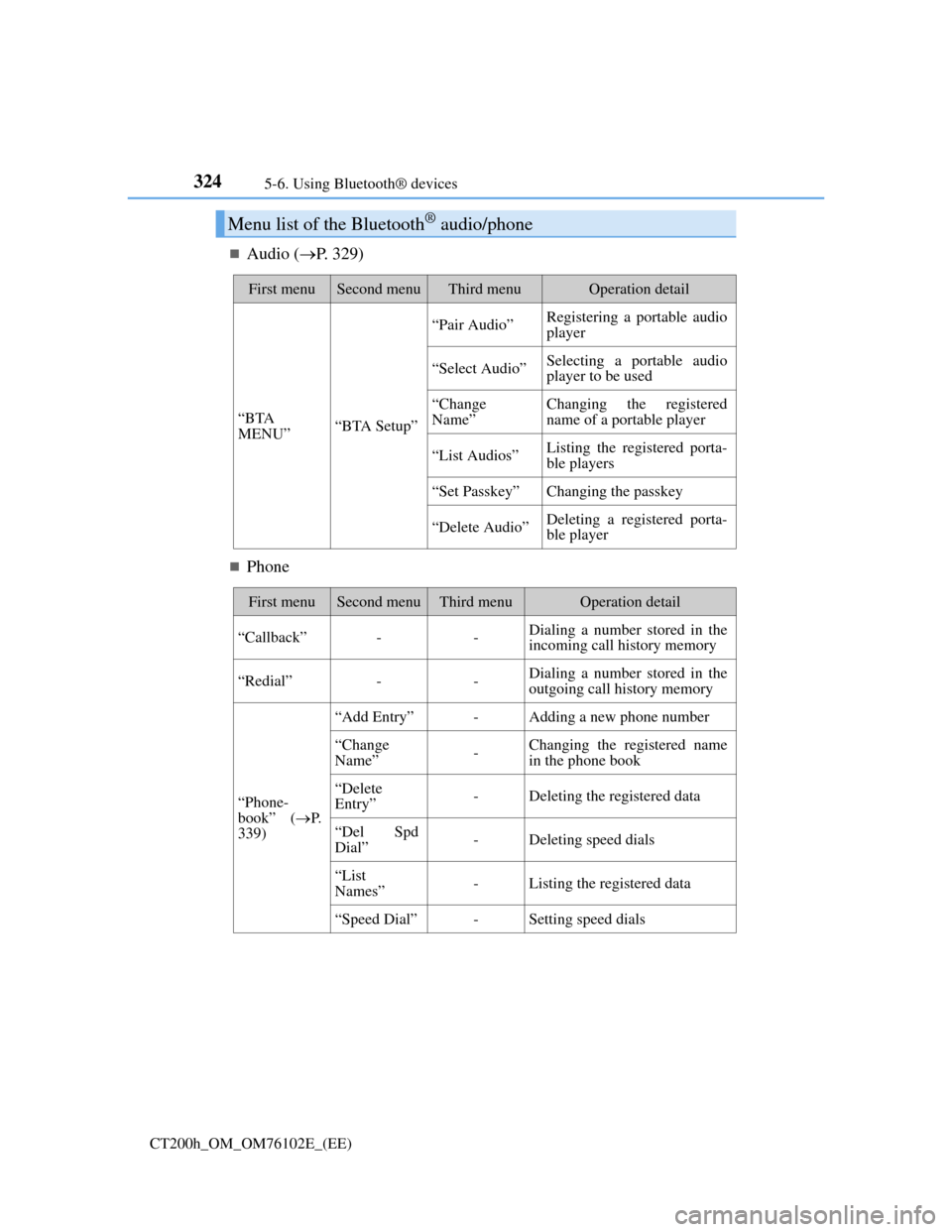
Audio (P. 329)
Phone
Menu list of the Bluetooth® audio/phone
First menuSecond menuThird menuOperation detail
“BTA
MENU”“BTA Setup”
“Pair Audio”Registering a portable audio
player
“Select Audio”Selecting a portable audio
player to be used
“Change
Name”Changing the registered
name of a portable player
“List Audios”Listing the registered porta-
ble players
“Set Passkey”Changing the passkey
“Delete Audio”Deleting a registered porta-
ble player
First menuSecond menuThird menuOperation detail
“Callback”--Dialing a number stored in the
incoming call history memory
“Redial”--Dialing a number stored in the
outgoing call history memory
“Phone-
book” (P.
339)
“Add Entry”-Adding a new phone number
“Change
Name”-Changing the registered name
in the phone book
“Delete
Entry”-Deleting the registered data
“Del Spd
Dial”-Deleting speed dials
“List
Names”-Listing the registered data
“Speed Dial”-Setting speed dials
Page 328 of 688
3255-6. Using Bluetooth® devices
5
Audio system
CT200h_OM_OM76102E_(EE)
Automatic volume adjustment
When vehicle speed reaches 80 km/h (50 mph) or more, the volume automati-
cally increases. The volume returns to the previous volume setting when vehicle
speed drops to 70 km/h (43 mph) or less.
Operations that cannot be performed while driving
Operating the system with the “TUNE•SEL” knob
Registering a portable player or cellular phone to the system
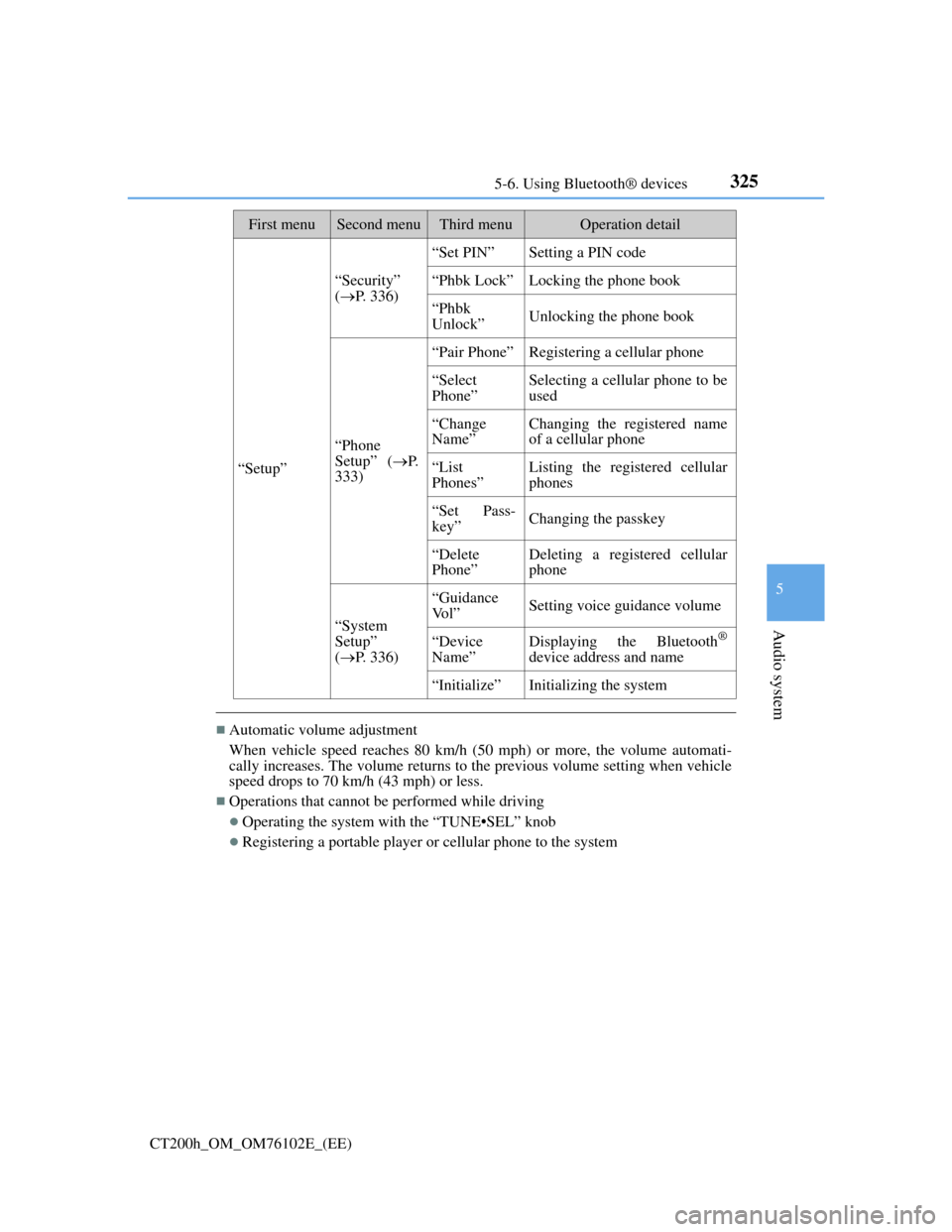
“Setup”
“Security”
(P. 336)
“Set PIN”Setting a PIN code
“Phbk Lock”Locking the phone book
“Phbk
Unlock”Unlocking the phone book
“Phone
Setup” (P.
333)
“Pair Phone”Registering a cellular phone
“Select
Phone”Selecting a cellular phone to be
used
“Change
Name”Changing the registered name
of a cellular phone
“List
Phones”Listing the registered cellular
phones
“Set Pass-
key”Changing the passkey
“Delete
Phone”Deleting a registered cellular
phone
“System
Setup”
(P. 336)
“Guidance
Vo l ”Setting voice guidance volume
“Device
Name”Displaying the Bluetooth®
device address and name
“Initialize”Initializing the system
First menuSecond menuThird menuOperation detail
Page 329 of 688
3265-6. Using Bluetooth® devices
CT200h_OM_OM76102E_(EE)
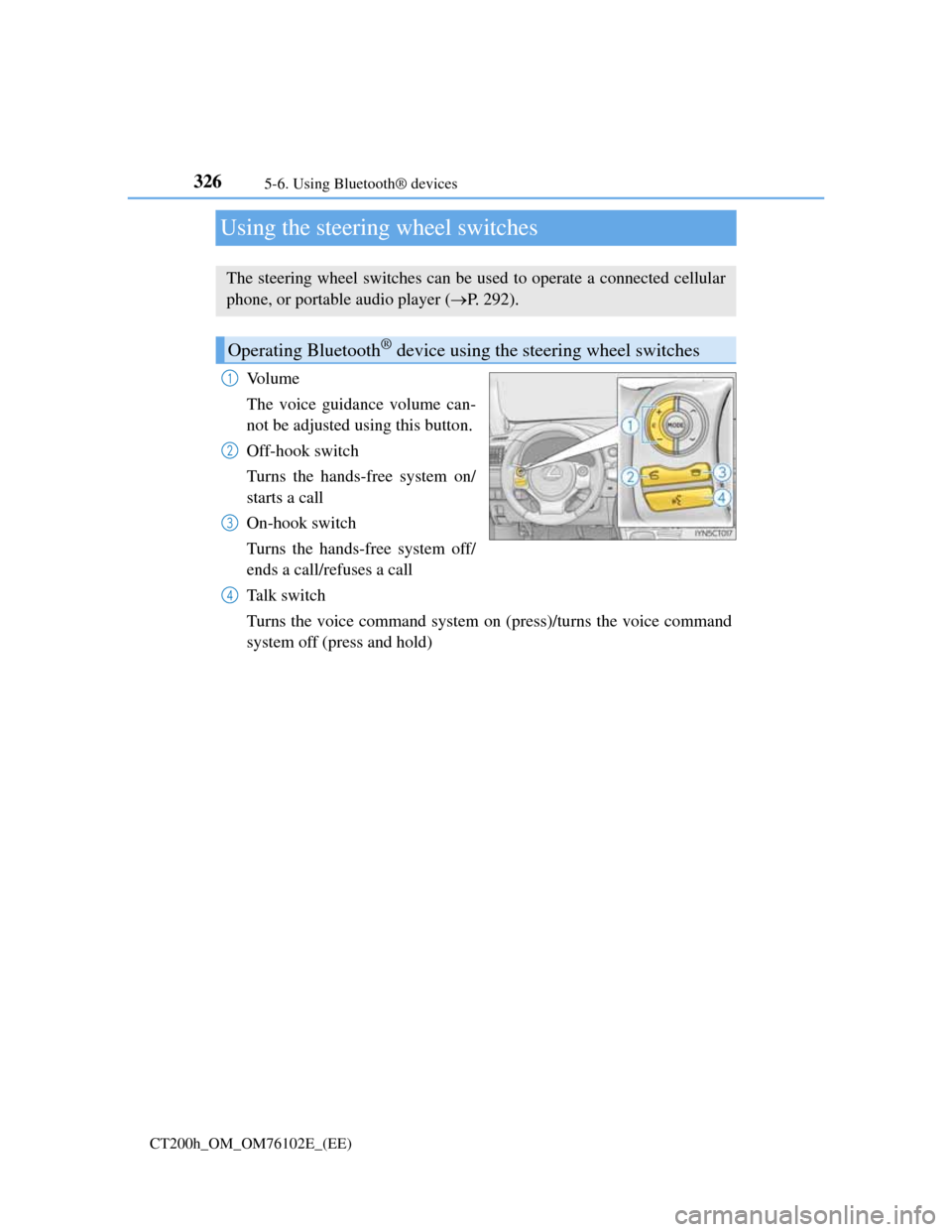
Using the steering wheel switches
Vo l u m e
The voice guidance volume can-
not be adjusted using this button.
Off-hook switch
Turns the hands-free system on/
starts a call
On-hook switch
Turns the hands-free system off/
ends a call/refuses a call
Talk switch
Turns the voice command system on (press)/turns the voice command
system off (press and hold)
The steering wheel switches can be used to operate a connected cellular
phone, or portable audio player (P. 292).
Operating Bluetooth® device using the steering wheel switches
1
2
3
4