disc Lexus ES300h 2013 Service Manual
[x] Cancel search | Manufacturer: LEXUS, Model Year: 2013, Model line: ES300h, Model: Lexus ES300h 2013Pages: 910, PDF Size: 9.95 MB
Page 403 of 910
402
ES350 300h_OM_OM33A01U_(U)
5-3. Using the Lexus Display Audio system
●MP3 and WMA playback
When a disc containing MP3 or WMA files is inserted, all files on the disc are first
checked. Once the file check is finished, the first MP3 or WMA file is played. To
make the file check finish more quickly, we recommend you do not write in any
files other than MP3 or WMA files or create any unnecessary folders.
Discs that contain a mixture of music data and MP3 or WMA format data cannot
be played.
●Extensions
If the file extensions .mp3 and .wma are used for files other than MP3 and WMA
files, they may be mistakenly recognized and played as MP3 and WMA files. This
may result in large amounts of interference and damage to the speakers.
●Playback
• To play MP3 files with steady sound quality, we recommend a fixed bit rate of atleast 128 kbps and a sampling frequency of 44.1 kHz.
• CD-R or CD-RW playback may not be possible in some instances, depending on the characteristics of the disc.
• There is a wide variety of freeware and other encoding software for MP3 and WMA files on the market, and depending on the status of the encoding and the
file format, poor sound quality or noise at the start of playback may result. In
some cases, playback may not be possible at all.
• When files other than MP3 or WMA files are recorded on a disc, it may take more time to recognize the disc and in some cases, playback may not be possi-
ble at all.
• Microsoft, Windows, and Windows Media are the registered trademarks of Microsoft Corporation in the U.S.A. and other countries.
Page 404 of 910
ES350 300h_OM_OM33A01U_(U)
4035-3. Using the Lexus Display Audio system
5
Interior features
NOTICE
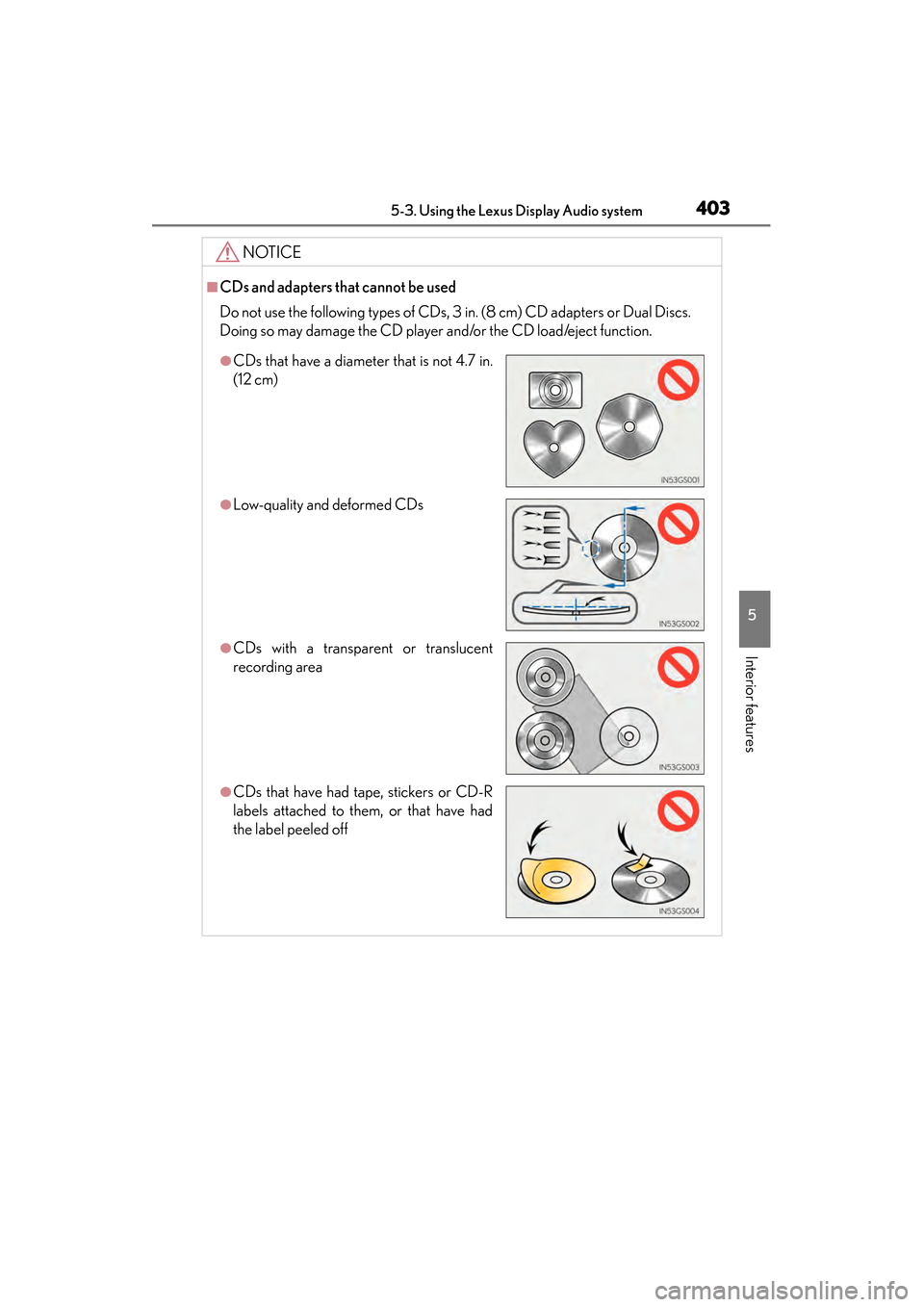
■CDs and adapters that cannot be used
Do not use the following types of CDs, 3 in. (8 cm) CD adapters or Dual Discs.
Doing so may damage the CD player and/or the CD load/eject function.
●CDs that have a diameter that is not 4.7 in.
(12 cm)
●Low-quality and deformed CDs
●CDs with a transparent or translucent
recording area
●CDs that have had tape, stickers or CD-R
labels attached to them, or that have had
the label peeled off
Page 411 of 910
410
ES350 300h_OM_OM33A01U_(U)
5-3. Using the Lexus Display Audio system
■About iPod
●“Made for iPod” and “Made for iPhone” mean that an electronic accessory has
been designed to connect specifically to iPod, or iPhone, respectively, and has
been certified by the developer to meet Apple performance standards.
●Apple is not responsible for the operation of this device or its compliance with
safety and regulatory standards. Please note that the use of this accessory with
iPod or iPhone may affect wireless performance.
●iPhone, iPod, iPod classic, iPod nano and iPod touch are trademarks of Apple Inc.,
registered in the U.S. and other countries.
■iPod cover art
●Depending on the iPod and songs in the iPod, iPod cover art may be displayed.
●This function can be changed to “On” or “Off”. (→P. 3 4 5 )
●It may take time to display iPod cover art, and the iPod may not be operated while
the cover art display is in process.
●Only iPod cover art that is saved in a JPEG format can be displayed.
■iPod functions
●When the iPod connected to the system includes iPod video, the system can only
output the sound by selecting on the “iPod” screen.
●Depending on the iPod, the video sound may not be able to be heard.
●When an iPod is connected and the audio source is changed to iPod mode, the
iPod will resume play from the same point in which it was last used.
●Depending on the iPod that is connected to the system, certain functions may not
be available. If a function is unavailable due to a malfunction (as opposed to a sys-
tem specification), disconnecting the device and reconnecting it once again may
resolve the problem.
●While connected to the system, the iPod cannot be operated with its own controls.
It is necessary to use the controls of the vehicle’s audio system instead.
●When the battery level of an iPod is very low, the iPod may not operate. If so, charge
the iPod before use.
●Supported models ( →P. 4 1 1 )
Page 412 of 910
ES350 300h_OM_OM33A01U_(U)
4115-3. Using the Lexus Display Audio system
5
Interior features
■iPod problems
To resolve most problems encountered when using your iPod, disconnect your iPod
from the vehicle iPod connection and reset it. For instructions on how to reset your
iPod, refer to your iPod Owner’s Manual.
■Error messages
“Connection error. Please consult your Owner’s Manual for instructions on how to
connect the iPod.”:
This indicates a problem in the iPod or its connection.
“There are no songs available for playback. Please load compatible media to your
iPod.”:
This indicates that there is no music data in the iPod.
■Compatible models
The following iPod
®, iPod nano®, iPod classic®, iPod touch® and iPhone® devices
can be used with this system.
●Made for
• iPod touch (4th generation)
• iPod touch (3rd generation)
• iPod touch (2nd generation)
• iPod touch (1st generation)
•iPod classic
• iPod with video
• iPod nano (6th generation)
• iPod nano (5th generation)
• iPod nano (4th generation)
• iPod nano (3rd generation)
• iPod nano (2nd generation)
• iPod nano (1st generation)
•iPhone 4
•iPhone 3GS
•iPhone 3G
•iPhone
Depending on differences between models or software versions etc., some models
might be incompatible with this system.
Page 419 of 910
418
ES350 300h_OM_OM33A01U_(U)
5-3. Using the Lexus Display Audio system
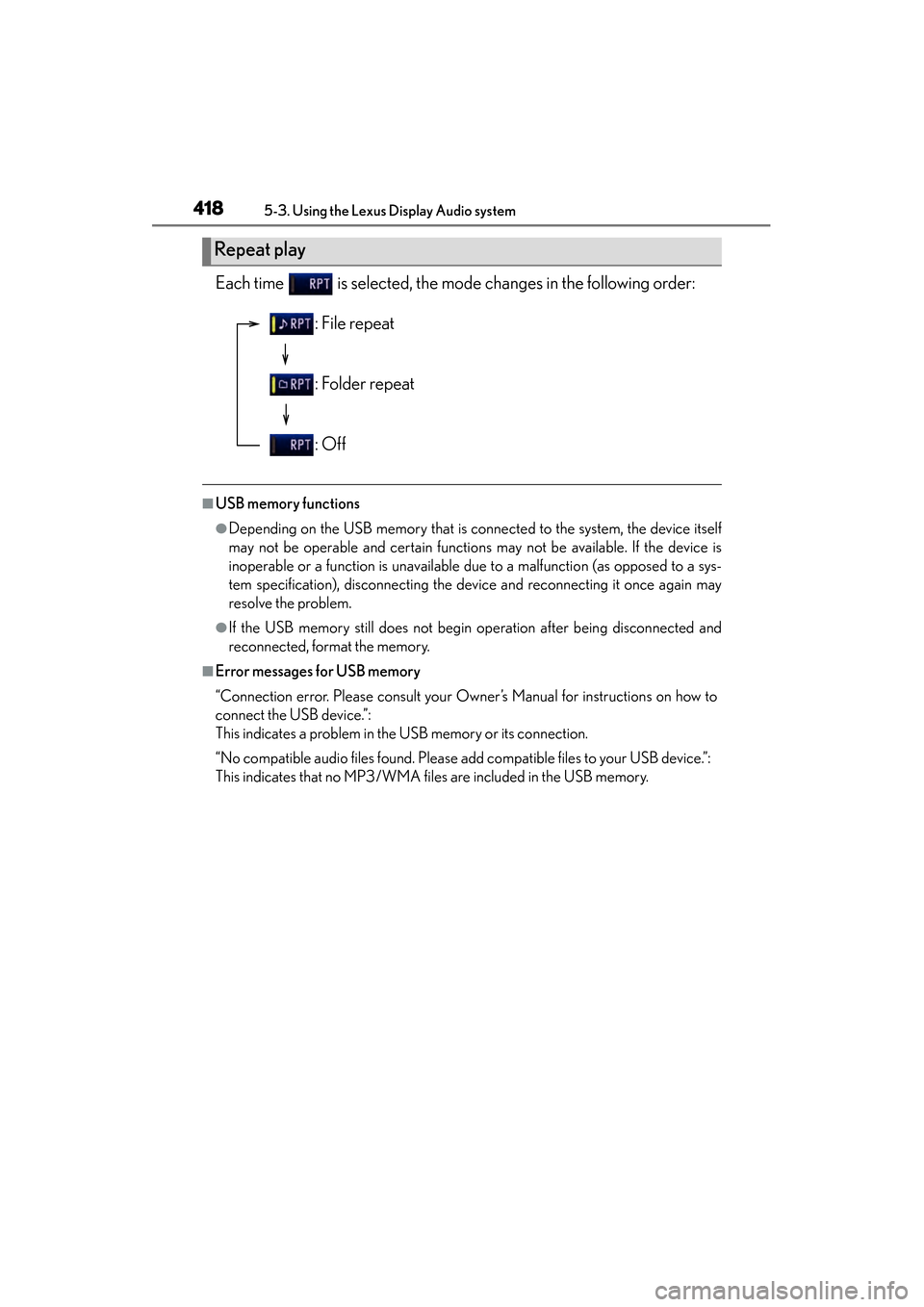
Each time is selected, the mode changes in the following order:
■USB memory functions
●Depending on the USB memory that is connected to the system, the device itself
may not be operable and certain functions may not be available. If the device is
inoperable or a function is unavailable due to a malfunction (as opposed to a sys-
tem specification), disconnecting the device and reconnecting it once again may
resolve the problem.
●If the USB memory still does not begin operation after being disconnected and
reconnected, format the memory.
■Error messages for USB memory
“Connection error. Please consult your Owner’s Manual for instructions on how to
connect the USB device.”:
This indicates a problem in the USB memory or its connection.
“No compatible audio files found. Please add compatible files to your USB device.”:
This indicates that no MP3/WMA files are included in the USB memory.
Repeat play
: File repeat
: Folder repeat
: Off
Page 437 of 910
436
ES350 300h_OM_OM33A01U_(U)
5-3. Using the Lexus Display Audio system
■Certification for the Bluetooth® audio system
FCC ID: AJDK046
IC ID: 775E-K046
This device complies with Part 15 of FCC Rules and Industry Canada licence-
exempt RSS standard(s). Operation is subject to the following two conditions: (1) this
device may not cause interference, and (2) this device must accept any interference,
including interference that may cause undesired operation of this device.
Le présent appareil est conforme aux la partie 15 des règles de la FCC et CNR
d’Industrie Canada applicables aux appareils radio exempts de licence. L’exploita-
tion est autorisée aux deux conditions suivantes : (1) l’appareil ne doit pas produire
de brouillage, et (2) l’utilisateur de l’appareil doit accepter tout brouillage radioélec-
trique subi, même si le brouillage est susceptible d’en compromettre le fonctionne-
ment.
■Reconnecting the portable audio player
If the portable audio player is disconnected with a poor reception when the “START
STOP ENGINE” <“POWER”> switch is in ACCESSORY or IGNITION ON
mode, the system automatically reconnects the portable audio player.
If you have switched off the portable audio player yourself, follow the instructions
below to reconnect:
●Select the portable audio player again
●Enter the portable audio player
■When you release your car
Be sure to initialize your data. ( →P. 3 4 3 )
Page 443 of 910
442
ES350 300h_OM_OM33A01U_(U)
5-3. Using the Lexus Display Audio system
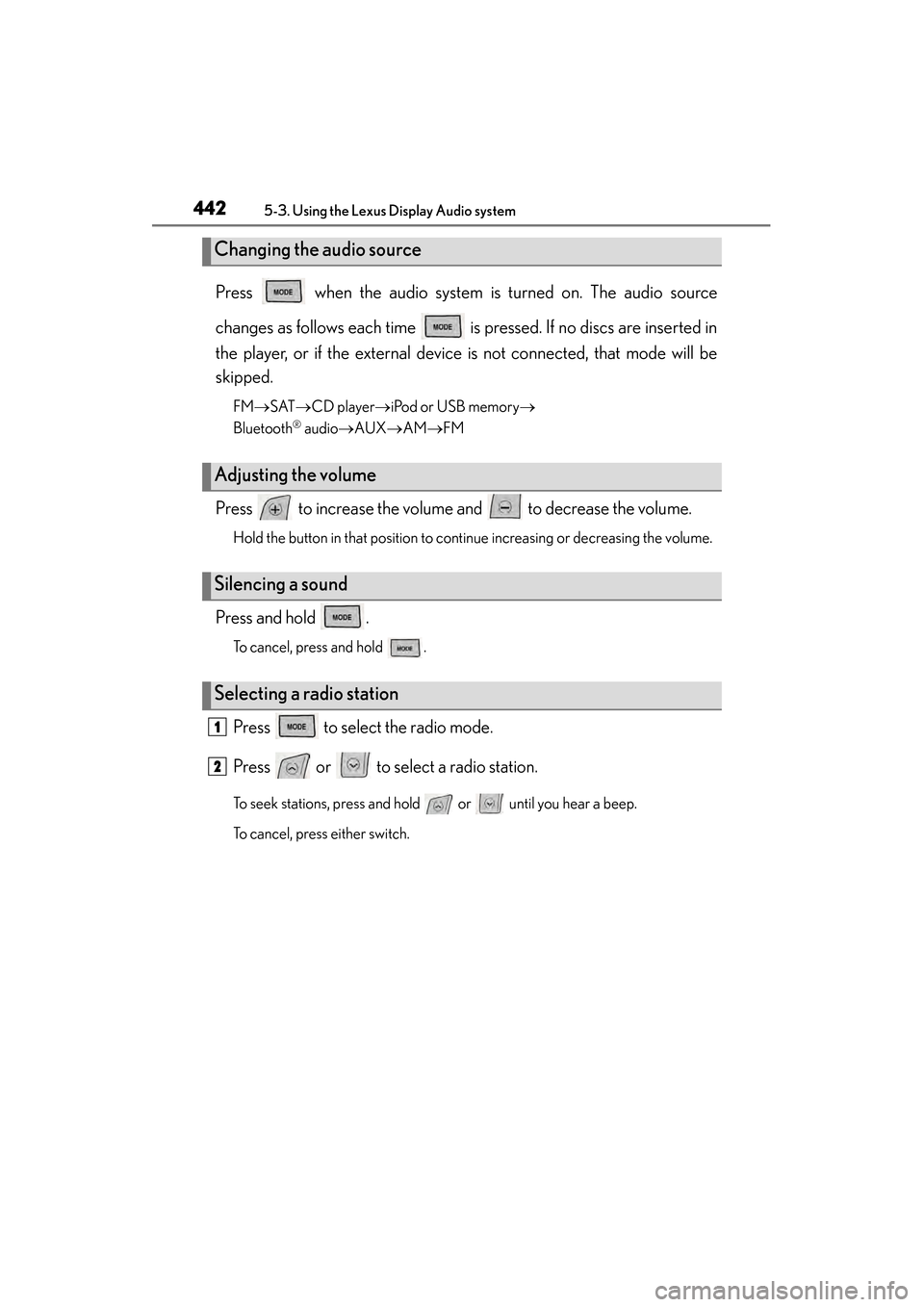
Press when the audio system is turned on. The audio source
changes as follows each time is pressed. If no discs are inserted in
the player, or if the external device is not connected, that mode will be
skipped.
FM→SAT →CD player →iPod or USB memory →
Bluetooth
® audio →AUX →AM →FM
Press to increase the volume and to decrease the volume.
Hold the button in that position to continue increasing or decreasing the volume.
Press and hold .
To cancel, press and hold .
Press to select the radio mode.
Press or to select a radio station.
To seek stations, press and hold or until you hear a beep.
To cancel, press either switch.
Changing the audio source
Adjusting the volume
Silencing a sound
Selecting a radio station
1
2
Page 444 of 910
ES350 300h_OM_OM33A01U_(U)
4435-3. Using the Lexus Display Audio system
5
Interior features
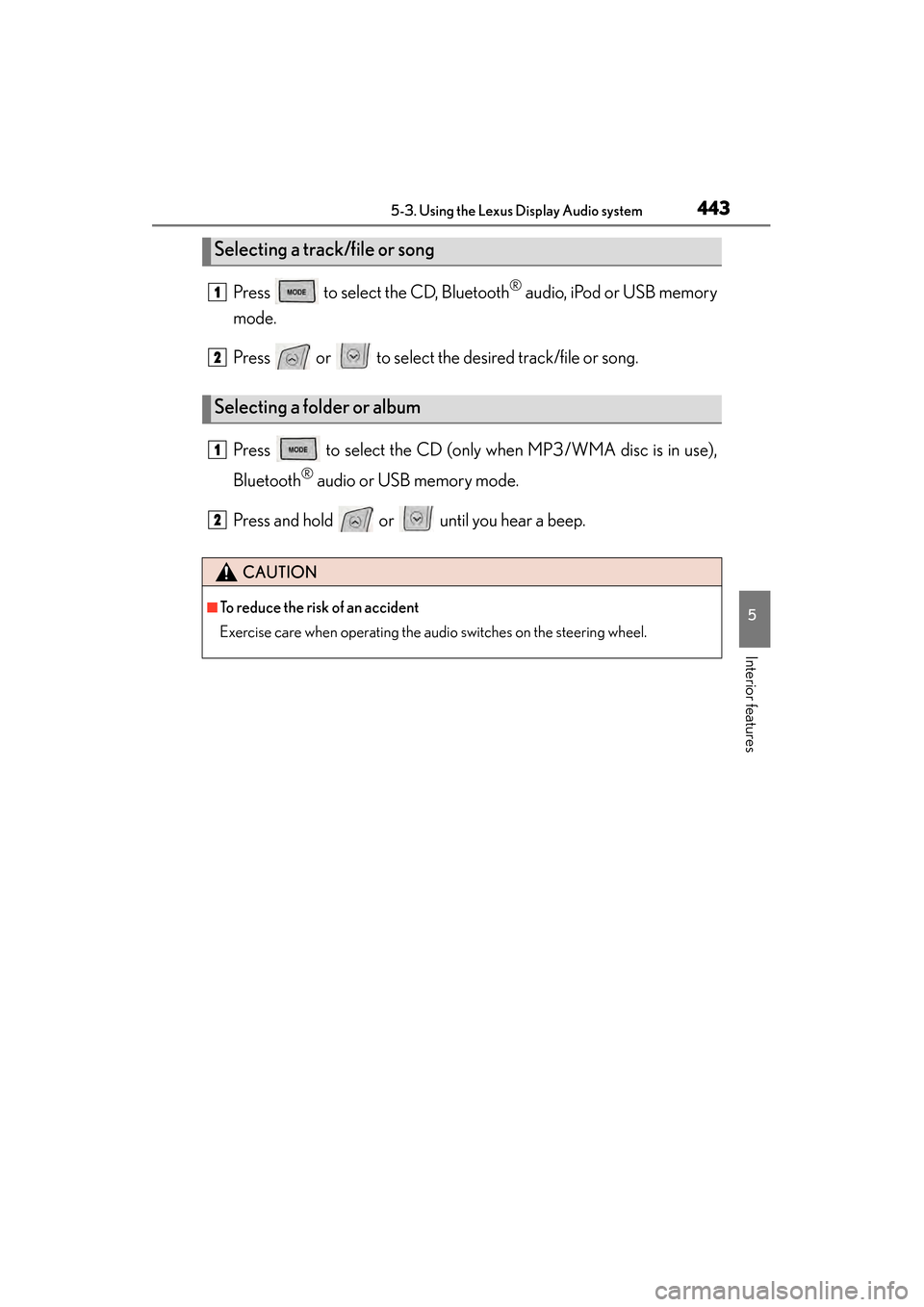
Press to select the CD, Bluetooth® audio, iPod or USB memory
mode.
Press or to select the desired track/file or song.
Press to select the CD (only when MP3/WMA disc is in use),
Bluetooth
® audio or USB memory mode.
Press and hold or until you hear a beep.
Selecting a track/file or song
Selecting a folder or album
CAUTION
■To reduce the risk of an accident
Exercise care when operating the audio switches on the steering wheel.
1
2
1
2
Page 478 of 910
ES350 300h_OM_OM33A01U_(U)
4775-3. Using the Lexus Display Audio system
5
Interior features
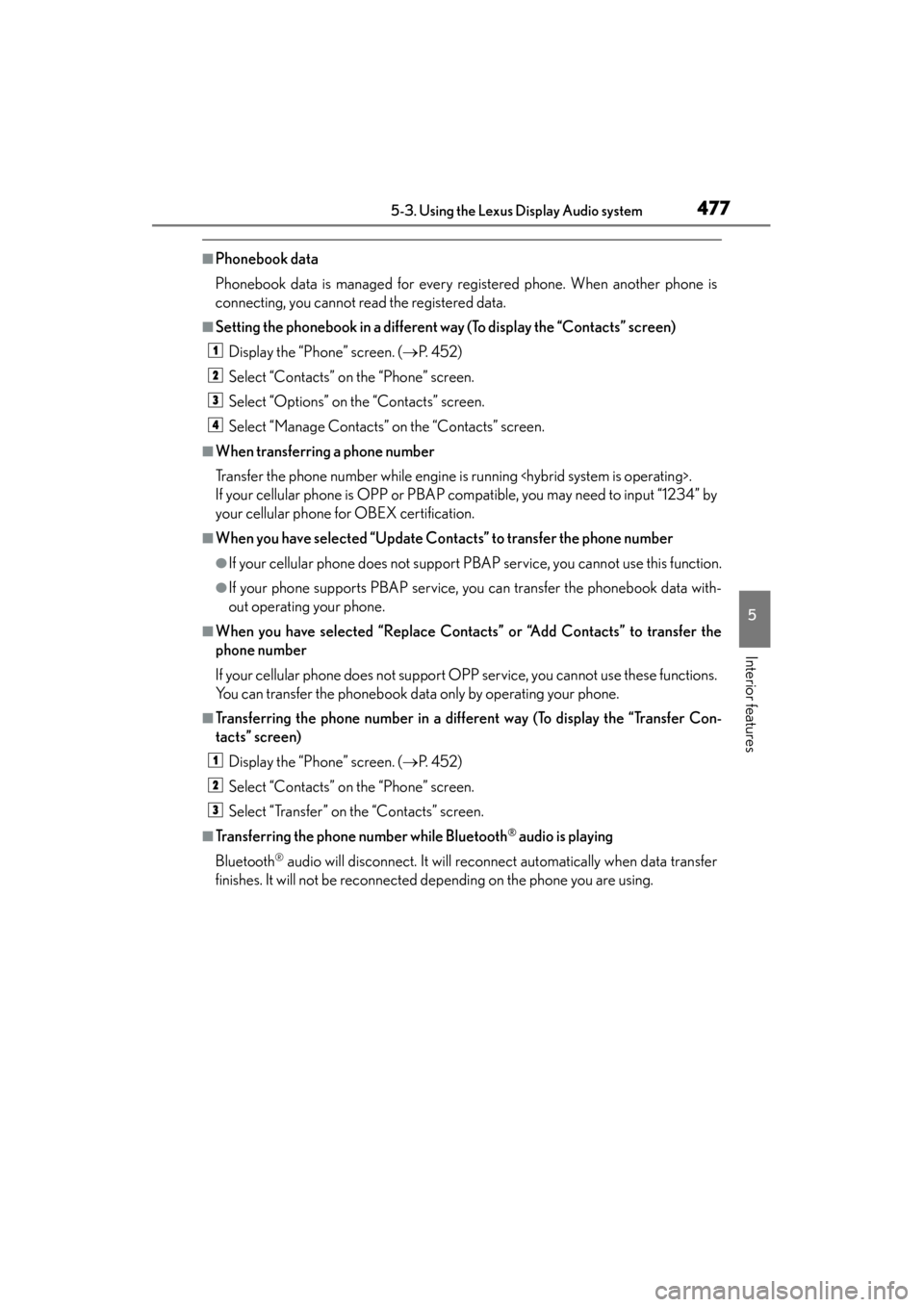
■Phonebook data
Phonebook data is managed for every registered phone. When another phone is
connecting, you cannot read the registered data.
■Setting the phonebook in a different way (To display the “Contacts” screen)Display the “Phone” screen. ( →P. 4 5 2 )
Select “Contacts” on the “Phone” screen.
Select “Options” on the “Contacts” screen.
Select “Manage Contacts” on the “Contacts” screen.
■When transferring a phone number
Transfer the phone number while engine is running
If your cellular phone is OPP or PBAP compatible, you may need to input “1234” by
your cellular phone for OBEX certification.
■When you have selected “Update Contacts” to transfer the phone number
●If your cellular phone does not support PBAP service, you cannot use this function.
●If your phone supports PBAP service, you can transfer the phonebook data with-
out operating your phone.
■When you have selected “Replace Contacts” or “Add Contacts” to transfer the
phone number
If your cellular phone does not support OPP service, you cannot use these functions.
You can transfer the phonebook data only by operating your phone.
■Transferring the phone number in a different way (To display the “Transfer Con-
tacts” screen) Display the “Phone” screen. ( →P. 4 5 2 )
Select “Contacts” on the “Phone” screen.
Select “Transfer” on the “Contacts” screen.
■Transferring the phone number while Bluetooth® audio is playing
Bluetooth
® audio will disconnect. It will reconnect automatically when data transfer
finishes. It will not be reconnected depending on the phone you are using.
1
2
3
4
1
2
3
Page 495 of 910
494
ES350 300h_OM_OM33A01U_(U)
5-4. Using the audio system
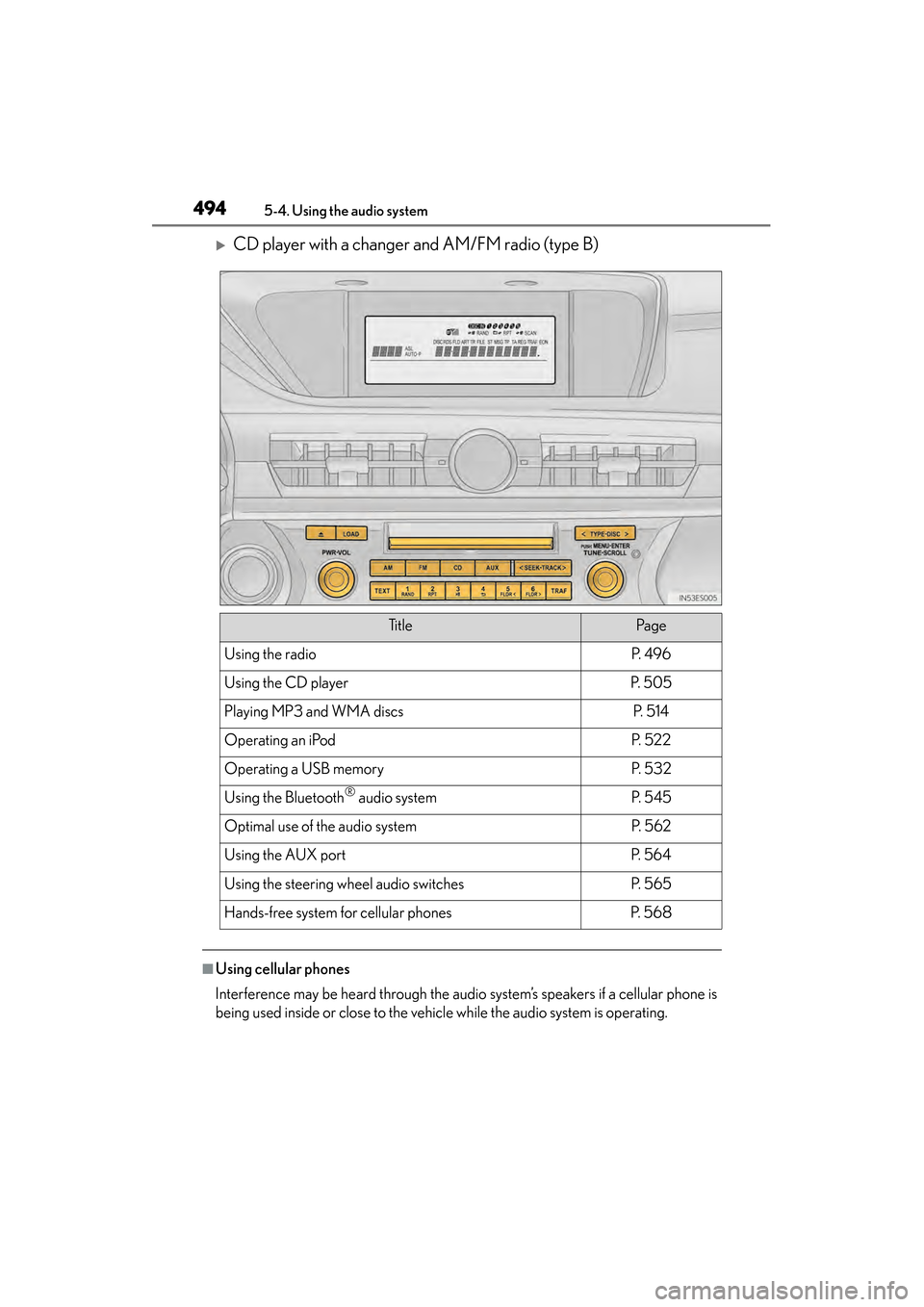
XCD player with a changer and AM/FM radio (type B)
■Using cellular phones
Interference may be heard through the audio system’s speakers if a cellular phone is
being used inside or close to the vehicle while the audio system is operating.
Ti t l ePa g e
Using the radioP. 4 9 6
Using the CD playerP. 5 0 5
Playing MP3 and WMA discsP. 5 1 4
Operating an iPodP. 5 2 2
Operating a USB memoryP. 5 3 2
Using the Bluetooth® audio systemP. 5 4 5
Optimal use of the audio systemP. 5 6 2
Using the AUX portP. 5 6 4
Using the steering wheel audio switchesP. 5 6 5
Hands-free system for cellular phonesP. 5 6 8