eta Lexus ES300h 2017 Navigation Manual
[x] Cancel search | Manufacturer: LEXUS, Model Year: 2017, Model line: ES300h, Model: Lexus ES300h 2017Pages: 357, PDF Size: 9.68 MB
Page 322 of 357
320
2. LEXUS ENFORM OPERATION
ES350/300h_Navi_OM33C79U_(U)16.06.22 14:52
3. LEXUS App Suite
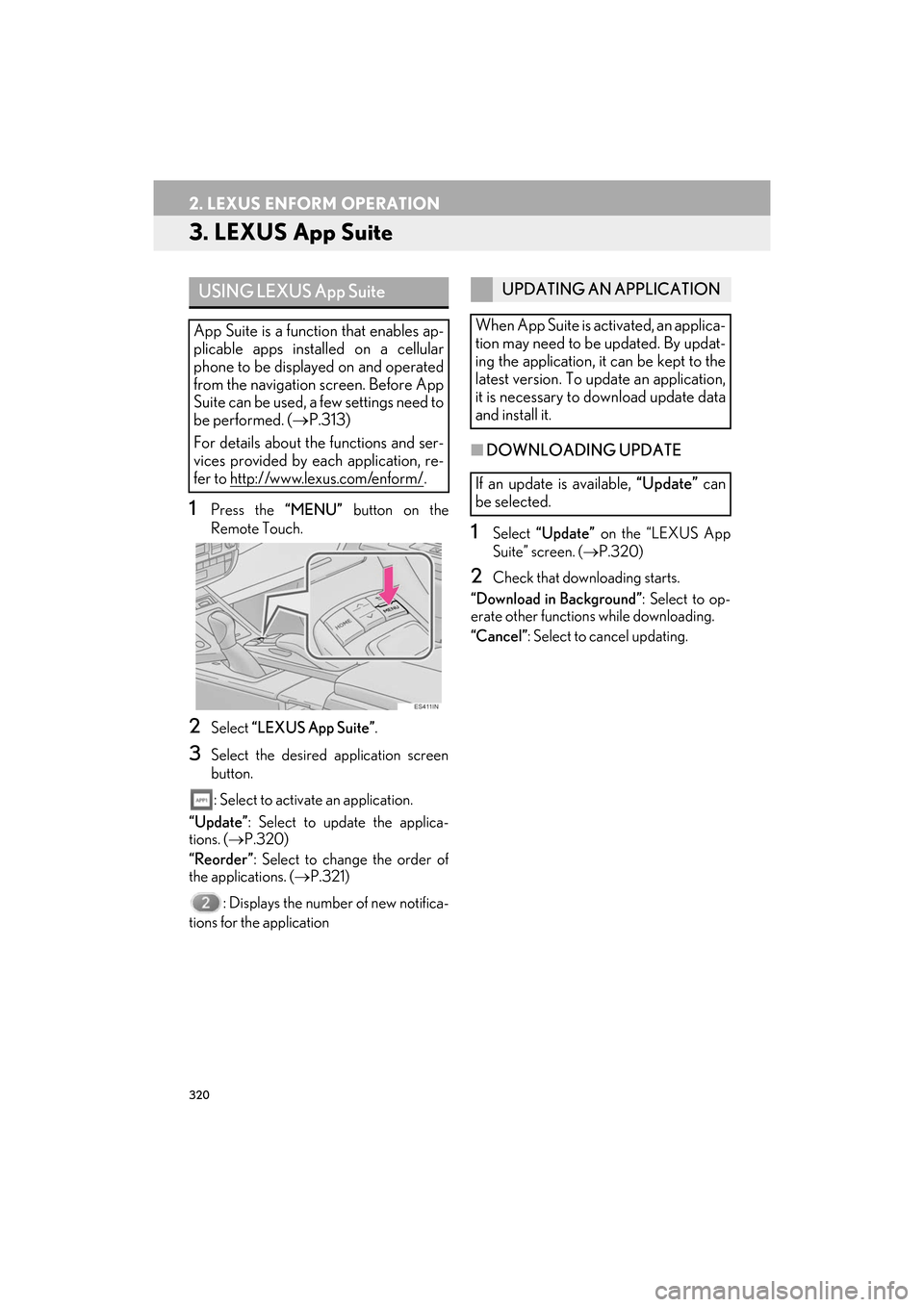
1Press the “MENU” button on the
Remote Touch.
2Select “LEXUS App Suite” .
3Select the desired application screen
button.
: Select to activate an application.
“Update” : Select to update the applica-
tions. ( →P.320)
“Reorder” : Select to change the order of
the applications. ( →P.321)
: Displays the number of new notifica-
tions for the application
■ DOWNLOADING UPDATE
1Select “Update” on the “LEXUS App
Suite” screen. ( →P.320)
2Check that downloading starts.
“Download in Background” : Select to op-
erate other functions while downloading.
“Cancel” : Select to cancel updating.
USING LEXUS App Suite
App Suite is a function that enables ap-
plicable apps installed on a cellular
phone to be displayed on and operated
from the navigation screen. Before App
Suite can be used, a few settings need to
be performed. ( →P.313)
For details about the functions and ser-
vices provided by each application, re-
fer to http://www.lexus.com/enform/
.
UPDATING AN APPLICATION
When App Suite is activated, an applica-
tion may need to be updated. By updat-
ing the application, it can be kept to the
latest version. To update an application,
it is necessary to download update data
and install it.
If an update is available, “Update” can
be selected.
ES350_300h_Navi_OM33C79U_(U).book Page 320 Wednesday, June 22, 2016 2:54 PM
Page 323 of 357

321
2. LEXUS ENFORM OPERATION
ES350/300h_Navi_OM33C79U_(U)16.06.22 14:52
LEXUS ENFORM
9
3Check that downloading is complete.
“Later” : Select to install later. When this
screen button is selected, the screen will re-
turn to the last displayed screen. To install
the update data: (→ P.321)
“See Detail” : Select to display detailed in-
formation on the update data.
“Install” : Select to install the update data.
Follow the steps “INSTALLING THE UP-
DATE DATA” from “STEP 2”. ( →P.321)■INSTALLING THE UPDATE DATA
1Select “Install” on the “LEXUS App
Suite” screen. ( →P.320)
2Select “Continue” .
“Later” : Select to postpone the installation
of the update data and go back to the previ-
ous screen.
3Check that installing is started.
“Install in Background” : Select to operate
other function while installing.
4Select “OK” after the installing is com-
plete.
1Display the “LEXUS App Suite” screen.
( → P.320)
2Select “Reorder” .
3Select the desired application to be
moved.
4Select “<<” or “>>” to move the applica-
tion, and select “OK”.
After the downloading is complete,
“Update” will be changed to “Install”.
INFORMATION
●The App Suite function cannot be oper-
ated while installing.
REORDERING THE
APPLICATIONS
Order of the applications can be
changed.
ES350_300h_Navi_OM33C79U_(U).book Page 321 Wednesday, June 22, 2016 2:54 PM
Page 325 of 357
323
2. LEXUS ENFORM OPERATION
ES350/300h_Navi_OM33C79U_(U)16.06.22 14:52
LEXUS ENFORM
9
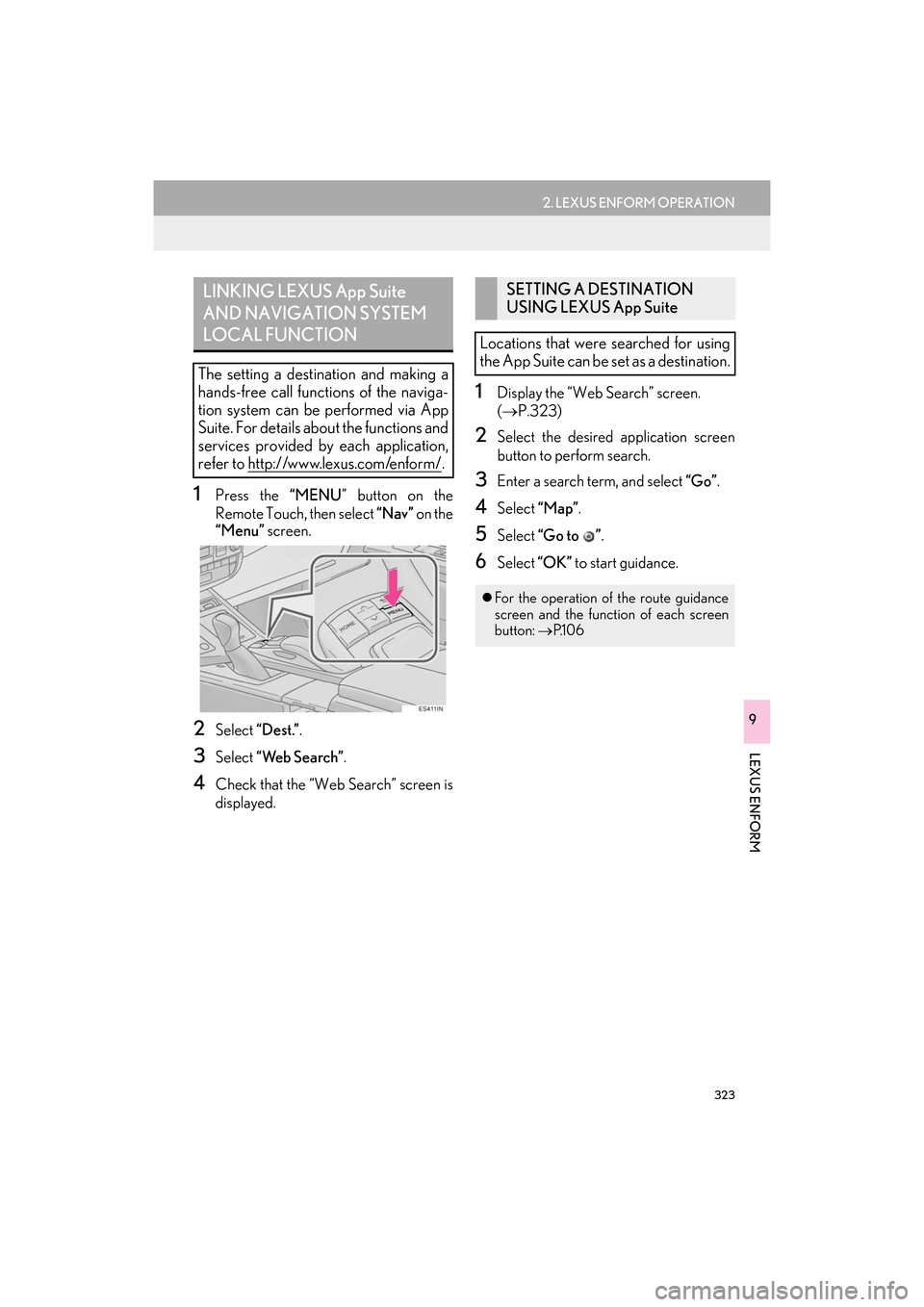
1Press the “MENU” button on the
Remote Touch, then select “Nav” on the
“Menu” screen.
2Select “Dest.”.
3Select “Web Search” .
4Check that the “Web Search” screen is
displayed.
1Display the “Web Search” screen.
(→ P.323)
2Select the desired application screen
button to perform search.
3Enter a search term, and select “Go”.
4Select “Map”.
5Select “Go to ” .
6Select “OK” to start guidance.
LINKING LEXUS App Suite
AND NAVIGATION SYSTEM
LOCAL FUNCTION
The setting a destination and making a
hands-free call functions of the naviga-
tion system can be performed via App
Suite. For details about the functions and
services provided by each application,
refer to http://www.lexus.com/enform/
.
SETTING A DESTINATION
USING LEXUS App Suite
Locations that were searched for using
the App Suite can be set as a destination.
z For the operation of the route guidance
screen and the function of each screen
button: →P.1 0 6
ES350_300h_Navi_OM33C79U_(U).book Page 323 Wednesday, June 22, 2016 2:54 PM
Page 326 of 357
324
2. LEXUS ENFORM OPERATION
ES350/300h_Navi_OM33C79U_(U)16.06.22 14:52
1Display the “Web Search” screen.
(→ P.323)
2Select the desired application screen
button to perform search.
3Enter a search term, and select “Go”.
4Select “Call”.
5Select “Yes”.
“Cancel” : Select to cancel making a phone
call.
6Check that the “Call” screen is dis-
played.
1Display the “LEXUS App Suite” screen.
( → P.320)
2Select the desired application screen
button.
3Select the character entering space.
4Enter a search term, and then select
“OK” .
5Entering characters will be reflected on
the character entering space.
1Display the “LEXUS App Suite” screen.
(→ P.320)
2Select the desired application screen
button.
3Press the talk switch. ( →P.226)
4Say the desired keyword.
zCompletion of the keyword will be
detected automatically.
5Search results will be displayed on the
screen.
MAKING A PHONE CALL
USING LEXUS App Suite
Phone calls can be made to locations
which were searched for using App
Suite.
z For phone operation and the function of
each screen button: →P. 2 7 8
ENTERING KEYWORD
OPERATION
A keyword can be entered to an appli-
cation by the software keyboard or
voice recognition function. For details
about the functions and services provid-
ed by each application, refer to
http://www.lexus.com/enform/
.
zThe keyboard layout can be changed.
(→P.61)
ENTERING A KEYWORD
USING THE SOFTWARE
KEYBOARD
z For details on operating the keyboard:
→ P. 3 8
ENTERING A KEYWORD
USING THE VOICE
RECOGNITION FUNCTION
ES350_300h_Navi_OM33C79U_(U).book Page 324 Wednesday, June 22, 2016 2:54 PM
Page 327 of 357
325
2. LEXUS ENFORM OPERATION
ES350/300h_Navi_OM33C79U_(U)16.06.22 14:52
LEXUS ENFORM
9
4. LEXUS Enform Destinations
1Press the “MENU” button on the
Remote Touch, then select “Nav” on the
“Menu” screen.
2Select “Dest.” .
3Select “Destination Assist” .
4When an agent comes on the line, tell
the agent the address, business name,
or the type of POI or service.
zTo adjust the call volume, select “-” or “+”,
or use the volume switch on the steering
wheel during the call.
z To hang up the phone, select “Disconnect”
or press the switch on the steering
wheel.
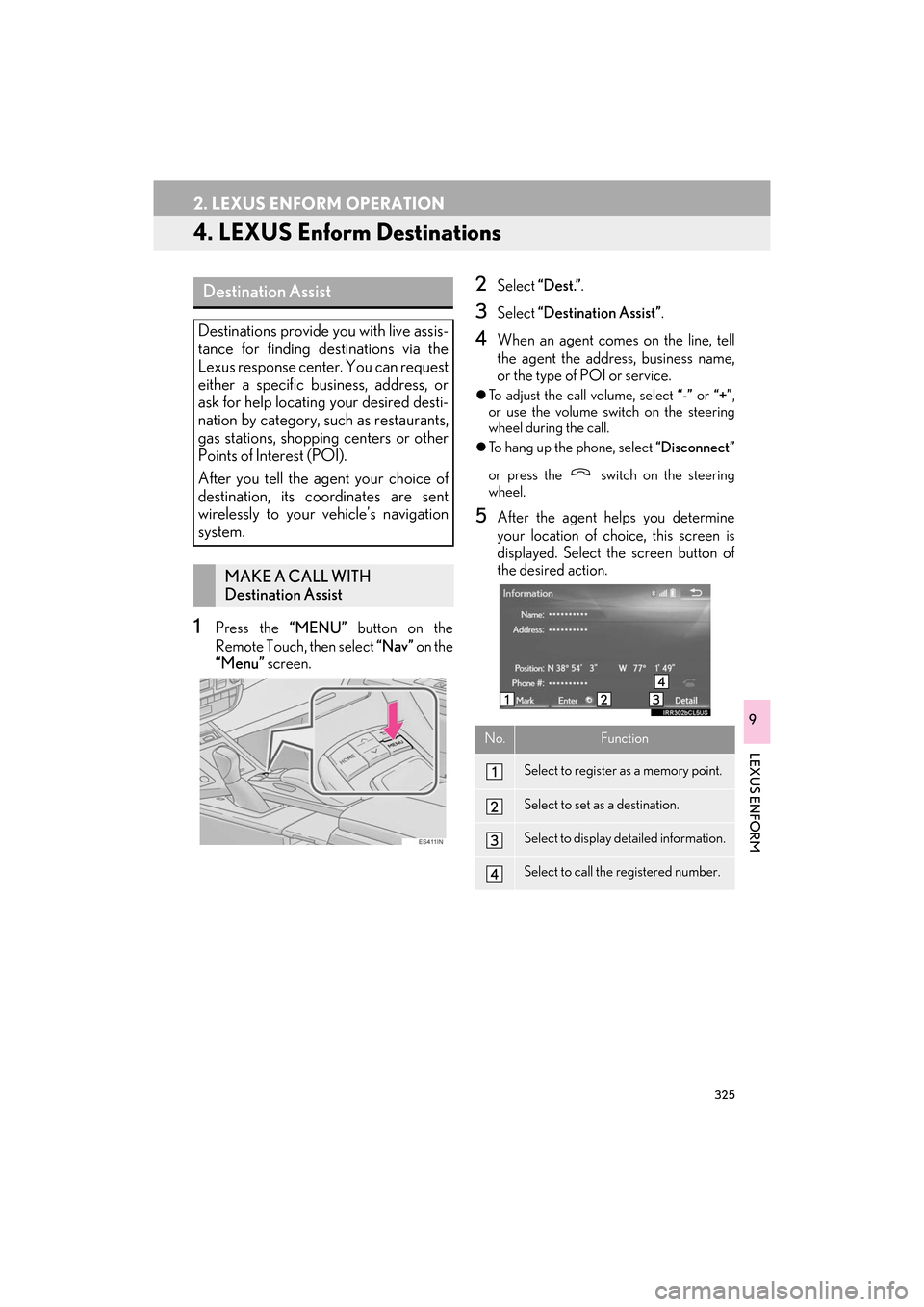
5After the agent helps you determine
your location of choice, this screen is
displayed. Select the screen button of
the desired action.
Destination Assist
Destinations provide you with live assis-
tance for finding destinations via the
Lexus response center. You can request
either a specific business, address, or
ask for help locating your desired desti-
nation by category, such as restaurants,
gas stations, shopping centers or other
Points of Interest (POI).
After you tell the agent your choice of
destination, its coordinates are sent
wirelessly to your vehicle’s navigation
system.
MAKE A CALL WITH
Destination Assist
No.Function
Select to register as a memory point.
Select to set as a destination.
Select to display detailed information.
Select to call the registered number.
ES350_300h_Navi_OM33C79U_(U).book Page 325 Wednesday, June 22, 2016 2:54 PM
Page 336 of 357

334
ALPHABETICAL INDEX
ES350/300h_Navi_OM33C79U_(U)16.06.14 11:50
A
AM/FM radio ............................................................ 157Available HD Radio™ Technology ............. 164
Caching a radio program ................................. 161
Overview ................................................................ 157
Preset button screen..........................................160
Radio broadcast data system ......................... 163
Selecting a station from the list ....................... 161
Troubleshooting guide ...................................... 166
Using HD Radio™ Technology..................... 164
Audio settings .......................................................... 205 Audio settings screen ...................................... 205
Audio/visual Remote Controls ........................ 202
Audio/visual system ................................................ 145
AUX...............................................................................198 External options ................................................... 201
Overview ................................................................198
B
Basic function ......................................................... 12, 31
Basic information before operation....................32
Basic operation ................................................. 76, 146
Bluetooth
® audio ..................................................... 192
Connecting a Bluetooth® device ................ 197
Listening to Bluetooth® audio ....................... 197
Overview ................................................................ 192
Bluetooth
® phone message function ..............281
Calling the message sender ......................... 285
Checking messages ......................................... 283
Receiving a message ....................................... 282
Replying to a message (Quick Reply) ...... 284
Bluetooth
® settings ...................................................44
C
Calling on the Bluetooth® phone ...................... 271
By call history ....................................................... 272
By contacts list..................................................... 273
By dial Pad ............................................................ 275
By favorites list..................................................... 272
By off hook switch .............................................. 276
Casual speech recognization ............................ 234
CD .................................................................................. 175 Overview................................................................ 175
Command list ........................................................... 235
D
Data services settings............................................ 245 Setting download methods ............................ 245
Destination search ..................................................... 93
Destination search operation ............................... 93 Destination search by Destination Assist .....................................................................101
Searching by address .......................................... 96
Searching by address book ..............................101
Searching by coordinates................................ 104
Searching by emergency................................. 102
Searching by intersection and freeway ..... 102
Searching by map ............................................... 104
Searching by point of interest .......................... 97
Searching from previous destinations..........101
Selecting search area .......................................... 95
Setting home as destination.............................. 95
Setting preset destinations as destination ........................................................... 95
Detailed navigation settings ................................ 132 Screens for navigation settings ..................... 132
DVD............................................................................... 178 DVD options ...........................................................181
Overview................................................................ 178
ALPHABETICAL INDEX
ES350_300h_Navi_OM33C79U_(U).book Page 334 Wednesday, June 22, 2016 2:54 PM
Page 339 of 357

337
ES350/300h_Navi_OM33C79U_(U)16.06.14 11:50
R
Radio operation......................................................... 157
Receiving doppler weather information ....... 244Displaying doppler weather information ...................................................... 244
Receiving on the Bluetooth
® phone ............... 277
Incoming calls....................................................... 277
Registering home ...................................................... 24
Registering preset destinations ........................... 25
Registering/connecting Bluetooth
®
device......................................................................... 44
Profiles....................................................................... 48
Registering a Bluetooth
® audio player
for the first time ................................................. 46
Registering a Bluetooth
® for the first
time ........................................................................ 44
Remote Touch............................................................... 12
Route guidance .......................................................... 110
Route guidance screen ........................................... 110 During freeway driving....................................... 113
Route overview...................................................... 112
Screen for route guidance ................................ 110
Turn list screen ....................................................... 115
Turn-by-Turn Arrow screen ............................ 116
When approaching intersection .................... 115
S
Screen adjustment ...................................................... 41
Setting Bluetooth® details..................................... 50
“Bluetooth* Setup” screen ............................... 50
Connecting a Bluetooth
® device ..................53
Deleting a Bluetooth® device .........................53
Editing the Bluetooth® device
information ......................................................... 55
Registering a Bluetooth
® device .................... 51
“System Settings” screen ...................................57
Setting home as the destination ........................... 27
Setup .............................................132, 205, 286, 331
“Setup” screen .............................................................20
Some basics .....................................................148, 267 About the contacts in the contact list.........270
Audio screen adjustment ................................. 154
Disc slot ...................................................................150
Registering/connecting a Bluetooth
®
phone................................................................. 268
Selecting an audio source ............................... 149
“Sound Settings” screen ................................... 152
Turning the system on and off ........................ 148
USB/AUX port..................................................... 151
Using the phone switch/microphone ....... 268
Voice command system ........................156, 269
When selling or disposing of the vehicle ................................................................270
Starting route guidance .........................................105 Confirm destination screen ............................106
Entire route map screen................................... 106
Steering switches.................................................... 202
*: The Bluetooth
® word mark and logos are registered trademarks owned by Bluetooth SIG, Inc.
ES350_300h_Navi_OM33C79U_(U).book Page 337 Wednesday, June 22, 2016 2:54 PM